On July 9, 2026, OpenAI released GPT-5.6, and its flagship Sol model became the default reasoning engine on every paid ChatGPT plan, posting 88.8% on Terminal-Bench 2.1 and topping OpenAI’s own coding and agentic benchmarks. Yet most people still use ChatGPT the way they did in 2023: typing a vague question, accepting the first answer, and wondering why the output feels generic.
That is the gap this guide closes. You’ll learn how to use ChatGPT effectively in 2026 with a five-step workflow: pick the right model or effort level, write prompts with a proven framework, and use the new feature stack (Agent Mode, Projects, Memory, Deep Research, Tasks). You’ll also learn how to iterate without losing context, and how to verify the output before you ship it. It works for writing, work, research, and code, and it works whether you’re on the Free plan running GPT-5.6 Luna or paying for Pro to reach GPT-5.6 Sol. If you’re brand new, start with our guide to how to learn ChatGPT before working through the steps below.
The Key Takeaways
- GPT-5.6 Sol is the flagship as of July 9, 2026, and it’s paid-only; since 6 August 2026 the Free and Go plans run GPT-5.6 Luna instead.
- Paid users no longer pick named models at all; one GPT-5.6 Sol handles fast and slow replies, and an effort slider decides which you get, so matching effort to the task is the new “pick the right model.”
- Most generic answers come from generic prompts; the R-C-C-O-V framework (Role, Context, Constraints, Output, Verification) fixes the root cause.
- The biggest 2026 effectiveness lever is not better prompts but the right feature: Projects for ongoing work, Agent Mode for multi-step tasks, Deep Research for sourced reports.
- Verification is non-negotiable; ChatGPT still hallucinates stats, quotes, and citations even on GPT-5.6, so treat every claim as unverified by default.
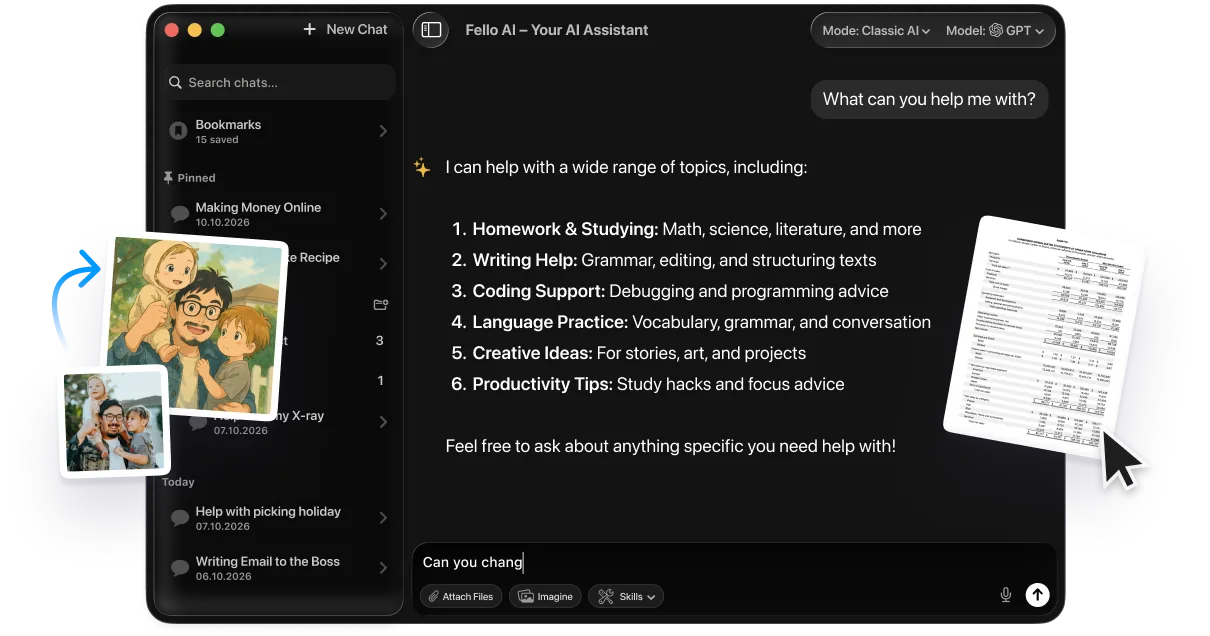
- If you switch between ChatGPT, Claude, Gemini, Grok, and DeepSeek, Fello AI routes all of them through one Mac app for $9.99/month.
How to Use ChatGPT Effectively in 2026 (5 Steps: Model, R-C-C-O-V, Features, Iterate, Verify)
To use ChatGPT effectively, give it a clear role, the context it needs, your constraints, and the output format you want, then verify the result before you ship it. The effort setting matters too: a low setting handles most everyday tasks fast, while raising it lets GPT-5.6 Sol take on reasoning, coding, and deep research. Lead with structure, not luck.
The five-step workflow you’ll see across this playbook:
- Pick the right model or effort level for the task.
- Write the prompt using R-C-C-O-V (Role, Context, Constraints, Output, Verification).
- Use the right ChatGPT feature for the job: Memory, Projects, Agent Mode, Deep Research, or Tasks.
- Iterate inside the same thread; do not restart.
- Verify every claim, quote, and number before publishing.
Each step is a section below.
Step 1: Pick the right GPT-5.6 model or effort level for the task
The single biggest mistake intermediate users make is running everything at the fast default. ChatGPT in 2026 no longer asks you to choose between a shelf of named models; on paid plans you set a reasoning effort, and the same engine spends more or less time on your turn. Since 6 August 2026 that engine is GPT-5.6 Sol for every paid reply, fast ones included, the flagship OpenAI launched on July 9. Leave the slider low and Sol answers quickly, which is what you want for chat, drafting, summarising, and rephrasing. Raise it and the same model spends more compute per turn, pulling noticeably ahead on analysis, debugging, math, and structured comparisons. The heaviest setting, reserved for the Pro plans, runs the most thorough Sol Pro configuration for deep research and long multi-step work.
The catch worth knowing: GPT-5.6 Sol is paid-only. If you’re on the Free or Go plan, your standard chats run GPT-5.6 Luna, the same generation as Sol but the lighter, cheaper member of the family. You get a Think button rather than a slider, a straight on-or-off way to buy more thinking time on one hard question, which OpenAI is rolling out from the week of 10 August 2026. If replies feel sluggish, the slowdown is usually elsewhere; see why ChatGPT feels slow. The gap between a quick answer and a high-effort one shows up in any task where the answer requires actual reasoning, not just recall, so the rule is simple: draft fast, think slow.
ChatGPT effort-level selection table
| Setting | Engine | Best for | Available on |
|---|---|---|---|
| Default chat | GPT-5.6 Luna | Everyday chat, writing, drafting, summarising | Free and Go |
| Think button | GPT-5.6 Luna | One harder question at a time | Free and Go, rolling out from 10 August |
| Slider, low | GPT-5.6 Sol | Fast everyday replies on the flagship engine | Plus, Pro, Business, Enterprise |
| Slider, raised | GPT-5.6 Sol | Reasoning, analysis, coding, structured comparisons | Plus, Pro, Business, Enterprise |
| Slider, top | GPT-5.6 Sol Pro | Deep research, long multi-step projects | Pro, Enterprise |
For the full breakdown of the GPT-5.6 family and when each tier is worth the slower wait, see GPT-5.6 Sol, Terra, and Luna explained.
Step 2: Write prompts with the R-C-C-O-V framework
Every effective ChatGPT prompt has the same five parts, and the difference between a generic answer and a useful one is whether you remembered all of them. We call this the R-C-C-O-V framework: Role, Context, Constraints, Output, Verification. It’s the same scaffold OpenAI’s own best-practice docs describe, just written down so you can apply it without thinking.
Role tells ChatGPT who to be. “Act as a senior copywriter” produces sharper writing than “write me a paragraph”. Context gives it the background a colleague would already know: who the audience is, what’s already been tried, what tone you need. Constraints are where most people drop the ball; tell ChatGPT what length to hit, what to avoid, what’s off-limits. Output specifies the format: a table, a bulleted list, a draft email, three options ranked. Verification is the part nobody else teaches: tell ChatGPT to flag any claim it isn’t confident about, so you know what to double-check.
You’ll see competitor sites push PTCF (Persona, Task, Context, Format) or CO-STAR. They’re cousins of the same idea. R-C-C-O-V works the same way and adds the verification step, which is the part that protects you from hallucinated stats. For a step-by-step walkthrough with templates, see the complete R-C-C-O-V prompt formula.
Before and after: the same task, two prompts
Bad prompt: “Write a launch email for our new feature.”
R-C-C-O-V prompt: “Act as a senior B2B copywriter. We’re launching a new shared-inbox feature for customer support teams of 5 to 50 people. Audience: ops leaders who already use Zendesk. Tone: confident, no fluff. Constraints: subject line under 50 characters, body under 150 words, one CTA, no exclamation points. Output: three versions ranked by directness. Verification: flag any product claim you weren’t given in this prompt so I can check it.”
The second prompt is twice as long but takes ten seconds longer to write, and the output is usable on the first try instead of the fifth.
Step 3: Use the right ChatGPT feature for the job
ChatGPT in 2026 is no longer a single chat box. It’s a stack of features, each designed for a different shape of work. Using them well is the biggest effectiveness lever that has nothing to do with prompt writing. Here is the field guide.
Projects: Persistent Workspaces for Ongoing Work
A Project is a persistent workspace inside ChatGPT that holds its own conversations, files, and system instructions. Drop a brand voice document, a style guide, or a client brief into a Project once, and every new chat inside that Project automatically inherits it. Use Projects when you have ongoing work like a book draft, a job search, a client account, or a research thread. Stop using fresh chats for everything; you’re throwing context away every time. For the file limits on each plan and the memory settings worth choosing up front, see our full guide to how ChatGPT Projects work.
Memory: Persistent Preferences Across Chats
Memory stores facts and preferences ChatGPT extracts from your conversations and reuses across new chats. Useful when you want it to remember that you write in British English, prefer a specific output format, or always need the analyst, not the educator. OpenAI rebuilt Memory in mid-2026 to be time-aware, so it re-synthesises what it knows about you instead of just piling up facts, which sharpened how well it recalls the right detail at the right moment. Less useful for sensitive client data; that belongs in a Project, not in cross-thread Memory. You can review and edit Memory in Settings whenever it gets noisy.
Agent Mode: How to Use ChatGPT’s Autonomous Web and Software Agent (Plus+)
Agent Mode lets ChatGPT autonomously navigate the web and operate software on your behalf: clicking, typing, filling forms, comparing prices, pulling data. It now lives inside the ChatGPT Work surface alongside the standard chat and Codex, and it’s available on Plus and up. The right use cases are multi-step chores you’d otherwise do by hand: pulling a competitor pricing matrix, comparing flights with constraints, drafting a research dossier across ten sources. Agent pauses when it needs you to log in or approve a sensitive action, so you stay in control of credentials. Don’t use it for time-critical tasks; it’s thorough, not fast.
Deep Research: 5-15 Minute Source-Cited Reports
Deep Research is a slow agent that spends five to fifteen minutes synthesising multiple online sources into a structured report with citations. Use it when you’d otherwise spend an hour browsing tabs: a market overview, a vendor comparison, a literature scan. The output is properly sourced, so you can audit it; just remember to actually open the citations and read them before you trust the synthesis.
Scheduled Tasks: Recurring Prompts on a Timer
Tasks turn ChatGPT into a recurring assistant. Schedule a daily news brief, a weekly project digest, a Monday status check. Useful for anything you currently do on a calendar reminder; it runs even when you’re not in the app.
Custom Instructions: Global Behaviour Spec for Every New Chat
Custom Instructions are your global system prompt: who you are, what you do, how you want ChatGPT to respond by default. Set them once and they apply to every new chat unless you override. The classic mistake here is treating Custom Instructions like a CV; they’re a behaviour spec. Tell ChatGPT how to answer, not just who’s asking. For a deeper walkthrough see how to set up custom system instructions.
Canvas: Side-by-Side Editor for Long-Form Writing and Code
Canvas is ChatGPT’s writing and coding workspace, where you and the model co-edit a document or a code file rather than regenerating the whole output. Use it for long-form writing, code refactors, and anything you’d normally paste into a separate text editor. The key advantage is that ChatGPT can target specific lines, not just rewrite everything. Note that OpenAI has been merging Canvas editing into the main chat window for its faster models through 2026, so on some models you’ll edit inline instead of in a separate pane; either way, stop treating ChatGPT as a plain chat box when you’re writing 800 words.
Advanced Voice Mode: Real-Time Spoken Conversation
Advanced Voice is a spoken conversation interface, useful for hands-free brainstorming, language practice, and walking-and-thinking. OpenAI extended it in 2026 with GPT-Live, a full-duplex mode that listens and speaks at the same time for a more natural back-and-forth. It is not the right tool for tasks where you need a stable transcript or a careful edit. Use voice for divergent thinking; switch back to text the moment you need to ship.
For ten more feature-driven shortcuts, see 10 advanced ChatGPT hacks.
Step 4: Iterate, don’t restart
Most people give ChatGPT one prompt, dislike the answer, and start a new chat. That’s the single most expensive habit in this entire playbook. ChatGPT’s first answer is a draft. Your second turn is where the value compounds, because ChatGPT now has the full context of what didn’t work.
Effective iteration looks like specific follow-ups: “Make the second option 30% shorter and cut the second adjective in every sentence.” “Rewrite for a less technical reader.” “Add a counter-example for each claim.” “Show me the assumption you made in paragraph three.” Vague follow-ups like “make it better” waste turns, because ChatGPT has no idea what “better” means to you.
A useful habit: every time you don’t like an answer, instead of regenerating, ask ChatGPT to diagnose its own output. “What three things in this draft are weakest, and why?” Then prompt against its own diagnosis. You’ll get past the local maximum that regenerating just bounces around in.
Step 5: The verification protocol
This is the part of the playbook every other guide treats as an afterthought, which is why every other guide leaves you holding the bag when ChatGPT confidently invents a stat, a quote, or a study citation. Verification is not optional. GPT-5.6 Sol hallucinates less than earlier models in sensitive areas like law, medicine, and finance, per OpenAI’s own framing, but “less” is not “never”.
The protocol has four checks. Numbers get verified against a primary source: if ChatGPT cites a market size, a benchmark score, or a price, open the source and confirm. Quotes get verified against the person or paper they’re attributed to; ChatGPT invents plausible-sounding quotes constantly. Citations get verified by clicking through to the actual page, not the URL ChatGPT printed; URLs hallucinate too. Names of products, models, and features get verified against the vendor’s site, because product names change and ChatGPT’s training data lags.
A practical tactic: end every important prompt with “List any specific fact in your answer that I should independently verify before publishing, and tell me why.” The model is much better at flagging its own weak spots when you ask explicitly than when you don’t.
If a stat does not appear in a primary source within thirty seconds of searching, treat it as fictional. That single rule will eliminate 90% of the mistakes that get published by people relying on ChatGPT.
ChatGPT plans in 2026: which one do you need (and how to use ChatGPT Plus effectively)?
The plan choice affects which model you get, which features are available, and how many messages per day you can run. GPT-5.6 Luna is the default on Free and Go, but GPT-5.6 Sol and its effort slider, Deep Research, Agent Mode, and Projects sit behind paid plans starting at Plus.
| Plan | Price | Best for | What you get |
|---|---|---|---|
| Free | $0 | Light personal use | GPT-5.6 Luna with daily caps, going unlimited for text from 10 Aug; limited features |
| Go | $8/mo | Casual users wanting more headroom | Higher Luna caps, basic features; may include ads (no Sol in standard chat) |
| Plus | $20/mo | Most individual power users | GPT-5.6 Sol with the effort slider, Agent Mode, Projects, Memory, Tasks, Canvas, 10 Deep Research runs/mo |
| Pro $100 | $100/mo | Power users who don’t need maximum limits | Everything in Plus plus Sol Pro and 5x Plus usage |
| Pro $200 | $200/mo | Heavy users, deep research | Everything in Pro $100 with 20x Plus limits and expanded Deep Research |
| Business | From $25/user/mo | Small teams | Plus features with admin controls, workspace, and data protection |
| Enterprise | Custom | Large orgs | Full feature stack with SSO, analytics, and compliance |
For the full pricing comparison with all current tiers, see the full ChatGPT pricing guide.
Quick rule: if you write or research more than five hours a week, Plus at $20 pays for itself in the time you save on Sol and Projects. If you don’t, Free is fine. To use ChatGPT Plus effectively, keep the effort slider raised for real work and drop it only for quick drafts. The $100 Pro tier is a fair middle ground if you want Sol Pro without the heaviest limits, and OpenAI now sells Pro in two sizes, so the $200 tier is only worth it if Deep Research and the longest multi-step runs are part of your daily workflow. Both Pro tiers also add ChatGPT’s Personal Finance dashboard for connecting US bank accounts via Plaid.
5 common ChatGPT mistakes that quietly tank your output
The first mistake is running everything at the fast default. A low effort setting is fast and good for drafts, but reasoning-heavy tasks need the slider raised, and you’ll spend more time fixing a rushed answer’s logic errors than you’d lose waiting. Switch deliberately, not by accident.
The second is starting a new chat for every question. Each new chat throws away every assumption, preference, and clarification you’d built in the previous one. Use Projects for ongoing work and stay inside the thread until the task is actually done.
The third is vague prompts dressed up as polite questions. “Could you write something nice about our product?” is not a prompt; it’s a wish. Give ChatGPT a role, the audience, the constraints, and the format, and the output flips from generic to usable on the first try.
The fourth is trusting the answer without verification. Even with GPT-5.6’s reduced hallucination rate, the cost of one false stat in published work is higher than the time it takes to check. Verify numbers, quotes, citations, and product names every time, without exception.
The fifth is dumping sensitive data into the prompt. Don’t paste passwords, internal financials, client PII, or anything you wouldn’t email to a stranger. If you need ChatGPT to work with sensitive material, anonymise it first and disable training in Settings. For genuinely sensitive workflows, ChatGPT now offers a Lockdown Mode that restricts web access, connectors, Agent Mode, and file downloads so less can leak.
One Mac shortcut: use Fello AI to route between ChatGPT, Claude, Gemini, Grok, and DeepSeek
If you already switch between ChatGPT for writing, Claude for analysis, Gemini for image tasks, Grok for fast factual queries, and DeepSeek for cheap reasoning, you know the friction: five subscriptions, five logins, five separate threads, and no way to compare two model outputs side by side. Fello AI is the native Mac app that routes all of them through a single interface for $9.99 per month.
You get the same prompt sent to any model with one keystroke, your chats live in one place instead of five tabs, and you can switch mid-thread if Claude is producing better prose than ChatGPT today. The app supports the current ChatGPT, Claude, Gemini, Grok, and DeepSeek models, and it’s pinned in your menu bar so you can ask anything without alt-tabbing. One price, many models including DeepSeek. If you’ve ever wanted to compare ChatGPT and Claude on the same prompt, this is the cleanest way to do it on a Mac.
The bottom line
How to use ChatGPT effectively in 2026 comes down to five habits that compound: pick the right effort setting (low for drafts, raised for thinking), write prompts with R-C-C-O-V, and lean on the feature stack (Projects, Memory, Agent Mode, Deep Research, Tasks) instead of the chat box. Iterate inside the thread, and verify every claim. None of these are tricks. They are the structure that separates people who get useful work out of ChatGPT from people who keep wondering why the output feels generic.
Start with one change this week. The fastest win is moving everything ongoing into a Project and turning on Memory; you’ll feel the difference within two days. Then work the R-C-C-O-V prompt formula from Step 2 into your daily habit until it’s automatic. If you’re brand new to ChatGPT, start with the ChatGPT beginner’s guide first and come back here. And if you work on a Mac, our guide to the ChatGPT desktop client for Mac gets the native app and its global hotkey in place.
FAQ
What is the best way to use ChatGPT in 2026?
The best way is to combine the right effort level, a structured prompt, and the right feature. Keep the effort low for drafts and chat, raise it for reasoning and coding on GPT-5.6 Sol, and use the top setting for deep research. Write prompts with the R-C-C-O-V framework (Role, Context, Constraints, Output, Verification), and move ongoing work into Projects so context isn’t thrown away with every new chat.
Which ChatGPT model should I use?
On paid plans you set an effort level rather than pick a named model, and since 6 August 2026 every paid reply runs on GPT-5.6 Sol whether it is fast or slow. Keep the slider low for everyday tasks like drafting, summarising, and casual chat, then raise it for analysis, coding, or careful reasoning. The top setting, which runs Sol Pro, is on the Pro plans for the longest, most thorough runs. On the Free and Go plans your standard chats run GPT-5.6 Luna, since Sol is paid-only.
Is ChatGPT Plus worth it in 2026?
For most people who use ChatGPT more than a few hours a week, yes. Plus is the first tier that opens up the GPT-5.6 Sol effort levels, along with Agent Mode, Projects, Memory, Tasks, and Canvas for $20/month, and the time savings on reasoning tasks alone cover the cost. OpenAI also sells Pro in two sizes, a $100 tier with Sol Pro at 5x Plus usage and a $200 tier with 20x limits and expanded Deep Research, worth it only if those workflows are part of your daily routine.
What is the best prompt framework for ChatGPT?
The R-C-C-O-V framework: Role, Context, Constraints, Output, Verification. Tell ChatGPT who to be, what background to use, what limits to respect, what format to produce, and which claims it should flag for verification. It’s the most reliable structure for getting usable output on the first try, and it works on every ChatGPT model and effort level.
How do I stop ChatGPT from making things up?
Reduce hallucinations by raising the effort level to GPT-5.6 Sol (which OpenAI says hallucinates less in sensitive areas), ending prompts with an explicit verification ask, and never publishing a stat, quote, or citation without checking the primary source. If a fact does not appear in a real source within thirty seconds of searching, treat it as fictional.