Most tools sold as an AI GIF generator start from a text prompt, not from your photo. Some of them hand you an MP4 video instead of a GIF file. For an AI GIF generator from image uploads, the shortlist is short. ChatGPT, Fotor and CapCut accept your picture, while Magic Hour's free browser tool still takes text only.
The field changed on 4 November 2026, when OpenAI added GIF creation to ChatGPT with Images 2.6. This guide sorts the tools by what they start from and what they give back. It shows how to write a motion prompt that loops cleanly. It also covers the step most guides skip: turning a video clip into a real GIF, on the web or on a Mac with Shortcuts.
The Key Takeaways
- Image input is not standard: ChatGPT, Fotor and CapCut animate an uploaded picture. Magic Hour, Picsart's web tool and HeyGen work from text prompts.
- Check the file you download: Fotor's AI GIF generator downloads as an MP4 file, and Magic Hour's API can return GIF, MP4 or WebM. A looping video is not a GIF.
- ChatGPT makes GIFs since 4 November 2026: upload a photo or sketch, describe the motion, then adjust the playback speed. OpenAI publishes no GIF limits for the ChatGPT app.
- Free usually means personal use: Magic Hour gives 3 free GIFs a day with no account, but free output is limited to personal, non-commercial use.
- Any clip converts to a real GIF: Ezgif converts videos up to 200MB, and the Shortcuts app on a Mac has a built-in Make GIF action.
AI GIF Generator From Image: Which Tools Accept a Photo?
Three mainstream tools animate a picture you upload: ChatGPT, Fotor and CapCut. The rest of the well-known AI GIF generators start from a text description. That is fine for a reaction GIF, but useless when the point is your dog, your logo or your product photo.
The table sorts the six tools that rank for AI GIF generator searches by what each vendor's own page says, checked on 7 November 2026. Where a vendor does not state a limit, the cell says so rather than guessing.
| Tool | Starts from your image | Starts from text | Free terms the vendor states | What you download |
|---|---|---|---|---|
| ChatGPT (Images 2.6) | Yes, a photo or a sketch | Yes | Images 2.6 is on every ChatGPT plan; GIF creation is still rolling out | An animated GIF with adjustable playback speed |
| Fotor | Yes, one JPG, PNG or WebP | Yes | Advertised as free; no limit stated on the page | A 4-second animation, downloaded as an MP4 file |
| CapCut | Yes, through its image-to-video models | Yes | Called free; no limit stated on the page | GIF export at 240P, 320P or 640P |
| Magic Hour | No, "text prompts only" | Yes | 3 free GIFs a day, no account; personal use only | A GIF |
| Picsart (web) | No | Yes | Not stated on the page | Not stated on the page |
| HeyGen | No | Yes | Page title says free; no limit stated | A looping GIF |
Two columns decide most choices. The image column rules out half the list if you are animating something real. The download column decides whether the result plays where only GIF files work, such as some email builders, forums and older chat apps.
AI GIF Generator vs GIF Maker: Two Different Jobs
An AI GIF generator invents new frames from a prompt or a picture. A GIF maker converts frames or video you already have into the GIF format. The two get mixed up in search results, and picking the wrong one wastes the free credits you get each day.
Magic Hour, which sells an AI GIF generator, puts the distinction plainly in its own roundup of GIF tools: "Check the downloaded format: an MP4 or WebM loop is a video file even if a tool presents it as a GIF." That warning comes from a vendor with a product in the race, and it is still the most useful sentence on the subject.
You have a photo and want it to move: you need an AI GIF generator that accepts an image, such as ChatGPT, Fotor or CapCut.
You have an idea and no picture: any text-to-GIF tool works, including Magic Hour, Picsart and HeyGen.
You have a video clip and want a GIF: you need a GIF maker, not AI. Ezgif on the web and Shortcuts on a Mac both do this for free.
The third case covers more AI work than it seems. AI video generators such as Grok Imagine and the tools in our list of free AI video generators produce video clips. To post one as a GIF, you convert it afterwards.
How to Use an AI GIF Generator From Image Uploads
Turning a photo into a GIF with an AI GIF generator takes five steps, and the second one decides whether the result is usable. The steps work in any of the image-based tools in the table.
- Pick a photo with one clear subject. A single pet, person or object on a calm background animates far better than a crowded scene.
- Describe one or two motions, not a story. The dog's tail wags and its ears twitch works. The dog runs to the park and meets a friend asks for a video, not a loop.
- Say what must stay still. Name the face, the background, the logo or the text that should not change.
- Ask for a seamless loop. Tell the tool the last frame must lead back into the first.
- Download and check the file type. If the file ends in .mp4 or .webm, convert it before you post it anywhere that needs a GIF.
Write a Motion Prompt That Survives the Loop
A motion prompt that survives the loop names the subject, the movement, what stays fixed and the loop itself. Copy one of these, swap in your own subject, and upload your photo with it:
Animate this photo as a short looping GIF. Only the cat's tail and whiskers move: the tail swishes slowly twice and the whiskers twitch once. Keep the cat's face, the sofa and the lighting exactly as they are. The last frame must match the first so the loop is seamless.Turn this product photo into a looping GIF. The bottle rotates a quarter turn to the right and back again, with a soft highlight sliding across the label. Do not change the label text, the colours or the background.Animate this landscape photo as a calm GIF loop. The clouds drift slowly left, the water ripples gently, and the trees sway a little. The horizon, the buildings and the camera position stay fixed. End on the same frame you start on.Each prompt asks for small motions and names what must not move. That is the whole trick: the less the tool has to invent between frames, the less it changes things you wanted kept.
Start With a Strong Still Frame
A good GIF starts with a good still. If your photo is cluttered, badly lit or the wrong shape, fix the image first and animate second. Generating a clean starting frame, a mascot on a plain background or a product shot with space around it, often saves more retries than any prompt tweak.
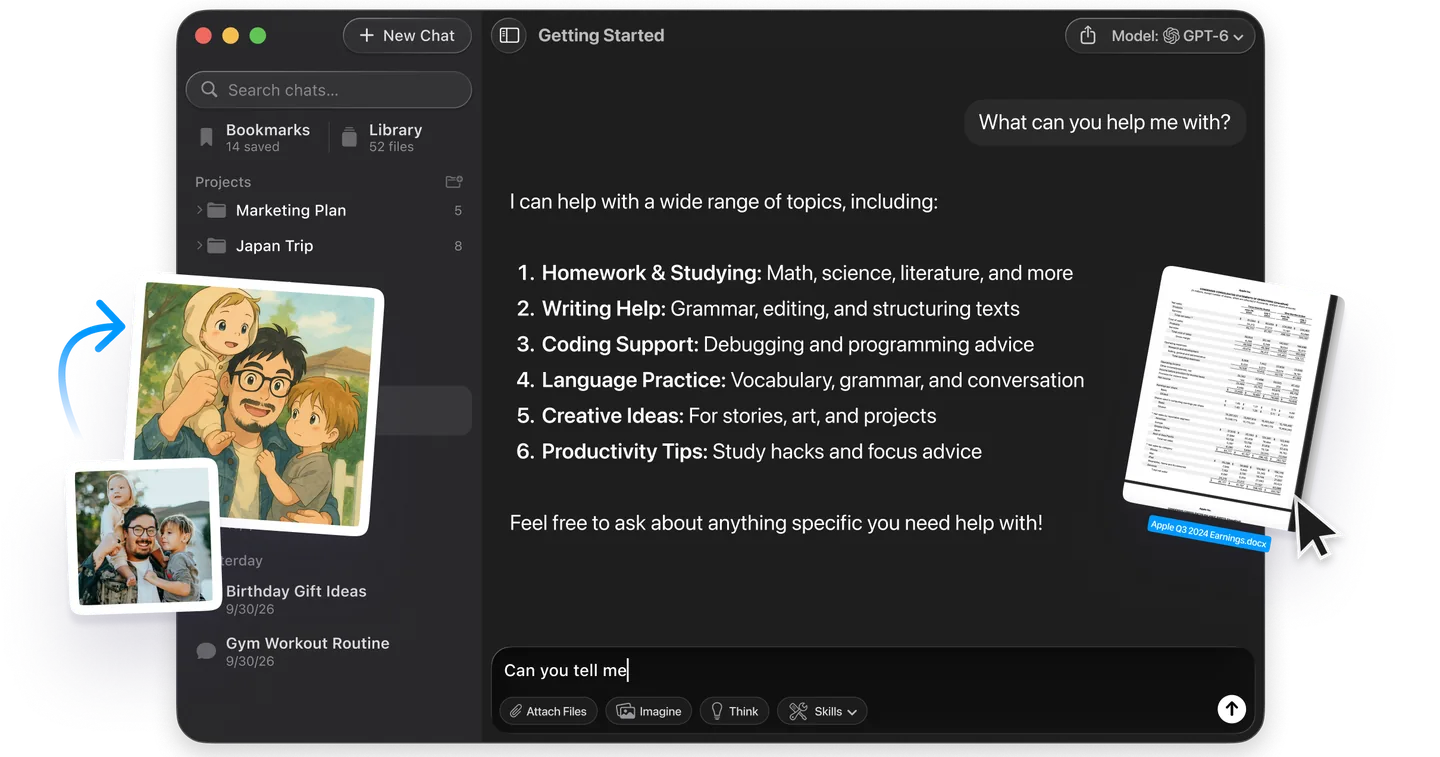
That first step does not need a separate image tool. In Fello AI, you ask for the still and get a finished image from GPT Image. It happens in the same app where you already chat with ChatGPT, Claude and Gemini, on your Mac, iPhone or iPad. Then drop that image into the GIF tool of your choice. For prompt patterns that produce clean stills, see our ChatGPT image generator guide.
Making a GIF From a Photo in ChatGPT
ChatGPT turns an uploaded photo or sketch into a looping GIF since 4 November 2026. According to OpenAI's ChatGPT release notes, you can "ask for a looping animation, or upload a sketch and ask ChatGPT to make the character wave", then adjust the playback speed and share the GIF.
OpenAI's launch post says Images 2.6 is available "across all subscription tiers on desktop, mobile, and web". The release notes describe GIF creation itself as "rolling out", so the option may reach some accounts later than others. OpenAI has not published a maximum GIF length or a GIF allowance for any ChatGPT plan.
The only official numbers come from OpenAI's developer documentation for the API, not the ChatGPT app. There, a GIF has 2 to 16 frames, 9 by default, and each frame shows for 20 to 2,000 milliseconds, 200 by default. At the defaults, that is a 1.8-second loop, which is a useful guide to how short these animations are.
Two early reactions from the Hacker News launch thread set expectations. The developer minimaxir wrote that "adherence between frames is generally tricky, and even in the examples there is a lot of noise between frames although that could be due to compression." Another user, speak_plainly, found that sharing a GIF from a phone "creates a link to ChatGPT.com with a static image", and that saving it to Photos first was the way to share the animation itself.
For the full ChatGPT walkthrough, copy-ready prompts and what else changed in the update, read our ChatGPT Images 2.6 GIF guide.
Why Your AI GIF Downloaded as an MP4
An AI GIF generator often delivers an MP4 because video files are smaller and smoother than GIFs, so many tools generate video and only call it a GIF. Fotor's AI GIF page, for example, carries the heading "Download Your GIF With High-quality MP4 File in a Click", and its FAQ says the result downloads in MP4 format. Magic Hour's developer documentation lists GIF, MP4 and WebM as output formats for the same generator.
An MP4 loop plays fine on Instagram, TikTok and most websites. It fails where the destination wants a real GIF: some email builders, some forums, older messaging apps and any upload form that lists .gif only. The fix is a free conversion, and it works for clips from AI video generators too.
Convert a Video to a GIF on the Web With Ezgif
Ezgif's video to GIF converter accepts MP4, WebM, MOV and most other video formats up to 200MB. You choose the start and end time, and if you choose nothing it converts the first five seconds. A loop count of 0 makes the GIF repeat forever.
Frame rate is the setting that matters most. A higher frame rate looks smoother but makes the file much larger. Ezgif also caps the clip length by frame rate: the maximum is 60 seconds at 5 frames per second. Ezgif deletes uploaded files one hour after upload, and it offers an optional local mode that processes files in your browser instead of on its server.
Convert a Video to a GIF on a Mac With Shortcuts
The Shortcuts app on a Mac has a built-in Make GIF action, so you need no extra app or website. Apple's own Shortcuts guide uses it as its example: a shortcut takes your latest photos, Make GIF builds an animated GIF from them, and a third action sends it.
To build one, open Shortcuts and create a new shortcut. Add a Select Photos action, add Make GIF after it, and finish with Save File instead of Apple's Send Message. Run it, pick your AI clip or a set of frames from Photos, and the shortcut saves a real .gif you can post anywhere.
Where AI GIFs Go Wrong
AI GIFs fail in five predictable ways, and most of them trace back to asking for too much motion. Knowing them before you generate saves credits on tools with daily limits.
The Face Changes Between Frames
Faces drift because the AI GIF generator redraws the subject in every frame. People and pets shift slightly from one frame to the next, so ask for small movements and say the face must stay the same.
The Loop Jumps
A loop jumps when the last frame does not match the first, so the GIF stutters every cycle. Ask explicitly for a seamless loop that ends where it starts.
Text Melts
Labels, signs and logos warp when the frame around them moves. Tell the tool to keep text still, or add the text afterwards in an editor.
The Frames Look Noisy
The GIF format stores at most 256 colours per frame, so gradients and photos can look grainy or blotchy. Simple, flat images survive the format best.
The File Is Too Big
A long GIF at a high frame rate runs to many megabytes. Shorten the loop, lower the frame rate or reduce the size before you upload.
If one tool keeps failing on your image, try another before rewriting the prompt for the fifth time. The tools in the table use different models, and a photo that drifts in one can hold steady in another.
Can You Use AI GIFs Commercially?
Commercial use of an AI GIF depends on the tool's terms and your plan, and some free tiers allow personal use only. Magic Hour states it directly: paid subscribers and credit-pack customers can use their GIFs in commercial projects, while users without a paid arrangement "can use GIFs for personal, non-commercial purposes."
Check the terms of the tool you used before a GIF goes into an ad, a client project or a product page. Keep a note of the plan you were on when you made it. Ownership of AI output is its own question; our guide on whether you can sell AI art covers the copyright side.
Which AI GIF Generator Should You Use?
For animating your own photo, start with ChatGPT if you already use it, because it takes the image, the motion prompt and your follow-up corrections in one conversation. Use CapCut when you need the GIF file itself at a set resolution, and treat Fotor as a quick option whose MP4 download you will need to convert.
For a GIF from an idea alone, Magic Hour's three free daily GIFs are the easiest place to start, as long as the result is for personal use. Whatever you pick, check the file extension before you post. If it says .mp4, a free conversion with Ezgif or a two-action shortcut on your Mac turns it into the GIF you wanted.
FAQ
Can AI turn a picture into a GIF?
Yes. ChatGPT, Fotor and CapCut accept an uploaded image and animate it from a motion prompt. Describe one or two small movements, say what must stay still, and ask for a seamless loop for the cleanest result.
Can ChatGPT make GIFs?
Yes. Since 4 November 2026, ChatGPT Images 2.6 turns a prompt, a photo or a sketch into a looping GIF, and you can adjust its playback speed. OpenAI says the feature is rolling out and has not published GIF limits for each plan.
Is there a free AI GIF generator with no sign-up?
Yes. Magic Hour gives 3 free GIFs a day with no account needed. It works from text prompts only, and free output is limited to personal, non-commercial use.
Why did my AI GIF download as an MP4?
Many AI GIF tools generate video because it is smaller and smoother, then label it a GIF. Convert the file with Ezgif's video to GIF converter or the Make GIF action in the Shortcuts app on a Mac.
How long can an AI GIF be?
Usually a few seconds. Fotor makes 4-second animations, and OpenAI's API defaults to a 1.8-second GIF of 9 frames. OpenAI has not published a length limit for GIFs made inside the ChatGPT app.
Das Titelbild dieses Artikels wurde mithilfe von KI erstellt.