AI is most useful when it's right there the moment you need it. But opening another app, finding the right chat, and switching away from what you're doing can turn a five-second question into an interruption.
The new Fello AI Floating Chat Bar removes that step.
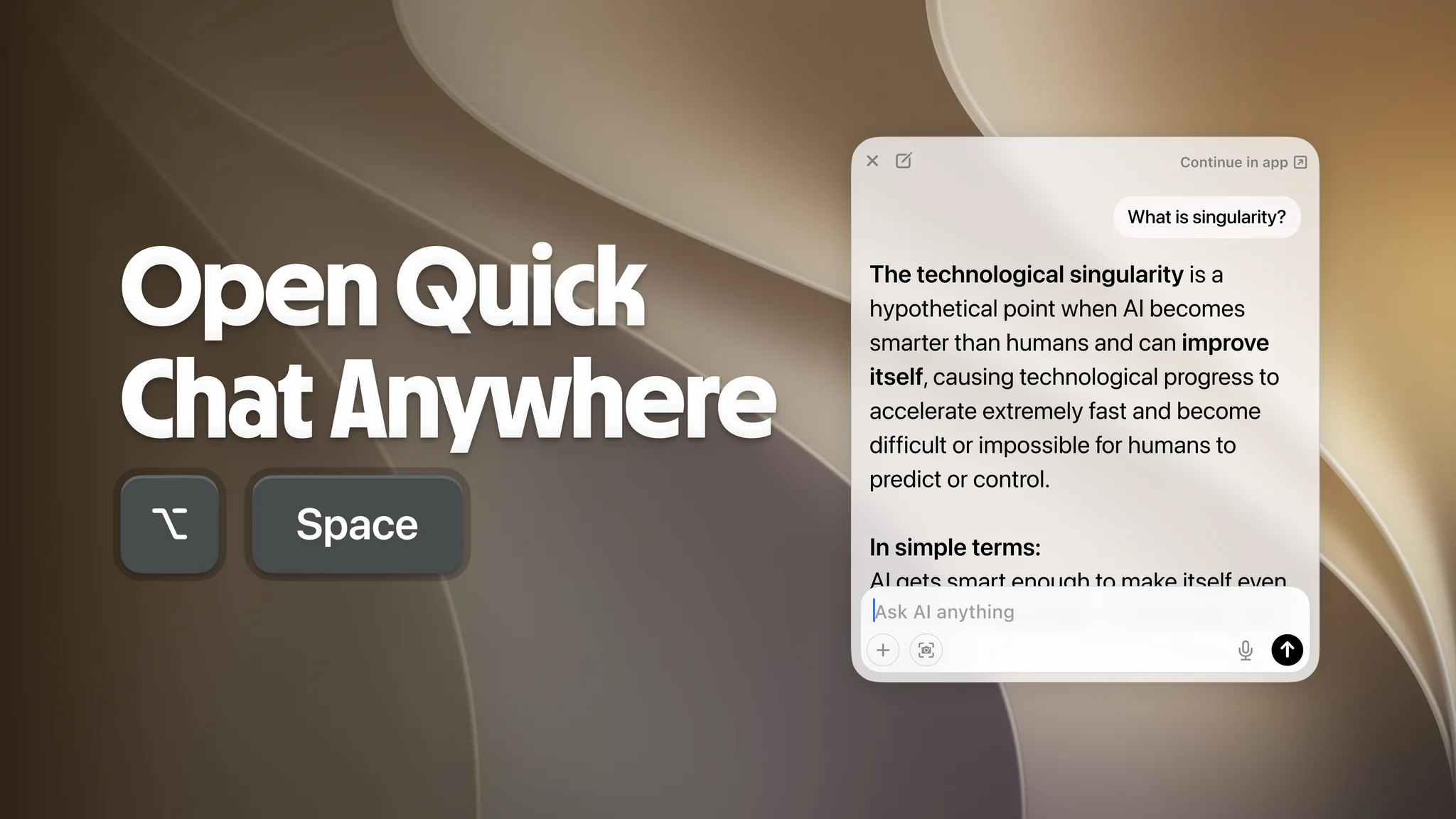
Press ⌥ Space anywhere on your Mac and Fello AI appears instantly over whatever you're working on. Ask a question with your screen context, dictate a prompt, or attach something, then close it and keep going. No app switching. No digging through windows. Just ⌥ Space and ask.
The Floating Chat Bar is a Mac-only feature.
Why We Rebuilt Quick Chat From Scratch
Fello AI already had a quick chat, but it lived in the menu bar. You had to reach for a tiny icon, click it, and use a popover pinned to the top of the screen, which was especially awkward with multiple monitors. It worked, but it never felt truly instant.
So we threw out the old model. The Floating Chat Bar isn't tied to one corner of the screen or hidden behind a click. It's a global shortcut that reaches you wherever you are, in under a second, without pulling you out of what you're doing.
What You Can Do With It
Summon it from anywhere. ⌥ Space works in every app, on every screen. It even floats over full-screen apps, so you never get kicked out of the video or document you're in.
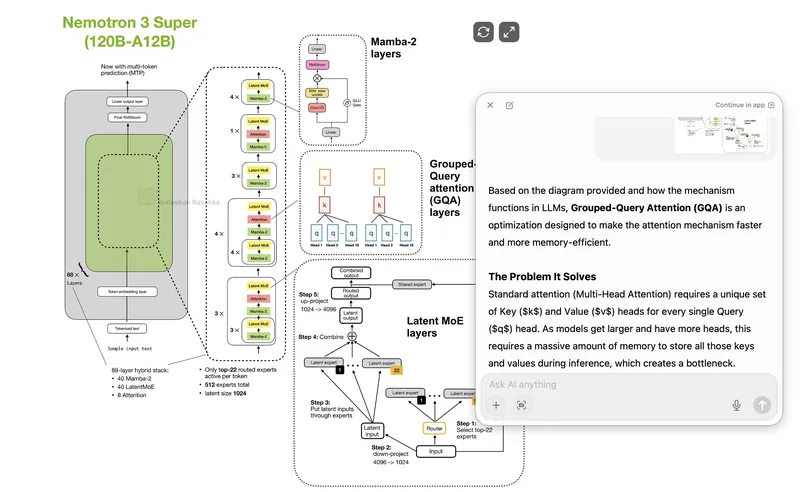
Ask about what's on your screen. Select the area you want to share and ask your question, without exposing anything else on your screen. Get feedback on a design, make sense of a complex diagram, decode an error message, or turn a dense paragraph into plain English. Your AI can finally see what you're looking at, and Fello AI never watches or continuously captures your screen.
Talk instead of type. Voice dictation is built in. Tap the mic, say what you need, and Fello AI turns it into your prompt. Great when your hands are busy or the question is too long to type.
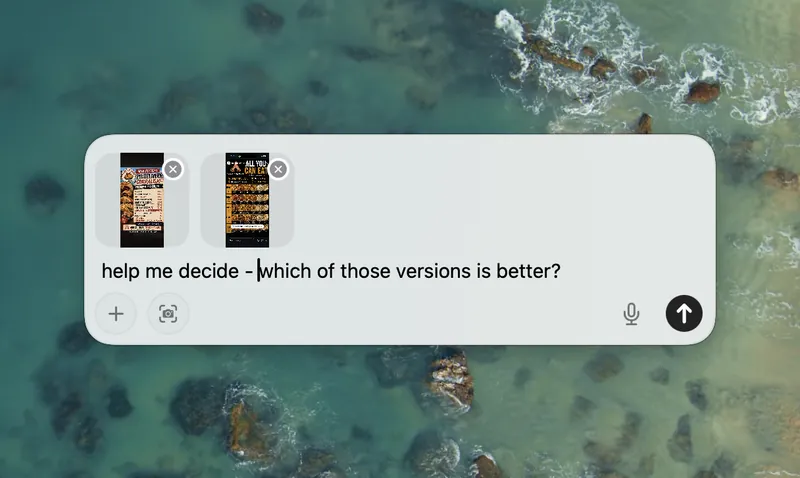
Bring in your files. Attach documents and images straight into the bar so your question has the context it needs. Drop in two photos and ask Fello AI to help you choose, or hand it a document and ask for the gist.
Continue in the app when things get serious. Start a quick question in the bar, and if it turns into a real project, hand the whole conversation off to the main Fello AI window with one click. Nothing is lost.
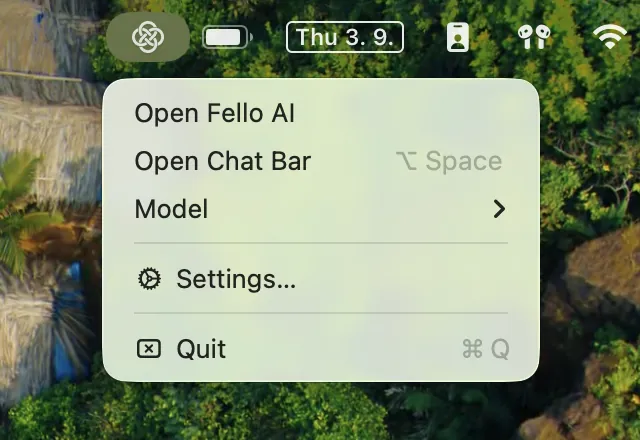
Prefer the menu bar? It's still there. The Fello AI icon stays in your menu bar for when you'd rather click than type. Give it a click for a quick menu to open the Chat Bar, pick your AI model, jump to the full app, or head to Settings, with the ⌥ Space shortcut shown right there as a reminder.
Use every top model, not just one. ChatGPT, Claude, and Gemini each have their own quick chat bar on Mac now, but each one is locked to a single AI. Fello AI's Floating Chat Bar lets you choose from all the leading models, GPT, Claude, Gemini, Grok, and more, so you can pick the best one for the question right from the bar.
How Much Better It Is
| Old menu-bar popover | New Floating Chat Bar | |
|---|---|---|
| How you open it | Click a tiny menu-bar icon | ⌥ Space from anywhere, or the menu-bar icon |
| Where it appears | Top corner only | Center of the screen, and you can move it |
| Ask about your screen | No | Yes, screenshot and ask |
| Voice input | No | Yes, dictation |
| File attachments | No | Yes |
| Choose your AI model | No | Yes, GPT, Claude, Gemini, Grok, and more |
Where It Shines
- You hit an error while coding. ⌥ Space, screenshot the stack trace, "what's causing this?" You never left your editor.
- You're reading a dense PDF. ⌥ Space, capture the tricky paragraph, "explain this simply." Back to reading in seconds.
- You're stuck on a complex diagram. ⌥ Space, screenshot it, "what does this mean?" Then Continue in app if you want to dig in.
- You're deciding between two options. ⌥ Space, attach both photos, "which is better?" A straight answer in seconds.
- A word is on the tip of your tongue mid-email. ⌥ Space, ask, grab the answer, keep typing.
- You're in a full-screen call or presentation. ⌥ Space still works, floating quietly on top, no exit required.
- An idea hits while your hands are full. ⌥ Space, speak it, let Fello AI catch it before it's gone.
Try It
Update to the latest Fello AI for Mac, then press ⌥ Space from anywhere and start asking. A day after you install, Fello AI will show a quick intro card to help the shortcut become muscle memory. After that, you won't remember how you worked without it.
Your AI, one keystroke away.