Google launched the native Gemini Mac app on April 15, 2026. It ends a long stretch where Mac users had to run Gemini in a browser tab while ChatGPT and Claude already had proper desktop apps. The download is free, the install takes under two minutes, and the headline feature is the Option + Space global hotkey that brings up Gemini from anywhere on your Mac without breaking your workflow.
If you already use Gemini on the web or on iPhone, this is the upgrade you have been waiting for. If you have been weighing Gemini against ChatGPT or Claude, the playing field just changed. This guide walks you through installation, the features that actually matter day-to-day, the ones missing at launch, and how the Gemini Mac app compares to the other two desktop apps you might already have running. We also cover the multi-model alternative for Mac users who would rather have all three in one place. If you first want to see how each Gemini version compares on price and performance, our full Gemini model comparison breaks down Flash, Pro, and Flash-Lite.
The Key Takeaways
- The Gemini Mac app launched April 15, 2026, free, at gemini.google/mac
- Requirements: macOS Sequoia 15.0 or later, 8 GB RAM, 200 MB disk
- Headline feature: Option + Space opens a compact prompt bar from any app
- Built-in screen sharing, file upload, Nano Banana image generation, Veo video generation, and Google Workspace integration
- Updated July 29, 2026: long-press Fn for system-wide voice, with intelligent dictation and opt-in screen-aware reasoning
- Still missing: Gemini Live voice conversations, chat folder organization, multi-account support
- All three major AI services now have native Mac apps: Gemini, ChatGPT, and Claude
How to install Gemini on Mac
Installation takes under two minutes and works the same way as installing any other Mac app. There is no Mac App Store version yet, so the download has to come from Google directly. The five steps below cover the entire process from a fresh download to a running app sitting in your menu bar.
- Open Safari, Chrome, or any browser and go to gemini.google/mac
- Click Download for Mac to grab the
.dmginstaller - Open the
.dmgfile from your Downloads folder - Drag the Gemini icon into your Applications folder
- Launch Gemini from Applications and sign in with your Google account
On first launch, macOS will ask you to give Gemini Accessibility permission so it can register the global keyboard shortcut, plus Screen Recording permission so it can do screen sharing. Both are required for the headline features to work, and Google does not store your screen content beyond the duration of each query. After you allow them, the app sits quietly in the menu bar and waits for the hotkey. There is no ongoing dock icon unless you want one.
If you log into Workspace accounts that your IT admin manages, you may see an extra consent screen the first time you sign in. That screen confirms which Workspace data Gemini is allowed to read on your behalf. The defaults are sensible (Gmail, Drive, Docs, Sheets, Calendar, Keep, Tasks) and you can disable individual data sources later under Settings, Connected apps.
System requirements
Before you start, confirm your Mac can run it. The app requires macOS Sequoia 15.0 or later, 8 GB of RAM, and roughly 200 MB of free disk space. It runs on both Apple Silicon (M1 and newer) and Intel Macs that can boot macOS 15. Any personal Google account works; Workspace accounts work as long as your admin has Gemini enabled. A stable internet connection is required for every query, since Gemini is a cloud model rather than a local one.
If your Mac is on macOS 14 Sonoma or earlier, the app simply will not install. You have two options: update your Mac to Sequoia, or keep using Gemini in the browser until you upgrade. The browser version still works on every macOS release back to Big Sur and gets every new model the moment Google ships it.
Features that matter
Google packed a lot into the first release. The headline ones are not all new ideas (ChatGPT and Claude shipped some of them first), but the integration with Workspace and the speed of the native app change how you actually use them. Here is what changes day-to-day. The tool row under the prompt box also carries Gemini Canvas, next to Create image, Create video and Deep Research.
Option + Space global shortcut
This is the feature you will use most. Press Option + Space anywhere on your Mac and a compact prompt bar appears in the middle of your screen. Type, get an answer, dismiss it. You never leave the app you were working in. For longer sessions or when you want the full chat history, Option + Shift + Space opens the full Gemini window instead.
The compact bar is the killer feature for fast lookups. You are reading an article, you do not understand a term, you hit Option + Space, type a question, get an answer in two seconds, then go back to reading. There is zero context switching. The shortcut also works from inside full-screen apps, lock-screen-style, so you do not lose your active app or current spaces layout.
It is the same idea as Spotlight or Raycast for AI, and it is the single biggest difference from running Gemini in a browser tab. If you have ever been mid-task and tabbed over to a browser only to lose ten minutes to email or Slack, you already understand the value.
Fn-key voice, intelligent dictation, and screen-aware reasoning
On July 29, 2026 Google shipped the biggest change since launch. Long-press the Fn key and you can speak into any window on your Mac, not just into the Gemini app itself. In Google’s own announcement, the framing is that the app was built to keep you in your flow, and this is the feature that finally delivers on it.
By default you get intelligent dictation. Gemini transcribes what you say into clean, polished text, automatically removing the “ums” and “ahs”, catching mid-sentence corrections, and dropping the formatted text instantly at your cursor. That last detail matters more than it sounds. The text lands inside whatever app you were already typing in, so there is no copy-paste hop back from a chat window.
The second half is opt-in and has to be switched on. Enable Gemini reasoning in settings and Gemini can read the context on your screen to carry out real tasks by voice. Google published three examples.
- Extract and summarize. Highlight local files, images, or documents on your desktop and say what you need, such as “Read these vet files and summarize my dog’s medical history in an email to the kennel.”
- Compose and rewrite. Highlight text anywhere on screen, rewrite it or tweak the tone by voice, and drop the polished version straight back where you need it.
- Generate and edit images. Reference a visual on your desktop and iterate on it, for example “Take this illustration and generate a dark-mode version of it.”
Two limits are worth knowing before you rely on it. The rollout is global but English-only for now, with Google saying more languages are coming. More importantly, this is voice input, not a voice conversation. It does not bring Gemini Live to the Mac, which is a separate gap covered further down.
Screen sharing
The compact bar has a Share window button. You can share a single window or your entire display, and Gemini will use what is on screen to answer your question. Looking at a Numbers spreadsheet you do not understand? Hit Option + Space, share the window, ask. Reading a long PDF in Preview? Same flow. Reviewing a wireframe in Figma? Share the window and ask Gemini to describe the user flow back to you, or to flag accessibility issues.
This feature is also in the ChatGPT Mac app (where it is called Work with Apps), so it is more of a catch-up feature than a new one. But it works well, and the compact-bar entry point is faster than ChatGPT’s flow, which routes through a separate window. Privacy-wise, the screen is shared only for the duration of the query; nothing is stored after Gemini answers.
File and image upload
You can drag files from Finder straight into the Gemini window or attach them through the prompt bar. Documents, PDFs, images, code files, all accepted. Gemini reads the actual file rather than a copy-pasted excerpt, which matters for anything longer than a page. The app accepts PDFs up to roughly 1,000 pages, single images up to 7 MB, and most plain-text and Office formats without conversion.
Image-aware queries are particularly strong now. You can drop in a photograph of a whiteboard sketch and ask Gemini to convert it to a Markdown to-do list, or drag in a screenshot of an error message and get a step-by-step fix. The Mac app runs the same models as the web app, which since 21 July 2026 means Gemini 3.6 Flash by default for everyone, a limited daily slice of Gemini 3.1 Pro on the free tier, and much higher 3.1 Pro limits on a Google AI Pro or Ultra subscription. All of them have full vision support.
Image and video generation
The Mac app includes Nano Banana for image generation and Veo for video generation, both running directly inside the chat window. You can iterate on a generated image by asking Gemini to refine specific parts, change the lighting, swap a background, or restyle it in a different art direction. Free users get a limited number of generations per day; paid users get substantially more, and Veo video generation is largely paid-tier only.
If you want to go deeper on what Nano Banana can do, our Nano Banana guide covers the model, prompt patterns, and known limitations in detail. Worth noting: the Mac app is the first Google client outside of Workspace itself to run both Nano Banana and Veo in the same interface, which makes it a surprisingly capable creative tool for a chat app.
Google Workspace integration
This is the one feature where Gemini pulls ahead of ChatGPT and Claude on Mac. If you live inside Gmail, Docs, Drive, and Sheets, the Gemini Mac app reads your actual files and emails directly. Ask “summarize the last five emails from my landlord” and Gemini pulls them straight from Gmail. Ask “pull the Q1 numbers from the budget sheet in Drive” and it opens the file, parses it, and answers, no copying needed. NotebookLM project organization also surfaces inside the app, and Calendar, Keep, and Tasks are all on the connector list. For the plan-by-plan breakdown, see our NotebookLM pricing guide.
ChatGPT and Claude can connect to Google Drive too, but the integration is shallower. ChatGPT works through OAuth and a more limited list of file types; Claude has Drive support that works for individual files but not for folder-level or cross-document queries. Gemini, on its home turf, treats Workspace as a continuous knowledge base. Google calls the underlying system Workspace Intelligence, and it powers the same data plumbing that AI Inbox in Gmail and AI Overviews in Drive use.
For anyone whose work runs through Google docs, the time savings here are real. We have seen heavy Workspace users replace 80% of their browser-tab Gemini use with the Mac app inside the first week.
Once it is set up, the fastest way to get value is to put it to work. Our ready-made Gemini photo prompts are a good place to start.
What is missing
Google shipped a focused first release and several obvious features did not make it. None of them are dealbreakers, but they are worth knowing before you commit, especially if you came from the mobile app expecting feature parity.
The remaining gap is Gemini Live, the voice-first conversational mode that defines the Gemini experience on Android and iOS. Tom’s Guide and Android Authority both flagged its absence as the most painful omission in their day-one reviews, and at launch we agreed. The July 29, 2026 update closes most of that complaint, because you can now talk to Gemini from any window with the Fn key. What you still cannot do is hold a back-and-forth spoken conversation, so for Live specifically you continue to use the web or mobile app.
Chat folders and notebooks are also not available on the Mac app. If you organize your chats into folders on the web (a feature Google added late last year), those folders simply do not show up in the desktop app. You can still see all your chat history, but you cannot navigate it the same way. For users who treat Gemini as a long-term knowledge base, this is annoying.
Multi-account support is missing. You sign in with one Google account, and switching accounts means signing out and back in. If you split between personal and work, this is friction every single day. ChatGPT and Claude both handle multi-account cleanly. Google reportedly considers this a high-priority follow-up but no ETA has been announced.
Finally, the deep OS integration the Windows version offers (surfacing local files and apps, Spotlight-style search across your computer) is not on Mac. For a long time the Mac app stayed in its lane as a chat assistant rather than a system-wide AI layer, and AppleInsider’s review summarized that as “speed over deep integration”. The Fn-key voice update is the first real crack in that description, since screen-aware reasoning reaches into other apps, but it only works by voice. If you wanted Gemini to replace Spotlight, the answer is no. If you wanted a fast chat experience on top of Workspace, the answer is yes. Google has a clear track record of shipping updates fast, so most of these gaps will probably close within a few months.
How it compares to ChatGPT for Mac and Claude for Mac
All three desktop apps now ship with global hotkeys, screen sharing, and file uploads, so the surface comparison is closer than ever. The differences are in which models are inside, the depth of integration, and the price for full capability. As TechCrunch noted at launch, Gemini is the last of the big three AI services to land natively on Mac, which means it shipped with the benefit of seeing what the others got right and wrong. For the full head-to-head, see our ChatGPT vs Claude vs Gemini on Mac comparison.
| Feature | Gemini for Mac | ChatGPT for Mac | Claude for Mac |
|---|---|---|---|
| Launched | April 15, 2026 | May 2024 | October 2024 |
| Global hotkey | Option + Space | Option + Space | Double-tap Option (customizable) |
| Screen sharing | Yes (window or full) | Yes (Work with Apps) | Yes (with permission) |
| File upload | Yes (drag and drop) | Yes | Yes |
| Image generation | Yes (Nano Banana) | Yes (Images 2.0) | Yes (Claude Design) |
| Video generation | Yes (Veo) | No | No |
| Voice mode | Dictation yes (Fn key); Gemini Live no | Yes (Advanced Voice) | Yes (beta), plus Quick Entry dictation |
| Workspace / Drive | Excellent | Good | Limited |
| Free tier | Yes | Yes (limited) | Yes (limited) |
| Paid plan | Google AI Pro $19.99/mo | ChatGPT Plus $20/mo | Claude Pro $20/mo |
| Apple Silicon | Yes | Yes | Yes |
| Multi-account | No | Yes | Yes |
The pattern in the table reads like this. ChatGPT for Mac is still the most polished overall, with the longest track record, the cleanest UI, and Advanced Voice as a real differentiator. Claude for Mac has the strongest underlying model for coding and long-form writing (Opus 5.5), but the desktop app itself is the least feature-rich of the three. Gemini for Mac is the best Workspace client by a wide margin and the only one that bundles native video generation, and since July 29 it also has the most capable system-wide voice input of the three. It is still the only one without a spoken conversation mode, and it remains single-account.
If you want a deeper feature-by-feature breakdown of the underlying chat experiences, our ChatGPT vs Gemini comparison covers the model side in more depth, including benchmarks and real-world test prompts.
Who should install the Gemini Mac app
The clearest case is anyone whose work runs through Google Workspace. If your day is Gmail, Docs, Drive, Sheets, and Calendar, the Workspace integration alone is worth the install. The compact bar plus screen sharing turns Gemini into a Workspace co-pilot in a way no third-party tool can match. Existing Google AI Pro and Ultra subscribers should install it immediately; you are already paying for the underlying capability and the Mac app gives you faster access to it.
A second case is creators who want free image and video generation in their AI app. Nano Banana for images and Veo for video, both included in the same window, makes Gemini a more capable creative assistant than ChatGPT or Claude on Mac. Designers, marketers, and content creators get genuine value from the bundle even if they keep ChatGPT or Claude open for other tasks.
The Gemini Mac app is also a sensible install for anyone who already runs ChatGPT or Claude and wants a free second opinion on top. The app costs nothing, takes 200 MB of disk, and adds zero ongoing cost if you stay on the free tier. Three AI assistants on the same machine do not slow it down, and the Option + Space shortcut means switching between them is one keystroke.
Who probably should not, yet
Users who specifically depend on Gemini Live conversations should still keep the phone nearby. The Mac app now handles voice input well, but a spoken back-and-forth is not part of it and there is no public ETA. If your habit is talking with Gemini rather than dictating to it, the iOS or Android app remains the better home for that workflow.
Anyone who manages multiple Google accounts (a personal account plus a work account, or several Workspace accounts) should also wait. The single-account constraint is real friction, and switching accounts requires a full sign-out. ChatGPT and Claude both handle this gracefully, so if you actively need multi-account, those apps remain the better choice for now. And if you decide the Mac app is not for you, you can always disable Gemini on your Google apps entirely.
Finally, if you already have ChatGPT or Claude doing exactly what you need and you do not use Workspace, there is no urgent reason to add a third app. The Gemini Mac app is good, but it is not so much better at general tasks that it justifies fragmenting your habits. Install it later when you have a specific reason.
The multi-model alternative for Mac
If you are like a lot of Mac users, you have already realized that no single AI is best at everything. Claude is the strongest at coding and long-form writing. ChatGPT leads on voice and general agentic work. Gemini is unbeatable on Workspace and on freshness of information. DeepSeek is the cost-efficient option for heavy API users. The honest answer to “which one should I use” is “all of them, depending on the task.”
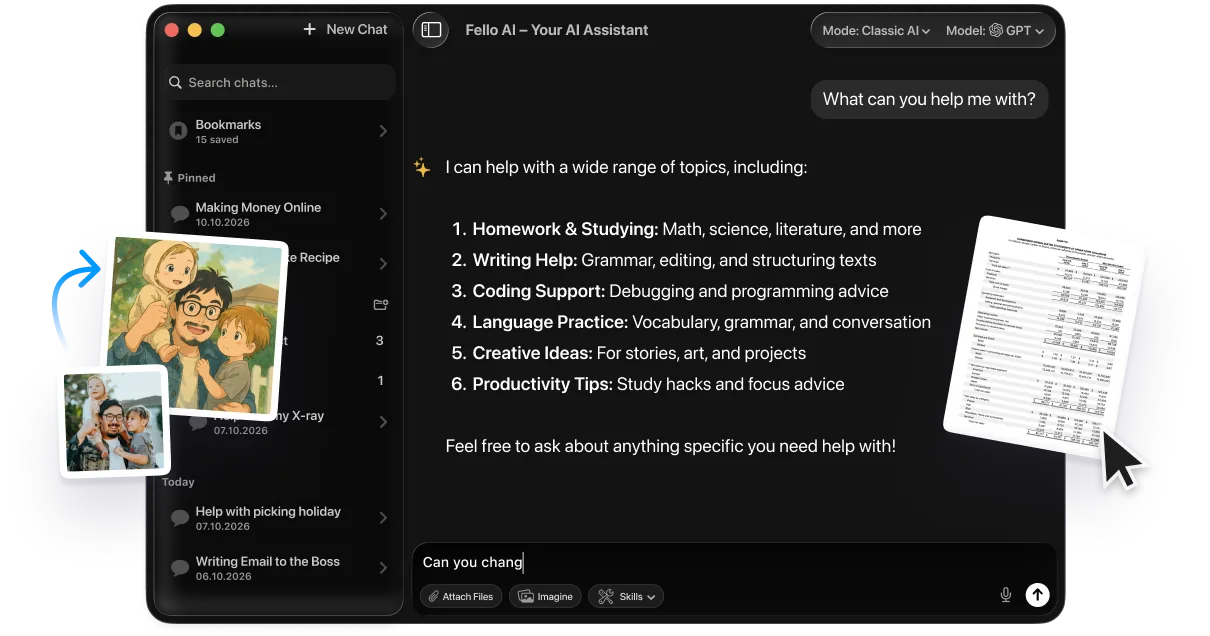
Running three or four separate Mac apps and three or four separate $20-a-month subscriptions adds up fast. Fello AI is the alternative: one native Mac app that gives you Claude, ChatGPT, Gemini, Grok, and DeepSeek for $9.99/month. Same Option + Space-style global hotkey, all the major models in one window, no switching apps when you want a different model’s take on the same prompt. You can route a coding question to Claude, a Workspace question to Gemini, and a research question to ChatGPT inside the same chat session.
You can pair Fello AI with the Gemini Mac app or use it as a replacement. The Gemini Mac app stays the best Workspace client; Fello AI handles everything else without piling up subscriptions. For Mac users who want depth across models without paying the equivalent of two ChatGPT Plus plans every month, it is the cleanest setup we have found. Getting Started with Fello AI walks through the setup; our list of best ChatGPT alternatives on Mac covers the wider category.
Troubleshooting common issues
A few problems have shown up in user reports during the first two weeks of release. Most are simple to fix once you know where to look.
Sign-in loop. If browser sign-in keeps redirecting you back to the start, the most common cause is a stale session in your default browser. Sign out of Google in Safari or Chrome (whichever is your default), then sign back in inside the Gemini app. If that does not work, try removing the app from System Settings, Privacy and Security, Accessibility, and re-granting the permission.
Hotkey conflict. If Option + Space does not bring up Gemini, another app on your Mac probably has it bound. Alfred and Raycast both default to Option + Space for their own launchers; so do a few window managers. Since August 19, 2026 the Meta AI Mac app claims the same chord for its Quick Invoke bar, and ChatGPT’s Chat Bar has used it all along. Either change Gemini’s shortcut in Settings, or change the conflicting app’s shortcut. Whichever is easier.
App will not open on Intel Mac. Confirm you are on macOS 15 Sequoia, not Sonoma or earlier. The app does not run on macOS 14 or earlier even on supported Macs. If you are on the right macOS version and the app still will not open, delete it from Applications, redownload the latest .dmg from gemini.google/mac, and try again.
Workspace files not showing. Your admin needs to enable Gemini for your Workspace account, and you need to grant the Workspace data permission in the app’s first-run consent screen. If you skipped that screen, open Settings, Connected apps, and toggle Workspace back on. Personal Google accounts do not need admin approval.
Screen sharing shows a black window. This is almost always a Screen Recording permission issue. Open System Settings, Privacy and Security, Screen Recording, and confirm Gemini is in the list and toggled on. macOS sometimes silently revokes Screen Recording after a system update; re-toggling it usually fixes things.
Final verdict
The Gemini Mac app is a solid first release that closes the gap with ChatGPT and Claude rather than leapfrogging them. The Option + Space shortcut, screen sharing, and Workspace integration make it useful from day one. The missing features (Gemini Live, notebooks, multi-account) are real but fixable, and Google ships fast.
If you live in Google Workspace, install it now. If you already have ChatGPT or Claude doing what you need, there is no urgent reason to switch, though it is worth installing as a free second opinion on top. And if you want all three plus Grok and DeepSeek in one place on Mac, Fello AI at $9.99/month does that job for the price of half a single subscription. Compare the model lineup on our best AI models hub, and see our Gemini desktop client guide for macOS for every way to run Gemini natively on a Mac. If you are still choosing between the two assistants, read Grok vs Gemini.
FAQ
How do I install Gemini on Mac?
Go to gemini.google/mac, download the .dmg, drag the Gemini icon to Applications, and sign in with your Google account. Total time is under two minutes.
Is the Gemini Mac app free?
Yes. The app itself is free for everyone. You get the same Gemini plan you have on the web, so paid features (higher Gemini 3.1 Pro limits, longer context, more video generations) still require a Google AI Pro or Ultra subscription. Google made Gemini 3.6 Flash the app default worldwide on 21 July 2026, taking over from the generation covered in our Gemini 3.5 review; 3.5 Flash is still callable through the API.
Does the Gemini Mac app run on Intel Mac?
Yes, as long as the Intel Mac can run macOS Sequoia 15.0 or later. Most Intel Macs released after 2019 qualify. Apple Silicon Macs (M1 and newer) are the recommended setup.
What is the Gemini Mac shortcut?
Option + Space opens the compact prompt bar; Option + Shift + Space opens the full Gemini window. Both work from anywhere on macOS. The shortcut is customizable in Settings if you have a conflict with another launcher.
Can the Gemini Mac app see my screen?
Yes. Click Share window in the compact bar to share a single window, or share your entire display. Gemini reads what is on screen and answers based on it. Sharing only lasts for the duration of each query.
Does Gemini for Mac have voice?
Yes, since July 29, 2026, but only for voice input. Long-press the Fn key and you can dictate into any window, and if you opt into Gemini reasoning in settings it can also act on what is on your screen. Gemini Live, the spoken back-and-forth conversation mode, is still not in the Mac app. The voice rollout is global but English-only for now.
What is the difference between the Gemini Mac app and ChatGPT for Mac?
Both have global hotkeys, screen sharing, and file upload. ChatGPT has voice mode and stronger creative output. Gemini has tighter Workspace integration, free Nano Banana image generation, and Veo video generation. For coding, Claude still leads. See our ChatGPT vs Gemini breakdown for more.