Grok Imagine a généré 1,245 milliard de vidéos au cours des 30 jours précédant sa sortie 1.0 début février 2026. Cette sortie a porté le modèle à 720p, des clips de 10 secondes et un son natif nettement amélioré. Avec l'arrêt de Sora 2 d'OpenAI prévu le 24 septembre 2026, Grok Imagine se positionne aux côtés de Google Veo 3.1 et Kling 3.0 comme les API vidéo dominantes pour l'avenir, et c'est la moins chère des trois.
Vous voulez savoir comment le chatbot Grok se compare à ChatGPT pour les tâches quotidiennes ? Consultez notre comparaison complète Grok vs ChatGPT.
Ce qui différencie un clip Grok Imagine utilisable d'un crédit gaspillé, c'est presque toujours le prompt. Ce guide est le manuel de prompts opérationnel pour la génération vidéo avec Grok Imagine : la formule qui produit des résultats nets, 20 exemples prêts à coller pour les cas d'usage qui comptent vraiment, les anti-patterns qui ruinent les générations, les spécifications de l'API xAI et le calcul du coût par clip, et que faire quand un clip revient flou ou refusé.
Les points essentiels
- Grok Imagine génère des clips de 1 à 15 secondes en 480p ou 720p avec son natif (musique, effets sonores, dialogues, synchronisation labiale) via l'API
grok-imagine-video.- L'API xAI facture $0.05 par seconde, soit environ $4.20 par minute. Un clip de 6 secondes coûte $0.30, un clip de 15 secondes $0.75, son natif inclus.
- La formule de prompt qui fonctionne dans 90 % des cas : [Sujet] + [Action] + [Environnement] + [Style] + [Caméra et éclairage].
- Un sujet, une action, un mouvement de caméra par prompt. Plusieurs instructions concurrentes divisent l'attention du modèle et produisent un résultat visuel confus.
- Trois modes d'échec expliquent presque tous les mauvais clips : surcharge du prompt, refus liés à la politique de contenu et la limite ferme de 15 secondes.
Spécifications vidéo de Grok Imagine en un coup d'œil
Voici ce que le modèle produit réellement en mai 2026.
| Spec | Interface grand public | API xAI |
|---|---|---|
| Durée | 6s (gratuit, Lite), 10s (SuperGrok et supérieur) | 1 à 15 secondes, mode édition limité à 8,7s |
| Résolution | 720p (par défaut sur les niveaux payants), 480p (Lite) | 480p (par défaut) ou 720p |
| Formats d'image | 1:1, 16:9, 9:16, 4:3 | 1:1, 16:9, 9:16, 4:3, 3:4, 3:2, 2:3 |
| Fréquence d'images | 24 ips | 24 ips |
| Son | Natif, automatique | Natif, automatique |
| Variations par prompt | 4 | Configurable |
| Vitesse | Environ 17 secondes par clip | Jusqu'à quelques minutes pour du 720p 15s |
La documentation xAI indique explicitement la plage de 1 à 15 secondes et les deux niveaux de résolution. Certains blogs tiers affirment une sortie 1080p, mais ce n'est pas sur la fiche de spécifications officielle xAI au moment de la rédaction. Considérez la 720p comme le vrai plafond.
La formule de prompt qui produit des clips nets
La plupart des clips Grok Imagine décevants sont dus à des prompts vagues, pas au modèle lui-même. La structure qui produit régulièrement des résultats nets est [Sujet] + [Action] + [Environnement] + [Style] + [Caméra et éclairage]. Chaque emplacement remplit une fonction précise, et en oublier un est généralement la raison pour laquelle un clip semble générique. Le même raisonnement par emplacements s'applique aux modèles de texte et d'image, et notre guide complet des prompts IA couvre la formule générale.
Le sujet est l'entité unique que la caméra filme : une personne, un véhicule, un objet ou un animal. Résistez à l'envie de décrire deux sujets dans le même prompt ; si vous en avez besoin de deux, mettez l'un au premier plan et l'autre dans l'environnement.
L'action est le verbe. Que fait le sujet ? Marcher, courir, verser du café, regarder en l'air, se tourner vers la caméra. L'action imprime le mouvement sur toutes les 24 images par seconde ; les verbes faibles produisent des résultats statiques.
L'environnement est le lieu de l'action. Un canyon désertique, un café cyberpunk, une crête enneigée, une cuisine à l'aube. L'environnement ancre l'éclairage et la palette de couleurs et indique au modèle quelle atmosphère reproduire.
Le style est le registre visuel. Cinématographique, photoréaliste, anime, claymation, aquarelle, publicité alimentaire. Les mots de style indiquent au modèle sur quelle tranche de ses données d'entraînement s'appuyer ; sans eux, vous obtenez un clip d'apparence générique.
La caméra et l'éclairage constituent la cinématographie. Plan large, gros plan, lent travelling avant, plan de suivi, recul par drone, accompagnés d'une indication d'éclairage comme « heure dorée », « éclairage néon » ou « lumière matinale douce ». C'est ce qui fait la différence entre un clip plat et un clip qui semble intentionnel.
Un exemple fonctionnel qui utilise chaque emplacement : « Un buggy tout-terrain orange très modifié fonce vers la caméra à grande vitesse dans un canyon désertique, soulevant un énorme nuage de poussière, plan large cinématographique, heure dorée, photoréaliste. » Cette phrase nomme le sujet (buggy modifié), l'action (foncer vers la caméra), l'environnement (canyon désertique), le style (cinématographique, photoréaliste) et la caméra et l'éclairage (plan large, heure dorée). Le modèle n'a aucune ambiguïté sur ce qu'il doit reproduire ni comment l'éclairer, c'est pourquoi il produit le clip en environ 17 secondes.
20 prompts prêts à coller par cas d'usage
La formule s'adapte à différents genres. Voici 20 prompts prêts à coller, regroupés par type de production. Chacun remplit chaque emplacement de la formule et inclut un format d'image, pour que vous puissiez les coller directement dans Grok Imagine et les ajuster à partir de là.
Action et cinétique
« Un surfeur prend un virage sur une vague turquoise au coucher du soleil, la planche traçant une gerbe nette, plan drone de suivi en angle bas, cinématographique, 16:9. »
« Un pilote de motocross s'élance d'un saut en terre, rotation en plein air, poussière s'envolant sous la moto, vue de dessous, objectif fisheye, photoréaliste, 16:9. »
« Un coureur de parkour saute d'un toit à l'autre à l'heure dorée, mains agrippant le rebord, plan cinématographique large avec suivi latéral, 16:9. »
« Un cheval galope à travers un champ brumeux à l'aube, sabots projetant de la terre mouillée, ralenti, cinématographique, 16:9. »
Cinématographique et narratif
« Un marin tanné tient la barre d'un navire au crépuscule, le spray salin accroche sa barbe, les vagues s'écrasent contre des falaises déchiquetées, style documentaire, éclairage naturel, 16:9. »
« Un détective entre dans une ruelle sous la pluie, reflets néon dans les flaques, lent travelling avant, style noir, faible profondeur de champ, 16:9. »
« Un astronaute marche sur une plaine martienne rouge, son casque reflétant le soleil de l'aube, plan de suivi large, photoréaliste, 16:9. »
« Deux inconnus échangent un regard à travers un quai de gare bondé, lumière chaude et douce, plan moyen cinématographique, 16:9. »
Produit et commercial
« Lent travelling avant sur une tasse de café fumant posée sur un comptoir en marbre, lumière matinale chaude d'une fenêtre de cuisine, faible profondeur de champ, style publicité alimentaire, 1:1. »
« Une paire de casques sans fil élégants tourne lentement sur une surface noire brillante, éclairage studio froid, style publicité produit, 1:1. »
« Un flacon de parfum capte un rayon de lumière dorée, des gouttelettes glissent sur le verre, plan macro, style commercial luxe, 9:16. »
« Déballage d'une nouvelle chaussure de running, les mains soulèvent le couvercle, éclairage doux en plongée, style commerce social, 9:16. »
Réseaux sociaux, mème et personnalité
« Un golden retriever portant des lunettes d'aviateur roule en décapotable sur Pacific Coast Highway, langue dehors, ambiance estivale, cinématographique mais ludique, 9:16. »
« Un robot barista verse du latte art dans un verre, la vapeur s'enroule vers le haut, café cyberpunk néon en arrière-plan, style anime, plan moyen rapproché, 9:16. »
« Un pingouin en mini smoking danse des claquettes sur un iceberg, neige qui dérive, ton comique, style animation dessinée à la main, 1:1. »
« Une grand-mère tricote à une vitesse éclair, la laine vole, fond de cuisine en désordre, mouvement exagéré, ton léger et comique, 16:9. »
Anime et stylisé
« Une jeune épéiste se tient au sommet d'une falaise face à une tempête, ses cheveux fouettés par le vent, des éclairs derrière elle, style anime inspiré de Studio Ghibli, plan large, 16:9. »
« Un loup solitaire traverse une forêt de champignons lumineux la nuit, ambiance éthérée, style pictural, lent plan de suivi latéral, 16:9. »
« Une cité flottante dans les nuages, des dirigeables dérivant entre les tours, heure dorée, style anime cinématographique, plan d'ensemble large, 16:9. »
« Un enfant-robot arrose une seule fleur sur une planète aride, des tempêtes de poussière au loin, ambiance mélancolique, style aquarelle, 1:1. »
Prompts pour les animations image vers vidéo
Quand vous partez d'une image existante, le prompt doit décrire le mouvement uniquement. Les visuels sont déjà fixés dans l'image source, et demander au modèle d'ajouter des éléments absents de l'image source est le moyen le plus rapide d'obtenir un résultat bancal. Gardez les prompts image vers vidéo en une ou deux phrases et misez sur les verbes d'action.
Trois schémas qui fonctionnent régulièrement :
« La caméra avance lentement vers le visage du sujet, les cheveux se soulèvent doucement dans une brise. »
« Le sujet cligne des yeux deux fois, puis sourit doucement ; la lumière chaude se déplace de gauche à droite sur la scène. »
« La pluie tombe régulièrement en arrière-plan, les enseignes néon clignotent, aucun mouvement de caméra. »
Plus le prompt est court, mieux c'est. Si l'image source est un portrait, demandez une seule action faciale et un petit mouvement de caméra. Si c'est un plan d'ensemble, demandez un mouvement atmosphérique (vent, pluie, poussière, feuilles qui tombent) et laissez la caméra immobile.
Anti-patterns : ce qui tue vos prompts
Trois habitudes sabotent les prompts Grok Imagine plus que toute autre chose, et elles expliquent la grande majorité des plaintes « pourquoi est-ce revenu flou ».
Empiler plusieurs sujets ou actions dans un seul prompt. « Un sorcier lance une boule de feu sur un dragon pendant que des archers font pleuvoir des flèches depuis un mur de château dans une tempête » semble cinématographique, mais le modèle divise son attention et ne rend rien correctement. Réduisez à un sujet, une action, un mouvement de caméra. Enchaînez les moments supplémentaires en générant plusieurs clips et en les montant, ou en utilisant Extend From Frame sur une plateforme partenaire comme PixVerse.
Traiter le prompt comme une liste de références de style. « Wes Anderson rencontre Blade Runner avec une touche de Studio Ghibli » produit un résultat moyenné qui ne ressemble à aucune de ces références. Le modèle condense les styles concurrents en un rendu intermédiaire générique. Choisissez un registre de style et assumez-le ; si vous devez combiner des influences, faites-le au montage ou en superposant plusieurs clips avec des styles différents.
Les prompts dépassant trois phrases. Le suivi des instructions de Grok Imagine se dégrade après la troisième phrase ; il commence à ignorer les clauses antérieures et à surpondérer la dernière instruction. Deux phrases bien construites l'emportent généralement sur une liste de cinq phrases. Si vous avez vraiment besoin de la précision d'une liste de plans, passez en mode Personnalisé et utilisez les paramètres explicites de caméra, de mouvement et d'éclairage plutôt que de les entasser dans la prose.
Comment générer une vidéo avec Grok Imagine
Le chemin le plus rapide est l'interface grand public :
- Allez sur grok.com/imagine dans votre navigateur, ou ouvrez l'application Grok sur iOS, Android ou Mac.
- Choisissez Vidéo plutôt qu'Image, puis sélectionnez un mode créatif (Normal, Fun, Personnalisé ou Épicé). Pour les limites par plan sur ces niveaux, consultez notre tableau des tarifs Grok.
- Tapez un prompt suivant la formule, ou collez-en un parmi les exemples ci-dessus.
- Choisissez votre format d'image et votre durée (6 secondes en gratuit/Lite, 10 secondes en SuperGrok et supérieur).
- Cliquez sur générer ; Grok renvoie quatre variations en environ 17 secondes, vous en choisissez une et téléchargez le MP4.
Il n'y a pas d'étape séparée pour « sauvegarder le son » car la piste audio est intégrée dans le fichier de sortie. Si vous devez remplacer la musique ou ajouter une narration ensuite, faites-le dans votre logiciel de montage, pas dans Grok.
L'API xAI et ce que coûte vraiment chaque clip
Pour les développeurs, le flux consiste en un POST vers https://api.x.ai/v1/videos/generations avec le modèle grok-imagine-video, puis un GET sur https://api.x.ai/v1/videos/{request_id} pour vérifier la progression. La latence va de quelques dizaines de secondes à quelques minutes pour les tâches 720p les plus longues. La documentation xAI sur la génération vidéo détaille chaque paramètre.
Le prix est d'une simplicité totale. Le modèle grok-imagine-video est facturé à $0.05 par seconde de vidéo générée, son natif inclus. Cela revient à environ $4.20 par minute. À titre de comparaison, Google Veo 3.1 Standard est à environ $24 par minute avec son, Kling 3.0 Standard à environ $5.04 par minute (Pro à $6.72), et OpenAI Sora 2 Pro était à environ $18 par minute en 720p avant que son API entre en phase d'arrêt avant la retraite complète le 24 septembre 2026. Cela place Grok Imagine en dessous du plancher tarifaire de toutes les autres API vidéo actives, ce qu'xAI a mis en avant dans son annonce de lancement. Ces tarifs API à la seconde sont distincts de l'application grand public, où le niveau gratuit de Grok vous permet de tester Imagine avant de vous engager dans un plan payant.
Trois exemples chiffrés pour budgétiser : une accroche Instagram Reel de 6 secondes coûte environ $0.30 ; un TikTok ou YouTube Short de 15 secondes coûte environ $0.75 ; une publicité de 60 secondes montée à partir de quatre variations de 15 secondes revient à environ $3.00 en coûts bruts de génération API, avant tout travail de montage ou de sélection. Cela rend l'expérimentation en rafale peu coûteuse : générer 20 variations de prompt pour une idée coûte environ $6 si chacune dure 6 secondes, ce qui est difficile à égaler ailleurs.
Quand la génération déraille
Trois problèmes expliquent la plupart des résultats décevants de Grok Imagine.
Mouvement flou ou instable. Presque toujours le problème de surcharge de prompt évoqué plus tôt. Si la même idée continue de revenir floue, réduisez le prompt à un sujet, une action, un mouvement de caméra et une indication de style, puis générez à nouveau avec une graine différente.
Refus fermes ou clips édulcorés. Si Grok renvoie une version atténuée de votre prompt ou refuse carrément, le prompt a franchi une limite de contenu. Les ressemblances de vraies personnes (notamment des célébrités et des personnalités politiques), les mineurs dans n'importe quel contexte et la violence graphique sont les déclencheurs les plus fréquents, et passer en mode Épicé ne les contourne pas. Réécrivez en utilisant des archétypes et des personnages fictifs plutôt que des personnes nommées.
Limite de durée ferme. Le plafond de 15 secondes de l'API et de 10 secondes de l'interface grand public sont fixes. Si vous avez besoin d'un clip de 30 secondes, générez deux segments de 15 secondes avec la même graine et assemblez-les dans votre logiciel de montage, ou utilisez le mode Extend sur des plateformes partenaires comme PixVerse pour ajouter un second segment. Grok lui-même ne dépassera pas le plafond en une seule requête.
Utiliser Grok Imagine aux côtés d'autres modèles IA
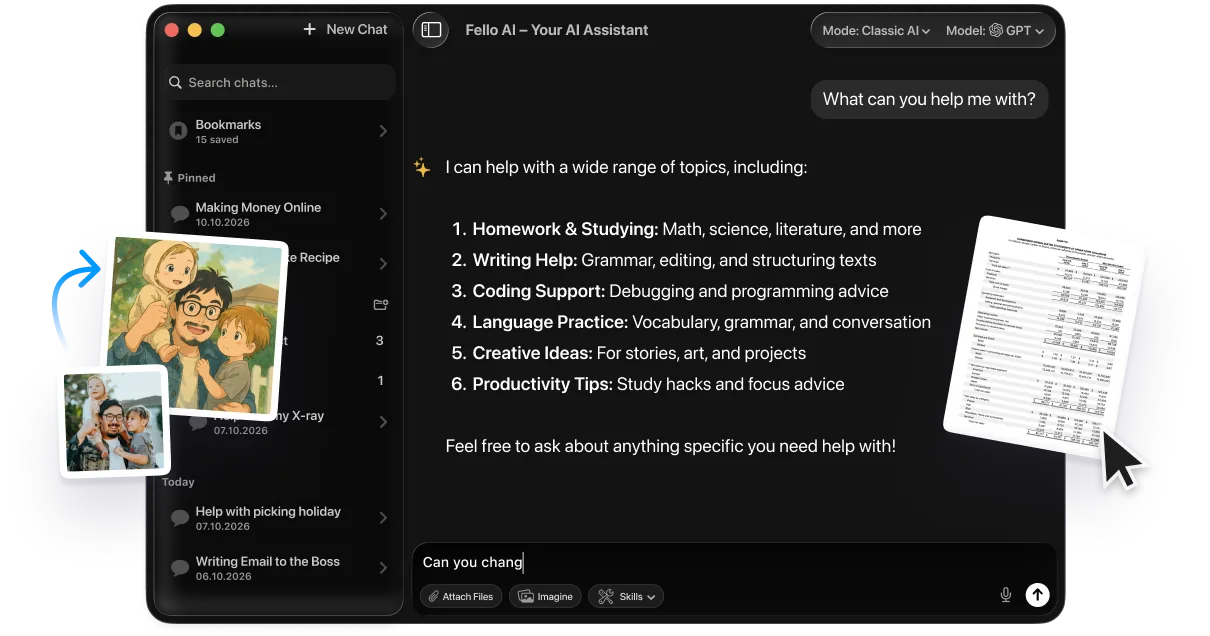
Grok Imagine gère la vidéo, et pas grand chose d'autre. Il ne gère pas la rédaction longue, le code, la recherche approfondie ni l'édition de documents comme le font ChatGPT, Claude, Gemini ou DeepSeek. La plupart des créateurs finissent par payer deux ou trois abonnements pour combler les lacunes. Fello AI à $9.99/mois consolide cet ensemble. C'est une application Mac native qui regroupe ChatGPT, Claude, Gemini, Grok, DeepSeek et Perplexity derrière un prix unique, pour que vous puissiez rédiger un prompt avec un modèle, l'affiner avec un autre et l'exécuter via Grok Imagine sans jongler entre onglets et comptes.
Pour la vue d'ensemble du produit Grok, consultez notre avis Grok 4.3 et notre guide du client bureau Grok pour Mac.
En résumé
Grok Imagine est le générateur vidéo IA sérieux le plus rentable du marché, et le seul grand modèle proposant un son natif à $4.20 par minute. Le modèle est bon. Ce qui différencie un clip utilisable d'un crédit gaspillé, c'est le prompt, et la formule ci-dessus avec les 20 exemples devrait vous amener 80 % du chemin vers un résultat régulier. Pour les clips sur réseaux sociaux, les concepts publicitaires, les planches de tendances et tout travail vidéo court où la vitesse et le prix priment sur le photoréalisme absolu, c'est l'outil à utiliser par défaut. Si vous dépassez 15 secondes ou avez besoin d'un détail 4K de niveau cinéma, Kling 3.0 ou Veo 3.1 est le meilleur choix.
Le point de départ le plus simple est grok.com/imagine avec le niveau gratuit. Pour le reste de notre couverture, parcourez l'archive des articles sur Grok Imagine ou le tag Grok complet. Et pour voir où xAI va ensuite, lisez tout ce que nous savons sur Grok 5.
FAQ
Quelle durée peut avoir une vidéo Grok Imagine ?
Grok Imagine génère des clips de 1 à 15 secondes. Le plafond de 15 secondes n'est disponible que via l'API xAI. Dans l'interface grand public sur grok.com/imagine, les utilisateurs gratuits et SuperGrok Lite obtiennent des clips de 6 secondes, et les utilisateurs SuperGrok et X Premium+ peuvent obtenir jusqu'à 10 secondes.
Combien coûte l'API Grok Imagine ?
$0.05 par seconde de vidéo générée, son natif inclus, soit environ $4.20 par minute. C'est moins d'un quart du prix de Google Veo 3.1 Standard ($24/min), environ 17 % moins cher que Kling 3.0 Standard ($5.04/min), et une fraction d'OpenAI Sora 2 Pro avant son arrêt le 24 septembre 2026.
Quelle est la formule de prompt pour la vidéo Grok Imagine ?
[Sujet] + [Action] + [Environnement] + [Style] + [Caméra et éclairage]. Un sujet, une action, un mouvement de caméra par prompt. Deux phrases courtes valent mieux que cinq. Les 20 exemples ci-dessus suivent tous cette structure.
Grok Imagine peut-il animer ma propre photo ?
Oui, l'image vers vidéo est l'un des flux de travail principaux. Importez l'image fixe, puis rédigez un prompt court décrivant uniquement le mouvement et le changement atmosphérique que vous souhaitez ; ne décrivez pas à nouveau le sujet, l'image source le contient déjà.
Pourquoi mes vidéos Grok Imagine sont-elles floues ?
Presque toujours une surcharge de prompt. Plusieurs sujets, plusieurs actions ou une liste de références de style forcent tous le modèle à diviser son attention et à produire un résultat confus. Réduisez le prompt à un sujet, une action, un mouvement de caméra, une indication de style, et réessayez avec une graine différente.
Grok Imagine génère-t-il du son ?
Oui. La musique, les effets sonores, le son ambiant, les dialogues et le chant sont tous générés nativement en même temps que la vidéo, avec synchronisation labiale pour les personnages. Il n'y a pas d'étape son séparée.