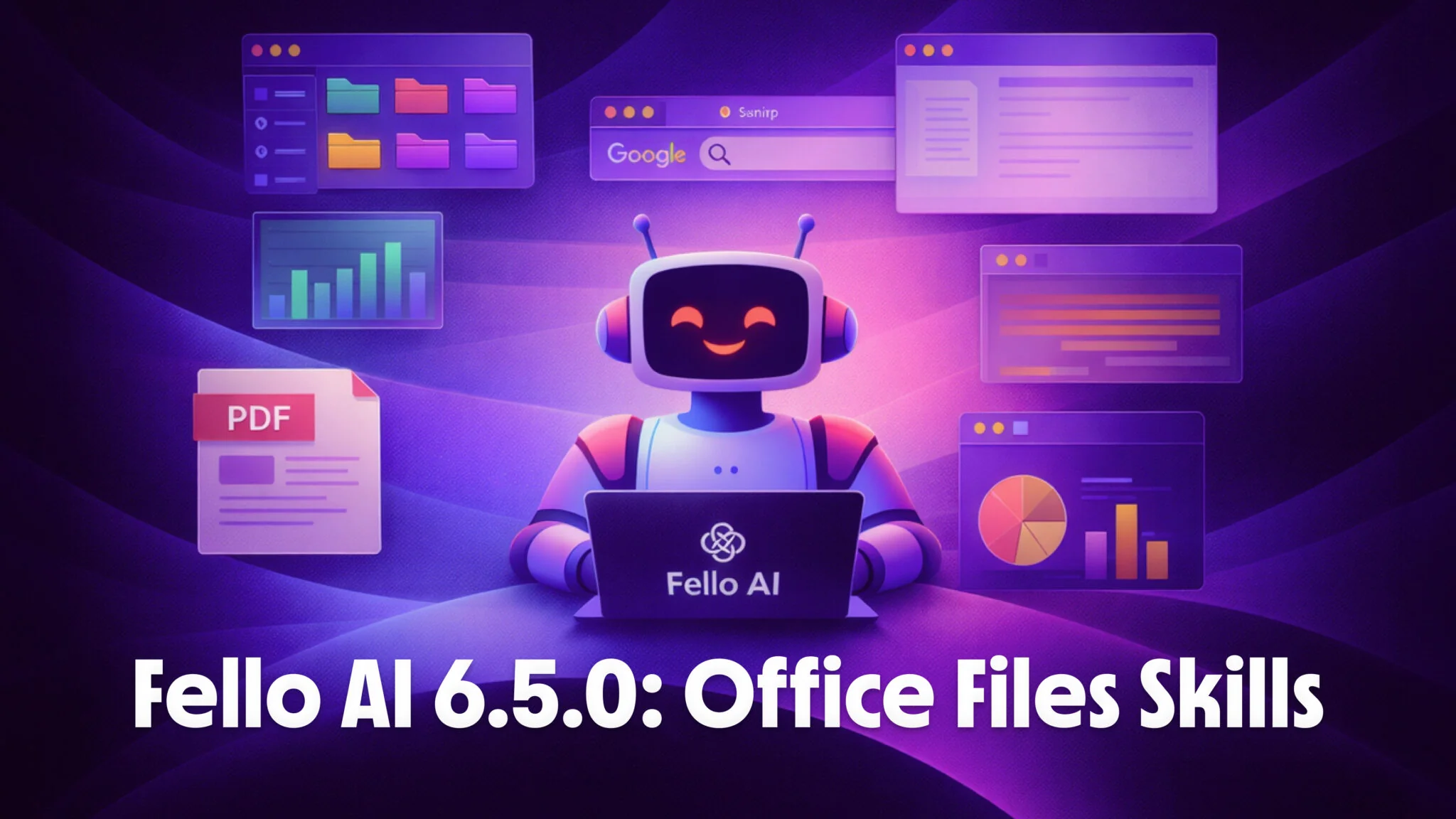
Fello AI has always given you access to every frontier AI model in one app. With version 6.5.0, we’re adding one of the most requested feature that gives you ability to create and deliver real files just by chatting.
The new feature is called Skills. When you enable a Skill, Fello AI gains the ability to take action, not just generate text. Ask it to build a pitch deck and you get a downloadable .pptx file. Ask it to create a budget tracker and you get a .xlsx spreadsheet with working formulas. Ask it to draft a proposal and you get a formatted .docx document. All of this happens inside the same conversation where you would normally chat.
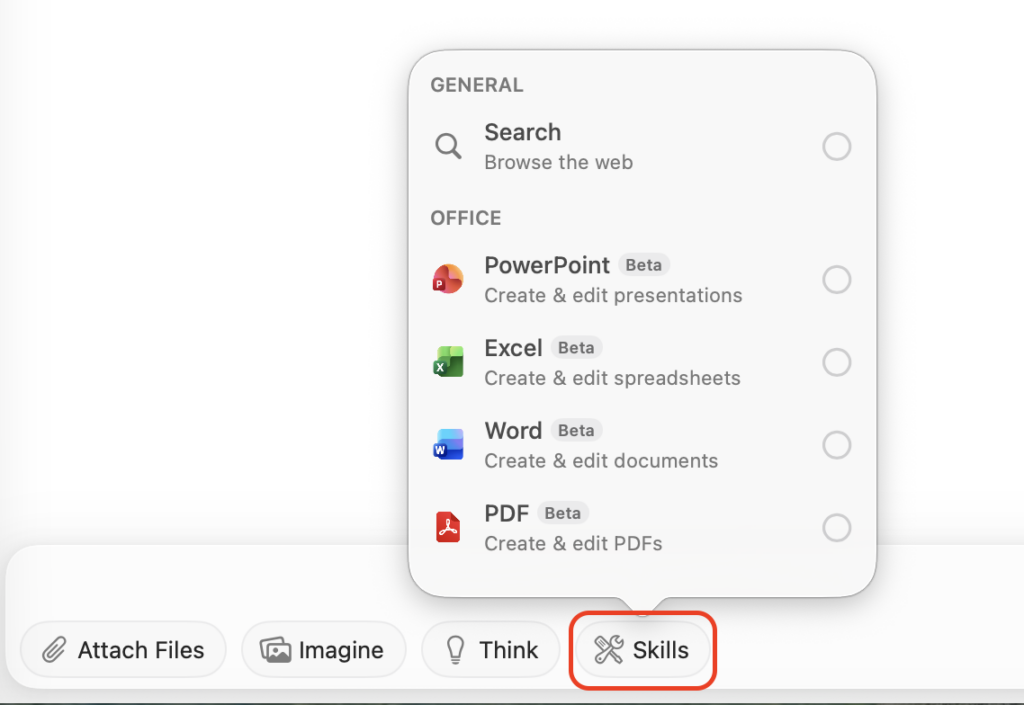
With the first version of Skills, we’re shipping 5 skills focused on office use: Search, PowerPoint (beta), Excel (beta), Word (beta), and PDF (beta). Together, they turn Fello AI into a place where you can actually get your work done with AI.
What Skills Are Available
| Skill | What It Does | Output | Status |
|---|---|---|---|
| Search | Browses the web to find current information | Live sources cited in your answer | Available |
| PowerPoint | Creates and edits presentations | Downloadable .pptx file | Available (Beta) |
| Excel | Creates and edits spreadsheets | Downloadable .xlsx file | Available (Beta) |
| Word | Creates and edits documents | Downloadable .docx file | Available (Beta) |
| Extracts, converts, merges, splits, compresses, watermarks, protects, and unlocks PDFs | Downloadable .pdf file | Available (Beta) |
Every Skill produces native file formats. No proprietary viewers, no web-only previews. You get files that open in Microsoft Office, Google Workspace, Apple iWork, or any compatible app.
Create Presentations from a Single Message
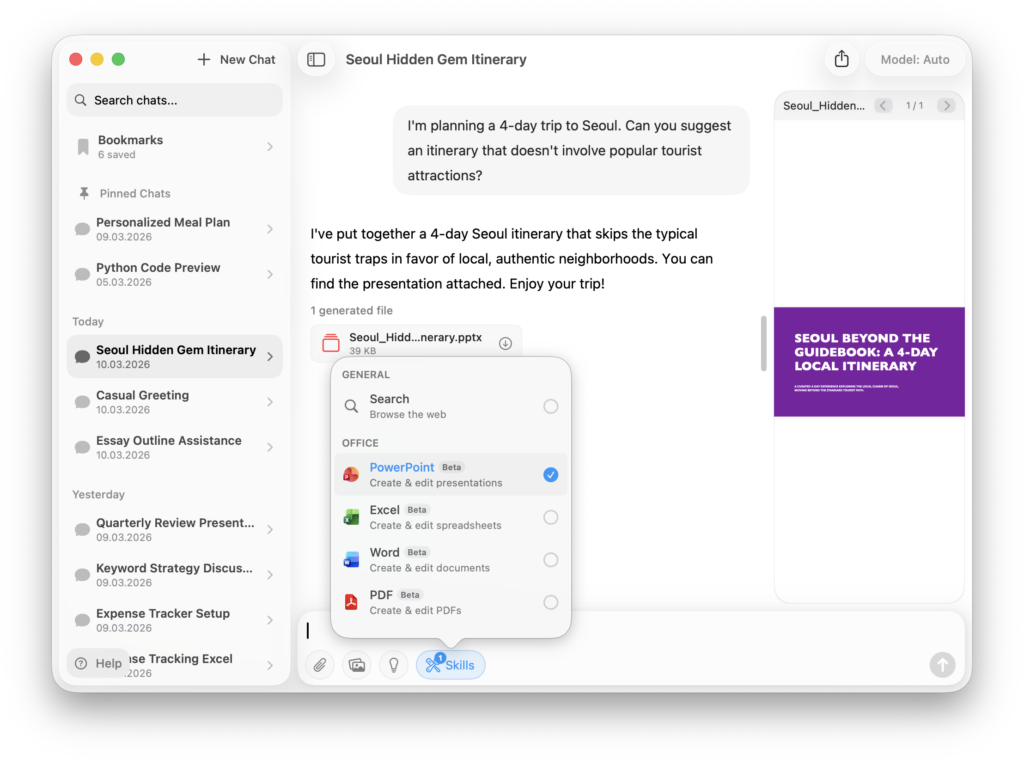
The PowerPoint Skill (currently in beta) turns a prompt into a complete slide deck. Describe what you need and Fello AI generates slides with titles, bullet points, speaker notes, and stock images. For a full walkthrough, see our guide on how to use AI in PowerPoint.
What you can do:
- Generate pitch decks, project updates, training materials, and lecture slides
- Include charts, tables, and images pulled from the web
- Add detailed speaker notes for every slide
- Edit an existing .pptx file by uploading it and asking for changes
The output is a standard .pptx file. Open it in PowerPoint, Keynote, or Google Slides and customize it further. Unlike web-only presentation tools, you own the file and can edit every element.
Example prompt: “Create a 12-slide investor pitch deck for a regional coffee shop chain planning to expand to 15 new locations in the next 3 years. Include a local market demand chart, competitor comparison table, store economics breakdown, and a rollout timeline. Use a warm modern theme.”
Build Advanced Excel Spreadsheets (Including formulas, multiple sheets, data manipulation, etc.)
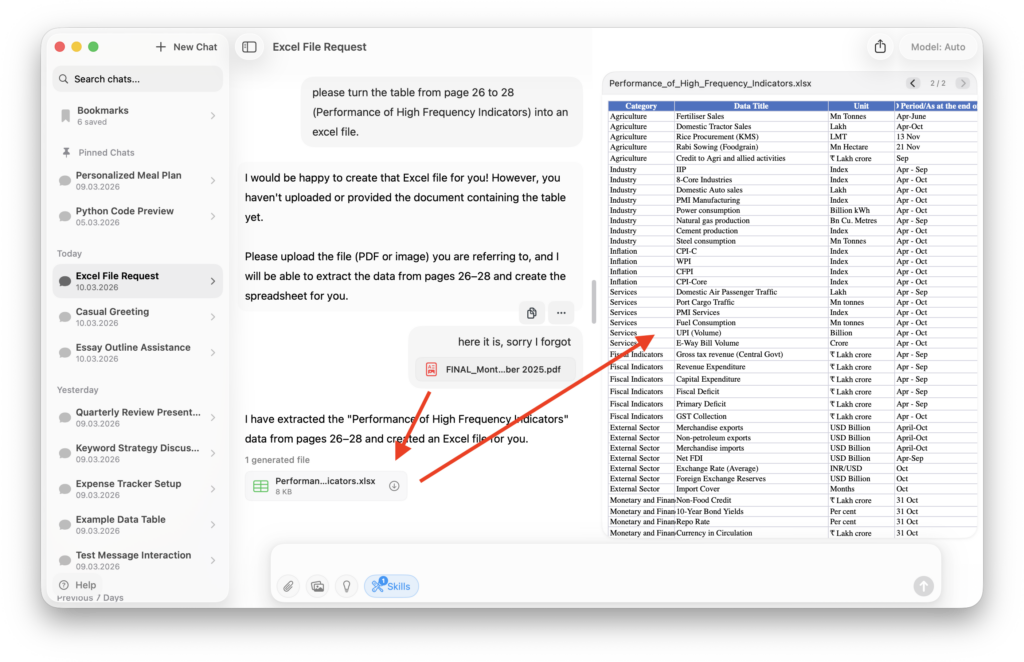
The Excel Skill creates complete workbooks, not just tables of data. It writes real formulas, formats headers, and organizes data across multiple sheets when your task calls for it. For step-by-step examples, see our complete guide to creating and editing Excel spreadsheets with AI, and for the add-in approach that edits an open workbook in place, see Claude’s Excel integration.
What you can do:
- Create budgets, trackers, dashboards, and financial models
- Generate spreadsheets with working SUM, AVERAGE, VLOOKUP, and other formulas
- Organize complex data across multiple sheets within one workbook
- Style cells with headers, borders, and number formatting
- Upload an existing .xlsx file and ask Fello AI to update or restructure it
Most AI tools output plain text tables that you then have to copy into Excel by hand. Fello AI skips that step entirely and gives you a ready-to-use .xlsx file.
Example prompt: “Build a quarterly marketing budget with four sheets (Q1 through Q4). Each sheet should have columns for channel, planned spend, actual spend, and variance. Add a summary sheet with totals and a year-over-year comparison row. Use formulas, not static numbers.”
Draft Professional Documents in Seconds
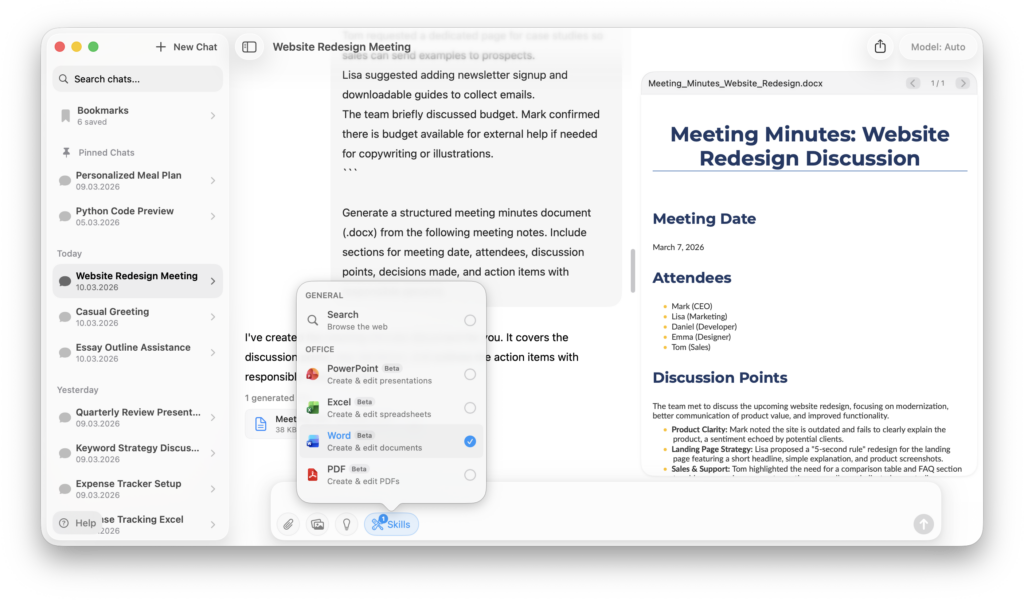
The Word Skill generates formatted .docx files with proper heading hierarchy, tables, images, and consistent styling. Pick from five document themes to match your tone, from clean corporate to modern creative. Learn more in our guide on using AI in Word to create and edit documents.
What you can do:
- Draft proposals, reports, meeting summaries, and project briefs
- Include tables, numbered lists, and section headers
- Add images and diagrams where relevant
- Upload an existing .docx file to revise, extend, or reformat it
Example prompt: “Write a 5-page project proposal for migrating our company email from Google Workspace to Microsoft 365. Include an executive summary, a scope section with a comparison table, a timeline with milestones, a budget estimate, and a risk assessment section.”
A Complete PDF Toolkit in One Chat
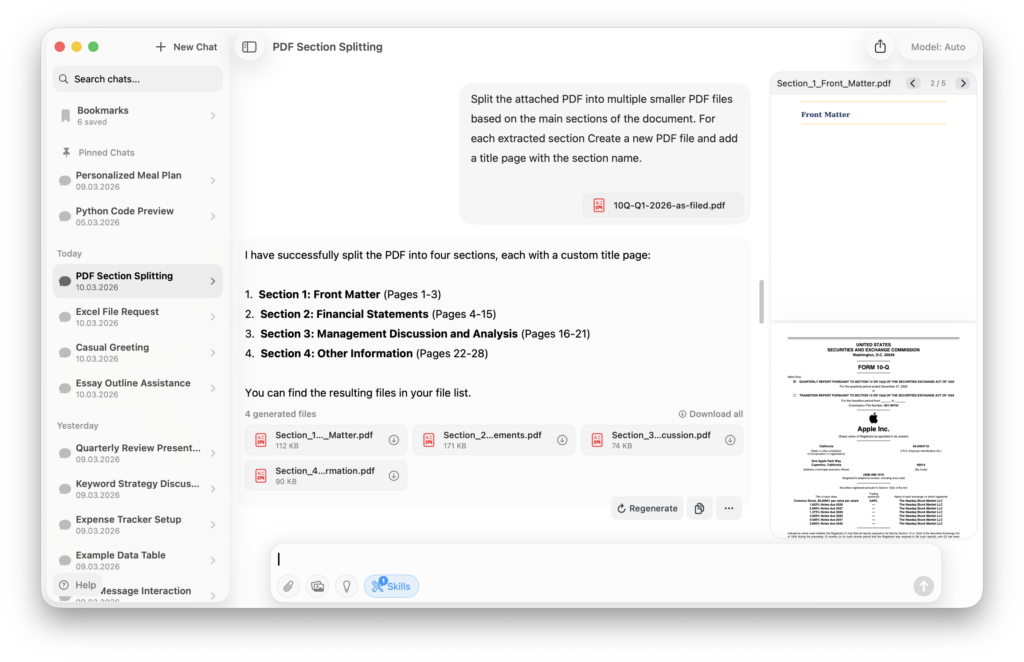
Fello AI has supported chatting with PDFs since version 5.0.0. The PDF Skill goes much further, covering 12 operations that normally require juggling multiple websites or expensive desktop software. Our full guide covers how to use AI with PDFs end to end.
What you can do:
- Extract text and tables from any PDF, even scanned documents (OCR reads text from scanned images automatically)
- Convert Word, Excel, and PowerPoint files to PDF
- Merge multiple PDFs into one
- Split a PDF into separate files by page range
- Compress large PDFs to reduce file size
- Add watermarks (“CONFIDENTIAL,” “DRAFT,” or any custom text)
- Password-protect sensitive documents
- Unlock PDFs when you have the password
- Rotate pages that scanned sideways
- Get file info like page count, file size, and metadata
Instead of visiting a different website for each operation, you describe what you need and Fello AI handles it. You can even chain operations together: merge three reports, add a watermark, compress the result, and protect it with a password, all in one conversation.
Example prompt: “Merge these three quarterly reports into one PDF. Add a ‘CONFIDENTIAL’ watermark to every page, compress the file to under 5MB, and protect it with the password ‘board2026’.”
Search the Web for Up-to-date Information
Update, September 4, 2026. Since version 6.8.0 you no longer have to turn Search on yourself. Adaptive Search checks the web automatically whenever your question needs current data, and the manual Online Search and Deep Research skills stay in the dropdown for when you want to force a lookup. The section below describes the Search Skill as it shipped in 6.5.0.
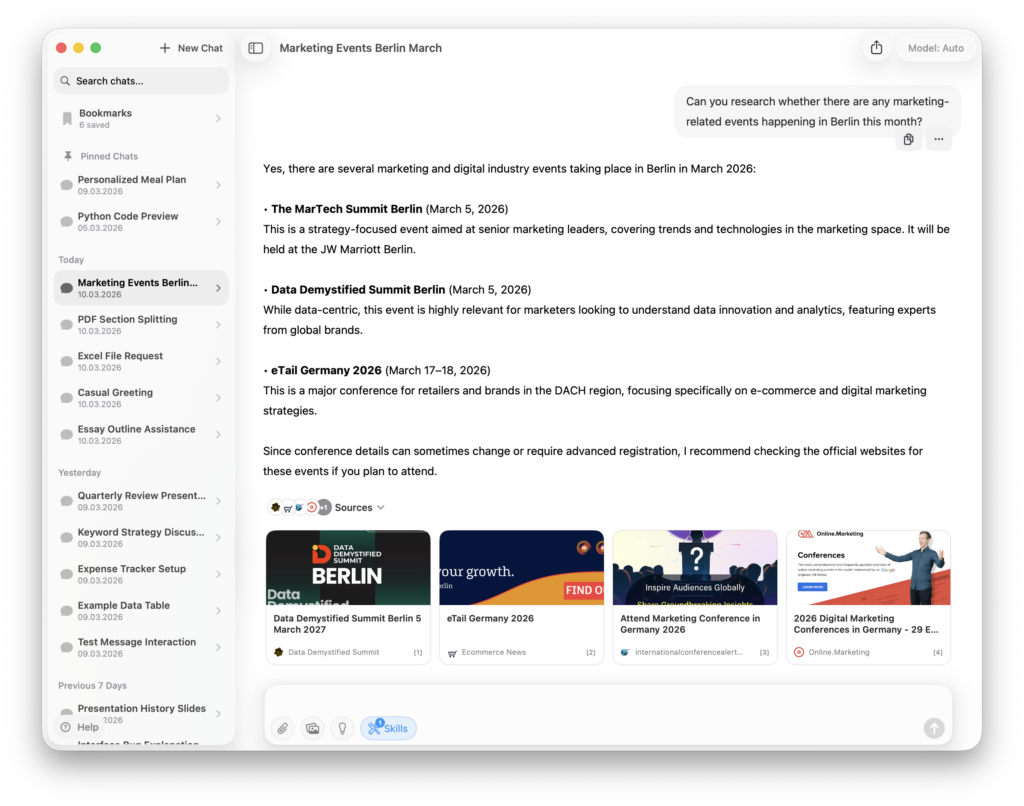
The Search Skill builds on the real-time online search introduced in Fello AI 5.2.0. It lets Fello AI browse the internet, read web pages, and use live information to answer your questions. When Search is active, your answers include real sources with citations.
This Skill works well on its own for research, but it becomes especially powerful when combined with other Skills. Ask Fello AI to research a topic and then turn the findings into a presentation, a report, or a spreadsheet, all in the same chat.
You can also use Search to analyze and summarize online content, including extracting key insights from articles or YouTube videos. By reading transcripts or captions, AI can identify the main ideas and generate concise summaries so you can understand the important points without watching the entire video.
There is one convenience built in: if your message contains a URL, Fello AI automatically enables Search even if you did not toggle it on manually.
Combine Skills for Complete Workflows
Skills become most valuable when you chain them together. Instead of switching between a search engine, a slide tool, a spreadsheet app, and a PDF converter, you describe the end goal and let Fello AI handle the steps.
Board meeting prep (one conversation):
1. Search the web for the latest industry data
2. Create a slide deck summarizing the findings
3. Build a financial summary spreadsheet
4. Draft an executive brief document
5. Merge everything into one PDF with a watermark
Client proposal (one conversation):
1. Research the client’s industry and competitors
2. Draft a proposal document with scope, timeline, and pricing
3. Create a budget spreadsheet with line items and totals
4. Convert the document to PDF and password-protect it
Competitive analysis (one conversation):
1. Search for competitor pricing, features, and recent news
2. Build a comparison spreadsheet
3. Create a presentation highlighting key findings
4. Export the deck to PDF for easy sharing
Each of these workflows would normally involve 4 or 5 different apps and a lot of copying and pasting. With Skills, it happens in a single Fello AI conversation.
How to Enable Skills
Using Skills takes four steps:
- Tap the Skills button (tools icon) in the chat input bar
- Toggle on the Skills you want to use for this conversation
- Send your message as usual
- Download your files when they appear in the chat
A badge on the Skills button shows how many are currently active. Skills stay enabled for the duration of your conversation. Start a new chat or toggle them off when you are done.
While Skills are running, you will see real-time progress updates (“Creating presentation…”, “Merging PDFs…”) and an expandable view of the AI’s reasoning process. Generated files download automatically and appear inline in your chat, ready to preview, share, or export.
Available on Mac, iPhone, and iPad
Skills work across every platform Fello AI supports. On macOS, the Skills menu appears as a dropdown from the input bar. On iOS, it opens as a bottom sheet. Your active Skills state syncs across devices automatically, so you can start a workflow on your Mac and check the results on your iPhone.
All generated files are saved locally in your device’s storage. Nothing is uploaded unless you choose to share it.
Skills are available to all Fello AI subscribers. If you are on the free plan, you will see a prompt to subscribe when you try to enable any Skill. Fello AI subscriptions give you unlimited access to all frontier AI models (Claude 4.6, GPT-5.2, Gemini 3, DeepSeek, Llama 4, Perplexity, and more) plus the full set of Skills.
Get Fello AI 6.5.0
Fello AI 6.5.0 is available now on the App Store. If you already have Fello AI installed, update to the latest version to access Skills.
New to Fello AI? It is a lightweight native app (around 30-50MB) that bundles every major AI model into a single interface across Mac, iPhone, and iPad. Instead of paying for separate subscriptions to ChatGPT, Claude, Gemini, and others, you get them all in one place. And now, with Skills, your AI chat can create real deliverables too. Learn how to get the most out of it in our getting started guide.
FAQ
What file formats do Skills produce?
PowerPoint creates .pptx files, Excel creates .xlsx files, Word creates .docx files, and PDF operations produce .pdf files. All formats are native and open in any compatible app.
Can I edit files I have already created?
Yes. Upload an existing .pptx, .xlsx, or .docx file to your conversation and ask Fello AI to make changes. The PDF Skill can also modify existing PDFs (merge, split, compress, watermark, protect, unlock, rotate).
Do Skills work offline?
Skills require an internet connection because the AI processing happens on Fello AI’s servers. However, all generated files are saved locally on your device and can be accessed offline after creation.
Which AI model powers Skills?
Skills use the same models available in Fello AI (Claude 4.5, GPT-5, Gemini 2.5 Pro, and others) with server-side tool use that gives them the ability to create and manipulate files.
Are Skills available on the free plan?
Skills are a subscriber-only feature. Free users can still chat with all AI models but will need a subscription to enable Skills.
Can I use multiple Skills in one conversation?
Absolutely. You can enable all five Skills at once and ask Fello AI to search the web, create a presentation, build a spreadsheet, draft a document, and process PDFs, all in the same conversation.