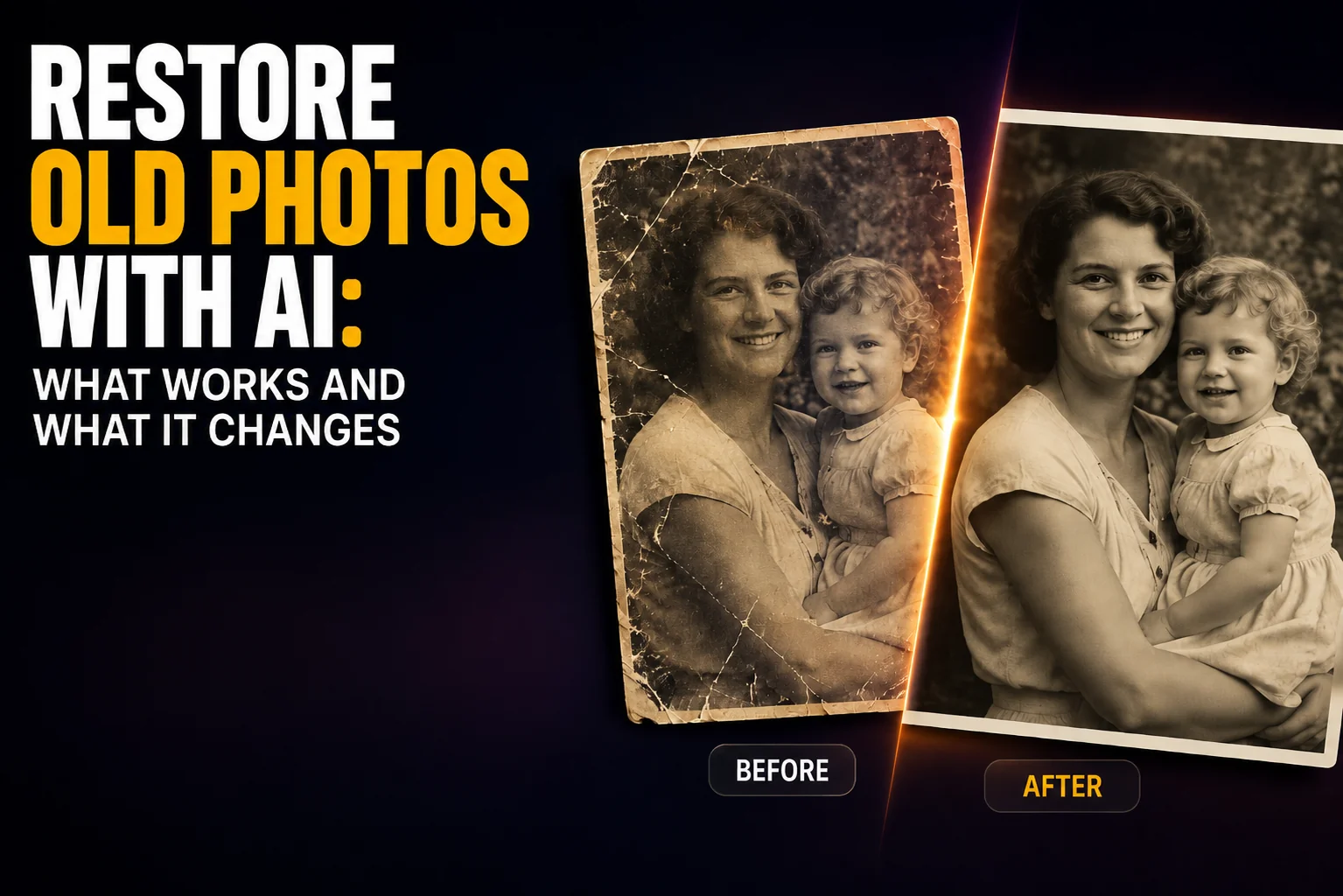
You can restore old photos with AI in about a minute, and almost every tool that offers it will hand back something that looks better than the original ever did. That is the part worth pausing on. A 2026 study accepted to a CVPR workshop tested one of the leading general-purpose image models on exactly this job. It scored competitively on quality metrics and was consistently preferred by human viewers. It also produced what the authors called "over-enhanced details and inconsistencies" that neither the metrics nor the viewers could detect.
That gap matters more here than in any other kind of photo editing, because the subject of a damaged family print is usually a person, and usually one you cannot photograph again. This guide covers what the different kinds of AI restoration do to a scan, which tools repair the photo and which redraw it, and the steps for scratches, tears, fading and blur. It also answers the two platform questions people search for most: whether Google Photos can do it, and whether Apple Photos can.
The Key Takeaways
- Two different mechanisms: restoration models repair the pixels that survived, generative models rebuild the damaged area from what they expect should be there. Only the first is bound by the original photo.
- The research is blunt about it: a study published in a CVPR 2026 workshop found a gap between perceptual quality and restoration fidelity that "is not well captured by existing IQA metrics or user studies".
- Google Photos has no restoration button, but its conversational editor accepts "restore this old photo" as a request, which is Google's own example. Android and US only, and it is generative.
- Apple Photos does not do it at all. The AI editing features Apple announced are Spatial Reframing, Extend and Clean Up, and every photo it touches carries a hidden SynthID watermark.
- Photoshop Elements is the closest thing to a proper desktop answer at Enhance > Restore Photo, new in the 2026 version, with face enhancement on its own named slider.
What AI Photo Restoration Actually Does to Your Photo
Every tool on the first page of search results describes itself the same way: upload the picture, the AI repairs it. That description hides the only distinction that decides whether the result is still a photograph of your relative.
Restoration models repair what survived
A restoration model is trained on one family of damage at a time. Show it a scan with film grain, compression noise and a crease, and it works out what the undamaged pixels should have been, using the pixels around them as evidence. It is closer to a very good repair than to a redraw. The constraint is the point: the model is trying to reconstruct something specific, and it can fail visibly when the damage is too severe, which is a feature rather than a fault. A visible failure tells you the information was not there.
Generative models repaint the gap
A general-purpose image model works differently. Give it a torn corner and it generates a plausible corner. Give it a face blurred beyond reading and it generates a plausible face. It is not consulting the damaged pixels so much as producing something consistent with them, and it will almost never fail visibly, because producing a convincing image is precisely what it is good at. Adobe is refreshingly direct about this in its own documentation for Firefly, which tells you to fix tears and scratches using Generate Image and Generative Fill. Those are generation tools pointed at a repair job.
What the 2026 evaluation found
Researchers Weixiong Sun, Xiang Yin and Chao Dong put this to a systematic test and published the results in a CVPR 2026 workshop. Their evaluation of Nano Banana 2 on image restoration tasks is worth reading in full, because the findings cut both ways and are usually quoted only in one direction.
The model did well. It achieved "competitive full-reference performance" and was "consistently preferred in user studies", with strong generalisation to difficult cases. It also, in the authors' words, tended "to produce visually rich results with over-enhanced details and inconsistencies". Then comes the sentence that should govern how anyone uses these tools: this issue "is not well captured by existing IQA metrics or user studies". The scoring systems cannot see it, and neither can the people looking at the picture. One practical finding is directly usable: concise prompts and explicit fidelity constraints gave a better balance between reconstruction and perceptual quality, which matches what we found writing the Nano Banana prompt guide. If you are going to ask a general model to repair a photograph, tell it to stay faithful and keep the instruction short.
Why this is not a reason to avoid generative tools
None of this makes generative restoration a bad choice. It is often the only thing that will produce a usable print from a badly damaged original, and for a torn background or a missing edge, an invented result is fine because nobody is identifying anyone from the wallpaper. The rule that follows from the research is narrower than "avoid it": be deliberate about which parts of the frame you are willing to let a model invent, and treat faces as the part you are not.
Can Google Photos or Apple Photos Restore Old Photos?
This is the most common question in this whole topic and the one the search results answer worst, usually by ignoring it and recommending a web tool instead.
Google Photos: yes, but only if you ask in words
Look through the tool list and you will not find restoration. Crop, Straighten, Rotate, Perspective, Auto frame, Aspect ratio, Mirror, HDR effect, Portrait light, Brightness, Contrast, Saturation, Warmth, Magic Eraser, Unblur, Best Take, Enhance, Dynamic, AI Enhance, Cinematic photo, Ultra HDR. Not one of those is a scratch or tear repair. Magic Eraser removes unwanted objects, which is a different operation, and Auto frame fills in or expands parts of a picture for composition rather than for damage. That is where almost every article on this topic stops, and it is where they get it wrong.
Google's conversational editing takes a plain-language request instead of a tool choice, and the example Google itself picked to demonstrate a general request is "restore this old photo". You tap Help me edit, describe what is wrong, and Gemini decides what to apply. Google began rolling it out past the Pixel 10 to "all eligible Android users in the U.S." in September 2025.
Two things decide whether that helps you. It is Android and United States only, so on an iPhone or a Mac browser it is not there at all. And because the request is handed to Gemini, this is generative restoration in the sense described above, not a repair filter. Google's own framing is that Photos works out "the changes you're trying to make", which is a fair description of a model deciding what your photo should look like.
Apple Photos: also no
The AI editing features Apple announced for Photos in 2026 are Spatial Reframing, Extend and an improved Clean Up, covered in detail in our guide to Apple Photos AI editing. None of them is restoration. Apple frames the whole set as making edits "while respecting the original moment as it was captured". That is a reasonable philosophy, and it also explains why damage repair is absent: rebuilding a destroyed area is the opposite of respecting what was captured. One thing to know before you start. Any photo you adjust with Apple Intelligence comes out carrying a hidden SynthID watermark, part of the broader shift covered in our piece on the AI watermark.
The Tools That Restore Old Photos With AI
Here is the honest version of the comparison table, including the column the tool roundups leave out.
| Option | Where it runs | Best for | Mechanism | What to watch |
|---|---|---|---|---|
| Photoshop Elements | Mac and Windows desktop | Scratches, cracks, noise, fading | Detection and repair, face enhancement optional | Paid app, one-off licence |
| Adobe Firefly | Web | Tears, missing sections, heavy damage | Generative Fill and Generate Image | Regenerates the area; needs an Adobe account |
| General chat models | Web, Mac, iPhone | Severe damage, quick attempts | Fully generative | Invents detail confidently, including faces |
| Specialist face models | Web or local | Blurred or degraded faces | Blind face restoration | Documented identity drift between versions |
| One-click web tools | Web | Fast previews | Usually generative, rarely disclosed | Watermarks and quotas often unstated |
| Genealogy services | Web and mobile | Family archive work | Enhancement, not full repair | Pricing not published on the product page |
| Google Photos | Android, US only | Whatever you can describe | Generative, via Gemini | No restoration button; you have to ask |
Photoshop Elements is the desktop answer
Adobe added a dedicated Restore Photo feature that most of the tutorials still ranking for this topic predate. Adobe's own description is that it revives old, faded or scratched images by detecting and removing noise, enhancing contrast, filling cracks and bringing lost details back. You open the scan and choose Enhance > Restore Photo, then work with sliders in the right-hand panel. One thing to check before you count on it: Adobe introduced it in Photoshop Elements 2026, so an older copy on your Mac will not have it.
The detail that makes it the most useful option on this list is small and easy to miss. Adobe notes that the Enhance Face slider "becomes available when a face is detected", so the treatment of the face is a named control sitting in front of you with a number attached. Adobe does not say where that slider starts, and the restore operation applies its adjustments automatically, so check it rather than assuming it is at zero. That is still more than the one-click web tools give you, which apply their equivalent silently. If you want to know how Adobe splits work between its own models, our guide to Photoshop AI model choice covers the Firefly, Gemini and FLUX options.
Specialist models document their own drift
The clearest evidence for everything above comes from a face-restoration project rather than a critic. GFPGAN, a widely used model that describes itself as a practical algorithm for real-world face restoration, publishes a comparison of its own versions. Version 1.3 is marked in that table as having "a slight change on identity". Version 1.2 is listed under its advantages as producing sharper output "with beauty makeup", on photographs of people who were not wearing any. The project tells users plainly that the newer version "is not always better" and that they should pick by purpose. That is a more candid account of the trade-off than any commercial tool page on the subject, and worth reading even though the project itself has been dormant since 2024 and a later version claims to have narrowed the identity gap.
How to Restore an Old Photo Step by Step
- Scan, do not photograph. A flatbed scan at 600 dpi gives the model real detail to work from. A phone snapshot of a print adds glare, keystone distortion and a second layer of blur, and every one of those becomes something the model has to invent its way past.
- Keep the untouched file. Save the raw scan somewhere separate before anything else happens to it. This is the only copy that is evidence.
- Repair before you enhance. Deal with the physical damage first, then adjust contrast, colour and sharpness. Doing it the other way round bakes the damage into a brighter photo.
- Treat the face separately. If a tool offers face enhancement as its own control, use it last and use it lightly. If it does not offer it separately, assume it has already been applied.
- Compare against the original at full size. Not the thumbnail. Open both at 100 per cent and look at the eyes, the mouth and the hairline, which is where drift shows up first.
- Run it through more than one model. Where two independent models agree on a detail, the detail was probably in the scan. Where they disagree, at least one of them invented it, and you have learned exactly which part of the photo is now fiction.
Fixing Specific Damage: Scratches, Tears, Fading and Blur
Scratches and surface noise
The easiest category and the one where a repair-style tool wins outright. A scratch is thin, the surrounding pixels are intact, and there is enough evidence for a faithful fill. This is exactly what Photoshop Elements describes as filling cracks and removing noise, and there is no reason to hand it to a generative model.
Tears and missing sections
The opposite case. A missing corner contains no information at all, so anything that appears there is invented by definition. This is where generative fill earns its place, and where you should care most about what is in the missing region. A missing patch of sky or coat is fine. A missing half of someone's face is a decision about whether you want a photograph or a portrait.
Fading and colour shift
Faded prints and the orange cast that old colour film drifts towards are recoverable, because the information is compressed rather than gone. Most tools handle this well. The failure mode is enthusiasm: results come back more saturated than the film ever was, which reads as "restored" and is actually a new photo.
Blur and soft focus
The most dangerous category, because it usually contains a face. A blurred face has lost the information that made it that specific person, so sharpening it means generating detail that is not recoverable from the file. This is the case the 2026 evaluation is really about, and the one where running two models and comparing is not optional.
Should You Colorize It Too?
Colourising a black-and-white photo is a separate operation from restoring it, and it is worth being clear that it is pure invention. No colour information exists in a monochrome negative, so every colour in the output is a guess, however well-informed. That is not a reason to avoid it, and the results are often moving. It is a reason to keep the restored monochrome version as the real one and treat the coloured version as an interpretation. Restore first, colourise second, and keep both files.
How to Restore a Photo and Compare Models on It
The advice that comes out of all of this is to do the repair somewhere you can immediately run the same scan through a second model and compare. That is one job, not two, and on a Mac it does not need a desktop licence.
Fello AI is a native Mac, iPhone and iPad app that puts Gemini, ChatGPT, Claude, Grok, DeepSeek, Perplexity, Kimi, GLM and Qwen behind one subscription. It starts at $9.99 a month, with a free tier to try first and a 4.7-star rating across 27,000+ reviews.
The restoration itself happens in the app, in one exchange. Attach the scan to a message, say what is wrong with it in plain words, and the model hands back a repaired file you can download at full size. There is no restoration mode to find and no slider to set, which is the same trade the Google Photos route makes: you get whatever the model decides the photo should look like, so the wording of the request is the only control you have.
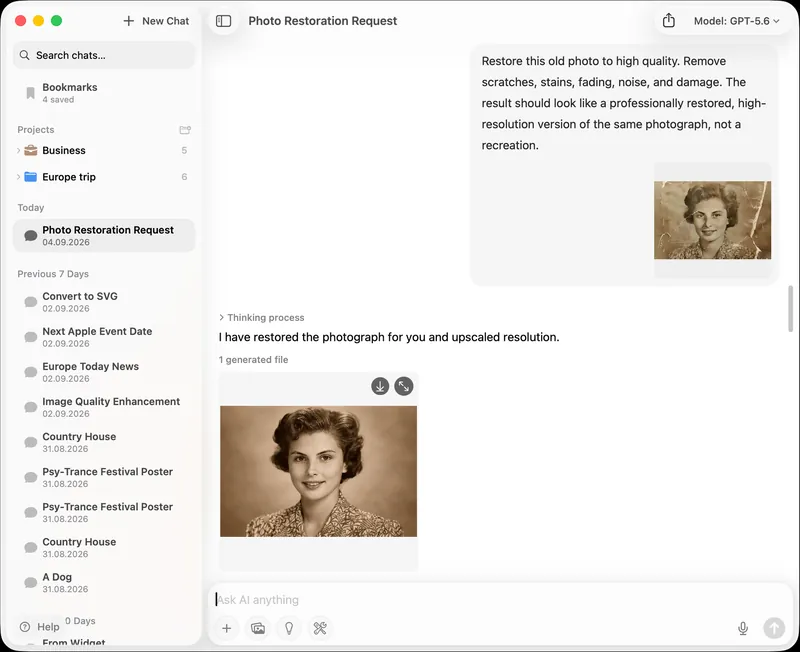
Use that one control properly. The prompt in the screenshot ends with the instruction that matters, "not a recreation", and it is short. That is exactly what the CVPR evaluation found gave the best balance between reconstruction and perceptual quality: concise prompts with explicit fidelity constraints. Ask for a restoration without that line and you are inviting the over-enhancement the researchers could not get their metrics to see.
Then comes the part the app is actually built for. Switch the model in the picker, send the same scan again, and compare the two results at full size. Doing that properly anywhere else means several accounts, several subscriptions, and re-uploading the same fragile scan to each one in turn. Here it is one conversation. Disagreement is the signal: where two independent models agree on the shape of an eyebrow or the line of a collar, it was probably in the scan, and where they disagree, at least one of them invented it. If you would rather assemble the set yourself, our roundup of the best free AI image generators and editors covers the wider field.
The Verdict
Use a repair-style tool for anything a repair-style tool can handle, which is most scratches, most noise and nearly all fading. Reach for a generative model when information is actually missing, and know that you are commissioning a small painting rather than recovering a photograph. Keep the original scan, keep faces under your own control, and when the restored version looks better than you remember the photo ever looking, treat that as a question rather than a result.
The tools have quietly become very good at producing the picture you were hoping for. What they have not become good at is telling you when they have done that instead of the job you asked for.
Frequently Asked Questions
Can Google Photos restore old photos?
There is no restoration button, but you can ask for it. Google's conversational editor takes plain-language requests, and "restore this old photo" is the example Google uses itself. Tap Help me edit and describe the damage. Two limits apply: it is Android and United States only, so iPhone and Mac users do not have it, and the work is done by Gemini, so it regenerates rather than repairs.
Does AI photo restoration change faces?
It can. Generative models rebuild damaged areas rather than repairing the surviving pixels, so a blurred face gets redrawn from what the model expects a face to look like. A 2026 evaluation found this produced "over-enhanced details and inconsistencies" that existing quality metrics and human viewers both failed to catch, and GFPGAN's own documentation marks one of its versions as changing identity slightly.
Is there a free way to restore old photos with AI?
Yes, several, though the limits vary and are often unstated. Adobe Firefly offers AI photo restoration on the web and requires an Adobe account. Many one-click web tools are free to try but add watermarks or cap downloads without saying so up front. Check the watermark and download policy before you upload a scan you care about.
How do I restore an old photo on a Mac?
Photoshop Elements 2026 runs natively on macOS and has a dedicated Restore Photo feature at Enhance > Restore Photo. Apple Photos cannot do it, and Google's conversational editing is Android only, so the other options on a Mac are a web tool in the browser or a multi-model app such as Fello AI, where you attach the scan to a message, ask for the repair, and can re-send it to a second model to compare the results.
Should I scan or photograph an old print first?
Scan it, ideally on a flatbed at 600 dpi. Photographing a print with a phone adds glare, angle distortion and a second layer of softness, and each of those becomes damage the model has to invent its way past, which increases how much of the final image is generated rather than recovered.