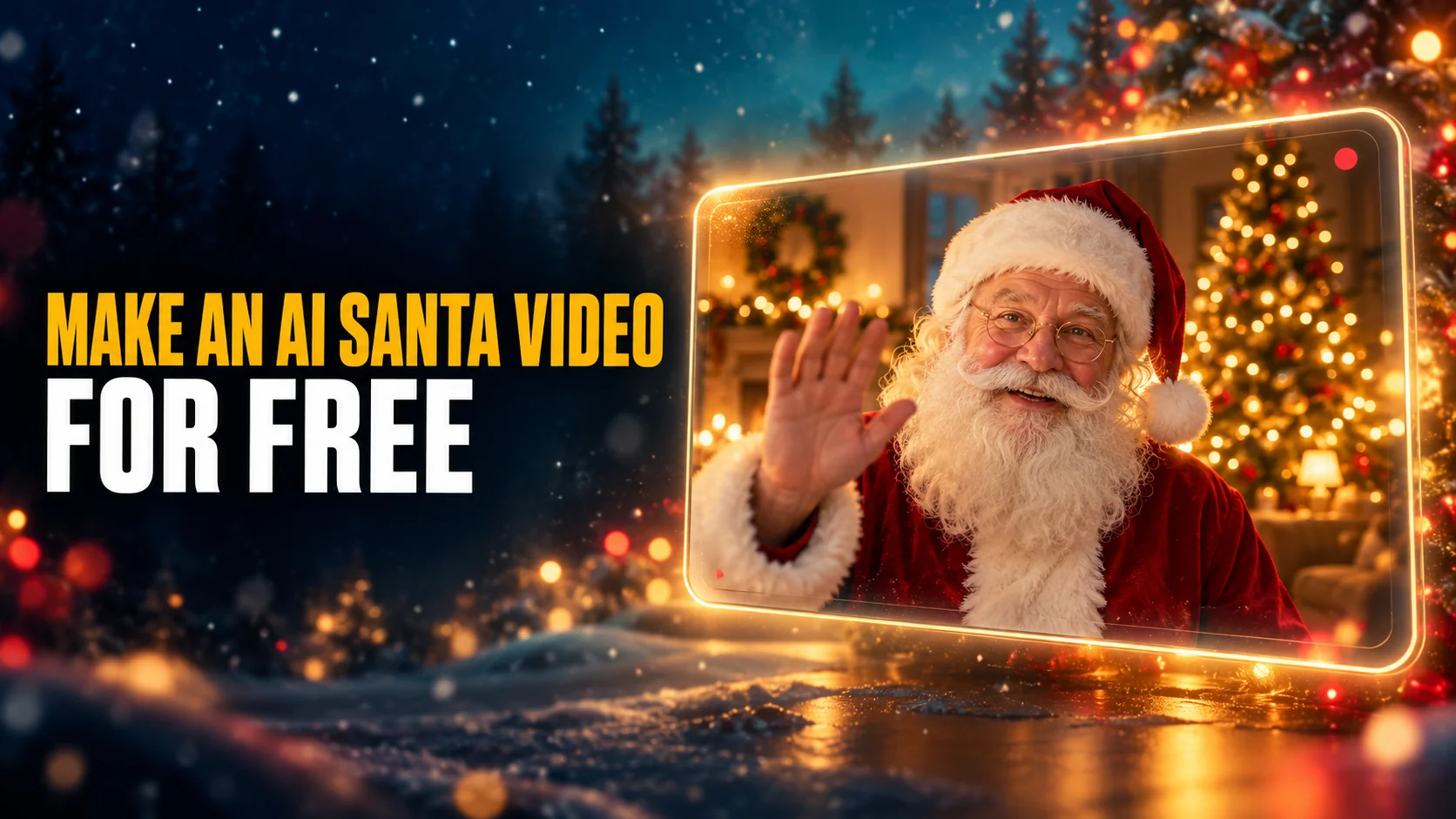
An AI Santa video is a short clip that makes Santa Claus talk to your child by name, appear in your own living room, or call them on the phone. You can make one for free in a browser. Each free tool makes only one of those three kinds, though, and most stop you after a handful of videos.
This guide sorts the three kinds first, so you pick the right tool before you upload anything. Then it walks through each one. You get a talking Santa message in HeyGen or Synthesia, Santa caught on a home security camera with Google Flow, and a Santa call from Portable North Pole. Every free limit below comes from the tool's own pricing or help page, checked in October 2026.
The Key Takeaways
- Three different videos: a talking Santa message, Santa caught on camera in your house, and a Santa call each need a different kind of tool.
- Free messages: HeyGen's free plan makes 3 videos a month, up to 1 minute each, while CreatorKit says its Santa tool is free for only 20% of users.
- Santa in your house: make a security camera still first, then animate it. Google Flow's credits page lists 50 free credits a day, about four 8-second clips.
- Calls: avatar tools make replayable videos, not calls. Portable North Pole schedules real calls and runs a live Talk to Santa chat, both premium.
- Deadline: Portable North Pole says its free trial videos are usually available only until December 19.
What Is an AI Santa Video?
An AI Santa video is a clip in which software generates Santa's face, voice or movement, instead of someone filming a person in a costume. Three different kinds of AI Santa video share the name, and each comes from a different kind of tool.
The first kind is a talking Santa message. You type a script, pick a Santa presenter, and an avatar tool such as HeyGen, Synthesia or Vidnoz reads the script aloud with matching lip movement. This is the video where Santa says your child's name.
The second kind is Santa caught on camera. Santa appears inside your own home, filmed as if by a doorbell or a security camera on Christmas Eve. An image-to-video model makes it by turning a still picture into moving footage. Media.io's Santa doorbell page describes it as parents making Santa appear on their Ring, Nest, Eufy or Wyze cameras.
The third kind is a Santa call, a phone or video call your child picks up. Avatar tools do not make calls. HeyGen's Santa tool is no exception. Its AI Santa video FAQ says the tool "creates personalized Santa video messages you send and replay, rather than a live phone call." Real calls come from a dedicated Santa service, mainly Portable North Pole.
Is There a Free AI Santa Video Generator?
Yes, several AI Santa video generators have a free tier, and every one of them caps how many videos you get or how long they run. The table lists what each tool's own page said in October 2026.
| Tool | Kind of AI Santa video | What is free | The catch |
|---|---|---|---|
| HeyGen | Talking message | 3 videos a month, up to 1 minute each, no credit card | Watermark removal and fuller voice cloning start on the $29-a-month Creator plan |
| Synthesia | Talking message | Santa templates, video sent by email; Basic plan has 10 minutes of video creation or dubbing a month | Every script is checked before the video is made |
| CreatorKit | Talking message | A Santa video by email | Free for only 20% of users, and you find out after entering your email |
| AI Studios | Talking message or dancing Santa | A Santa video on the basic plan | Higher resolution and longer clips are paid |
| Google Flow | Santa in your house | 50 credits a day, about four 8-second 720p clips | 18 or older, supported countries only; Google warns free video can fail from 2 to 5 PM UTC |
| Morphic | Santa in your house | Up to 20 credits on limited models | Real use needs a paid plan |
| Media.io | Santa on a doorbell camera | 3 daily check-in credits | 720p exports with a watermark |
| Portable North Pole | Message, call or live chat | A trial Santa video | Usually only until December 19; calls and live chats are premium |
Where the Free AI Santa Video Limits Come From
The free limits come from the HeyGen pricing page, the Google Flow credits help page, and the FAQ on CreatorKit's Santa page. Portable North Pole's figures come from the Q&A on Portable North Pole's site. The rest come from the Synthesia pricing page, the AI Studios Santa page, the Morphic pricing page and the Media.io pricing page. Free tiers change every season, so check the page once more before you plan around a number.
General video makers such as Kling, Hailuo and Seedance also have free tiers, and our guide to the best free AI video generators compares them. Those tools make generic clips, so you write the whole Santa scene yourself.
How to Make an AI Santa Video Message
To make a talking AI Santa video, write a 30-second script that names your child, paste it into a Santa avatar tool, and download the finished clip. The script decides whether the AI Santa video feels personal, so write it before you open any tool.
Write Santa's Script First
A good Santa script is short, specific and written to be spoken. Aim for about 75 words, which takes roughly 30 seconds to read aloud and sits well inside HeyGen's 1-minute free limit.
Give Santa three things to say: one real achievement, one wish from the list, and one small request for Christmas Eve. Details only your family knows do the convincing. The avatar does not.
Ask any chatbot to draft the Santa script, then cut every line that sounds like an advert:
Prompt: Write a 30-second video message from Santa Claus to my daughter Mia, age 6. Mention that she has practised her reading every night, that she would love a red bike, and that she should be kind to her little brother and go to bed on time on Christmas Eve. Warm and jolly, with simple words a six-year-old understands. About 75 words. No hashtags, no emojis, no stage directions.
Swap in your own child's name, age and details. Keep the wish vague enough that Santa is not promising a present you have not bought.
Make the Message in HeyGen, Synthesia or CreatorKit
HeyGen, Synthesia and CreatorKit all follow the same basic route from script to finished Santa message:
- Open the tool's Santa page: HeyGen's AI Santa video tool, Synthesia's Santa page or CreatorKit's Santa page.
- Pick a Santa template. Synthesia offers Classic Santa, Selfie Santa and Working Santa, among others.
- Paste the script. If the voice mispronounces the name, spell it the way it sounds.
- Generate the video and watch the whole clip once before anyone else sees it.
- Download the MP4 from HeyGen, or open the email that Synthesia or CreatorKit sends you.
Synthesia checks every Santa script before it makes the video. The Synthesia Santa page warns that political, sexual, offensive or criminal content will not be approved, so a rude joke script for adults can bounce.
HeyGen's Santa page also sells making Santa sound like a parent or grandparent, and HeyGen's own pages disagree on what that costs. The Santa page says paid plans unlock voice cloning. The pricing table gives the free plan 1 voice clone, and the Creator plan, at $29 a month or $24 a month billed yearly, expanded voice cloning use.
How to Make an AI Video of Santa in Your House
To make an AI video of Santa in your house, create a still image of Santa in your room first, then animate that still in an image-to-video model. Two steps beat one prompt. The image model keeps your room accurate, and the video model only has to add movement.
Step 1: Make the Security Camera Still
Take a landscape photo of your living room with the tree in it, the lights on and nobody in the frame. Attach it in ChatGPT, Gemini or another image model and paste the prompt below. Our AI Christmas photo trend guide has a version of this still with a person peeking in, plus fixes for when the night-vision look comes out wrong.
Prompt: Use my photo of this room and keep the room exactly as it is: same furniture, same layout, same walls and windows. Add Santa Claus kneeling beside the Christmas tree, placing a wrapped present under it. If there is no tree, add a lit Christmas tree in the corner. Frame it like a still from a home security camera mounted high in a corner: wide angle, black-and-white night vision with a faint green tint, light grain, and a timestamp reading 12-25 02:14 AM in the top corner. Realistic, not cartoon. No other text.
Keep the camera look strong. Morphic's santa cam guide advises naming the camera look first, "night-vision, doorbell fisheye or corner security", then what Santa does and the dark room around him. Morphic also tells you to add the grain and low light that sell the home-camera feel.
For a doorbell version, photograph your front door from the porch and swap the framing line in the prompt for this one:
Prompt: Frame it like a video doorbell still: strong fisheye lens, looking out at the porch at night, Santa Claus walking up to the door carrying a sack, porch light on, a timestamp reading 12-24 11:52 PM.
Step 2: Animate the Still in Google Flow
Google Flow is Google's AI filmmaking tool, and it animates an uploaded image as the first frame of a clip. Google's Flow credits page says accounts without a subscription get 50 Flow credits a day. A 720p, 8-second Gemini Omni Flash clip costs 12 credits, so one free day buys about four tries.
Google's own help pages disagree about who gets in. The Google Flow get-started page lists a Google AI Plus, Pro or Ultra subscription as a requirement, along with being 18 or older in a supported country. If Flow turns a free account away, a paid Google AI plan is the way in.
- Open Google Flow in Chrome on a computer and start a new project.
- In the prompt box, click the model name, choose Video, then Frames.
- Drag your security camera still onto "+ Add start frame".
- Paste the motion prompt below and pick the clip length.
- Click Generate, then rerun with small prompt changes until the room holds still.
Prompt: Home security camera footage. Static high corner angle, night vision with a green tint and grain. Santa Claus places the present under the tree, stands up, turns toward the camera, waves once, then walks out of frame to the left. The camera does not move. The room stays exactly the same. The timestamp stays fixed in the corner.
Watch the edges of the frame on every take. A believable Santa clip keeps the furniture fixed, the timestamp unchanged and Santa's hands in one piece. If the room drifts, cut the action down to one move, such as placing the present and waving.
Morphic and Media.io Package the Camera Look
Morphic and Media.io sell the Santa-in-your-house video as a ready-made effect. Morphic's santa cam page starts from a photo of your room and keeps the setting, and its free plan gives up to 20 credits on a limited set of models. Media.io takes a screenshot from your doorbell camera plus a Santa prompt. Its free tier gives 3 daily check-in credits, with 720p exports and a watermark.
Media.io's Santa page still lists Sora 2 among the models behind it. OpenAI has since shut Sora down, so read any vendor's model list as marketing, not a spec sheet.
Write Santa's Lines and Make the Still in One Chat
The still and the script decide whether an AI Santa video convinces, and both come out of a chat. Fello AI makes the security camera still with GPT image generation and writes Santa's lines in the same conversation. You walk away with one finished image and one finished script for your video tool, without switching between an image app and a chatbot. Fello AI runs on Mac, iPhone and iPad and has a free tier.
Can an AI Santa Video Call Your Child?
No AI avatar tool in this guide makes a live call; they all make videos you send and replay. For a real call, Portable North Pole is the main option. Its site says it schedules a personalized call from Santa to your child's real phone number at a moment you choose. It also runs a live two-way chat called Talk to Santa.
Those live features run on AI. Portable North Pole's Q&A says Write Your Own Topic Calls, Stories and Talk to Santa "create unique, personalized content for your child in real time" and use AI Credits. Its premium Magic Pass includes 10 of those credits for a limited time. Calls and live chats sit outside the free trial.
Searches for an AI Santa video call also turn up avatar tools that use the word loosely. Vidnoz's Santa FAQ answers "Can I share my Santa video call with others?" about its recorded video messages. Those clips are recordings styled like a call, not a call.
AI Santa Video vs Portable North Pole
For a young child who still believes, a Portable North Pole personalized Santa video is the safer pick. For a funny clip for adults, or a script nobody else could write, an AI avatar tool wins. The difference is the footage. Portable North Pole says it mixes "real cinematic footage of Santa and his village" with personalization, while avatar tools generate a presenter who reads whatever you type.
Portable North Pole personalizes through a form: name, age, photos and details such as good behaviour, built into scripted storylines. An avatar tool hands you a blank script box. That freedom cuts both ways, because nothing stops a typo or an odd line from reaching your child.
Timing and price differ as well. Portable North Pole's free trial video is usually available only up to December 19. Premium videos are unlocked one at a time or with the Magic Pass, and Portable North Pole shows that price only in your currency on its premium page. HeyGen's free plan runs all year at 3 videos a month.
Privacy is the last difference. Portable North Pole says it deletes the data from free trial videos every year, and its site carries the kidSAFE seal. HeyGen and Synthesia build business video tools, so read their privacy terms before you type a child's details into either one.
Is an AI Santa Video Safe for Kids?
An AI Santa video is safe for kids when the child's face and personal details stay out of tools you do not trust. A Santa message needs a first name and two or three details, never a photo of the child.
The caught-on-camera clip needs only the room. A photo of an empty living room reveals far less than a photo of your children, and Santa does not need them in the frame.
Expect the clip to carry an AI label. Google Flow embeds an invisible SynthID watermark in every Veo, Omni and Nano Banana output, and free Media.io exports carry a visible watermark. Keep the Santa video in the family chat rather than posting your child's reaction publicly. Our guide to using AI without giving up your privacy covers what to check in a tool's terms first.
Plan for the day your child asks. A convincing fake security recording makes a bigger claim than a costume does, so decide in advance how you will explain it. Older kids who start doubting can learn the tells from our guide on how to detect AI deepfakes.
For more ways to use AI over the holidays, see our creative ways to use AI for Christmas.
The Verdict
Decide which AI Santa video your child will believe, then pick the tool, not the other way round. For a name-and-wish message, start with the free plans from HeyGen or Synthesia, and skip CreatorKit unless you are happy to gamble on its 20% free slot. For Santa in your living room, the two-step route wins: a security camera still from an image model, animated in Google Flow on free daily credits. For a real call, pay for Portable North Pole, because no AI avatar tool calls anyone. Start before December 19 if you want Portable North Pole's free trial as a backup.
FAQ
Can Sora make an AI Santa video?
No. OpenAI shut the Sora app and website on April 26, 2026, and the Sora API followed on September 24, 2026, according to OpenAI's Sora discontinuation notice. Our explainer on what happened to Sora covers the alternatives, and Google Flow makes the same kind of Santa clip.
Is the HeyGen AI Santa video free?
Yes, within limits. HeyGen's free plan makes up to 3 videos a month, each up to 1 minute long, with no credit card. Watermark removal and longer videos need the paid Creator plan.
Can I make AI Santa sound like Grandma or Grandpa?
Yes, with HeyGen's voice cloning. HeyGen's Santa page says to record a short clip, usually under a minute, and the Santa presenter then speaks in that voice. HeyGen's pricing table lists 1 voice clone on the free plan.
Can I add Santa to my real Ring doorbell footage?
Yes. Media.io's Santa tool takes a screenshot from your doorbell camera and a Santa prompt, then animates Santa into the scene. You can also run your own screenshot through the two-step route in Google Flow.
How long is a free AI Santa video?
A free talking Santa message runs up to 1 minute on HeyGen. A free Santa-in-your-house clip is much shorter: Google Flow's Gemini Omni Flash makes 4 to 10 second clips, so plan one moment, not a scene.