Since we added presentations to Fello AI, you have made over 50,000 of them. And one piece of feedback kept coming back. You wanted your AI PowerPoint slides to look nicer, and to feel more like the topic they are about.
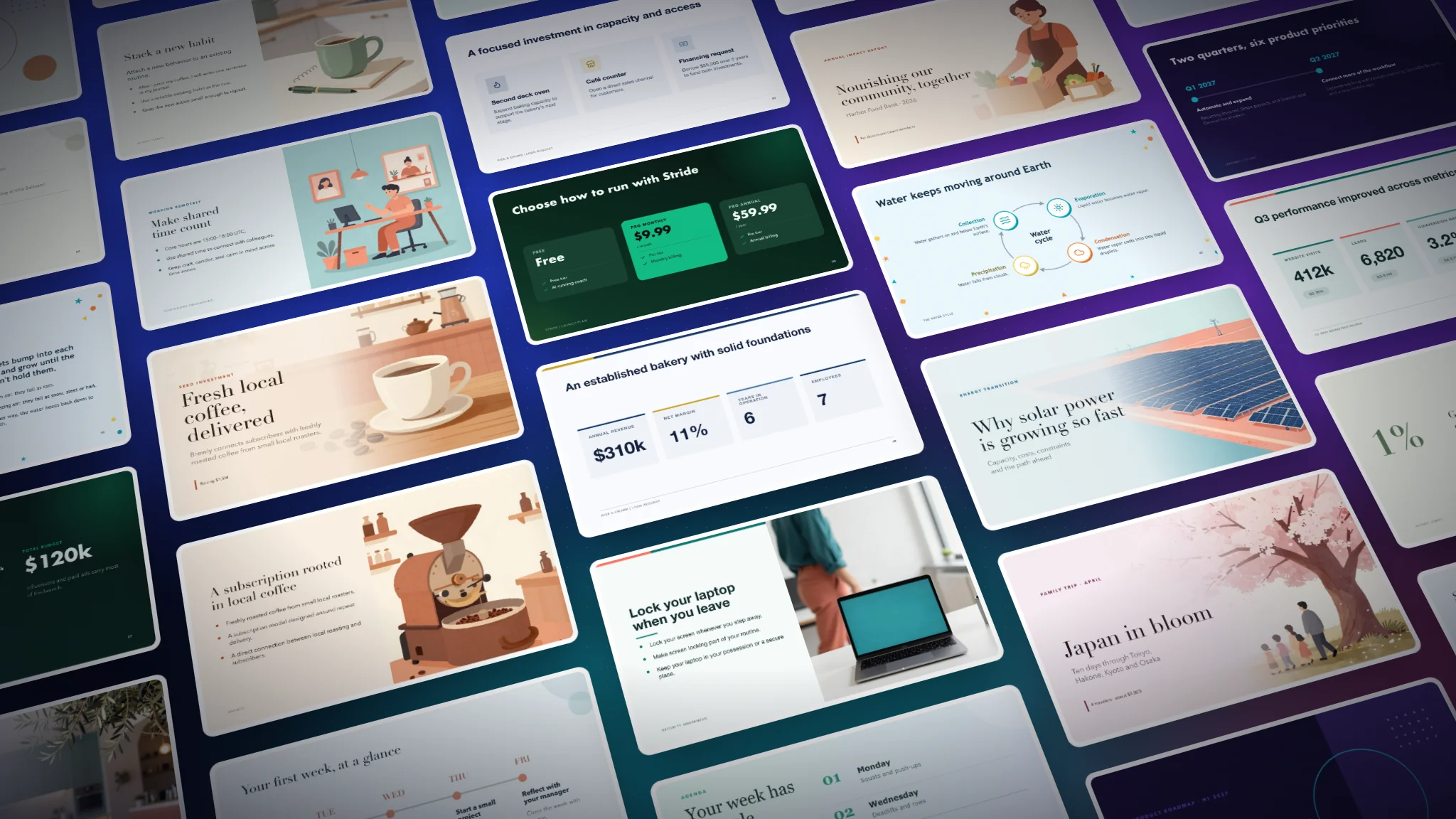
So we rebuilt how Fello AI designs presentations. From today, every deck gets a style that suits its topic and audience, better pictures, and layouts that show your content instead of just listing it. It is still a real .pptx file you can open and edit.
There is nothing to update or switch on. Ask Fello AI for a presentation the way you always have, and you get the new slides.
Most of the time, a presentation is about something you are already working on: a lesson you are teaching, a product you are launching, a trip you are planning. You bring the facts, and the deck has to show them well. So that is how we tested it. Below are three real examples, each made from the same request with the old system and the new one.
What Changed in Our AI PowerPoint Slides
- The design depends on the topic. The old decks all looked about the same. Now Fello AI picks the fonts, colors, and style based on what the deck is about and who it is for. A lesson for 12-year-olds gets a playful, illustrated look, a fitness app launch a dark and sporty one, a family trip something soft or calm.
- Better pictures, and more of them. Fello AI now takes more care with images. It finds or creates pictures that fit the topic and the style of the deck, and there are more of them than before.
- Your content goes where it fits. If you paste notes, numbers, or a plan, each part gets a fitting format. A key number becomes a big stat, a budget a chart, and dates a timeline.
- Fewer bullet lists. Steps can become a timeline, a process a diagram, and options side-by-side cards. Bullet points are still used when they are the clearest choice.
- Text fits the slide. Fewer half-empty slides, less tiny text, and fewer lines breaking in odd places. Fonts, spacing, and page numbers stay consistent across the deck.
- Still a normal PowerPoint file. Titles, text, charts, and tables are regular PowerPoint objects, so you can edit them like in any other deck.
Example 1: A School Presentation About the Water Cycle
What the teacher asked for:
Make a fun and visual presentation on how the water cycle works, covering evaporation, condensation, precipitation, and collection, with a quick quiz at the end. Audience: 7th grade science students (12-year-olds).
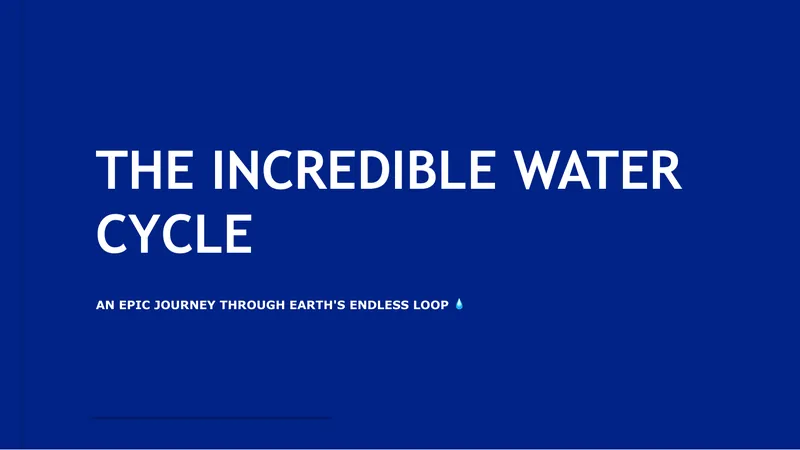
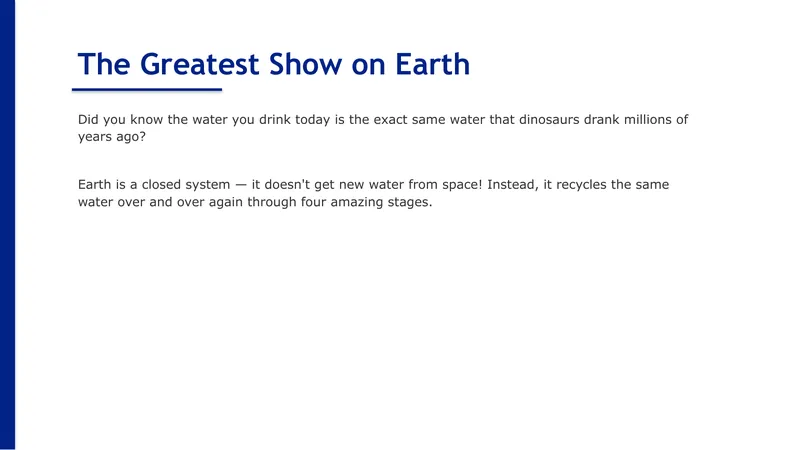
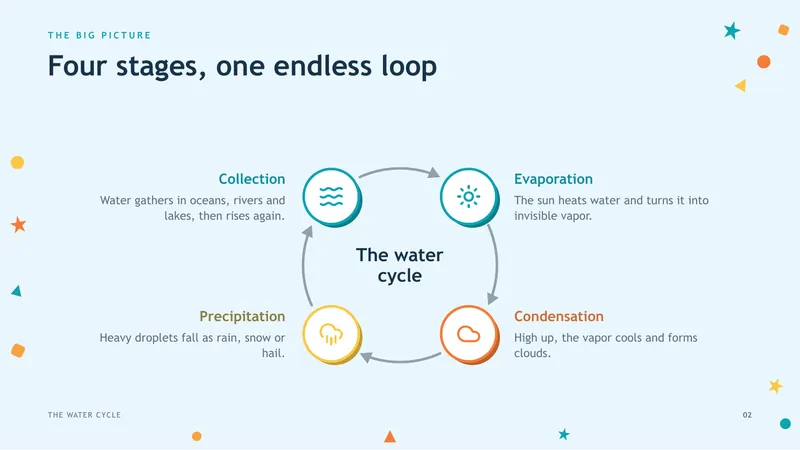
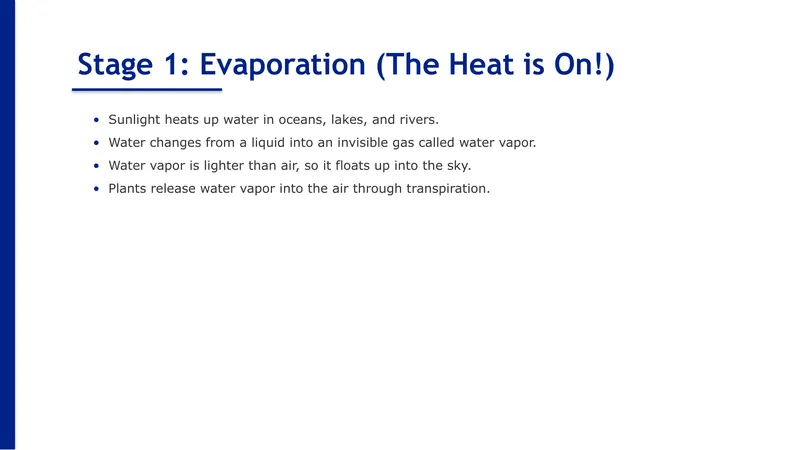
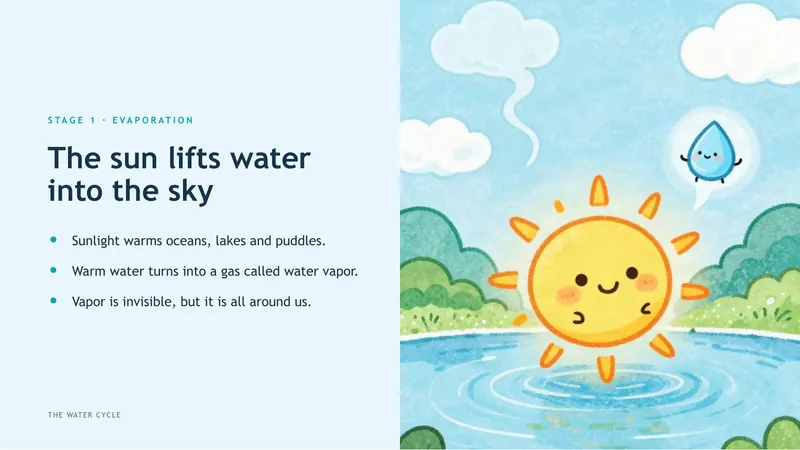
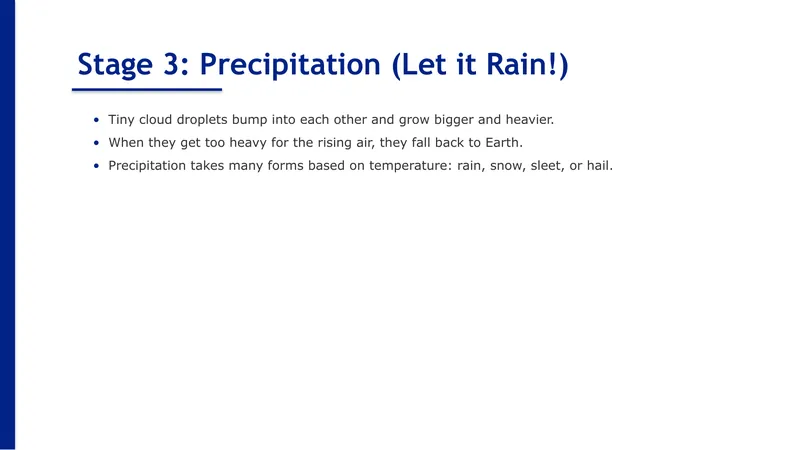
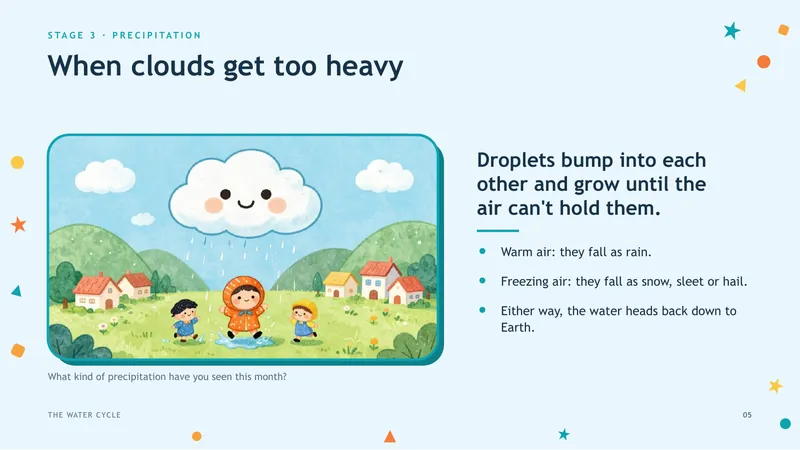
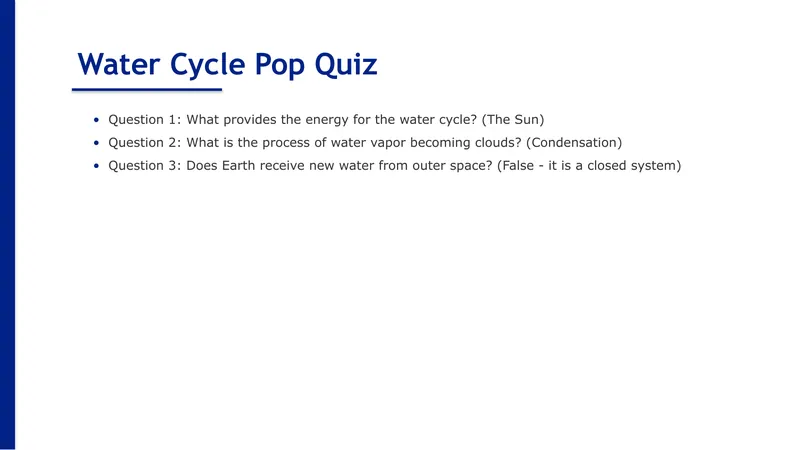
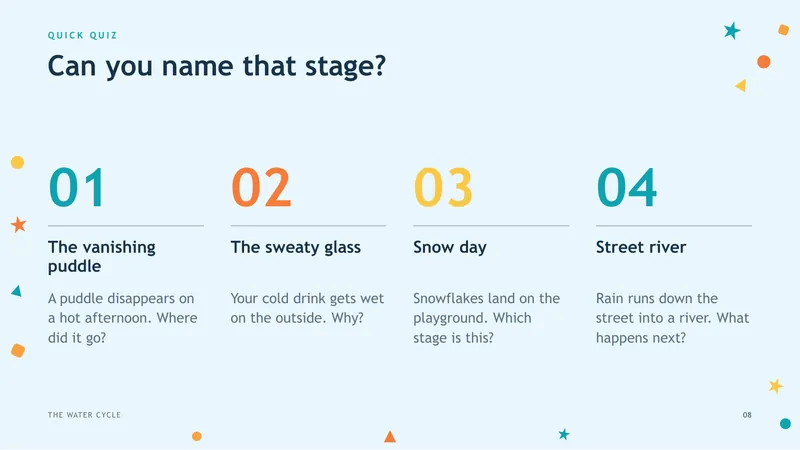
The old deck had the right facts, but it looked like a set of notes: blue and white, small text, nothing a 12-year-old would want to look at. The new deck follows a water drop through the cycle, with friendly illustrations, a cycle diagram, and a quiz that keeps the answers for the next slide. Swipe sideways to see all five slides.

Example 2: A Launch Plan for a Mobile App
What we pasted in: a one-line request, plus the plan exactly as a team would have it in their notes.
Create a professional launch plan presentation for Stride, an AI running coach app.
Launch date: March 3, 2027
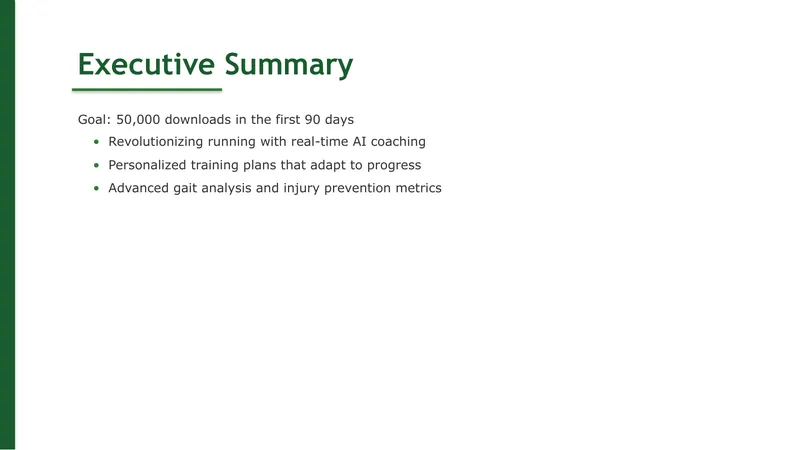
Goal: 50,000 downloads in the first 90 days
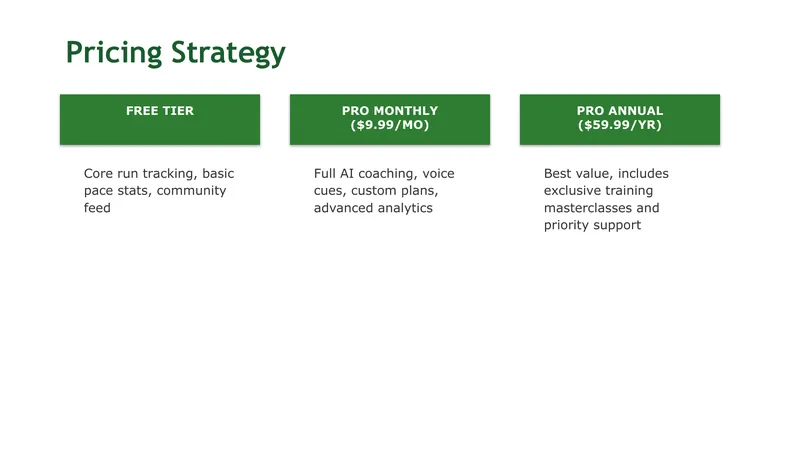
Pricing: free tier, Pro at $9.99/month or $59.99/year
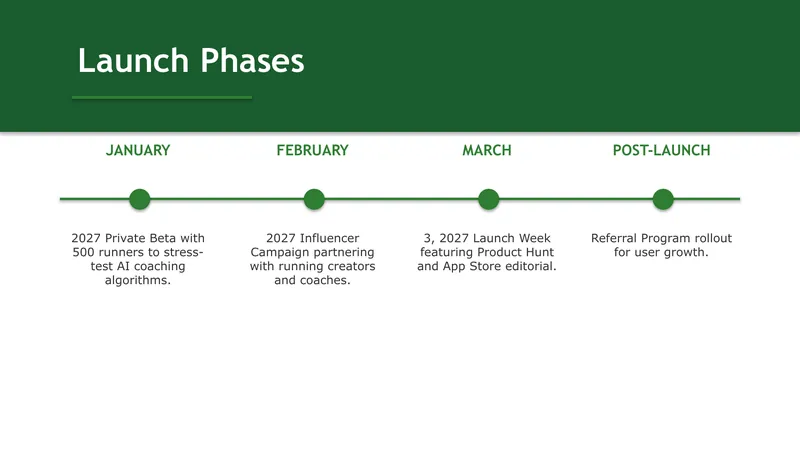
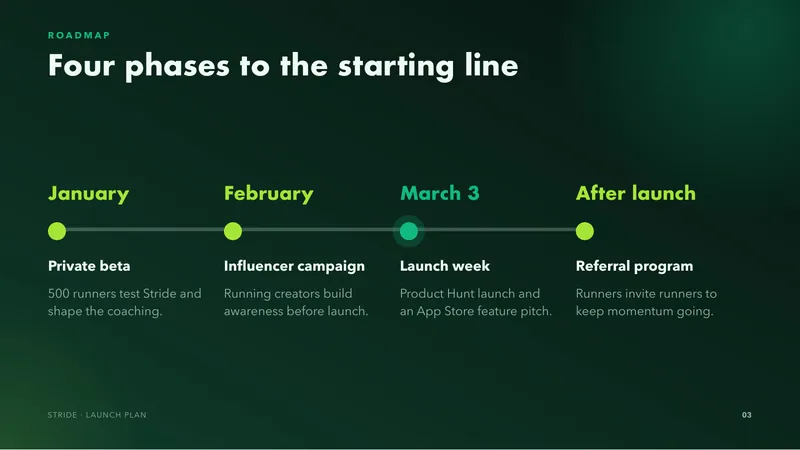
Phases: January, private beta with 500 runners. February, influencer campaign. Launch week, Product Hunt launch and App Store feature pitch. After launch, referral program.
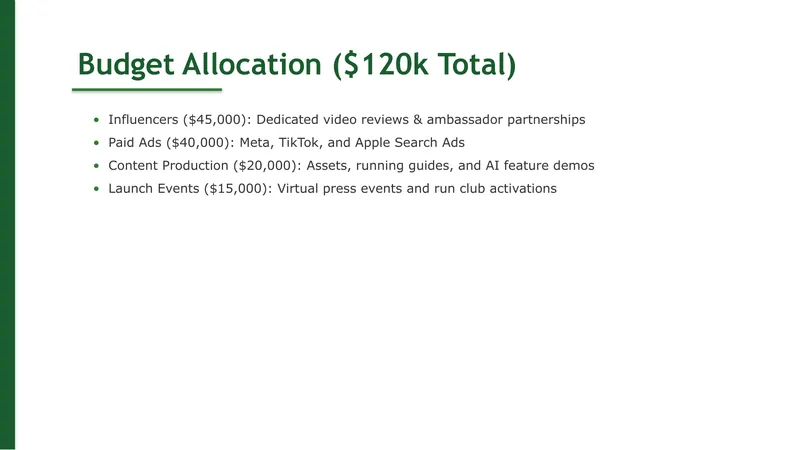
Budget: $120k total (influencers $45k, paid ads $40k, content $20k, events $15k)
Both versions had the same facts to work with. The old one listed them as bullet points, and on the timeline slide the dates broke across lines ("3, 2027 Launch Week"). The new one reads like a deck a startup would actually present. Every number from the notes is in its place: the download goal as one big number, pricing as plan cards, and the budget as a chart. A glowing runner illustration carries the brand.





Example 3: A Family Trip to Japan
What we pasted in: the trip plan, the way a family would jot it down.
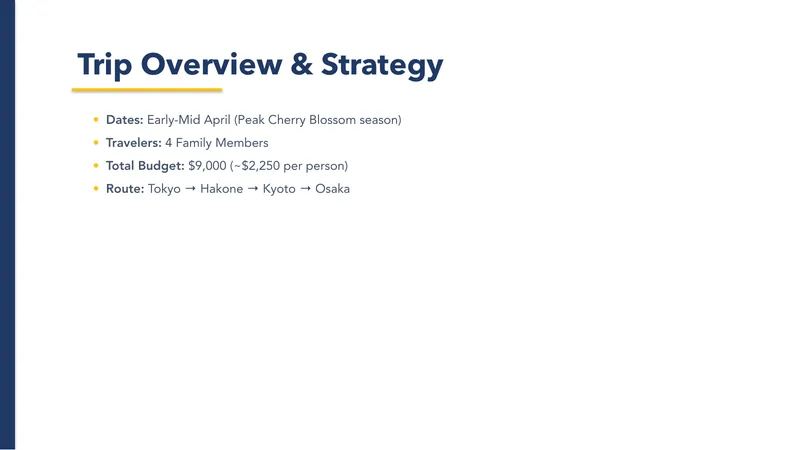
10-day Japan trip in April, itinerary and guide.
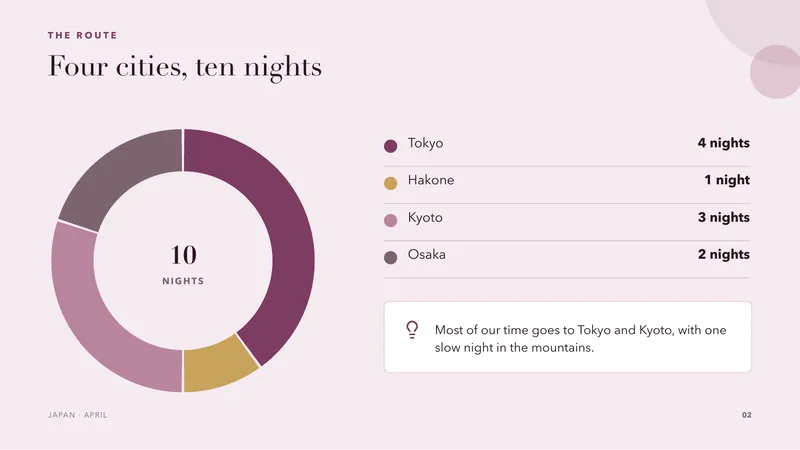
Tokyo (4 nights), Hakone (1 night), Kyoto (3 nights), Osaka (2 nights)
Budget: about $9,000 for 4 people
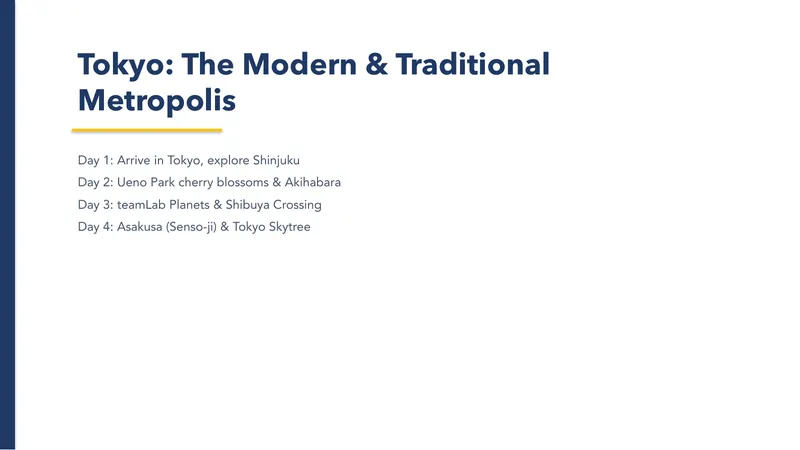
Highlights: cherry blossoms in Ueno Park, teamLab Planets, Fushimi Inari, Nara deer, ryokan with onsen, Dotonbori street food
Include a day-by-day overview and packing tips.
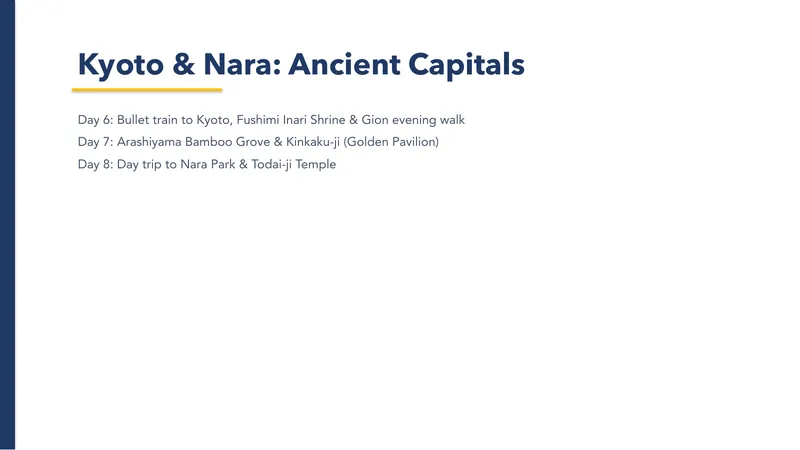
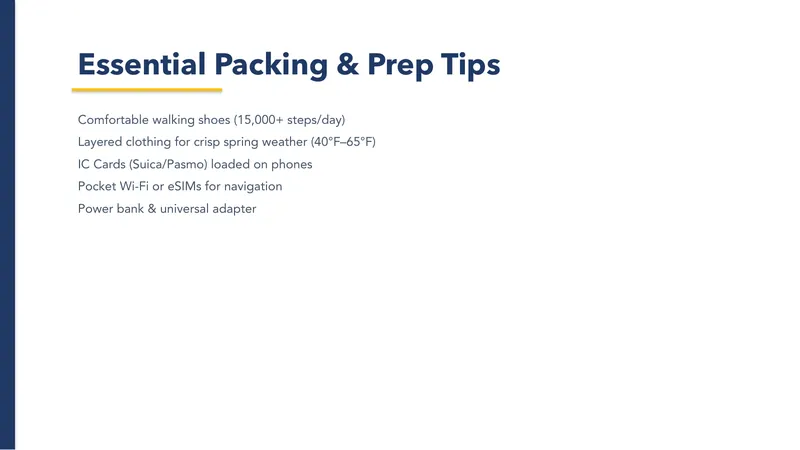
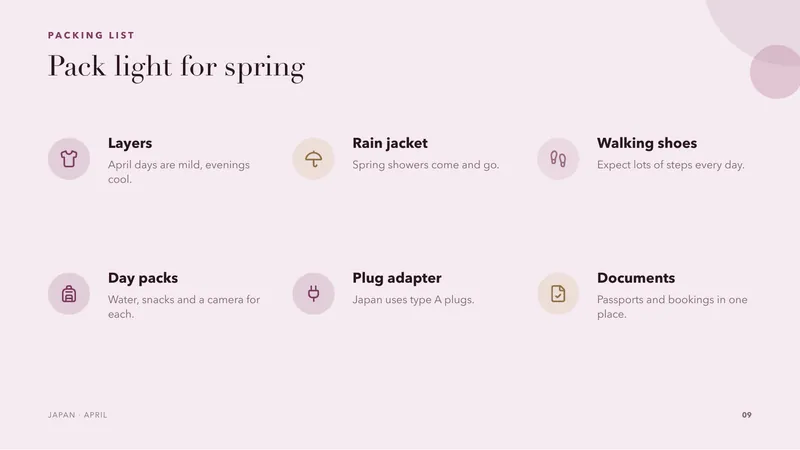
Not every presentation is for work. The old deck put the whole trip on plain white slides with a few lines of text each. The new one is something the family would enjoy flicking through. The nights per city are a chart, every highlight sits on the right day, and packing tips get an icon for each item.




Why You Get a Real .pptx File
Some AI tools now build presentations as web pages, which can look good in the tool itself. The problem comes when you need to send the deck to a client, upload it to a school system, or present from a work laptop. Most of the time, people expect a PowerPoint file.
That is why your AI PowerPoint slides from Fello AI come as a standard .pptx file. Text is real text, charts are real charts, and tables are real tables, not a picture of a slide. You can fix a typo, swap a number, move a box, or change the colors in PowerPoint or Keynote, and the file is yours to keep and share.
How to Get the Best Presentation From Fello AI
You can simply type "make a presentation about...", and Fello AI will take it from there. A few details in your request make the result even better:
- Say who it is for. "For 7th graders", "for seed investors" or "for my family" changes the design, the tone, and how much detail goes on each slide.
- Give it your real content. Paste your notes, numbers, and names, or attach a PDF or document. Slides built from your facts beat slides built from guesses. Our guide on turning a PDF into a PowerPoint shows how.
- Mention the length and the goal. "Ten slides, ending with a call to action" or "with a quiz at the end" gives the deck a clear shape.
- Ask for changes in plain words. "Make the budget slide a chart" or "add a slide about risks" works just like any other chat message.
For more ideas, see our guides on how to create a presentation with AI and how to use AI in PowerPoint.
Frequently Asked Questions
Can Fello AI make a PowerPoint presentation?
Yes. Ask for a presentation in any chat and Fello AI creates a complete slide deck. You get a .pptx file to download, share, or open in your presentation app.
Do I need to update the app to get the new slides?
No. The improvement is live for everyone. The next presentation you ask for will use the new design.
Can I edit the slides?
Yes. The text, charts, and tables are standard PowerPoint objects, so you can change anything in PowerPoint or Keynote. You can also ask Fello AI to make changes for you in the chat.
Can I make slides from a PDF or document?
Yes. Attach the file and ask for a presentation based on it. Fello AI will pull out the key points and build the deck around them.
What kinds of presentations can it make?
Anything you would make in PowerPoint: school and lecture slides, pitch decks, project updates, launch plans, training materials, trip plans, and more. The design adapts to each topic and audience.
Try It Now
The new presentations are live in Fello AI on iPhone, iPad, and Mac. Ask for your next deck and see the difference for yourself.
L’image principale de cet article a été créée avec l’aide de l’IA.