Over 3 trillion PDFs exist worldwide according to Adobe estimates, and most people still deal with the same problems: merging scattered files, shrinking bloated attachments, and locking down sensitive documents. Traditional PDF tools solve these tasks one at a time, usually across three or four different websites. AI changes that completely.
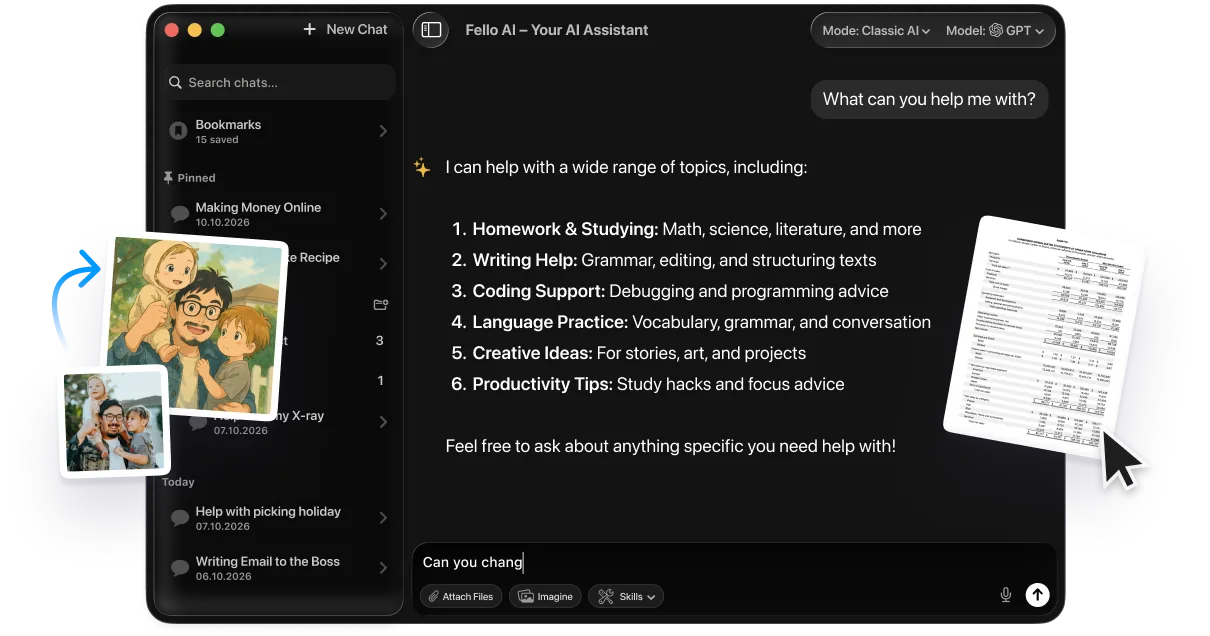
The best tool for handling PDFs with AI right now is Fello AI. It handles 12 PDF operations in a single chat conversation, merge, compress, protect, split, watermark, extract text, convert files, and more. It also gives you access to GPT-5.4, Claude, and Gemini in one app, works on Mac, iPhone, and iPad, and creates Word, Excel, and PowerPoint files too. Instead of juggling five different websites, you describe what you need in plain language and get the finished file back in seconds.
The Key Takeaways
- Fello AI’s PDF Skill handles 12 operations in one chat: merge, compress, protect, split, watermark, extract, convert, rotate, and more
- Operation chaining lets you merge, compress, watermark, and password-protect in a single message, something no other PDF tool offers
- AES-256 encryption is the current standard for PDF password protection; Fello AI, Adobe Acrobat, and LibreOffice all support it
- Smart AI compression can reduce PDF file size by 40-80% while preserving text sharpness and readable images
- At $9.99/month, Fello AI costs less than Adobe Acrobat Pro ($19.99/month annual plan) and includes access to multiple AI models plus Office file creation
What AI Can Do with Your PDFs
Before picking a tool, here is what AI handles for PDF workflows today:
- Merge multiple files into a single document with automatic page ordering and table of contents generation
- Compress files intelligently, applying different compression levels to text-heavy vs image-heavy pages
- Password-protect documents with AES-256 encryption and granular permissions (restrict printing, copying, or editing)
- Summarize long reports, extract key points, and answer specific questions about the content
- Extract tables and data from PDFs into Excel spreadsheets with proper formatting preserved
- Translate entire documents while keeping the original layout and structure
- Fill forms automatically from natural language instructions
- Compare two document versions and list every change between them
The question is not whether AI can handle your PDF tasks, it is which tool does it with the least friction and cost.
How Fello AI Works with PDFs
Fello AI is a Mac and iOS app that puts multiple AI models in one place. With version 6.5.0, it introduced Skills, a feature that handles native file operations directly from your chat. The PDF Skill covers 12 operations: extract text and tables, convert files to PDF, merge, split, compress, add watermarks, password-protect, unlock, rotate pages, and get file info.
Here is how to use the PDF Skill in Fello AI:
- Open Fello AI on your Mac, iPhone, or iPad
- Tap the Skills button (tools icon) in the chat input bar and toggle on PDF
- Drag and drop your PDF files into the chat, or tap the attachment button to select them
- Type what you need in plain language, for example: “Merge these three reports, compress to under 5 MB, and add a password”
- Fello AI processes the request and delivers a downloadable file directly in the conversation
- The file saves locally to your device. Nothing is stored permanently on remote servers
You can also enable Excel and Word Skills at the same time. This means you can upload a PDF, extract a table into an Excel spreadsheet, and create a summary Word document, all in the same conversation. Skills are available to all Fello AI subscribers and work across Mac, iPhone, and iPad with automatic sync between devices.
What You Can Do with Fello AI’s PDF Skill
The PDF Skill handles practically every operation you would normally need three or four different websites for. Here are the most common use cases in detail.
Merge multiple PDFs into one document
Upload your files and type something like “Merge these three files into one PDF.” You can add instructions in the same message: “Put the summary first, then the appendices, and add page numbers.” The AI handles the sorting and delivers a single downloadable file. Unlike traditional merge tools that simply concatenate pages, Fello AI can reorder sections logically and even flag duplicate pages before merging.
Compress PDFs without losing quality
Fello AI uses content-aware compression that analyzes each page individually. Text-heavy pages get lossless treatment that preserves every detail. Image-heavy pages get targeted lossy compression that keeps faces and text sharp while aggressively compressing backgrounds. This approach typically achieves 40-80% reduction with minimal visible quality loss. Just upload your file and type “Compress this PDF to under 5 MB.”
Password-protect sensitive documents
Upload your PDF and type “Protect this PDF with the password ‘quarterly2026’.” Fello AI applies AES-256 encryption, the current gold standard that meets or exceeds requirements for HIPAA, SOC 2, and GDPR compliance. You can also set granular permissions to restrict printing, copying, or editing separately.
Summarize long documents
Fello AI has supported chatting with PDFs since version 5.0.0. Upload a 100-page report and ask “What was the Q3 revenue figure?” or “Summarize the risk factors section.” You get answers in seconds instead of reading the whole thing. Combined with the PDF Skill, you can summarize a document and immediately export the summary as a Word file or a new PDF.
Extract tables into Excel spreadsheets
Upload a PDF with tables and ask “Extract the table on pages 26-28 into an Excel spreadsheet.” With both the PDF Skill and Excel Skill enabled, Fello AI reads the table structure, creates a properly formatted .xlsx file with headers, data types, and even working formulas where appropriate. This works on both text-based and scanned PDFs.
Translate entire documents
Upload your PDF and type “Translate this document to Spanish.” The AI preserves headers, formatting, and structure while translating the content. Common language pairs (English, Spanish, French, German, Chinese, Japanese) produce strong results, and models differ more than you would expect on whether the structure survives, which we measured in our guide to the best AI for translation. You can also use Fello AI’s Search Skill to look up domain-specific terminology during translation.
Fill forms automatically
Upload a blank PDF form and provide your information: “Fill in this W-9 with company name Acme Corp, EIN 12-3456789, address 123 Main St, New York, NY 10001.” The AI identifies the form fields and fills them in, delivering a completed PDF ready to sign.
Compare two document versions
Upload both PDFs and ask “Compare these two documents and list every change.” The AI identifies differences in text, numbers, and structure, and produces a clear summary. You can ask specific questions: “Did the payment terms change between these versions?” or “What clauses were added in the revised contract?”
Why Fello AI Beats Using Multiple PDF Websites
The biggest difference between Fello AI and traditional PDF tools is operation chaining. Every other tool requires you to complete each operation separately: merge on one website, download the result, upload it to another website for compression, download again, upload to a third website for password protection. Each step means a separate upload, a separate trust decision about where your data goes, and a separate download.
Fello AI collapses that entire chain into a single message:
“Merge these three quarterly reports into one PDF. Add a ‘CONFIDENTIAL’ watermark to every page, compress the file to under 5 MB, and protect it with the password ‘board2026’.”
One message, one conversation, one downloadable file.
There are three other advantages worth knowing about:
Multiple AI models in one app. Fello AI gives you access to GPT-5.4, Claude, and Gemini without switching between apps or managing separate subscriptions. You can use different models for different tasks, GPT for creative content, Claude for detailed analysis, or Gemini for research-heavy work.
Works across the entire Office suite. Beyond PDFs, Fello AI’s Skills also create Excel spreadsheets, PowerPoint presentations, and Word documents. Need to extract data from a PDF into a spreadsheet and then create a summary presentation? You can do all of that from the same conversation.
Cheaper than Adobe Acrobat. At $9.99/month, Fello AI costs half of what Adobe charges for Acrobat Pro ($19.99/month on an annual plan). And Fello AI includes access to multiple AI models and Office file creation on top of PDF operations.
Best Prompts for PDF Operations with AI
The quality of your results depends on how you ask. These prompts work in Fello AI and can be adapted for other AI tools.
Merging with specific order
“Merge these files with the executive summary first, followed by the financial report, then the appendices. Add page numbers starting from 1.”
Compressing to a target size
“Compress this PDF to under 5 MB. Prioritize text sharpness over image quality.”
Protecting with specific permissions
“Password-protect this PDF with ‘review2026’. Allow viewing and printing but block editing and copying.”
Summarizing with focus
“Summarize this 80-page report in 5 bullet points, focusing on financial performance and risk factors.”
Extracting specific data
“Extract the revenue table from pages 12-14 into an Excel spreadsheet. Include column headers and preserve the original formatting.”
Chaining multiple operations
“Merge all uploaded files, compress the result to under 10 MB, add a ‘DRAFT’ watermark on every page, and protect with password ‘team2026’.”
In Fello AI, these prompts produce a downloadable file. In other tools, you would need to run each operation separately on different websites.
How Fello AI Handles Word, Excel, and PowerPoint Too
One of the biggest advantages of using Fello AI for your PDF workflow is that it covers the entire Office suite. The same Skills feature handles all major file formats.
Word documents. Ask Fello AI to create proposals, reports, meeting summaries, or any structured document and it delivers a formatted .docx file with proper headings, tables, and styling. You can also upload an existing Word file and ask it to revise, extend, or translate. For more details, check our guide on using AI in Word.
Excel spreadsheets. Create budget trackers, data analysis sheets, project timelines, or any structured data as a formatted .xlsx file with formulas, headers, and styling. You can upload an existing spreadsheet and ask it to analyze, extend, or restructure the data. See our guide on using AI in Excel for detailed examples.
PowerPoint presentations. Describe what your presentation needs to cover and Fello AI builds a .pptx file with slides, layouts, and content structure. It handles everything from sales decks to training materials. For more, see our guide to creating presentations with AI.
This means you can handle your entire document workflow from a single app. Extract tables from a PDF into an Excel spreadsheet, create a summary in Word, and build a presentation deck, all in one conversation. If that last step is your main goal, see how to turn a PDF into a presentation.
Where to Get Fello AI
Fello AI is available on Mac, iPhone, and iPad. You can download it from the App Store or learn more on the Fello AI FAQ page. The app costs $9.99/month and includes access to all AI models and all Skills (PDF, Word, Excel, PowerPoint, Search).
There is no free tier for the Skills features, but the app comes with a free trial so you can test PDF operations before committing. Fello AI has a 4.7-star rating with 25K+ reviews.
Other AI PDF Tools
Fello AI is not the only option, and the right pick changes with your platform and how sensitive your documents are. We compared eight of them, including Adobe Acrobat AI Assistant, ChatPDF, Smallpdf, UPDF and the free PDFgear, in our guide to the best AI PDF readers.
Are Online PDF Tools Safe for Sensitive Documents?
This is the most important question most guides skip. Every time you upload a PDF to a web tool, you are trusting that service with your data. What that means for ChatGPT specifically, including the fact that uploaded files outlive the chat that carried them, is covered in our ChatGPT privacy guide.
Client-side tools process your PDF entirely in your browser. Your file never leaves your device. Examples include some features of PDFsam and browser-based tools that advertise “no upload” processing.
Server-side tools upload your file to remote servers. Most popular tools (Smallpdf, iLovePDF, Adobe Acrobat Online) work this way. They typically encrypt files in transit and delete them after processing (usually 1-2 hours), but your file does touch their servers.
Fello AI processes files on secure servers to leverage AI capabilities. Generated files are saved locally on your device. The app does not store your documents permanently on its servers. For tips on managing your data with AI tools, see our guide on how to stop AI from training on your data.
For highly confidential files that should never leave your device, use offline tools like macOS Preview, PDFsam, or LibreOffice.
Conclusion
You do not need five different websites or an expensive Adobe Acrobat subscription to manage your PDFs in 2026. AI-powered tools let you describe what you need in plain language and get a finished file back in seconds.
Fello AI at $9.99/month is the strongest option for most people. It handles all 12 PDF operations in a single chat, lets you chain multiple operations in one message, gives you access to GPT-5.4, Claude, and Gemini, and creates Word, Excel, and PowerPoint files too. If you need offline processing for confidential files, LibreOffice and PDFgear are free alternatives. For the full Adobe editing suite, Acrobat Pro is the most complete but costs twice as much.
Download Fello AI from the App Store and start using the PDF Skill immediately.
FAQ
What is the best AI tool for merging, compressing, and protecting PDFs?
Fello AI at $9.99/month handles all three operations plus 9 more in a single chat conversation. You can chain merge, compress, and protect into one message. Adobe Acrobat Pro is the most feature-complete alternative but costs $19.99/month (annual plan, or $29.99/month without a commitment).
Can I merge PDFs for free?
Yes. iLovePDF (25 files, 100 MB limit), Smallpdf (2 tasks per day), PDFsam Basic (unlimited, fully offline), and macOS Preview (drag and drop in thumbnails view) all offer free PDF merging. For AI-powered merging with chained operations, Fello AI offers a subscription at $9.99/month.
Does compressing a PDF reduce image quality?
It depends on the method. Lossless compression reduces file size by 10-30% without affecting visual quality. Lossy compression achieves 50-90% reduction but may blur images. AI-powered smart compression in tools like Fello AI analyzes each page individually, applying lossless treatment to text and targeted lossy compression to images.
What encryption should I use for PDF password protection?
Use AES-256 encryption whenever possible. It is the current industry standard and meets requirements for HIPAA, SOC 2, and GDPR. macOS Preview uses AES-128; for AES-256, use LibreOffice (free), Adobe Acrobat, or Fello AI.
Can Fello AI create Word, Excel, and PowerPoint files too?
Yes. Fello AI’s Skills feature creates native .docx, .xlsx, .pptx, and .pdf files directly from chat. You can extract data from a PDF into an Excel spreadsheet and create a summary Word document in the same conversation.