TL;DR: You cannot remove data from AI models that have already been trained, but you can stop companies from using your future chats to improve them. ChatGPT, Claude, and Gemini all provide specific toggles to opt out of training, though they may still keep logs for a limited time for safety and legal reasons.
| AI Assistant | Default Training Status | How to Stop It | Best for Privacy |
|---|---|---|---|
| ChatGPT | ON by default (Consumer plans) | Settings > Data Controls > Turn off “Improve the model” | Use Temporary Chat |
| Claude | ON (Changed late 2025) | Settings > Privacy > Turn off “Help improve Claude” | Use Incognito mode |
| Gemini | ON (Keep Activity default) | Profile > Gemini Apps Activity > Turn off | Delete Activity often |
| Fello AI | OFF (Local-first) | Native default (History stored on device) | Use default local storage; periodically clear your local history from Fello’s settings when needed |
Did you just unbox a new phone or laptop for the new year? Before you start asking your AI assistant for help setting it up, you need to check a few hidden settings. Most AI tools are helpful, but they often treat your conversations as free training material by default. As we move deeper into the era of “Agentic AI” in 2026, where assistants don’t just answer questions but take actions on your behalf, the amount of personal data flowing through these systems is skyrocketing.
Many users assume their chats are private, but unless you flip specific switches, your questions and personal stories can be used to make these models smarter. Following the major policy shifts of late 2025, where many major providers moved to “opt-out” models, staying vigilant is more critical than ever. This guide covers exactly how to lock down your data on ChatGPT, Claude, and Gemini. For everything else OpenAI collects, from ad personalisation to what its Mac app records, see our full guide to ChatGPT privacy. That appetite for training material now reaches past the web entirely: AI companies are buying print books in bulk and destroying them after scanning.
This article answers:
- How do I turn off AI model training for my account?
- Does deleting my chat history actually stop training?
- Is there a way to use AI without my history going to the cloud?
Danger Zone: What Never to Share
Even with training turned off, cloud-based AI is not a zero-knowledge vault. To stay safe, never paste the following into a cloud chatbot:
- Passwords, API keys, or 2FA codes.
- Full credit card numbers or bank account info.
- Unpublished legal, medical, or financial records.
- Trade secrets or unreleased product plans.
While opting out of training prevents your data from improving the model, it does not encrypt your messages end-to-end in the same way a secure messaging app does. Moderators may still review flagged conversations for safety violations, and in the event of a data breach, plain-text logs could be exposed. Treat the chat window like a semi-public space. If you wouldn’t want it projected in a meeting, don’t type it here. If that level of protection is the requirement, Proton’s Lumo AI stores even saved chats under zero-access encryption. The risks that no setting fixes, from fake download sites to agents, are in our guide to whether ChatGPT is safe.
What “Stop Training” Means
Before changing your settings, it is important to understand how AI data privacy works. When you ask an AI not to train on your data, you are telling it to stop using your future conversations as study material.
Think of it like baking a cake:
- The Flour (Your Data): Once the flour is baked into the cake (the current AI model), you cannot take it back out.
- The Next Cake: However, you can stop giving the baker more flour for the next cake.
Models are updated regularly, so your new chats can be baked into future versions relatively quickly if training is enabled.
Why “Delete” Doesn’t Always Mean Gone
Most people think hitting “delete” on a chat vanishes it forever. In reality, most companies distinguish between “training” and “logging.” This distinction is crucial because opting out of training does not necessarily mean your data is immediately wiped from the company’s servers.
- Training: Using your chats to teach the AI how to speak, reason, and code. This is the “forever” part you want to avoid.
- Logging: Keeping a record of the chat for a limited time to check for hacking, abuse, or bugs.
Even if you opt out of training or delete a chat, providers usually keep backend copies for a short time, days or sometimes much longer, so they can monitor abuse, debug issues, or comply with legal orders. For example, OpenAI normally schedules deletions within about 30 days, but has to retain some deleted ChatGPT logs longer due to ongoing litigation.
How to Stop ChatGPT from Training on Your Data
OpenAI gives you clear controls, but for personal accounts, the default setting is ON, meaning they can use your chats. Entering 2026, the interface has stabilized, but the option to stop training is still tucked away inside the settings menu rather than being front-and-center.
If you relied on the ChatGPT WhatsApp integration, note that OpenAI is discontinuing this service in January 2026. To preserve your history, you must link your phone number to a standard ChatGPT account before the cutoff date, or those chats may be lost.
Turning Off “Improve the Model”
For users on Free, Plus, or Pro plans, follow these steps to secure your account. Note that this setting syncs across devices, so changing it on your web browser should update your mobile app as well.
- Click your profile icon in the top right or bottom left corner (depending on your version).
- Select Settings and then click Data Controls.
- Find the toggle labeled Improve the model for everyone.
- Switch it to OFF.
Once you do this, your new conversations are excluded from future training runs. OpenAI explicitly states that disabling this does not delete your history, but it walls it off from the training dataset.
Using Temporary Chats
If you need to ask something highly sensitive, like advice on a medical document or a legal draft, use the Temporary Chat feature. This is distinct from simply turning off training because it also keeps your interface clean.
- Open the model selector at the top left of the chat window.
- Toggle “Temporary Chat” to On.
- These chats do not appear in your history sidebar, are not used for training, and are deleted from OpenAI’s systems within 30 days (unless required for security/legal reasons).
Note: If you use ChatGPT Enterprise or Team at work, your data is generally excluded from training by default. However, always verify with your IT department, as custom configurations can vary.
How to Opt Out of ‘Help Improve Claude’ and Use Incognito Mode
For a long time, Claude was widely considered the “privacy-first” option by default. However, the policy shift in late 2025 changed the landscape. Now, consumer plans (Free, Pro, and Max) generally feed data into training unless you take action. This shift caught many users by surprise and highlights why Claude AI privacy settings need regular review.
If you haven’t checked your settings recently, do it now. The new terms mean that your regular chats, including those long coding sessions or creative writing drafts, can be used to refine the model. If you are a developer pasting proprietary code into Claude, this is a critical vulnerability.
How to Opt Out
To stop Claude from using my data, you must navigate the settings menu. Unlike the old system where training was often opt-in, it is now an opt-out system.
- Open Claude and tap your initials/profile icon.
- Go to Settings and then select the Privacy tab.
- Look for the Help improve Claude toggle.
- Turn it OFF.
Turning this off stops future chats from being used to train Claude. Anthropic says changing your setting or deleting specific chats will exclude them from future training, but any training already done on past data can’t realistically be undone.
Retention Note: If you opt in, Anthropic can retain your chats for up to five years; if you opt out, they keep them around 30 days for safety before deletion (unless your organization has a different retention policy).
Using Incognito Mode
If you want to be double-sure, use Incognito mode. Anthropic (the makers of Claude) states that Incognito chats are never used for training, even if you leave the main privacy toggle on.
- This is ideal for “one-off” questions where you don’t need the AI to remember context later.
- It prevents the data from cluttering your project history.
- It creates a clear psychological separation between “work meant to be saved” and “quick, sensitive queries.”
How to Turn Off Gemini Apps Activity (Keep Activity)
Google manages Gemini AI privacy settings differently. Instead of a simple toggle inside the chat window, it is tied to your broader Google account activity via “Gemini Apps Activity” (or Keep Activity). This setting is ON by default for most adults.
To stop Gemini from using my data, you need to manage a setting called “Gemini Apps Activity”. This setting controls whether your interactions are stored in your Google Account.
- Open the Gemini app on your phone or go to gemini.google.com.
- Tap your profile picture and select Gemini Apps Activity.
- Select Turn off.
- You can also choose to “Turn off and delete activity” to wipe the slate clean.
Turning off Keep Activity stops Gemini from saving your chats to long-term account history and using them to train generative AI models. Google still keeps them for up to 72 hours to run the service and process abuse checks, but not for model training. For a single private conversation, use Temporary chat, explained in our guide to Gemini incognito mode.
There’s a separate, off-by-default setting for letting Google use your audio and Gemini Live recordings to improve services — keep that off if you want maximum privacy.
The Gmail Training Myth
You may have heard rumors that Gemini reads your Gmail to train itself. This is a common fear, especially with the “Gemini for Workspace” integration. Google has clarified that while “Smart Features” might scan email to suggest replies for you (within your personal instance), they do not use your personal emails to train the public Gemini model.
However, if you interact with the Gemini side panel inside Gmail and explicitly ask it questions about your emails, those interactions (the prompts you write to Gemini) fall under the Gemini Apps Activity rules. If you would rather not deal with any of this, see how to turn Google Gemini off entirely.
Using AI Without Sending History to the Cloud
If toggling settings feels risky or tedious, you might prefer a “local-first” approach. This means using an app that keeps your data on your physical device rather than sending your chat history to a company’s cloud. In 2026, as devices get more powerful, “local-first” is becoming the gold standard for privacy.
When you use a standard web browser for AI, your entire chat history lives on the company’s servers. Local-first AI tools change this architecture. They send your prompt to the AI to get an answer (via API), but they save the conversation history only on your laptop or phone.
- Data Sovereignty: You own your logs. If you delete them, they are gone from your disk.
- Reduced Attack Surface: A hacker breaching a cloud provider’s database won’t find your chat history there because it never left your device.
For most big providers, API calls and enterprise plans are not used to train public models by default, which is another privacy win on top of keeping your logs local.
Using Fello AI for Next-Gen Models
Fello AI is a prominent example of this privacy-first design. It is a client that lets you chat with the latest 2026-era models (including GPT-5.1 and Claude 4.5), but it behaves differently from the official apps:
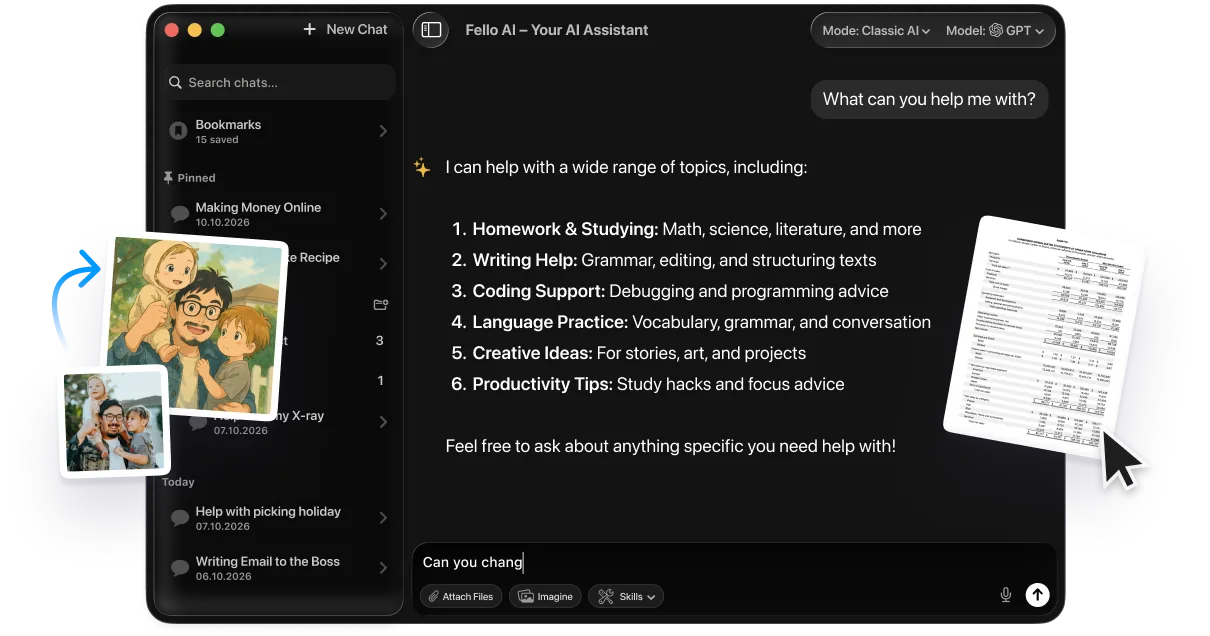
- Local History: Your chats are stored locally on your device (Mac, iPhone, iPad). They are not synced to a Fello cloud database.
- Broker Access: Fello handles the API connections behind the scenes, so you don’t have to manage individual subscriptions. You get access to GPT-5, Claude 4.5, Gemini 2.5 Pro and others in a single client, while your chat history stays on your device.
- Less Exposure: Since your history isn’t sitting on a remote server, it is harder for it to be swept up in bulk data processing.
Using an app like Fello is one of the strongest ways to maintain Fello AI privacy while still accessing the most powerful intelligence available. It essentially acts as a privacy shield between you and the big model providers.

New Device Checklist
Did you buy a new device this Black Friday or upgrade for the new year? Here is a quick 6-step checklist to secure your AI privacy before you start typing.
- Download your tools: Install ChatGPT, Claude, or a local client like Fello AI. Avoid sketchy “wrapper” apps that don’t have clear privacy policies.
- Log in securely: Use a strong password and enable 2-factor authentication immediately. Your AI history contains a wealth of personal data.
- Check ChatGPT: Go to Data Controls and turn off “Improve the model.” Do this before you paste that first sensitive email.
- Check Claude: Go to Privacy and disable “Help improve Claude.” Remember, the default might have reverted to “On” with the new install.
- Check Gemini: Ensure “Gemini Apps Activity” is set to your preference (Auto-delete or Off).
- Decide on Local: If you discuss work secrets or financial data, consider setting up a local-first app like Fello AI for those specific tasks and keeping the big cloud chatbots for low-risk queries like travel planning or recipes.
Taking a few minutes to configure these settings creates a robust privacy baseline for your new hardware. With training toggles off and a local-first tool ready for sensitive tasks, you can enjoy the benefits of AI assistance without compromising your digital sovereignty.
Conclusion
You can’t erase the past, but you can definitely protect your future data. As AI becomes more integrated into our daily lives in 2026, the volume of data we share is increasing exponentially. By taking five minutes to adjust the settings in ChatGPT, Claude, Gemini, and by using a local-first client like Fello AI for your most sensitive work, you make sure your personal thoughts stay personal.
Next Step: Open your primary AI app right now, find the “Data Controls” or “Privacy” section, and toggle off the training setting before sending your next message.
FAQ
If I delete a ChatGPT chat, is it removed from training data?
Generally, no. If the AI has already been trained on that chat (before you deleted it), the information is part of the model. Deleting it only removes it from your history and prevents future training on that specific text. This is why turning off training now is so important.
Does ChatGPT Enterprise or Gemini for Workspace train on my work data?
Usually, no. ChatGPT Enterprise, Team, and Gemini for Workspace have different agreements that prevent your business data from being used for public model training by default. However, your employer technically “owns” those chats and can review them.
Is Incognito mode safe for sensitive data?
It is safer than standard chat because it doesn’t save history or train models. However, the provider still keeps a backend log for a short period. Typically up to around 30 days for ChatGPT and Claude, or roughly 72 hours for Gemini, to monitor abuse and ensure service reliability. It is not “end-to-end encrypted” in the way Signal or WhatsApp is.
Can I use Fello AI instead of the official ChatGPT app?
Yes. Fello lets you access ChatGPT-level models (like GPT-5) without logging into your ChatGPT account; all your history lives inside Fello on your device rather than in OpenAI’s app.
Why did Claude change its policy in 2025?
As AI models require vastly more data to improve reasoning and coding capabilities, many companies have shifted to “opt-out” models to increase their training datasets. This industry-wide trend makes user vigilance more important than ever.
Methodology & Sources
To ensure this guide is accurate for the 2026 landscape, we conducted a rigorous review of the current ecosystems.
- Version Testing: We verified privacy toggles on the latest web and mobile versions of ChatGPT (OpenAI), Claude (Anthropic), and Gemini (Google) as of late 2025.
- Documentation Review: We analyzed updated privacy policies and help center articles from OpenAI, Anthropic, and Google regarding data retention and training defaults.
- App Analysis: We reviewed Fello AI’s documentation regarding local storage versus cloud sync features.
- Sources: