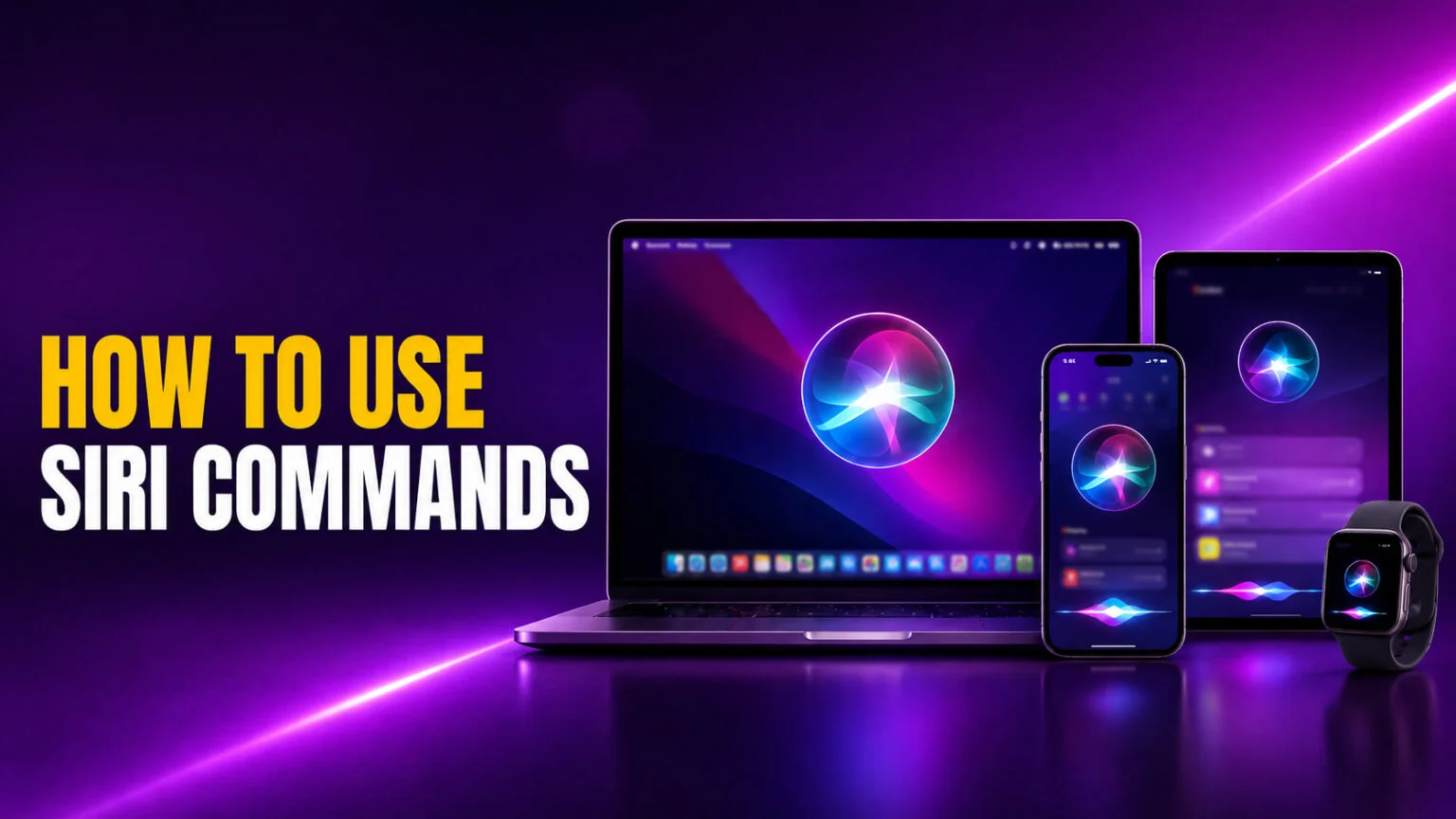
Learning how to use Siri takes about ten seconds. Say “Siri” or “Hey Siri” and ask, or press a button and speak. The harder part is knowing what to actually say, because Siri can do far more than set a timer. It sends messages, gives directions, runs calculations, controls smart-home gear, translates phrases, and takes actions inside your apps, all hands-free across every Apple device you own.
This guide covers how to activate and talk to Siri on iPhone, iPad, Mac and Apple Watch, a categorized library of the most useful Siri commands, and how to type to Siri when you can’t speak out loud. It also explains what changes with the Gemini-powered Siri Apple announced at WWDC 2026, a conversational rebuild that turns Siri from a command-taker into something closer to a chatbot, testable right now in the iOS 27 public beta and arriving for everyone in fall 2026. If you have not enabled the assistant yet, start with how to set up Siri, then come back here.
The Key Takeaways
- Activate Siri three ways: say “Siri” or “Hey Siri”, press a hardware button, or type to it.
- The button differs by device: Side button on iPhone, Top button on iPad, Digital Crown on Apple Watch, and the menu-bar or Dock Siri button on Mac.
- Siri handles messages, reminders, alarms, navigation, music, smart home, math, translation and in-app actions through plain-language commands.
- Type to Siri lets you use the assistant silently by typing instead of speaking.
- The new Gemini-powered Siri, built on a custom 1.2-trillion-parameter Google model, ships in fall 2026 with on-screen awareness and back-and-forth conversation.
How to Use Siri: The Three Ways to Activate It
Every Apple device gives you the same three ways to call up Siri, so once you learn the pattern it carries everywhere. You speak a wake phrase, you press a button, or you type. Which button you press is the only thing that changes from one device to the next, and the steps below cover each one.
Before any of this works, Siri has to be switched on. If yours is greyed out or silent, start with our guide on how to turn on Apple Intelligence, since Siri now lives under the same setting on modern devices. If it is switched on but still will not respond, a separate troubleshooting guide covers the usual fixes. Once it is enabled, pick the activation style that suits where you are.
Voice: “Siri” or “Hey Siri”
The fastest way to use Siri is hands-free. Say “Siri” or “Hey Siri” followed straight away by your request, for example “Hey Siri, set a timer for ten minutes.” On current iPhones, iPads and Apple silicon Macs you can use the shorter “Siri” trigger; older hardware still expects the full “Hey Siri.” There is no need to pause between the wake word and the command, and Siri keeps listening long enough for a full sentence.
Button: press and hold to talk
When you can’t talk to your phone across the room, the button method is more reliable and works even in a noisy place. Press the device’s Siri button, wait for the listening indicator, then speak. For a longer request, press and hold the button until you finish talking, which stops Siri cutting you off mid-sentence. The exact button is covered per device in the next section.
Type: silent requests
You don’t have to speak at all. With Type to Siri enabled, you can summon a keyboard and type your question, which is ideal in a meeting, a library, or anywhere talking to your device feels awkward. We cover how to switch it on further down. Whichever method you use, the commands you give are identical, so the library later in this guide applies to all three.
How to Use Siri on Every Apple Device
The wake phrase never changes, but the hardware button does. Here is exactly how to use Siri on each device, with the correct button names so you press the right one the first time. The steps follow Apple’s own guide to using Siri on all your Apple devices. If you are unsure which of your gadgets even qualifies, check which devices support Apple Intelligence first, since the newest Siri features depend on recent chips.
iPhone
On any recent iPhone, say “Siri” or “Hey Siri” and ask your question. To trigger it by hand, press and release the Side button, or the Home button on older models, then speak. For a longer dictation, press and hold the button until you are done. To type instead, double-tap the bottom of the screen to bring up the keyboard once Type to Siri is on.
iPad
The iPad works almost identically to the iPhone, with one difference in the button. Use the voice trigger, or press and hold the Top button, or the Home button on iPads that still have one, then make your request. Type to Siri behaves the same as on iPhone once enabled, which is handy on a larger screen where you are often already typing.
Mac
On an Apple silicon Mac you can simply say “Siri” or “Hey Siri” and ask. To click instead, use the Siri button in the menu bar or the Dock, or tap it on the Touch Bar if your Mac has one. There is also a keyboard option: press and hold the Dictation key on Apple keyboards that have one. If Apple Intelligence is on, clicking the Siri button lets you type your request directly, as detailed in Apple’s Mac Siri guide. For the bigger picture of what the assistant does on a desktop, see our walkthrough on how to use Apple Intelligence.
Apple Watch and AirPods
On Apple Watch, raise your wrist toward your mouth and speak, or look at the screen and say “Siri,” or press and hold the Digital Crown and then talk. Raise to Speak works on Series 3 and later. With AirPods, you trigger Siri hands-free by saying “Siri” or “Hey Siri,” and on supported models a press or a voice prompt wakes it without touching your phone, which is the easiest way to fire off a quick command while your hands are busy. You can also swap the assistant’s accent or gender in Settings; our guide on how to change Siri’s voice walks through every option.
What Can Siri Do? The Best Siri Commands
Siri can send messages and place calls, set reminders, alarms and timers, give directions, play music, control smart-home devices, answer factual questions, run calculations and conversions, translate phrases, and take actions inside apps. With the 2026 update it also understands what is on your screen and can hold a back-and-forth conversation. The table groups the most useful commands so you can scan for one to try right now.
| Category | Example command | iPhone | Mac | Notes |
|---|---|---|---|---|
| Calls & messages | “Text Mum I’m running late” | Yes | Yes | Reads and sends messages hands-free |
| Reminders & calendar | “Remind me to call the dentist at 5 pm” | Yes | Yes | Can tie reminders to a time or place |
| Alarms & timers | “Set a timer for 20 minutes” | Yes | Yes | Multiple named timers supported |
| Maps & navigation | “Give me directions home” | Yes | Limited | Best on iPhone with CarPlay |
| Music & media | “Play my Discover playlist” | Yes | Yes | Works with Apple Music and some third-party apps |
| Weather & info | “What’s the weather tomorrow?” | Yes | Yes | Pulls live data and quick facts |
| Math & conversions | “What’s 18% of 64?” | Yes | Yes | Currency and unit conversions too |
| Translation | “How do you say thank you in Japanese?” | Yes | Yes | Speaks the result aloud |
| Smart home | “Turn off the living room lights” | Yes | Yes | Needs HomeKit devices set up |
| On-screen & app actions | “Add these to my grocery list” | Yes | Yes | Expands a lot with the 2026 update |
Communication and reminders
The commands most people use daily are the simple ones. Ask Siri to “call Dad,” “read my last message,” or “text Sarah that I’ll be there in five.” For your schedule, try “remind me to buy milk when I leave work,” which uses location, or “what’s on my calendar tomorrow?” These chain naturally into your day because Siri reads back what it heard before sending, so you can correct a name or a time without starting over.
Information, math and translation
Siri is a quick reference tool when your hands are full. Ask “what’s 240 divided by 6?”, “how many cups in a litre?”, or “convert 50 dollars to euros” and you get an instant answer. It also handles general knowledge questions like “how tall is the Eiffel Tower?” and translates short phrases between dozens of languages, speaking the result out loud so you can repeat it. For anything Siri can’t answer directly, it hands the question to a web search, which is where a dedicated AI assistant often does better.
Music, maps and smart home
For everyday control, voice is faster than tapping. Say “play something relaxing,” “skip this song,” or “play the news” to control audio, and “navigate to the nearest petrol station” to start directions. If you have HomeKit accessories, commands like “set the bedroom to 20 degrees” or “lock the front door” run instantly. These shine on Apple Watch and AirPods, where reaching for a screen is the slow option. You can push this further by chaining several steps into one phrase; our guide on how to use Siri Shortcuts shows how.
How to Type to Siri Instead of Talking
Talking to your phone is not always practical, and Type to Siri solves that by letting you key in requests silently. It is also a genuine accessibility feature for anyone who finds voice input difficult. Turning it on takes three steps, and it works across iPhone, iPad and Mac.
- Open Settings (or System Settings on Mac) and go to Apple Intelligence & Siri.
- Find Talk & Type to Siri and turn on Type to Siri.
- Summon Siri the usual way, then type your request when the field appears. On iPhone, double-tap the bottom of the screen to bring up the keyboard.
Once it is on, you can mix and match. Speak when it is convenient and type when it is not, with the same command library working in both modes. If you would rather Siri stayed quiet entirely, you can also adjust whether it speaks its answers back in the same menu, or follow our guide on how to turn off Siri to disable it completely.
The New Gemini-Powered Siri in 2026
At WWDC 2026, Apple confirmed the biggest Siri change in the assistant’s history. Rather than build the brains in-house, Apple is leaning on Google, running Siri on a custom 1.2-trillion-parameter Gemini model under a multi-year deal reported to cost around $1 billion a year. Sensitive requests still run through Apple’s Private Cloud Compute, so the partnership sits underneath Apple’s own privacy layer rather than replacing it.
For how you actually use Siri, three things change. There is a standalone Siri app with a conversational, chatbot-style interface, so you can have a real back-and-forth instead of one-shot commands. Siri gains on-screen awareness, meaning it can act on what you are looking at, and deeper personal context across your mail, photos and files. A paperclip icon even lets you attach images and PDFs to a request, much like a desktop AI chat.
The catch is timing and hardware. The overhaul launches in fall 2026 alongside iOS 27, starts in English, and needs newer iPhones, iPads, Macs, Apple Watches and Vision Pro to run. If you want the full background on whether today’s Siri already counts as AI and what the Gemini move means, read our explainer on whether Siri is AI. For the wider set of features landing across Apple’s platforms, our Apple Intelligence explainer maps out the rest. In the meantime you can make a different AI answer “Hey Siri”.
When Siri Isn’t Enough: Many AI Models on Your Mac
Siri is excellent at quick actions tied to your Apple devices, but it still hands most complex questions to a web search. For the full picture of how the new Siri compares to ChatGPT, see our dedicated comparison. If you want a voice assistant built purely for conversation, see how ChatGPT Live compares to Siri. When you want to draft a long email, debug code, summarize a PDF, or compare answers from different AI models, a dedicated assistant does the job better. That is where Fello AI on Mac fits alongside Siri rather than replacing it.
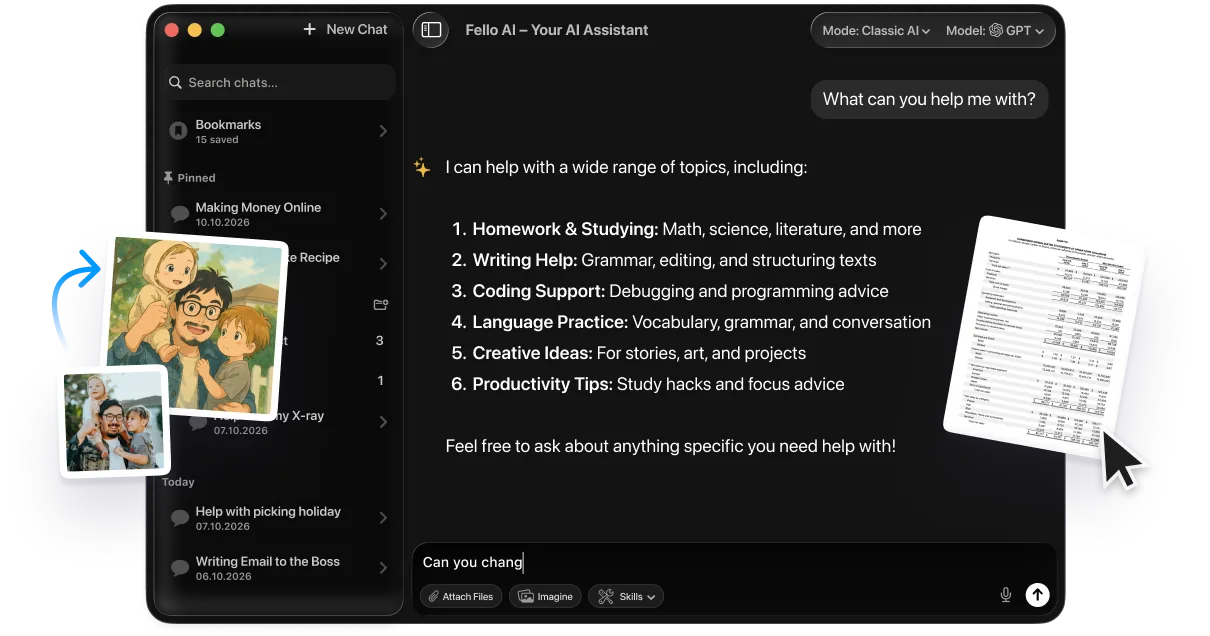
Fello AI puts Claude, ChatGPT, Gemini, Grok and DeepSeek in one native Mac app for a single price, so you can ask the same question across several models and keep the best answer. It runs on macOS 12 and later, including Intel Macs that miss out on Apple Intelligence, and costs $9.99 a month. Use Siri for the fast, spoken stuff and switch to a full model when a question needs real depth.
Conclusion
Using Siri comes down to one habit. Say “Siri” or press your device’s button, then ask in plain language. Learn the handful of commands you would use daily, from reminders and timers to messages and directions, and the assistant quickly earns its place. The button names differ by device, but the wake phrase and the commands are the same everywhere.
With the Gemini-powered rebuild arriving in fall 2026, Siri is about to get far more capable, so it is worth building the habit now. For the heavier lifting Siri still punts to the web, pair it with a full AI assistant on your Mac and you have both speed and depth covered.
FAQ
How do I use Siri without saying “Hey Siri”?
Press your device’s Siri button instead. That is the Side button on iPhone, the Top button on iPad, the Digital Crown on Apple Watch, or the Siri button in the Mac menu bar. You can also turn on Type to Siri and type your request silently.
What can I say to Siri?
Almost anything phrased as a command or question. Common examples include “set a timer for 10 minutes,” “text Alex I’m on my way,” “remind me to call the bank tomorrow,” “what’s the weather?”, “play my workout playlist,” and “turn off the lights.” Speak naturally rather than using exact keywords.
How do I use Siri on my Mac?
On an Apple silicon Mac, say “Siri” or “Hey Siri,” or click the Siri button in the menu bar or Dock. You can also press and hold the Dictation key on supported keyboards, and type your request if Apple Intelligence is enabled.
When does the new Gemini-powered Siri come out?
Apple announced it at WWDC 2026 and plans a full launch in fall 2026 alongside iOS 27. It starts in English and requires newer iPhones, iPads, Macs, Apple Watches and Vision Pro, with older hardware staying on the current Siri.
Is Siri as good as ChatGPT?
Not yet for complex tasks. Today’s Siri is built for fast device actions and quick facts, and it hands deeper questions to a web search. The 2026 Gemini upgrade narrows the gap, but for research, writing and coding a dedicated AI app on your Mac still goes further.