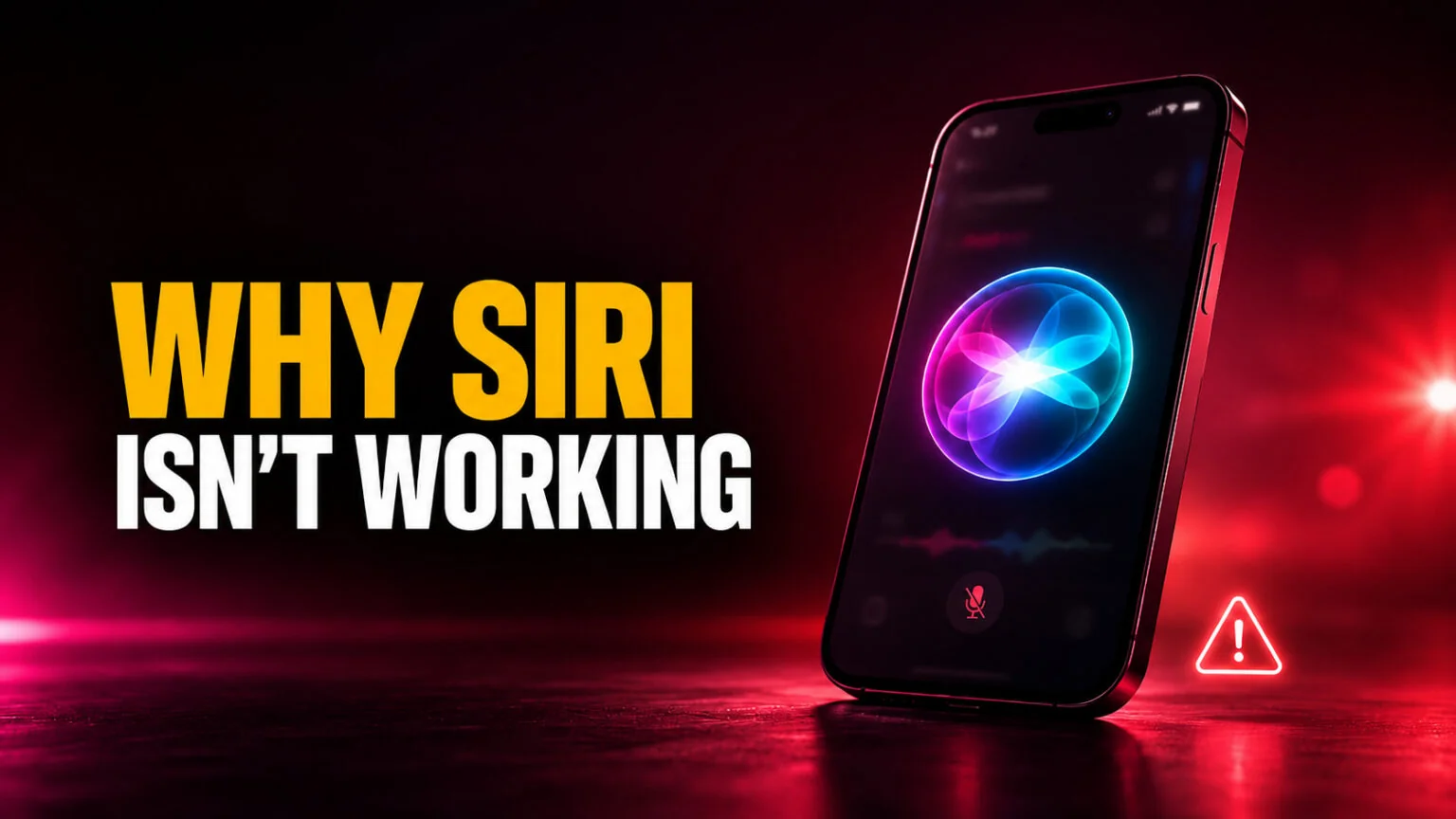
Siri stops working for one of three reasons more than any other, an incomplete setting, a weak internet connection, or a temporary software glitch that a restart clears. Apple’s own support data points to those same culprits, and most people get their assistant talking again in under two minutes once they know which one to check first. The catch in 2026 is that a fourth reason now exists, the rebuilt Gemini-powered Siri that Apple unveiled at WWDC simply has not rolled out to every device yet.
This guide walks you through every fix that actually works, ordered from the fastest to the most thorough, for both iPhone and Mac. You will learn why Hey Siri goes silent after an update, how to retrain your voice in seconds, what the dreaded “Siri not available” error really means, and why the new Siri might be missing from your phone even though you are on iOS 27. Start at the top and stop as soon as Siri responds. And if Siri was never switched on in the first place, start with how to set up Siri.
The Key Takeaways
- Three causes explain most cases, Siri not fully enabled, no stable connection, or a glitch fixed by a restart.
- After a major update or new device, Hey Siri usually needs to be re-enabled and retrained before it responds.
- “Siri not available” almost always means a network problem, since Siri cannot run offline.
- The new Gemini-powered Siri is reportedly limited to iPhone 15 Pro and iPhone 16 or later, English, and a waitlist, so older or out-of-region devices keep the classic Siri.
- A full restart plus a Listen-for toggle resolves the large majority of Siri faults on iPhone and Mac.
Why Is Siri Not Working? The Most Common Causes
Before you reset anything, it helps to know what you are actually fixing. Siri is part on-device and part cloud service, so a failure can come from your settings, your network, or Apple’s servers. Nearly every case traces back to one of three root causes, and identifying yours saves you from blindly trying random steps.
Siri Isn’t Fully Enabled
The most overlooked reason is that Siri, or the specific feature you are trying to use, is switched off. A toggle can flip during setup, after restoring from a backup, or when a new software version reshuffles the menus. On iPhone you control this under Settings > Apple Intelligence & Siri, where “Listen for Siri” and “Allow Siri When Locked” both need to be on for hands-free use. If those are already enabled but Siri still ignores you, the problem is usually further down this list. If the opposite is true and Siri keeps triggering when you do not want it, you may instead want to turn Siri off or limit it.
No Stable Internet Connection
Siri leans on Apple’s servers for most requests, so a flaky connection breaks it instantly. A weak cellular signal, an overloaded public Wi-Fi network, or a router mid-reboot will all leave Siri stuck or returning “Siri not available.” This is why the assistant can feel unreliable in basements, lifts, and crowded venues. Switching between Wi-Fi and cellular, or moving to better coverage, often fixes it on its own.
A Glitch After an Update or New Device
Major iOS and macOS updates frequently knock Hey Siri offline until it is reconfigured. The same happens when you set up a new iPhone or restore from a backup, because your voice profile and permissions do not always carry over cleanly. A stuck background process can also freeze Siri without any warning. In both situations a restart, followed by retraining your voice, clears the fault almost every time. Once Siri responds again, you can fine-tune how it sounds in our guide on how to change Siri’s voice.
How to Fix Siri Fast on iPhone
Work through these steps in order and test Siri after each one. They run from the quickest checks to the more involved resets, so you rarely need to reach the bottom of the list. Most people are back up and running within the first four steps.
- Check your connection. Open any web page or app to confirm you have working internet. Toggle Wi-Fi off and on, or switch to cellular, if it looks slow.
- Restart your iPhone. A simple power-off and power-on clears stuck processes that silence Siri. This alone resolves a surprising number of cases.
- Confirm Siri is on. Go to Settings > Apple Intelligence & Siri and make sure Siri is enabled along with “Listen for Siri.”
- Toggle Listen for Siri. Turn it off, wait a few seconds, then turn it back on to force a clean restart of the voice trigger.
- Retrain your voice. When the setup screen appears, tap Continue and say each phrase shown so Siri relearns your voice.
- Check the microphone. Remove any case or screen film blocking the mics, then record a quick voice memo to confirm they work.
- Update iOS. Install any pending update under Settings > General > Software Update, since fixes often ship in point releases.
- Reset settings as a last resort. Use Settings > General > Transfer or Reset iPhone > Reset > Reset All Settings, which keeps your data but clears stubborn configuration faults.
If you also check VPN settings along the way, do it before the reset. Some VPN profiles block Siri’s connection to Apple’s servers entirely, and turning the VPN off temporarily is a quick way to rule that out. Apple’s official checklist in its If Siri isn’t working support article follows the same logic, connection first, then settings, then a reset.
Fixing Hey Siri Not Working
When Siri works after a button press but ignores your voice, the problem is specific to the hands-free wake phrase rather than Siri itself. This is the single most searched Siri fault, and it almost always comes down to voice training, the microphone, or a power-saving setting. Run through these three checks before anything more drastic.
Retrain Your Voice
A fresh voice profile fixes most Hey Siri failures, especially right after an update. Open Settings > Apple Intelligence & Siri > Talk & Type to Siri, turn “Listen for Siri” off, then on again, and complete the short setup that follows. Speak the prompts in a normal voice in a quiet room so the profile is accurate. If your accent or language region recently changed, this step is essential, because Siri will not recognise a voice it was never trained on.
Check the Microphone
Siri cannot hear you if a mic is blocked or faulty. Thick cases, stick-on wallets, and cheap screen protectors are common offenders, so remove them and try again. Record a voice memo and play it back to confirm the microphones capture sound clearly. If the recording is muffled or silent, the issue is hardware, and Hey Siri will keep failing until the mic is cleaned or repaired.
Low Power Mode and Other Blockers
Low Power Mode can suspend always-listening features to save battery, which is why some people find Hey Siri only works while charging. Turn it off under Settings > Battery and test again. Also confirm your language is set to one Siri supports, since a region mismatch, such as a phone left on an unsupported English variant, can quietly disable voice recognition. Switching back to a supported language and region restores it.
How to Fix Siri Not Working on Mac
Siri on macOS shares the same foundations as the iPhone version, so the logic is similar even though the menus differ. The two faults you will hit most are Siri being switched off in System Settings and a frozen Siri process that needs a manual restart. Confirm your Mac has a working internet connection first, because the “Siri not available” message shows up here too.
Enable Siri in System Settings
Open System Settings > Apple Intelligence & Siri and make sure Siri is turned on, with “Listen for” set to your preferred wake phrase. If the option is greyed out, restart your Mac and check again, as a stalled launch can lock the toggle. While you are there, open System Settings > Sound > Input and speak to confirm the input meter moves, which proves your microphone is feeding audio to Siri.
Force-Quit and Restart Siri
When Siri is enabled but unresponsive, restarting its background process usually revives it. Open Activity Monitor from Applications > Utilities, type “Siri” into the search box, select the Siri process, and click the stop button to quit it. macOS relaunches the process automatically within a few seconds. This clears a hung session without forcing you to reboot the whole machine, which is handy when you are mid-task.
“Siri Not Available” and Connection Errors
The “Siri not available, try again later” message is one of the clearest signals you will get, and it nearly always points to the network rather than your device. Siri does not run offline, so if your connection drops or Apple’s services have a hiccup, you see this error. The fix is almost always faster than people expect.
Start by testing your connection in a browser, then toggle Wi-Fi or cellular off and on to force a fresh handshake. On a Mac, unplugging and replugging Ethernet, or restarting your router, resolves the stubborn cases. If everything else online works but Siri alone fails, the cause is usually a temporary outage on Apple’s side, and waiting a few minutes is the only real fix. A VPN that routes traffic through a blocked region can trigger the same error, so disable it to test.
Quick Siri Troubleshooting Table
Use this table to jump straight to the likely cause and the right fix for your symptom on each device. It condenses everything above into a fast reference you can scan when Siri acts up.
| Symptom | Likely cause | iPhone fix | Mac fix |
|---|---|---|---|
| No response to Hey Siri | Voice profile lost after update | Toggle Listen for Siri, retrain voice | Re-enable Listen for in System Settings |
| “Siri not available” | No internet or Apple outage | Toggle Wi-Fi/cellular, retry | Restart router, re-check Ethernet |
| Siri greyed out or missing | Stalled launch or disabled toggle | Restart, re-enable in Settings | Restart Mac, re-enable in System Settings |
| Siri mishears or gives wrong answers | Blocked or faulty microphone | Remove case, test with Voice Memos | Check Sound > Input levels |
| Silent replies, no voice | Response setting or Low Power Mode | Set Prefer Spoken Responses, disable Low Power Mode | Check Siri Responses setting |
| New Gemini Siri never appeared | Unsupported device, region, or waitlist | Check eligibility, join the waitlist | Update to macOS 27 if supported |
Why the New Gemini-Powered Siri Might Not Show Up
If your Siri works fine but looks and behaves exactly as it did last year, you are probably not seeing a bug at all. At WWDC 2026 Apple announced a rebuilt Siri whose cloud intelligence runs on a custom Google Gemini model, reported at around 1.2 trillion parameters under a deal worth roughly $1 billion a year. That upgrade is rolling out gradually, so plenty of devices are still on the classic assistant. You can read the full breakdown in our WWDC 2026 recap.
Which iPhones Get the New Siri
The advanced Siri features are reported to require an iPhone 15 Pro, iPhone 15 Pro Max, or any iPhone 16 model or later, according to MacRumors reporting, even though iOS 27 itself installs on much older hardware. If your phone predates that line, it keeps the standard Siri and will not show the new standalone app or Gemini-backed answers. The split exists because the new cloud routing relies on the latest chips and Apple’s Private Cloud Compute. Devices also need around 7 GB of free storage for the on-device models that pair with it.
Waitlist, Language, and Region
Even on a supported device, access is gated. Reports indicate users must join a waitlist in Settings > Apple Intelligence & Siri and wait for Apple to switch it on, and the beta is launching for English first. It is also reported to be unavailable in the EU at launch and absent in China for regulatory reasons. If you tick every box and still wait, that is expected during a staged rollout, not a fault. To understand what the assistant can actually do once it arrives, see our explainer on whether Siri is real AI, and our guide to turning on Apple Intelligence.
When Siri Isn’t Enough: Run Other AI Models on Your Mac
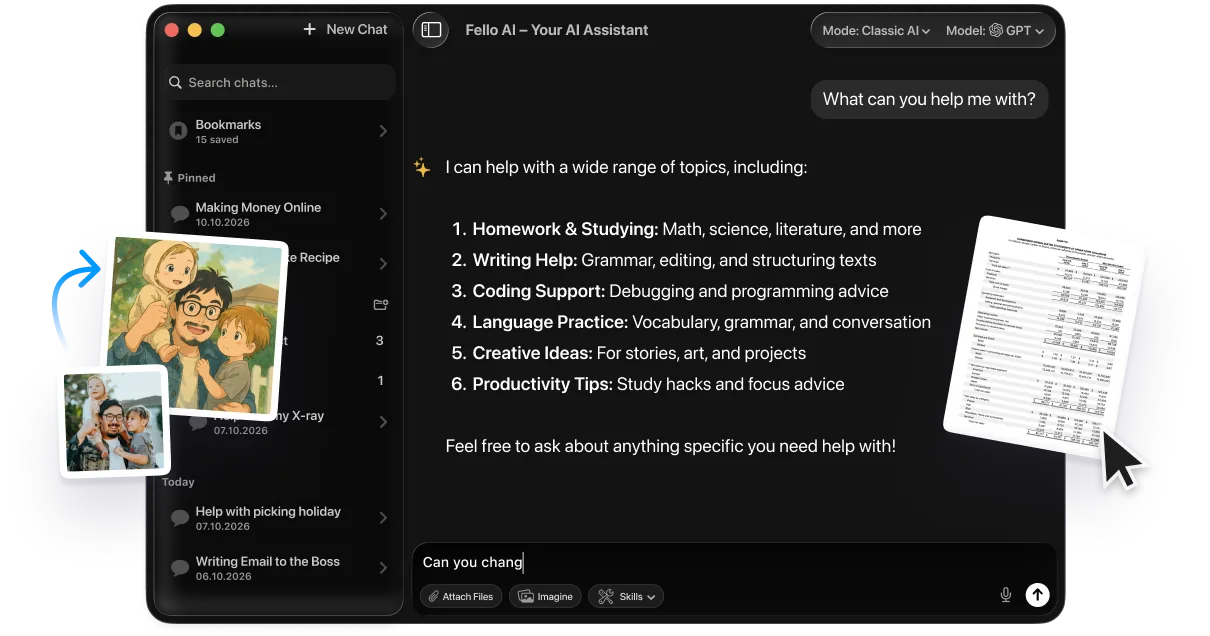
Siri is convenient, but it is still tied to Apple’s hardware rules, and the new version skips older Macs and iPhones entirely. If Siri keeps letting you down, it is worth weighing whether ChatGPT is a better assistant for the way you work. If your Intel Mac never qualified for Apple Intelligence, or you simply want answers Siri cannot give, a dedicated assistant app fills the gap. Fello AI puts Claude, ChatGPT, Gemini, Grok, and DeepSeek on your Mac under one subscription at $9.99 a month, and it runs on macOS 12 and later, including Intel machines that Apple’s eligibility gate leaves out.
That means you can ask one app a question and compare how several leading models answer, without juggling separate accounts or worrying about which devices made Apple’s cut. It is a practical backup for the days Siri is down, and a genuine upgrade for research, writing, and coding tasks the built-in assistant was never built for. For more on getting the most from Apple’s tools alongside it, our walkthrough on using Apple Intelligence pairs well with this approach.
Conclusion
Most Siri problems are quick to fix once you know the order to try things, connection first, then settings, then a restart and a voice retrain. Keep the troubleshooting table handy, and remember that “Siri not available” is a network message, not a broken phone. If your Siri looks unchanged in 2026, the new Gemini-powered version is most likely still rolling out to your device rather than failing. Once it responds again, our guide on how to use Siri walks through the commands worth knowing, and our Siri Shortcuts guide shows how to automate them.
If you rely on a voice assistant every day, it is worth having a backup that does not depend on Apple’s hardware cutoffs. Try the fixes above first, and if Siri keeps letting you down, a multi-model app like Fello AI gives you a far more capable assistant on the same Mac.
FAQ
Why did Siri suddenly stop working?
The usual triggers are a recent software update, a dropped internet connection, or a setting that switched off. Restart your device, confirm Siri is enabled in Settings, and retrain your voice to clear the most common faults.
Why won’t Hey Siri respond to my voice?
Hey Siri usually fails because the voice profile was lost, the microphone is blocked, or Low Power Mode is on. Toggle “Listen for Siri” off and on, retrain your voice, and remove any case covering the mics.
What does “Siri not available” mean?
It means Siri cannot reach Apple’s servers, almost always because of a weak or missing internet connection. Siri does not work offline, so check your Wi-Fi or cellular signal, or wait out a brief Apple outage.
Why don’t I have the new Siri on iOS 27?
The rebuilt Gemini-powered Siri is reported to need an iPhone 15 Pro or iPhone 16 or later, English language, and a waitlist sign-up, and it is not available everywhere at launch. Older or out-of-region devices keep the classic Siri for now.
How do I fix Siri on my Mac?
Check your internet, enable Siri under System Settings > Apple Intelligence & Siri, and confirm your microphone works under Sound > Input. If Siri is on but frozen, force-quit the Siri process in Activity Monitor and let macOS relaunch it.