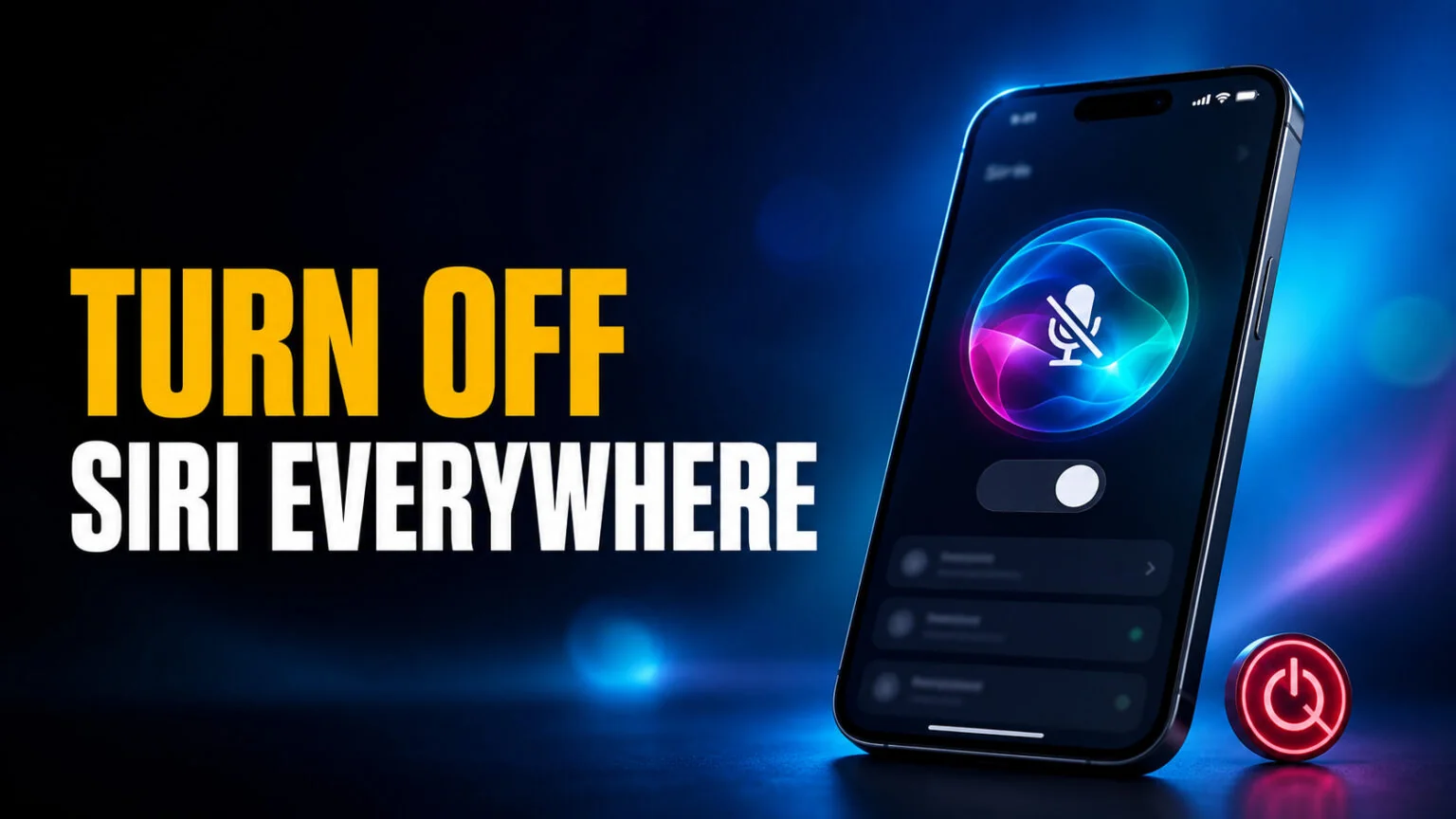
Turning off Siri takes about four taps, but the exact path changed in 2026. On any iPhone that supports Apple Intelligence, the old “Siri” menu is now called Apple Intelligence & Siri, and the switch you actually need is buried under a setting named Talk & Type to Siri. Flip that to Off, disable the side-button shortcut, and Siri stops listening, suggesting, and interrupting across the whole device.
This guide covers how to turn off Siri everywhere it lives, across iPhone, iPad, Mac, and AirPods, plus how to kill Siri Suggestions without nuking the whole assistant. You will get the current menu names, a one-glance table for every device, and a quick privacy rundown on why some people are switching Siri off now that it is becoming a Gemini-powered chatbot. If you only want to stop one annoying behavior rather than learning how to use Siri better, the “keep Siri but limit it” options are here too. Changed your mind later? Re-enabling takes a minute with our guide on how to set up Siri.
The Key Takeaways
- To fully disable Siri on iPhone, open Settings > Apple Intelligence & Siri, set Talk & Type to Siri to Off, turn off Press Side Button for Siri, then tap Stop Using Siri.
- On Mac, go to System Settings > Apple Intelligence & Siri and switch off Ask Siri to disable everything at once.
- For AirPods, change the Press and Hold action away from Siri and turn off Announce Notifications so Siri stops reading messages.
- On Apple Watch, open the Watch app and turn off all three triggers: Listen for “Hey Siri”, Raise to Speak, and Press Digital Crown.
- Siri reading your messages aloud is a separate feature called Announce Notifications and survives every step above. Switch it off under Settings > Apple Intelligence & Siri > Announce Notifications.
- Siri Suggestions are separate, controlled under Settings > Apps > Siri & Search and Spotlight, so you can keep voice Siri and still stop the predictions.
- Turning Siri off does not delete past data; you erase that separately under Siri & Dictation History.
Turn Off Siri on Every Apple Device: Quick Reference
Siri is not a single switch. It runs as a system service on each device, as a feature inside AirPods and Apple Watch, and as a separate announcement setting that reads your messages aloud, so the path differs depending on what you are holding. The table below maps the fastest route for each one, including the master toggle that disables everything and the lighter option if you only want to mute part of it. Detailed steps for each device follow underneath.
| Device | Where to go | Master toggle | What it stops | Keep-but-limit option |
|---|---|---|---|---|
| iPhone | Settings > Apple Intelligence & Siri | Talk & Type to Siri = Off | Voice, side button, type-to-Siri | Turn off only “Allow Siri When Locked” |
| iPad | Settings > Apple Intelligence & Siri | Talk & Type to Siri = Off | Voice and on-screen Siri | Disable “Press Top Button for Siri” only |
| Mac | System Settings > Apple Intelligence & Siri | Ask Siri = Off | Hey Siri, menu bar, keyboard shortcut | Keep Ask Siri on, uncheck “Show Siri in menu bar” |
| AirPods | Settings > [your AirPods] | Press and Hold ≠ Siri | Squeeze or hold to summon Siri | Keep gesture, turn off Announce Notifications |
| Apple Watch | Watch app > Apple Intelligence & Siri | Listen for “Hey Siri” = Off | Wrist-raise, Digital Crown, and voice Siri | Turn off Raise to Speak only |
| Siri reading messages | Settings > Apple Intelligence & Siri > Announce Notifications | Announce Notifications = Off | Siri speaking texts and alerts aloud | Mute individual apps in the list |
| Siri Suggestions | Settings > Apps > Siri & Search | Off per app + Spotlight | Predictions in search, share, widgets | Disable Lock Screen suggestions only |
How to Turn Off Siri on iPhone
The iPhone is where most people meet Siri and where it interrupts the most, usually from an accidental side-button squeeze. The settings moved in 2026, so if you are hunting for a menu simply called “Siri” on a recent iPhone, you will not find it. On any model that runs Apple Intelligence, the controls now sit inside Apple Intelligence & Siri, and there are two switches that matter depending on whether you want Siri gone completely or just quieter.
Fully disable Siri on iPhone
To shut Siri down entirely, you disable both the voice trigger and the button shortcut. When both are off, iPhone confirms that you really want to stop the service. Here is the full sequence.
- Open Settings and tap Apple Intelligence & Siri (on older iPhones it is just Siri & Search).
- Tap Talk & Type to Siri, then choose Off.
- Turn off Press Side Button for Siri (called Press Home Button for Siri on Touch ID models).
- When the warning appears, tap Stop Using Siri to confirm.
That is it. Siri no longer responds to your voice, the side button, or typed requests, and it disappears from the Lock Screen. If you ever change your mind, the same menu lets you switch it back on, and our walkthrough on how to turn on Apple Intelligence covers re-enabling the assistant features in one place.
Keep Siri but stop it from popping up
Many people do not want Siri gone, they just want it to stop activating at the wrong moment. You can leave the assistant on and disable only the trigger that bothers you. In the same Apple Intelligence & Siri menu, turn off Press Side Button for Siri if accidental squeezes are the problem, or turn off Allow Siri When Locked so it cannot answer until your iPhone is unlocked. And if it is the assistant’s voice that grates rather than its timing, you can change Siri’s voice instead of silencing it.
If the wake phrase is the culprit, open Talk & Type to Siri and turn off the voice-listening option so “Siri” and “Hey Siri” no longer activate it, while the side button still works when you want it. These partial controls are the same ones you would use if Siri keeps misfiring rather than failing, which is a different problem from when Siri stops responding at all.
Turn off “Hey Siri” but keep the button
Plenty of people do not want Siri gone, they want it to stop answering the room. The voice trigger has its own switch, so you can silence it while the side button still works when you deliberately reach for it.
- Open Settings > Apple Intelligence & Siri.
- Tap Talk & Type to Siri.
- Choose Press Side Button instead of “Hey Siri” or Press Side Button.
- Leave Press Side Button for Siri switched on.
Siri now ignores your voice completely and only wakes on a deliberate press. This is the setting to use if the problem is Siri triggering from the TV, a podcast, or someone else saying the wake phrase near your phone.
How to Turn Off Siri on iPad
The iPad uses almost the same layout as the iPhone, with one wording change on the button shortcut. Whether you have a Face ID iPad Pro or a budget model with a top button, the disable flow lives in the same place and ends with the same confirmation prompt.
Disable Siri on iPadOS
Open Settings, tap Apple Intelligence & Siri, then set Talk & Type to Siri to Off. Next, switch off Press Top Button for Siri (or Press Home Button for Siri on older iPads), and confirm with Stop Using Siri when prompted. Because iPad and iPhone share an Apple ID, remember that disabling Siri on one device does not disable it on the other, so repeat the steps on each.
How to Turn Off Siri on Mac
Siri on the Mac is easy to forget about until it greets you from the menu bar or answers a stray keyboard shortcut. macOS keeps a single master switch plus a few smaller ones, so you can either remove Siri completely or just tidy up where it shows. The controls sit in System Settings rather than the old System Preferences layout.
Disable Ask Siri on macOS
Click the Apple menu, open System Settings, then select Apple Intelligence & Siri from the sidebar (named Siri & Spotlight on Macs without Apple Intelligence). Switch off Ask Siri to disable the whole assistant, including the Hey Siri wake phrase and the keyboard shortcut. Your Mac stops listening immediately and the Siri icon leaves the Dock.
Remove Siri from the menu bar and keyboard
If you want to keep Siri available but hide it, leave Ask Siri on and uncheck Show Siri in menu bar. You can also set the Keyboard shortcut to Off so a misremembered hotkey never launches it. This is the gentlest option for anyone who likes having Siri as a backup but never wants to trigger it by accident while typing.
How to Turn Off Siri on Apple Watch
The Apple Watch is the device where Siri fires by accident most often, because raising your wrist to check the time is exactly the gesture that wakes it. The watch has three separate triggers, and switching off one does not touch the others, so a watch that still talks to you usually has a second trigger left on.
Switch off all three watch triggers
You can do this from the iPhone or on the watch itself. The iPhone route is easier because the toggles sit on one screen.
- On iPhone, open the Watch app and tap Apple Intelligence & Siri.
- Turn off Listen for “Hey Siri”.
- Turn off Raise to Speak, the wrist-lift trigger.
- Turn off Press Digital Crown so a long crown hold no longer summons Siri.
- On the watch itself, the same switches live under Settings > Apple Intelligence & Siri.
With all three off, Siri is unreachable on the watch. The Siri watch face complication stops responding too, so remove it from the face if you use one, otherwise you are left with a dead tap target.
Stop the watch speaking replies aloud
If you want to keep Siri on the watch but stop it broadcasting, open Watch > Apple Intelligence & Siri > Siri Responses and set Voice Feedback to Headphones Only or Off. Siri still answers, but silently on screen rather than out loud in a meeting.
How to Turn Off Siri on AirPods
AirPods are a special case because Siri is wired into the earbud controls and into notifications, not into a single on or off switch. Turning Siri off on your iPhone does not stop the buds from summoning it when you squeeze the stem, and it does not stop them reading your texts aloud. You manage both from your paired iPhone, in two separate places.
Remap the press-and-hold gesture
With your AirPods connected, open Settings and tap your AirPods name at the top of the screen. Under Press and Hold AirPods, select the left or right bud and change the action from Siri to Noise Control. Now a long press cycles noise modes instead of waking the assistant, which kills the most common accidental trigger.
Stop AirPods from reading your messages
The other half of the problem is Announce Notifications, the feature that has Siri read incoming texts and alerts into your ears. Remapping the gesture does not touch it, which is why AirPods often keep talking after you think you have switched Siri off. The full steps, including CarPlay and other headphones, are in the next section.
How to Stop Siri From Reading Your Messages
This is the complaint that sends most people to a search box, and it is worth saying plainly that it is not really a Siri setting. Siri reading your texts aloud is a separate feature called Announce Notifications, and it survives every step above. You can disable Siri completely and still have your AirPods narrate a group chat, because the two switches are unrelated. Apple documents the controls on its Announce Notifications support page.
Turn Announce Notifications off entirely
- Open Settings > Apple Intelligence & Siri.
- Tap Announce Notifications, also reachable from Settings > Notifications.
- Toggle Announce Notifications off at the top of the screen.
- Check Announce Calls in the same menu and set it to Never if you do not want spoken caller names either.
That one toggle covers AirPods, Beats, most third-party Bluetooth headphones, and the HomePod. It is the switch to reach for when you want silence everywhere rather than on one accessory.
Silence only the noisy apps
If having your messages read out is genuinely useful when you are driving and only annoying when a work channel is busy, leave the master switch on and mute per app instead. Scroll down the same Announce Notifications screen to the app list, tap the offender, and switch it off. Messages, Mail, and Slack are the usual three. Everything else keeps announcing.
Stop Siri reading messages in CarPlay
CarPlay keeps its own copy of the setting, so a car that still reads texts aloud after you switched the phone setting off is not a bug. Open Settings > General > CarPlay, choose your vehicle, tap Announce Notifications, and turn off the apps you do not want spoken while you drive.
How to Turn Off Siri Suggestions
Siri Suggestions are the predictions that surface apps, contacts, and shortcuts in Spotlight, the Lock Screen, and the share sheet. They run on the same on-device learning that powers voice Siri, but they have their own controls, so you can switch them off even while keeping the spoken assistant. This is the part most people actually mean when they say Siri feels intrusive.
Turn off per-app learning
Open Settings > Apps > Siri & Search, then scroll to the app list and tap any app you want to silence. Switch off Learn from this App, Show in App Library & Spotlight, and Show When Sharing so that app stops feeding suggestions. Repeat for the worst offenders, or work through the list to stop predictions across the board.
Turn off Spotlight and Lock Screen suggestions
At the top of the same Siri & Search screen, turn off Show Suggestions and Show Recents to clear predictions out of Spotlight search. Disable Suggestions on Lock Screen as well if you do not want Siri guessing your next move before you unlock. These switches are also where privacy-minded users start, because they stop Siri from quietly profiling how you use each app.
Turn off Siri Suggestions on Mac
macOS keeps the same predictions under a different name. Open System Settings > Apple Intelligence & Siri, scroll to Siri Suggestions & Privacy, and switch off the apps you do not want learned from. Then open System Settings > Spotlight and untick Siri Suggestions so search results stop mixing predictions in with your files.
What turning suggestions off actually changes
Expect the Lock Screen and Spotlight to go quiet within a few minutes, but give the share sheet a day or two. It caches recent contacts separately and will keep offering them for a while after the toggles are off. Widgets that rely on Siri predictions, including the Shortcuts suggestion widget, stop updating and are worth removing from the Home Screen once they go blank. Nothing here affects the spoken assistant, so Siri still answers if you left it switched on.
Should You Turn Off Siri? Privacy and the New Gemini Siri
A lot of the recent interest in disabling Siri traces back to its 2026 overhaul. At WWDC 2026, Apple confirmed that the rebuilt assistant runs on a custom Gemini model from Google, reportedly around 1.2 trillion parameters and tied to a deal worth roughly $1 billion a year. That makes Siri far more capable, but it also means more of your requests are processed by a much larger model, which is exactly why some users want to scale it back. You can read the full picture in our explainer on whether Siri counts as real AI now.
What happens to your Siri data
Switching Siri off stops new requests, but it does not erase what already exists. To clear your history, go to Settings > Apple Intelligence & Siri > Siri & Dictation History and choose Delete Siri & Dictation History. Apple says it processes many requests on-device and ties Siri data to a random identifier rather than your Apple Account, but deleting the history is the only way to remove past audio and transcripts from its servers.
Full disable or just limit it
You do not have to choose all or nothing. If background profiling worries you, turning off Siri Suggestions and deleting your history handles most of the privacy concern while leaving voice commands intact. If Siri simply interrupts too often, the partial toggles for the side button and Lock Screen fix that without losing the assistant. Reserve the full Stop Using Siri route for when you genuinely never use it, since it also disables some handy features like timers by voice, the Siri shortcuts you rely on, and hands-free Apple Intelligence requests. If you are unsure whether your hardware even runs the new Siri, check which devices support Apple Intelligence first.
Want a Smarter Assistant Than Siri?
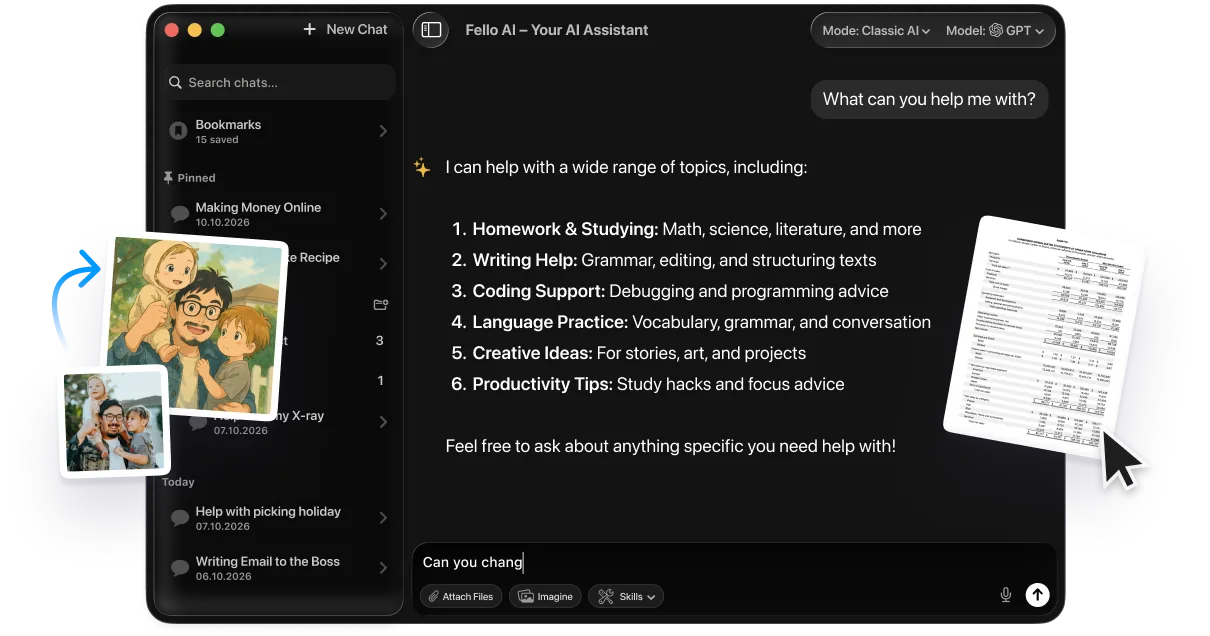
People often switch Siri off not because they hate voice assistants, but because they want answers Siri cannot give. If that is you, there are two routes. You can keep Siri and give it a better brain, which our guide to replacing Siri with ChatGPT, Claude, or Gemini walks through, or you can leave it off and use a dedicated AI app on your Mac instead, which fills the gap without the accidental triggers. Fello AI runs ChatGPT, Claude, Gemini, Grok, and DeepSeek from a single desktop app, so you can ask one a question and switch to another for a second opinion, all for one price.
Unlike Siri, it stays put until you open it, handles long writing and coding tasks, and never reads your texts aloud through your AirPods. For Mac users who found Siri too limited, it is a calmer way to keep an assistant around on your own terms. You stay in control of when it listens, because it only works when you start the conversation.
Conclusion
Turning off Siri is quick once you know the 2026 menu names. On iPhone and iPad, set Talk & Type to Siri to Off and confirm with Stop Using Siri; on Mac, switch off Ask Siri; on AirPods, remap the press-and-hold gesture and silence Announce Notifications. If the whole assistant is too much to lose, the partial toggles and the separate Siri Suggestions controls let you keep what is useful and drop what is not.
Decide what is actually bothering you first, then pick the lightest switch that fixes it. For a deeper look at the rebuilt, Apple Intelligence assistant before you disable anything, start there and work down to the single setting you need. Apple’s own Change Siri settings page is a useful backup reference if a menu name looks different on your version.
FAQ
How do I completely turn off Siri?
Open Settings > Apple Intelligence & Siri, set Talk & Type to Siri to Off, turn off Press Side Button for Siri, and tap Stop Using Siri. On a Mac, switch off Ask Siri in System Settings instead. Repeat on each device, since the setting does not sync.
Does turning off Siri delete my data?
No. Disabling Siri stops new requests but leaves your past audio and transcripts in place. To remove them, go to Apple Intelligence & Siri > Siri & Dictation History and choose Delete Siri & Dictation History.
How do I stop Siri on my AirPods?
Open Settings, tap your AirPods name, and change Press and Hold from Siri to Noise Control. Then turn off Announce Notifications under Settings > Apple Intelligence & Siri so Siri stops reading messages in your ears.
Can I turn off Siri Suggestions but keep voice Siri?
Yes. Suggestions are controlled separately under Settings > Apps > Siri & Search. Turn off Show Suggestions, Show Recents, and per-app Learn from this App to stop predictions while leaving the spoken assistant fully working.
Why won’t Siri turn off?
Usually one trigger is still active. Make sure both Talk & Type to Siri and Press Side Button for Siri are off, and check that you tapped Stop Using Siri on the confirmation prompt. If Siri still reacts, it is likely your AirPods or a HomePod responding, which you disable on those devices separately.
How do I stop Siri reading my messages out loud?
That is Announce Notifications, not Siri itself. Go to Settings > Apple Intelligence & Siri > Announce Notifications and switch it off, or mute individual apps in the list below it. CarPlay keeps a separate copy of the setting under Settings > General > CarPlay.
How do I turn off Siri text to speech?
Two settings control spoken output. Announce Notifications handles incoming messages and alerts, and Siri Responses handles Siri’s own replies. Open Settings > Apple Intelligence & Siri > Siri Responses and set Spoken Responses to Prefer Silent Responses to keep Siri on screen but quiet.
How do I turn off Siri on an older iPhone?
On an iPhone 7, 8, or any model without Apple Intelligence, the menu is still called Siri & Search rather than Apple Intelligence & Siri. Inside it, turn off Listen for “Hey Siri” and Press Home Button for Siri, then confirm with Turn Off Siri. Everything else in this guide works the same way.
Can I turn off Siri on Apple TV and HomePod?
Yes, and they are separate from your iPhone. On Apple TV, open Settings > General > Siri and switch it off. On a HomePod, open the Home app, long-press the speaker, and turn off Listen for “Hey Siri”. A HomePod in earshot is the most common reason Siri still answers after you disabled it on the phone.