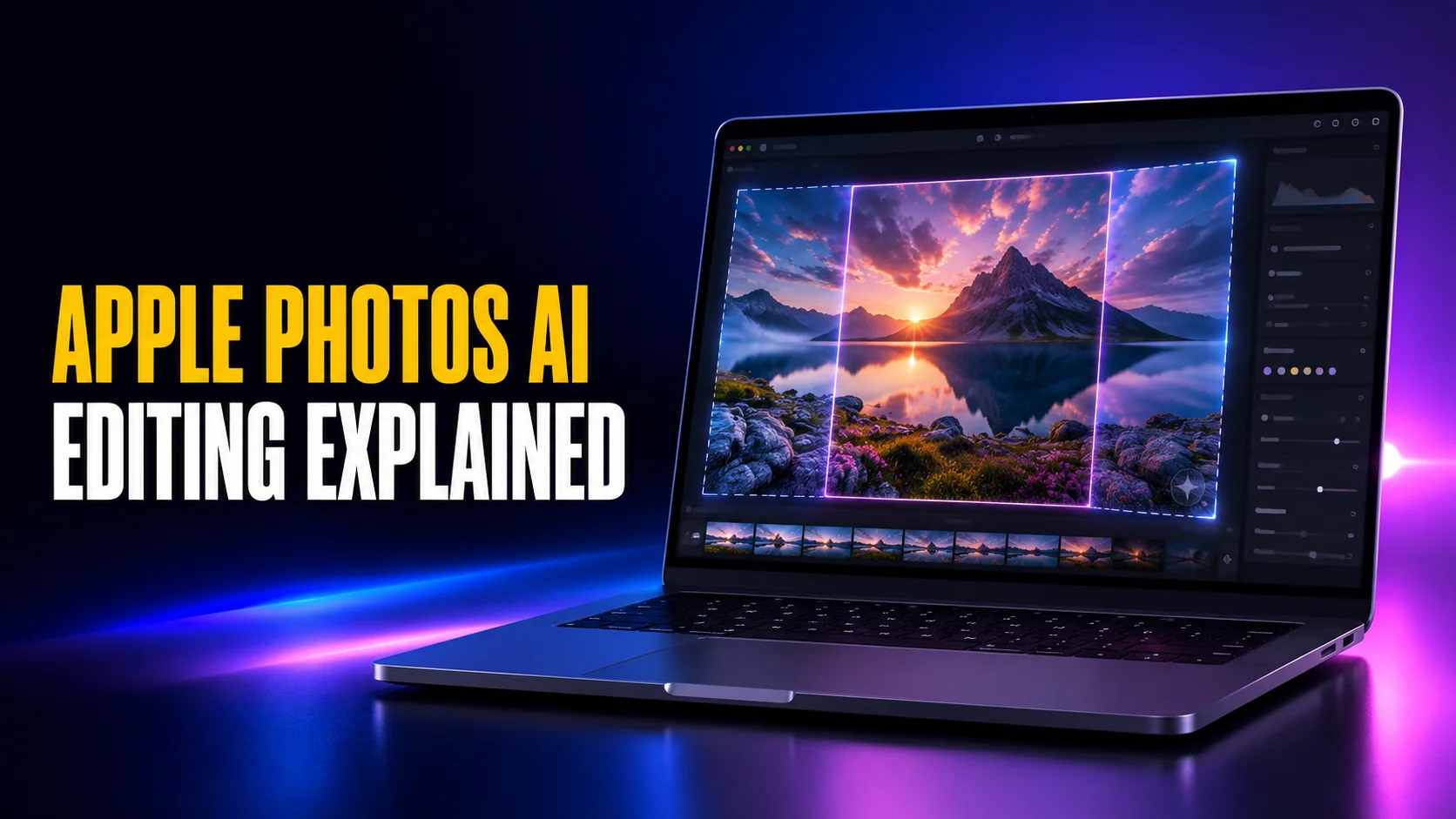
Apple Photos is about to start rewriting your pictures, and marking them. With macOS 27 and iOS 27 the Photos app gains three generative editing tools, and Apple has confirmed that every photo you touch with them comes out carrying a hidden SynthID watermark. That is Google DeepMind's provenance technology, embedded in Apple's own photo editor. Apple has since paired it with the opposite tool, Apple Reference Image on the iPhone 18 Pro, which signs a photo at the sensor so an edit can be proved rather than guessed.
Apple disclosed that once, in a single sentence of a June press release. Apple Intelligence photo editing gets a prominent slot on Apple's own product pages; the watermark is mentioned on neither of them. This guide covers what the three tools actually do, how to use them on a Mac, what the real limits are, and what Apple has still not explained about the mark it puts on your photos.
The Key Takeaways
- Three tools, not four: Spatial Reframing, Extend and an upgraded Clean Up. A fourth tool called "Enhance" was widely reported before launch and Apple never announced or shipped it.
- Every edit gets marked: Apple states that photos adjusted with Apple Intelligence automatically include a hidden SynthID watermark.
- There is a daily cap: Apple confirms these features carry daily usage limits because they lean on server models, and that iCloud+ raises them.
- Extend grows the frame by 25%, once: an Apple vice president gave that figure in an interview, and Apple has published it nowhere. One reviewer bypassed the single-use limit anyway.
- Nobody knows if the mark survives: whether SynthID persists through a screenshot, a social upload or a third-party export is undocumented by Apple and untested publicly.
What Apple Intelligence Photo Editing Actually Does
Apple names three tools, consistently, across its press release, its macOS page and its Apple Intelligence page. Anything you have read about a fourth one is worth treating carefully, and there is a section on that below.
Spatial Reframing, Labelled Reframe
This is the headline act and the strangest of the three. Apple's marketing name for it is Spatial Reframing, but coverage and the editing menu generally call it Reframe, so look for that. It does not crop. It changes where the camera appears to have been standing. Apple describes it as letting you touch and drag a photo and preview in real time how the perspective shifts, as if you had repositioned the camera in the original scene. The technique comes out of Apple's spatial work on Vision Pro.
Apple is specific about the restraint built into it: Spatial Reframing will only generate new content where the perspective has been shifted, so the rest of the photograph stays as it was captured. In practice that means a small angle change is mostly your original pixels, and a large one is substantially invented.
Extend
Extend pushes the borders of an image outward and fills the new space. Apple pitches it at three concrete jobs: giving a subject more breathing room, straightening a crooked horizon, and changing aspect ratio without cropping anything important out of the frame. It is Apple's answer to generative fill, deliberately scoped to the edges of a picture rather than the middle of it.
Clean Up
Clean Up is not new, it is rebuilt. It has existed since iOS 18.1 for removing a photobomber or a power line. Apple says the upgraded version removes distractions with better quality and more realistic infill, and that it now holds up in complex scenes, which is exactly where the old one fell apart.
It now runs in three modes, Fast, High Quality and Auto, and the gap between them is large enough to matter. Reviewers testing the beta found the fast mode produced noticeably worse results on the same image, so it is worth switching to high quality on anything you care about.
| Tool | What it does | Best for | Known limit | Adds SynthID |
|---|---|---|---|---|
| Spatial Reframing | Shifts the apparent camera position after the shot | Recentring a subject, fixing an awkward angle | Resists repeat application; distortion on faces reported | Yes |
| Extend | Generates new image beyond the original frame | Aspect ratio changes, straightening horizons | Frame grows 25%, one application per photo | Yes |
| Clean Up | Removes objects and fills behind them | Photobombers, signs, cables, reflections | Quality setting matters; the fast mode is much weaker | Yes |
| "Enhance" | Reported before launch, not shipped under this name | Nothing | Not an Apple feature | Not applicable |
How to Use the Tools on a Mac
Almost every guide to these features is written for iPhone. The Mac flow is slightly different, and it is the better place to do this work because you can see what the model actually did to your photograph at full size.
On a Mac
- Open the Photos app and double-click the picture you want to edit.
- Click Edit at the top right.
- Open the Tools tab, where the Apple Intelligence options live.
- Click Extend, then either pick an aspect ratio or drag the sides of the photo outward.
- Click Extend again to generate, and give it a few seconds.
- Click Save Changes, then Done.
Spatial Reframing and Clean Up sit in the same Tools tab. Photos keeps your original, so Revert to Original undoes any of this later.
On iPhone and iPad
- Open the photo and tap the edit icon.
- Tap the Tools tab.
- Tap the tool you want.
- For Extend, pinch inward or drag the handles at the edges, then tap the yellow Extend button.
- Tap the checkmark, then Done.
If you have used Apple Intelligence elsewhere on your machine, the rest of the system is covered in our guide to how to use Apple Intelligence on iPhone, iPad and Mac.
The Watermark Apple Adds to Every Edited Photo
Here is Apple's sentence, from its June announcement, in full: photos adjusted with Apple Intelligence will automatically include a hidden SynthID watermark to identify those that have been edited with AI. Images generated in Image Playground get the same treatment.
What SynthID is
SynthID is Google DeepMind's provenance technology. Unlike metadata tags, which sit in the file's header and vanish the moment you re-export or strip EXIF, SynthID is embedded in the pixels themselves. DeepMind says it does not change image quality and that it is designed to stand up to modifications like cropping, adding filters and lossy compression. DeepMind also hedges that the technology is not perfect.
Read that carefully, because the distinction matters. Those are DeepMind's claims about Google's implementation in Google's models. Apple has published nothing at all about how its own implementation behaves. If you want the general picture of which tools mark their output and how to inspect a file, we cover that separately in our guide to AI watermarks.
What Apple has not said
This is the part no one has resolved, and it is worth being blunt rather than guessing. Apple has not stated whether the mark survives a screenshot, an upload to Instagram or WhatsApp, or an export through a third-party editor. No independent test of any of this has been published. Four separate hands-on reviews of these tools, at Macworld, AppleInsider, Cult of Mac and TechRadar, pushed them hard and not one of them mentions the watermark at all. The Verge is the exception that proves the point, having built an entire feature around it, but across the how-to and review coverage the mark simply goes unmentioned.
What happens at the other end is murkier than it looks. Apple does already surface one AI-edit indicator, and has since iOS 18.1: a photo fixed with Clean Up carries a "Modified with Clean Up" line in the Photos info panel, written into the file's metadata. That label survives AirDrop and iMessage. It does not survive WhatsApp, Telegram or a social upload, and it sits behind an info button almost nobody presses. There is no equivalent in Messages or Mail.
What Apple has never said is whether the new SynthID pixel watermark is surfaced anywhere in its own software, by that label or any other. The two are different things, and they fail in opposite directions: the metadata line is easy to read and easy to strip, the pixel mark is the reverse. If you are on the receiving end, our guide on how to tell if a photo is AI generated covers what actually works today.
Which Devices Run Apple Intelligence Photo Editing
The requirement is Apple Intelligence itself, not a separate one. Apple's own list, from the announcement:
| Device | Minimum |
|---|---|
| Mac | M1 or later, or MacBook Neo with A18 Pro. No Intel Mac, at all |
| iPhone | iPhone 16 or later, plus iPhone 15 Pro and 15 Pro Max |
| iPad | M1 or later, or iPad mini with A17 Pro |
| Apple Vision Pro | M2 or later |
Apple's full Apple Intelligence list also takes in Apple Watch Series 9 or later, Ultra 2 or later and SE 3 when paired with a supported iPhone, but that is for other features and not for editing photos. Every Apple silicon Mac from the M1 onward qualifies, which is a wider net than the Siri AI voice features in the same release. There is no Intel path here, because macOS 27 drops Intel Macs entirely. The full picture of what the OS brings is in our macOS 27 Golden Gate guide, and the iPhone side is in the iOS 27 feature and compatibility guide. All of it ships with iOS 27 on 14 September 2026, alongside macOS 27 on the same day.
The Limits Nobody Mentions
The how-to articles stop at the last tap. These are the things you find out afterwards.
There is a daily cap
Apple states plainly that some features, image generation among them, have daily usage limits because they rely on powerful server models, and that increased access comes with most iCloud+ plans. This is buried at the bottom of the availability notes and appears in almost no coverage of the Photos tools. If you sit down to fix a folder of holiday pictures, this is the wall you will hit, and the way past it is a subscription.
How far Extend will go
Extend grows the frame by a quarter, once. That number is not a leak or an estimate. Jon McCormack, Apple's vice president of camera and photos software engineering, gave it in a June interview, saying that testing settled on letting you make the frame 25% bigger and on allowing it only one time, so that nobody could do what he called the reverse inception thing. Apple has published that figure in no press release, no product page and no support document, which is why you will see it quoted several different ways.
The single-use rule holds less firmly than it sounds. Macworld found it could be worked around by saving the result to Files and importing it back into Photos, which puts a fairly large hole in the guardrail.
The Results Are Mixed
Across four independent hands-on tests the pattern is consistent: textures and architecture come out well, and anything with a defined shape or a known material is a coin flip. Macworld's test got clean results on cement patterns and a lighthouse, and invented dull generic buildings and cars on a hillside. AppleInsider got a convincing staircase and a vehicle floating a foot off the ground. Cult of Mac found Spatial Reframing distorted a cat's muzzle and that Clean Up's fast mode was far worse than its high quality setting. All of this was beta software, and all of it is worth knowing before you trust the tools with a photo that matters.
When Apple Intelligence Photo Editing Is Not Enough
Apple's approach here is deliberately bounded, and that is a defensible choice rather than a flaw. The tools respect the original frame, they refuse to compound, they cap how far they will invent, and they mark what they touch. For fixing a crooked horizon before you post it, that is exactly right. It is also, quite deliberately, not a creative tool.
It is also the wrong tool for a damaged print. Nothing in the set repairs a scratch, mends a tear or rebuilds a missing corner, which is a separate job with its own trade-offs, covered in our guide to how to restore an old damaged photo.
It is the wrong tool when you want a different model's judgement, an edit larger than a quarter of the frame, or output without a provenance tag attached by default. That is a different job, and it needs an app that gives you a choice of model rather than Apple's single one. Google's Nano Banana works very differently, and Fello AI puts it and the other major image models in one native Mac app, so you can run the same picture through several and keep the result you like. The Photos app will still be there for the quick straighten.
The Bottom Line
The three tools are good, they are not magic, and they are free with hardware you may already own. Use Clean Up freely, use Extend for aspect ratios, and check Spatial Reframing carefully on anything with a face in it.
The watermark is the part to keep in mind. Apple has quietly made a decision that every photo you retouch on your own Mac gets a permanent hidden marker identifying it as AI-edited, mentioned it once, and left the most obvious questions about it unanswered. That is not a reason to avoid the tools. It is a reason to know it is happening, which is more than Apple's product pages will tell you.
FAQ
Does Apple watermark AI-edited photos?
Yes. Apple states that photos adjusted with Apple Intelligence automatically include a hidden SynthID watermark identifying them as AI-edited. SynthID is Google DeepMind's provenance technology and is embedded in the pixels rather than the file's metadata. Images generated in Image Playground carry the same mark.
What is Spatial Reframing?
Spatial Reframing changes the apparent camera position in a photo after it was taken. Rather than cropping, you drag the image and Apple Intelligence regenerates the scene from the new viewpoint, filling only the gaps the shift exposes. Apple says the rest of the photograph stays consistent with the original scene.
How much can Extend add to a photo?
Jon McCormack, Apple's vice president of camera and photos software engineering, said in a June 2026 interview that testing settled on letting Extend make the frame 25% bigger, and on allowing it only once per photo so the effect cannot be compounded. Apple has not published that figure in any press release, product page or support document, so you will see it quoted several different ways.
Does the SynthID watermark survive a screenshot or a social media upload?
Apple has not said, and no independent test has been published. Google DeepMind says SynthID is designed to withstand cropping, filters and lossy compression, but that describes Google's own implementation in Google's models, not Apple's. Treat the question as open.
Is there a fourth tool called Enhance?
No. MacRumors reported six weeks before the announcement that the Photos editing panel would carry an Enhance tool, and the description has been repeated widely since. Apple never announced or shipped an Apple Intelligence tool by that name, and no hands-on test of the beta has found one. Apple ships three: Spatial Reframing, Extend and Clean Up. Photos does have a long-standing auto-enhance control, but that is ordinary image processing, not Apple Intelligence.