The Canva AI video generator turns a text prompt into an 8-second, 16:9 video clip with synchronized sound, powered by Google’s Veo 3 model. That headline feature, called Create a Video Clip, sits inside the Canva editor and produces cinematic footage with dialogue, sound design, and music from a single prompt. The catch most reviews bury is that this Veo 3 tool is paid-only and capped at roughly 5 generations a month when you start.
This guide separates the two video tools Canva actually ships, shows you the exact steps to use them, and gives you the verified free-plan and pricing reality instead of the conflicting numbers floating around. You will also see where Canva’s AI video genuinely wins, where the 8-second cap hurts, and a faster way to script and storyboard your clips before you ever spend a credit.
The Key Takeaways
- Canva’s flagship AI video tool is Create a Video Clip, running on Google Veo 3: 8 seconds, 16:9, with synchronized audio and one video per prompt.
- Veo 3 video is not free. It needs Pro, Business, Enterprise, or Nonprofit, with an initial cap near 5 generations per month from the shared Premium AI credit pool.
- Free users still get the older Magic Media text-to-video, but with limited credits and noticeably lower quality.
- Canva Pro is $18/month and Business is $25/user/month; AI credits run 20 (Free) / 200 (Pro) / 400 (Business) per month.
- The 8-second limit and one-clip-per-prompt design make it best for B-roll and social snippets, not full narrated videos.
What Is the Canva AI Video Generator?
The Canva AI video generator is not one tool, it is two, and conflating them is why so many reviews get the free-plan story wrong. It is one piece of the wider Canva AI suite, which runs a newer cinematic generator and an older legacy generator side by side inside the same editor. Knowing which one you are using decides what quality, length, and access you actually get. Both take a text prompt and return a clip you can drop onto your timeline.
The practical takeaway is simple. If you are on a paid plan, you want Veo 3. If you are on the free plan, you are limited to Magic Media and a small credit allowance.
Create a Video Clip (Google Veo 3)
This is the tool people mean when they say “Canva AI video.” Canva integrated Google’s Veo 3 model only weeks after its debut, making it one of the first mainstream platforms to ship it, as detailed in Canva’s own announcement. Each generation produces an 8-second clip at 16:9 with synchronized audio, including dialogue, sound effects, and music, and Canva returns one video per prompt. The footage opens directly in Canva’s video editor so you can trim it, add your Brand Kit, layer text, or stitch several clips together.
Veo 3 is the reason the quality jumped. Earlier Canva video looked obviously synthetic, while Veo 3 clips hold up as B-roll and social content. The trade-off is access, since this tool lives behind a paid plan and a tight monthly cap.
Magic Media (the legacy text-to-video)
Magic Media is Canva’s original text-to-video generator, and it is the one free users can still reach. It produces shorter, lower-fidelity clips without Veo 3’s audio and cinematic polish. Canva keeps it as the entry-level option, drawing from the same limited credit pool that free accounts get. It is fine for quick looping background visuals, not for anything you want front and center. To add spoken narration to either kind of clip, Canva’s built-in AI Voice tool can add an AI voiceover from text on every plan.
How to Use the Canva AI Video Generator (Step by Step)
Getting to either tool follows the same path inside Canva. The exact button names can shift slightly as Canva updates the editor, but the flow is consistent. Here is the route from a blank page to a finished clip.
- Open Canva and start a new Video design from the home page, or open any existing project.
- In the editor sidebar, open Magic Media (or Create a Video Clip if you are on a paid plan with Veo 3 access).
- Switch to the Videos tab inside the panel.
- Type a descriptive prompt that names the scene, subject, action, mood, and camera movement.
- Click Generate video and wait for the clip to render.
- Click the preview to drop the 8-second clip onto your timeline, then use the Edit Video tools to trim, adjust speed, or add music.
Prompt formula: [shot type] + [subject] + [action] + [setting] + [lighting and mood] + [camera movement]. Example: “Slow cinematic dolly shot of a barista pouring latte art, cozy morning cafe, warm window light, shallow depth of field.”
The quality of your clip lives or dies on the prompt. Vague prompts produce the generic, stock-looking results reviewers complain about, while specific prompts that name camera work and atmosphere get noticeably closer to what you pictured. Because you only get one video per generation and credits are scarce, it pays to write a tight prompt the first time. If you want to plan several scenes before spending a credit, draft them somewhere cheaper first, which is exactly what the workflow section below covers.
Is the Canva AI Video Generator Free?
Canva’s best AI video tool is not free. According to Canva’s feature page, Create a Video Clip on Veo 3 is limited to Pro, Business, Enterprise, and Nonprofit plans, with an initial cap around 5 video generations per month that draws from your shared Premium AI credit pool. Free accounts cannot generate Veo 3 video at all. What free users get instead is the older Magic Media text-to-video with a small monthly credit allowance and lower quality output.
That distinction matters because the highest-volume searches are about the free plan, and most write-ups blur it. If you signed up expecting cinematic Veo 3 clips on a free account, the tool will simply not appear for you. The credit pool is shared across Canva’s AI features too, so every AI image, edit, or video you generate eats from the same monthly bucket.
| Plan | AI video access | Monthly AI credits | Best for |
|---|---|---|---|
| Free | Magic Media only, no Veo 3 | 20 | Trying the basics, looping background clips |
| Pro | Veo 3 Create a Video Clip | 200 | Solo creators and social content |
| Business | Veo 3 Create a Video Clip | 400 | Teams producing video at volume |
| Enterprise | Veo 3 Create a Video Clip | Custom | Large orgs with brand controls |
How Much Does It Cost?
The AI video generator does not have its own price tag, it comes bundled with a Canva paid plan. Canva Pro is $18 per month (or $144 a year) and Canva Business is $25 per user per month (or $250 a year), while the Free plan is $0 and Enterprise is custom-quoted. Veo 3 video access starts at the Pro tier, so $18 a month is the real entry price for cinematic AI video in Canva. If you want a genuinely free alternative, Meta’s AI video generator makes short clips at no cost, though without Veo 3’s polish. Google’s own newer Gemini Omni Flash model takes a different approach, letting you edit clips just by talking to it.
Whether that is good value depends on how much video you make. The roughly 5 monthly Veo 3 generations on top of everything else competing for your credit pool means heavy video users will burn through an allowance fast. For the full plan-by-plan breakdown including storage, stock library, and the other AI tools, see our Canva pricing breakdown. If image generation is what you actually need, Canva’s AI image generator runs on the same credit system and is covered separately.
How Good Is It? Honest Limits
Canva AI video is genuinely useful inside its lane, and frustrating the moment you push past it. The Veo 3 quality is the real upgrade, the audio is a bonus most browser tools skip, and having the clip land straight on an editable timeline saves real time. For social snippets, ads, and B-roll, it is one of the easiest ways to get a polished clip without leaving your design tool.
The limits are just as real. Clips max out at 8 seconds, you get one video per prompt, and the monthly cap is tight, so building anything longer means stitching multiple generations and burning multiple credits. Prompts that are not specific produce generic, stock-looking footage. You also cannot finely direct the model the way a dedicated video tool allows, and you do not get exclusive rights to AI-generated output under Canva’s terms. Treat it as a fast B-roll and social-clip generator, not a replacement for a real video production workflow.
A Faster Way to Script and Storyboard Your Clips
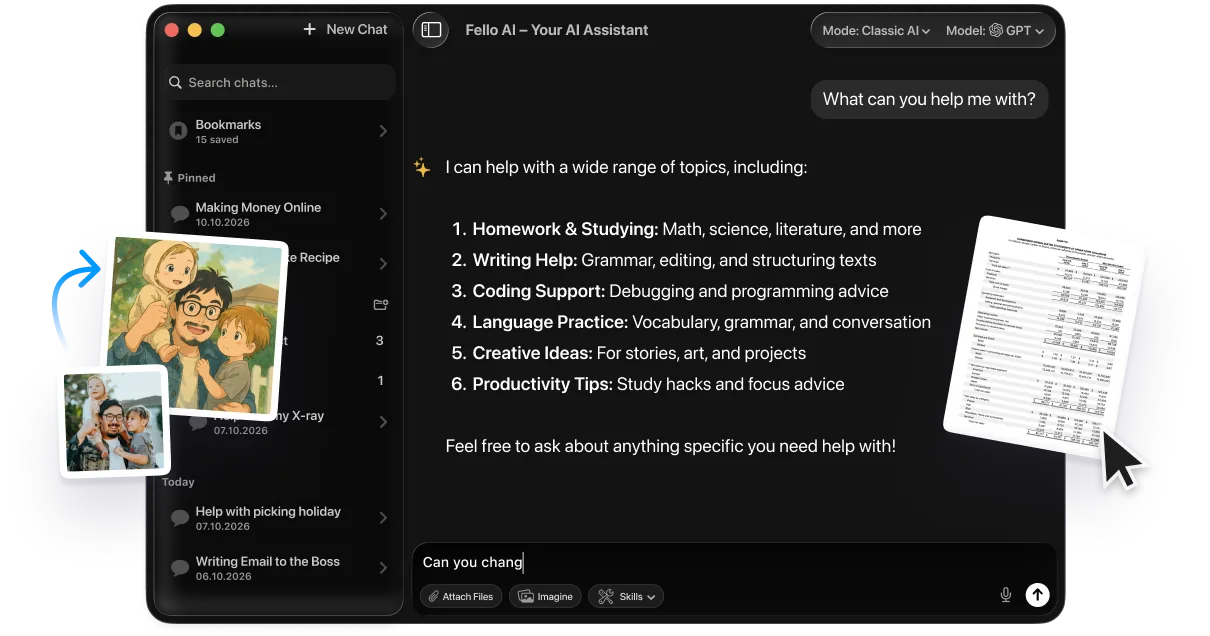
Because every Canva generation costs a scarce credit and caps at 8 seconds, the smart move is to plan your whole video before you touch the generator. This is where a multi-model assistant complements Canva instead of competing with it. Fello AI lets you run the same brief across ChatGPT, Claude, Gemini and more in one chat, so you can draft the full script, break it into 8-second scenes, and write a specific Veo 3 prompt for each shot in minutes.
The split is clean. Fello AI handles the thinking, which means the concept, the narration script, the scene-by-scene storyboard, and the per-clip prompts, plus any research the video needs. Canva then handles the craft, taking each prompt, generating the Veo 3 footage, and assembling it on the timeline with your brand assets. You spend credits only on shots you have already planned, which stretches that 5-clip monthly cap a lot further. For the still frames and thumbnails around those clips, the current image benchmark is ByteDance’s Seedream 5.0 Pro image model. If you are building a deck instead of a video, the same approach applies to making a presentation in Canva.
The Bottom Line
Canva’s AI video generator is the easiest way to get a polished, sound-on AI clip without leaving your design workspace, thanks to Google Veo 3. Just go in knowing the rules. It is paid-only at $18 a month and up, clips are 8 seconds, you get one per prompt, and the monthly cap is tight, so it shines for B-roll and social content rather than long-form video.
If you make occasional short clips and already live in Canva, Pro is an easy yes. If you want to get more from each credit, script and storyboard everything first, then generate only the shots you have planned. Start by trying Fello AI to draft the script and per-scene prompts, then render them in Canva.
FAQ
Is the Canva AI video generator free?
No. The flagship Create a Video Clip tool, powered by Google Veo 3, requires a paid plan (Pro, Business, Enterprise, or Nonprofit) and starts with about 5 generations per month. Free users only get the older Magic Media text-to-video with limited credits.
How long are Canva AI videos?
Each Veo 3 generation produces an 8-second clip in 16:9 with synchronized audio. You get one video per prompt, so longer videos require stitching several clips together on the timeline.
Which AI model powers Canva’s video generator?
Canva’s Create a Video Clip runs on Google’s Veo 3 model, the same generation technology Google uses for cinematic AI video with audio. The older Magic Media tool uses Canva’s earlier text-to-video system.
How much does the Canva AI video generator cost?
It is bundled into Canva’s paid plans. Pro is $18 per month and Business is $25 per user per month, with Veo 3 video access starting at the Pro tier. There is no separate price for the video tool on its own.
Can I use Canva AI videos commercially?
Yes, Canva allows commercial use of AI-generated video under its AI Product Terms, though you do not get exclusive rights to the output. Always review Canva’s current terms before using generated clips in paid campaigns.