Každý měsíc více než 10 000 lidí hledá, jak používat Siri shortcuts, a v roce 2026 se odpověď výrazně změnila. Siri shortcuts umožňují sloučit několik akcí do jediného příkazu, který spustíte hlasem, klepnutím nebo automatickým pravidlem, přičemž bezplatná aplikace Shortcuts na iPhone, iPadu a Macu je místem, kde je vytváříte. Základy jsou stále jednoduché, ale WWDC 2026 přidalo vrstvu, která umožňuje popsat automatizaci v přirozené češtině a nechat Apple Intelligence, aby celý postup sestavila za vás.
Tento průvodce vás provede vším popořadě: od vytvoření prvního zkratky a jeho spuštění hlasem přes nastavení automatizací až po použití nové funkce AI Shortcuts. Najdete zde také rychlý přehled oprav pro případ, že zkratka přestane fungovat, a jeden nebo dva praktické příklady, které lze zkopírovat během pár minut. Ať jste na iPhonu nebo Macu, po přečtení budete přesně vědět, jak Siri shortcuts používat. Pokud asistenta teprve poznáváte, náš průvodce jak používat Siri pokrývá nejprve každodenní základy. Pokud asistent ztichl, podívejte se na proč Siri nefunguje. Asistenta lze také přizpůsobit změnou hlasu Siri. Pokud Siri ještě nemáte zapnutou, náš průvodce jak nastavit Siri vám pomůže začít.
Klíčové poznatky
- Siri shortcut je sada akcí seskupených do jednoho úkolu, který spustíte hlasem, klepnutím, widgetem nebo automatizací.
- Zkratky vytváříte v bezplatné aplikaci Shortcuts a synchronizují se napříč všemi zařízeními na stejném účtu iCloud.
- Chcete-li zkratku spustit hlasem, řekněte „Hey Siri" a přesný název zkratky.
- AI Shortcuts, novinka z WWDC 2026, sestaví automatizaci z popisu v přirozené češtině pomocí Apple Intelligence.
- Siri nyní běží na vlastním modelu Gemini s 1,2 bilionu parametrů, takže lépe rozumí přirozeným požadavkům napříč aplikacemi.
Co jsou Siri Shortcuts?
Siri shortcut je sada akcí seskupených do jednoho úkolu, který lze spustit hlasem, klepnutím nebo automatizací. Zkratky vytváříte v bezplatné aplikaci Shortcuts na iPhone, iPadu a Macu a spouštíte je říkáte „Hey Siri" a název zkratky. Zkratky se synchronizují napříč všemi zařízeními přihlášenými ke stejnému účtu iCloud, takže zkratka vytvořená na iPhonu se automaticky objeví i na Macu.
Každá zkratka se skládá z akcí, tedy jednotlivých kroků, které vykonávají práci. Jedna akce může otevřít Zprávy, další vložit předem napsaný text a třetí spustit playlist. Spojte je dohromady a jediný příkaz zvládne celou rutinu. Aplikace obsahuje Galerii hotových zkratek, které přidáte jedním klepnutím. Je to nejrychlejší způsob, jak zjistit, co je možné, než začnete vytvářet vlastní.
Shortcuts jsou zcela zdarma a jsou součástí iOS, iPadOS a macOS, takže není třeba nic stahovat ani platit. Pokud jste se někdy ptali, zda je Siri skutečným AI asistentem, nebo jen nástrojem pro hlasové příkazy, krátká odpověď zní, že tuto hranici překročila v roce 2026, a náš článek o tom, zda je Siri skutečně AI, přesně vysvětluje, co se změnilo.
Jak vytvořit první Siri shortcut
Vytvoření zkratky trvá přibližně minutu. Níže uvedený příklad vytvoří jednoduchou zkratku „Text Home", která odešle zprávu uloženému kontaktu, ale stejný postup platí pro cokoli, co chcete automatizovat. Oficiální průvodce Shortcuts od Apple dokumentuje každou akci, pokud chcete jít do hloubky.
- Otevřete aplikaci Shortcuts a klepněte na tlačítko plus (+) v horním rohu, čímž zahájíte vytvoření nové zkratky.
- Klepněte na Přidat akci a vyhledejte první krok, například „Odeslat zprávu."
- Vyplňte podrobnosti, jako je text zprávy a příjemce, klepnutím na zvýrazněná pole.
- Přidejte další akce, pokud chcete, aby zkratka provedla několik věcí za sebou. Budou se provádět shora dolů.
- Klepněte na název zkratky v horní části a přejmenujte ji na něco, co můžete říct nahlas, například „Text Home."
- Klepněte na Hotovo, čímž zkratku uložíte. Zvolený název je nyní frází, kterou Siri říkáte pro spuštění zkratky.
Poslední bod je klíčový. V aplikaci Shortcuts je název zkratky zároveň jejím hlasovým příkazem pro Siri, takže zvolte něco krátkého a přirozeného, co si skutečně zapamatujete. Libovolnou zkratku lze kdykoli upravit klepnutím na ni a akce lze kdykoli přeskupit, přidat nebo smazat, aniž byste začínali znovu.
Jak spustit zkratku přes Siri a dalšími způsoby
Hlas je hlavní metoda, ale zdaleka ne jediná. Chcete-li zkratku spustit hlasem, aktivujte Siri říkáte „Hey Siri" nebo stisknutím bočního tlačítka a pak řekněte přesný název, například „Water Eject." Siri provede všechny akce v pořadí. Níže uvedená tabulka ukazuje hlavní způsoby spuštění zkratky a kdy se každý z nich hodí.
| Metoda | Jak spustit | Nejlepší pro | Zařízení |
|---|---|---|---|
| Hlas | Řekněte „Hey Siri" + název zkratky | Úkoly bez použití rukou, rychlé úkoly | iPhone, iPad, Mac, Watch |
| Ikona na ploše | Klepněte na ikonu přidanou na plochu | Denně používané zkratky | iPhone, iPad |
| Widget | Klepněte ve widgetu Shortcuts | Seskupení více zkratek | iPhone, iPad, Mac |
| Klávesová zkratka | Přiřaďte kombinaci kláves v aplikaci | Rychlé pracovní postupy u stolu | Mac |
| Back Tap | Dvakrát nebo třikrát klepněte na záda telefonu | Okamžitý přístup | iPhone |
| Akční tlačítko | Stiskněte akční tlačítko | Jedna oblíbená zkratka | iPhone |
| Automatizace | Spustí se při splnění podmínky, například čas nebo poloha | Rutiny bez zásahu uživatele | iPhone, iPad, Mac |
Většina lidí začíná hlasem a ikonou na ploše, pak přejde k automatizacím, jakmile uvidí, kolik času rutina ušetří. Metody lze libovolně kombinovat, takže stejná zkratka může mít ikonu na ploše, hlasovou frázi i spouštěč Back Tap najednou.
AI Shortcuts: jak WWDC 2026 změnilo pravidla hry
Největší aktualizace zkratek za roky přišla na WWDC 2026. Apple představil AI Shortcuts, jehož hlavní funkcí je Describe a Shortcut, která nahrazuje prázdné plátno polem pro textový popis. Místo přetahování bloků akcí napíšete požadavek jako „Pošli partnerovi můj odhadovaný čas příjezdu, až opustím práci" a Apple Intelligence sestaví celý pracovní postup: načte uloženou adresu, v Mapách vypočítá čas příjezdu a odešle upozornění přes Zprávy.
Přístup je užitečný díky své transparentnosti. Vygenerovaná zkratka se zobrazí ve stejném editoru, který tu vždy byl, s každou viditelnou akcí a každým přístupným nastavením, místo aby se skrývala za chatovacím oknem. Můžete zkontrolovat, co Apple Intelligence sestavila, upravit libovolný krok a spustit ho. Začátečníci tak získají fungující automatizaci a zkušení uživatelé si zachovají plnou kontrolu. TechCrunch předvedl tvůrce v přirozené češtině první den konference.
To vše stojí na přestavěném Siri. Jak uvádí MacRumors, nová Siri běží na vlastním modelu Google Gemini s 1,2 bilionu parametrů, který Apple licencoval za údajných ~$1 miliardu ročně. Proto nyní Siri pracuje s osobním kontextem, rozumí tomu, co je na obrazovce, a řetězí víceúrovňové požadavky napříč aplikacemi. Kompletní přehled novinek najdete v našem shrnutí WWDC 2026. V zákulisí Apple také vydal oznámení o ukončení podpory SiriKit a vývojáři musí pro propojení svých aplikací s Siri poháněnou Gemini použít framework App Intents.
Pokud chcete z asistenta vytěžit více než jen zkratky, náš průvodce jak používat Apple Intelligence pokrývá nástroje pro psaní, funkce pro obrázky a novou Siri vedle sebe.
Jak nastavit automatizace
Zkratka se spustí, když ji sami aktivujete, zatímco automatizace se spustí sama při splnění podmínky. Nastavíte ji na kartě Automatizace v aplikaci Shortcuts. Spouštěče zahrnují denní dobu, příchod na místo nebo odchod z něj, připojení k nabíječce, otevření aplikace a další. Právě zde zkratky přestávají být hračkou a začínají skutečně šetřit čas.
Klasickým příkladem je ranní rutina. Automatizaci podle denní doby lze nastavit tak, aby v 7:00 ve všední dny přečetla počasí, zobrazila první událost v kalendáři a spustila zpravodajský podcast, aniž byste se telefonu dotkli. Dalším oblíbeným příkladem je spouštěč polohy, který telefon přepne do tichého režimu při příchodu do kanceláře a znovu zapne vyzvánění při odchodu.
Zkratka Water Eject
Jednou z nejoblíbenějších zkratek je Water Eject, která přehrává nízkofrekvenční tón vytlačující vodu z reproduktoru iPhonu nebo Apple Watch po koupání nebo polití. Nemusíte ji vytvářet od nuly. Otevřete kartu Galerie v aplikaci Shortcuts, vyhledejte zkratku pro vytlačení vody, přidejte ji jedním klepnutím a spusťte ji říkáte „Hey Siri, Water Eject." Je to ideální první zkratka, protože ukáže celý postup přidání a spuštění za méně než minutu.
Až si zvyknete, dalším krokem je výběr z připravených nápadů. Náš přehled nejlepších AI zkratek a automatizací pro Mac a náš seznam iOS AI zkratek, které stojí za vyzkoušení, vám nabídnou hotové pracovní postupy ke zkopírování.
Používání Siri Shortcuts na Macu
Vše výše uvedené funguje i na Macu a Mac navíc nabízí jeden spouštěč, který na iPhonu nenajdete. V aplikaci Shortcuts na macOS lze libovolné zkratce přiřadit klávesovou zkratku, takže jedinou kombinací kláves spustíte celou rutinu při práci. Otevřete aplikaci Shortcuts, vyberte zkratku, otevřete její detaily na postranním panelu a klávesovou kombinaci tam nastavte.
Protože se zkratky synchronizují přes iCloud, ty vytvořené na iPhonu jsou na Macu již připraveny, a naopak. Mac je tak skvělým místem pro tvorbu složitějších zkratek na větší obrazovce, které pak spouštíte hlasem na zařízení, jež máte zrovna po ruce. Na macOS 27 je k dispozici stejný tvůrce AI Shortcuts, takže pracovní postup lze popsat na Macu stejně jako na iPhonu.
Siri shortcut nefunguje? Rychlé opravy
Když zkratka odmítne fungovat, příčina bývá malá. Nejčastějším problémem je název: Siri spouští zkratku přesně podle jejího názvu, takže příliš dlouhá fráze, fráze příliš podobná jinému příkazu nebo špatně vyslovitelná fráze způsobí problémy. Přejmenujte ji na něco krátkého a odlišného a hlasový spouštěč bude fungovat spolehlivěji.
Pokud se zkratka na jiném zařízení neobjeví, řešením je téměř vždy synchronizace přes iCloud. Ověřte, že všechna zařízení jsou přihlášena ke stejnému účtu Apple a že Shortcuts je povoleno v nastavení iCloudu, pak chvíli počkejte na synchronizaci. U zkratky, která se otevře, ale selže uprostřed, ji otevřete a zkontrolujte, zda některá akce nevyžaduje oprávnění, které jste dosud neudělili, například přístup ke Zprávám, Fotkám nebo poloze. Jednorázové udělení oprávnění chybu obvykle trvale odstraní. Nakonec ověřte, že je Siri zapnutá v Nastavení, protože vypnuté „Hey Siri" zablokuje všechny hlasové spouštěče najednou. Tento přepínač se nachází na stejném místě, kde byste Siri vypnuli, takže se ujistěte, že nebyl deaktivován.
Více než Siri: více AI modelů v jedné aplikaci
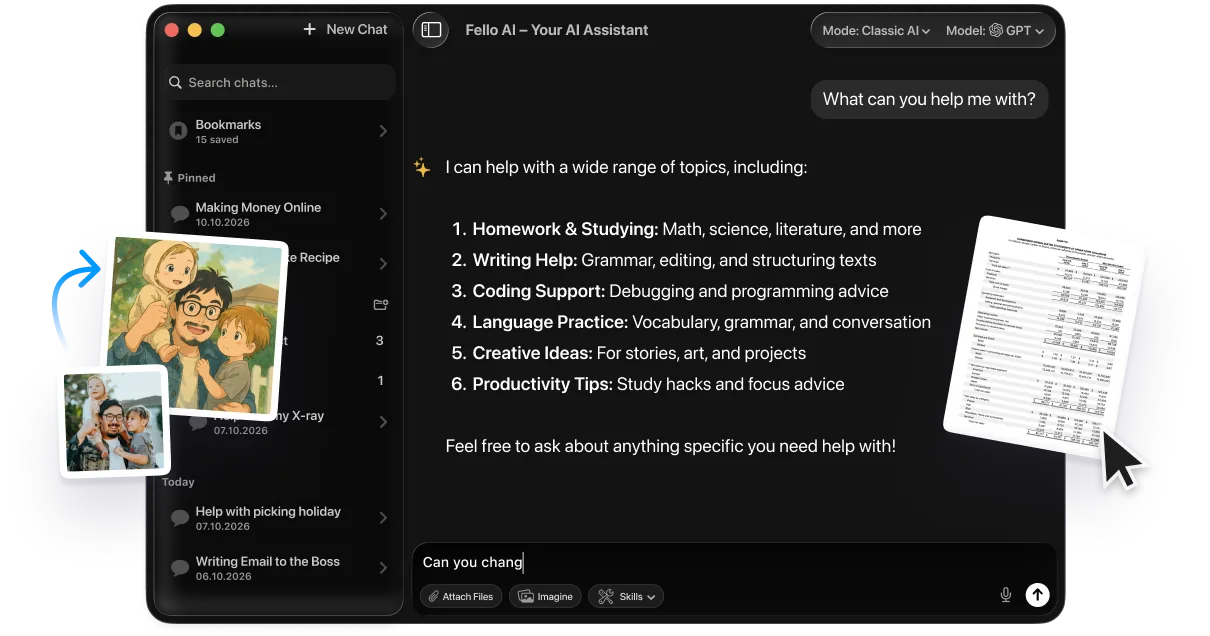
Siri shortcuts jsou skvělé pro automatizaci zařízení, ale nenahradí plnohodnotného AI chatovacího asistenta, když potřebujete psát, zkoumat nebo programovat. Pokud to potřebujete, Fello AI sdružuje Claude, ChatGPT, Gemini, Grok a DeepSeek v jedné nativní aplikaci pro Mac a iOS, takže lze pro jeden úkol přepínat modely bez žonglování se samostatnými předplatnými.
Cena je $9.99 měsíčně za přístup k několika předním modelům za jednu cenu, což se skvěle doplňuje se Siri shortcuts, které se starají o automatizaci v zařízení. Siri obstarává rutiny a víceModelová aplikace zvládá náročné myšlení.
Závěr
Siri shortcuts mění opakující se klepání v jediný příkaz, a v roce 2026 jsou díky AI Shortcuts a nové Siri poháněné Gemini snazší na vytvoření než kdy dřív. Začněte jednou zkratkou z Galerie, jako je Water Eject, naučte se ji spouštět hlasem, pak si sestavte ranní automatizaci, až uvidíte, kolik času ušetří. Poté procházejte naše přehledy zkratek a přidejte ty, které se hodí do vašeho dne.
FAQ
Jak mohu používat Siri shortcuts na iPhonu?
Otevřete bezplatnou aplikaci Shortcuts, klepněte na tlačítko plus pro vytvoření zkratky, přidejte jednu nebo více akcí a pojmenujte ji. Zkratku spustíte tak, že říkáte „Hey Siri" a daný název, nebo na ni klepnete v aplikaci, ve widgetu nebo z ikony na ploše.
Jsou Siri shortcuts zdarma?
Ano. Aplikace Shortcuts je součástí iOS, iPadOS a macOS zdarma a Galerie hotových zkratek je také zdarma k použití.
Jaký je rozdíl mezi zkratkou a automatizací?
Zkratka se spustí, když ji aktivujete hlasem nebo klepnutím, zatímco automatizace se spustí sama při splnění podmínky, například v určitou denní dobu, na určitém místě nebo při připojení k nabíječce.
Co jsou AI Shortcuts na iOS 27
AI Shortcuts, představené na WWDC 2026, umožňují popsat automatizaci v přirozené češtině, přičemž Apple Intelligence sestaví potřebné akce. Napíšete, co chcete, zkontrolujete upravitelnou zkratku, kterou sestaví, a spustíte ji.
Proč můj Siri shortcut nefunguje?
Obvyklými příčinami jsou nevhodný název zkratky, chybějící synchronizace přes iCloud mezi zařízeními, akce vyžadující oprávnění, které jste dosud neudělili, nebo vypnutá Siri. Zkontrolujte tyto čtyři věci a většina zkratek začne znovu fungovat.