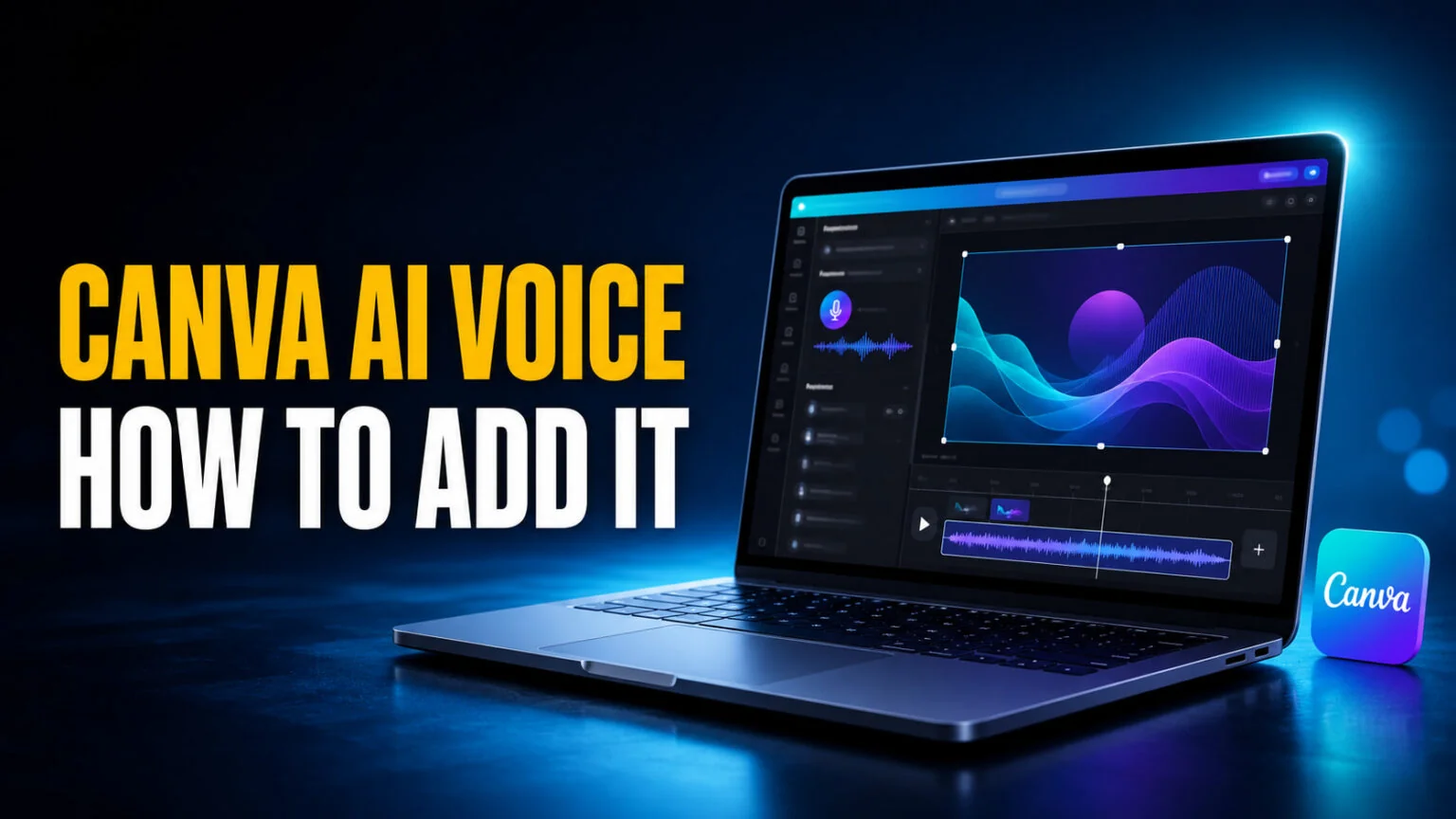
The Canva AI voice generator turns typed text into a spoken voiceover in seconds, and it is free to use on every Canva plan, including the free one. You paste a script, pick a voice and language, and Canva drops a ready-made audio track straight onto your design’s timeline. There is no microphone, no recording, and no separate app to install.
Most people searching for this tool are not just curious what it is, they want to add a voiceover to a video or a presentation right now. This guide covers exactly that. You will see where the AI Voice tool lives and the step-by-step process on desktop and mobile. You will also get the 1,000-character cap per conversion, what a paid plan actually adds, how the voice quality really compares to dedicated tools like ElevenLabs, and when a third-party app is the smarter choice.
The Key Takeaways
- Canva’s AI Voice is a built-in text-to-speech tool that is free on every plan, no add-on required.
- Canva caps each conversion at 1,000 characters, roughly 150 to 200 words, and does not say any plan raises that cap.
- Canva Pro ($18/month) unlocks more voice options beyond the free selection, and AI Voice does not eat into Canva’s monthly AI allowance.
- Voice cloning is a separate Canva feature that copies a real voice from an audio sample across 130+ languages.
- For emotional, broadcast-grade narration, dedicated tools like Murf or ElevenLabs still sound a step ahead.
What Is the Canva AI Voice Generator?
The Canva AI voice generator is a built-in text-to-speech tool that converts written text into a natural-sounding spoken voiceover. You type or paste your script, choose a voice and a language, and Canva generates the audio and places it directly on your design’s timeline. It runs on the web and inside the iOS and Android apps, so you can narrate a project from a laptop or a phone. You can even skip the design: Canva’s AI voice generator page turns a script into a voiceover you can download as an MP3.
The key thing to understand is that this is synthetic speech, not a recording of your own voice. That makes it perfect for explainer videos, product demos, social clips, onboarding material, and narrated slide decks where you want a clean, consistent voiceover without setting up a microphone. It sits alongside Canva’s other generative tools, and you can explore the full stack in our guide to what Canva AI can do, or read Canva’s own AI voice generator overview.
Canva actually offers three related audio features, and mixing them up is the most common source of confusion. AI Voice is the text-to-speech generator this guide focuses on. Voice recording lets you capture your own microphone audio. AI Voice Cloning is a distinct tool that copies a real voice from a short sample, covered further down.
How to Add AI Voice in Canva, Step by Step
Adding an AI voiceover takes under a minute once you know where the button is. Canva documents three entry points that lead to the same generator, and the tool works the same way whether your design is a video, a presentation, or a social post. Below is the core desktop flow, followed by notes for video, presentations, and mobile, and you can cross-check it against Canva’s official AI Voice help page.
- Open your design in the Canva editor on canva.com.
- Click Elements in the side panel, scroll to Audio, and select Generate AI Voice. You can also open the Apps tab and select AI Voice, or select the pencil icon on the Magic Write toolbar and choose Generate AI Voice.
- Type or paste your script into the AI Voice text box, up to 1,000 characters per conversion.
- Under Select Voice, choose a language and a voice style.
- Click Generate AI voice. Canva creates the audio in a few seconds.
- The voiceover appears automatically on your audio timeline, where you can adjust its timing and placement to match your visuals. Select Present to hear it in context.
How to Add AI Voice to a Canva Video
For a video, generate the voiceover using the steps above, then focus on alignment. The audio track sits below your video clips on the timeline, so you can slide it left or right until the narration matches the on-screen action. Split your script into shorter clips if you want the voice to pause between scenes, and use the trim handles to tighten any gaps. If you are building the visuals with AI too, our walkthrough of the Canva AI video generator pairs neatly with this.
How to Add AI Voice to a Canva Presentation
Presentations use the same generator. Generating a separate, shorter voiceover for each slide keeps the narration in step with the deck, which gives you clean, self-narrating decks for training, async updates, or recorded talks. Check the result with Present, which offers full screen, Presenter view, and Autoplay. Write each slide’s narration to fit the 1,000-character window, and if you are assembling the slides themselves with AI, see our guide on how to make a presentation in Canva with AI.
How to Add AI Voice on Mobile
Canva says AI Voice works in its iOS and Android apps as well as in the browser, but it only documents the desktop path and publishes no mobile steps. On a phone, open your design and search for AI Voice in the app’s Apps or Elements panel. Type your script, pick a voice, and generate. The audio lands on the timeline just like on desktop, which makes it a handy way to narrate a quick clip away from a computer.
Canva AI Voice Free Plan vs Pro: Limits and Pricing
Here is the part most feature pages skip. AI Voice is free on every plan, and Canva’s AI Voice page caps each conversion at 1,000 characters, which is about 150 to 200 words, or roughly a minute of speech. Canva does not tie that cap to a plan. Its separate Text to Speech page quotes 2,000 characters, so the exact ceiling may depend on where you open the tool.
For anything longer, split the script into chunks. Upgrading does not lift a documented cap. What a paid plan adds, according to Canva, is more voice options on top of the free selection, so the choice comes down to how much the voice itself matters to you.
AI Voice also sits outside the monthly AI allowance that limits most of Canva’s generative tools. Canva’s AI usage help page lists AI Voice among its “AI design tools” that can be used “abundantly” and do not count toward the allowance, subject to fair-use limits, so a free account’s 20 monthly AI uses are left for the tools that do draw on them, such as image and design generation. For everything else the free plan includes, see is Canva free.
| Plan | Price | AI Voice access | Best for |
|---|---|---|---|
| Free | $0 | Up to 1,000 characters per conversion, a selection of free voices | Short social clips, testing the tool |
| Pro | $18/mo ($144/yr) | Same cap, more voice options | Creators, marketers, regular video work |
| Business | $25/user/mo | Everything in Pro plus team brand controls | Teams producing branded content at scale |
Annual billing on Pro works out to about $12/month, the obvious saving if you use Canva regularly. If you are weighing whether the upgrade is worth it beyond voice, our full Canva pricing breakdown covers every plan and where the AI credit limits actually bite.
What the Canva AI Voice Generator Can Do
Beyond the basic text-to-speech conversion, the tool gives you a few controls to shape how the voice sounds. Knowing the ceiling of what it can and cannot do saves you from expecting broadcast-grade results it was never built to deliver.
Voices, Languages, and Accents
Canva does not publish a voice or language count for AI Voice. Its help page promises “multiple languages and accents”, and its Text to Speech page names English, Spanish, Mandarin Chinese, Arabic, Filipino, German, Greek, French, Japanese, Italian, and Korean, “and many others”. You can steer the delivery by asking for a masculine, feminine, conversational, professional, or playful voice. The free plan includes a selection of free voices, while Canva Pro unlocks more.
Pace, Accent, and Emotion
Canva’s help page does not document speed or pitch sliders. What Canva now describes is refinement by prompt: after the first take, you type what you want, such as a different accent, a more expressive read, or a slower pace, and select Regenerate. That is a request rather than a precise dial, so the delivery stays clean and clear rather than finely tuned. If your project needs exact control, the Murf app inside Canva adds voice styles plus speed and pitch adjustment.
Downloading and Commercial Use
When you export the video or presentation, the voiceover comes with it, and Canva’s AI voice generator page also lets you download a voiceover on its own as an MP3. Canva’s AI Product Terms (effective 26 June 2026) say you own your output, AI voice included, and may use it for any lawful purpose, so narrated YouTube videos, ads, and client work are covered. The same terms bar you from misleading anyone into thinking AI-generated content is human-made, so do not pass a synthetic voiceover off as a real narrator.
Canva AI Voice Cloning: A Separate Tool
Do not confuse the AI Voice generator with AI Voice Cloning, which is a different Canva tool. Cloning copies a specific real voice from a recording, which Canva asks to be a .WAV or .MP3 file between 10 seconds and 5 minutes long and no larger than 15 MB, then reads your typed script in that voice. Canva says the cloning tool supports over 130 languages, so your own voice can speak text in languages you do not personally know, and it requires you to disclose that the voice is AI-generated. If you are on the receiving end of someone else’s clone instead, here is how to detect an AI-generated voice.
The everyday AI Voice generator uses stock synthetic voices and is the right pick for most projects. Reach for cloning only when you specifically need a recognizable, personal voice across a series of videos. You open cloning from the Apps panel, the same panel that also lists AI Voice, which is why the two get muddled so often.
Is Canva’s AI Voice Any Good? Pros, Cons, and Alternatives
For a tool bundled into a design app at no extra cost, Canva’s AI Voice punches above its weight. It is not going to replace a professional voice actor or a specialist platform for high-end narration, but for the vast majority of social videos and internal decks it does the job well. Here is the honest breakdown, plus the two alternatives worth knowing.
The Strengths
The biggest win is convenience. The voice, the visuals, and the export all live in one place, so there is no bouncing between apps or re-syncing audio. It is free to start, the voices are clear and natural enough for most content, and generation takes seconds. For anyone already designing in Canva, it removes an entire step from the video workflow.
The Limitations
The 1,000-character cap is the main friction, forcing you to chunk longer scripts. Refinement by prompt is coarser than the per-line emotion controls specialist tools offer, so the delivery can land flat next to them. And the voice library is less customizable than what dedicated providers offer. Canva publishes no voice count, while ElevenLabs lists 17,500+ on its text-to-speech page.
These are reasonable trade-offs for a free bundled feature. They are also real.
Murf and ElevenLabs
Murf has an app in Canva’s Apps panel. You connect a Murf account, pick from 33 languages and accents, choose a voice style, and adjust speed and pitch, which makes it the natural upgrade if you stay inside Canva. The catch is that adding the voiceover to your design is a paid-Murf feature: free-trial users can only preview, and each voiceover block is capped at 1,000 characters, up to 50 blocks per design. ElevenLabs is the quality benchmark, with more than 17,500 voices across 90+ languages, but it has no direct Canva integration, so you generate and download the audio there and upload it to Canva. Use Canva’s built-in voice for speed, and step up to one of these when the output quality really matters.
Canva AI 2.0 and Voice Input
It is worth separating two things that share the word “voice.” The AI Voice generator produces spoken output for your designs. Canva AI, whose 2.0 version launched as a research preview on April 16, 2026, also takes voice input: you select the microphone icon and speak your prompt instead of typing it.
Canva’s Canva AI help page lists 16 languages besides English, from Spanish and German to Hindi and Japanese, so you can brief the assistant in your native tongue, though some features support fewer. It does not change how the AI Voice generator works, but it does show where Canva is heading, toward a platform you increasingly talk to rather than click through. It sits alongside the rest of the toolkit, like the Canva AI image generator that creates visuals from a text prompt.
Where Fello AI Fits In
Canva voices a script you write, but if you want spoken audio without scripting or recording at all, Fello AI takes a different route. Its Podcast Skill generates podcasts from PDFs, websites, or your message history, so a dense report becomes a commute-friendly episode. It runs on iPhone, iPad, and Mac from $11.99 a month in most countries, with ChatGPT, Claude, Gemini, and Grok all in the same app.
The two tools cover different audio jobs. Use Canva’s AI Voice for short narration baked into a video or slide, and reach for Fello AI’s Podcast Skill when you want a full spoken-word episode generated straight from your source material. You can get Fello AI on the App Store and generate your first podcast in minutes.
Conclusion
The Canva AI voice generator is the fastest way to add a clean AI voiceover to a video or presentation without leaving your design, and it costs nothing to start. Stick with the free voices for short clips, split longer scripts into 1,000-character chunks, upgrade to Canva Pro when you want more voice options, and reach for Murf or ElevenLabs when you need fine control over delivery. Open a design, go to Elements, then Audio, then Generate AI Voice, and you will have narration on the timeline in under a minute.
Frequently Asked Questions
Is the Canva AI voice generator free?
Yes. AI Voice is free on every Canva plan, including Canva Free, and Canva lists it among the AI tools that do not count toward the monthly AI allowance. Free accounts get a selection of free voices, and Canva Pro at $18/month unlocks more voice options.
How do I add an AI voice over in Canva?
Open your design, click Elements, scroll to Audio, and select Generate AI Voice (or open the Apps tab and select AI Voice). Type your script, choose a language and voice style, then click Generate AI voice. The audio drops onto your timeline, where you can adjust its timing and placement.
What is the character limit for Canva AI voice?
Canva’s AI Voice page caps each conversion at 1,000 characters, about 150 to 200 words or roughly a minute of speech, and does not say any plan raises it. Its separate Text to Speech page quotes 2,000 characters. For longer narration, split the script into several clips.
How many languages does Canva AI voice support?
Canva does not publish a language count for AI Voice. It promises multiple languages and accents and names English, Spanish, Mandarin Chinese, Arabic, Filipino, German, Greek, French, Japanese, Italian, and Korean among them. Canva’s separate voice cloning tool supports over 130 languages.
Can I clone my own voice in Canva?
Yes, but through a separate tool called AI Voice Cloning in the Apps panel, not the standard AI Voice generator. You upload or record a .WAV or .MP3 sample between 10 seconds and 5 minutes long, and Canva reads your script in that voice across 130+ languages. Canva requires you to disclose that the result is AI-generated.
Can I download a Canva AI voiceover as an MP3?
Yes. On Canva’s AI voice generator page you can generate a voiceover without opening a design and download it as an MP3. Inside the editor, the voiceover travels with your design when you export the video or presentation.