Google NotebookLM, now called Gemini Notebook, has had one of the most packed update cycles of any AI tool in recent memory. Since October 2025, the platform has shipped eight major upgrades, including Deep Research, a Gemini 3 engine upgrade, built-in slide editing with PPTX export, Cinematic Video Overviews in March 2026, an AI Pro storage bump to 5 TB in April, and the Google AI Ultra reshuffle at I/O 2026 on May 19. The newest change came in July 2026, when Google renamed it to Gemini Notebook and gave every notebook a secure cloud computer. The free plan still exists, but a four-tier pricing structure now separates what each type of user can access.
This guide covers every NotebookLM update from October 2025 through May 2026, explains how to use each new feature, and breaks down the current NotebookLM pricing across Free, Plus, Pro and Ultra so you know exactly what you are getting. If you last checked in when the 1M-token context window dropped, a lot has changed.
The Audio Overview is what put NotebookLM on the map for podcasting, and you can compare it with rival tools in our roundup of the best AI podcast generators.
The Key Takeaways
- Eight major updates have landed since October 2025, running through Gemini 3.5 Flash and the AI Ultra reshuffle at Google I/O 2026 in May, and on to Gemini 3.6 Flash in July.
- Deep Research (November 2025) turned NotebookLM into an agentic researcher that searches the web and compiles citation-backed reports automatically.
- Gemini 3 now powers NotebookLM (December 2025), bringing improved reasoning and the new Data Tables Studio output.
- Cinematic Video Overviews use Veo 3 to generate immersive AI video from your documents, currently available to Google AI Ultra subscribers only.
- NotebookLM has four pricing tiers after the May 2026 reshuffle: Free, Plus ($4.99/mo via Google AI Plus), Pro ($19.99/mo via Google AI Pro), and Ultra at either $99.99/mo (20TB Plan) or $199.99/mo (30TB Plan) via Google AI Ultra.
What Is Google NotebookLM
Think of Google NotebookLM as a private research assistant that only reads what you give it. New to the tool? Our explainer on what is NotebookLM covers the basics.
Unlike other AI tools that search the whole internet, this one works inside a “notebook” where you upload your own files:
- PDFs
- Google Docs and Slides
- Web page links
- Public YouTube video transcripts
- Audio files
- Microsoft Word documents (added November 2025)
- Google Sheets, CSV files, and images with OCR (added November 2025)
Once your sources are in, you can chat with them, ask them to summarize complex topics, or use the “Studio” to create brand-new things based only on that material. The best part is that it shows you citations, small numbers you can click to see exactly where it got the information from in your documents.
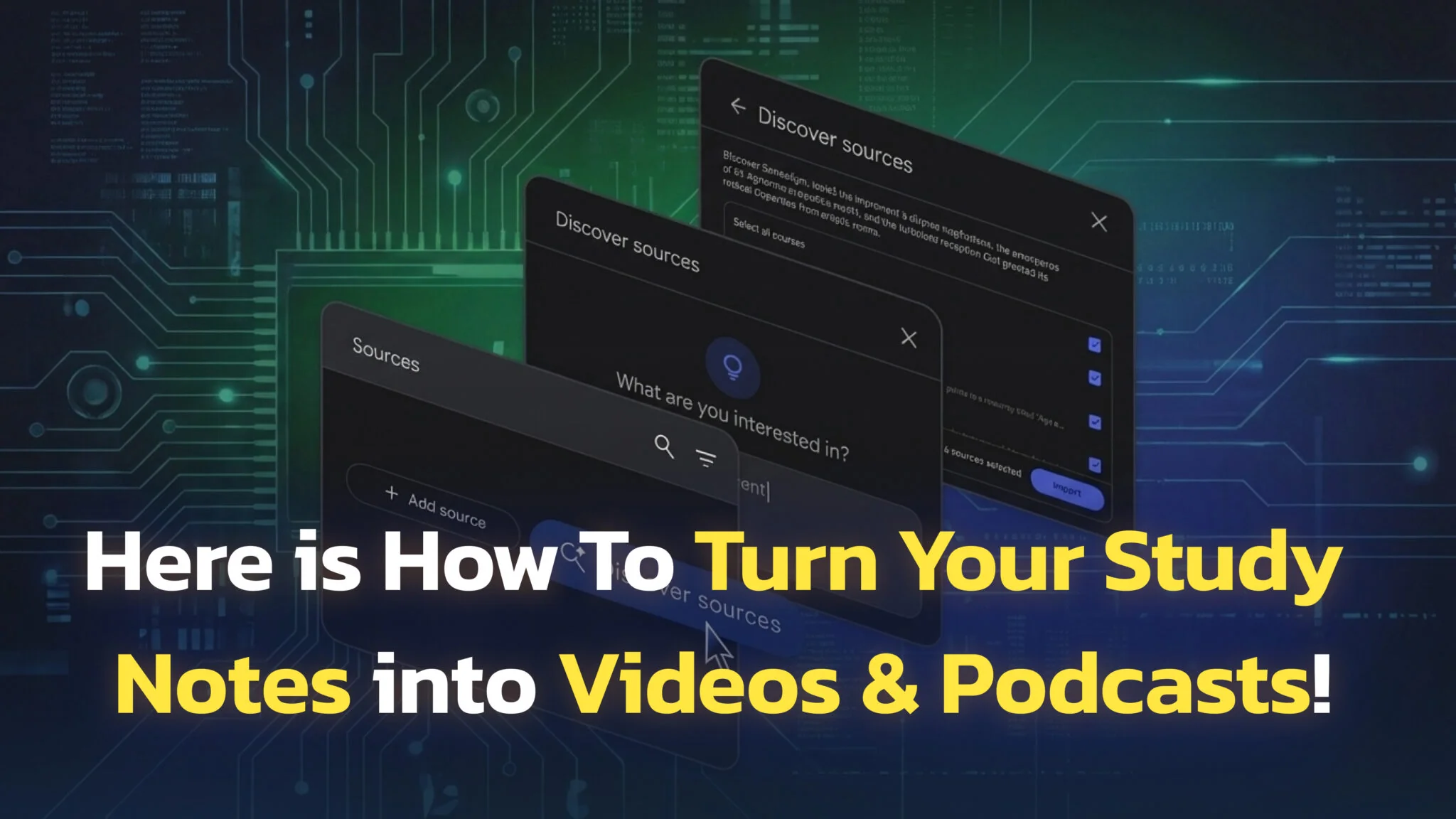
Optionally, the “Discover” feature can recommend relevant web sources that you can then choose to add to your notebook. Discover can surface up to ~10 curated web sources you can choose to add to your notebook.
Every NotebookLM Update From October 2025 to May 2026
NotebookLM has shipped a major update roughly every six weeks since October 2025. Here is the full timeline through Google I/O 2026, in order.
October 2025: 1M-Token Context Window, Saved Chat History, and Custom Goals
This is where the current generation of NotebookLM began. The October 2025 upgrade introduced three features that changed how the tool works day to day.
The 1M-token context window means NotebookLM can now hold and analyze significantly more of your information at once, useful when you are working across multiple long research papers or books and need the AI to find connections between all of them. This rolled out to the free plan as well as paid tiers.
Saved chat history was one of the most requested features. You can now close your browser and come back later to pick up your conversation where you left off. In a shared notebook, your personal chat history remains visible only to you, and you can delete it at any time.
Custom Goals and Personas let you tell the AI how to behave for each specific notebook. You can now set a role up to 5,000 characters (previously limited to 500). Examples include telling it to act as a patient teacher, a rigorous PhD advisor, or a marketing strategist. To set a goal, open any notebook, click the “Configure” (gear) icon in the chat panel, and define the role in the “Goals” section.
November 2025: Deep Research and Expanded Source Types
Deep Research was the biggest functional shift since NotebookLM launched. It turned the tool from a document-analysis assistant into an agentic researcher that can go out to the web, gather sources, and compile a citation-backed report for you, all while you continue working.
Here is how to use it.
- In your notebook, go to the source panel and select Web as a source type.
- You will see two options: Fast Research and Deep Research. Choose Deep Research for a full briefing.
- Enter your research topic and submit.
- The agent creates a research plan, searches hundreds of high-quality sources, and writes a report in the background. You can keep working while it runs.
- When complete, add the report and its sources directly into your notebook with one click.
Fast Research vs Deep Research at a glance: Fast Research quickly scans and surfaces sources you can review immediately. Deep Research performs an in-depth analysis, produces a comprehensive report, and is better suited for complex topics where breadth and citation quality matter.
November 2025 also added several new source types: Microsoft Word documents, Google Sheets, CSV files, and images with OCR (so NotebookLM can read text from images and diagrams inside PDFs).
December 2025: Gemini 3 Upgrade and Data Tables
In December 2025, Google upgraded NotebookLM’s underlying model to Gemini 3 (specifically Gemini 3 Flash), bringing significantly improved reasoning and multimodal understanding. The upgrade makes NotebookLM noticeably better at connecting information across complex or messy documents.
Alongside the model upgrade, Google added Data Tables as a new Studio output. If you upload documents describing different products, studies, or concepts, you can ask NotebookLM to convert that qualitative text into a structured comparison table, then export it directly to Google Sheets. This is particularly useful for anyone doing competitive research or literature reviews.
Also in December, Google made the Gemini app notebook integration official. You can now upload a notebook from NotebookLM directly into the Gemini app as a source, letting Gemini’s most powerful models answer questions grounded in your notebook’s content.
February 2026: Slide Editing and PPTX Export
On February 18, 2026, NotebookLM fixed one of its biggest workflow frustrations: the inability to edit individual slides without regenerating the entire deck.
The update introduced prompt-based slide editing, which lets you target a specific slide with an instruction like “fix slide 3” or “make slide 5 more concise.” You can queue multiple edits before regenerating, so only the slides you touched are updated. The rest of the deck stays intact.
NotebookLM also added PPTX export, so you can download your slide deck as a PowerPoint file. One caveat: when opened in PowerPoint, the slides are image layers inside the PPTX container rather than fully editable objects, so complex layout edits still require external tools. For most use cases, though, the export is clean and ready to present.
March 2026: Cinematic Video Overviews
The newest and most ambitious feature in NotebookLM’s history arrived in early March 2026. Cinematic Video Overviews go well beyond the narrated slideshows introduced at I/O 2025. Instead of static slides with voiceover, they generate fluid, animated, narrative-led videos tailored to your source material.
The feature uses three AI models working together: Gemini 3 acts as the creative director, Nano Banana Pro handles visual generation, and Veo 3 produces the video output. Gemini makes hundreds of structural and stylistic decisions, determines the narrative arc, selects the visual style, and refines the result for consistency.
Availability note: Cinematic Video Overviews are currently available in English only, for users aged 18 and over, exclusively on the Google AI Ultra plan. The daily limit is 2 cinematic overviews on the 20TB Plan and 20 cinematic overviews on the 30TB Plan. Regular Video Overviews (narrated slideshows) remain available on all plans.
Here is how to create a Cinematic Video Overview.
- Add your sources to a notebook. The feature works best with text-rich documents such as PDFs, reports, or Google Docs.
- Go to the Studio panel in your notebook.
- Select “Cinematic Video Overview” from the list of Studio outputs.
- Optionally, add a steering prompt to focus the video on a specific angle or audience level.
- Wait for generation (this takes longer than a standard Video Overview). When ready, you can play, download, or share the video directly from NotebookLM.
April 2026: Google AI Pro Storage Doubled to 5 TB
On April 1, 2026, Google quietly doubled the cloud storage included with Google AI Pro from 2 TB to 5 TB at no price change. The plan still costs $19.99 per month, and existing subscribers were upgraded automatically with no opt-in required. The 5 TB pool is shared across Gmail, Google Drive, and Google Photos.
For NotebookLM Pro users, the upgrade does not change in-app caps, but it removes the storage friction that often pushed power users toward AI Ultra. Between AI Pro at $19.99 and the new $99.99 entry Ultra tier, you now have a much wider band of plans before storage becomes the deciding factor.
May 2026: Gemini 3.5 Flash and the AI Ultra Reshuffle
At Google I/O 2026 on May 19, Google shipped two changes that hit NotebookLM directly. The first is Gemini 3.5 Flash, which became the default model across the Gemini app, Search and Google Antigravity. It beat Gemini 3.1 Pro on Terminal-Bench, MCP Atlas, GDPval-AA and Finance Agent benchmarks while running roughly four times faster. Google indicated at the time that Gemini 3.5 Pro would follow in June 2026; it still has not shipped.
Gemini 3.5 Flash has since been superseded. On July 21, 2026 Google shipped Gemini 3.6 Flash, which took over as the default model in the Gemini app worldwide, cut output pricing from $9.00 to $7.50 per 1M tokens, and moved the knowledge cutoff to March 2026.
The second change is the Google AI Ultra reshuffle. The single $249.99 Ultra plan was replaced by two tiers: a new $99.99/month entry plan and a $199.99/month top plan (down from $250). Inside NotebookLM, those map to the 20TB Plan and the 30TB Plan, two distinct SKUs with different caps. The 20TB Plan delivers 500 sources per notebook, 2,500 daily chats, 100 Audio and 100 Video Overviews per day (2 Cinematic), and 75 Deep Research reports per day. The 30TB Plan pushes that to 600 sources, 5,000 daily chats, 200 of each Overview (with 20 Cinematic), and 200 Deep Research reports per day.
The $199.99 Ultra plan also adds access to Project Genie. Gemini Spark, Google’s 24/7 background agent, launched as an Ultra exclusive but since July 23, 2026 it also ships on Google AI Pro at $19.99/month; it remains unavailable in the EEA, the UK, Switzerland and Nigeria. Whether NotebookLM specifically moved to Gemini 3.5 Flash alongside the broader Gemini app rollout has not been publicly confirmed by Google, and Google has not said whether NotebookLM has since moved to Gemini 3.6 Flash either.
How to Use NotebookLM Features
Our full step-by-step NotebookLM guide walks through every panel; here is the short version. Getting started with NotebookLM is straightforward. The process has two main parts: adding your information, then using the Chat and Studio panels to analyze and transform it.
1. Add Your Sources
Before you can do anything, you need to give NotebookLM material to work with. You can create a notebook and add multiple sources, including PDFs, Google Docs and Slides, web links, Word documents, CSV files, images, and public YouTube videos with captions. NotebookLM imports only the text transcript from YouTube, not the video itself, and cites to timestamped transcript passages.
You can add up to 50 different sources to a single notebook on the free plan (300 on Pro, 600 on Ultra).
2. Chat with Your Documents
This is the most direct way to use NotebookLM for research. Once your sources are loaded, use the chat box to ask questions. NotebookLM will only answer using the information you provided, and it includes clickable citations so you can verify every claim.
- Quick tip: Upload a long PDF and ask “Give me a 5-bullet summary” or “What does this say about [topic]?” instead of reading the whole document.
- Citations explained: Small numbers appear next to answers. Click one to see the exact passage from your source document.
3. Use Deep Research
Deep Research is best when you need to build a knowledge base from scratch on a complex topic. Go to the source panel, select Web, choose Deep Research, enter your topic, and let the agent run in the background. It plans the research, searches hundreds of sources, and delivers a citation-backed report you can add directly to your notebook.
Use Fast Research instead when you just need a quick scan of web sources and want to review and import them yourself.
4. Generate Mind Maps and Reports
The “Studio” panel is where you go to create new things from your material.
- Mind Maps: NotebookLM scans your sources and generates a visual map showing main topics and how they connect. Great for visual learners or anyone mapping a complex field.
- Data Tables: Upload documents describing different products or studies, and NotebookLM converts the qualitative text into a structured comparison table you can export to Google Sheets.
- Reports: Draft outlines, memos, or briefing documents from your notes. Choose from templates including study guides, blog posts, and more.
5. Create Study Aids and Audio or Video Overviews
This section of the Studio is ideal for learning and sharing.
- Flashcards and Quizzes: NotebookLM converts your lecture notes or readings into a set of flashcards or quizzes so you can test yourself. These also work on the NotebookLM mobile app.
- Audio Overviews: Generate an Audio Overview where two AI hosts discuss your material in a podcast format. Formats now include “Deep Dive,” “Brief,” “Debate,” and more. You can also use Interactive Mode to interrupt the hosts mid-conversation and ask a follow-up question; they answer from your sources and then continue where they left off.
- Video Overviews: Generate a narrated slideshow from your sources. Available on all plans. Both Audio and Video Overviews support 80+ languages and are downloadable.
6. Create a Cinematic Video Overview
Cinematic Video Overviews are available to Google AI Ultra subscribers on either the 20TB Plan (2 per day) or the 30TB Plan (20 per day). Unlike standard Video Overviews, these generate immersive AI video with fluid animations rather than static slides.
Go to Studio, select “Cinematic Video Overview,” optionally add a steering prompt to guide the focus or style, and wait for the video to generate. When ready, you can play it in-app, download it, or share it via link.

NotebookLM Pricing: Free vs Plus vs Pro vs Ultra (2026)
NotebookLM has four consumer pricing tiers after the May 2026 reshuffle: Standard (free), Plus, Pro and Ultra. The free plan remains available with no time limit and just needs a Google account. The paid tiers are bundled with the matching Google AI subscription (AI Plus, AI Pro, or AI Ultra). For the full per-plan breakdown including Workspace, Enterprise and the student deal, see our NotebookLM pricing guide.
| Feature | Free | Plus ($4.99/mo) | Pro ($19.99/mo) | Ultra 20TB ($99.99/mo) | Ultra 30TB ($199.99/mo) |
|---|---|---|---|---|---|
| Notebooks | 100 | 200 | 500 | 500 | 500 |
| Sources per notebook | 50 | 100 | 300 | 500 | 600 |
| Daily chat queries | 50 | 200 | 500 | 2,500 | 5,000 |
| Audio Overviews per day | 3 | 6 | 20 | 100 | 200 |
| Video Overviews per day | 3 | 6 | 20 | 100 | 200 |
| Deep Research per day | 10/month | 3 | 20 | 75 | 200 |
| Cinematic Video Overviews | No | No | No | 2/day | 20/day |
| Watermark-free outputs | No | No | No | Yes | Yes |
Plus ($4.99/month) is bundled with Google AI Plus, which rolled out to the US in January 2026. Pro ($19.99/month) comes with Google AI Pro and now includes 5 TB of cloud storage after the April upgrade. Ultra splits into the 20TB Plan ($99.99/month) and the 30TB Plan ($199.99/month) via Google AI Ultra, the only tiers that unlock Cinematic Video Overviews and watermark-free Slide Decks and Infographics. NotebookLM Plus is also bundled into qualifying Google Workspace plans from Business Standard upward at $14 per user per month.
Who Should Use NotebookLM
NotebookLM is especially powerful for anyone who needs to analyze, summarize, or create new content from a specific set of documents. If your work involves reading large volumes of text and then doing something with that information, it is built for you.
- Students: Upload lecture notes, textbook chapters, and research articles. Create study guides, flashcards, or quizzes from your own class materials.
- Teachers: Upload curriculum standards and articles. Generate discussion questions, activity ideas, or a quiz based on approved content.
- Journalists: Analyze long interviews and transcripts. Upload audio or text and ask it to pull all quotes on a specific topic.
- Academics: Speed up literature reviews by uploading dozens of papers. Find common themes or compare methodologies across sources.
- Marketers: Upload brand guidelines, customer research, and competitor analysis. Draft content briefs grounded in your own materials.
- Project managers: Upload technical specs, meeting notes, and team updates. Ask “What was the last decision made about this feature?”
NotebookLM vs ChatGPT for Research
The main difference is source grounding. NotebookLM must base its answers on the documents you provided and includes clickable citations. ChatGPT draws from its broad training data. It is more flexible for general tasks but can hallucinate facts and sources that do not exist.
| Tool | Good for… |
|---|---|
| NotebookLM | Source-grounded research. Analyzing your own PDFs, notes, and transcripts with verifiable citations. |
| ChatGPT | Brainstorming and general knowledge. Exploring new topics, drafting creative text, and getting quick answers from broad training data. |
NotebookLM vs Perplexity for Notes
This comes down to finding information versus analyzing it. Perplexity is an AI-powered search engine; its job is to search the live web, find the best sources, and summarize them with citations. NotebookLM works with sources you have already gathered. It is for analyzing and synthesizing the documents and files you already possess.
With Deep Research, NotebookLM can now also search the web to build your source library, but the analysis and synthesis still happens within your notebook, not in a live search interface.
| Tool | Good for… |
|---|---|
| NotebookLM | Deep analysis of your existing library. Working within a set of documents you have already collected or assembled via Deep Research. |
| Perplexity | Discovering new information. Finding and summarizing new web sources, with citations. |
NotebookLM vs the Gemini App
This is the difference between a specialized tool and a general assistant. The Gemini App is your all-purpose AI helper for planning, writing, searching, and daily tasks. NotebookLM is a dedicated research space designed for one job: helping you understand and build on a specific set of documents.
As of January 2026, you can now add NotebookLM notebooks as a source directly inside the Gemini app, letting Gemini answer questions grounded in your notebook’s content.
| Tool | Good for… |
|---|---|
| NotebookLM | A dedicated “research space.” Uploading, chatting with, and generating content from your files. |
| Gemini App | An “everything” assistant. Daily tasks, quick web searches, creative writing, and on-the-go help. |
NotebookLM vs Notion Q&A
Notion Q&A is a feature inside the Notion platform, designed to help you find information already stored in your Notion workspace. NotebookLM is a standalone application built specifically for in-depth source analysis and multimedia generation, including mind maps, flashcards, cinematic videos, and data tables, and it is not tied to any one productivity platform.
| Tool | Good for… |
|---|---|
| NotebookLM | In-depth, dedicated research projects. A focused tool with many generative features including Mind Maps, Video Overviews, and Cinematic Videos. |
| Notion Q&A | Quickly finding information inside your existing Notion workspace. It is a feature, not a standalone research environment. |
How to Create a Video with NotebookLM
NotebookLM now offers two types of video output: standard Video Overviews (available on all plans) and Cinematic Video Overviews (Ultra only). Here is how to create either one.
How to Make a Standard Video Overview in NotebookLM
- Add Your Sources: Create a notebook and upload the materials you want to use. This can include PDFs, Google Docs, web links, or YouTube transcripts. This feature works best with text-rich and image-heavy sources like PDF reports or Google Slides.
- Go to the “Studio” Panel: In your notebook, open the Studio panel where you find all generative tools.
- Select “Video Overview”: Click the Video Overview option. NotebookLM will analyze your sources and generate the video. This may take a few minutes.
- Customize Your Video (Optional): Click the pencil or customize icon to adjust settings including format (Explainer or Brief), visual style (Classic, Whiteboard, Watercolor, Retro Print, Heritage, Paper-craft, Kawaii, or Anime), and a steering prompt to focus on specific content or audience level.
- Watch, Share, or Download: Play the video directly in NotebookLM, download it to your computer, or get a shareable link.
(Note: Standard Video Overviews are not yet supported on the NotebookLM mobile app.)

Conclusion
Google NotebookLM has grown from a document-chat tool into a full research and content production platform in the space of six months. Its core strength remains unchanged: it only works with the sources you provide, keeping every answer grounded and verifiable. But with the 1M-token context window, Deep Research, Gemini 3 reasoning, Data Tables, slide editing, and now Cinematic Video Overviews, the range of what you can actually do with that source material has expanded dramatically.
If you are on the free plan, Deep Research and the expanded source types alone are worth revisiting the tool. If you are considering Ultra, Cinematic Video Overviews remain the standout feature; the May 2026 reshuffle dropped the entry into that tier to $99.99/month (20TB Plan), with the $199.99/month 30TB Plan reserved for users who need 10 Cinematic Overviews a day.
NotebookLM handles source-grounded research, but if you also want to generate the podcast itself alongside images, slides, and documents in one place, Fello AI turns your text into a spoken conversation and routes between Claude, ChatGPT, Gemini, Grok, and DeepSeek for $9.99/month. It is a natural companion for the open-ended work NotebookLM deliberately leaves out.
The best way to see if it is right for you is to try it. The free plan is generous, so upload a document you have been meaning to read and ask it for a summary.
Frequently Asked Questions
What’s new in NotebookLM in 2026?
The biggest changes are Deep Research and expanded source types (November 2025), a Gemini 3 upgrade with Data Tables (December 2025), slide editing with PPTX export (February 2026), Cinematic Video Overviews via Veo 3 (March 2026), the AI Pro storage bump to 5TB (April 2026), the Google AI Ultra reshuffle at I/O 2026 (May), and the rename to Gemini Notebook plus a secure cloud computer in every notebook (July 16, 2026).
Is Gemini Notebook the same as NotebookLM?
Yes. Google renamed NotebookLM to Gemini Notebook on July 16, 2026. It is a rename, not a shutdown: the same product at the same address, with every notebook, shared link and Audio Overview carried over automatically and the free tier unchanged.
Is NotebookLM free and what are the limits on the free plan?
Yes, the free plan has no time limit and needs only a Google account. It includes up to 100 notebooks, 50 sources per notebook, 50 chat queries a day and 3 Audio Overviews a day. Cinematic Video Overviews require Google AI Ultra at $99.99 or $199.99 a month.
Does Google use my NotebookLM content to train AI?
No. Google states that the personal data and content you upload are not used to train its models. Workspace and Enterprise plans add further data-handling protections.
How many sources per notebook and what’s the file size limit?
The free plan allows 50 sources per notebook, Plus 100, Pro 300, and Ultra 500 on the 20TB plan or 600 on the 30TB plan. Every tier caps an individual source at 500,000 words or 200MB for local uploads, so an upload that fails is almost always over that ceiling.
How do I create a Cinematic Video Overview in NotebookLM?
Open the Studio panel in your notebook, choose Cinematic Video Overview, optionally add a steering prompt, and wait for it to generate. It uses Gemini 3, Nano Banana Pro and Veo 3, and is limited to Google AI Ultra subscribers aged 18 and over, in English, at 2 videos a day on the 20TB plan and 10 a day on the 30TB plan.