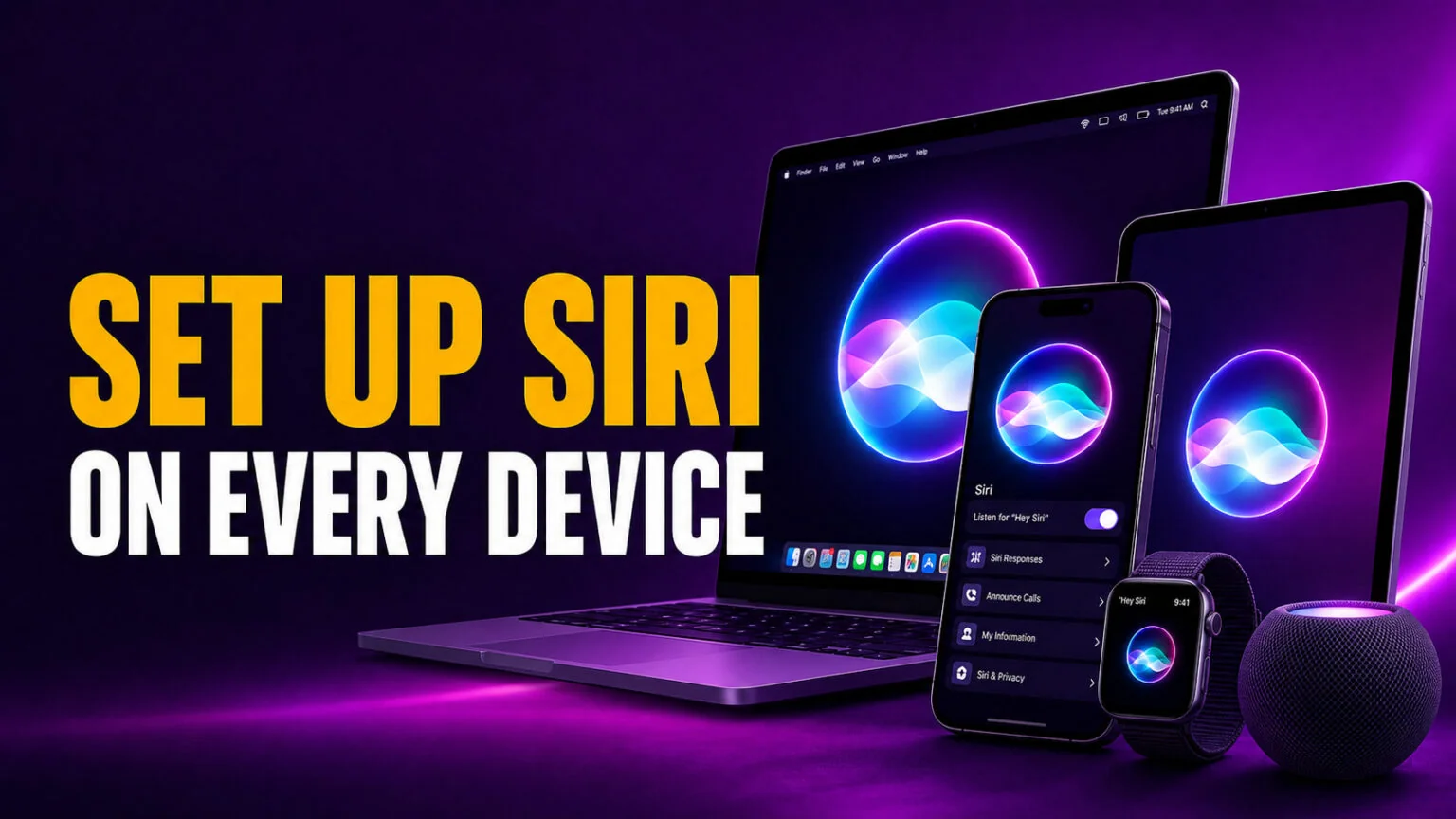
Nastavení Siri zabere asi čtyři klepnutí, ale nabídka se v roce 2026 přesunula. Na každém iPhonu s podporou Apple Intelligence se starý panel „Siri" nyní jmenuje Apple Intelligence & Siri a přepínač, který skutečně zapínáte, se nachází pod položkou Mluvit se Siri. Zapněte hlasový spouštěč jako „Hey Siri", natrénujte ho na svůj hlas za přibližně 30 sekund a asistent odpovídá na celém zařízení bez dotyku.
Tento průvodce popisuje, jak nastavit Siri všude, kde ji najdete: na iPhonu, iPadu, Macu a Apple Watch, s aktuálními názvy nabídek, takže nehledáte panel, který již neexistuje. Najdete zde přesné kroky aktivace, přehlednou tabulku pro každé zařízení, rychlý postup trénování „Hey Siri" a srozumitelný popis toho, co se změní po vydání nové Siri s Gemini v průběhu roku 2026. Pokud chcete pouze jednu metodu aktivace, jsou zde i možnosti bočního tlačítka a psaní do Siri.
Klíčové poznatky
- Chcete-li nastavit Siri na iPhonu, otevřete Nastavení > Apple Intelligence & Siri > Mluvit se Siri a vyberte Naslouchat „Hey Siri" nebo „Siri", poté ji natrénujte na svůj hlas.
- Na Macu přejděte do Nastavení systému > Apple Intelligence & Siri, zapněte Siri a klikněte na Povolit.
- Siri lze aktivovat třemi způsoby: hlasovým spouštěčem, bočním tlačítkem (nebo Digital Crown na Apple Watch) nebo psaním pomocí Psát do Siri.
- Nastavení se nesynchronizuje, takže Siri nastavíte zvlášť na každém zařízení, i když používáte stejný Apple Account.
- Přepracovaná Siri s Gemini představená na WWDC 2026 se postupně zavádí přes veřejnou betu a plné spuštění se očekává na podzim 2026.
Nastavení Siri na každém zařízení Apple: rychlý přehled
Siri není jeden přepínač, který jednou zapnete. Funguje jako samostatná systémová služba na každém zařízení, takže ji povolujete jednotlivě na iPhonu, iPadu, Macu a Apple Watch. Níže uvedená tabulka ukazuje, kde ji zapnout, možnost hlasového spouštěče a další způsoby vyvolání, takže si můžete vybrat postup, který se hodí pro každé zařízení. Podrobné kroky pro každé zařízení následují níže.
| Zařízení | Kde povolit | Hlasový spouštěč | Jiná aktivace | Poznámka k nastavení |
|---|---|---|---|---|
| iPhone | Nastavení > Apple Intelligence & Siri > Mluvit se Siri | „Hey Siri" nebo „Siri" | Stisknout boční tlačítko pro Siri | Trénuje se na váš hlas při prvním nastavení |
| iPad | Nastavení > Apple Intelligence & Siri > Mluvit se Siri | „Hey Siri" nebo „Siri" | Stisknout horní tlačítko pro Siri | Stejný postup jako na iPhonu |
| Mac | Nastavení systému > Apple Intelligence & Siri | „Hey Siri" nebo „Siri" | Ikona v liště nabídek nebo klávesová zkratka | Po zapnutí klikněte na Povolit |
| Apple Watch | Nastavení > Siri (na hodinkách) | „Hey Siri" | Zvednout ke mluvení nebo stisknout Digital Crown | Vyžaduje Wi-Fi nebo mobilní data v dosahu |
| AirPods | Dědí Siri z iPhonu | „Hey Siri" nebo „Siri" | Přidržet stonek | Žádný samostatný přepínač Siri |
Jak zapnout a aktivovat Siri na iPhonu
iPhone je místo, kde většina lidí Siri nastavuje jako první, a právě zde změna nabídky z roku 2026 nejčastěji mate. Pokud hledáte panel jednoduše nazvaný „Siri" na novějším modelu, nenajdete ho. Na každém iPhonu s Apple Intelligence jsou ovládací prvky nyní v sekci Apple Intelligence & Siri a zapnutí asistenta znamená vybrat alespoň jeden způsob jeho vyvolání. Apple celý postup popisuje na své stránce podpory zapnout a aktivovat Siri, pokud chcete mít oficiální referenci po ruce. Po spuštění Siri ve stejné nabídce také nahradíte Siri ChatGPT.
Zapnutí Siri
Zapnutí Siri trvá méně než minutu. Otevřete jednu nabídku, zvolte způsob probuzení a potvrďte. Zde je celý postup na aktuálním iPhonu.
- Otevřete Nastavení a klepněte na Apple Intelligence & Siri (na starších iPhonech je to jen Siri a Hledání).
- Klepněte na Mluvit se Siri (na nejnovějším iOS označeno jako Mluvit a psát se Siri).
- Vyberte Naslouchat „Hey Siri" nebo „Siri", nebo zapněte Stisknout boční tlačítko pro Siri, pokud preferujete tlačítko.
- Pokud se zobrazí výzva, klepněte na Povolit Siri pro potvrzení a Siri je připravena k použití.
To je celé nastavení. Siri nyní odpovídá na váš hlas, stisknutí bočního tlačítka nebo napsaný požadavek a zobrazuje se na Uzamčené obrazovce, když ji zavoláte. Pokud chcete také širší chytré funkce, které jsou součástí asistenta, náš průvodce o zapnutí Apple Intelligence popisuje jejich povolení ve stejné sekci.
Nastavení „Hey Siri" tak, aby poznalo váš hlas
Výběr hlasového spouštěče spustí krátký tréninkový krok, aby Siri reagovala na vás a ignorovala většinu okolního hluku. To je část, kterou lidé přeskakují a pak se diví, proč je „Hey Siri" nespolehlivé. Nespěchejte a mluvte tak, jak mluvíte normálně.
- Po výběru Naslouchat „Hey Siri" (nebo „Siri") klepněte na Pokračovat.
- Říkejte každou frázi zobrazenou na obrazovce, například „Hey Siri, pošli zprávu" a „Hey Siri, jaké je dnes počasí?"
- Po dokončení tréninku klepněte na Hotovo a pak frázi nahlas otestujte.
Pokud spouštěč stále nefunguje správně nebo vůbec nereaguje, obvykle to znamená, že trénink byl přerušen nebo na výzvy odpovídá jiné zařízení v blízkosti. Zopakování těchto kroků přetrénuje model a odstraní většinu prvotních problémů s „Hey Siri". Čistý tréninkový průchod zatím stačí pro spolehlivé ovládání bez rukou.
Jak nastavit Siri na iPadu
iPad používá téměř stejné rozvržení jako iPhone, s jednou odlišností v pojmenování zkratky pro tlačítko. Ať máte iPad Pro s Face ID nebo model s horním tlačítkem, postup nastavení je na stejném místě a končí stejnou výzvou k tréninku hlasu. Pamatujte, že povolení Siri na iPhonu nic neudělá s vaším iPadem.
Povolení Siri v iPadOS
Otevřete Nastavení, klepněte na Apple Intelligence & Siri, poté na Mluvit se Siri a vyberte Naslouchat „Hey Siri" nebo „Siri". Chcete-li místo toho použít tlačítko, zapněte Stisknout horní tlačítko pro Siri (nebo Stisknout domovské tlačítko pro Siri na starších iPadech). Protože iPad a iPhone sdílejí Apple Account, ale ne nastavení Siri, nastavíte ji jednou na každém zařízení a iPad provede vlastní rychlý trénink hlasu při prvním výběru spouštěče.
Jak nastavit Siri na Macu
Siri na Macu je snadné přehlédnout, ale je užitečná pro nastavování časovačů, otevírání souborů a odpovídání na rychlé otázky bez opuštění klávesnice. macOS uchovává ovládací prvky v Nastavení systému místo starého rozvržení Předvoleb systému a zapnutí vyžaduje jeden navíc krok potvrzení oproti iPhonu. Apple stejný postup dokumentuje na stránce podpory Siri na Macu.
Zapnutí Siri v Nastavení systému
Klikněte na menu Apple, otevřete Nastavení systému a vyberte z postranního panelu Apple Intelligence & Siri (na Macích bez Apple Intelligence se jmenuje Siri a Spotlight). Zapněte Siri a po zobrazení potvrzení klikněte na Povolit. macOS se zeptá, zda chcete pomoci zlepšovat Siri sdílením zvukových záznamů, což lze odmítnout bez vlivu na funkci asistenta.
Volba způsobu aktivace na Macu
Po zapnutí Siri ji lze vyvolat třemi způsoby. Řekněte „Hey Siri" nebo „Siri", pokud jste povolili hlasový spouštěč, klikněte na ikonu Siri v liště nabídek nebo použijte klávesovou zkratku podržením klávesy diktování v řadě funkčních kláves. Preferovanou zkratku nastavíte ve stejném panelu Apple Intelligence & Siri, což se hodí, pokud chcete Siri pouze přes klávesnici a nechcete, aby neustále naslouchala na pozadí.
Jak nastavit Siri na Apple Watch
Apple Watch jsou pravděpodobně místem, kde Siri nejvíce prokáže svou hodnotu, protože zvednutí zápěstí a položení rychlé otázky je pohodlnější než vytahování telefonu. Siri je po spárování hodinek obvykle standardně zapnutá, ale metody aktivace stojí za kontrolu, aby reagovala podle očekávání. Vše se ovládá přímo na hodinkách, ne přes iPhone.
Povolení funkce Zvednout ke mluvení a Digital Crown
Na Apple Watch otevřete aplikaci Nastavení a klepněte na Siri. Zapněte Naslouchat „Hey Siri" pro hlasové ovládání, Zvednout ke mluvení, abyste zvedli zápěstí a mohli mluvit, a Stisknout Digital Crown, pokud chcete fyzický spouštěč. Protože hodinky spoléhají pro mnoho odpovědí na blízký iPhone nebo vlastní mobilní připojení, mějte je v dosahu při nastavování, aby Siri mohla požadavky dokončit a nezůstávala na zprávě „připojuji".
Volba způsobu aktivace Siri: hlas, tlačítko nebo psaní
Nastavení Siri neznamená jen její zapnutí, ale také rozhodnutí, jak se probouzí. Správný spouštěč závisí na tom, kde ji nejčastěji používáte, a lze kombinovat více možností. Záměrný výběr také zabrání nejčastější stížnosti na Siri, tedy že se aktivuje náhodně při nechtěném stisknutí tlačítka.
Hlas, boční tlačítko nebo tiché psaní
Hlasový spouštěč je možnost bez dotyku, ideální při vaření, řízení nebo nošení AirPodů, a je to ten, který vyžaduje krátký tréninkový průchod. Boční tlačítko (nebo horní tlačítko na iPadu a Digital Crown na Apple Watch) je záměrná možnost bez naslouchání pro ty, kteří nechtějí, aby mikrofon byl stále připravený. Pokud nechcete mluvit vůbec, zapněte Psát do Siri v části Nastavení > Apple Intelligence & Siri a budete moci zadávat požadavky do textového pole, což je ideální pro tiché prostory a pro každého, komu hlasový vstup nevyhovuje. Po zprovoznění Siri můžete také změnit hlas Siri na jiný přízvuk nebo pohlaví, pokud vám výchozí nevyhovuje.
Použití Siri při zamčeném iPhonu
Standardně Siri odpovídá i ze Zamčené obrazovky, takže můžete nastavit časovač nebo poslat zprávu bez odemčení. Pokud chcete, aby zůstala tichá, dokud zařízení neodemknete, otevřete Apple Intelligence & Siri a vypněte Povolit Siri při zamknutí. Ponechání zapnuté je pohodlnější, vypnutí je bezpečnější volbou, pokud se obáváte, že by někdo mohl přes Siri číst vaše oznámení na zamčeném telefonu. V obou případech to lze kdykoli změnit bez nutnosti opakovat zbytek nastavení. A pokud asistenta nechcete používat vůbec, náš průvodce o vypnutí Siri popisuje, jak ji vypnout na každém zařízení.
Nová Siri s Gemini: jak bude nastavení vypadat příště
Siri, kterou dnes nastavujete, se chystá na velkou renovaci mozku. Na WWDC 2026 Apple potvrdil, že přepracovaný asistent běží na vlastním modelu Gemini od Googlu, údajně o přibližně 1,2 bilionu parametrech a vázán dohodou v hodnotě přibližně 1 miliardy dolarů ročně. Výše popsané kroky nastavení zůstanou stejné, ale Siri bude rozumět navazujícím otázkám, kontextu na obrazovce a vícekrokovým požadavkům mnohem lépe než verze, kterou většina lidí zná.
Kdy nová Siri přijde a na jakých zařízeních
Apple vydal novou Siri vývojářům od 9. června a veřejná beta iOS 27 je nyní dostupná pro všechny, přičemž plné spuštění se očekává na podzim 2026. Spustí se v angličtině a funguje na novějších iPhonech, iPadech, Macích, Apple Watch a Vision Pro, protože náročnější model vyžaduje novější hardware. Pokud si nejste jisti, zda vaše zařízení splňuje podmínky, náš přehled zařízení s podporou Apple Intelligence uvádí přesně, co splňuje požadavky, než budete čekat na aktualizaci.
Soukromí a jestli je to stále skutečně Siri
Použití modelu Google v Siri vyvolalo zřejmé otázky a odpověď Apple zní, že model Gemini běží na jeho vlastních serverech Private Cloud Compute, nikoli na serverech Googlu, takže požadavky nejsou předávány Googlu ani uchovávány pro reklamní účely. Mnoho jednoduchých úkolů stále probíhá přímo na zařízení. Hlubší pohled na to, nakolik to dnes vlastně odpovídá pojmu umělá inteligence, nabízí náš článek o tom, zda je Siri skutečně AI, který se věnuje tomu, co se změnilo a co jsou stále jen klasické funkce hlasového asistenta. Stránka podpory Apple Použití Siri na všech vašich zařízeních je dobrým doplňkem k hardwarovým detailům.
Chcete víc, než Siri umí? Vyzkoušejte aplikaci s více modely
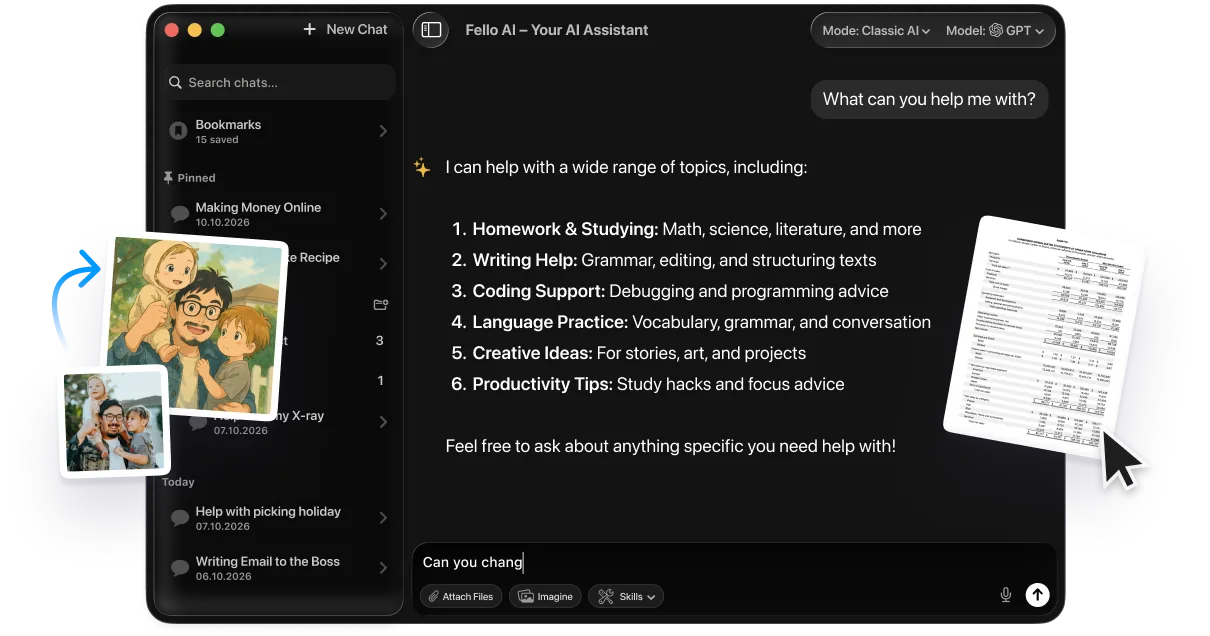
Siri je výborná pro systémové úkoly jako časovače, připomínky a rychlé fakty, ale není stavěna pro delší psaní, pomoc s kódováním nebo podrobnou vzájemnou výměnu názorů. Pokud to hledáte na Macu, specializovaná AI aplikace vyplní tuto mezeru. Fello AI spouští ChatGPT, Claude, Gemini, Grok a DeepSeek z jediné desktopové aplikace, takže se můžete jednoho modelu zeptat na otázku a přepnout na jiný pro druhý názor, vše za jednu cenu.
Dobře se doplňuje s právě nastavenou Siri, nenahradzuje ji. Nechte Siri obstarávat handsfree a lokální úkoly, zatímco aplikace s více modely bere na sebe náročnější myšlení, a dostanete to nejlepší z obojího bez závazku vůči jedinému asistentovi. Také máte kontrolu nad tím, kdy naslouchá, protože reaguje až tehdy, když aplikaci otevřete a začnete psát.
Závěr
Nastavení Siri je rychlé, jakmile znáte názvy nabídek z roku 2026. Na iPhonu a iPadu otevřete Apple Intelligence & Siri > Mluvit se Siri a vyberte spouštěč; na Macu zapněte Siri v Nastavení systému a klikněte na Povolit; na Apple Watch zapněte Zvednout ke mluvení a Digital Crown. Proveďte krátký trénink „Hey Siri", aby rozpoznávala váš hlas, a nezapomeňte nastavení zopakovat na každém zařízení, protože se nesynchronizuje. Pokud trénink selže nebo je přepínač šedý, naše tipy pro řešení proč Siri nefunguje odstraní obvyklé příčiny.
Zvolte metodu aktivace, která odpovídá vašemu způsobu práce, ať už je to plně handsfree hlas, záměrný stisk tlačítka nebo tiché psaní. Chcete-li se nejprve seznámit s širšími chytrými funkcemi vedle asistenta, začněte naším přehledem Apple Intelligence a návodu, jak používat Apple Intelligence každý den, a pak se vraťte a přepněte jeden přepínač, který potřebujete. Po zapnutí Siri náš průvodce Jak používat Siri představí příkazy, které stojí za to se naučit, a Zkratky Siri vám umožní řetězit tyto příkazy do automatizací na jedno klepnutí.
Časté dotazy
Jak nastavím Siri na novém iPhonu?
Otevřete Nastavení > Apple Intelligence & Siri > Mluvit se Siri, poté vyberte Naslouchat „Hey Siri" nebo „Siri", nebo zapněte Stisknout boční tlačítko pro Siri. Pokud zvolíte hlasový spouštěč, postupujte podle krátkých pokynů pro natrénování Siri na váš hlas a klepněte na Hotovo. Siri funguje hned po zapnutí přepínače.
Proč nelze „Hey Siri" zapnout?
Obvykle byl trénink hlasu přerušen nebo přeskočen. Přejděte zpět na Mluvit se Siri, znovu vyberte Naslouchat „Hey Siri" a dokončete každou frázi, o kterou obrazovka žádá. Pokud stále nefunguje, jiné zařízení v blízkosti pravděpodobně odpovídá jako první, proto zkontrolujte, zda má spouštěč v sdíleném prostoru povolené jen jedno zařízení.
Jak nastavím Siri na Macu?
Otevřete Nastavení systému, klikněte v postranním panelu na Apple Intelligence & Siri, zapněte Siri a klikněte na Povolit. Poté ji vyvolejte říkáním „Siri", kliknutím na ikonu v liště nabídek nebo podržením klávesy diktování. Nastavení je oddělené od iPhonu, takže Siri povolíte i na Macu.
Lze Siri používat bez říkání „Hey Siri"?
Ano. Zapněte Stisknout boční tlačítko pro Siri (horní tlačítko na iPadu, Digital Crown na Apple Watch) pro nastavení pouze s tlačítkem, nebo povolte Psát do Siri pro zadávání požadavků místo mluvení. Hlasový spouštěč lze zcela ponechat vypnutý, pokud nechcete, aby mikrofon naslouchal.
Je nová Siri poháněna Google Gemini?
Ano. Apple na WWDC 2026 potvrdil, že přepracovaná Siri běží na vlastním modelu Gemini, údajně o přibližně 1,2 bilionu parametrech, hostovaném na vlastních serverech Apple Private Cloud Compute. Kroky nastavení zůstávají stejné; asistent se jen znatelně zlepší a plné spuštění se očekává na podzim 2026.