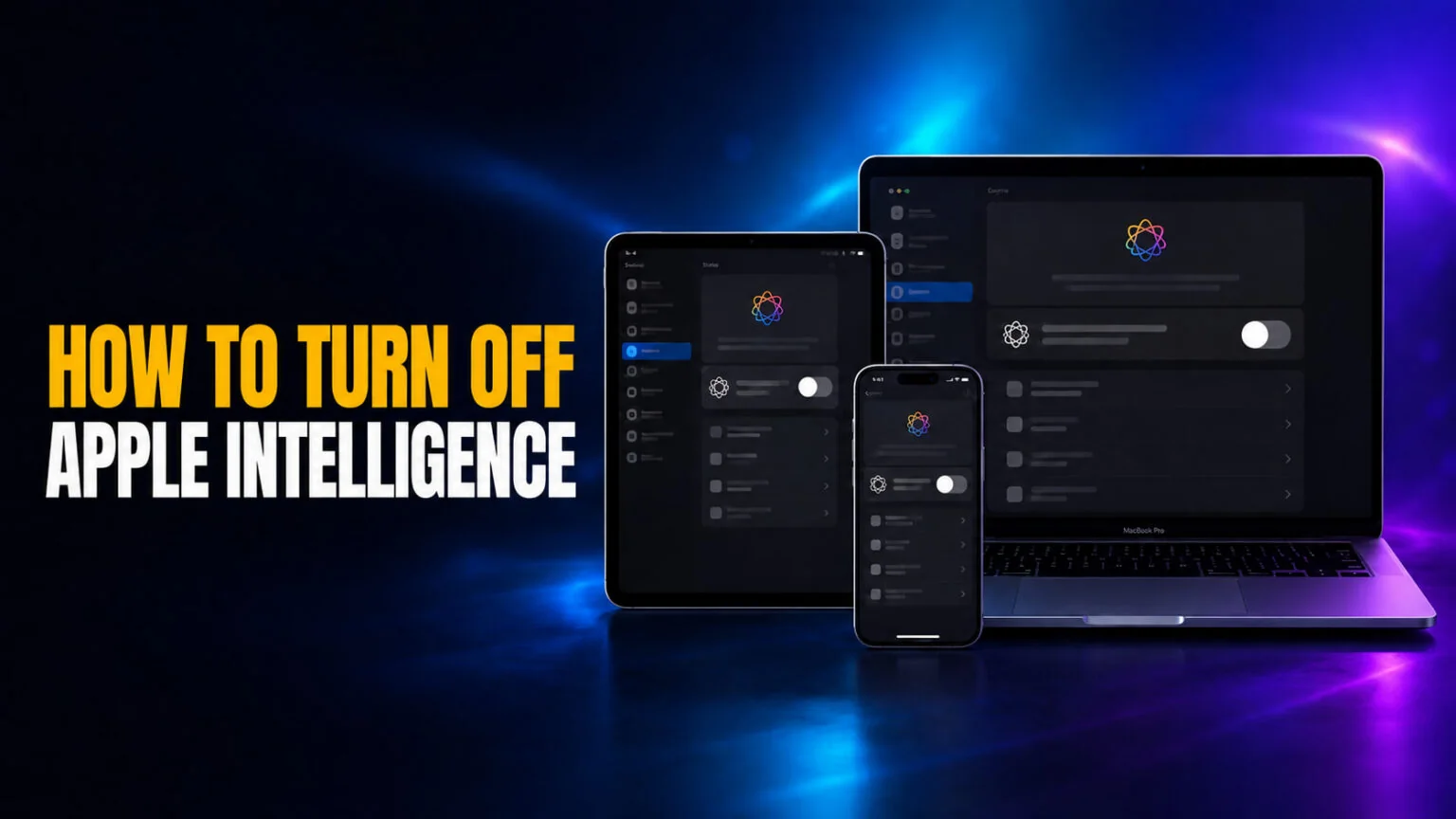
If you updated to iOS 27 or macOS 27 Golden Gate and went looking for the Apple Intelligence off switch, it is not there any more. Apple removed the master toggle. Apple's own user guides no longer document a single control that disables Apple Intelligence as a whole; they list the features one at a time instead. So turning it off is now several small decisions rather than one, and this guide walks through each of them: switching Siri back to Siri Classic, killing the summaries, dropping the third-party extensions, and locking the whole lot behind Screen Time.
If you are still on iOS 26, iPadOS 26 or macOS Tahoe 26, the old master switch is still there, and that path is kept below because it is the fastest route and it is the one that actually reclaims storage. Everything else here applies to both. Apple lists the supported hardware as iPhone 16 or later, iPhone 15 Pro and 15 Pro Max, iPhone Air, iPad mini (A17 Pro), MacBook Neo (A18 Pro), Macs and iPads with M1 or later, Apple Vision Pro, and Apple Watch Series 9 or later paired with a supported iPhone. If you do not see these settings at all, your device is not on the list.
The Key Takeaways
- The master toggle is gone in iOS 27 and macOS 27. Apple's user guides now document per-feature controls only. On iOS 26 and macOS 26 the single switch still exists.
- The models take up to 14GB on the newest devices and up to 8GB on the rest, per Apple. On iOS 27 there is no longer a single action that removes them.
- You can disable just notification summaries under Settings > Notifications without switching off the rest.
- Screen Time > Content & Privacy blocks Writing Tools, Image Creation, and ChatGPT extensions on a managed device.
- Switching Siri to Siri Classic is the closest thing iOS 27 has to an off switch for the headline feature, and Screen Time is the only version that a passcode can hold in place.
How to Turn Off Apple Intelligence on iPhone and iPad
On iOS 27 and iPadOS 27 the biggest single change you can make is to Siri itself. Apple now separates the rebuilt assistant, Siri AI, from the old one, and you can send yourself back to the old one. Everything else is a separate toggle, and Apple's guide groups them under the app they belong to rather than in one Apple Intelligence screen.
- Open Settings, tap Apple Intelligence & Siri, and choose either Turn Off Siri or Switch to Siri Classic.
- For message and mail summaries, go to Settings > Apps > Messages > Summarize Messages and Settings > Apps > Mail > Summarize Message Previews.
- For notifications, go to Settings > Notifications and switch off Summarize Notifications and Prioritize Notifications.
- For the smaller ones, Apple lists Personalized Smart Replies in Mail, Suggestions in Voicemail and Show When Calling in Phone, and Get Writing Prompts in Journal.
- For Writing Tools, image creation and third-party extensions, use Screen Time, covered further down.
Siri Classic is the old assistant: timers, calls, messages and basic commands, without the rebuilt reasoning layer. It is the setting most people are actually after when they say they want Apple Intelligence off, because it is the one that changes what happens when you talk to your phone. On iOS 26 the older route still works: Settings > Apple Intelligence & Siri, switch off the Apple Intelligence toggle, tap Turn Off, and wait while the on-device models are removed. For the full picture of what the feature actually does, see our Apple Intelligence explainer.
How to Turn Off Apple Intelligence on Mac
The Mac is in the same position. Apple's Mac user guide is titled "Turn off and restrict access to Apple Intelligence features on Mac" and it documents the same per-feature controls, with no single system-wide switch. Macs use System Settings rather than Settings, and the feature names match the iPhone.
- Click the Apple menu, choose System Settings, then Apple Intelligence & Siri in the sidebar.
- Choose Turn Off Siri or Switch to Siri Classic, and switch off App suggestions from Siri if you do not want them.
- Work through the summary toggles for Messages, Mail and Notifications, then use Screen Time for Writing Tools, image creation and extensions.
If you want to keep most of Apple Intelligence but stop Mail from summarizing your messages, the setting Apple documents is Summarize Message Previews, reached through Apps > Mail in Settings on an iPhone or iPad and through Mail's own settings on a Mac. The matching control for iMessage is Summarize Messages under Apps > Messages. Both leave the rest of the AI features intact while clearing the summaries out of your inbox.
How to Turn Off Notification Summaries Only
Notification summaries are the feature most people want gone. They condense your incoming alerts into a one-line recap, and that recap is often wrong or misleading. You can switch summaries off on their own and keep everything else running.
- Open Settings and tap Notifications.
- Tap Summarize Notifications.
- Switch off the Summarize Notifications toggle.
You can also keep summaries for some apps and drop them for others. On the same Summarize Notifications screen, scroll to the app list and turn the feature off for individual apps like Messages or your news app. That way you keep a useful summary for low-priority alerts and read important messages in full. The approach mirrors how you would turn off Google Gemini features selectively rather than all at once. Microsoft splits Copilot the same way, with a separate switch in each Office app, so here is how to turn off Copilot one app at a time.
How to Turn Off Individual Apple Intelligence Features
The third-party hand-off is the one most people want gone, and it is no longer only ChatGPT. Apple now calls the whole category Intelligence Extensions, and the providers Siri can pass a question to have widened beyond OpenAI. Open Apple Intelligence & Siri and look under Extensions to see which are switched on for your device, then turn off the ones you do not want. Siri stops handing those questions out and answers with Apple's own system instead.
Writing Tools, Genmoji, and Image Playground are best controlled through Screen Time, which is covered in the next section. On a Mac you can also limit what Siri learns by opening Apple Intelligence & Siri, selecting Siri Suggestions & Privacy, and switching off Learn from this Application for any app you want to restrict. These granular controls let you shape the feature around your habits instead of switching it off completely, which is the same logic behind deciding whether Siri counts as real AI in the first place.
How to Block Apple Intelligence with Screen Time
Screen Time is the right tool when you want to block Apple Intelligence on a child’s device or a managed work phone, because it locks the choice behind a passcode. According to Apple Support, you can block three feature groups this way.
- Open Settings (or System Settings on a Mac) and tap Screen Time.
- Tap Content & Privacy and turn on the Content & Privacy restrictions.
- Tap Intelligence & Siri.
- Switch off Writing Tools, Image Creation (Image Playground, Genmoji, and Image Wand), and Intelligence Extensions (third-party providers like ChatGPT).
Because these toggles sit inside Screen Time, a child cannot flip them back on without the Screen Time passcode. The same path works on a Mac through System Settings > Screen Time, with identical feature names. It is the cleanest way to keep AI image and writing tools off a managed device permanently.
Does Turning Off Apple Intelligence Free Storage?
It used to, and on iOS 27 that is the honest answer: not the way it did. The old master toggle removed the on-device models, which is how the widely quoted storage saving worked, and MacRumors documented exactly that behaviour. With the toggle gone, there is no single action that deletes them, and Apple does not document a replacement. The footprint itself is published: Apple's own requirements page lists up to 14GB on iPhone 17 Pro, iPhone 17 Pro Max, iPhone Air, iPads with M4 or later, Macs with M3 or later and Apple Vision Pro, up to 8GB on every other supported device, and up to 1.5GB on Apple Watch. Treat those as the ceiling on what was ever reclaimable, not as a saving you can still make on demand.
The older quirk still applies and now matters more: major updates have switched Apple Intelligence features back on, and the 27 update is itself the clearest example, since it retired the switch people had already used. After every big update it is worth walking the list again. There is also no evidence that any of this meaningfully changes battery life, so a quieter interface is the main thing you get. For the wider context on Apple's AI roadmap and the Siri AI rebuild that shipped on 14 September 2026, our WWDC 2026 recap has the full timeline.
Want AI on Your Own Terms Instead?
Plenty of people switch Apple Intelligence off not because they dislike AI, but because they want more control and better models. If that is you, a dedicated AI app gives you the power without the system-level baggage. Fello AI brings Claude, ChatGPT, Gemini, Grok, and DeepSeek together in one native Mac app, so you pick the right model for each task instead of being locked into one assistant.
It runs as a normal app you open when you want it, with no notification summaries hijacking your lock screen and no features quietly turning themselves back on. One subscription covers every model, which beats juggling separate accounts. You can see how it works on the Fello AI getting started page.
Conclusion
Turning off Apple Intelligence is no longer one switch. On iOS 27 and macOS 27 it is a short list: send Siri back to Siri Classic, switch off the summaries in Notifications, Messages and Mail, and turn off the extensions you do not want. That gets you most of the way to a quiet, AI-free interface, and it is as far as Apple lets you go without Screen Time.
Re-check the list after each major update, since features have come back on before, and use Screen Time whenever the choice needs to hold, on a child's device or your own. If you still want strong AI on your Mac, just on your own terms rather than the system's, give Fello AI a look.
FAQ
How do I turn off Apple Intelligence completely?
On iOS 27 and macOS 27 you cannot, in one step. Apple removed the master toggle and its user guides now list per-feature controls only. The closest you get is switching Siri to Siri Classic, turning off the Messages, Mail and Notification summaries, and blocking Writing Tools, image creation and extensions in Screen Time. On iOS 26 and macOS 26 the single toggle under Apple Intelligence & Siri still works.
Does turning off Apple Intelligence free up storage?
It did on iOS 26, where the master toggle removed the on-device models. With that toggle gone in iOS 27, there is no single action that deletes them and Apple has not documented a replacement. Apple does publish the footprint: up to 14GB on the newest iPhones, iPads and Macs, and up to 8GB on other supported devices.
How do I turn off just the notification summaries?
Go to Settings > Notifications > Summarize Notifications and switch off the toggle. You can also turn summaries off for individual apps on the same screen while leaving the rest of Apple Intelligence on.
Will Apple Intelligence turn back on after an update?
It can, and the 27 update is the sharpest case: it retired the master toggle that people had used to switch the whole thing off. Re-check Settings > Apple Intelligence & Siri and the summary toggles after each big update.
Why don’t I see the Apple Intelligence setting?
Apple lists iPhone 16 or later, iPhone 15 Pro and 15 Pro Max, iPhone Air, iPad mini (A17 Pro), MacBook Neo (A18 Pro), Macs and iPads with M1 or later, Apple Vision Pro, and Apple Watch Series 9 or later paired with a supported iPhone. If your device is older the settings will not appear, and our guide to Apple Intelligence alternatives for Mac shows what to run instead.