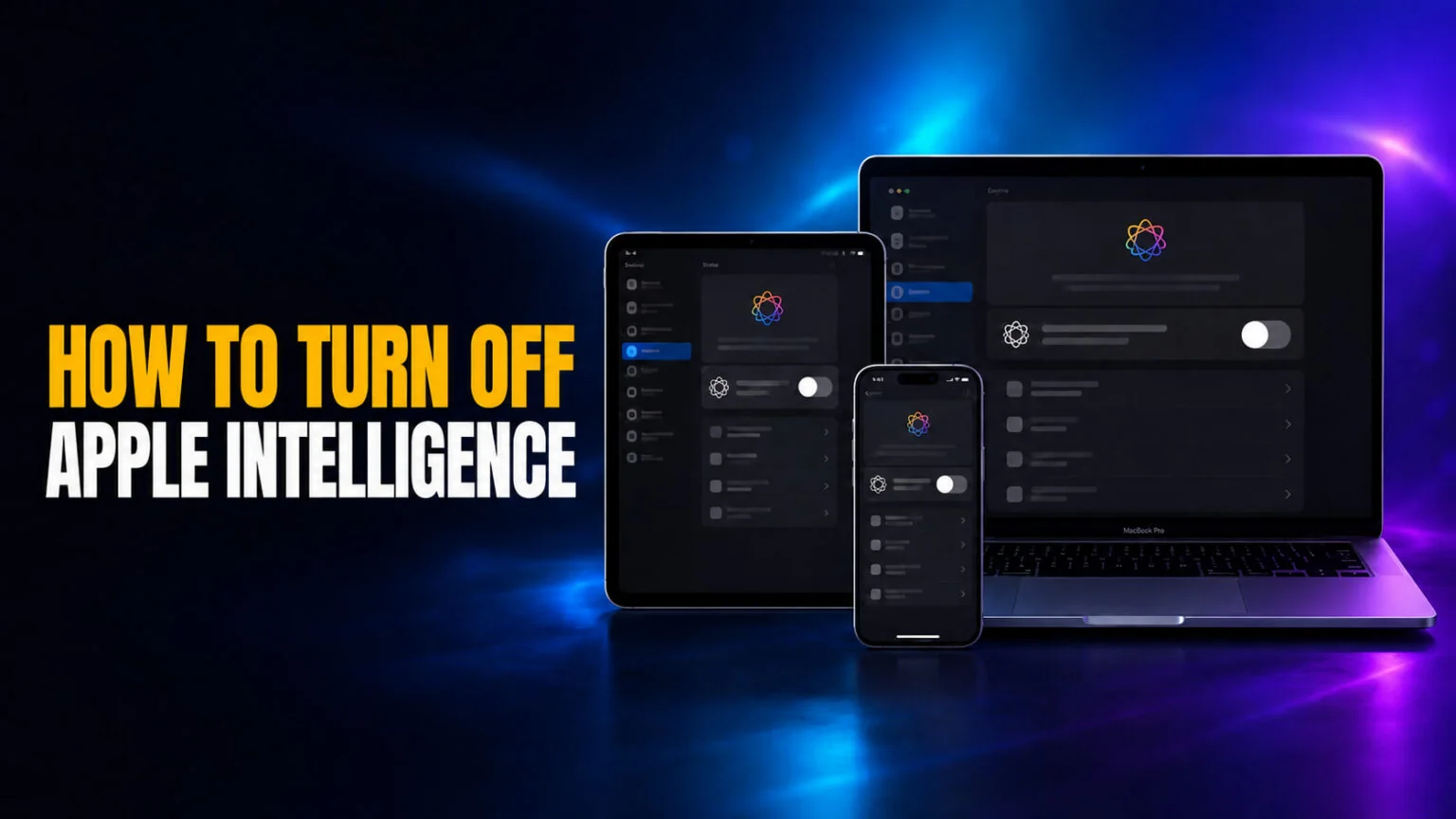
There is no single switch to turn off Apple Intelligence in iOS 27 or macOS 27 Golden Gate. Apple removed the master toggle, and its own user guides now list the controls one feature at a time. The biggest single step is turning off Siri AI under Settings > Siri, then either leaving Siri off or going back to Siri Classic. After that, this guide walks through the summaries, the ChatGPT extension, and the Screen Time restrictions that lock the whole lot behind a passcode.
If you are still on iOS 26, iPadOS 26 or macOS Tahoe 26, the old master switch is still there, and that path is kept below because it is the fastest route and it is the one that actually reclaims storage. Everything else here applies to both. Apple lists the supported hardware as iPhone 16 or later, iPhone 15 Pro and 15 Pro Max, iPhone Air, iPad mini (A17 Pro), MacBook Neo (A18 Pro), Macs and iPads with M1 or later, Apple Vision Pro, and Apple Watch Series 9 or later paired with a supported iPhone. If you do not see these settings at all, your device is not on the list.
The Key Takeaways
- The master toggle is gone in iOS 27 and macOS 27. Apple's user guides now document per-feature controls only. On iOS 26 and macOS 26 the single switch still exists.
- The models take up to 14GB on the newest devices and up to 8GB on the rest, per Apple. On iOS 27 there is no longer a single action that removes them.
- You can disable just notification summaries under Settings > Notifications without switching off the rest.
- Screen Time > Content & Privacy Restrictions > Siri is the only control a passcode can hold. It can block Siri, keep it on Siri Classic, or block single capabilities such as Image Creation.
- Turning off Siri AI (Settings > Siri > Turn Off Siri) is the closest thing iOS 27 has to an off switch for the headline feature. You can then turn Siri back on as Siri Classic.
How to Turn Off Siri AI
Siri AI is the rebuilt assistant that arrived in beta with iOS 27. Turning it off is the change most people mean when they say they want Apple Intelligence gone. Apple documents it as one row in Siri settings, and the same screen takes you back to the old assistant.
- Open Settings and tap Siri.
- Scroll down, tap Turn Off Siri, then tap Turn Off Siri again to confirm.
- To keep voice commands without the AI layer, tap Turn on Siri, then choose Siri Classic.
Siri Classic is the old assistant: timers, calls, messages and basic commands, without the rebuilt reasoning layer. It is the setting most people are actually after, because it changes what happens when you talk to your phone. On a Mac the steps are the same in System Settings > Siri, covered in the Mac section below.
Not everyone has Siri AI to turn off. Apple lists it for iPhone 15 Pro, iPhone 15 Pro Max and iPhone 16 or later, in English, French, Japanese, Korean, Portuguese and Spanish to start. It is not available to users under 13, and not initially in the EU on iPhone, iPad or Apple Watch. If your iPhone falls outside that, it is already running Siri Classic. Turning off Siri AI also leaves the summaries, Writing Tools and image features running, so the sections below still apply. Your past conversations stay in the Siri app until you delete them. Touch and hold one and tap Delete, or set Keep Conversations under Settings > Siri to 30 days or 1 year.
How to Turn Off Apple Intelligence on iPhone and iPad
On iOS 27 and iPadOS 27, every Apple Intelligence feature other than Siri has its own switch. Apple's guide groups them under the app they belong to rather than in one Apple Intelligence screen, so the list below goes app by app.
- Turn off Siri AI, or switch to Siri Classic, under Settings > Siri, using the steps in the Siri AI section.
- For message and mail summaries, go to Settings > Apps > Messages > Summarize Messages and Settings > Apps > Mail > Summarize Message Previews.
- For notifications, go to Settings > Notifications and switch off Summarize Notifications and Prioritize Notifications.
- For the smaller ones, Apple lists Personalize Smart Replies under Apps > Mail, Suggestions in Voicemail under Apps > Phone, and Get Writing Prompts under Apps > Journal. For Call Context cards in Phone, Apple points to the Excluded Apps list under Settings > Siri.
- For Writing Tools, image creation and third-party extensions in one place, use Screen Time, covered further down.
On iOS 26 the older route still works: Settings > Apple Intelligence & Siri, switch off the Apple Intelligence toggle, tap Turn Off, and wait while the on-device models are removed. It is still the fastest way to clear everything at once if you have not updated. For the full picture of what the feature actually does, see our Apple Intelligence explainer.
How to Turn Off Apple Intelligence on Mac
The Mac is in the same position. Apple's Mac user guide is titled "Turn off and restrict access to Apple Intelligence features on Mac" and it documents the same per-feature controls, with no single system-wide switch. Macs use System Settings rather than Settings, and the feature names match the iPhone.
- Click the Apple menu, choose System Settings, then click Siri in the sidebar.
- Click Turn Off Siri and confirm. To keep Siri without AI responses, click Turn On Siri and select Use Siri Classic.
- Turn off Summarize Messages in Messages > Settings, Summarize Message Previews in Mail > Settings > Viewing, and Summarize Notifications in System Settings > Notifications. Then use Screen Time for Writing Tools, image creation and extensions.
If you want to keep most of Apple Intelligence but stop Mail from summarizing your messages, the setting Apple documents is Summarize Message Previews, reached through Apps > Mail in Settings on an iPhone or iPad and through Mail > Settings > Viewing on a Mac. The matching control for iMessage is Summarize Messages under Apps > Messages. Both leave the rest of the AI features intact while clearing the summaries out of your inbox.
How to Turn Off Notification Summaries Only
Notification summaries are the feature most people want gone. They condense your incoming alerts into a one-line recap, and that recap is often wrong or misleading. You can switch summaries off on their own and keep everything else running.
- Open Settings and tap Notifications.
- Tap Summarize Notifications.
- Switch off the Summarize Notifications toggle.
You can also keep summaries for some apps and drop them for others. On the same Summarize Notifications screen, scroll to the app list and turn the feature off for individual apps like Messages or your news app. That way you keep a useful summary for low-priority alerts and read important messages in full. The approach mirrors how you would turn off Google Gemini features selectively rather than all at once. Microsoft splits Copilot the same way, with a separate switch in each Office app, so here is how to turn off Copilot one app at a time.
How to Turn Off Individual Apple Intelligence Features
The third-party hand-off is the one most people want gone, and it is no longer only ChatGPT. The providers Siri can pass a question to have widened beyond OpenAI, and Apple lists them under Extensions in Settings > Siri. For ChatGPT, Apple's steps are Settings > Siri > ChatGPT, then turn off Use ChatGPT. If you use Siri AI, tap Extensions > ChatGPT instead and turn off Use Extension. Siri stops handing those questions out and answers with Apple's own system instead.
Writing Tools, Genmoji, and Image Playground are best controlled through Screen Time, which is covered in the next section. To stop Siri reading a particular app at all, add it to Excluded Apps under Settings > Siri. Excluded apps are unavailable to Siri, Search and suggestions, and Apple's Mac guide points to the same control. These granular controls let you shape the feature around your habits instead of switching it off completely, which is the same logic behind deciding whether Siri counts as real AI in the first place.
How to Block Apple Intelligence with Screen Time
Screen Time is the right tool when you want to block Apple Intelligence on a child’s device or a managed work phone, because it locks the choice behind a passcode. According to Apple Support, iOS 27 moved these controls under Siri, where you can block Siri outright, hold it on Siri Classic, or block single capabilities.
- Open Settings (or System Settings on a Mac) and tap Screen Time.
- Tap Content & Privacy Restrictions and turn the restrictions on.
- Tap Siri.
- Choose Don’t Allow Siri, Siri (Classic Version) or Siri AI (Beta), then set any capability you want gone, such as Image Creation, Sensitive Topics or Explicit Language, to Block.
Because these choices sit inside Screen Time, a child cannot change them without the Screen Time passcode. On a Mac the path is System Settings > Screen Time > Content & Privacy Restrictions > Siri. Apple's Mac guide names Writing Assistance, Math Assistance and Image Creation among the capabilities you can block. Apple notes that the options vary by Siri version and by country or region. It is the cleanest way to keep AI image and writing tools off a managed device permanently.
Does Turning Off Apple Intelligence Free Storage?
It used to, and on iOS 27 that is the honest answer: not the way it did. The old master toggle removed the on-device models, which is how the widely quoted storage saving worked, and MacRumors documented exactly that behaviour. With the toggle gone, there is no single action that deletes them, and Apple does not document a replacement. The footprint itself is published: Apple's own requirements page lists up to 14GB on iPhone 17 Pro, iPhone 17 Pro Max, iPhone Air, iPads with M4 or later, Macs with M3 or later and Apple Vision Pro, up to 8GB on every other supported device, and up to 1.5GB on Apple Watch. Treat those as the ceiling on what was ever reclaimable, not as a saving you can still make on demand.
The older quirk still applies and now matters more: major updates have switched Apple Intelligence features back on, and the 27 update is itself the clearest example, since it retired the switch people had already used. After every big update it is worth walking the list again. There is also no evidence that any of this meaningfully changes battery life, so a quieter interface is the main thing you get. Our guide to whether Apple Intelligence drains your battery explains where the real battery cost sits. For the wider context on Apple's AI roadmap and the Siri AI rebuild that shipped on 14 September 2026, our WWDC 2026 recap has the full timeline.
Want AI on Your Own Terms Instead?
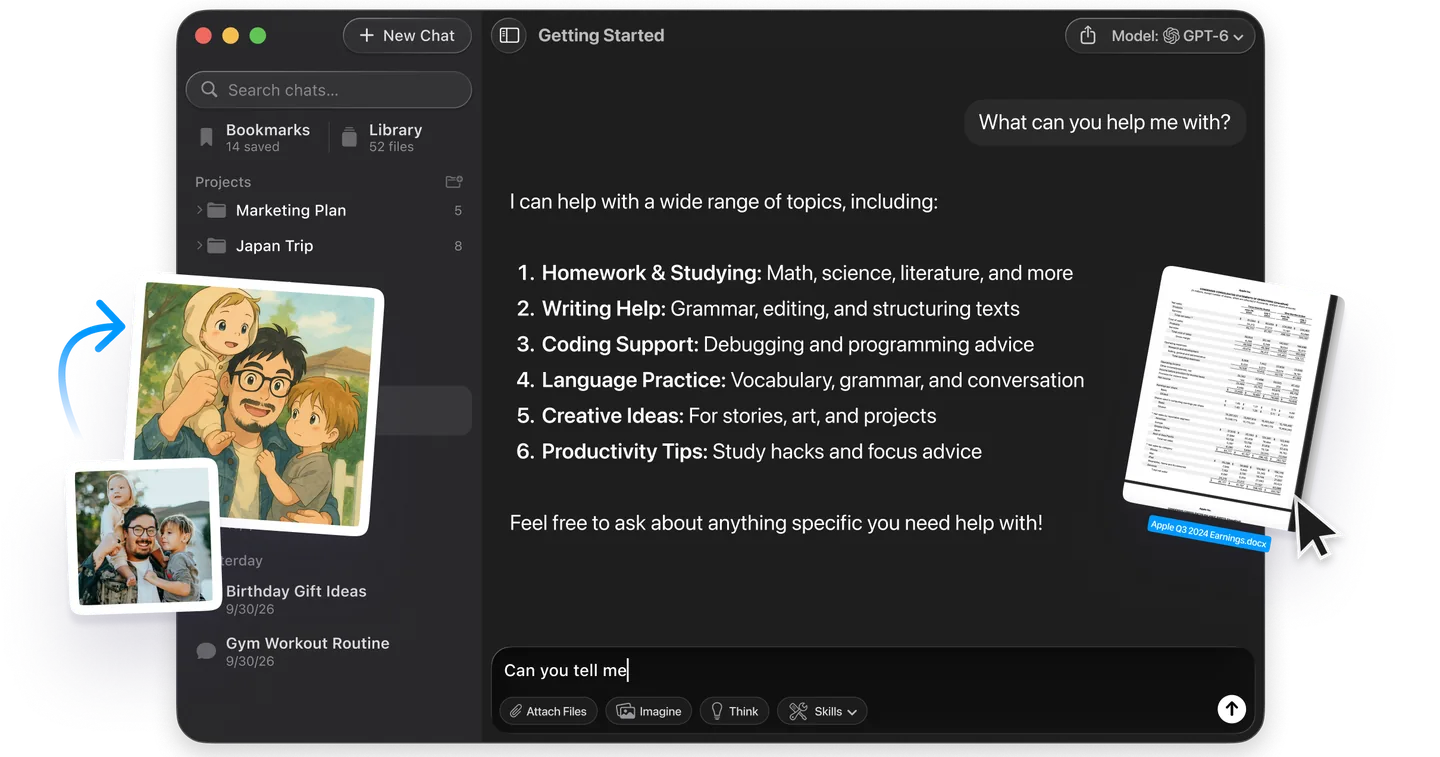
Plenty of people switch Apple Intelligence off not because they dislike AI, but because they want to decide when it runs and which model answers. If that is you, you do not have to give up on AI to get that control. With Fello AI, you ask ChatGPT, Claude or Gemini in one window you open when you want it. If an answer looks off, you ask another model the same question without opening a new tab.
It runs as a normal Mac app, with no notification summaries on your lock screen and no features quietly turning themselves back on. One subscription covers every model, so there are no separate accounts to juggle. You can see how it works on the Fello AI getting started page.
Conclusion
Turning off Apple Intelligence is no longer one switch. On iOS 27 and macOS 27 it is a short list. Turn off Siri AI under Settings > Siri or go back to Siri Classic, switch off the summaries in Notifications, Messages and Mail, and turn off the extensions you do not want. That gets you most of the way to a quiet, AI-free interface, and it is as far as Apple lets you go without Screen Time.
Re-check the list after each major update, since features have come back on before, and use Screen Time whenever the choice needs to hold, on a child's device or your own. If you still want strong AI on your Mac, just on your own terms rather than the system's, give Fello AI a look.
FAQ
How do I turn off Apple Intelligence completely?
On iOS 27 and macOS 27 you cannot, in one step. Apple removed the master toggle and its user guides now list per-feature controls only. The closest you get is turning off Siri AI under Settings > Siri, or switching to Siri Classic. Then turn off the Messages, Mail and Notification summaries, and block capabilities in Screen Time > Content & Privacy Restrictions > Siri. On iOS 26 and macOS 26 the single toggle under Apple Intelligence & Siri still works.
Does turning off Apple Intelligence free up storage?
It did on iOS 26, where the master toggle removed the on-device models. With that toggle gone in iOS 27, there is no single action that deletes them and Apple has not documented a replacement. Apple does publish the footprint: up to 14GB on the newest iPhones, iPads and Macs, and up to 8GB on other supported devices.
How do I turn off just the notification summaries?
Go to Settings > Notifications > Summarize Notifications and switch off the toggle. You can also turn summaries off for individual apps on the same screen while leaving the rest of Apple Intelligence on.
How do I turn off Siri AI but keep Siri?
Go to Settings > Siri, tap Turn Off Siri and confirm, then tap Turn on Siri and choose Siri Classic. On a Mac, use System Settings > Siri, click Turn Off Siri, then Turn On Siri and select Use Siri Classic. Siri Classic handles timers, calls, messages and basic commands without the AI layer.
Will Apple Intelligence turn back on after an update?
It can, and the 27 update is the sharpest case: it retired the master toggle that people had used to switch the whole thing off. Re-check Settings > Siri, the Notifications settings and the summary toggles in Messages and Mail after each big update.
Why don’t I see the Apple Intelligence setting?
Apple lists iPhone 16 or later, iPhone 15 Pro and 15 Pro Max, iPhone Air, iPad mini (A17 Pro), MacBook Neo (A18 Pro), Macs and iPads with M1 or later, Apple Vision Pro, and Apple Watch Series 9 or later paired with a supported iPhone. If your device is older the settings will not appear, and our guide to Apple Intelligence alternatives for Mac shows what to run instead.
A imagem de destaque deste artigo foi criada com a ajuda de IA.