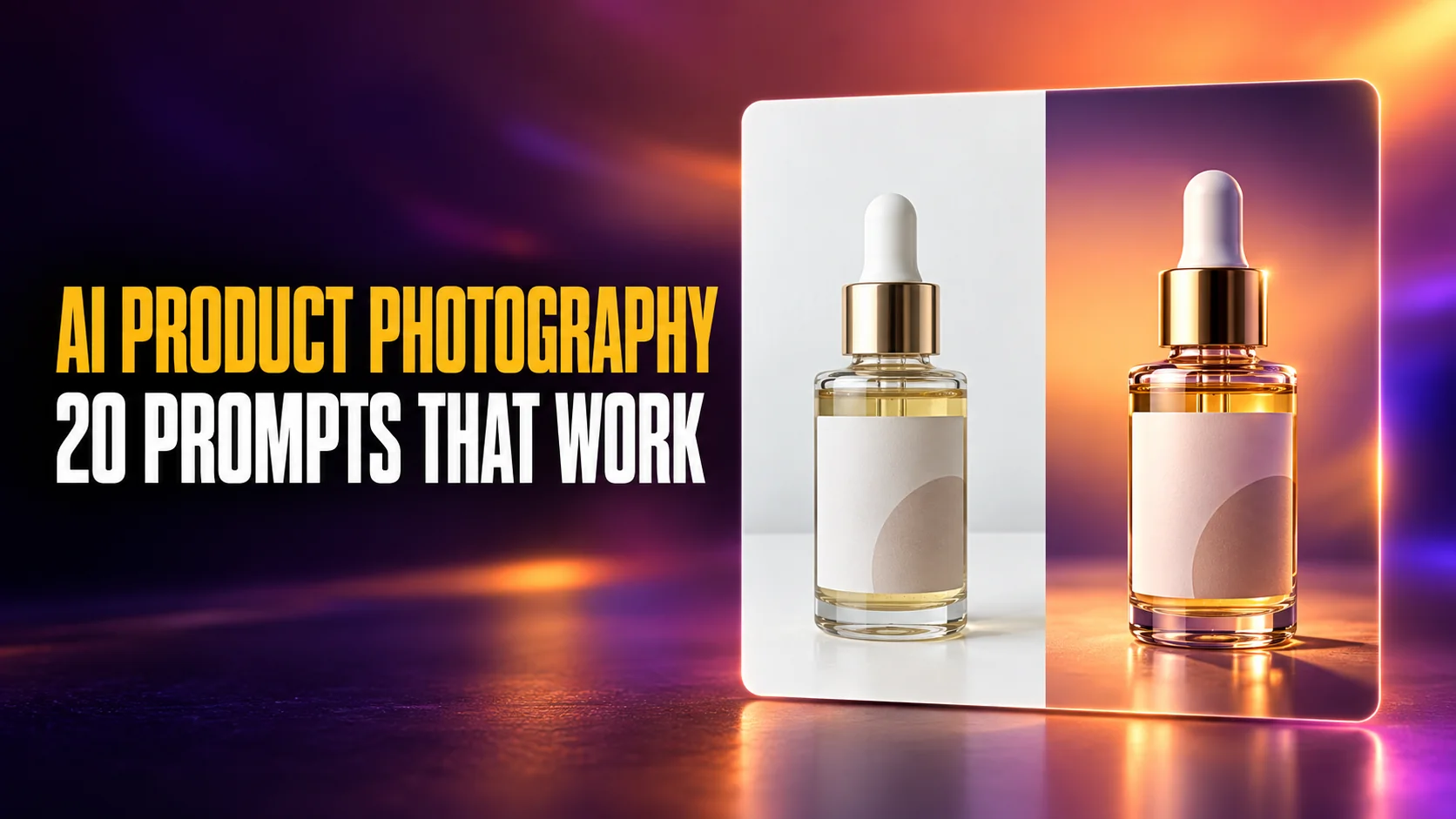
The fastest way to do AI product photography is not to ask an AI to invent your product. Upload a phone photo of the real thing, then tell ChatGPT or Gemini exactly what to change and exactly what to keep. OpenAI's own prompting guide for GPT Image 2.5 says to write "change only X" and list what must stay fixed, labels included. Google gives the same advice for its Nano Banana models.
Most prompt lists skip that step. They describe a lipstick on marble and hand you a lipstick that isn't yours. Below are 20 copy-paste prompts that start from your own photo. They are sorted by where the image goes in a listing: the main image, lifestyle shots, detail shots, scale shots, flat lays, ads and seasonal sets. After them come a fix table for the things that go wrong, and the two marketplace rules that decide whether an AI image can go live.
The Key Takeaways
- Start from your photo: upload a clean phone shot and edit it. Asking the model to generate your product from text invents a product you don't sell.
- Use a keep clause: both OpenAI and Google tell you to name what must not change. Every prompt below carries one. In the Fello AI label test, 8 of 8 ChatGPT and Gemini results kept the label letter-perfect.
- Amazon's main image: the real product on pure white (RGB 255, 255, 255), filling 85% of the frame, with no props. Amazon's rules don't mention AI here. They require accuracy.
- Google Shopping: every AI-generated image must keep the IPTC trainedAlgorithmicMedia tag. A screenshot or a format conversion can strip it.
- Volume changes the tool: ChatGPT and Gemini suit one product at a time. A batch editor such as Photoroom applies one edit across a whole catalogue, but exporting a batch needs a paid plan.
What Is AI Product Photography?
AI product photography is using an image model to create or edit the photos you sell a product with. It covers two different jobs. The first is editing a real photo: swapping the background, fixing the light, placing the product in a scene. The second is generating a shot from text alone, with no photo of the product at all.
For a product you actually ship, the first job is the one that matters. A buyer opens the box and compares it with the picture. An edited photo of your real bottle keeps its real cap, its real label and its real colour. A generated bottle only looks like a bottle. Text-only generation still earns a place, but for backdrops, mood boards and ad concepts, not for the product itself.
The tools most sellers already pay for can do the editing job. ChatGPT runs OpenAI's GPT Image models, and image creation is on every plan, Free included, though OpenAI's pricing page lists it as "limited" on Free. The Gemini app runs Google's Nano Banana models. Google's help page says you can upload an image and ask Gemini to edit it, or upload several images and ask for a new one built from them. Editing in Gemini requires you to be 18 or over.
How to Do AI Product Photography With ChatGPT or Gemini
AI product photography with ChatGPT or Gemini takes seven steps, and the photo you start with decides most of the result. A sharp phone photo on a plain background gives the model clean edges, true colour and readable text to copy. A blurry photo gives it guesswork, and guesswork is where labels warp.
- Shoot the product in daylight on a plain table or a sheet of paper, straight on, with the whole product in frame and the label facing the camera.
- Upload that photo to a new ChatGPT or Gemini chat. Start a new chat for each product so an earlier product doesn't leak into the next one.
- Paste one prompt from the list below and fill in the brackets: the product name, its real size and the exact label text.
- Check the label at full zoom. Read every word against the real product, letter by letter.
- Fix only what failed. Ask for one change per turn and restate the keep clause each time.
- Download the original file, not a screenshot, so the size and the provenance data survive.
- Upload it to the marketplace slot it was made for, after checking that slot's rules in the section on Amazon and Google Shopping.
The keep clause
The keep clause is the sentence that stops the model from redesigning your product. OpenAI's GPT Image 2.5 prompting guide puts it plainly. "For edits, say 'change only X' and list the details to preserve, such as identity, geometry, layout, lighting, or labels." Google's Nano Banana documentation says that to preserve a critical detail such as a logo, you should "describe them in great detail along with your edit request."
Every prompt in this article ends with the same clause. Copy it once, fill it in for your product, and reuse it:
Keep the product exactly as it appears in my photo: the same shape, proportions, colours and materials, and every word, logo and label on it. The label reads "[EXACT LABEL TEXT]", spelled [L-E-T-T-E-R-S]. Do not add new elements or text to the product.The letter-by-letter spelling is OpenAI's own tip. Its image cookbook says that for brand names and unusual spellings, spelling the word out "letter-by-letter" improves character accuracy. If your label carries a long ingredient list, don't expect a model to copy it. Keep that detail for the real photo in your gallery.
The Fello AI label test
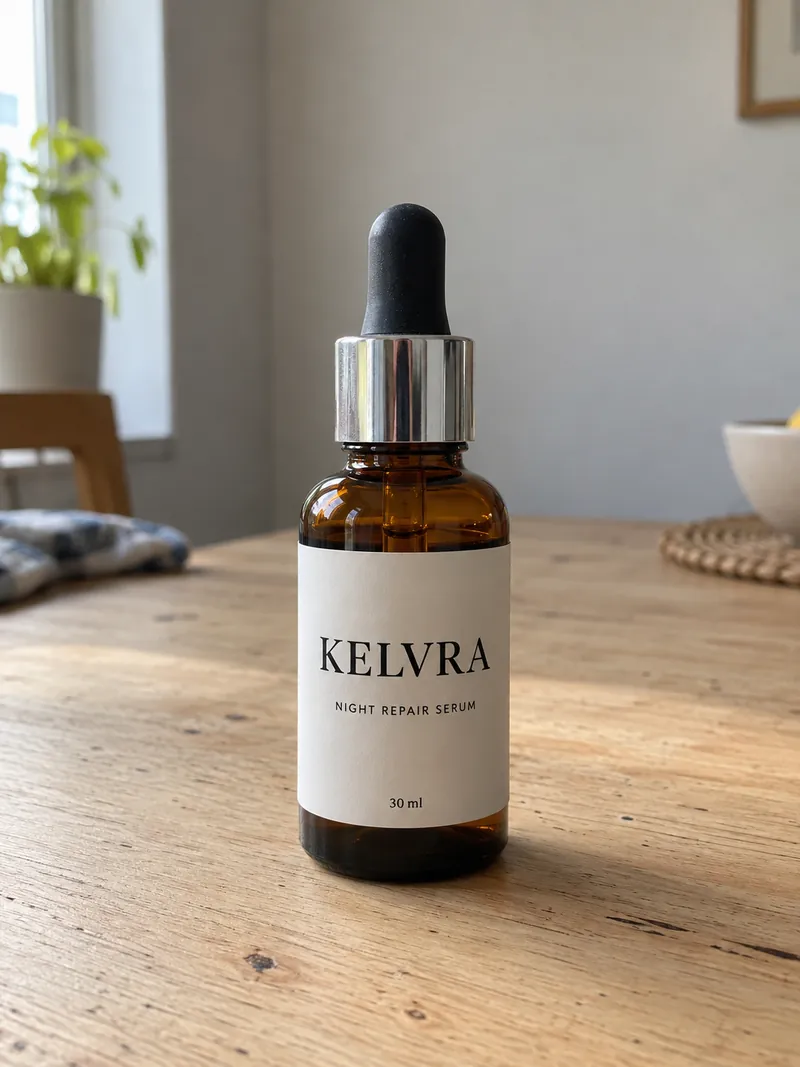
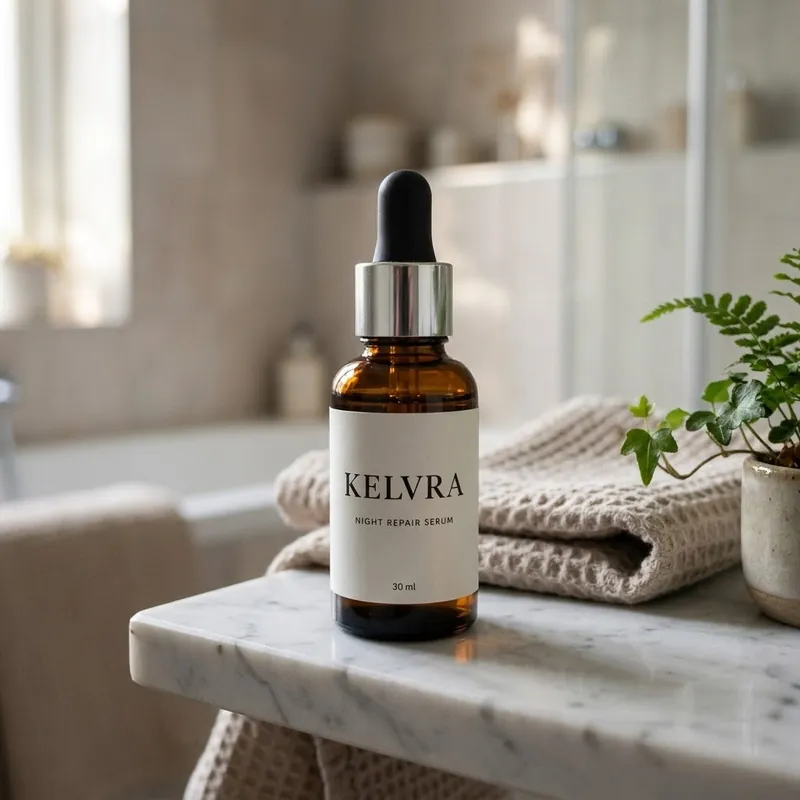
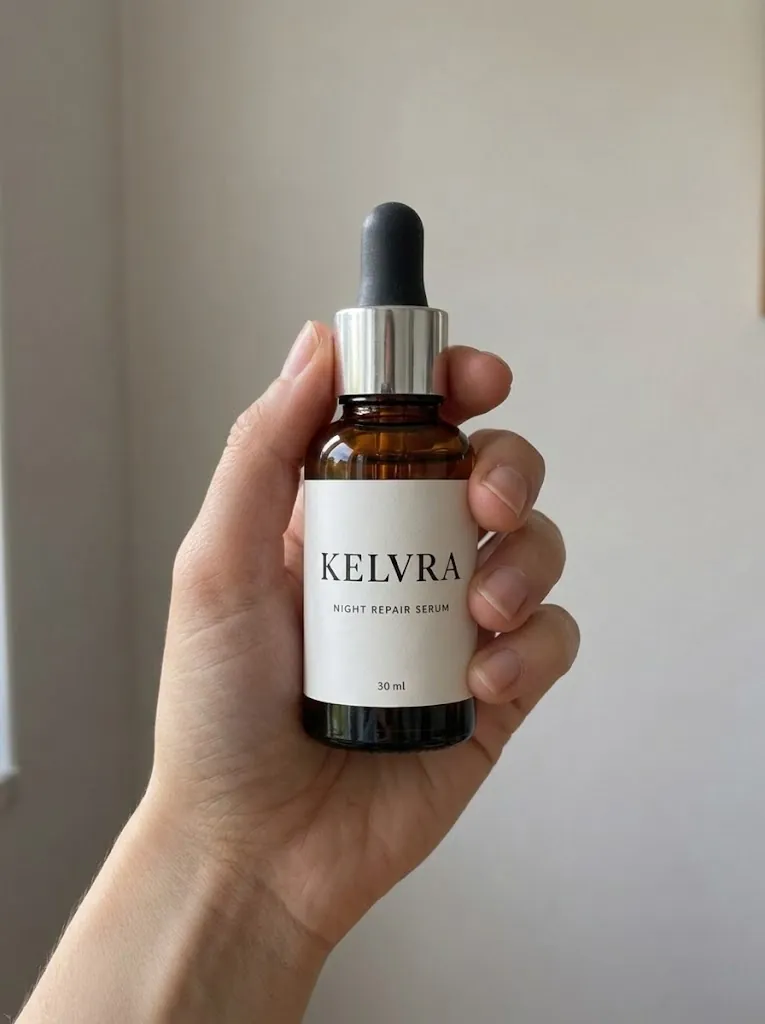
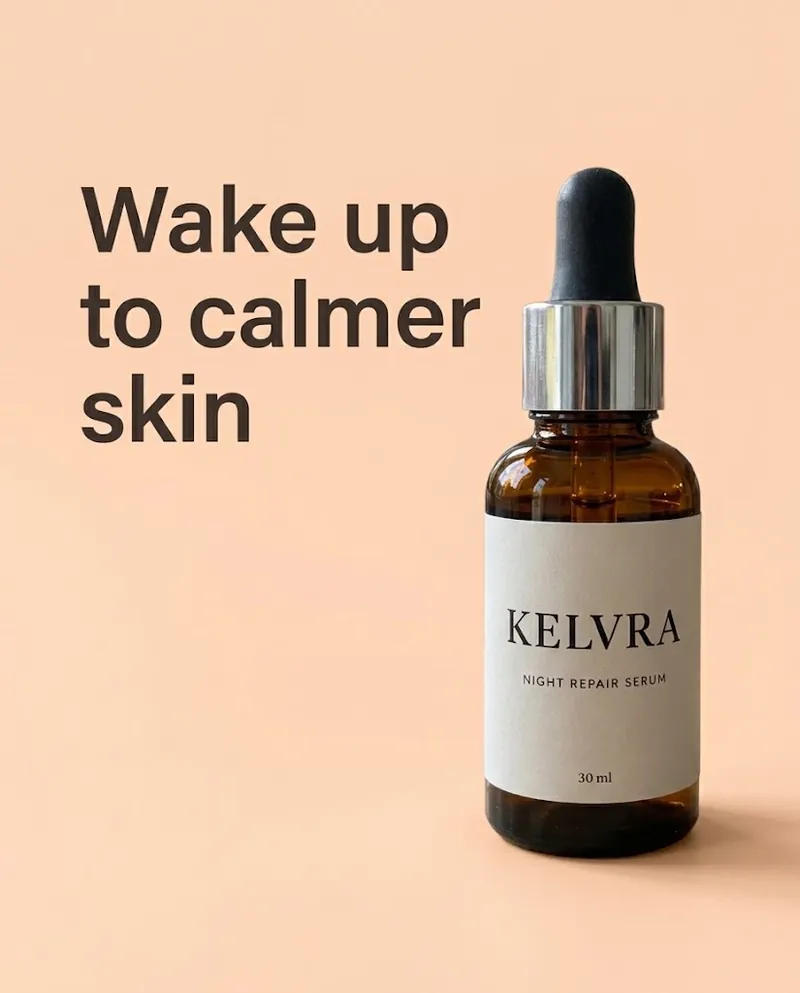
The Fello AI label test is our check of whether the keep clause holds: one product photo, four prompts from this article, run in both ChatGPT and the Gemini app. We ran it on 15 October 2026 with prompts 1, 4, 10 and 14, using a fresh chat for each, so eight results in total. The product is a fictional serum called KELVRA, and its label carries three lines of text: "KELVRA", "NIGHT REPAIR SERUM" and "30 ml".
All eight results kept all three lines spelled correctly, in the same fonts and the same places. The results appear under each prompt below. One caveat matters: the starting photo was itself made with an AI image model, because KELVRA doesn't exist. With your own product, the starting photo is a real one, and that's the version you should run.
AI Product Photography Prompts for the Main Image
The main image is the photo shoppers see in search results, and it has the strictest rules on any marketplace. These three prompts clean up your real photo rather than invent a new one. Each prompt ends with [KEEP CLAUSE]: replace it with your filled-in keep clause before you paste.
1. Pure white main image
Edit my photo into a marketplace main image. Remove the background and replace it with pure white (RGB 255, 255, 255). Centre the product straight on so it fills about 85% of a square 1:1 frame, with the whole product visible and nothing cropped. Add a soft, natural contact shadow under it. Even, bright studio lighting with no colour cast. Change only the background, framing and lighting. [KEEP CLAUSE]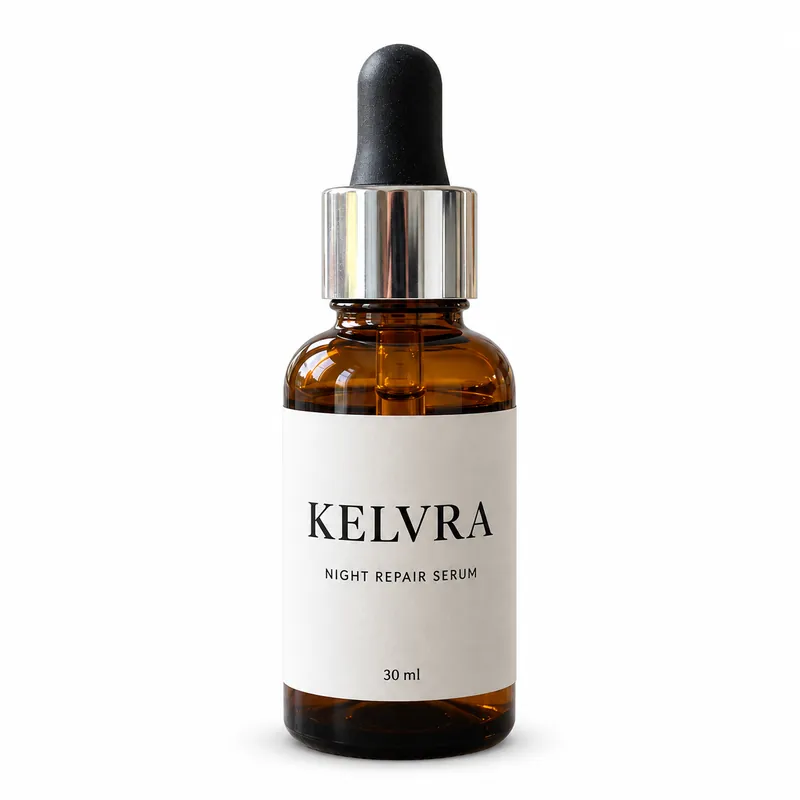
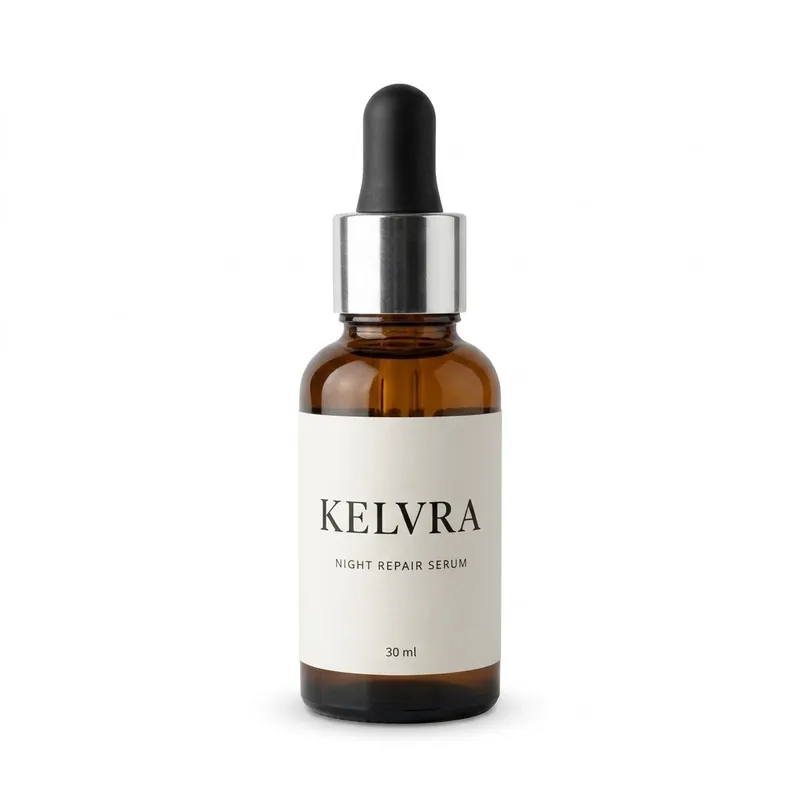
2. Clean up the real photo
Retouch my product photo for a store listing. Remove dust, fingerprints, scratches on the packaging and reflections of the room. Straighten the product so it stands upright. Change only these blemishes. Do not smooth away real textures such as fabric weave, wood grain or matte finish. [KEEP CLAUSE]3. 45-degree angle on white
Using my photo, show the same product turned about 45 degrees to the left, on a pure white background, so the front and one side are visible. Same lighting as a clean studio shot, soft contact shadow, square 1:1 frame, product filling most of the frame. [KEEP CLAUSE] If you cannot see a side in my photo, keep that side plain rather than inventing details.Treat prompt 3 with care. The model can't see the side of your product, so anything it draws there is a guess. Amazon requires footwear to be shown as a single shoe facing left at 45 degrees. For most other products, the safer source for a second angle is a second real photo.
Lifestyle and In-Context Prompts
Lifestyle shots show the product where the buyer will use it, and they are the shots a seller would otherwise hire a location and a photographer for. These four prompts need a photo and a sentence about the room.
4. Kitchen or bathroom counter
Place the product from my photo on a [light oak kitchen counter / white marble bathroom shelf] in soft morning window light coming from the left. Background slightly out of focus, with one or two quiet, realistic items such as a folded towel or a small plant. Natural contact shadow where the product touches the surface. Square 1:1, product in sharp focus. Change only the setting. [KEEP CLAUSE]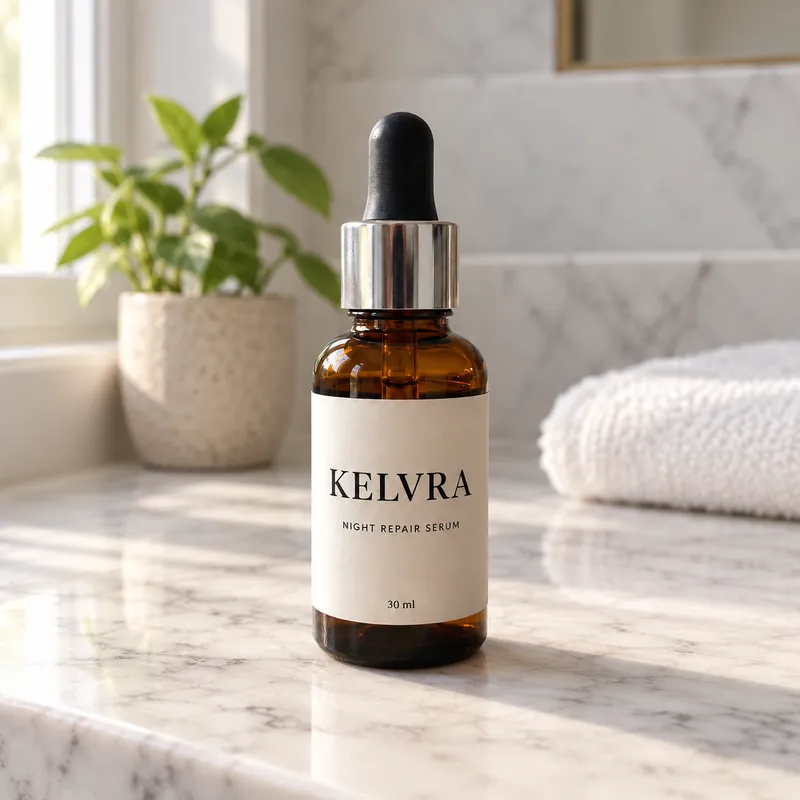
5. Desk or workspace
Put the product from my photo on a tidy desk next to a laptop and a notebook, in warm late-afternoon light. Shot from slightly above at eye level, shallow depth of field so the product is the sharpest thing in the frame. The product is shown at its real size of [SIZE, for example 12 cm tall]. Change only the setting. [KEEP CLAUSE]6. Outdoor setting
Place the product from my photo outdoors [on a picnic blanket in a park / on a rock beside a mountain trail], in soft overcast daylight. Real-camera look with natural colour and a little grain, no dramatic filters. The product stands at its real size of [SIZE]. Change only the setting and the light on the product. [KEEP CLAUSE]7. Product in use, hands only
Show a pair of hands using the product from my photo: [pouring it / opening it / holding it at chest height]. Crop so only the hands and forearms appear, no face. Neutral background, soft side light. Natural skin texture and realistic fingers. Change only what is needed to put the product in the hands. [KEEP CLAUSE]Hands-only framing in prompt 7 is deliberate. Amazon asks sellers to tag images that contain a photorealistic person generated entirely by AI, and a cropped pair of hands keeps the shot about the product. If you do want a full AI model in a shot, read the tagging rule in the Amazon section before you upload.
Detail and Scale Prompts
Detail and scale shots answer the two questions a buyer can't check through a screen: what is it made of, and how big is it? Amazon's own image guide names fewer returns from mismatched expectations as a reason to get images right. The model can only show detail that is in your photo, so shoot a close-up of the texture first if you want prompt 8 to work.
8. Material close-up
Using my close-up photo, create a macro detail shot of the product's [fabric weave / leather grain / brushed metal / ceramic glaze]. Raking light from the side to bring out the texture, very shallow depth of field, neutral grey background. Do not invent texture that is not in my photo. [KEEP CLAUSE]9. Feature close-up
From my photo, create a clean close-up of the product's [zip / clasp / nozzle / button], filling most of the frame, on a soft light grey background with even studio light. No text, arrows or labels added to the image. [KEEP CLAUSE]10. In hand, for size
Show the product from my photo held in one adult hand, so the buyer can judge its real size. The product is [SIZE, for example 9 cm tall and 4 cm wide]; keep it in that proportion to the hand. Plain light background, soft daylight, hands only, no face. [KEEP CLAUSE]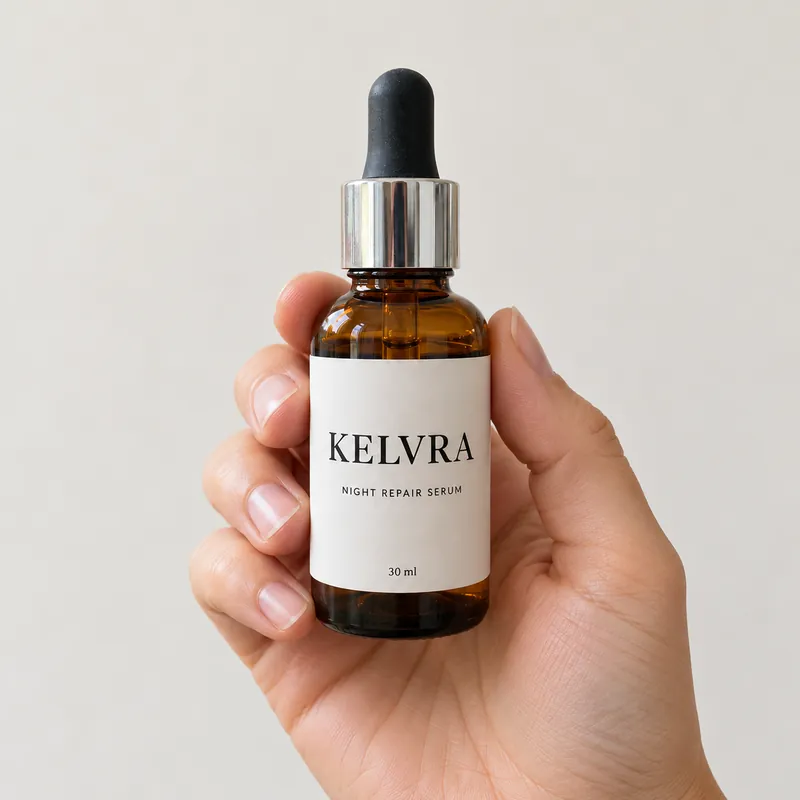
11. Next to an everyday object
Place the product from my photo on a white table next to a [standard coffee mug / smartphone / A4 sheet of paper] for scale. The product is [SIZE]; keep both objects in their true proportions. Soft studio light, straight-on view, square 1:1. [KEEP CLAUSE]The real size goes in the prompt every time, because models do not know how big your product is. Without a number, a 9 cm bottle can come back the size of a wine bottle.
Flat Lay Prompts
A flat lay is a top-down shot of the product arranged with related items, and it suits apparel, stationery, cosmetics and anything sold as a set. Upload a photo of each item you want in the arrangement, so the model doesn't invent props that look like products you sell.
12. Styled flat lay
Create a top-down flat lay on a [linen / pale wood / terrazzo] surface with the product from my first photo in the centre and the items from my other photos arranged around it with even spacing. Soft, shadowless daylight from above. Square 1:1. Do not add any items I did not upload. [KEEP CLAUSE]13. Knolling layout
Lay out the product and the parts from my photos in a knolling arrangement: every item flat, parallel or at right angles, evenly spaced on a plain [white / light grey] background, shot straight from above. Show exactly what comes in the box and nothing else. [KEEP CLAUSE]Prompt 13 doubles as a "what's in the box" image, which is one of the secondary shots that cuts down on buyer questions. Amazon recommends at least six additional images and one video on top of the main image, so a flat lay and a knolling shot fill two of those slots.
Ad and Social Media Prompts
Ad creatives are the one place where added text belongs in the image, and both vendors say their image models render text well. Put the exact words in quotes, keep them short, and check the spelling yourself before anything goes live.
14. Feed ad with a headline
Turn my product photo into a 4:5 social feed ad. Product on the right on a [soft peach] background with a gentle shadow. On the left, the headline "[HEADLINE, 5 WORDS MAX]" in a clean bold sans-serif, rendered exactly once. No other text, no watermarks, no extra logos. [KEEP CLAUSE]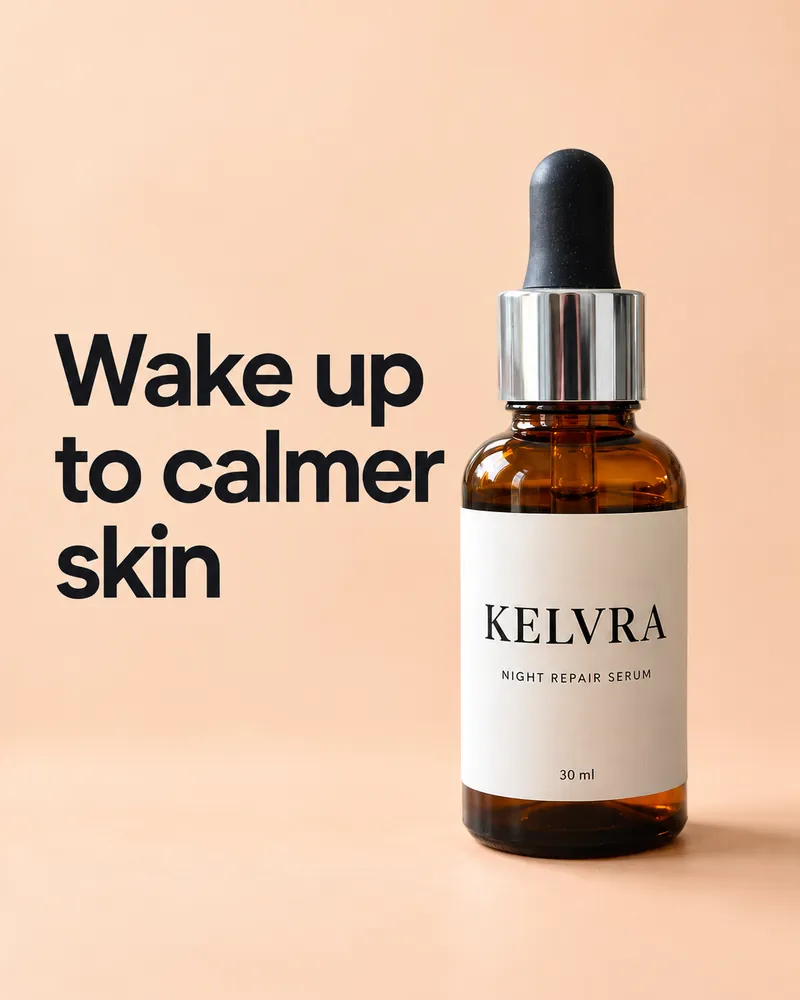
15. Vertical story
Create a 9:16 vertical image for a story ad from my product photo. Product in the lower half on a [deep green] backdrop with a soft spotlight, and empty space across the top third for text I will add later. No text in the image. [KEEP CLAUSE]16. Website banner
Create a wide 16:9 banner from my product photo. Product on the right third on a [warm sand] seamless backdrop, generous empty space on the left for a headline and a button. Even studio light, soft shadow. No text. [KEEP CLAUSE]17. Product advertisement scene
Create a premium product advertisement from my photo. The product stands on a [glossy black acrylic] surface with a subtle reflection, lit by a single soft key light from the upper left and a thin rim light behind it. Dark gradient background, dramatic but realistic. Square 1:1. No text. [KEEP CLAUSE]Leaving the text out of prompts 15 and 16 is a choice, not a gap. Text you add in Canva or your ad manager stays editable and easy to translate. Text baked into the image has to be regenerated every time the offer changes.
Seasonal and Campaign Prompts
Seasonal sets suit AI editing well, because the product stays the same and only the scene changes. Run the same base photo through these three prompts and you have a holiday set, a summer set and a gift set from one shoot.
18. Winter holiday
Place the product from my photo on a wooden table with a few pine sprigs, warm string lights blurred in the background, and a light dusting of artificial snow on the table, not on the product. Cosy evening light. Square 1:1. Change only the setting. [KEEP CLAUSE]19. Spring and summer
Place the product from my photo outdoors on a sunlit garden table with fresh [lemons / wildflowers] beside it and soft dappled shade from leaves overhead. Bright, airy colours, real-camera look. Change only the setting. [KEEP CLAUSE]20. Gift set
Show the product from my photo in an open gift box lined with [kraft paper / tissue paper], with a ribbon beside it, on a soft neutral background. Shot from slightly above. The product is the hero and fully visible. Change only the setting. [KEEP CLAUSE]Keep each seasonal image out of the main slot. A pine sprig is a prop that doesn't come with the product, and Amazon's main-image rules exclude props.
When the AI Gets Your Product Wrong
Five failures come up when an AI edits a real product, and each one has a fix you can paste into the next turn. The table pairs the symptom with the sentence to add.
| Problem | Why it happens | What to add to the next prompt |
|---|---|---|
| Label text misspelled | The model redraws the text instead of copying it | "The label reads '[TEXT]', spelled [L-E-T-T-E-R-S]. Copy it exactly." |
| Logo drifts after a few edits | Each edit is a new drawing, and small changes add up | Restate the full keep clause, or start a new chat from the original photo |
| Colour shifts | Scene lighting tints the product | "The product is [matte sage green]. Match its colour to my photo, not to the scene." |
| Wrong size | The model has no idea how big the product is | "The product is [9 cm] tall. Keep it in true proportion to [the hand / the mug]." |
| Extra props or text appear | The model fills empty space | "Do not add new elements or text." |
Sometimes a label refuses to come back right. OpenAI's guide has the answer. "If a region must remain pixel-identical, composite the approved edit into the original image instead of relying on prompting alone." In practice, take the AI background and paste your real product photo on top of it in an editor. The background is AI, and the product, label included, stays a real photograph.
Can You Use AI Product Photos on Amazon and Google Shopping?
Yes, with rules that differ by platform. Amazon cares whether the image shows the real product accurately. Google cares whether the file still says it was made by AI. Neither marketplace bans AI images outright, but each can remove a listing that breaks its rule.
Amazon's rules
Amazon's product image guide doesn't mention AI for the main image at all. The rule that governs it is accuracy. The main image must "accurately represent the real scale, quantity, and color of the product." It must also sit on a pure white background (RGB 255, 255, 255), show the product as 85% of the image, show the whole product once, and leave out props that don't ship with it. Amazon may remove a listing from search until a compliant main image is provided.
That makes the main image the place for prompts 1 and 2, which retouch a real photo, and not for anything generated from text. Size matters too. Amazon accepts images from 500 pixels on the longest side, but zoom only works from 1,000 pixels. A free Gemini download is 1K, which Google's own size table puts at 1,024 pixels for a square. That clears the zoom line, but not by much. Paid Google AI plans download at 2K.
The one AI-specific rule on the page is about people. Amazon asks you to tag any image that contains a photorealistic person generated entirely by AI. Add the keyword contains-synthetic-performer to the image's XMP dc:subject field with an IPTC-compatible metadata editor before uploading. Amazon then adds a disclosure where one applies. Real people edited with AI tools don't need the tag.
Google Shopping's rules
Google Merchant Center's rule is about metadata, and it covers every image slot. Google's help page says: "All AI-generated images must contain the IPTC DigitalSourceType trainedAlgorithmicMedia tag." It applies to the main image link, additional image links and lifestyle image links, and Google tells merchants not to remove the tag.
Your editing habits are what can break this. OpenAI says every image made with ChatGPT carries Content Credentials and a SynthID watermark. It also warns that Content Credentials get lost "through everyday actions, such as taking a screenshot or converting a file." Google's developer documentation says every Nano Banana image carries a SynthID watermark. So download the original file, upload that, and check the finished file in a metadata viewer such as ExifTool before you upload it to Merchant Center. If you compress or convert the image along the way, check it again. Our guide to AI watermarks explains what each of those marks records.
Which AI Is Best for Product Photography?
For one product at a time, ChatGPT and the Gemini app both do the job. In the Fello AI label test, both kept the KELVRA label correct in all four prompts. The real difference was style: ChatGPT framed the product more tightly, and Gemini's shots looked more like casual phone photos. Run the same prompt through both and keep the image you like. For a catalogue of dozens of products, a dedicated batch tool beats either chat app. One product is a sanity check, not a benchmark, and no independent benchmark scores chat apps on label accuracy, so don't trust a ranking that claims one.
ChatGPT vs Gemini vs a batch tool
| ChatGPT | Gemini app | Batch tool (Photoroom) | |
|---|---|---|---|
| Edits your uploaded photo | Yes | Yes, 18+ only | Yes |
| Free access | Limited image creation on Free | Daily quota on Free, number unpublished | Free plan is personal and non-commercial only; selling needs Pro or higher |
| Free download size | Not published as a plan limit | 1K (2K on paid plans) | Set by the plan |
| Many images at once | One chat at a time | One chat at a time | Batch editor applies one edit to a whole set |
| Best for | Ad creatives with exact text, multi-step edits | Combining several uploaded photos into one scene | Main images and backgrounds across a whole catalogue |
How each vendor positions its tool
The "best for" row follows each vendor's own positioning, not a lab test. OpenAI pitches its GPT Image models for precise edits and reliable text rendering. Google pitches Nano Banana for mixing several reference images, and its help page describes uploading multiple images to build a new one. Photoroom's own product page says its batch editor applies the same edits "on one image or up to 250 images at once." Its help centre adds that exporting a batch needs a Pro, Max or Ultra plan. Still picking an image generator in general? Our tested list of free AI image generators and editors covers the wider field, and the ChatGPT image generator guide walks through ChatGPT's image modes.
The keep clause works in both chat apps because both vendors document it. If you want the reasoning behind each part of a Gemini prompt, our Nano Banana prompt guide breaks down the formula. This article stays on the product-photo version of it.
Product Shots and Listing Copy in One App
A product photo is half a listing. The other half is the title, the bullet points, the description and the alt text, and most sellers write those in a different tab with a different subscription. Fello AI puts both jobs in one window on your Mac, iPhone or iPad.
Generate the lifestyle backdrop or the ad concept with GPT Image. In the same chat, ask Claude or ChatGPT for a listing title, five bullet points and alt text that describes the image you just made. If the first draft of the copy reads flat, ask Gemini or Grok for another take without opening a second app or paying a second bill. Fello AI has a free tier and a 4.7-star rating from more than 27,000 reviews. Our AI prompts for Etsy shop owners give you the copywriting prompts to pair with the photo prompts above.
The Bottom Line
AI product photography works when the product in the picture is the product in the box. Start from your own photo, carry the keep clause in every prompt, spell the label out letter by letter, and check it at full zoom before it goes anywhere. Use AI freely for lifestyle, detail, scale, flat lay and ad images. Keep the main image a retouched real photo on pure white. Then upload the original file, so Google Shopping can still read the tag that says AI made it. Pick one product today, run prompts 1 and 4, and you'll know within ten minutes whether your label survives the trip.
FAQ
Can I use AI for product photography?
Yes, for most of a listing. Upload a photo of your real product to ChatGPT or Gemini and ask for a new background, scene or lighting while keeping the product unchanged. Keep the main image a retouched real photo, because Amazon requires it to represent the product's real scale, quantity and colour accurately.
Is AI product photography free?
You can start for free. ChatGPT's Free plan includes limited image creation, and the free Gemini app has a daily image quota and downloads at 1K. Neither company publishes the exact free limit. Photoroom's free plan is for personal, non-commercial use only, so selling with its images needs a paid plan.
Does Amazon allow AI-generated product images?
Amazon's product image guide doesn't ban them. It requires every image to accurately represent the product, and the main image to show the real product on pure white at 85% of the frame. Images with photorealistic AI-generated people need the contains-synthetic-performer metadata tag before upload.
Why does AI change the text on my product?
The model redraws the label instead of copying it. Put the exact label text in quotes, spell brand names letter by letter, and say "change only" the background. If the text still drifts, paste your real product photo over the AI background in an editor, which OpenAI's own guide recommends for anything that must stay pixel-identical.
Which AI is best for product photography?
For a single product, ChatGPT and the Gemini app both edit uploaded photos well. In the Fello AI label test, both kept the label correct in all four prompts we ran, so run the same prompt in both and keep the better result. For a large catalogue, a batch editor such as Photoroom, which applies one edit to a whole set of photos, saves more time than either chat app.