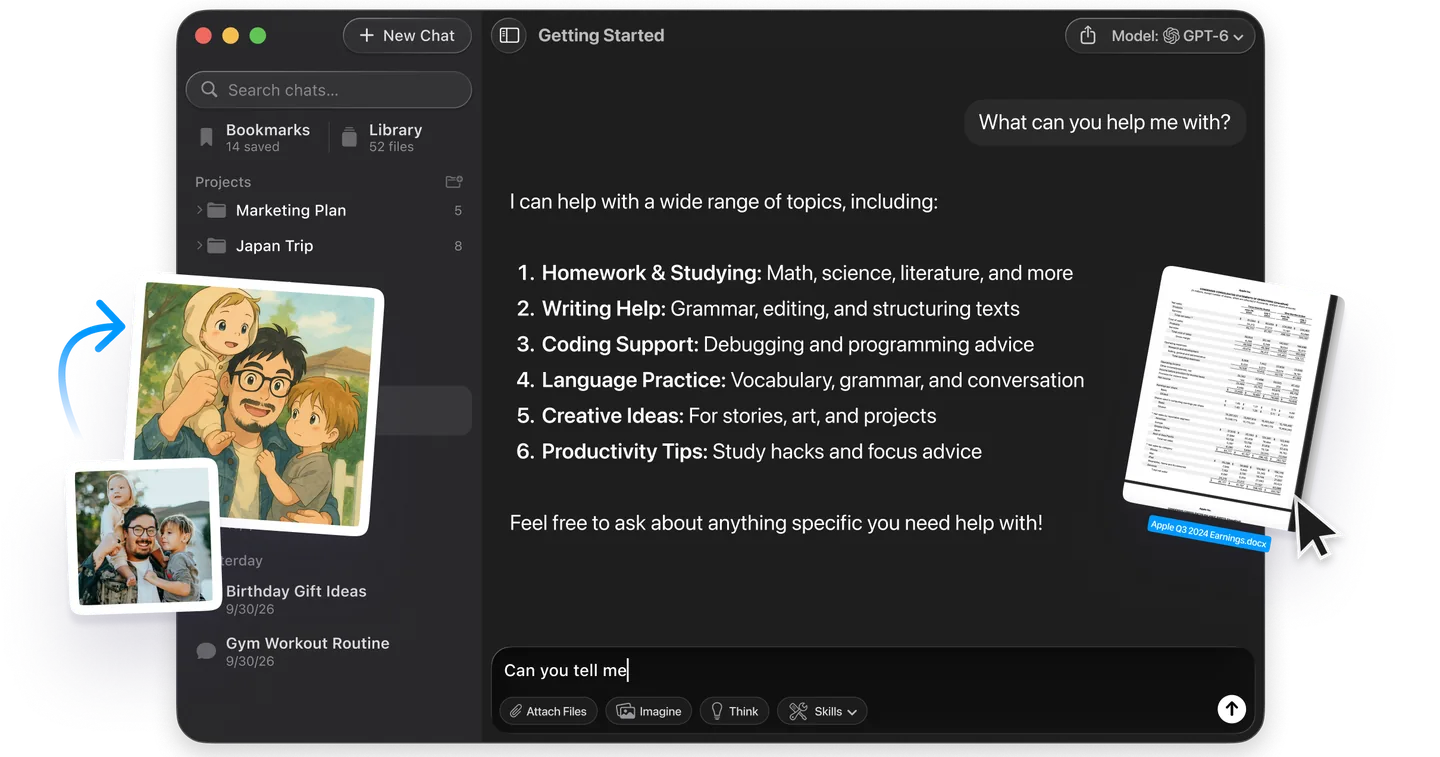
ChatGPT commands come in three kinds, and most lists online mix them up. Some are real: type a slash in the ChatGPT desktop app and a menu of 28 built-in commands opens, from /model to /status. Some are keyboard shortcuts, such as ⌘ + / on a Mac. The viral ones, like /human and /critic, are not features at all. They are ordinary text that ChatGPT interprets, which is why they also work in Claude and Gemini.
That difference decides what you can rely on. A built-in command does the same thing every time. A prompt code works only as well as ChatGPT guesses what you meant, unless you define it yourself. This guide lists the real slash commands and shortcuts from OpenAI's own documentation. It gives copy-paste versions of the prompt codes worth keeping. Then it shows how to turn your favourites into commands that behave the same way in every chat.
The Key Takeaways
- Real slash menu: type / in the composer. The ChatGPT desktop app lists 28 commands, including /model, /reasoning, /plan, /goal and /status.
- Web is different: on chatgpt.com the slash menu has 6 entries in our test, such as Model, Dictate and Study, and none of the desktop app's commands.
- Prompt codes are just text: /human, /critic, /tldr and ELI5 are not OpenAI features. They work in any chatbot.
- Make them reliable: define your codes in custom instructions, which hold 1,500 characters on Free and Go and 5,000 on Plus and above.
- One shortcut to remember: ⌘ + / opens the full keyboard shortcut list in the Mac app.
What Are ChatGPT Commands?
ChatGPT commands are short instructions that change what ChatGPT does, and there are three kinds. Built-in slash commands are actions you pick from the menu that opens when you type a slash in the message box. Keyboard shortcuts are key combinations in the ChatGPT app. Prompt codes are words such as /human or TLDR that you type at the start of a message so ChatGPT answers in a particular style.
Only the first two are part of ChatGPT itself. OpenAI documents them on its slash command and Commands reference pages. Prompt codes come from users and tech writers. Tom's Guide, which published a list of nine in October 2026, says plainly that these codes "aren't the secret to unlocking a hidden OpenAI setting".
ChatGPT Commands Cheat Sheet
This cheat sheet lists the ChatGPT commands most people need, with the type and where each one works.
| Command | What it does | Type | Where it works |
|---|---|---|---|
| /model | Choose the model for the current chat | Built-in | ChatGPT desktop app |
| /reasoning | Set how hard the model thinks | Built-in | ChatGPT desktop app |
| /status | Show the chat ID, context use and rate limits | Built-in | ChatGPT desktop app |
| /plan and /goal | Plan a multi-step task, then set it as a goal | Built-in | ChatGPT desktop app |
| /side | Open a temporary side chat | Built-in | ChatGPT desktop app |
| ⌘ + / | Show every keyboard shortcut | Shortcut | ChatGPT Mac app |
| ⌘ + ⇧ + N | New temporary chat | Shortcut | ChatGPT Mac app |
| /human | Rewrite text so it sounds like a person | Prompt code | Any chatbot |
| /critic | Skip the praise, list weaknesses | Prompt code | Any chatbot |
| /tldr | Compress to the takeaway | Prompt code | Any chatbot |
| /table | Answer as a comparison table | Prompt code | Any chatbot |
| ELI5 | Explain like I'm five | Prompt code | Any chatbot |
What the / Commands in ChatGPT Actually Do
Typing a slash in the ChatGPT composer opens a menu of built-in actions, and you can keep typing to filter it. OpenAI's slash command reference says available commands "vary based on your environment and access", so two accounts will not always see the same menu.
Slash Commands in the ChatGPT Desktop App
The ChatGPT desktop app documents 28 slash commands. These are the ones that matter for everyday chats:
| Command | What it does |
|---|---|
| /model | Picks the model for the current chat |
| /reasoning | Sets the reasoning effort for the current chat |
| /plan | Turns on plan mode for multi-step work |
| /goal | Sets a persistent goal ChatGPT keeps working toward until it finishes, pauses or needs your input |
| /status | Shows the chat ID, how much of the context window is used, and your rate limits |
| /compact | Compresses the current chat's context |
| /side | Opens a temporary side chat without interrupting the main one |
| /memories | Controls whether the chat can use or create memories, where Memory is available |
| /rename, /pin, /archive, /new | Manage chats |
| /project | Picks a project for new chats |
| /usage | Opens usage and billing settings |
| /fast | Switches a faster service tier on or off, where one is offered |
| /feedback | Opens the feedback form |
OpenAI suggests shaping a goal with /plan before you set it with /goal. /status is also the fastest way to see how close you are to your ChatGPT usage limits.
The rest of the list is for developers working in Codex. /init writes an AGENTS.md file and /review starts a code review. /worktree and /fork manage Git copies, /mcp shows connected servers, and /local and /cloud choose where a task runs. If you only chat, you can ignore them. There is also /pet, which wakes or tucks away the desktop pet.
Slash Commands on chatgpt.com
ChatGPT on the web has its own slash menu with six entries, and it is not the desktop list. We typed a slash into a new chat on chatgpt.com on 22 November 2026, on a ChatGPT Plus account, and this is the menu that opened:
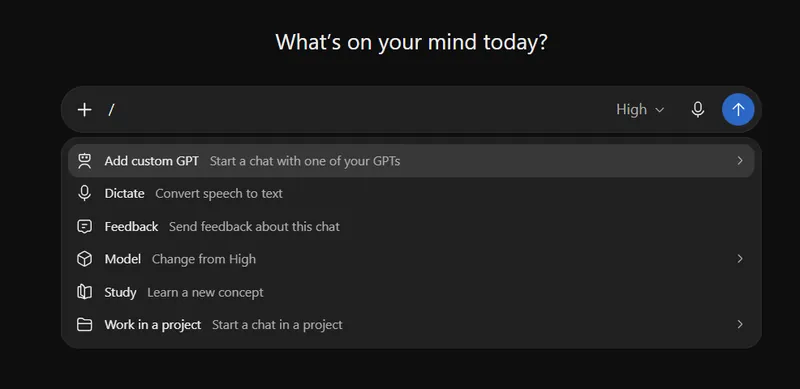
| Web menu entry | What the menu says it does |
|---|---|
| Add custom GPT | Start a chat with one of your GPTs |
| Dictate | Convert speech to text |
| Feedback | Send feedback about this chat |
| Model | Change the model or thinking level (on our account it showed Change from High) |
| Study | Learn a new concept |
| Work in a project | Start a chat in a project |
None of the desktop app's typed commands, such as /status, /plan or /goal, appear on the web. That matches OpenAI's developer documentation, which says the web composer shows "the actions available in the current chat" and "doesn't expose the ChatGPT desktop app or CLI command set". The web menu is a shortcut to features you can also reach by clicking: custom GPTs, dictation, the model picker and ChatGPT Projects.
Skills and Saved Prompts in the Slash Menu
The slash menu also lists anything you have added yourself. Enabled skills appear in the list, and you can call a skill directly by typing a dollar sign ($) instead of a slash. Custom prompts appear as /prompts: followed by the prompt's name, which makes them the closest thing ChatGPT has to user-made slash commands that the app itself recognises.
ChatGPT Prompt Commands You Can Copy and Paste
Prompt commands are words you put at the start of a message to set the shape of the answer. They work because the model has seen these labels used in a consistent way, not because ChatGPT has a setting behind them. The versions below build on the ones Tom's Guide published, with a full instruction after each code so the request still works if the code alone is misread.
ChatGPT Commands for Writing
/human removes the polished, generic tone AI text falls into. Use it on your own drafts with a limit, or ChatGPT will rewrite more than you asked:
/human Make only minor edits so this sounds like a person wrote it. Keep my wording where it already works: [paste text]/diff shows only what changed, which saves you from comparing two 800-word versions by eye:
/diff Tighten this paragraph without changing my argument. Show only the sentences you would change and the replacements: [paste text]/tldr compresses a long email, announcement or article to the point:
/tldr In three sentences, what is actually changing here and what do I need to do? [paste text]ChatGPT Commands for Thinking and Decisions
/critic tells ChatGPT you want problems, not encouragement. It is useful for plans, pitches and purchases you have become attached to:
/critic Skip the praise. List the weaknesses, risks and missing information in this plan: [describe plan]/devilsadvocate asks for the strongest case against a decision you have already made, and /rubberduck makes ChatGPT ask you questions instead of jumping to an answer:
/rubberduck Don't solve this yet. Ask me one question at a time until we find out why [problem]./senior skips beginner explanations. Tell ChatGPT what it can assume you know, or the word senior stays vague.
ChatGPT Commands for Formats and Explanations
/bullets and /table set the format before ChatGPT writes a wall of prose. Name the columns you want for a table:
/table Compare ChatGPT, Claude and Gemini. Columns: writing, research, coding, price.ELI5, short for explain like I'm five, is one of four codes listed in a post on the Reddit forum ChatGPTPromptGenius that Tom's Guide covered in 2025. Swap the number for a different level, such as ELI15, when five is too simple.
ChatGPT Commands for Resumes and Photos
People searching for ChatGPT commands for a resume or for photo editing are really looking for prompts. For a resume, combine a code with the job:
/critic Act as a recruiter for [job title]. List what is missing or weak in this resume for that role, then rewrite the three weakest bullet points: [paste resume]For pictures, ChatGPT edits an uploaded photo from a plain description, so the "command" is the edit you describe. Our ChatGPT photo editing prompts give ten copy-paste edits, and the wider collection of AI prompts covers writing, work and study.
Run the Same Commands on Claude and Gemini
Prompt codes are plain text, so /critic or /tldr also works in Claude and Gemini. Running the same code on two models is the quickest way to see which one reads it best. Fello AI sends the same command to GPT, Claude, Gemini and other models from one app on your Mac, iPhone or iPad. You keep one command set instead of three subscriptions and three browser tabs.
How to Make Your Own ChatGPT Commands
To make a prompt code behave the same way every time, define it in ChatGPT's custom instructions. ChatGPT then reads your definition in every chat instead of guessing what /critic means. Tom's Guide makes the same point: "The slash itself isn't magic."
- On the web or in the desktop app, open Settings, then Personalization. On iPhone or Android, open Settings, then Customize ChatGPT.
- Make sure Enable customization is on.
- Paste your definitions into the Custom Instructions field and save.
A starting set you can paste and edit:
When my message starts with one of these codes, follow its definition:
/critic: skip praise. List weaknesses, risks and missing information first.
/human: rewrite with natural sentence variety. Remove stock AI phrases and filler transitions. Keep my wording where it works.
/tldr: answer in three sentences or fewer.
/table: answer as a table. Ask which columns I want if I did not say.
/diff: show only the sentences you changed, old and new.
/verify: separate what is established fact from what is assumption, and say which is which.
OpenAI's custom instructions help page says the feature is available on all plans, on the web, desktop, iOS and Android. Free and Go accounts can save up to 1,500 characters, and Plus, Pro, Business, Enterprise and Education accounts up to 5,000, so the set above fits on every plan. Our guide to setting up custom instructions in ChatGPT, Claude and Gemini covers what else belongs in that field.
ChatGPT Keyboard Shortcuts on Mac
Press ⌘ + / in the ChatGPT Mac app to see every keyboard shortcut. These are the ones worth memorising, taken from OpenAI's Commands reference:
| Action | Mac shortcut |
|---|---|
| Show all keyboard shortcuts | ⌘ + / |
| Open the command menu | ⌘ + K or ⌘ + ⇧ + P |
| New chat | ⌘ + N or ⌘ + ⇧ + O |
| New temporary chat | ⌘ + ⇧ + N |
| Quick chat | ⌘ + ⌥ + N |
| Open the model picker | ⌃ + ⇧ + M |
| Start a voice chat | ⌃ + ⇧ + V |
| Switch to Chat, Work or Codex | ⌃ + 1, ⌃ + 2, ⌃ + 3 |
| Find in chat | ⌘ + F |
| Rename, archive or pin a chat | ⌘ + ⌥ + R, ⌘ + ⇧ + A, ⌘ + ⌥ + P |
| Toggle the sidebar | ⌘ + B or ⌘ + ⇧ + S |
| Bring back your last prompt | ↑ in an empty message box |
You can change or reset any of these in Settings, then Keyboard Shortcuts. If you use the app every day, our look at the ChatGPT app for Mac covers what else the desktop version does that the browser does not.
Voice Commands in ChatGPT
ChatGPT Voice works by conversation, not by a list of spoken commands: you talk to it the way you would type. On chatgpt.com, the Dictate entry in the slash menu turns your speech into text in the message box instead. In the ChatGPT desktop app, Voice runs on OpenAI's GPT-Live model, and you can interrupt it mid-answer, ask a follow-up or change direction. OpenAI lists it for Plus, Pro, Business, Edu and Enterprise plans, subject to rollout and workspace settings, and you can set a hotkey in Settings, then Voice, then Voice chat hotkey. Our guide to ChatGPT Voice modes explains which voice experience each plan gets.
Which ChatGPT Commands Are Worth Learning
Learn three things and skip the 100-item lists. Type a slash in the desktop app and use /model, /status and /plan, because built-in commands do the same thing every time. On the web, the Model entry in the slash menu does the job of /model. Learn ⌘ + / so you never need a shortcut list again. Then pick the four or five prompt codes you actually reach for, define them in custom instructions, and stop hoping ChatGPT reads your mind. A code you defined yourself beats a secret code from a viral list every time.
FAQ
What are the / commands in ChatGPT?
The / commands are built-in actions that appear when you type a slash in the ChatGPT message box. In the desktop app the list includes /model, /reasoning, /plan, /goal, /status, /compact, /side and /rename. ChatGPT on the web shows a shorter menu: in our test on a Plus account it listed Add custom GPT, Dictate, Feedback, Model, Study and Work in a project.
Are secret ChatGPT commands real?
No, not as features. Codes like /human, /critic, TLDR and ELI5 are plain text that ChatGPT interprets from how the words are commonly used. They often work, and they work in Claude and Gemini too, but they only behave consistently if you define them in custom instructions.
How do I make my own ChatGPT commands?
Write each command and what it should do in Settings, Personalization, Custom Instructions, for example /critic: skip praise and list weaknesses first. Free and Go accounts have 1,500 characters for this, and Plus, Pro, Business, Enterprise and Education accounts have 5,000.
Why don't slash commands like /model work in my browser?
Because the web version of ChatGPT has its own slash menu. OpenAI says it does not include the desktop app's command set, so commands such as /status and /plan are desktop app commands. On the web, pick Model from the slash menu instead.
Is there a ChatGPT commands PDF or cheat sheet?
OpenAI does not publish a PDF. The cheat sheet table in this guide lists the built-in commands, the key Mac shortcuts and the most useful prompt codes. Inside the Mac app, ⌘ + / shows the full shortcut list.
L’image principale de cet article a été créée avec l’aide de l’IA.