The short version: Use Apple Intelligence in the Shortcuts app for private rewrites and summaries. Use the ChatGPT desktop app or Fello AI as a global “Ask AI” hotkey (both default to ⌥Space), or Raycast Quick AI from its launcher. Make Shortcuts that generate daily briefings, summarize PDFs, and send meeting notes to your task manager.
| Feature | Details |
|---|---|
| Native AI | Apple Intelligence (macOS 27 Golden Gate on Macs with M1 or later and MacBook Neo) |
| Top Launchers | Raycast, Alfred, Keyboard Maestro |
| Key Shortcut | Option (⌥) + Space (ChatGPT and Fello AI default) |
| Best For | Summaries, Coding, Email, Meetings |
| Privacy | High (On-device for Apple Intelligence) |
(Note: ChatGPT and Fello AI both claim ⌥Space by default. If you run both, change the ChatGPT Chat Bar shortcut in its Settings.)
Privacy Note:
- Apple Intelligence runs on-device first and uses Private Cloud Compute for heavier tasks. Apple says Private Cloud Compute works “without making your data accessible to Apple or anyone else.”
- Third-party AI apps like ChatGPT and Otter send data to their own servers. Always review their privacy policies and choose where to keep sensitive information.
With these privacy considerations in mind, let’s look at how these tools fit into your daily workflow.
Opening
It is 2026, and using artificial intelligence on a Mac is no longer just about chatting with a bot in a web browser. If you are new to Apple automation, our guide on how to use Siri Shortcuts covers the basics before you build the Mac workflows below. Today, AI is woven directly into the operating system, allowing you to fix grammar, summarize emails, and organize files without ever copying and pasting. Whether you are a student trying to study faster or a developer writing code, setting up a few smart workflows can save you hours every week.
This guide covers:
- How can you set up the global “Ask AI” command bar?
- Which workflows combine Apple Intelligence with third-party apps?
- What are the best shortcuts to automate boring administrative tasks?
The Key Takeaways
- Apple Intelligence is the foundation: In macOS 27, the Shortcuts “Use Model” action runs a prompt on-device, on Apple’s Private Cloud Compute, or through ChatGPT.
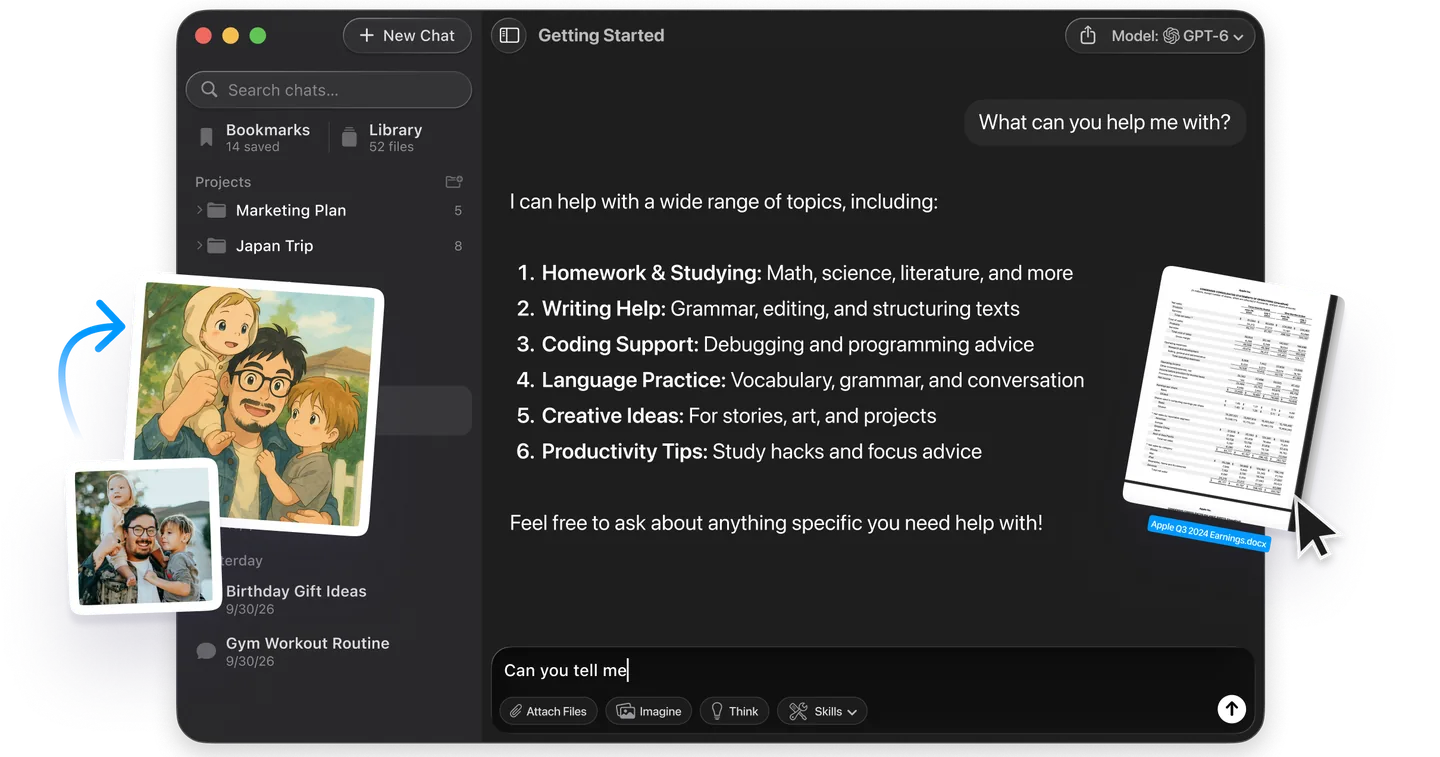
- One hotkey rules them all: The ChatGPT desktop app and Fello AI both open a floating chat bar on ⌥Space, which creates an instant “brain” layer over any app. Raycast does the same from its launcher.
- Meetings don’t need scribes: Tools like Otter and Notion AI now automate transcription, summaries, and action items effortlessly.
- Context is king: The best 2026 shortcuts read what is currently on your screen (PDFs, code, emails) to give relevant answers.
Now that we have covered the high-level benefits, let’s dive into the essential tools you need to get started.
Mac AI Automation Basics
In 2026, automation on the Mac rests on three main pillars:
- Apple Intelligence: Built into macOS 27 Golden Gate (version 27.2.1 is current as of November 2026) on Macs with M1 or later and MacBook Neo. It handles system-wide tasks like writing help, notification summaries and AI actions in Shortcuts.
- Power Launchers: Apps like Raycast and Alfred that act as the glue between apps, allowing you to run scripts and AI commands instantly.
- Dedicated AI Tools: Apps like the ChatGPT desktop app or Fello AI that provide heavy-lifting for creative work, research, and file-based chats. Fello is a native Mac app that lets you use multiple top AI models (like ChatGPT, Claude, Gemini, or Perplexity) in one place and chat with PDFs, images, and screenshots without juggling browser tabs.
Getting started requires simple ingredients:
- A Mac with M1 or later, or a MacBook Neo, running macOS 27. Macs on macOS Tahoe 26 still get Writing Tools and Apple Intelligence models in Shortcuts.
- The Shortcuts app (pre-installed).
- Optional third-party tools like Raycast or OpenAI’s desktop client.
Note: Apple Intelligence is available automatically on eligible Macs when you update to macOS 27, in supported languages and regions. The Mac and Siri language must be set to one of 16 supported languages, such as English, German, French or Spanish. Features that use Apple’s server models, including the Cloud models in Shortcuts, have daily usage limits, and Apple says expanded access “will be available for a fee in the future.”
1. Global Ask-AI Hotkey on Mac
The most impactful change you can make is setting up a “Global Command Bar.” This allows you to hit a single key, type a question, and get an answer without switching windows. It essentially turns your computer into a thinking partner that is always one keypress away.
Setting Up ChatGPT for Mac
OpenAI’s desktop app now combines Chat, Work and Codex in one window. The previous Mac app still runs as ChatGPT Classic.
- Install the App: Download the ChatGPT desktop app from OpenAI. It needs macOS 14 or later on Apple silicon or Intel.
- Verify the Shortcut: The Chat Bar opens with Option (⌥) + Space by default. You can change it in Settings.
- Activate: Press it to bring up the floating Chat Bar over your current work (Word, VS Code, Browser). Drag it anywhere on the desktop.
- Interact: Click the plus sign to attach a file or photo, or take a screenshot of what is on your screen, then ask about it.
Once this is active, you have a powerful AI assistant ready to assist with any task on your screen.
Using Fello AI
Fello AI gives you the same one-keystroke answer without tying you to one model. Press ⌥ Space in any app, even over a full-screen window, and the Fello AI Floating Chat Bar opens on top. Ask Claude or Gemini about a region screenshot, then keep typing in the document you were already in. Set up the app with our Fello AI guide. If you are still choosing, our roundup covers which menu bar app to put on that hotkey.
2. One-Click Rewrite & Tone Changer
We all spend too much time polishing emails or reading long documents. You can automate this using AI writing tools for Mac. A popular setup is the “One-Click Rewrite.” Instead of manually editing text, you select it and trigger a shortcut that runs it through an AI model to fix tone or grammar.
Apple Intelligence writing tools on Mac work without a custom shortcut: Control-click selected text, choose Writing Tools, then Show Writing Tools to proofread or rewrite. If you turned on Siri AI (Beta), Apple routes writing help through Siri instead, so you can select text and say “Proofread this.” For more control, create a custom Shortcut:
- Trigger: Set a keyboard shortcut (e.g.,
⌃⌥⌘W) to run a specific modification. - Action: Use the “Use Model” Apple Intelligence action. Pick On-Device, Cloud, Cloud Pro, or Extension Model (ChatGPT), feed it the selected text, and prompt it to rewrite (e.g., “Rewrite this to be more concise”).
- Result: The rewrite lands on your clipboard, ready to paste over the original.
Example: Build a ‘Polish My Text’ Shortcut
- Open Shortcuts → New Shortcut.
- In the shortcut’s Details, select Use as Quick Action so it accepts selected text from other apps.
- Add Use Model → choose On-Device and prompt: “Rewrite this text to be clearer, shorter, and friendlier. Keep the meaning.”
- Add an action that copies the response to your clipboard.
- In the shortcut’s Details, click Add Keyboard Shortcut and press a combination like
⌃⌥⌘W.
Third-Party Route
For more creative rewrites (like “Make this sound like a pirate”), you can use Fello AI, choose Extension Model (ChatGPT) in Use Model, or build a custom Shortcut that calls the ChatGPT API:
- Select Text: Highlight the paragraph you are struggling with.
- Run Shortcut: Trigger “Tone Changer.”
- Prompt: The shortcut sends the text with the prompt “Rewrite this to be more professional.”
- Paste: The result comes back to your clipboard, ready to paste into your email client.
This simple automation saves you from constantly switching context just to refine a quick email.
3. Daily Briefing Automation
Imagine sitting down at your desk and having a generated summary of your day waiting for you. A daily briefing shortcut using Apple Intelligence can fetch your calendar events, unread VIP emails, and top reminders. It then passes this data to a model to generate a natural language paragraph.
You can do this directly in the Mac Shortcuts app:
- Find Calendar Events: Set the filter to “is today.”
- Find Reminders: Set the filter to “is incomplete” and “due today.”
- Get Text: Combine these inputs into a text variable.
- Use Model: Pass the text to Apple Intelligence or ChatGPT with the prompt: “Summarize my day in 3 bullet points and warn me of any conflicts.” Apple says model input can include calendar events and reminders directly.
- Show Notification: Display the result on your screen or append it to a daily note.
This workflow turns raw data into actionable advice, like “You have a tight turnaround between your 2 PM and 3 PM meetings.”
On macOS 27 you can skip the manual build: describe the shortcut in plain words and Shortcuts connects the actions across apps for you (usage limits may apply). Then add a Time of Day automation so the briefing runs every morning on its own.
4. Summarize Page/PDF Research Pipeline
Research often involves drowning in open tabs and PDFs. This summarize-PDF-with-AI pipeline on Mac is perfect for students and researchers. You can turn a 50-page paper into a 7-bullet summary and 3 quiz questions in seconds. If you would rather compare the tools first, we ranked them in our guide to the best AI PDF readers.
The Workflow
- Input: Share a PDF or web article from Safari to the Shortcuts app.
- Action: Add a summarize action from the Apple Intelligence category, or pass the text to Use Model with Cloud Pro, which Apple says has extended context for larger tasks.
- Output: Save the bullet points directly to Apple Notes or Obsidian.
This is distinct from general summarization because it handles large files and formats the output specifically for your knowledge base.
Using Fello as your research hub
If you prefer one AI hub instead of multiple browser tabs, you can also send those PDFs or copied text directly into Fello AI. Because Fello runs natively on macOS and supports chatting with documents and screenshots, it works well as the “front-end” for this summarize-PDF-with-AI pipeline, especially if you want to compare answers from different models in the same window.
5. Automated Meeting Notes with AI on Mac
Meetings are often where productivity goes to die. In 2026, AI meeting assistants on Mac ensure you never have to scramble to write down what was said.
The Tools
- Otter.ai: Excellent for transcription with speaker recognition. It can record from the Mac desktop app without a bot joining, or send its Meeting Agent to auto-join Zoom, Microsoft Teams and Google Meet calls from your calendar.
- Notion AI: If you live in Notion, its AI Meeting Notes transcribe and summarize in real time, and Notion’s agent can take care of the action items.
- Apple Notes: On Macs with M1 or later, Notes records and transcribes audio directly in a note. With Apple Intelligence turned on, double-click the recording and click Summary to get a summary of the transcript.
With your tools selected, the next step is connecting them to your task management system.
The Automation
- Capture: The app transcribes audio in real-time.
- Process: AI analyzes the transcript for “Action Items” and “Decisions Made.”
- Action: A shortcut or integration automatically pushes these tasks into your To-Do list (Reminders, Things, or Asana).
This AI note taking strategy on Mac ensures you never miss a follow-up task while staying fully present during the conversation. For a ranked look at the apps themselves, see our guide to the best AI note takers.
6. Voice-Driven Mac Automations
Siri got a new engine in macOS 27: Siri AI (Beta), powered by Apple Intelligence. You can type or talk naturally, and Siri AI can find content and take actions in apps.
Example Commands
- “Find the email John sent me about the budget.”
- “Draft a reply to Sarah saying I’m interested.”
These commands work because Siri AI can search your mail, notes and photos, take actions in apps like Messages and Reminders, and match your writing style in Mail and Messages. In Spotlight, you can also pick “Ask Siri” as the top hit.
Siri AI is available in English, French, Japanese, Korean, Portuguese and Spanish to start (as of November 2026), on Macs with M1 or later and MacBook Neo. For other languages, or for a fixed routine, you can always fall back to a custom Shortcut triggered by a voice phrase.
7. Raycast & Keyboard Maestro Macro Chains
For those who want to go beyond Apple’s guardrails, Raycast and Keyboard Maestro offer “Macro Chains.” These are sequences of actions that can be triggered by a single keyword, often guided by AI decisions.
Scenario: Publishing a Blog Post
- Trigger: You type publish in Raycast.
- Step 1: The automation grabs your Markdown file from Obsidian.
- Step 2 (AI): It asks AI to generate an SEO-friendly title and a 160-character meta description based on the content.
- Step 3: It renames the file, moves it to your website’s folder, and pushes the changes to Git.
This moves from “dumb” automation (just moving files) to “smart” automation (understanding content).
What it costs: Raycast’s launcher is free, but Raycast AI needs a paid plan. As of November 2026, Pro is $10 a month with 500 AI credits, Pro+ is $20 with 3,000, and Max is $50 with 7,500. Advanced AI models come with Pro+ and Max only. Inside Raycast, type a question in the launcher and press Tab to get a Quick AI answer.
8. AI Shortcuts for Developers
For technical users, AI shortcuts for developers on Mac have transformed IDEs into intelligent copilots. Tools like GitHub Copilot Xcode Mac or Cursor allow you to generate code, write tests, and refactor functions using simple keyboard commands.
IDE Integrations
- Xcode: With GitHub Copilot for Xcode, you can type a comment like // function to fetch user data and Copilot suggests the implementation.
- Cursor: This AI-first editor lets you highlight code and press Cmd+K or Cmd+L to send it to Cursor’s Agent, then ask “Where is the bug here?” or “Refactor this to be more readable.” Cmd+I opens the Agent panel.
- Terminal: Tools like generic CLI AI wrappers allow you to ask “How do I untar this file?” and get the exact command ready to execute.
By integrating these shortcuts, you spend less time on boilerplate code and more time solving complex logic problems.
9. Screenshot to Data (OCR)
Another massive time-saver is the Mac screenshot shortcuts powered by AI. We often take screenshots of data that we can’t copy-paste, like text inside a video or a chart in a presentation.
The Workflow
- Trigger: Take a screenshot of a table, error message, or receipt.
- OCR: A folder action or shortcut runs the Extract Text from Image action to pull out the text.
- AI Analysis: The text is passed to an AI model with a prompt like “Convert this table to CSV format” or “Explain this error message.”
- Result: The clean text or explanation is copied to your clipboard.
Device Tip: Turn on iCloud Sync in the Shortcuts settings and your shortcuts appear on your iPhone too. You can then photograph a document on your phone and run the same Apple Intelligence shortcut there.
10. Personal Knowledge Base Management
Finally, your Mac can act as a “Second Brain” that actually thinks. By combining tools like Obsidian or Notion with AI, you can retrieve information semantically, not just by keyword matching.
Instead of searching for “meeting notes March 12,” you can ask your system: “What did we decide about the marketing budget last month?” AI tools connected to your notes can scan the content, synthesize the answer, and link you to the source documents.
When you write a new note, AI plugins can suggest: “This seems related to your Project X idea from last year,” helping you connect dots you might have missed.
Conclusion
In 2026, Mac AI automations have moved beyond novelty to become essential productivity tools. By setting up just one or two of these shortcuts, like the Global Command Bar or the Daily Briefing, you can reclaim hours of your life every week.
Next Step: Open your Shortcuts app today and build the “One-Click Rewrite” shortcut with the Use Model action and the On-Device model to see how easy it is.
FAQ
What are the best AI shortcuts for Mac in 2026?
The most valuable AI shortcuts on Mac in 2026 are a global Ask-AI command bar, a one-click rewrite shortcut, a daily briefing, and automated meeting notes.
How do I use Apple Intelligence to automate my Mac?
Use the Shortcuts app to build workflows around the “Use Model” action or the summarize actions in the Apple Intelligence category. The On-Device model runs without a network connection. The Cloud and Cloud Pro models use Apple’s Private Cloud Compute, and Extension Model sends the request to ChatGPT.
Is the ChatGPT Mac app better than the web version?
Yes, for automation. The desktop app opens its Chat Bar with Option+Space from any app, and you can attach files or take a screenshot from it, which makes it much faster for context-aware tasks than a browser tab.
Can I use Fello AI instead of the ChatGPT Mac app?
Yes. Fello AI is a native Mac app that lets you connect to multiple AI providers (ChatGPT, Claude, Gemini, Perplexity, and others) from one place, and its Floating Chat Bar also opens with ⌥ Space. If you often switch between models, or want to chat with PDFs and screenshots in a single multi-model inbox, Fello can replace a browser-only workflow or live alongside the official ChatGPT app.
Do AI shortcuts on Mac work offline?
Yes, if you use on-device models. Apple’s On-Device model in the Use Model action works without a network connection, and local LLMs (via apps like Ollama) run offline once a model is downloaded. Shortcuts that use the Cloud models, ChatGPT or other web APIs need an internet connection.
How do I automatically summarize PDFs with AI on my Mac?
Create a shortcut that accepts PDFs as input. Extract the text, pass it to a summarize action or to Use Model with Cloud Pro, and save the result to Notes.
Methodology & Sources
We analyzed the top automation trends and software capabilities available in the 2026 ecosystem to curate this list.
- Testing: Workflows were first tested on macOS Sequoia 15.x, ChatGPT for Mac, and Raycast Pro. In November 2026 we re-checked every action name, menu path and default shortcut against Apple’s macOS 27 guides, OpenAI’s Help Center, and Raycast’s manual and pricing page.
- Criteria: Shortcuts selected had to save measurable time (minimum 5+ minutes per use) and be accessible to non-coders.
- Sources:
These criteria ensure that every recommendation in this guide is practical, reliable, and ready for daily use.