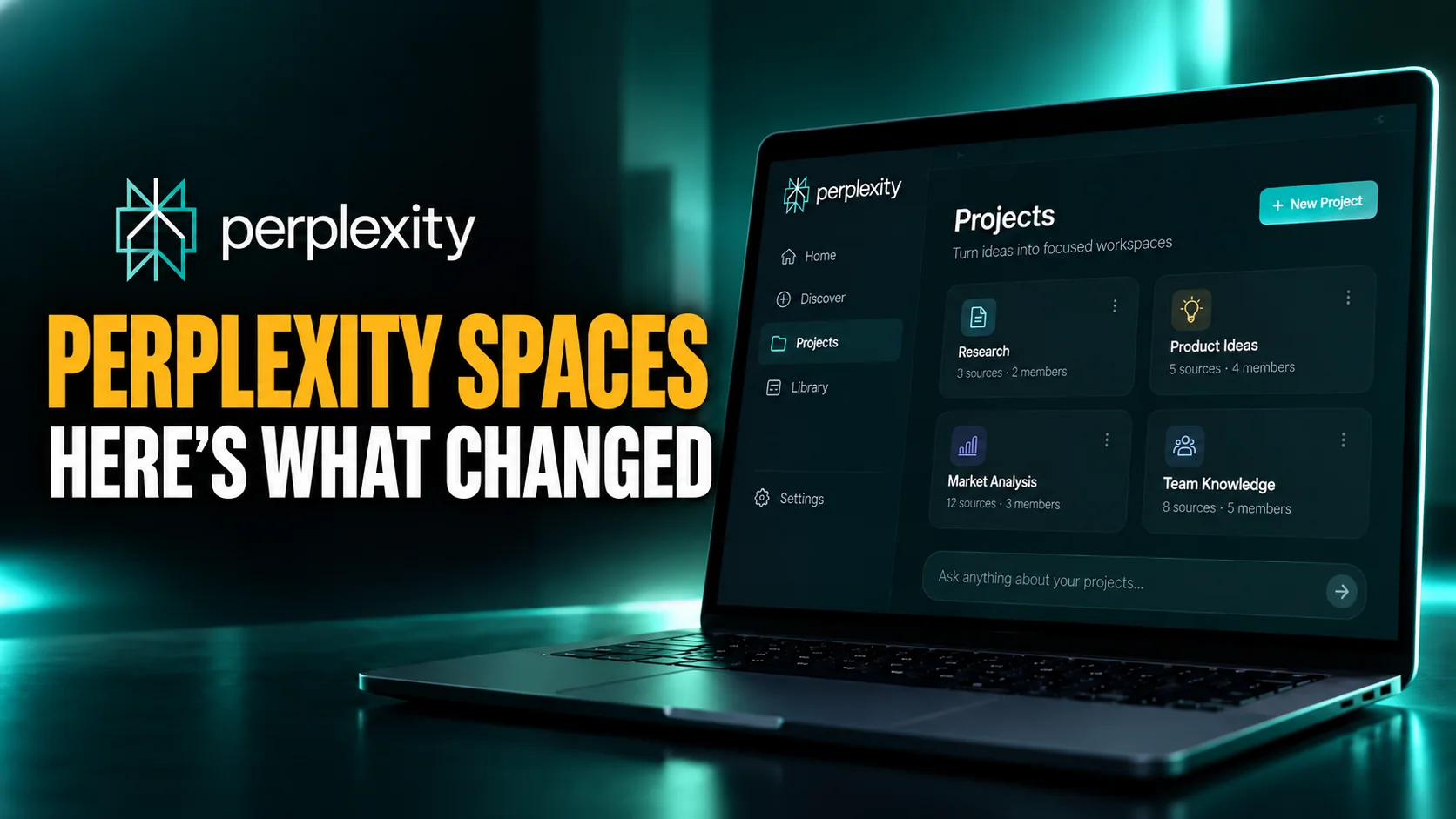
If you have gone looking for Perplexity Spaces lately and found a section called Projects instead, nothing is broken and you have not lost anything. Perplexity renamed the feature on 30 July 2026, and the company's own help page now opens with the heading What are Projects?; even its old what-are-spaces web address now redirects there. The old name is what people still search for. The new name is what the app shows you.
That gap matters more than a rename usually would, because the product underneath changed too, and it keeps changing. A Space used to be a folder with a set of instructions attached. What you get today is a shared workspace with roles, permissions, published file limits, a memory system called Brain that updates every day, and the ability to bind a Slack or Microsoft Teams channel to it. This guide covers what Spaces actually do as of November 2026, the exact limits Perplexity publishes, and the numbers floating around the web that do not match them.
The Key Takeaways
- Same feature, new name: Spaces became Projects on 30 July 2026, and the old name is still what people search for.
- The text limits: a title caps at 50 characters, a description at 1,000, and custom instructions at 8,000 characters.
- The file limits: every Project holds up to 10,000 files and 5 GB, with each file up to 100 MB, on every plan.
- Sharing is tighter than people assume: Projects are private by default and cannot be made publicly queryable at all.
- There is a hard people limit: 5 contributors, rising to 9,999 when the owner belongs to an organisation or is a verified student or educator.
- Memory no longer costs credits: as of November 2026, Brain updates in Projects are included with Pro and Max. In September the same page billed them to the Project's creator.
What Perplexity Spaces Are
A Project is a persistent, shareable workspace that keeps everything for one ongoing effort in a single hub. In Perplexity's own words, it keeps your searches, Perplexity Computer tasks, files, instructions and connected tools together so you and your collaborators can return to the same work over time. The point is repetition. A normal chat is a one-off. A Space is somewhere you come back to.
The Practical Difference
Think about the difference between asking a question and running a project. If you are checking one fact, a Space is overhead you do not need. If you are tracking a competitor every week, writing a dissertation chapter by chapter, or handling a client whose documents you keep re-uploading, the Space is the thing that stops you explaining yourself from scratch every session. Everything you told it last month is still there.
This is the same shape as workspaces in rival tools, and if you want the comparison in detail we have written up how ChatGPT Projects handle the same job and what Claude Projects do with files and context. Perplexity's version leans harder on retrieval, because that is what the product is for.
Why Your App Says Projects
Perplexity folded Spaces into its agent surface and renamed the result Projects. The company announced it on 30 July 2026 in a post on its own X account, which reads: "Today we're launching Projects, an evolution of Spaces." The same post calls Projects "hubs for ongoing work in Computer" with "a shared file system and persistent memory".
Perplexity's help page does not spell out what happened to each old Space. It does warn that Projects created before August 2026 might already hold more than 5 GB of files: those keep working, but you cannot upload anything new to them until you are back under the limit.
What has not changed is the search behaviour of everyone else. Many guides still say Spaces, the help page address still says spaces, and the search volume still sits on the old word. So if a tutorial you are reading never mentions Projects at all, that is a decent signal it was written before the change and may describe buttons that are no longer there.
How to Create a Perplexity Space
Creating one takes under a minute, and the flow is the same on the web and in the desktop app. If you have not set Perplexity up on a Mac yet, start with our walkthrough of running Perplexity as a proper Mac app, then come back to this.
Starting From Scratch
Open the Projects section in the left-hand sidebar, then select New project. There is also a plus icon that appears when you hover over the Projects header. Give it a title, optionally a description, and optionally an icon and colour so you can pick it out of a list later. Once the Project exists, add your instructions in its settings, then choose who else gets in. New Projects start private, so nothing is exposed while you are still setting up.
There is no limit on how many Projects you can create, according to Perplexity's help page. You can also pin the important ones, and pinned Projects appear on the project overview page and in the Projects section of the sidebar.
Turning an Existing Session Into One
This is the option most people miss, and it is usually the better one. If you have already been working on something in a normal session, you can start a Project from that session rather than starting empty. Perplexity will suggest a title, a description and a set of instructions based on what you were doing. Inside a Computer task you can also use Convert session to project, which carries your files and artifacts across with it, or ask Computer to build a Project from one or more existing sessions.
The advantage is obvious once you have done it once. The instructions it drafts for you are grounded in real work you have already done, which is a far better starting point than a blank box and good intentions.
Perplexity Spaces Custom Instructions
Custom instructions are the single most useful part of a Space and the part people most often get wrong. They are a standing brief that applies to every query run inside that Project, so instead of repeating your preferences in each chat, you set them once. Perplexity's wording is that instructions tell Computer how to work inside this Project, and it gives a preferred response format or a status file to keep updated as examples. You will find them under General in the Project settings.
The Character Limits That Actually Apply
These are the numbers Perplexity publishes in its own help centre article on Projects, last revised on 13 November 2026. They are worth knowing before you paste in a wall of text and watch it get cut off.
| Field | Limit | Required? |
|---|---|---|
| Title | 50 characters | Yes |
| Description | 1,000 characters | No |
| Custom instructions | 8,000 characters | No |
| Contributors | 5, or 9,999 for organisation, student or educator owners | n/a |
| Files | 10,000 per Project, 100 MB each | n/a |
| Storage | 5 GB per Project | n/a |
Eight thousand characters is roughly 1,200 words, which sounds enormous until you start pasting in style guides. It is a budget, not an invitation to fill it.
What Belongs in Instructions, and What Belongs in a File
The rule that keeps Spaces tidy is simple. Instructions describe how to work. Files hold what to work from. A brand style guide, a dataset, last quarter's report and a transcript all belong in the file area. Your preferred output format, the tone you want, the things to always check and the things to never do belong in the instruction box.
People who ignore this end up pasting a whole document into instructions, hitting the limit, and then wondering why responses ignore half of it. Reference the file from the instructions instead. That keeps the brief short enough to actually be followed.
Three Instruction Blocks You Can Copy
These are deliberately short. Start here and add only what you find yourself correcting.
For competitor tracking: "Every answer starts with what changed since the last update and the date it changed. Prefer company announcements, filings and release notes over news write-ups. If a claim only appears in secondary coverage, say so in brackets. Finish with a two line summary I can paste into Slack."
For academic research: "Answer in British English. Cite every factual claim inline with a link. Prefer peer reviewed sources and preprints over blogs, and flag when a source is more than three years old. If the evidence is contested, present both readings rather than picking one."
For client work: "Use the tone and terminology in the uploaded style guide. Never invent figures. When numbers are needed and not in the uploaded files, leave a clearly marked gap for me to fill. Keep paragraphs under four sentences."
If you want a deeper library of starting points, our collection of Perplexity prompts worth reusing pairs well with a Space, because anything you reuse often is a candidate for promotion into instructions.
Files, Plugins and Skills
Each Project has its own file area, and files there persist for everyone who has access rather than living inside one conversation. You can upload files one at a time, bring in whole folders, or add files from sources you have already connected. Computer can also create, update and manage files on your behalf as work progresses.
The File Limits
Every Project holds up to 10,000 files and 5 GB of total storage, and each file can be up to 100 MB. Perplexity says these limits are the same on every plan and that there is no restriction on file type. To check how close you are, open the Project settings, go to Sources and then Files, and pick Project file usage from the actions menu.
One detail catches people out. A file you add from a connected app is a one-time copy. If you edit or delete the original in Google Drive or wherever it lives, the copy in your Project does not change, so ask Perplexity to fetch the latest version or add the file again.
Who Can Touch the Files
Permissions on files follow permissions on the Project. Viewers and editors can both open the files. Only editors can edit, delete or upload them. That distinction catches teams out when they invite a reviewer and then wonder why the reviewer cannot tidy up a document.
Skills Sit Alongside Instructions
Alongside instructions and files there is a Skills area, holding reusable skills scoped to that Project. Your personal skills and any organisation level skills remain available inside a Project as well, so a Project skill is an addition rather than a replacement. The mental model that works: instructions hold the standing context, skills hold repeatable processes you want to run more than once.
Connected tools are now called Plugins in the Project settings. You choose which plugins a Project uses and can add plugin-specific instructions, so a given tool is used the way you want inside that workspace and not elsewhere. Selecting a plugin shares the source with every member, not your sign-in: for account-based plugins such as Google Drive or Notion, each member has to connect their own account. Shared API keys for Computer go in a separate Credential vault.
Sharing, Roles and the Limits Nobody Mentions
This is the area where guides written before the rename are most misleading, because the permission model is both new and stricter than it was.
The Three Roles
Access comes in three levels. Owner has full control, and three settings are owner-only: automatic Brain updates, personal memory, and approving requests to join. Can edit covers context, files, plugins, skills, people, defaults and channels. Can view is read access to the Project and to its shared sessions and files. You manage all of it from the member list at the top right of a Project, or from the Share button.
Scopes and the Contributor Cap
Separately from roles, there are three access scopes. Only people with access can view is the default, and on personal accounts it is the only option. The two organisation scopes, where anyone in your organisation with access can view or can edit, are Enterprise only. Someone with view-only access can select Request edit access, and someone who opens a Project without any access sees that it is private, with a way to request access or contact the owner.
Two things here deserve more attention than they get. First, Perplexity's documentation is blunt about it: a Project cannot be made publicly queryable. If you were hoping to publish one as a public research hub, that is not on offer. This is also a recent change rather than a long-standing rule. The July 2026 version of the same help page still offered view access to anyone with the link, including people without a Perplexity account, and that option is gone from the September revision onwards. Any guide telling you to share a Space by link is describing a product that no longer works that way.
Second, there is a hard ceiling of five contributors. It rises to 9,999 if the owner belongs to an organisation or is a verified student or educator, a widening that arrived after September, when the page still said Enterprise only. The owner does not count toward the five, but pending invitations do, and viewers count the same as editors. Sharing with a whole organisation instead of inviting people one by one does not use up places. For a small team on personal accounts, five is easy to hit.
Brain, the Project's Memory
Brain is the memory layer. It builds ongoing memory for all the work done inside a Project and updates daily from the Project's conversations and files. You can inspect what it currently holds under Sources and then Brain in the Project settings, and delete any entry you do not want kept. The intent is that each new task starts from accumulated context rather than from nothing. If you have not used the agent side of Perplexity yet, our explainer on what Perplexity Computer does covers the tasks Brain feeds into.
Who Pays for Brain Now
The answer changed this autumn. The September 2026 version of the Projects help page said Brain runs were billed to the creator of the Project. The version revised on 13 November says the opposite: Brain updates in Projects are included with Pro and Max and do not use credits, both the automatic daily updates and the ones you trigger with Update Brain now. Only the owner can switch Update automatically on or off in the Memory settings, while owners and editors can run a manual update at any time.
Before you plan around Brain, note that Perplexity's pages still disagree on who has it. Perplexity's own Brain article says it is rolling out in Research Preview to Max and Enterprise Max subscribers using Computer. The plan comparison page says Pro subscribers using Computer get it too, free during the preview. If you are on Pro and do not see it, the narrower page is probably describing your account.
The Other Project Settings
The rest of the controls sit in the same settings panel, split into General, Members, Sources, Memory, Integrations, Plugins, Skills and Credential vault. You can add prioritised web links and domains, and set the default mode for new sessions, Search or Computer, plus a default Computer orchestrator model.
The Personal memory switch decides whether queries in the Project can draw on the personal memory of whoever started the session. It is on by default and only the owner can change it. On personal accounts it turns off and locks as soon as the Project has other members. On the Integrations page you can bind a Slack or Microsoft Teams channel, so context from that channel flows into the Project and any Computer queries sent from it appear in the Project's session history.
Numbers Other Guides Get Wrong
A lot of confident numbers circulate about Spaces, and most of them do not survive a check against Perplexity's documentation. The file figures are the worst offenders. The per file caps of 25 MB and 50 MB that older guides quote are long gone. Perplexity's File Uploads page now gives 40 MB for files attached to an ordinary session, while files stored in a Project can be up to 100 MB each. The widely repeated cap of 50 files per Space no longer appears on Perplexity's plan comparison page, and the Projects article replaces it with 10,000 files and 5 GB per Project, the same on every plan.
Two other claims are now contradicted outright. A limit of three Spaces on the free plan conflicts with the help page's statement that there is no limit on how many Projects you can create. And a "daily upload cap" does not match the File Uploads page either: session uploads on Free, Pro and Max run on a rolling weekly allowance, with Max getting more than Pro, and Perplexity does not publish the exact numbers. A figure of five million Spaces created by March 2026 appears only in third-party guides, so we have left it out.
One more is worth naming because it is asked constantly: several guides state that if the creator of a Space deletes their account, the Space and its contents are destroyed for every collaborator. Perplexity's account deletion article says your sessions and any content you have shared are deleted along with your account, but it does not say what happens to a Project other people are still working in. That is the sort of thing a team should know before nominating an owner, so treat ownership as a decision worth making carefully.
Perplexity Spaces Versus the Alternatives
Every major assistant now has a version of this. They are not interchangeable, and the differences come down to what each parent product is good at.
| Feature | Perplexity | ChatGPT | Claude |
|---|---|---|---|
| Current name | Projects, formerly Spaces | Projects | Projects |
| Core strength | Live retrieval with citations | Breadth of tooling | Long document handling |
| Standing instructions | Yes, 8,000 characters | Yes | Yes |
| Link sharing | Not possible | Yes, to signed-in users | Within an organisation, Team and Enterprise only |
| Memory layer | Brain, updated daily | Project-only memory | Project knowledge base |
On ChatGPT, an owner can open a shared project to anyone with the link who is signed in to ChatGPT, according to OpenAI's help centre. On Claude, project sharing is limited to members of a Team or Enterprise organisation, according to Anthropic's. Choosing between them is a different question from organising what you already pay for. Our head to head on Claude against Perplexity goes into where each one wins, and the current Perplexity pricing breakdown covers what the paid tiers include.
The Catch: Context Does Not Travel
The quiet cost of any workspace feature is lock in. The files you upload, the instructions you tune over months and the memory Brain accumulates are all shaped to one product. Move to another assistant and none of it follows you. That is fine when one tool is clearly right for the job, and frustrating when you want Perplexity for sourcing but a different model for the writing.
This is the gap Fello AI is built for on the Mac. It puts GPT, Claude, Gemini, Perplexity, Grok, DeepSeek and others behind one window for $11.99 a month in the US (prices vary by country). You can run a search in one model and hand the result to another, without paying for several subscriptions or rebuilding your setup in each app. It will not import your Projects, and it is not trying to replace them. It just means the research and the writing do not have to happen in the same product.
The Verdict
Spaces were always a good idea slightly undersold, and the move to Projects made them considerably more serious. Roles, scopes, a contributor cap, published file limits, a daily memory layer and Slack binding are not the furniture of a tidy folder. They are the furniture of a shared workspace, and they should be set up deliberately rather than discovered later.
The practical advice is short. Create one only for work you will actually return to. Keep instructions under a page and push everything else into files. Decide who owns it before you invite anyone, because only the owner controls Brain's automatic updates and personal memory, and the five person ceiling arrives faster than you expect. And if a guide you are reading never once says the word Projects, go and find a newer one. For the wider tool, our complete beginner's guide to Perplexity is the right place to start.
Frequently Asked Questions
Are Perplexity Spaces and Projects the same thing?
Yes. Perplexity announced the change on 30 July 2026, describing Projects as an evolution of Spaces. The help centre page is now headed "What are Projects?", and its old what-are-spaces address redirects to the new one. Many guides and most searches still use the old word.
What is the character limit for custom instructions?
Custom instructions accept up to 8,000 characters, roughly 1,200 words. The title is capped at 50 characters and the optional description at 1,000. Anything longer than the instruction budget belongs in an uploaded file that the instructions point to.
How many files can a Perplexity Space hold?
As of November 2026, every Project holds up to 10,000 files and 5 GB of total storage, with each file up to 100 MB. Perplexity says the limits are the same on every plan and there is no restriction on file type. Projects created before August 2026 that already hold more than 5 GB keep working but accept no new uploads.
Can I make a Perplexity Space public?
No. Projects are private by default and cannot be made publicly queryable. You can invite specific people, and Enterprise organisations can share access internally. Anyone who opens one without access sees that it is private, with a way to request access or contact the owner.
How many people can I add to a Space?
Up to five contributors, or up to 9,999 if the owner belongs to an organisation or is a verified student or educator. The owner does not count, but pending invitations and viewers do. Each person gets one of three roles: Owner, Can edit, or Can view. Viewers can read files but only editors can change them.
Who pays for a Space's memory?
Nobody extra, as of November 2026. Perplexity's help page says Brain updates in Projects are included with Pro and Max and do not use credits, whether they run automatically each day or you trigger them by hand. In September the same page billed Brain runs to the Project's creator. The owner can still switch automatic updates off in the Memory settings.