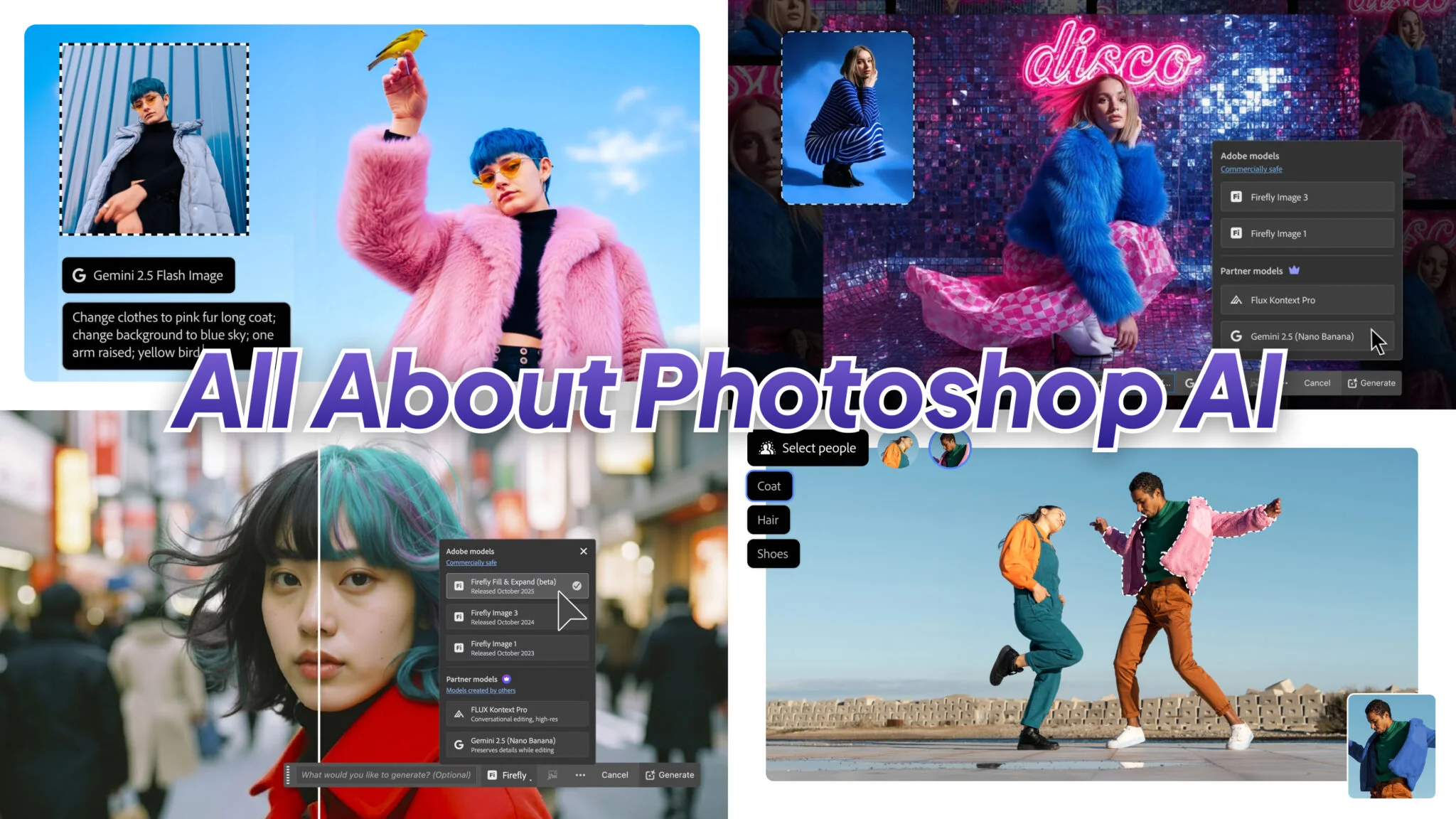
Photoshop’s Generative Fill has already changed how we edit images on our Macs, making complex tasks feel like magic. But what if you could choose the brain behind that magic? Adobe has just rolled out a massive update, turning Generative Fill into a creative hub with multiple AI models, including Google’s powerful Gemini 2.5 Flash (Nano Banana) and FLUX.1 Kontext [pro]
This means more control, more variety, and ultimately, better results tailored to your specific project, whether you’re a marketer creating ad variations or a student perfecting a presentation.
So, how do you actually switch between these AI models? When should you use Firefly versus Gemini or the FLUX model? And what do these changes mean for your credits and commercial projects?
The Key Takeaways
- More choice in Generative Fill: Firefly, Gemini 2.5 Flash (Nano Banana), FLUX.1 Kontext [pro] — switch in the Contextual Task Bar (partner models in Photoshop beta).
- Pick by goal: Gemini for stylized/graphic punch; FLUX for perspective-true context; Firefly for commercially-safe production work.
- Finish fast: Harmonize blends lighting/color; Generative Upscale boosts resolution (choose Firefly or Topaz upscalers in-app).
- Know costs: Firefly Fill = 1; Gemini/FLUX Fill = 10; Harmonize = 5; Upscale tiers: Firefly 5–10, Topaz 10–35 credits (by megapixels).
- Transparency: Only Firefly has Adobe’s commercial-safety label; Content Credentials add provenance without a visible watermark.
The Big AI Upgrade in Photoshop
For a while now, Photoshop Generative Fill has been the go-to tool for anyone looking to add, remove, or expand parts of an image with a simple text prompt on their Mac. It felt like a single, powerful feature. That’s all changed.
Think of it less like one magic wand and more like a team of specialized creative assistants waiting for your direction. This update transforms Generative Fill into a multi-model platform, giving you the power to choose the AI engine that best fits your vision without ever leaving the app.
This shift from a single tool to a creative hub is a massive leap forward. Instead of being locked into one style, you can now act as a creative director, auditioning different AI models for the same task. Need a photorealistic background for a product shot? There’s a model for that. Looking for a more stylized, detailed element for a digital composite? There’s a different one for that, too.
For anyone who values an efficient, integrated workflow, this means no more jumping between different AI websites to get the perfect result; the flexibility is now built right into the Photoshop you use every day.
Your New AI Model Choices in Photoshop
The biggest news is the introduction of Photoshop AI model choice. Instead of relying solely on Adobe’s in-house AI, you can now pick from a curated list of powerful models directly within your workflow.
Make a selection, and you’ll find this new option in the Contextual Task Bar. A new Model dropdown lets you choose between Firefly, Gemini 2.5 Flash, or FLUX.1 Kontext [pro]. (Note: These partner models are currently rolling out in Photoshop (beta)). This is a game-changer, turning a single feature into a versatile creative toolkit. Let’s meet the new team.
The Model Comparison
| AI Model | Best Use Cases | Key Characteristics |
|---|---|---|
| Adobe Firefly | Brand-safe content, background extensions, everyday edits, matching existing styles. | versatile, Photoshop-native, commercially safe default for production work. |
| Google Gemini | Stylized/graphic details, concept art, imaginative scene additions, creative ideation. | stylized/graphic details; imaginative additions. |
| FLUX.1 Kontext [pro] | Photorealistic results, complex scenes, adding realistic objects, matching perspective. | contextual accuracy so objects “sit right” with perspective/lighting. |
Experimenting is the best way to see which model fits your task. For Gemini or FLUX, try a larger selection (even Select All) to give the model more scene context for perspective and light.
Mac-First Workflow Tip:
- Select your area.
- Choose your model from the Contextual Task Bar (Firefly, Gemini, or FLUX) and click Generate.
- Hold the ⌥ (Option) key while clicking variation thumbnails to stack them as new layers.
- With your new layer selected, run Harmonize (from the Task Bar or Layer > Harmonize).
- Optional: Use Generative Upscale for a high-res finish.
Prompts to Test Across Models
Try each prompt with Firefly (safe default), Gemini (stylized), and FLUX (context-true) to see the difference.
If Gemini gives you the look you want, our tested Gemini photo-editing prompts are written to land clean results on the first try.
- “add a classic red bicycle leaning against the wall, late-afternoon shadows”
- “replace the cloudy sky with a golden sunset, soft rim light on buildings”
- “add soft window reflections on this glass bottle, studio look”
- “extend the canvas to the right by 30%, continue street details and signage”
- “swap the table texture to walnut wood, keep existing reflections”
- “add subtle haze and volumetric light through window blinds”
- “place the product on a brushed-steel shelf, correct perspective”
- “add realistic floor shadow under sneakers matching current light angle”
More AI Tools to Improve Your Workflow
Beyond the exciting new model choices, Adobe has also shipped other powerful AI features that work perfectly alongside Generative Fill to complete your creative workflow. Photoshop Elements gained a dedicated Restore Photo feature in its 2026 version, which sits at a different point on the fidelity scale from Generative Fill, as our guide to AI photo restoration explains.
Generative Upscale for High-Resolution Detail
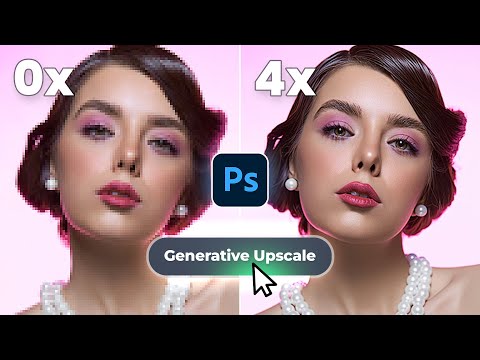
One of the most practical new features is Photoshop Generative Upscale. This tool intelligently increases the size and resolution of your image, using AI to invent and refine details. It’s specifically tuned to work well with AI-generated content.
Credit use for Generative Upscale varies by model and final image size:
| Model | Resolution / Size | Credit Cost |
|---|---|---|
| Firefly Upscale | 1–9 MP | 5 credits |
| Firefly Upscale | 25–56 MP | 10 credits |
| Topaz Gigapixel | ≤25 MP | 10 credits |
| Topaz Gigapixel | 25–56 MP | 20 credits |
| Topaz Bloom | 1–9 MP | 35 credits |
The Harmonize Tool for Seamless Blending
After you’ve added a new object, making it look like it belongs can be the hardest part. You can now access Harmonize directly from the Contextual Task Bar (or Layer > Harmonize). It auto-matches the lighting, color, and shadows of your added layer to the background image, and it costs 5 credits per use. This smart filter, along with Generative Fill, is also available on Photoshop for iPad and the web, letting you start an edit on the go and save it to Creative Cloud to finish on your Mac.
Using Generative AI Responsibly and Effectively
With great creative power comes a few practical considerations. To make the most of these new features, it’s important to understand how they work within your Creative Cloud plan.
Think of AI credits as the currency for using generative features. Most Creative Cloud plans come with a monthly allowance of “fast” credits. Actions have different costs:
- Standard Generative Fill (Firefly): 1 credit per generation
- Partner Model Fill (Gemini/FLUX): 10 credits per generation
- Harmonize: 5 credits per use
- Generative Upscale: Varies by model and resolution (5-35 credits)
Once you run out of fast credits, you can continue to use Generative Fill, but requests will be processed at a slower speed.
Commercial Use and Copyright
A critical question for any creator is whether they can use these AI creations in professional projects. A critical distinction: Only content generated by Adobe Firefly is marked by Adobe as meeting its commercial-safety bar. Partner models like Gemini and FLUX do not carry Adobe’s guarantee, so you are responsible for deciding if the output is appropriate based on the partner’s terms.
Photoshop does not add a visible AI watermark on export, but if you enable Content Credentials (C2PA), it attaches invisible provenance metadata (and may include an invisible watermark) to your file.
Privacy and Your Data
For many users, data privacy is a top concern. Adobe states it does not train its Firefly generative AI models on any of your personal content stored in Creative Cloud, and its partner agreements require the same. Your images and projects remain your own.
If you ever get stuck, need prompting ideas, or want to learn more, the AI Assistant in Photoshop (on the web, beta) is an excellent resource you can consult directly.
Conclusion
The introduction of AI model choice in Photoshop is more than just a new feature; it’s a fundamental shift toward greater creative freedom. By giving you direct access to Firefly, Google Gemini, and FLUX, Adobe empowers you to find the perfect result without ever leaving your workflow.
Combined with smart, integrated tools like Generative Upscale and Harmonize, Photoshop’s AI suite is now more powerful and intuitive than ever. The future of photo editing is here, and it’s all about having the right tool and the right AI for the job. If you want Gemini itself alongside Photoshop rather than inside it, our Gemini desktop client guide for macOS covers running it natively on a Mac.
FAQ Section
How to switch AI models in Photoshop Generative Fill?
You can find the model choice in the Contextual Task Bar after making a selection. Use the Model dropdown to choose Adobe Firefly, Google Gemini, or FLUX before you click Generate.
Firefly vs Gemini vs FLUX in Photoshop (which is better?)
There is no single “best” model.
- FLUX is designed for high-fidelity, context-aware results where perspective and lighting are key.
- Firefly is the best all-around, commercially-safe choice.
- Gemini often excels at stylized or graphic-heavy additions.
Where to find model choice for Generative Fill in Photoshop?
The option appears in the Contextual Task Bar as a dropdown menu as soon as you make a selection with a generative tool. It’s also surfaced in the Properties panel and progress UI.
Is Photoshop Generative Fill free with Creative Cloud?
Yes, Generative Fill is included with most paid Creative Cloud plans. Your plan comes with a monthly allotment of “Generative Credits,” which are used for generating images.
Can I use Generative Fill results commercially (for YouTube/clients)?
Only outputs from Adobe Firefly are covered by Adobe’s commercial-safety criteria and indemnity. Partner models (Gemini, FLUX) are not covered by this, and you use them at your own discretion.
Why are results different across Firefly, Gemini, and FLUX?
Each AI model was trained on different data and with different architectures. This means they “think” and interpret your text prompts differently, leading to unique styles, details, and compositions.
How to get Gemini 2.5 Flash working in Photoshop?
The feature is rolling out to Photoshop (beta) and the main application. Ensure your Photoshop is updated to the latest version. If you don’t see it, check for updates in the Creative Cloud desktop app.
What are the best settings for clean edges/no artifacts with Generative Fill?
For the cleanest results, start with a clear, specific prompt. Use the selection tool to create a slightly feathered edge (1-3 pixels). For partner models like Gemini and FLUX, Adobe suggests selecting a larger area (or the entire image) to give the AI more context for perspective and lighting.