The rebuilt Siri ships with iOS 27 in September 2026, and it answers with Apple's own models only. There is no setting that puts a different AI behind the side button, on any device, in any beta.
Shortcuts has no such rule. In about five minutes you can build a voice command that sends your request to GPT-5.6, Claude Opus 5 or Gemini 3.1 Pro and reads the answer back, on any iPhone or Mac that has the Shortcuts app. That includes every device Apple Intelligence leaves out, and every region where the new Siri is not shipping this autumn.
The Key Takeaways
- The new Siri is real and close: revealed at WWDC 2026 on 8 June, in the public beta since 14 July, with the free release expected in September 2026.
- It runs Apple's models, not yours: Apple Foundation Models and Private Cloud Compute. ChatGPT is the only outside integration Apple has ever shipped.
- It skips a lot of hardware: Apple Intelligence needs an iPhone 15 Pro or an iPhone 16 and later, so every iPhone 11 through 15 non-Pro is out.
- EU iPhones do not get it at launch, and Apple has given no timeline. Macs are exempt.
- The DIY route has none of those limits: Siri as the trigger, Shortcuts as the wiring, a multi-model app as the brain, and any model you like behind it.
How to Make Siri Smarter in Five Steps
This is the whole setup. It takes about five minutes and needs no developer account, no beta, and no particular iPhone.
- Download the Fello AI app from the App Store.
- Open the Shortcuts app on your iPhone. New to it? See how to use Siri Shortcuts.
- Create a new shortcut and select the action "Ask Fello AI".
- Assign the shortcut to your Action Button or the Back Tap gesture, and give it a spoken phrase.
- Press the button or say the phrase, and you are talking to the model you picked rather than Siri.
If the built-in assistant is the thing failing you first, start with why Siri is not working and fix that before layering anything on top.
What the New Siri Can Do
When Apple talks about the "new Siri," it means the next-generation assistant powered by Apple Intelligence. This is not a better voice or a bolted-on chatbot. It is the version demonstrated at WWDC 2024 that turns Siri from a command-taker into an assistant that understands context, and Apple confirmed the Gemini-assisted rebuild at WWDC 2026.
Three features define it:
- On-Screen Awareness: Siri understands what is on your screen. Say "Summarize this article" or "Add this address to their contact card," and it knows what "this" refers to.
- Personal Context: Siri draws on your information across apps. Ask "Find that PDF my boss sent last week," and it searches your mail, files and messages.
- Cross-App Automation: Multi-step actions inside and across apps, from one command like "Move my 2 PM meeting and text the team I'll be late."
Those three are the genuine payoff of the rebuild, and a Shortcuts workflow cannot fully match them. What Siri AI still will not do is let you choose the model behind it.
Apple has never announced third-party choice for Siri. Its June 2026 releases describe Siri AI running on Apple Foundation Models and Private Cloud Compute, and ChatGPT remains the only extension that has ever shipped.
We walk through that exact Settings path, and what is actually verifiable about the rest, in how to replace Siri with ChatGPT, Claude or Gemini.
Build a Smarter Siri Workflow
Your own Siri workflow needs three components, and you already have two of them.
- Siri, the voice trigger. Not the brain. Think of it as a voice-activated button that launches your automation on a custom phrase.
- The Shortcuts app, the automation engine. Pre-installed on every modern iPhone and Mac. This is the glue between your command and the AI.
- An AI app, the brain. Where the actual thinking happens. This can be the official ChatGPT app or, better, a multi-model app.
That arrangement answers the "why is Siri so dumb compared to ChatGPT" complaint directly, by swapping Siri's brain for a better one and leaving its voice alone.
Choose Your AI Brain
The brain is the choice that matters, because it sets the ceiling on everything the workflow can do. Two of the obvious options are narrower than they look.
Apple's built-in ChatGPT hand-off works, but Siri decides when to use it and you never control the prompt. Setting Claude, Gemini or Grok as the voice behind "Hey Siri" is not something Apple offers at all, whatever the tutorials claim. Shortcuts is the one route that reaches any model you like, so that is what the rest of this guide builds on.
Use a Multi-Model AI App
Here is the practical problem. If you want GPT-5.6 for creative writing and Gemini 3.1 Pro for research, how do you reach both without building and maintaining separate shortcuts for each one?
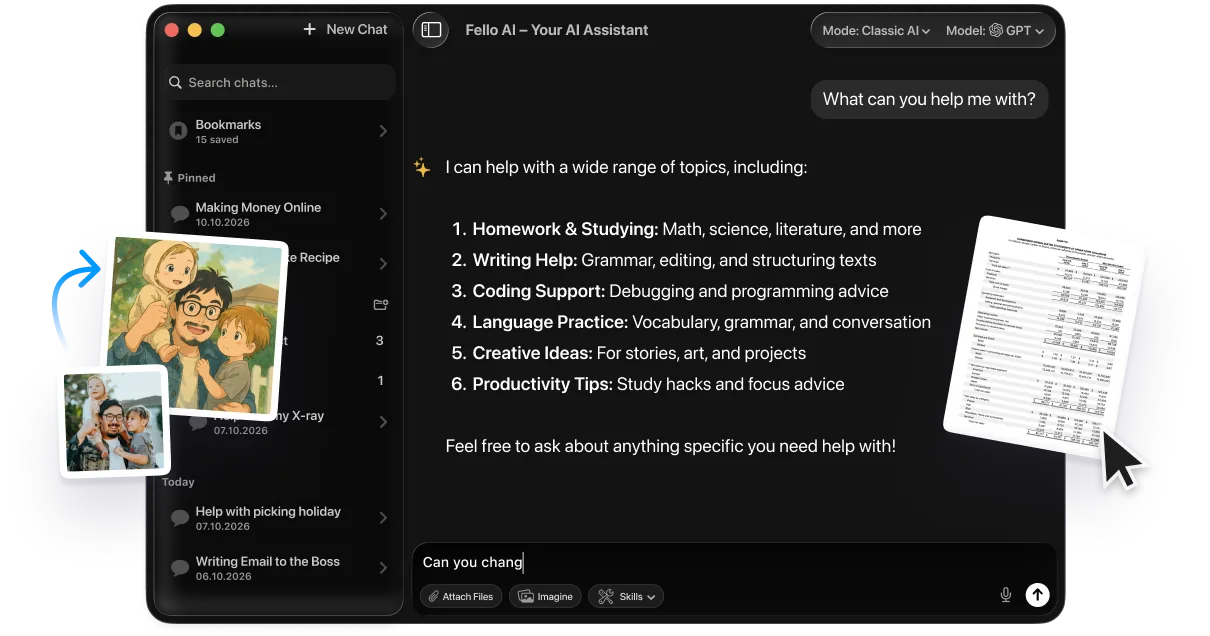
You need a router: one app that takes a single command from Siri and sends it to whichever model you named. Fello AI is a multi-model app for iPhone and Mac built for exactly that. It holds GPT, Gemini, Claude and others in one place and exposes them as Shortcuts actions, so it plugs straight into your Siri automation shortcuts.

Use Siri as a Front End for AI
With a router in place, Siri becomes the front end for every model at once. You build the logic in Shortcuts, and it reads like a sentence.
- When I say "Hey Siri, summarize this"...
- ...take the text from my clipboard...
- ...send it to the Fello AI app...
- ...tell Fello to use Claude to summarize it...
- ...and show me the summary.
Nothing in that chain depends on your iPhone model, your region, or an Apple announcement.
Practical AI Automation Shortcuts
These are not hypotheticals. Each one takes under five minutes to build, and between them they cover most of what people actually want a smarter assistant for.
Workflow 1: Summarize Anything
Copy any text, a long article, a confusing email, a web page, and get a summary by asking Siri.
- Open the Shortcuts app and create a new shortcut named "AI Summary."
- Add Get Clipboard as the first action, which grabs whatever text you last copied.
- Add the Fello AI action and type the prompt
Summarize this text into 3 clear bullet points: [Clipboard]. The[Clipboard]variable is inserted for you. - Add Show Result to display the summary as a pop-up.
- Copy some text and say, "Hey Siri, AI Summary."
Workflow 2: Rewrite Text Anywhere
The one that earns its place fastest, for messages, emails and posts that need a better tone.
- Create a new shortcut named "AI Rewrite."
- Add the Get Clipboard action.
- Add the Fello action with the prompt
Rewrite this text to be more professional and polite: [Clipboard]. - Add Copy to Clipboard so the rewritten text replaces the original.
- Add Show Notification saying "Rewritten text copied!"
- Type a rough draft, copy it, say "Hey Siri, AI Rewrite," then paste.
Workflow 3: Plan Your Day
More advanced, and the one that shows what a real brain adds. It gathers your calendar and reminders and asks the model to prioritise them.
- Create a new shortcut named "Plan My Day."
- Add Find Calendar Events, set to all events for Today.
- Add Find Reminders, set to your To-Do list.
- Add the Fello action with the prompt
Here are my events: [Calendar Events] and my tasks: [Reminders]. Organize a simple, prioritized schedule for my day. - Add Show Result so you can read the plan.
- Run it each morning with "Hey Siri, plan my day."
From here it is customisation. Send creative writing to GPT-5.6, research questions to Gemini 3.1 Pro, and long-document summaries to Claude Opus 5, all triggered by different phrases.
This is not a stopgap that expires when the new Siri lands. It is a power-user method that keeps working after iOS 27 ships, on hardware and in countries the official version will not reach.
A Smarter Siri: DIY vs Apple Intelligence
So how does the DIY version compare with what arrives in September? Apple's native Siri wins on depth of integration and is genuinely good at the three things above. The custom workflow wins on reach and on choice.
| Feature | DIY Siri (Shortcuts + Fello) | Apple Intelligence Siri |
|---|---|---|
| Availability | Available today. Works on any device with Shortcuts. | September 2026 with iOS 27, already in the public beta. |
| Devices and regions | Anything with Shortcuts, anywhere. | iPhone 15 Pro, iPhone 16 and later. Not on EU iPhones at launch. |
| AI models | Multi-model. GPT-5.6, Gemini 3.1 Pro, Claude Opus 5, and whatever ships next. | Apple's models only, plus the one ChatGPT hand-off. No way to pick Gemini or Claude yourself. |
| Customization | Total control. You write the prompts and build the workflows. | Locked system. You get the features Apple decides to give you. |
| Integration | Good. Reaches any app via Shortcuts, clipboard or the Share Sheet. | Excellent. Real on-screen awareness and in-app actions. |
Be clear about the trade. A shortcut cannot see your screen. You still have to tell it what to work on, usually by copying text or using the Share Sheet, and that is a real gap rather than a quibble.
What you get in return is a setup that runs on hardware Apple Intelligence will not touch, works where Siri AI does not, and never locks you to one company's model.
Conclusion
The honest verdict is that both are worth having. Apple's rebuilt Siri is a genuine upgrade and it arrives in weeks, but it answers with Apple's models, on recent hardware, outside the EU. A Shortcuts workflow costs five minutes and has none of those conditions attached.
Build the "Summarize Anything" shortcut first. It is the smallest one here, it works on any iPhone, and it is the one that will change how you use the device today rather than in September. From there, point the next shortcut at Claude Opus 5 and see how far the gap really goes.
FAQ
When does the new Siri actually arrive?
Apple revealed the rebuilt Siri at WWDC 2026 on 8 June, put it in the iOS 27 public beta on 14 July, and the free release is expected in September 2026. It needs an iPhone 15 Pro, an iPhone 16 or newer, and Apple has confirmed it is delayed in the European Union with no timeline given.
How do I connect Siri to ChatGPT on my iPhone?
Two ways. The official route is Apple Intelligence, where Siri asks permission to use ChatGPT and hands off the question. The more powerful route is a Siri Shortcut that takes your text and sends a prompt you wrote directly to the ChatGPT app or a multi-model app.
Can Siri use Google Gemini or Anthropic Claude?
Not through Apple. Despite many tutorials claiming otherwise, Apple has never announced a way to set Claude or Gemini as the assistant behind "Hey Siri," and ChatGPT is the only entry under Extensions. See how to replace Siri for what is verifiable. You can still reach both through Shortcuts with a phrase like "Hey Siri, ask Gemini."
Is it safe to connect Siri to a third-party AI?
Yes, and Shortcuts is unusually transparent about it. You choose exactly what gets sent, for example only your clipboard text, and Shortcuts does not quietly share anything else. Once sent, the text is handled by that service under its own privacy policy, so keep genuinely sensitive material out of it.
Which AI model is best to pair with Siri?
It depends on the task, which is the argument for a router rather than one model:
- Claude Opus 5: long documents, long conversations, and careful handling of sensitive text.
- GPT-5.6: creative writing, drafting emails, and general questions.
- Gemini 3.1 Pro: web-connected research and technical topics.
Methodology & Sources
We developed this guide by analyzing Apple's WWDC 2026 announcements and the iOS 27 beta release notes for Siri AI, including its hardware and regional limits.
We cross-checked Apple's own newsroom releases against third-party reporting on Siri Extensions, and say plainly where only reporting exists. Reviewed August 2026.
We used the Fello AI app on Mac and iPhone to test multi-model routing to OpenAI (GPT-5.6), Google (Gemini 3.1 Pro), and Anthropic (Claude Opus 5).