ChatGPT works best as a workspace, not a chatbot. Turn on Memory, keep big jobs in Projects, let Scheduled tasks run recurring prompts, and pick the right thinking level for each question. Every hack below was re-checked against OpenAI’s help center in November 2026, when ChatGPT ran GPT-6 in Chat.
| Metric | Detail |
|---|---|
| User Base | More than 1.2 billion people a week (OpenAI, October 2026) |
| Top Features | Memory, Projects, Scheduled tasks, plugins |
| Best Mac Cockpit | Fello AI (multi-model app for Mac, iPhone and iPad) |
| Goal | Productivity & workflow automation |
Opening
ChatGPT is no longer just a fun toy for writing emails, drafting birthday cards, or generating jokes. In 2026 it has become a serious productivity engine, yet most people still only scratch the surface. If you are tired of typing the same prompts over and over, or you keep correcting the AI’s tone, you are missing the settings that do that work for you.
This guide moves beyond basic tips to show you how to use ChatGPT effectively using the settings power users rely on. We will cover ChatGPT hacks for 2026 designed to automate tasks so they happen while you sleep, and ChatGPT tips and tricks to centralize your tools and stop browser tab fatigue.
By the end of this article, you will know:
- How to make ChatGPT remember your preferences long-term using advanced Memory settings.
- Which hidden settings control the AI’s personality and depth to stop it from sounding robotic.
- Why the tenth hack is the most important for your privacy and long-term workflow management.
The Key Takeaways
- Memory is key: Stop repeating yourself by using cross-chat Memory and “Projects” to keep context alive across weeks of work.
- Automation works: Scheduled tasks run a prompt on a timetable, and even the Free plan gets three active tasks.
- Centralize tools: Apps like Fello AI bring ChatGPT, Gemini, and Claude into one Mac interface for better speed and model comparison.
- Plan for 11 December: Custom GPTs are scheduled to retire on 11 December 2026. Rebuild the ones you rely on as plugins or Projects now.
1. ChatGPT Memory: turn it into your autopilot
Most users waste time re-explaining who they are in every conversation. They start every new chat with “I am a marketing manager…” or “Write this for a 5th-grade audience.” The “Memory” feature ends that repetition. ChatGPT remembers your preferences and details from past chats, saved memories and custom instructions, and applies them to future chats without being asked. You find the controls under Settings > Personalization > Memory.
You don’t need complex settings or coding knowledge to make this work. You simply need to talk to the AI and tell it what is important. It acts like a digital sticky note that persists across interactions. If you tell it you are vegan, it won’t suggest steak recipes three months from now. If you tell it you code in Python, it won’t give you Java snippets.
Try these simple commands to train your AI:
- “Remember this: I am a content creator writing for beginners. Always use a friendly, encouraging tone and avoid jargon.”
- “Remember this: I prefer answers in bullet points with bold headers. Never give me walls of text.”
- “Show me everything you currently remember about me so I can audit it.”
Once set, you rarely have to type those instructions again. If your job or preferences change, tell ChatGPT to forget a detail, correct it in the memory summary, or delete it from Memory settings. Turning off Reference chat history schedules what ChatGPT remembered from past chats for deletion within 30 days, while your chats themselves stay in your history.
2. Use ChatGPT Projects for big goals
If you are managing a large initiative, standard chats can get messy and lose context very quickly. You might have five different chats about the same marketing campaign, and none of them talk to each other. The ChatGPT Projects feature solves this by letting you group specific chats, files, and instructions under one dedicated umbrella. This is different from a normal chat because the AI retains context across the entire project, effectively giving it a “long-term memory” specific to that goal.
Think of a Project as a digital binder. Upload your brand guidelines, past reports, and strategy documents once, and they stay available for every new chat inside that project. Project instructions override your global custom instructions, but only inside that project. File limits depend on the plan: 5 files per project on Free, 25 on Go and Plus, and 40 on Pro, Business, Enterprise, and Edu. Our full guide to ChatGPT Projects covers the sharing rules most write-ups still get wrong.
Best ways to use Projects:
- Client Work: Create one project per client with their specific tone of voice, assets, and past deliverables. This keeps client data strictly separated.
- Course Creation: Keep your syllabus, research notes, and draft modules in one “Course Launch” project so the AI understands the full curriculum structure.
- Travel Planning: Store all flight PDFs, hotel options, and itineraries in a “Japan Trip 2026” project. You can ask “What time is my flight?” without searching through emails.
3. Automate with Scheduled tasks
Scheduled tasks are one of the most powerful ChatGPT productivity hacks: ChatGPT runs a prompt at a set time and sends you the result. Ask in plain language, such as “Every Monday at 9 AM, summarize…”, and manage everything on the Scheduled page. You choose push, email, or both under Settings > Notifications.
Every plan gets tasks, with different caps. You can keep 3 active tasks on Free and Go, 5 on Plus, 10 on Business and Edu, and 15 on Pro and Enterprise. Free tasks run at most once a day in flexible windows such as morning or night; exact times and hourly schedules need a paid plan. Tasks do not run in voice chats, GPTs, or locked chats.
Examples of tasks you can schedule:
- Monday Briefing: “Every Monday at 9 AM, check for 5 new articles on [your topic] and summarize them into a digest.”
- Monthly Review: “On the 1st of each month, remind me to upload my analytics sheet and then analyze the key trends, highlighting growth areas.”
- Language Learning: “Every Friday at 6 PM, give me a short Italian lesson based on our previous chats and vocabulary errors.”
This transforms the tool from a passive encyclopedia into an active employee that reports to you on a schedule.
4. Pick the right thinking level
Not every question needs a long, deliberate answer. ChatGPT no longer guesses for you: since 14 September 2026, Plus and Pro accounts no longer switch automatically from Instant to Thinking. With GPT-6 selected in the model menu, the Thinking slider offers Instant, Medium, High, Extra High, and Pro. Plus gets Medium and High; Pro, Business, and Enterprise add Extra High and Pro. Free and Go users select Think for harder questions.
The hack is to match the level to the job. Stay on Instant for quick facts and rewrites. Move up to High for analysis, planning, or code, and save Pro for the hardest problems, because Pro models carry their own usage limits.
How to steer the model:
- For speed: Keep Instant selected and ask: “Give me a quick, high-level answer in under 150 words. Just the facts.”
- For depth: Switch the slider to High (or Extra High on Pro) and ask: “Show your reasoning in steps and consider edge cases.”
By choosing the level yourself and stating your constraints, you control how ChatGPT spends its effort, so the answer matches your pace.
5. Build an AI cockpit on Mac with Fello AI
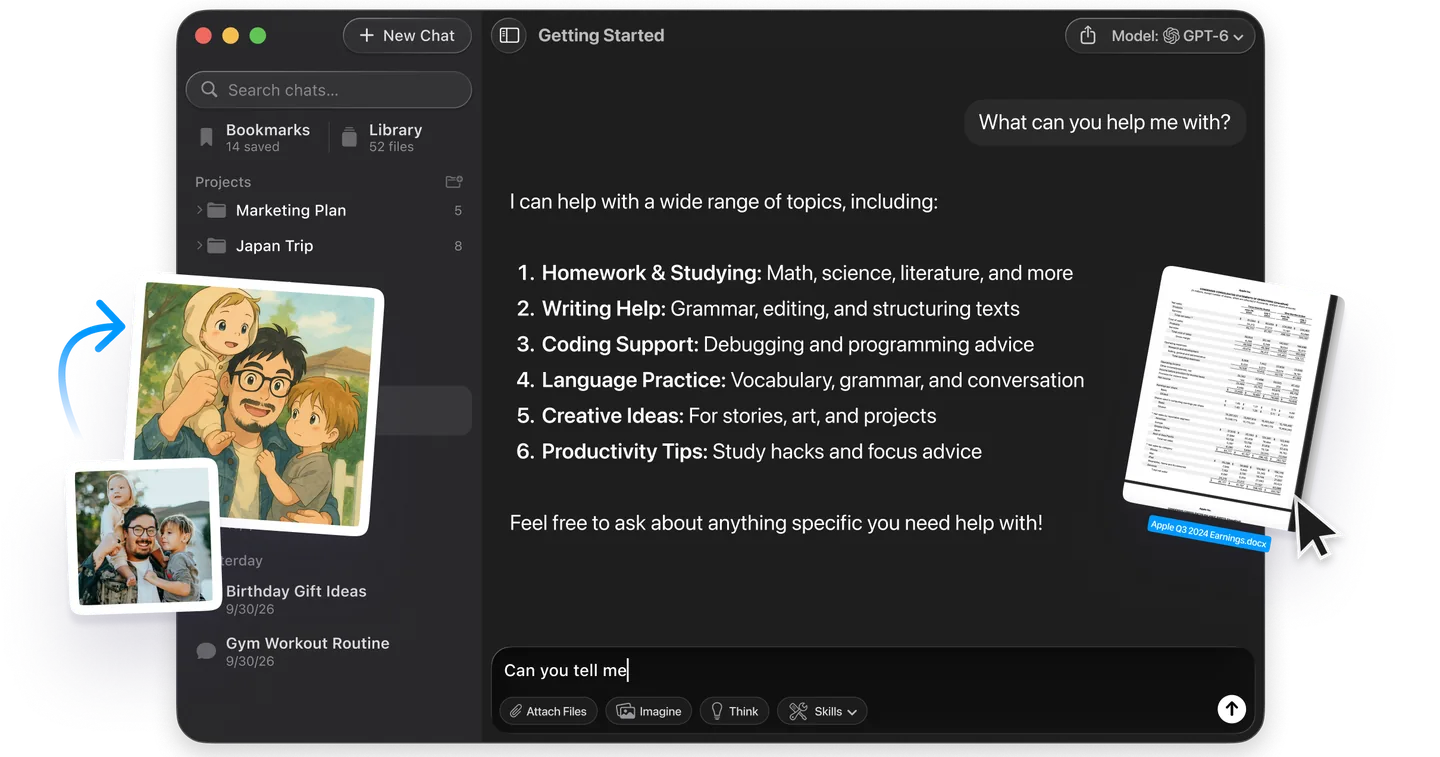
Switching between browser tabs to use ChatGPT, then Gemini, then Claude is a productivity killer. It breaks your flow and makes it hard to compare results. A major trend for best AI apps for Mac in 2026 is consolidation. This is where Fello AI shines: you stop choosing between subscriptions, because ChatGPT, Claude, Gemini, Grok, DeepSeek, and more sit in one native app on Mac, iPhone, and iPad.
Using a dedicated app offers benefits that a browser cannot match. It integrates deeper into your operating system and workflow.
Why power users switch to Fello AI:
- Speed: Press ⌥ Space to open Fello’s floating chat bar from any app, so help is always one keystroke away. More shortcuts live in the menu bar.
- Choice: You can compare answers from different models side-by-side to find the best result.
- Practical tip: Draft your email in ChatGPT, then send the same prompt to Claude inside Fello to see if it suggests punchier hooks.
- Versions: Regenerating keeps your old answer, and a compare view shows every version of a reply side by side, so a better draft never overwrites a good one.
If you are serious about efficient workflows, getting AI out of the browser and into a dedicated tool is a massive upgrade.
6. Replace custom GPTs with plugins
Specialized work deserves a specialized setup, but custom GPTs are no longer the way to build one. OpenAI has scheduled custom GPTs to retire on 11 December 2026 across ChatGPT plans, and personal accounts (Free, Go, Plus, and Pro) can no longer create new GPTs. The replacement is plugins, which bundle reusable instructions (skills) with connected apps. To build one, install Plugin Creator from the plugin directory, start a chat with @plugin-creator, and describe the workflow. If you made a GPT, look for Migrate to plugin in My GPTs: its instructions become a skill and its knowledge files are copied over, but custom actions do not transfer.
For ongoing work like writing, research, or planning, OpenAI also suggests a Project instead: add the instructions in Project settings and upload the same reference files. Either way, you build the setup once and it behaves the same way every time, which matters for ChatGPT for business and classroom use.
Ideas for your own plugins:
- The Editor: A skill pre-loaded with your company style guide (AP style, Oxford commas, etc.) that only critiques grammar and tone, never rewriting the substance.
- The Math Tutor: A skill for students that generates worksheets based on specific grade-level standards and refuses to just give the answer without explaining the steps.
- The SEO Strategist: A plugin that knows your keyword list, your competitors, and your content strategy, helping you brainstorm titles that actually rank.
7. Prompt with examples
Many people struggle with ChatGPT prompts for content creation because they write long, vague paragraphs of instructions. They describe a “professional but witty” tone and get frustrated when the result sounds like a bad sitcom. A concrete example works better. OpenAI’s own prompting guide calls this few-shot learning: include a handful of examples and the model picks up the pattern.
The “Show, Don’t Tell” method forces the AI to mimic a pattern rather than guess what you mean. It anchors the AI to a specific style.
Try this prompting structure:
- Role: “Act as a senior copywriter for a luxury brand.”
- Task: “Write a product description for these hiking boots.”
- Example: “Here is a previous description that performed well. Match this tone, sentence length, and vocabulary structure: [Paste text].”
By feeding it the output you want to emulate, you drastically reduce the need for revisions.
8. Analyze data files like a pro
ChatGPT data analysis handles the day-to-day spreadsheet work that used to need strong Excel skills or a junior analyst. Upload spreadsheets (.xls, .xlsx, .csv), PDFs, or text and data files such as .json. ChatGPT writes and runs Python to clean the data, find outliers, and summarize trends, and it can turn bar, line, pie, and scatter charts into interactive charts. Values trapped inside images are a weak spot, so upload the data itself.
This hack suits students doing research and business owners looking for trends who don’t have time to master pivot tables or Python. It works on the Free plan too, with tighter limits on uploads and analysis.
Killer use cases:
- Gap Analysis: Upload your content calendar and ask, “Find dates where we have no content scheduled and suggest topics based on seasonal trends.”
- Synthesis: Upload three different research PDFs and ask, “Create a single 2-page report combining insights from all these documents, highlighting where they agree and disagree.”
- Visuals: Upload a raw sales sheet and ask, “Generate a bar chart showing Q3 growth by region.”
9. Tune personality and vibe
If ChatGPT sounds too robotic, stiff, or cheerful, change it. Go to Settings > Personalization and use Base style and tone to pick Default, Professional, Friendly, Candid, Quirky, Efficient, or Cynical. The change applies to all your chats. In December 2025 OpenAI also added finer controls for warmth, enthusiasm, headers and lists, and emoji; use them if your Personalization page shows them.
This is a great ChatGPT tip for making your content sound like you, not a machine. Add custom instructions on the same page for anything the presets miss: up to 1,500 characters on Free and Go, and up to 5,000 on paid plans.
Adjusting for your audience:
- For Professional Reports: Choose Efficient or Professional, then add the custom instruction “No emojis, short paragraphs, clear headings.” This gives concise, boardroom-ready text.
- For Social Media: Choose Friendly or Quirky and add “Conversational tone, one emoji at most.” This creates engagement without feeling forced.
10. The self audit hack
This is the hack that most people miss, and it is arguably the most powerful. Instead of treating ChatGPT as an answer engine, treat it as a high-level consultant that audits you and itself. It has the reasoning capabilities to critique logic and improve processes.
1. The Workflow Audit
Ask ChatGPT to design your processes. Don’t just ask it to write the email; ask it how to manage your inbox. With Reference chat history turned on, ChatGPT can draw on your past chats, so ask what it has noticed about how you work, then ask it to redesign your workflows around those real habits.
- Prompt: “Act as my productivity coach. Design a workflow for how I should use ChatGPT to manage my [project] in under 2 hours a week. Then turn it into a concise checklist.”
2. The Self-Critique
Force the AI to grade its own homework. This often triggers a higher level of reasoning because it forces the model to review its output against a set of criteria.
- Prompt: “Critique your previous answer on a scale of 1-10 for accuracy, clarity, and usefulness. Then, rewrite it to be a 10/10.”
3. The Privacy Audit
Use the memory feature to manage your data privacy. It’s vital to know what the machine knows.
- Prompt: “Explain everything you currently remember about me. Recommend what I should delete to better protect my privacy.”
Bonus Tip for Mac Users: Voice on the Mac has changed twice. OpenAI retired Voice in the old macOS app on 15 January 2026, and the new ChatGPT desktop app brought back ChatGPT Voice, powered by GPT-Live, for Plus, Pro, Business, Edu, and Enterprise. The older Advanced and Standard voice modes retire on 11 December 2026. If you only want to speak instead of type, Live Dictation is rolling out to every plan on web, mobile, and the desktop app, with no 10-minute limit. Fello AI also lets you talk to AI with your voice on Mac, iPhone, and iPad.
For a deeper walkthrough, see our full guide on how to use ChatGPT effectively.
Methodology & sources
We first tested these hacks on GPT-5.2 and GPT-4o in December 2025, including memory retention and project context stability. On 21 November 2026 we re-checked every feature, menu path, and plan limit against OpenAI’s official documentation, when ChatGPT ran GPT-6 in Chat.
- Comparison: We compared browser-based workflows against dedicated apps like Fello AI on macOS to measure time savings.
- Sources:
- OpenAI Help Center (Memory, Projects, Scheduled tasks, GPT-6 models, personality, custom instructions, data analysis, and the custom GPT retirement FAQ)
- Fello AI (App Store listing and release notes)
- ChatGPT release notes (through 20 November 2026) and OpenAI’s prompting guide
Conclusion
The gap between a casual user and a power user in 2026 comes down to workflow. By setting up Projects, configuring Memory, and using a centralized tool like Fello, you stop fighting the AI and start collaborating with it. You move from being a prompt typist to an AI manager.
Next Step: Choose just one hack from this list. We recommend Hack #1 (Memory): set it up today. It takes two minutes and will save you time in every future conversation.
FAQ
Is it safe to use ChatGPT Memory?
Yes, but you should be mindful. You can review the memory summary, correct or delete saved memories, and turn Memory off at any time. For highly sensitive data (like financial info or passwords), use a Temporary Chat and choose Unpersonalized: temporary chats do not create or update memories.
What is the difference between ChatGPT and Fello AI?
ChatGPT is the AI service provided by OpenAI. Fello AI is an app for Mac, iPhone, and iPad that lets you use ChatGPT, plus other models like Claude and Gemini, in one interface. It is great if you want AI without opening a browser, or a second opinion from another model without a second subscription.
Can I use these hacks on the free version?
Most of them, with lower limits. Free includes Projects (5 files each), up to 3 active scheduled tasks, data analysis, file uploads, and 1,500 characters of custom instructions. Paid plans raise those limits, add exact-time tasks, and unlock the higher thinking levels.
How do I stop ChatGPT from being too wordy?
Pick the Efficient personality under Settings > Personalization, or set your custom instructions to “Direct and concise.” You can also ask it to “limit the response to 150 words” or “give me a bulleted list only.”
What are the best ChatGPT hacks for productivity in 2026?
To maximize productivity, focus on Hack #1 (Memory) to reduce repetition, Hack #3 (Scheduled Tasks) to automate recurring work, and Hack #5 (Fello AI) to centralize your tools. Finally, use Hack #10 (Self-Audit) to have the AI constantly refine these workflows for you.
L’image principale de cet article a été créée avec l’aide de l’IA.