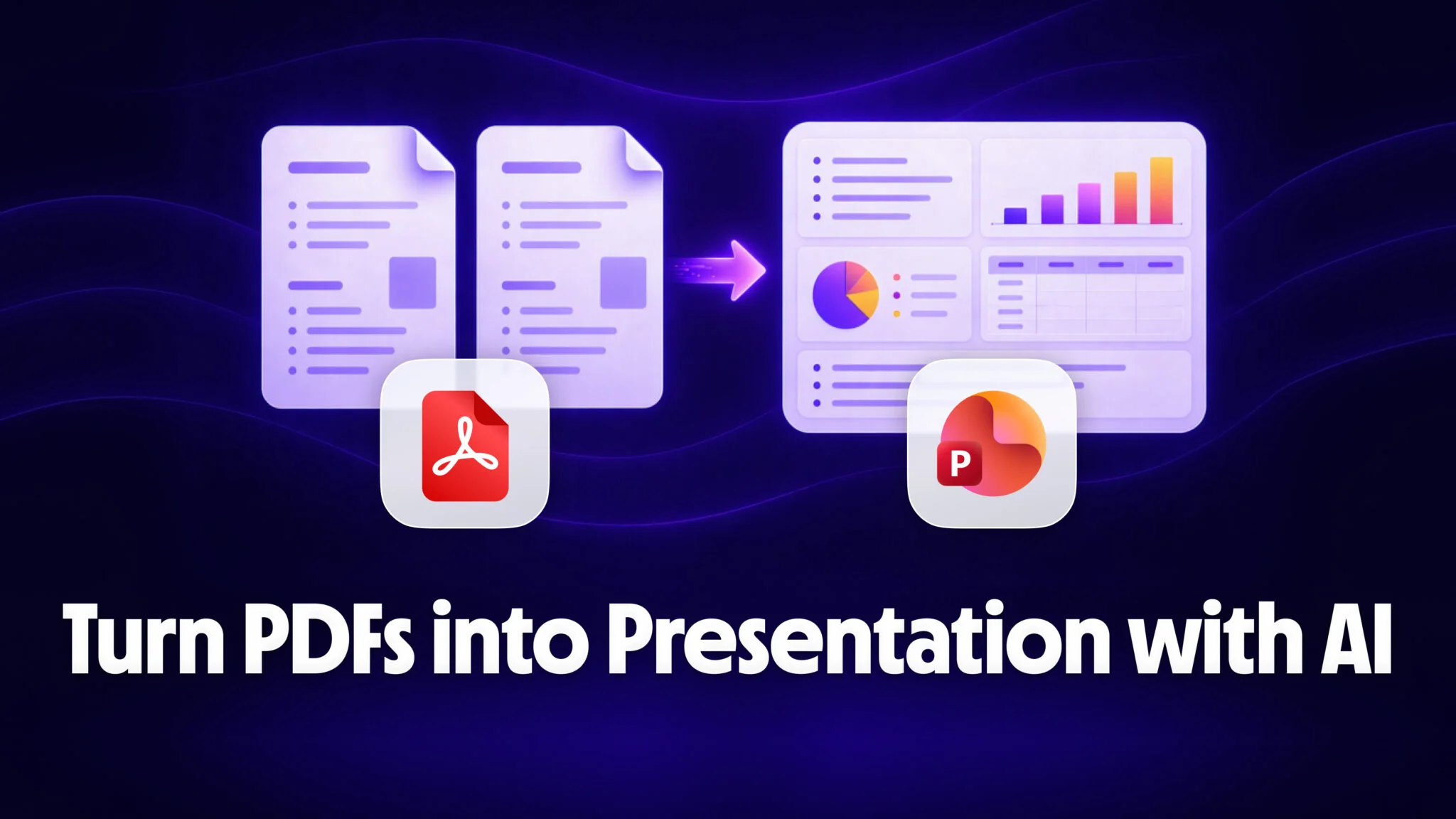
A dense 50-page PDF can become a 20-slide editable PowerPoint in under 5 minutes using AI, and you don’t need expensive software to do it. The trick is using AI to extract the structure, rewrite the content for slides, and polish the narrative before you ever open PowerPoint or Keynote.
Fello AI is the fastest way to run this entire workflow on Mac. It gives you GPT-5.4, Claude, Gemini, and more in one app for $9.99/month, so you can extract the outline with one model, rewrite bullets with another, and refine the tone with a third, all without switching tabs or paying for three separate subscriptions. This guide walks you through the full process step by step. If you want this fully automated, Claude Cowork can turn a PDF into a PowerPoint on its own, no manual steps.
The Key Takeaways
- AI turns PDFs into editable PowerPoint slides in under 5 minutes, including scanned PDFs with OCR support.
- Fello AI on Mac gives you GPT-5.4, Claude, and Gemini in one app for $9.99/month, the ideal setup for a multi-step PDF-to-slides workflow.
- The best results come from a 3-step AI process: extract the outline, rewrite for slides, then polish, and Fello AI lets you use a different model for each step.
- Free tools like Gamma and SlidesPilot can handle the final visual conversion once you have a strong AI-generated outline.
- Output quality depends on your prompts, not the conversion tool, so a structured prompt workflow beats any one-click converter.
Why AI PDF-to-PowerPoint Conversion Works Now
Old PDF-to-PPT converters were image exporters. Each page became a flat picture glued onto a slide, meaning you couldn’t edit text, rearrange bullets, or change the layout. The result was visually ugly and functionally useless.
Modern AI tools do the opposite. They read the PDF, identify headings, bullets, tables, and images, then rebuild the content as a proper narrative on editable slides. Tools like Gamma parse your document and generate themed slides in under a minute, SlidesPilot supports files up to 1,000 pages, and SlideSpeak uses OCR to handle scanned or image-based documents.
But here’s what most guides miss: the quality of your final deck depends far more on how you prepare the content than which converter you use. A one-click “upload PDF, get slides” tool gives you a mediocre first draft. A structured AI workflow, where you extract, rewrite, and polish the content before converting, gives you a deck that looks like you spent hours on it. That’s where Fello AI comes in.
How Fello AI Turns a PDF into Presentation-Ready Content
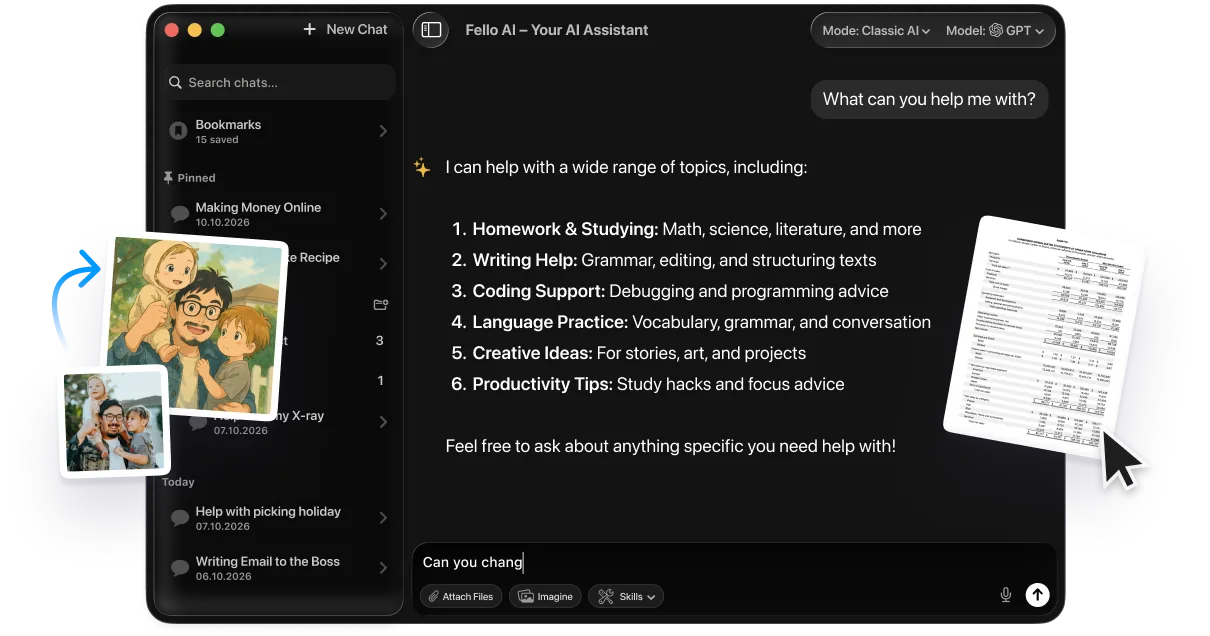
Fello AI is built for exactly this kind of multi-step AI workflow. You upload your PDF once, then use GPT-5.4, Claude, or Gemini to work through each stage of the process. No browser tabs, no copy-pasting between apps, no separate subscriptions.
Here’s the full workflow in 5 steps.
Step 1: Upload Your PDF to Fello AI
Open Fello AI on your Mac, pick your preferred model (GPT-5.4 is a strong default), and drop in your PDF. Fello AI handles PDFs up to hundreds of pages and lets you upload up to 16 documents at once. The AI reads the full document, so you can immediately start asking questions or giving instructions.
Step 2: Extract a Slide-by-Slide Outline
This is the most important step. Instead of letting a converter decide what goes on each slide, you tell the AI exactly what structure you want. Use this prompt:
You are a senior presentation designer. I’m uploading a PDF. Read it carefully and produce a slide-by-slide outline for a 15-slide deck. For each slide, give me: a short title (max 8 words), 3 bullet points (max 12 words each), and one suggested visual. Keep the tone confident and data-driven. Start with a hook slide and end with a clear call to action.
GPT-5.4 is excellent at this because it follows complex formatting instructions reliably. You’ll get a clean, structured outline in seconds.
Step 3: Rewrite the Bullets for Slide Impact
Raw bullet points extracted from a PDF read like a document, not a presentation. Slides need punchy, scannable text. Switch to Claude in Fello AI (just tap the model selector) and use this prompt:
Rewrite these slide bullets for a live presentation. Each bullet should be max 10 words, start with a strong verb or number, and sound confident. Cut any filler. The audience is [describe your audience].
Claude excels at tone and conciseness. It rewrites academic-sounding text into crisp slide language without losing the meaning. This model-switching ability is what makes Fello AI so effective for presentations, because different AI models genuinely have different strengths.
Step 4: Generate Speaker Notes
Good slides are sparse. The detail goes in your speaker notes. Back in Fello AI, prompt any model:
For each slide in this outline, write 3-4 sentences of speaker notes that expand on the bullets. Include one specific stat, example, or anecdote per slide. Write in a conversational tone, as if you’re explaining this to a colleague.
Now you have a complete presentation package: slide titles, tight bullets, and detailed speaker notes, all generated from your original PDF.
Step 5: Convert to Visual Slides
Take your polished outline and paste it into a visual converter. Gamma is the fastest free option. Click “Create new,” paste your outline, pick a theme, and Gamma builds the visual deck in under a minute. Export as .pptx and open in PowerPoint, Keynote, or Google Slides.
The difference between this workflow and a one-click converter is dramatic. Because the AI already restructured and rewrote your content, the visual tool just needs to apply design, not make content decisions.
What You Can Create with Fello AI and a PDF
The outline-to-slides workflow above is the foundation, but Fello AI handles much more than simple conversions. Here are the most common use cases with specific prompts you can copy.
Summarise a Long Report into an Executive Briefing
Drop a 100-page annual report into Fello AI and prompt GPT-5.4:
Summarise this report into a 10-slide executive briefing. Focus on: key financial metrics, strategic priorities, risks, and outlook. Each slide should have a headline that states the main finding, not a topic label. For example, “Revenue grew 23% YoY” not “Revenue overview.”
This works for quarterly reports, research papers, compliance documents, or any dense PDF where stakeholders need the highlights in 10 minutes.
Turn a Research Paper into a Conference Talk
Academic PDFs are especially painful to present because they’re written for reading, not speaking. Use Claude in Fello AI:
Convert this research paper into a 20-minute conference talk. Structure it as: hook (why this matters), problem, methodology (simplified), key findings (with visuals), implications, and Q&A slide. Write the bullets for a non-specialist audience. Flag any charts or figures from the paper that should be included as images.
Create a Client Proposal from a Services PDF
If you have a PDF describing your services, Fello AI can reshape it into a persuasive pitch deck:
Turn this services document into a 12-slide client proposal. Start with the client’s problem (you’ll need to infer it from the services described), then present each service as a solution. Include a pricing slide, a timeline slide, and a “why us” slide. Write in second person (“you” and “your”).
Build Training Slides from a Policy Document
HR and compliance PDFs often need to become training materials. Prompt Gemini in Fello AI:
Convert this policy document into training slides for new employees. Use simple language, define all jargon, and add a quiz question at the end of each section. The tone should be friendly and encouraging, not corporate. Aim for 15-20 slides.
Each of these workflows follows the same pattern: upload the PDF to Fello AI, use the right model for the job, extract and rewrite with specific prompts, then convert to visuals. The quality of your prompts is what separates a mediocre deck from a great one.
Why Fello AI Beats Copy-Pasting from ChatGPT
You could technically do this workflow by opening ChatGPT in a browser, uploading the PDF, copying the output, opening Claude in another tab, pasting it in, and repeating. But that approach has real friction.
Model switching in one window. Fello AI lets you jump between GPT-5.4, Claude, and Gemini with a single tap. No re-uploading, no copy-pasting, no managing three browser tabs with three different subscriptions.
PDF stays in context. When you upload a PDF to Fello AI, it stays available across your entire conversation. You can ask follow-up questions, request rewrites, or extract different sections without re-uploading.
Mac-native experience. Fello AI runs natively on Mac, iPhone, and iPad. You can start the outline on your Mac, refine the bullets on your iPad during a commute, and the conversation stays synced. For more on what Fello AI can do with documents, see our guide on chatting with PDFs using AI.
One subscription instead of three. ChatGPT Plus, Claude Pro, and Gemini Advanced would cost you over $60/month separately. Fello AI gives you all three for $9.99/month.
Best Prompts for PDF-to-PowerPoint in Fello AI
Here are the prompts we use most often, refined through dozens of real PDF conversions. Copy them directly into Fello AI and adapt the bracketed sections. For more prompting techniques, check our guide to writing better AI prompts.
The Outline Extractor (GPT-5.4)
Read this PDF and create a [number]-slide outline. For each slide: a title (max 8 words, written as a statement not a topic), 3 bullets (max 12 words each), and a suggested visual. Start with a hook, end with a call to action.
The Bullet Rewriter (Claude)
Rewrite these slide bullets for maximum impact. Rules: max 10 words per bullet, start with a verb or number, cut all filler words, keep the data. Audience: [describe].
The Speaker Notes Generator (any model)
Write speaker notes for each slide. 3-4 sentences per slide, conversational tone, include one specific stat or example per slide. These notes are for the presenter, not the audience.
The Design Brief Generator (Gemini)
Based on this slide outline, suggest a visual design direction. Include: colour palette (3 colours), font pairing, image style (photo, illustration, icon-based), and layout preference (minimal, data-heavy, or mixed). The brand personality is [describe].
Other AI Tools for PDF-to-PowerPoint Conversion
If you want a dedicated one-click converter instead of the manual AI workflow, several tools handle the visual conversion well. Here’s how they compare.
| Tool | Best for | Free tier | Max PDF size | .pptx export | Price |
|---|---|---|---|---|---|
| Gamma | Modern web decks, fast drafts | Yes, 400 credits (~10 decks) | Generous | Yes | From $8/mo |
| Copilot in PowerPoint | Native PowerPoint users | No (M365 required) | Varies | Yes, native | From $21/user/mo |
| SlidesPilot | Very long PDFs | Yes, no credit card | 1,000 pages / 50MB | Yes | Free + paid |
| SlideSpeak | Scanned PDFs and OCR | Yes, limited | 100+ pages | Yes | From $29/mo |
| Presentations.AI | Fast corporate decks | Yes, 10MB limit | Up to 40MB (Pro) | Pro only | ~$17/mo |
Gamma is the best free option for most people. Upload your PDF or paste your AI-generated outline, pick a theme, and it builds a polished deck in under a minute. The free tier gives you 400 credits (roughly 10 full presentations) with Gamma branding. Paid plans start at $8/month.
Microsoft Copilot in PowerPoint is the cleanest path if you already pay for Microsoft 365. It builds the deck directly in PowerPoint with your organisation’s branding and speaker notes. The catch is the licence at $21/user/month on Business or $30 on Enterprise. If you’re a student, you may already have access, which we covered in transforming PowerPoint presentations with ChatGPT.
SlidesPilot handles the largest files at 1,000 pages and 50MB, making it the go-to for long technical documents or book-length PDFs.
SlideSpeak is the best option for scanned PDFs thanks to built-in OCR that handles image-based, non-searchable documents.
How to Handle Scanned PDFs and Large Files
Not all PDFs are created equal. Scanned documents and very large files need extra attention.
Scanned PDFs contain images of text rather than actual text, which means most AI tools can’t read them directly. Three tools handle this well: SlideSpeak uses OCR to extract text from scans, SlidesPilot supports scanned files up to 50MB, and MagicSlides advertises around 99.5% OCR accuracy. If your preferred tool doesn’t support OCR, run the scan through a free OCR converter first (Adobe Acrobat online, or the macOS Preview “Export as PDF” trick after selecting text with the markup tool) to produce a searchable PDF. Then upload that to Fello AI or any converter as normal.
Large files hit free-tier limits fast. Most free plans cap around 15-25 pages. For documents above that, either use SlidesPilot (1,000-page limit) or split the PDF into sections and run each through Fello AI separately. The split approach actually produces better results because you can tailor the slide structure to each section.
Privacy matters. Most AI tools upload your PDF to their servers for processing. If you handle confidential material, check the provider’s data policy before uploading. Microsoft Copilot with a corporate M365 tenant stays within your Microsoft Graph, making it the most defensible option for enterprise data. Fello AI processes documents in-session and does not store files on its servers.
Conclusion
Converting a PDF to PowerPoint with AI is no longer about finding the right one-click tool. The real workflow is using AI to extract, rewrite, and polish your content first, then dropping that polished outline into a visual converter. Fello AI makes this fast because you get GPT-5.4, Claude, and Gemini in one app on your Mac for $9.99/month, so each step in the process uses the best model for the job.
Grab Fello AI from the App Store, upload your PDF, and you’ll have a presentation-ready deck in minutes. If you’re new to the app, our getting started guide walks you through the basics in five minutes.
FAQ
Can AI really convert a PDF to PowerPoint?
Yes. Tools like Gamma, Copilot in PowerPoint, and SlidesPilot parse your PDF, extract the key content, and rebuild it as an editable .pptx file. For the best results, use Fello AI to prepare and rewrite the content first, then convert with a visual tool.
What is the best way to turn a PDF into a presentation on Mac?
Use Fello AI to upload the PDF, extract a slide outline with GPT-5.4, rewrite the bullets with Claude, then paste the outline into Gamma or Copilot for the visual conversion. This gives you a deck that reads like a human wrote it, not a robot.
Can ChatGPT convert a PDF to PowerPoint directly?
ChatGPT cannot export a .pptx file, but it’s excellent for generating a structured slide outline from a PDF. In Fello AI, you can use GPT-5.4 for the outline and then switch to Claude for rewriting, all in one app without re-uploading.
Does Microsoft Copilot work with PDFs in PowerPoint?
Yes. If you have a Microsoft 365 Copilot licence ($21/user/month on Business), Copilot in PowerPoint can create a branded presentation from a PDF stored in OneDrive or SharePoint, complete with speaker notes.
How long does it take to convert a PDF to slides with AI?
The full workflow, from PDF upload to finished .pptx file, takes under 5 minutes with Fello AI and Gamma. The AI extracts and rewrites the content in about 2 minutes, and the visual conversion takes another minute. A quick manual polish pass adds 2-3 minutes.