Most professionals spend hours building PowerPoint presentations that could take minutes with the right tools. ChatGPT can generate slide content, suggest narratives, recommend visualizations, and proofread your work, all from a single prompt. Used correctly, it functions as a full-time presentation partner rather than just a text tool.
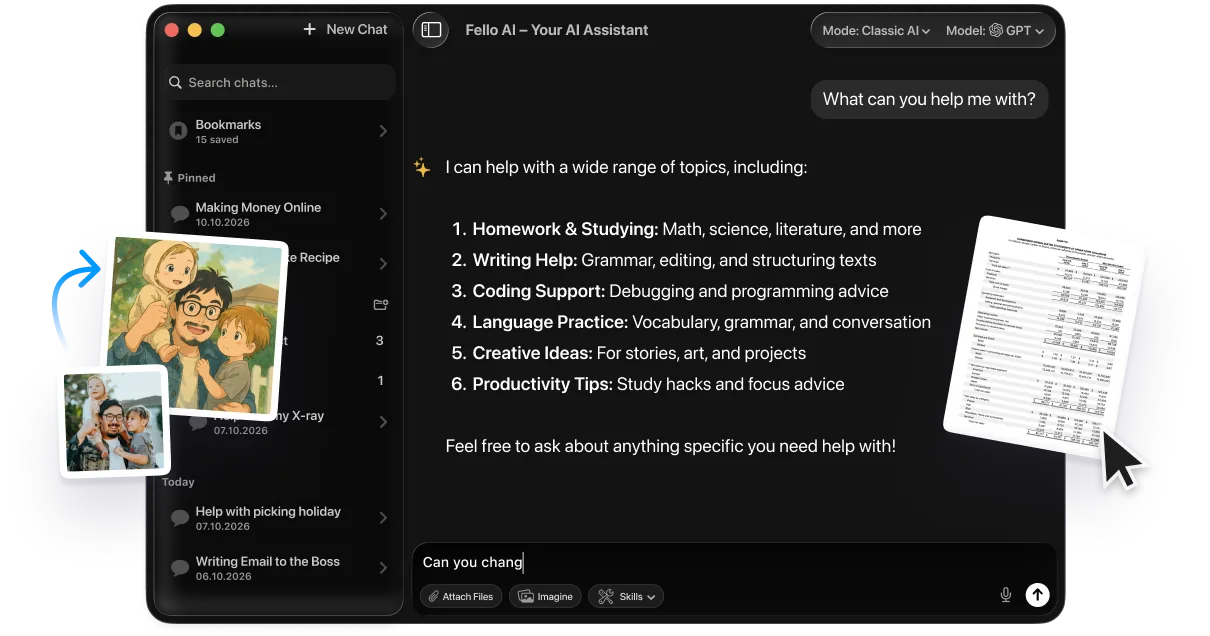
This guide walks through how to use ChatGPT alongside PowerPoint step by step, from building strong narratives and designing slide content to integrating research, running data simulations, and refining your final deck. For Mac users, Fello AI’s user-friendly interface helps you further streamline your PowerPoint workflow and create stunning presentations in a fraction of the usual time.
The Key Takeaways
- ChatGPT can generate slide themes, talking points, speaker notes, and full narrative arcs for any presentation topic
- It handles visual recommendations too, from chart type suggestions to AI image prompts for DALL-E
- Research summaries and data integration that used to take hours can be done in minutes with the right prompts
- ChatGPT can run hypothetical scenarios and simple data simulations to strengthen your argument
- Fello AI’s image recognition feature lets you screenshot your slides and get instant AI feedback
The Role of ChatGPT in Improving PowerPoint Presentations
You might not have immediately associated ChatGPT with delivering PowerPoint presentations. After all, isn’t it just a text-based AI assistant? Think of it as a brainstorming partner that can generate fresh ideas, talking points, and examples to illustrate your key messages. But ChatGPT can do so much more.
It can analyze your content and provide suggestions for improvement, ensuring your slides are clear, concise, and impactful. It can also assist with research, data processing, and even appealing visual elements.
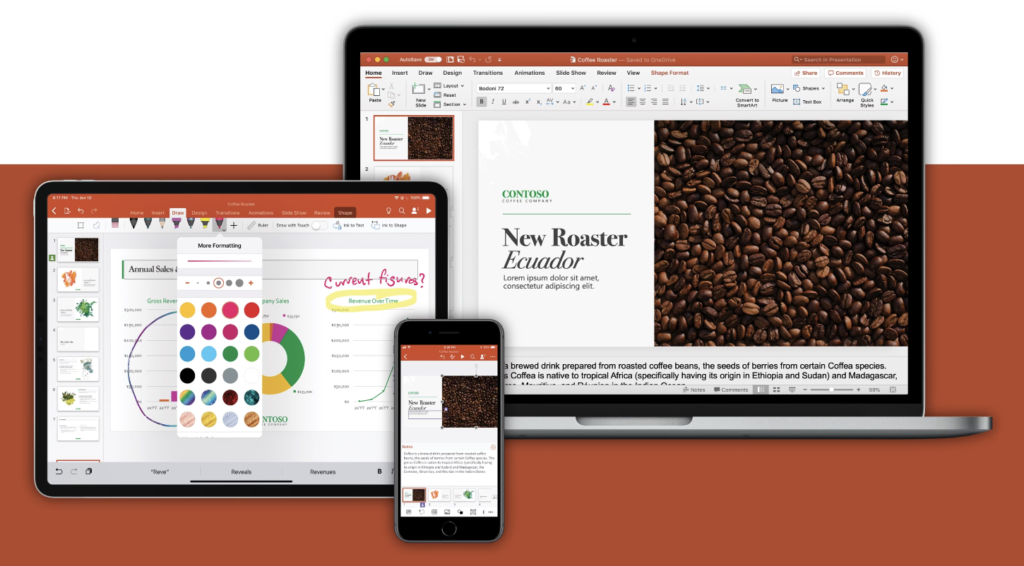
Step-by-Step Guide to Enhancing PowerPoint Slide Creation with ChatGPT
To illustrate how you can use ChatGPT to create a top-tier PowerPoint presentation, here is the process step by step, so you can see exactly how powerful this AI tool can be in your workflow.
Starting with a Strong Narrative
There’s nothing worse than an aimless presentation. Use ChatGPT to craft strong overarching narratives to guide your slide creation.
- Idea Generation: “Suggest three central themes for a presentation on the future of renewable energy in the transportation sector.”
- Storyline Development: “Create a compelling narrative arc for a 20-minute presentation on the impact of artificial intelligence on the healthcare industry.”
Designing Engaging Content
With your broader guardrails and overall theme in place, it’s time to create engaging slide content. This is perhaps the area where ChatGPT is strongest, and you can create an entire presentation’s worth of content within minutes.
- Slide Content Creation: “Generate five key talking points for a slide discussing the benefits of implementing a remote work policy.”
- Detailed Notes: “Please read my slide covering the latest trends in e-commerce and help me draft speaker notes that elucidate my points, including examples.”
Visual Enhancements
Presentations don’t just need to sound great. They need to look great, too. Without appealing visuals, you will struggle to capture your audience and ensure your message sinks in. ChatGPT can also speed up this process.
- Data Visualization: “Recommend three types of charts or graphs to effectively present data on quarterly sales figures.”
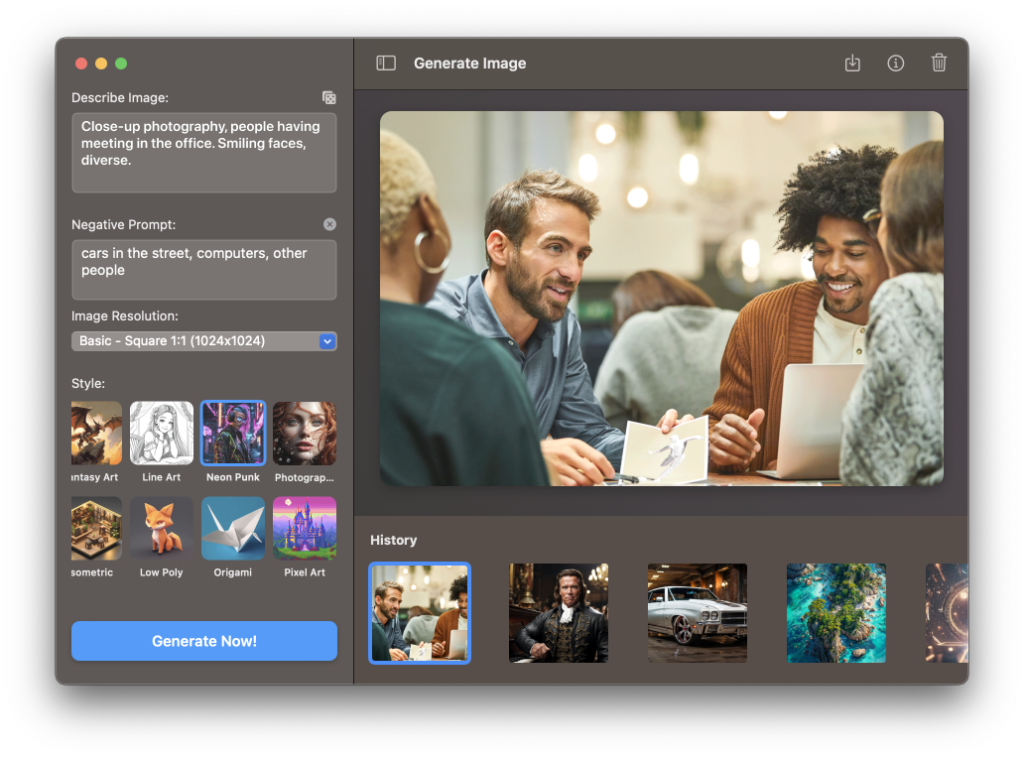
- Image Prompt Creation: “Please craft a prompt for DALL-E to generate an eye-catching header image for a slide about the environmental benefits of solar energy.”*
*Note: You would then need to place the created image prompt in a DALL-E-powered image generator, such as the AI Image Studio for Mac, to generate the image itself.
Editing and Refining Slides
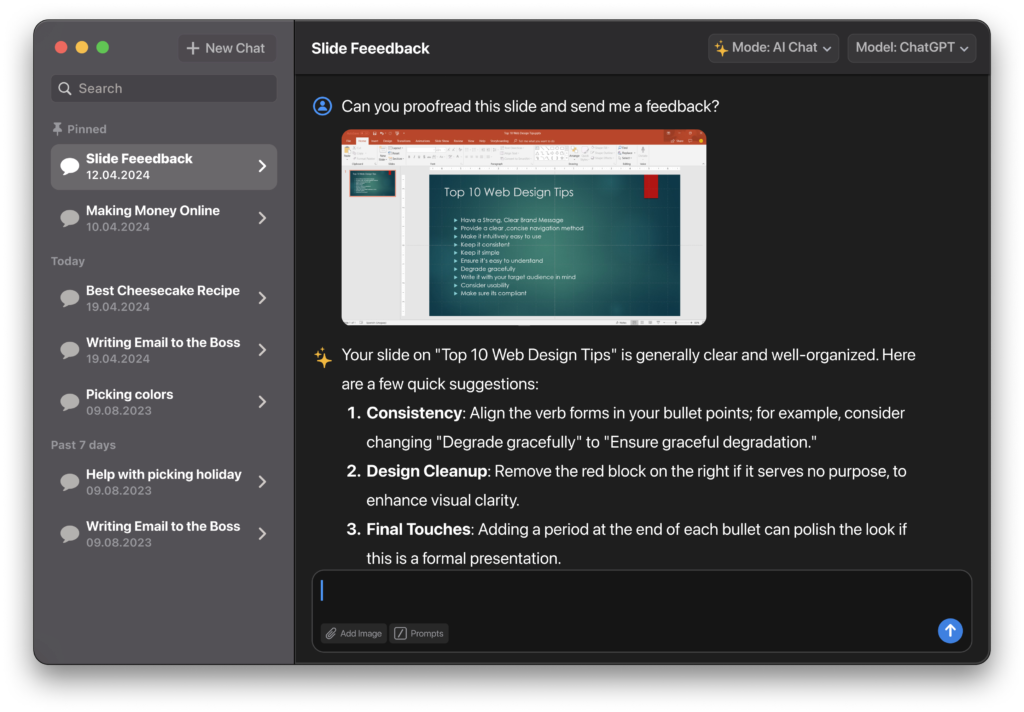
It always pays to have another pair of eyes reviewing your work before the big presentation. Whether it’s a key presentation to shareholders or a college seminar, ChatGPT can ensure your slides are error-free, clear, and consistent. With the image recognition feature in Fello AI, you can send over a screenshot of your presentation and ask AI about it directly.
- Content Review: “Proofread the slide content for grammatical errors and suggest improvements to enhance clarity and conciseness.”
- Terminology Consistency: “Check the presentation for industry-specific terms and acronyms and ensure consistent vocabulary throughout.”
Advanced ChatGPT Techniques for PowerPoint: Research and Data Integration
The best PowerPoint presentations deliver data-driven insights. Rather than spending hours on research and then trying to present findings in a compelling way, you can feed what you find into ChatGPT and have it do the heavy lifting.
Efficient Research Summaries
Don’t waste hours sifting through research papers for headline stats. Have ChatGPT dissect and analyze papers in seconds to give you the rich information you need.
- Research Review: “Summarize the main findings from this research paper on the impact of social media on consumer behavior.”
- Insight Extraction: “Identify the three most compelling statistics from this market research report to include in my presentation on industry trends.”
Data Integration and Visualization
ChatGPT can read uploaded spreadsheets and datasets to give you the insights you need to integrate them beautifully into your presentation.
- Data Interpretation: “Analyze this spreadsheet containing customer satisfaction scores and provide a summary of the key trends and insights.”
- Chart Selection: “Based on this dataset, recommend the best type of chart to visualize the relationship between customer age and product preferences.”
Scenario Creation and Simulation
ChatGPT can undertake complex tasks such as hypothetical scenario generation, solving math problems, coding, and data simulations. You can then incorporate these simulations to illustrate your points more effectively within your presentation.
- Scenario Generation: “Create a realistic scenario demonstrating how our new software solution can improve productivity in a mid-sized accounting firm.”
- Data Simulation: “Using the data provided above, run a simple simulation showing the potential energy savings achieved through our proposed sustainability measures in a typical office building over a one-year period.”
Conclusion
Adding ChatGPT to your PowerPoint workflow delivers real results at every stage, from initial ideation to final polish. It cuts research time, strengthens your narrative, handles visual recommendations, and catches errors before you step in front of your audience.
By using ChatGPT through the Fello AI Mac interface, you can generate presentation themes, create tailored slide content, get AI image prompts, summarize research, and run data simulations, all in one place. Start with one of the prompts above and build from there. For the modern, full workflow, read our complete guide to using AI in PowerPoint.
- Generate fresh ideas for slideshow themes when you’re lacking in inspiration
- Generate informative and persuasive slide content tailored to your audience in seconds
- Get help with visually appealing elements, including done-for-you AI image prompts
- Significantly cut down time spent incorporating research and data-driven insights
- Run simple hypothetical scenarios and simulations to better illustrate your points
FAQ
Can ChatGPT create a full PowerPoint presentation from scratch?
Not directly. ChatGPT generates text-based content such as themes, talking points, and speaker notes. You build the actual slides in PowerPoint. Tools like Fello AI make it faster to copy and apply ChatGPT’s output directly into your workflow.
Can ChatGPT suggest design elements for slides?
Yes. It can recommend chart types, layout structures, and even generate image prompts for DALL-E or other AI image generators. It cannot directly edit the PowerPoint file.
How do I use ChatGPT to improve an existing presentation?
Copy your slide text into ChatGPT and ask it to proofread, simplify, or restructure the content. With Fello AI, you can also take a screenshot of your slides and ask AI for visual and content feedback.
Is ChatGPT useful for data-heavy presentations?
Yes. You can paste in data or upload spreadsheets and ask ChatGPT to summarize key findings, recommend the best chart types, or run simple simulations to illustrate trends.
What is the best way to get started with ChatGPT for PowerPoint?
Start with the narrative. Give ChatGPT your topic and ask it to suggest three central themes or a presentation arc. Once you have a structure, use the prompts in this guide to fill each section with content.