ChatGPT Atlas shut down on August 9, 2026. OpenAI released the browser for macOS on October 21, 2025, promised Windows, iOS and Android versions that never arrived, and confirmed the deprecation on July 9, 2026. If Atlas is still sitting in your Applications folder, OpenAI’s wording is that it “may no longer open, browse, or support agentic workflows” after that date, which makes a copy that still launches unsupported rather than safe.
This page is the record of what ChatGPT Atlas was and what became of it. It covers the full timeline, what the browser actually did, the security research and criticism that followed it around, why it never left the Mac, and where its features live now. If you are looking for something to browse with instead, our guide to the best ChatGPT Atlas alternatives for Mac is the place to start.
The Key Takeaways
- ChatGPT Atlas launched on October 21, 2025 and stopped working on August 9, 2026. OpenAI confirmed the sunset a month earlier, on July 9, 2026.
- It was Mac-only for its entire run. Windows, iOS and Android were announced as coming soon on day one and never shipped.
- Atlas was a Chromium-based browser with ChatGPT built in: an Ask ChatGPT sidebar, optional Browser Memories, and an Agent Mode preview for paid tiers.
- Its browsing and agent features moved into the ChatGPT desktop app and a Chrome extension, which is where OpenAI now points former Atlas users.
- None of your Atlas data transferred automatically. Bookmarks, history, open tabs, cookies and saved passwords all needed a manual export before the cutoff.
What happened to ChatGPT Atlas
Atlas went from launch to shutdown inside a single product cycle. OpenAI announced it in October 2025 as its answer to Chrome, shipped steady updates through the winter, then folded it into a wider consolidation of its desktop software. The browser was switched off on August 9, 2026.
Here is the sequence, with the dates that matter.
| Date | What happened |
|---|---|
| October 21, 2025 | OpenAI releases ChatGPT Atlas for macOS on Apple silicon. Windows, iOS and Android are announced as coming soon. |
| October 22, 2025 | Anil Dash called it an “anti-web browser”, arguing it replaces the open web with AI-generated summaries. |
| October 27, 2025 | LayerX Security discloses a persistent memory-injection attack it calls “Tainted Memories”. OpenAI disputes the finding. |
| January 22, 2026 | New tab features ship, but Atlas still had no Windows or mobile version three months after launch. |
| March 19, 2026 | OpenAI says it will merge Atlas, the ChatGPT desktop app and Codex into a single desktop application. |
| July 9, 2026 | OpenAI’s James Sun confirms the browser is being discontinued, with a targeted deprecation date of 8/9. |
| August 9, 2026 | ChatGPT Atlas stops working. Its agentic browsing moves into ChatGPT and Codex. |
The July announcement gave people about a month of notice, and that notice mattered more than it sounds, because none of the browser data moved on its own. TechRepublic’s migration guide set out what Atlas users had to save before the cutoff. Bookmarks had to be exported as an HTML file, important history recorded separately, and cookies treated as sensitive, because a stolen session file hands over an authenticated account.
What ChatGPT Atlas actually was
Atlas was a full standalone web browser, not an extension. It was built on Chromium, the same open source project behind Google Chrome, so it rendered pages and handled web technologies the way Chrome did. What separated it was that ChatGPT sat inside the browsing surface rather than in a separate window.
It ran on macOS 14.2 or later and required an Apple silicon Mac. It followed a freemium model, free to install on Free, Plus, Pro and Go accounts, with the agent features reserved for paid tiers. This was the product OpenAI launched Atlas to challenge Chrome in October 2025.

The Ask ChatGPT sidebar
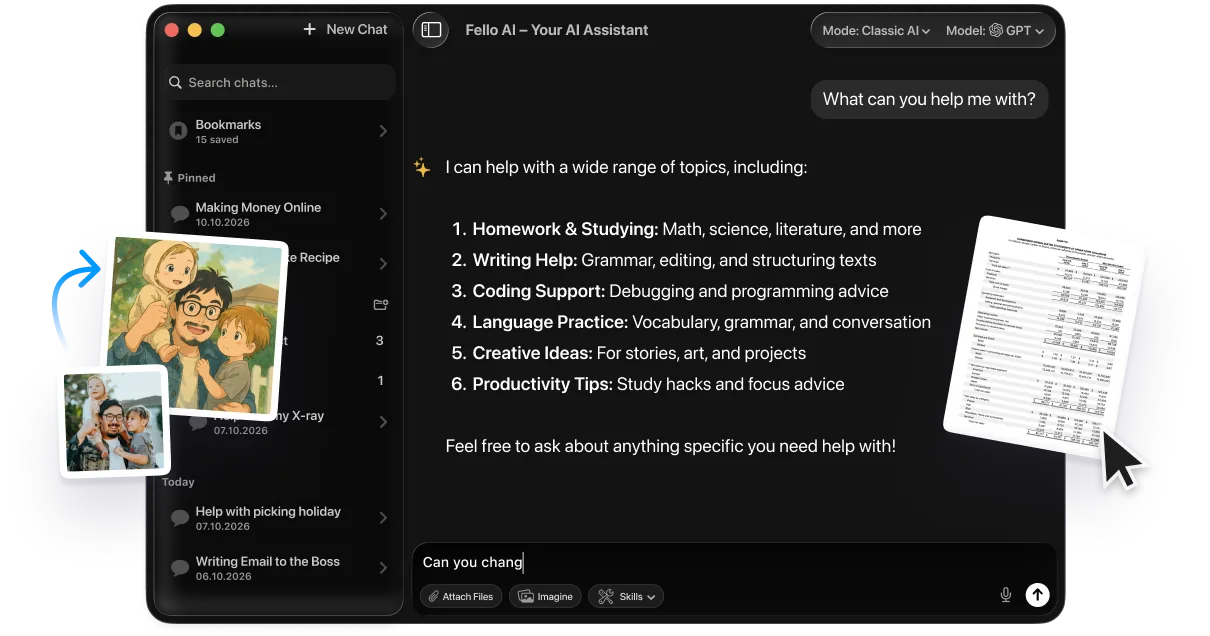
The sidebar was the feature most people actually used day to day. It read the page you were on, so you could ask it to summarise a long article, pull out figures, explain a passage or compare products without opening a second tab. A companion inline writing tool let you rewrite, shorten or retone text in any web form field.
The new tab page worked the same way, answering a typed query directly and letting you flip to a conventional list of links, images or news. That design is exactly what drew the sharpest criticism, covered further down.
Browser Memories
Browser Memories was optional and off unless you turned it on. It let Atlas retain facts and context from sites you visited so later answers were more personalised. It did not keep whole copies of pages; contents were summarised on the server, the raw page was discarded immediately, and the filtered summaries were deleted within seven days.
You could view, archive or delete individual memories, block a specific site from being read at all with a page visibility button in the address bar, or switch the feature off entirely. Those memories were tied to the browser, so they went with it.
Agent Mode and its limits
Agent Mode was the headline feature and it stayed a preview for the whole run. You triggered it from the sidebar, described a goal in plain language, and it navigated sites, clicked and filled forms while narrating its steps. Typical requests were things like researching flights for a weekend, comparing three laptops under 1,000 USD, or filling a shopping cart.
The boundaries were deliberately tight. Agent Mode could not run code, download files, install extensions, or reach other apps or your file system. It could run logged out, and pages it visited were kept out of your browsing history. Prompt injection on untrusted sites was a live risk the whole time, which is why every action was meant to be watched.
The privacy defaults, and the criticism that followed
Atlas shipped with better privacy defaults than its reputation suggested. The content of sites you visited was not used to train OpenAI’s models unless you opted in through an Include web browsing toggle in Data Controls. A separate anonymous diagnostics setting, Help improve browsing and search, was on by default and could be switched off.
Incognito signed you out, so chats were not saved to your account and no memories were created, though OpenAI kept signed-out chats for up to 30 days for abuse detection. For business use, OpenAI stated Atlas was not in scope for SOC 2 or ISO attestations, which made it a poor fit for regulated data.
The Tainted Memories vulnerability
Six days after launch, LayerX Security published research on an attack it named Tainted Memories. It relied on social engineering, tricking a signed-in user into clicking a malicious link, after which a compromised page could use a cross-site request forgery to write hidden instructions into ChatGPT’s memory. LayerX said the injection persisted across sessions and devices.
OpenAI rejected the finding, telling The Register that to its knowledge the issue did not affect Atlas, that it could not reproduce the result, and that it had seen no real-world exploitation. LayerX stood by the research. The dispute was never publicly settled, and it set the tone for how security researchers treated agentic browsers afterwards.
The anti-web argument
The other running criticism was about the web itself. Anil Dash argued that Atlas substituted its own AI-generated content for the web while looking like it was showing you the web, pointing out that a search for Taylor Swift returned no links to her actual site. He framed that as the product working as designed rather than as a bug.
That argument outlived the browser. It is now the standard objection to every AI-first browsing surface, including the ones people moved to after Atlas closed.
Mac only, from launch to shutdown
The single most concrete reason Atlas struggled is easy to state. It never ran anywhere except macOS on Apple silicon. Windows, iOS and Android were promised at launch and none of them shipped in the browser’s entire lifetime, so a browser competing with Chrome was unavailable to most of the people using Chrome.
By January 2026 the pattern was obvious enough that coverage of new Atlas features led with the missing platforms rather than the features. Two months later OpenAI announced the consolidation that ended it, merging the browser, the ChatGPT desktop app and Codex into one application.
For Mac users the loss was real, because Atlas was one of the few AI tools where the Mac got the product first. That is also why the shutdown hit this audience harder than most, and why the replacement question is a Mac question.
What replaced ChatGPT Atlas
OpenAI did not abandon agentic browsing, it moved it. The ChatGPT desktop app absorbed the browsing experience, and a Chrome extension covers the case where you need your existing profile and logged-in sessions. Codex takes the deeper automation work. If that desktop app is now where your browsing happens, our guide to the ChatGPT desktop client for Mac covers what it does and how to set it up.
Here is where each of the pieces ended up, based on OpenAI’s own notice on evolving Atlas into ChatGPT.
| Atlas feature | Where it went |
|---|---|
| Ask ChatGPT sidebar | Rebuilt inside the ChatGPT desktop app, plus the ChatGPT Chrome extension for assistance while you browse. |
| Agent Mode | Agentic browsing moved into ChatGPT and Codex rather than a standalone browser. |
| Tabs, downloads, navigation | The desktop app’s browser supports multiple tabs, downloads, site logins, autofill, password management, extensions and persistent browser state. |
| Browser Memories | Ended with the browser. As of August 2026 OpenAI has not documented an Atlas-style browser memory toggle in the desktop app. |
| Your bookmarks and passwords | Nothing migrated automatically. Anything not exported before August 9 had to be recovered manually. |
If you want options that are not tied to one company’s roadmap, our alternatives roundup compares OpenAI’s own replacement against multi-model Mac apps and rival AI browsers. It is also worth reading how Atlas compared with Perplexity Comet, since Comet is the closest thing left to what Atlas was trying to be.
If Atlas is still on your Mac
A copy that still opens is not a working browser. It is an unmaintained Chromium build that will not receive security patches again, and Chromium patches matter more than almost any other software update you install. Do not keep browsing in it.
Your local Atlas profile may still exist under your user Library folder, which is where bookmarks and history are stored on disk. Saved passwords are a harder case, because they are encrypted against your Keychain and are best treated as gone; reset anything important instead. Our alternatives guide walks through what is still recoverable and what is not.
Conclusion
ChatGPT Atlas was a genuine attempt at rebuilding the browser around an assistant, and it failed on distribution rather than on ideas. It shipped on one platform, stayed there, and was absorbed into the app it was meant to extend. The features survived; the browser did not.
If you were an Atlas user, the practical next step is choosing what to browse with now. Start with our alternatives guide and our rundown of every AI browser still running, then decide whether you want OpenAI’s own replacement inside the ChatGPT app or a Mac tool that is not tied to a single vendor’s roadmap.
FAQ
Is ChatGPT Atlas still available?
No. OpenAI shut ChatGPT Atlas down on August 9, 2026, and the browser is no longer distributed or supported. Its agentic browsing features moved into the ChatGPT desktop app and a Chrome extension.
Does Atlas still work if I already installed it?
OpenAI’s wording is that Atlas “may no longer open, browse, or support agentic workflows” after August 9, 2026. If your copy still launches, it is an unsupported Chromium build that will never be patched again, so treat it as unsafe rather than fine.
Did ChatGPT Atlas ever come to Windows, iOS or Android?
No. All three were announced as coming soon when Atlas launched in October 2025, and none of them shipped before the browser was shut down. Atlas ran only on macOS 14.2 or later with an Apple silicon Mac.
What replaced ChatGPT Atlas?
The ChatGPT desktop app, which now includes its own browser with tabs, downloads, logins and extensions, plus a ChatGPT Chrome extension for browsing in an existing Chrome profile. Deeper automation moved to Codex.
Can I still get my Atlas bookmarks and passwords back?
Bookmarks and history may still exist in the local Atlas profile inside your user Library folder, so a manual copy is sometimes possible. Saved passwords were encrypted against your Keychain and are best treated as unrecoverable; reset those credentials instead.