Tired of jumping between different apps to create standout content on your iPhone? Adobe is bringing two powerful, AI driven updates to its mobile apps that promise to streamline your workflow, whether you’re a video creator or a photographer. These new features are designed to feel right at home in your Apple ecosystem, saving you from the tedious parts of the creative process so you can focus on the fun.
So, how can you create polished YouTube Shorts without ever leaving your iPhone? And is it finally possible to sort through hundreds of photos from a weekend trip in just minutes? Let’s dive in.
The Key Takeaways
- Premiere on iPhone → Create for YouTube Shorts (coming soon): Jump in from the Shorts app via “Edit in Adobe Premiere,” edit with a multi-track timeline and auto-captions, then publish back to YouTube from Premiere.
- Lightroom → Assisted Culling (beta): Analyze a selected album/collection/folder to surface best shots using Subject Focus, Eye Focus, Eyes Open; use Auto Stack to group near-duplicates.
- Why it matters: Puts pro-grade editing and photo selection on mobile, an upgrade beyond simpler apps like CapCut, so you spend less time juggling apps and more time creating.
- Availability: Shorts workspace coming soon in Premiere on iPhone; Assisted Culling is Early Access/Public beta in Lightroom (cloud + mobile) and Lightroom Classic.
Adobe Premiere on iPhone Gets a YouTube Shorts Upgrade
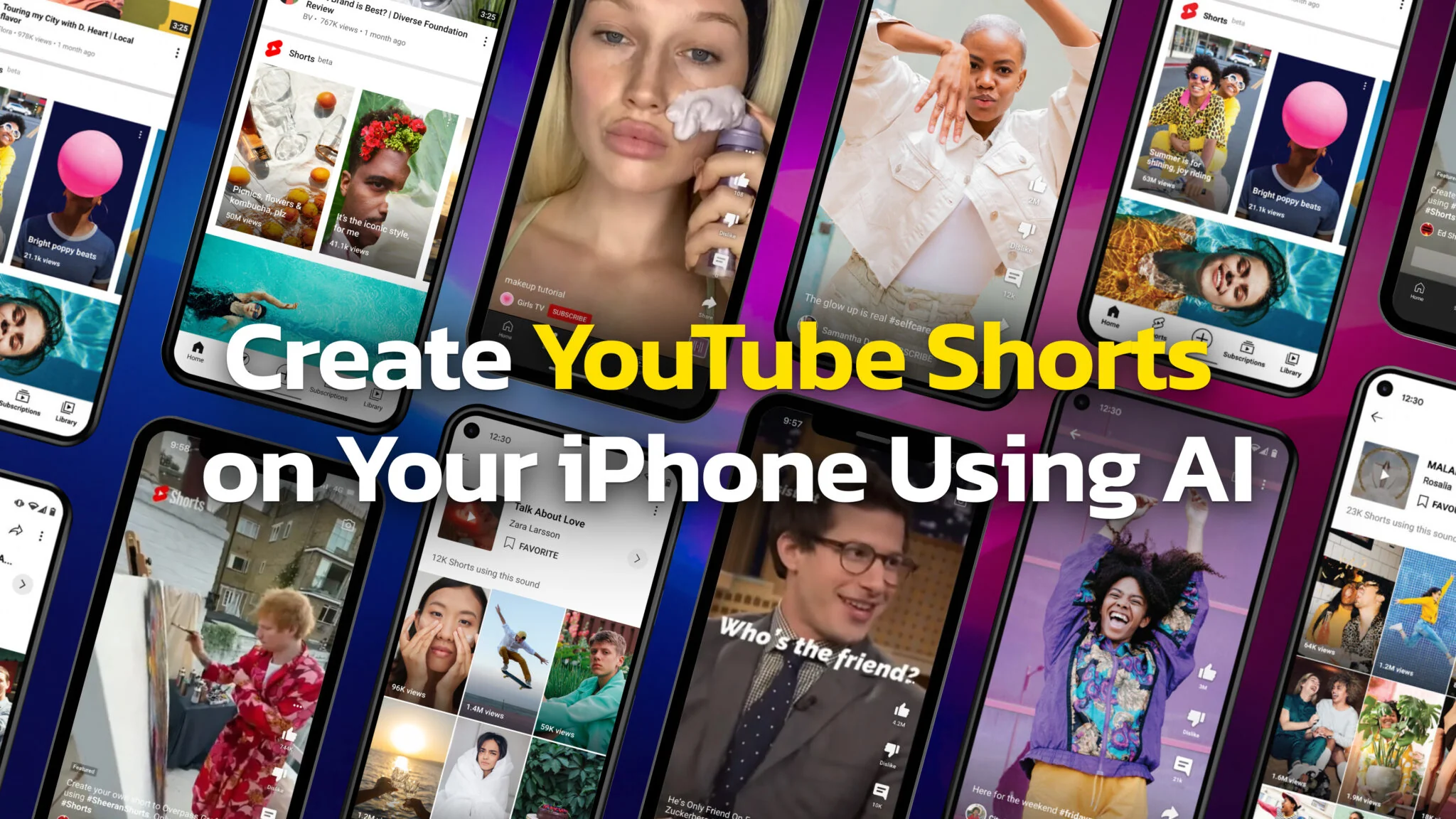
Adobe is adding a dedicated Create for YouTube Shorts space to Premiere on iPhone (free). From the YouTube Shorts app, tap Edit in Adobe Premiere to jump into a pro-style editor built for speed and quality.
This is much more than a basic trimmer. You get access to professional tools that bring desktop-class editing to your iPhone:
- Multi track timeline for video, audio, graphics, and text.
- Auto-captions and 4K HDR export for accessibility and quality.
- Creative Assets: Gain access to a library of templates, effects, transitions, stickers, and title presets designed to make your Shorts stand out.
- Streamlined Publishing: When your edit is complete, you can publish it directly back to YouTube Shorts in just a few taps, saving you several steps.
For those wondering about the Premiere vs Capcut for Shorts debate, the choice comes down to your goals. CapCut is fantastic for quick, trend-based videos that need to be made in seconds.
Premiere on iPhone serves as a clear step up, offering a more robust toolset for creators, marketers, and consultants who want a polished, professional look that aligns with their brand. It provides a serious upgrade path for creating high-quality content without ever needing to leave your phone.

Quick start: Edit a Short on iPhone
- In YouTube Shorts, tap Edit in Adobe Premiere.
- In Premiere on iPhone, trim on the multi track timeline, add a title/effect, and turn on auto-captions.
- Export and upload to YouTube from Premiere (in a few taps).
Lightroom Gets Smarter with AI Assisted Culling
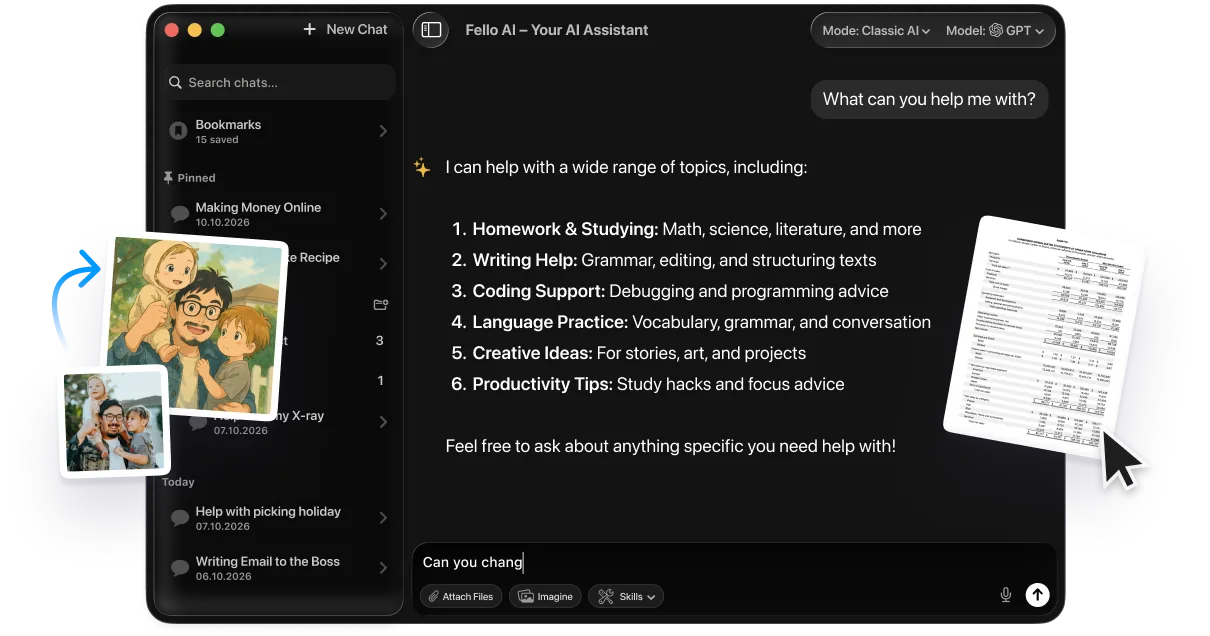
If you’ve ever returned from a trip or a photoshoot with hundreds of photos on your iPhone, you know the most daunting task is finding the best shots. Adobe is tackling this head-on with Lightroom Assisted Culling, a new AI powered feature designed to save you hours of manual review.
Instead of letting your photos sit unsorted, this tool analyzes a folder or album you select, presenting you with the best of the batch so you can get straight to editing. This feature is currently available in Lightroom Early Access / Public Beta across desktop and mobile versions.
You choose the album/collection/folder to cull; Lightroom doesn’t scan your entire library in the background.
The new culling feature streamlines your workflow by automating the most tedious parts of photo organization:
- Intelligent selection: scores Subject Focus, Eye Focus, Eyes Open; shows Selects/Rejects views.
- Auto Stack: groups by time or visual similarity; Lightroom picks a stack cover so you can compare and keep the best.
This is a game changer for anyone from parents capturing family events to photographers culling a portrait session. Instead of spending an evening sorting photos on your Mac, you can get it done in minutes on your iPad while relaxing on the couch.
It addresses a major pain point by integrating a crucial organizational step directly into your editing app, creating a more fluid and efficient workflow across all your Apple devices.

Quick start: Cull 300 trip photos
- Open Lightroom → pick the album → Assisted Culling → Cull.
- Adjust Subject/Eye Focus and Eyes Open sliders → review Selects/Rejects.
- Assisted Culling → Stack → choose Time or Visual similarity → pick the keeper per stack.
What This Means for Apple Users
These Adobe updates are more than just new features; they represent a fundamental shift in how you can create on your Apple devices. The days of jumping between a half dozen different apps and dealing with clunky workarounds are coming to an end. Adobe is finally delivering a truly connected creative experience that feels right at home on your iPhone, iPad, and Mac.
For video creators, the direct YouTube Shorts integration is a game changer. Imagine filming a clip on your iPhone, tapping a button to send it to a powerful editor with multi track timelines, and publishing it directly, all in one fluid motion. This finally gives iPhone creators a true professional-grade mobile video workflow, transforming your device into a pocket sized production studio.
And for anyone who takes photos, the change is just as dramatic. Think of all the hours you’ve spent hunched over your Mac, painstakingly sorting through hundreds of photos from a holiday or family event. With Assisted Culling, that entire process is now automated. It eliminates the single biggest bottleneck in photography, letting you find your best shots in minutes on your iPad and jump straight to the creative part.
Ultimately, these AI powered tools are designed to respect your time and amplify your creativity. By removing the most tedious parts of the process, Adobe empowers you to produce higher-quality content faster than ever, all within the seamless Apple ecosystem
Conclusion
Adobe’s integration of AI into its Premiere and Lightroom mobile apps is a game changer for creators on Apple devices. The ability to seamlessly edit professional-grade YouTube Shorts and have an entire photo library culled in minutes eliminates long-standing workflow frustrations.
By respecting the creator’s time and amplifying their capabilities, Adobe is delivering on the promise of a truly streamlined mobile ecosystem. This shift empowers everyone, from casual users to seasoned professionals, to create their best work faster than ever, using only the device in their pocket.
Frequently Asked Questions (FAQ)
How do I edit YouTube Shorts on my iPhone with the new Adobe Premiere feature?
The new workflow is designed for seamless integration. When you’re in the YouTube Shorts app, you’ll see an “Edit In Adobe Premiere” button. Tapping this sends your video clip directly to Premiere, where you can use professional tools like a multi track timeline, add effects and titles, generate auto-captions, and then publish it back to YouTube in just a few taps.
Can I publish my video directly to YouTube Shorts from Premiere?
Yes. Adobe has confirmed this is a key part of the new workflow. Once you finish editing, you can upload directly to YouTube from within Premiere’s “Create for YouTube” space (which is rolling out), saving you the hassle of exporting and re-uploading.
Does the Premiere on iPhone app support auto-captions?
Yes. The article confirms that the new workflow includes the ability to generate auto-captions, which helps make your content more accessible and engaging for a wider audience.
Is Premiere on iPhone a free app?
Yes, the app itself is free to download and use on iPhone. Some AI features (e.g., generative effects) use Adobe’s generative credits, but you can edit for free without them; other advanced assets may require a Creative Cloud subscription.
What is Lightroom Assisted Culling and how does it work?
Assisted Culling is a new AI powered feature in Lightroom that analyzes a large batch of photos from a folder or album you select to find your best shots. It works by scanning for technical qualities like sharpness and focus, while also checking for things like whether a subject’s eyes are open. It then presents you with a curated gallery of the top images.
Does Assisted Culling automatically delete photos it thinks are bad?
No. The feature is non-destructive. It flags photos it determines are the strongest and marks likely rejects, but it never deletes anything automatically. You can review these suggestions before hiding or deleting anything, so you always stay in full control.
How does the “Auto Stack” feature in Lightroom work?
Auto Stack is a feature that works alongside Assisted Culling to help you organize your photos. The AI automatically groups visually similar photos together into a single “stack.” This declutters your view and makes it much easier to compare near identical shots side by side to pick the absolute best one.
When are these new AI features available?
According to the article, Lightroom’s Assisted Culling is available now in early access/public beta on both mobile and desktop. The new “Create for YouTube Shorts” workflow in Premiere on iPhone is listed as “coming soon.”
Does Lightroom’s Assisted Culling scan my whole library automatically?
No. This is an important distinction. The feature does not scan your entire library in the background. You must manually select a specific album, collection, or folder that you want to run the culling process on.
Which devices are these new features available for?
The “Create for YouTube Shorts” update is for Premiere on iPhone; Adobe has stated that an Android version is also in development. Assisted Culling is available in Early Access/Public Beta for both Lightroom (cloud based) and Lightroom Classic on desktop, as well as on mobile (iPhone and iPad).