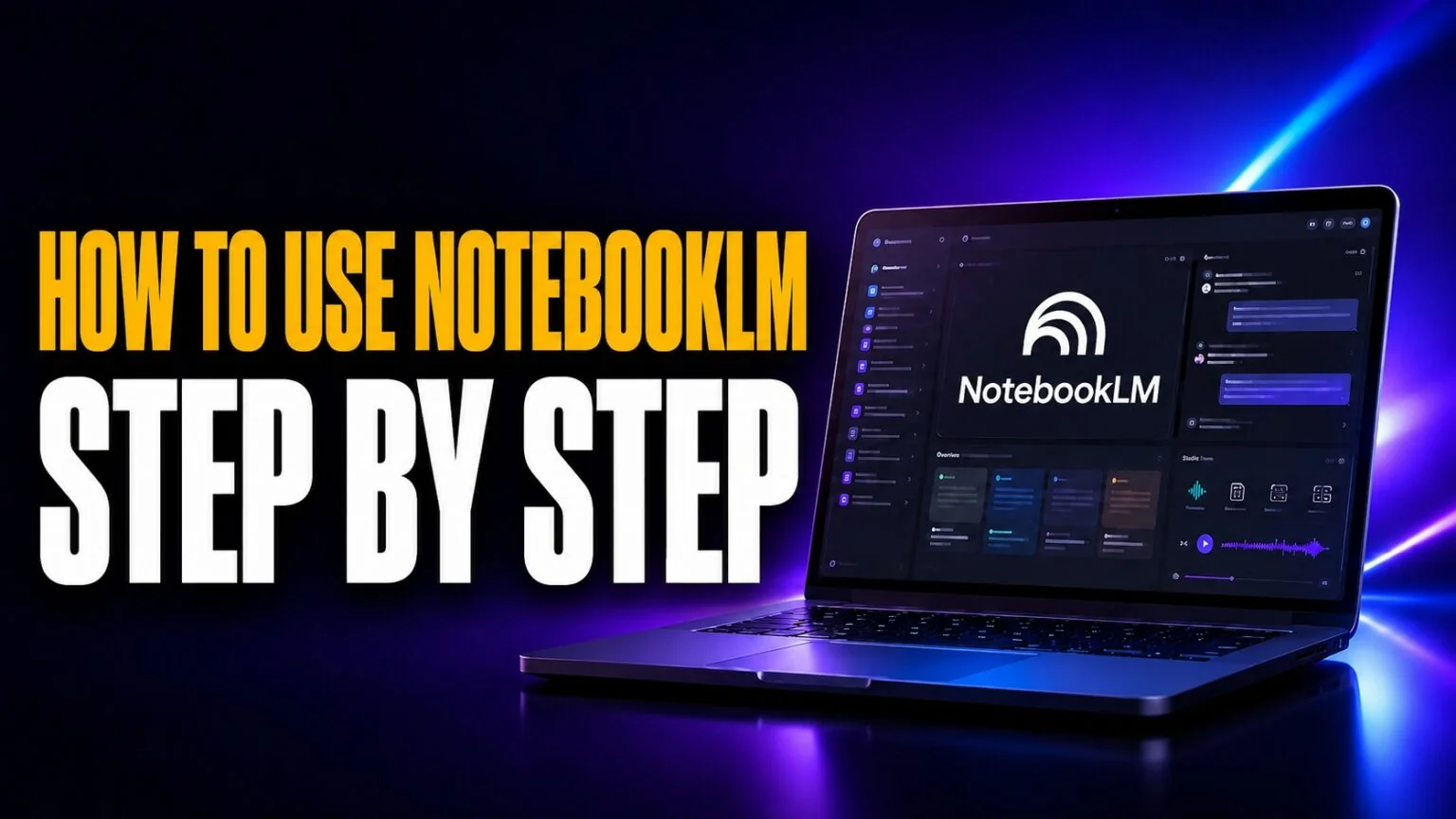
NotebookLM, now called Gemini Notebook, is Google’s free AI research tool, and you use it in six steps. Sign in, create a notebook, and upload up to 50 sources. Then ask questions, check the inline citations, and open the Studio panel to generate study guides, an audio podcast, or a narrated video. Unlike a normal chatbot, NotebookLM grounds every answer only in the documents you give it, so it cites the exact passage behind each sentence and rarely makes things up. Each source can hold up to 500,000 words, which means one notebook can absorb a textbook, a stack of PDFs, a few websites, and a YouTube lecture at the same time.
This guide walks through how to use NotebookLM from your first notebook to advanced study, research, and podcast workflows. It is fully updated for the 2026 feature set, including Video Overviews, the four Audio Overview formats, slide decks and infographics, and Deep Research. Whether you are a student cramming for exams, a researcher synthesising papers, or just curious how to use Google NotebookLM well, every section below is a concrete action you can copy today. The July 2026 rename to Gemini Notebook moved the address as well: notebooklm.google now redirects to notebook.google. The steps themselves did not change. New to the tool? Start with our explainer on what is NotebookLM.
Its Audio Overview is only one way to make a show, and for the wider field see our guide to the best AI podcast generators.
The Key Takeaways
- NotebookLM is free with up to 50 sources per notebook and 500,000 words per source; paid Google AI plans raise this to 100, 300, or 600 sources.
- The core workflow is create a notebook, add sources, chat with citations, generate Studio outputs in under 10 minutes.
- Audio Overviews come in four formats (Deep Dive, The Brief, The Critique, The Debate) and 80+ languages; Video Overviews add narrated videos in three formats, and the Studio panel also makes slide decks and infographics.
- For studying, NotebookLM turns sources into study guides, flashcards, quizzes, and mind maps with one click.
- For research, Deep Research reads dozens of sources and writes a full report you can add straight back into your notebook.
What Is NotebookLM and How Does It Work?
NotebookLM is Google’s AI research and note-taking tool that grounds every answer in sources you upload, like PDFs, Google Docs, websites, and YouTube videos. You use it by creating a notebook, adding sources, then asking questions or generating study guides, audio, and video overviews from that material. It runs on Google’s Gemini models, but it deliberately ignores its own general training when answering, so responses stay tied to your documents with clickable citations.
That source-grounding is the whole point. A standard chatbot answers from the open internet and its training data, which is powerful but hard to verify. NotebookLM only reads what you feed it, then shows a small numbered citation next to each claim so you can click straight to the original sentence. This makes it far more trustworthy for studying, legal review, research synthesis, and any task where being wrong is expensive.
Here is the 2026 feature set at a glance.
| Feature | What it does | Where to find it | Free-tier limit | Best for |
|---|---|---|---|---|
| Sources | Documents the AI is allowed to read | Source panel (left) | 50 per notebook, 500k words each | Grounding every answer |
| Chat + citations | Q&A grounded in your sources | Centre panel | Standard limits, refresh every 5 hours | Verifying facts fast |
| Audio Overview | AI hosts discuss your sources | Studio panel | 4 formats, 80+ languages | Passive learning, podcasts |
| Video Overview | Narrated, animated deep-dive video | Studio panel | Explainer, Short; Cinematic 18+, English only | Visual learners, sharing |
| Slide Deck & Infographic | A presentation or a one-page visual summary | Studio panel | Included, 18+ only | Revision, sharing a topic |
| Deep Research | Agent reads the web and writes a report | Source panel, Web source | Included | Literature reviews |
How to Use NotebookLM Step by Step
You can go from a blank screen to a finished study guide in well under ten minutes. The six steps below are the entire core workflow, and every later section just builds on them.
Step 1: Sign in and create a notebook (1 minute)
Go to notebook.google (the old notebooklm.google address redirects there) and sign in with any free Google account. Click the Create button and you will land in an empty notebook with three panels, sources on the left, chat in the centre, and the Studio panel on the right. Give the notebook a clear name so you can find it later, because a heavy user quickly ends up with dozens. You never need a paid plan to follow this guide, and our guide to whether NotebookLM is free covers exactly what the free tier includes.
Step 2: Add your sources (2 minutes)
Click Add source and choose your inputs. NotebookLM accepts PDFs, Word, PowerPoint, .txt, Markdown and ePub files, Google Docs, Slides and Sheets, CSVs, images, audio files, website URLs, YouTube video links, and pasted text, and you can mix all of them in one notebook. Per Google’s official NotebookLM limits, the free tier allows 50 sources per notebook at up to 500,000 words each, so most projects never come close to the ceiling. Spreadsheets now work too: Google Sheets up to 100,000 tokens and CSV files, so export an Excel file to CSV or Sheets rather than to PDF.
Step 3: Ask questions and read the citations (2 minutes)
Type a question into the chat box, or click one of the suggested starter questions NotebookLM generates from your material. Every answer comes with numbered inline citations; click any number to jump to the exact sentence in the source it came from. This is the habit that separates casual users from power users, because verifying the citation takes two seconds and catches the occasional misread.
Step 4: Save the answers worth keeping (1 minute)
Save the answers worth keeping as notes so they survive the session. Saved responses and written notes live in the notebook permanently, can be reused as sources, and are never used to train Google’s models.
Step 5: Generate a Studio output (2 minutes)
Open the Studio panel on the right and pick an output. One click turns your sources into a report, quiz, set of flashcards, mind map, infographic, slide deck, or an Audio or Video Overview. Reports come either as a document built from a template or, on the web, as an interactive Learning Overview with other Studio items embedded. Each output is generated only from your sources, so a report for a chemistry notebook stays on chemistry. If you have used up your limit, the web version offers Generate later, which queues the output and notifies you when it is ready.
Step 6: Refine with custom instructions (1 minute)
Before generating, use the customise option to steer the output. Tell NotebookLM to focus on specific chapters, skip a topic, or change the expertise level. That is the difference between a generic summary and one built for your exam or report.

How to Use NotebookLM to Study
NotebookLM is one of the strongest study tools available because it builds revision material directly from your own lecture notes and textbooks rather than the open web. This is the standalone research product, not the study notebooks inside the Gemini app, which are a separate adaptive tutor. Upload your slides, reading list PDFs, and a recorded lecture, then open the Studio panel and generate a study guide for structured revision, flashcards for active recall, and a quiz to test yourself under pressure. Generate a mind map when you need to see how concepts connect rather than memorise them in isolation.
The smartest study move is the Audio Overview. Generate a Deep Dive on a dense chapter, then listen on the commute or at the gym, which converts dead time into a second pass over the material. For exam prep specifically, use custom instructions to tell the hosts to focus on the topics your professor emphasised. If you are a student, check whether you qualify for free Google AI Pro for students, which lifts the source limits considerably at no cost, and browse the wider list of best AI study tools to pair with it.
How to Use NotebookLM for Research
For research, the workflow shifts from memorising to synthesising across many documents at once. Drop every paper, report, and primary source into a single notebook, then ask comparative questions like which findings conflict, what the consensus is, or where the evidence gaps sit. Because every answer is cited back to a specific source, you can move from a NotebookLM claim straight into the original paper without losing the thread, which is the part generic chatbots cannot do reliably.
The standout research feature is Deep Research. In the source panel, add a Web source and choose Deep Research instead of fast lookup, then enter your topic. The agent builds a research plan and reads hundreds of high-quality pages in the background. It then writes a structured report that you can add back into your notebook as a new source, along with its full source list. This effectively gives you a literature-review first draft in minutes, which you then verify and refine against the original material.
How to Use NotebookLM to Create a Podcast or Video Overview
The Audio Overview is the feature that made NotebookLM go viral, and it now ships in four formats. Deep Dive is the default two-host conversation. The Brief is a single speaker delivering the key points in under two minutes. The Critique has two hosts constructively evaluating your work, like an essay or design doc. The Debate stages a formal back-and-forth on the topic. Audio Overviews support 80+ languages, and in English you can also set the length to Shorter, Default, or Longer and add a prompt to steer what the hosts focus on. For the full walkthrough on how people are using this to turn your notes into a podcast, see our dedicated guide. Google’s own Audio Overview help docs list every format option. In English you can also switch on interactive mode, press Join while you listen, and ask the hosts a question by voice; they answer from your sources and then carry on.
Video Overviews are the big 2026 addition. Instead of audio only, NotebookLM now generates a narrated video built from your sources, available right next to Audio Overviews in the Studio panel. Pick Explainer for a structured overview or Short for a video of about 60 seconds, and choose a visual style such as Whiteboard, Watercolor or Anime. The richer Cinematic format, which launched for AI Ultra subscribers, is available in English only and for users aged 18 and over. A video can take more than 30 minutes to generate. It is ideal for visual learners and for sharing a topic with people who will never read the source PDF. NotebookLM keeps shipping quickly, so for the running list of changes see every new NotebookLM feature in 2026.
How to Use NotebookLM Effectively: Pro Tips
A few habits separate people who get real value from NotebookLM from people who treat it like a search box. Keep notebooks topic-focused rather than dumping everything into one, because a tight source set produces sharper answers than a sprawling one. Upload your most relevant sources first, since the model weights what it has been given and quality beats quantity every time.
Always click the citation before you trust a surprising answer; it takes two seconds and is the single biggest reliability upgrade you can adopt. Use custom instructions on every Studio output so the result matches your exam, audience, or report instead of a generic summary. Finally, save the chat responses that matter as you go, because a notebook you can return to in six months is far more valuable than a one-off session. Treat the notebook as a living workspace rather than a one-time query box, and the tool compounds in value.
NotebookLM Pricing and Plans
NotebookLM is free with generous limits, and you only pay if you need more capacity through a Google AI subscription rather than buying NotebookLM on its own. The free tier covers 50 sources per notebook, while Plus at $4.99/month raises that to 100 sources, Pro at $19.99/month to 300 sources, and the two Ultra tiers to 500 sources at $99.99/month or 600 sources at $199.99/month. Since September 2026 the usage limits are compute-based rather than daily: they refresh every 5 hours up to a weekly cap, with Plus at twice the free allowance, Pro at four times, and Ultra at 5x or 20x of Pro. For the full tier-by-tier breakdown, including notebook caps and Workspace options, see our complete NotebookLM pricing breakdown.
NotebookLM vs ChatGPT and Gemini: How It Is Different
The key difference is the source of truth. ChatGPT and Gemini answer from their training data and live web access, which makes them brilliant generalists for open-ended questions, drafting, and brainstorming. NotebookLM deliberately restricts itself to the documents you upload, which makes it weaker for general knowledge but far stronger for accuracy, citation, and trust on a defined body of material.
In practice you use them together. NotebookLM is the right tool when the answer must come from specific sources, like your lecture notes, a contract, or a research corpus. A general assistant is the right tool when you want ideas, code, or knowledge beyond your documents. Our NotebookLM vs ChatGPT comparison maps which job belongs to which tool. If you want one place to switch between Claude, ChatGPT, Gemini, Grok, and DeepSeek for that everyday general work, a multi-model app like Fello AI covers it for $11.99/month in the US (prices vary by country). It can even turn your notes or PDFs into a spoken podcast, similar to an Audio Overview, plus images, slides, and documents in the same chat. It pairs naturally with NotebookLM’s document-grounded research rather than replacing it.

How NotebookLM Works With Gemini
NotebookLM is powered by Google’s Gemini models under the hood, which is why its summarisation and reasoning quality keeps improving as Gemini does. You do not pick a model or manage it; NotebookLM applies Gemini automatically to read your sources, write Studio outputs, and run Deep Research. If you want to understand the engine driving it, our coverage of the Gemini models that power it explains where the underlying capability comes from.
Conclusion
Learning how to use NotebookLM comes down to one loop. Add trustworthy sources, ask cited questions, then let the Studio panel turn the material into the format you actually need. Start with a single notebook on something you are working on this week, upload three or four sources, and generate one study guide and one Audio Overview to feel the difference source-grounding makes. Once that workflow is muscle memory, layer in Deep Research and Video Overviews for heavier projects.
The fastest way to get good is to use it on real work today rather than a test document. Open notebook.google, create your first notebook, and run the six steps above.
FAQ
Is NotebookLM free to use?
Yes. The free Standard tier covers everything in this guide, including Audio and Video Overviews, with no card required. Paid Google AI plans raise the usage limits, which refresh every 5 hours up to a weekly cap, and the source limits, rather than unlocking new steps. Watermark-free outputs on Pro and above are the main extra, except in India, South Korea and Vietnam, where a visible watermark is always added.
Is Gemini Notebook the same as NotebookLM?
Yes. Google renamed NotebookLM to Gemini Notebook on July 16, 2026. Every step in this guide still works the same way, with the same notebooks. The address changed: notebooklm.google now redirects to notebook.google, so old bookmarks still land in the right place.
What file types can NotebookLM read?
PDFs, Google Docs and Slides, Microsoft Word and PowerPoint files, ePub books, Google Sheets and CSVs, plain text and Markdown, web pages, images with OCR, audio files and public YouTube transcripts. Each source can hold up to 500,000 words or 200MB.
How do I make a podcast with NotebookLM?
Open the Studio panel in your notebook, choose Audio Overview, pick one of the four formats, optionally add a steering prompt telling the hosts what to focus on, then generate and download the audio. If you are not sure what to put in that steering prompt, our guide to NotebookLM prompts has fourteen worth copying.
Is NotebookLM safe and private?
Google states that the content you upload to personal notebooks is not used to train its models. Workspace and Enterprise plans add further data-handling protections, and notebooks stay private until you share them.
How is NotebookLM different from ChatGPT or Gemini?
ChatGPT and Gemini answer from broad training data and the open web. NotebookLM answers only from the sources in your notebook and cites each passage, which is why it suits studying and research on material you already have.
A imagem de destaque deste artigo foi criada com a ajuda de IA.