Apple Intelligence is free, and you can turn it on in three taps on any supported iPhone, iPad, or Mac. You update your device to the latest software, open Settings, tap Apple Intelligence & Siri, and switch it on. The AI models then download in the background, which needs about 7 GB of free storage and a Wi-Fi connection.
This guide walks you through the exact steps for every device, the supported-device list, how long the download takes, and what to do when the toggle is missing or greyed out. It also covers what changes this fall, when iOS 27 brings the next-generation Siri AI built on a custom Google Gemini model that Apple announced at WWDC on June 8, 2026. If your device is too old to qualify, we show you a way to run every major AI model anyway. If Siri itself stops answering after you switch it on, our guide on why Siri is not working can help.
The Key Takeaways
- Turn it on: Settings → Apple Intelligence & Siri → Turn on Apple Intelligence. Same path on iPhone, iPad, and Mac (System Settings on Mac).
- It’s free. No subscription, no waitlist. You just need a supported device and the latest software.
- Requirements: iPhone 15 Pro or later, any iPhone 16, iPad with M1 or iPad mini A17 Pro, or a Mac with M1 or later, plus about 7 GB of free storage.
- Download time varies. Keep the device on Wi-Fi and power; the on-device models can take from a few minutes to a couple of hours.
- Coming fall 2026: the iOS 27 update adds a rebuilt Siri AI running on a 1.2-trillion-parameter Google Gemini model from a deal worth roughly $1 billion a year.
How to Turn On Apple Intelligence on iPhone
Turning on Apple Intelligence takes three steps on a supported iPhone. The current software as of June 2026 is iOS 26.5.1, and Apple Intelligence has shipped since iOS 18.1, so you do not need to wait for anything new to start using it.
- Update your iPhone. Go to Settings > General > Software Update and install the latest version of iOS.
- Open the Apple Intelligence settings. In Settings, tap Apple Intelligence & Siri.
- Switch it on. Tap the toggle next to Apple Intelligence, or tap Turn on Apple Intelligence.
After you flip the switch, your iPhone starts downloading the on-device models automatically. Keep the phone connected to Wi-Fi and plugged into power for the fastest result. Once the download finishes, features like Writing Tools, summaries, visual intelligence, and Image Playground become available across the system. Once that finishes, the same Settings panel is where you set up the ChatGPT extension.
If you do not see Apple Intelligence & Siri in Settings at all, your iPhone model is not supported. Check the device list below before you keep looking, because the option will not appear on older hardware.
Supported Devices for Apple Intelligence
Apple Intelligence runs only on devices with enough on-device processing power, so the cutoff is strict. The table below shows the minimum model for each device class, and you can confirm the latest list on Apple’s support page. For the bigger picture, see our guide to what Apple Intelligence is and does.
| Device | Minimum model | Chip | Software | Notes |
|---|---|---|---|---|
| iPhone | iPhone 15 Pro / 15 Pro Max, any iPhone 16+ | A17 Pro or later | iOS 18.1+ | Standard iPhone 15 and earlier not supported |
| iPad | iPad with M1, iPad mini (A17 Pro) | M1+ / A17 Pro | iPadOS 18.1+ | A14/A15 iPads not supported |
| Mac | Any Mac with Apple silicon | M1 or later | macOS Sequoia 15.1+ | Intel Macs not supported |
| Apple Vision Pro | Apple Vision Pro | M2 | visionOS 2.4+ | Available in supported regions |
Storage matters too. The on-device models need roughly 7 GB of free space, so free up room before you turn the feature on if your device is full. Apple Watch has no separate switch or download of its own; it surfaces Apple Intelligence features like notification summaries through a paired, supported iPhone, which is why no storage is needed on the watch.
How to Turn On Apple Intelligence on Mac
The steps on a Mac mirror the iPhone, you just use System Settings instead of Settings. Any Mac with an M1 chip or later qualifies, while Intel Macs are left out entirely.
- Update macOS. Open System Settings > General > Software Update and install the latest version.
- Open Apple Intelligence settings. Click Apple Intelligence & Siri in the sidebar.
- Turn it on. Click the toggle next to Apple Intelligence, or click Turn on Apple Intelligence.
Your Mac downloads the models in the background once the toggle is on. As with iPhone, keep it on Wi-Fi and power so the download completes quickly. Writing Tools then appear system-wide in apps like Notes, Mail, and Pages, and you get summaries and the upgraded Siri panel.
How to Turn On Apple Intelligence on iPad
iPad setup follows the same path as iPhone. You need an iPad with an M1 chip or later, or the iPad mini with the A17 Pro chip, running iPadOS 18.1 or newer.
- Update iPadOS. Go to Settings > General > Software Update.
- Tap Apple Intelligence & Siri in Settings.
- Toggle Apple Intelligence on.
The same Wi-Fi and power advice applies while the models download. Older iPads built on A-series chips like the A14 or A15 do not qualify, and the menu will not appear on them.
How to Download Apple Intelligence and How Long It Takes
There is no separate app to download. Once you turn the feature on, your device pulls the on-device AI models automatically, and that download is what people mean when they ask how to “download Apple Intelligence.” The first models arrive quickly, and larger ones follow over time.
Download time varies based on your device, your connection, and Apple’s server demand. It can take anywhere from a few minutes to a couple of hours, so the best move is to leave the device on Wi-Fi and power and let it work in the background. You can keep using your phone normally while this happens.
Apple no longer runs the old waitlist that existed when Apple Intelligence first launched in late 2024. Activation is now an instant toggle followed by a background download, with no queue to join.
Why Apple Intelligence Won’t Turn On
If the toggle is missing or greyed out, the cause is almost always one of four things. Work through them in order before you assume something is broken.
The most common reason is an unsupported device, since anything older than an iPhone 15 Pro, an M1 iPad or Mac, or the iPad mini A17 Pro will not show the option. The second is software, so make sure you have installed the latest iOS, iPadOS, or macOS update. The third is region and language, because Apple Intelligence rolls out by country and your device language and Siri language need to match a supported language such as English. The fourth is storage, as the models will not download if you are short of the roughly 7 GB they need.
Region limits are worth a closer look if you live in the EU or China. The next-generation Siri AI will not be available at launch in the EU on iPhone and iPad, and availability in mainland China follows a different timeline. The core Apple Intelligence features have been expanding across regions, so check Apple’s support page for the current status in your country.
What Changes This Fall: iOS 27 and the New Siri
The version you turn on today is the current Apple Intelligence, but a major upgrade arrives with iOS 27, iPadOS 27, macOS 27, watchOS 27, and visionOS 27 in fall 2026. On the Mac, that release is macOS 27 Golden Gate. Apple unveiled it at the WWDC 2026 keynote on June 8, which was also Tim Cook’s final keynote as CEO. You can read the full rundown in our WWDC 2026 recap.
The headline change is Siri. The assistant is being rebuilt on a custom 1.2-trillion-parameter Google Gemini model, running on Apple’s private servers, under a deal reported to be worth around $1 billion a year that was announced on January 12, 2026. The result is a far more capable, conversational Siri that can act across your apps. We break down what that means in our explainer on whether Siri counts as real AI.
When the update lands, you will not need to do anything special to get the new Siri beyond installing iOS 27 on a supported device and keeping Apple Intelligence turned on. The setup path stays the same. Our iOS 27 guide covers the release date and which iPhones are supported.
Is Apple Intelligence Free?
Yes. Apple Intelligence is free on every supported device with no subscription and no in-app purchase, as Apple confirms on its Apple Intelligence page. You only need a compatible iPhone, iPad, or Mac, the latest software, and enough free storage for the models. The upcoming Siri upgrade in iOS 27 is also included at no extra cost.
That makes it a strong default if you already own recent Apple hardware. The catch is that it is locked to that hardware, so an older iPhone, an Intel Mac, or an Android phone gets nothing.
No Supported Device? Run Every AI Model in One App
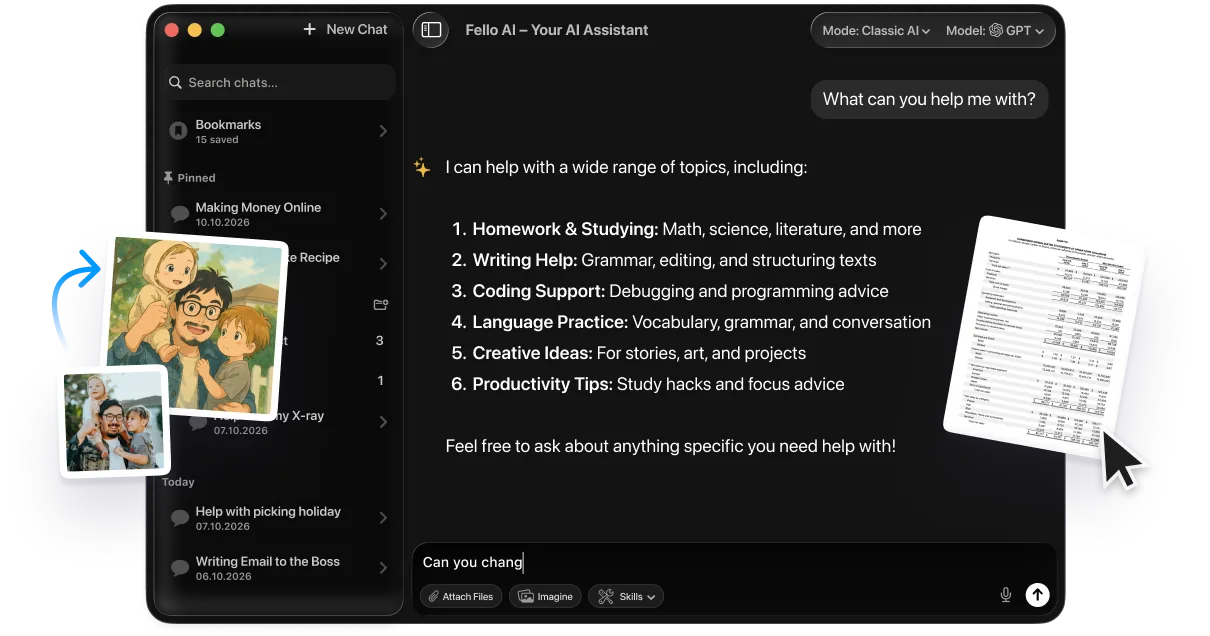
If your iPhone, iPad, or Mac is too old for Apple Intelligence, you are not stuck with nothing. Fello AI is a Mac app that gives you the leading AI models in one place, including ChatGPT, Claude, Gemini, Grok, and DeepSeek, for a single $9.99 a month. It runs on a much wider range of Macs than Apple Intelligence does, so older hardware still works.
The appeal is choice. Instead of one assistant tied to one company, you pick the best model for the task and switch between them without juggling separate subscriptions. It is a practical option whether your device missed the Apple Intelligence cutoff or you just want more than Siri can do today. For broader buying advice, our guide to setting up a new Mac covers where AI tools fit in.
Conclusion
Turning on Apple Intelligence is quick: update your device, open Settings > Apple Intelligence & Siri, and switch it on. The models download in the background, it costs nothing, and the only real barrier is whether your hardware makes the cut. If it does, enable it today and let the fall iOS 27 update bring the new Gemini-powered Siri on top. If it does not, a multi-model app like Fello AI fills the gap on almost any Mac. Change your mind later? Here is how to turn off Apple Intelligence, or just turn off Siri, just as quickly.
FAQ
How do I turn on Apple Intelligence?
Open Settings, tap Apple Intelligence & Siri, then tap the toggle next to Apple Intelligence or tap Turn on Apple Intelligence. On a Mac, use System Settings. The AI models download automatically afterward.
How do I get Apple Intelligence for free?
It is already free on supported devices. Update to the latest iOS, iPadOS, or macOS, then turn it on in Settings. There is no subscription and no waitlist.
How long does Apple Intelligence take to download?
It varies from a few minutes to a couple of hours depending on your device, connection, and Apple’s server demand. Keep the device on Wi-Fi and power for the fastest download.
Why can’t I turn on Apple Intelligence?
Usually because your device is unsupported, your software is out of date, your region or language is not yet supported, or you are short of the roughly 7 GB of free storage the models need.
Do I need iOS 27 to use Apple Intelligence?
No. Apple Intelligence works on iOS 18.1 and later and is live on the current iOS 26.5.1. iOS 27, due in fall 2026, adds the new Gemini-powered Siri but is not required to use today’s features.