How to turn off Gemini comes down to four settings that stop it opening, listening and reading your Gmail, even on phones where the app itself cannot be uninstalled. The job got harder in September 2026, when Google began removing Google Assistant from phones. Once that removal reaches your device, you can no longer switch back to Assistant. The fix now is to switch Gemini’s entry points off, not to swap it for the old assistant.
This guide gives you the exact settings paths for every surface where Gemini lives: Android, Samsung Galaxy, Pixel, Xiaomi, iPhone, Gmail, Chrome, Google Docs, Drive and Google Search. Every path was checked against Google’s and Samsung’s own help pages in October 2026. You also get a table of what each switch actually turns off, the privacy backstory, and a private AI option if you still want an assistant on your own terms.
The Key Takeaways
- Google started removing Google Assistant from phones on September 4, 2026, and once it is gone you cannot switch back. The way out is to turn Gemini’s button, voice and lock-screen triggers off.
- Gemini in Gmail is controlled by “Smart features in Google Workspace”, not by the Gmail checkbox most guides point to. That one switch also covers Docs and Drive.
- The separate Gmail, Chat and Meet switch costs you inbox tabs, Smart Compose and Smart Reply, so leave it on unless you want those gone too. Spellcheck is not on Google’s list of things it disables.
- Chrome keeps both Gemini controls under Settings → AI innovations. Turning off On-device AI deletes the roughly 4GB Gemini Nano model and stops it downloading again.
- AI Overviews in Google Search cannot be turned off, and deleting your Gemini activity does not delete chats a human reviewer has already seen.
How to Turn Off Gemini: Quick Answer
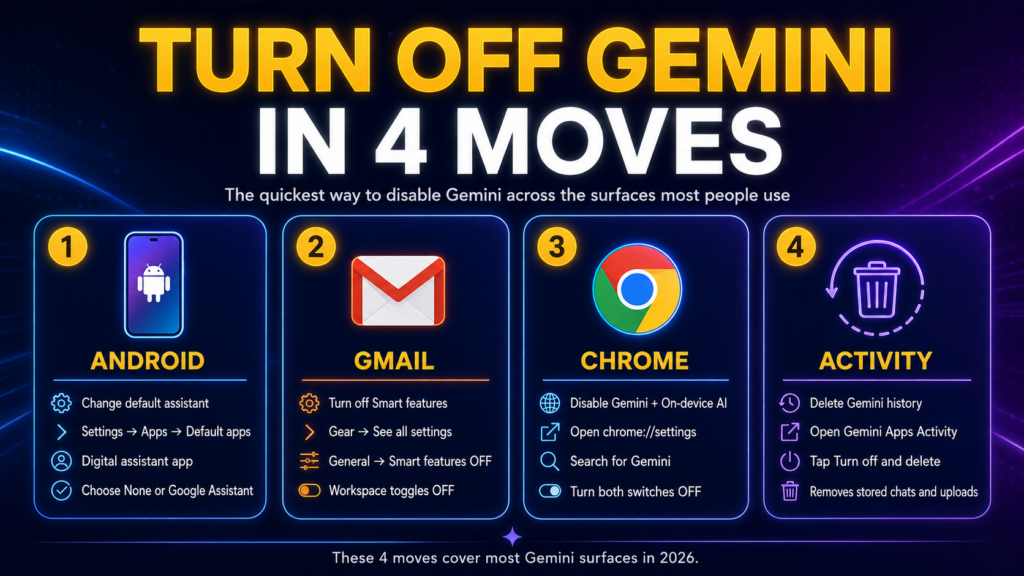
To turn off Gemini on Android, go to Settings → System → Gestures → Press & hold power button and pick the power menu. Then turn off Hey Google in the Gemini app and set Settings → Apps → Default apps → Digital assistant app to None. To remove Gemini from Gmail, open Settings → See all settings → General, click Manage Workspace smart feature settings and turn off Smart features in Google Workspace. In Chrome, open Settings → AI innovations, hide Gemini in Chrome and turn off On-device AI. Finally, delete your history under Settings & help → Activity in the Gemini app.
Those four moves cover the places where most people meet Gemini every day. The rest of this guide handles the device-specific cases (Samsung, Pixel, Xiaomi, iPhone), Google Docs and work accounts, AI Overviews in Search, and what happens to your data after you switch everything off.
How to Turn Off Gemini on Android
Turning off Gemini on Android means switching off the three ways it starts (the power button, your voice and the lock screen) and then removing it as your default assistant. Google spreads these across the Settings app and the Gemini app, so you need both.
Here is the full Android sequence according to Google’s official Gemini management page:
- Open Settings → System → Gestures → Press & hold power button and choose the power menu instead of the digital assistant. If you cannot find it, search Settings for “power”, “side button” or “gesture”.
- Open the Gemini app, tap Menu, then your profile picture → Settings → Talk to Gemini hands-free, and turn off Hey Google.
- In the same Gemini settings, open Gemini on lock screen and turn off Use Gemini without unlocking.
- Go to Settings → Apps → Default apps → Digital assistant app → Default digital assistant app and choose None.
In the default assistant list, the entry called Google stands for both Gemini and Google Assistant, so picking it does not turn Gemini off. Choose None or another assistant. Menu names vary between manufacturers, which is why Google itself tells you to use the Settings search box when a path does not match.
Can You Still Switch Back to Google Assistant?
Only until Google’s shutdown reaches your phone. In an August 2026 email to users, Google said it would start removing Google Assistant on September 4, 2026. The process “may take a few weeks to reach everyone”, and afterwards “you will no longer be able to use or switch back to Google Assistant on your phone, tablet, or paired devices.” The removal also covers Wear OS watches, headphones and Android Auto projected from your phone. Cars with Google built-in keep Assistant. If your Gemini app still shows Switch to Google Assistant under Menu → profile picture, the switch still works on your device for now.
Can You Uninstall Gemini on Android?
You can uninstall the Gemini app only if you installed it yourself from the Play Store. On phones where Gemini came preinstalled, Android usually offers Disable instead of Uninstall under Settings → Apps → Gemini. Google warns that deleting the Gemini app does not remove Gemini as your default digital assistant, so set the assistant to None first. The Gemini app is separate from the Google app, so disabling Gemini leaves Google Search, Discover and Lens working.
How to Turn Off Gemini on Samsung Galaxy
To stop the Side button from opening Gemini on a Samsung Galaxy phone, go to Settings → Advanced features → Side button → Long press and choose the power off menu. Samsung’s own support page confirms that a long press now launches Gemini by default and that you can switch it back to the power menu at any time. If you leave the long press on an assistant or Bixby, you can still turn the phone off by holding Side button + Volume Down.
To remove Gemini as the assistant without touching the button, use Settings → Apps → Choose default apps → Digital assistant app and select None or Bixby. To hide the app itself, open Settings → Apps → Gemini and tap Disable. Samsung notes that available options vary by model and region, so an older One UI version may show slightly different labels.
How to Turn Off Gemini on Google Pixel
On a Google Pixel, the steps match stock Android because Pixel is Google’s reference device. Go to Settings → System → Gestures → Press & hold power button and choose the power menu. Then set Settings → Apps → Default apps → Digital assistant app to None, and in the Gemini app turn off Hey Google under Settings → Talk to Gemini hands-free.
Pixel phones also run Gemini Nano, a small model that works on the phone itself for features like Recorder summaries. Gemini Nano is part of the system rather than the Gemini app, so it stays after you turn the assistant off. It processes those features locally instead of sending them to Google’s servers.
How to Turn Off Gemini on Xiaomi and Other Android Phones
On Xiaomi, Redmi, Motorola and other Android phones, the fastest route is the Settings search box: search for “power”, “side button” or “gesture”, which is the method Google recommends when the menu names differ. On Xiaomi and Redmi phones running HyperOS, the power button shortcut usually sits under Settings → Additional settings → Gesture shortcuts, or Button shortcuts on newer versions. Xiaomi does not publish an official guide for this, so check both names. The Gemini app steps (Hey Google, lock screen) and the default assistant setting work the same on every Android brand.
How to Turn Off Gemini on iPhone
On iPhone, Gemini is a regular app, not the system assistant, so turning it off means deleting it. Long-press the Gemini app icon, tap Remove App and choose Delete App. Apple does not let Gemini replace Siri, so nothing else on the iPhone changes when the app is gone.
Deleting the app does not delete your Gemini activity. Your past chats, uploads and generated images stay in your Google account until you remove them yourself (see the Gemini activity section below). The AI summaries you see in the Google app on iPhone come from Google Search, not from the Gemini app, so they are covered in the Search section.
How to Turn Off Gemini in Gmail
To turn off Gemini in Gmail, switch off Smart features in Google Workspace. According to Google’s smart features help page, that is the setting that lets Gemini “summarize content, create drafts, and find key information”. Gmail has three smart feature switches in total, and each one does something different:
- Smart features in Gmail, Chat, and Meet powers inbox tabs (Primary, Social, Promotions), Smart Compose, Smart Reply and summary cards above emails.
- Smart features in Google Workspace powers Gemini in Gmail, Docs and Drive, plus Gmail events in Calendar and personalized Drive search.
- Smart features in other Google products lets Gmail data reach other Google apps, such as restaurant reservations in Maps and passes in Wallet.
Turn Off Gemini in Gmail on the Web
To turn off Gemini in Gmail on the web:
- Open Gmail on your computer.
- Click the gear icon in the top right, then See all settings.
- On the General tab, scroll to Google Workspace smart features.
- Click Manage Workspace smart feature settings.
- Turn off Smart features in Google Workspace, and Smart features in other Google products if you want Gmail data kept out of other apps too.
- Click Save.
- Optional: back on the General tab, uncheck Turn on smart features in Gmail, Chat, and Meet if you also want Smart Compose and the inbox tabs gone.
Turn Off Gemini in the Gmail App
To turn off Gemini in the Gmail app on Android:
- Open the Gmail app and tap Menu (three lines, top left), then Settings.
- Select your Gmail address.
- Under General, tap Google Workspace smart features.
- Uncheck Smart features in Google Workspace and, if you like, Smart features in other Google products.
- Optional: uncheck the Smart features box in the same General section.
Smart feature settings apply across every device where you are signed in, although Google notes that some changes made on a computer do not show up in the mobile app. The price of the Gmail, Chat and Meet switch is real: Google says turning it off removes inbox categorization, Smart Compose, Smart Reply and summary cards. Spelling and grammar checks are separate Gmail settings and are not on Google’s list, so you can keep them.
How to Turn Off Gemini in Chrome
To turn off Gemini in Chrome, open Settings → AI innovations. That page holds both controls: Gemini in Chrome, the chat button at the top of the browser, and On-device AI, the Gemini Nano model Chrome stores on your computer.
To turn off Gemini in Chrome on your computer:
- Open Chrome, click More (three dots), then Settings.
- Click AI innovations → Gemini in Chrome.
- Under Preferences, turn off Show Gemini at the top of the browser and Show Gemini in Mac menu bar (on Windows, Show Gemini in system tray). This removes the Ask Gemini button and its keyboard shortcut.
- Under Permissions, turn off Share current tab by default and Let Gemini browse for you.
- Go back to AI innovations and turn off On-device AI.
- To hide the button faster, right-click the top of the browser and click Unpin Gemini.
Turning off On-device AI is the only supported way to remove Chrome’s local model, according to Google’s Chrome help page. Chrome deletes the model files and will not download them again while the setting is off. Deleting the files by hand does not work, because Chrome simply downloads them again. The model is large: in May 2026 PCWorld measured the file at 4.27GB on a Mac, after a privacy researcher flagged that Chrome had downloaded it without asking. The trade-off is that Chrome’s local writing help, scam warnings, page summaries and tab organizing stop working.
How to Turn Off Gemini in Google Docs, Drive and Workspace
To turn off Gemini in Google Docs, Sheets and Drive on a personal account, turn off Smart features in Google Workspace. It is the same switch as in the Gmail section, so if you already turned it off there, Gemini is off in Docs and Drive too. You can also reach it from Drive: Settings → Settings → Privacy → Manage Workspace smart feature settings. Calendar, Chat and Meet each have the same link in their own settings.
Work and school accounts are different, because your administrator controls Gemini for the whole organization through Google’s Workspace admin console. If your admin has Gemini on, ask IT to turn it off for your account. Gemini in Chrome on a work or school account also needs the admin to allow it.
In Google Maps, the smart feature setting that matters is Smart features in other Google products, which controls Gmail-powered extras such as restaurant reservations. Google does not document a separate switch for Gemini inside Maps. For the Gemini chat built into Maps itself, see what you can turn off in Google Ask Maps.
How to Turn Off Gemini in Google Search: AI Overviews and AI Mode
You cannot turn off AI Overviews in Google Search. Google’s own help page says AI Overviews “are a core Google Search feature” and “cannot be turned off”. What Google offers instead is the Web filter: run a search, then pick Web from the tabs under the search box to get plain links without AI Overviews. AI Mode is a separate tab, so you can simply not open it.
To make the Web filter permanent, add &udm=14 to your searches. The easiest way is a custom search engine in Chrome, Firefox or Safari pointing to https://www.google.com/search?q=%s&udm=14. Browser extensions such as Hide Gemini and Google AI on the Chrome Web Store do the same automatically. Search Labs only lets you turn off AI in Search experiments; it does not remove AI Overviews.
How to Delete Your Gemini Activity
Turning Gemini off does not delete the chats, uploads and generated content already stored in your Google account. Google calls the setting Keep Activity, and it is on by default for anyone 18 or older. Two limits apply even after you switch it off. Google keeps your conversations for up to 72 hours to run the service and process feedback. Chats that a human reviewer has already seen are not deleted with your activity and are kept for up to three years, according to Google’s Gemini privacy hub. For a deeper walkthrough of the privacy controls, see our guide on how to stop AI training on your data.
To delete your Gemini activity:
- Go to gemini.google.com, or open the Gemini app.
- Open Settings & help → Activity. You can also go straight to myactivity.google.com/product/gemini.
- Near the top, click On, then Turn off and delete activity.
- Follow the prompts to confirm.
If you want to keep Keep Activity on, you can delete selectively instead: Delete → All time, a custom range, or a single chat. You can also shorten auto-delete from the default 18 months to 3 months. To use Gemini now and then without leaving a trail, see our guide on Gemini Anonymous Mode, which walks through temporary chats.
What Gets Disabled Where: The Complete Map
The table below summarizes every Gemini switch, what it actually turns off, the side effects, and whether you can undo it. Use it as a checklist before you start clicking.
| Surface | What “off” disables | Side effects | Reversible? |
|---|---|---|---|
| Android power button | Long press opens Gemini | None; the power menu comes back | Yes, anytime |
| Android “Hey Google” and lock screen | Voice and locked-phone access to Gemini | None | Yes |
| Android default assistant set to None | Every assistant shortcut | No assistant at all once Google Assistant is gone | Yes |
| Samsung Side button | Long press launches Gemini | None; Side + Volume Down still powers off | Yes |
| iPhone Gemini app | Removes the app entirely | None (Siri is unaffected) | Reinstall from the App Store |
| Smart features in Google Workspace | Gemini in Gmail, Docs and Drive | Loses Gmail events in Calendar and personalized Drive search | Yes |
| Smart features in Gmail, Chat, and Meet | Gmail’s own smart features | Loses inbox tabs, Smart Compose, Smart Reply, summary cards | Yes |
| Smart features in other Google products | Gmail data in Maps, Wallet and other apps | Loses reservations in Maps, passes in Wallet | Yes |
| Chrome Gemini in Chrome preferences | Ask Gemini button, menu bar icon, shortcut | None | Yes |
| Chrome On-device AI | Deletes the Gemini Nano model | Frees about 4GB; local writing help and scam warnings stop | Yes; the model downloads again |
| Google Search Web filter | Hides AI Overviews on that search | None; just links | Permanent only with &udm=14 |
| Gemini activity deletion | Deletes stored chats and uploads | Past sessions gone; reviewed chats stay up to 3 years | Cannot be undone |
| Workspace admin console | Gemini for the whole organization | Affects every user in your domain | Admin only |
Why This Matters: The Gmail Lawsuit and Privacy Backstory
Interest in turning Gemini off took off in November 2025. On November 19, 2025, a widely shared post on X told Gmail users they had been “automatically OPTED IN” to let Gmail train AI models on their messages. The fix, it said, was to turn off smart features “in TWO locations”. Google pushed back. A spokesperson told The Verge, as reported by Tom’s Guide, that “we have not changed anyone’s settings, Gmail Smart Features have existed for many years, and we do not use your Gmail content for training our Gemini AI model.”
A week earlier, on November 11, 2025, a class action called Thele v. Google LLC had been filed in federal court in San Jose. It claims Google secretly turned on Gemini for Gmail, Chat and Meet in October 2025 and collected private data without consent. On July 8, 2026, Bloomberg Law reported that the judge dismissed the complaint because the plaintiffs had shown only that Gemini “could be used” to track their data, not an actual injury. The judge allowed them to file an amended complaint, so the case is not over.
Where you live changes the defaults. For users in the European Economic Area, the UK and Switzerland, Google says it relies on your consent to use your content for smart features. That is why European users see these features as an opt-in. The confusion around the settings is what prompted the Engadget piece on de-Gemini-ing your Google apps and many similar guides. Wherever you are, the steps in this guide are the official way out.
A Better Alternative: Use Multiple AI Models Without the Auto-Opt-In
Turning Gemini off does not mean giving up AI. If you want an assistant that only sees what you give it, Fello AI runs Claude, ChatGPT, Gemini, Grok and DeepSeek in one app on Mac, iPhone and iPad. You pick which model answers each prompt, and nothing reaches your inbox unless you hand it a file yourself. Fello AI costs $11.99/month for the full lineup, less than a single ChatGPT Plus or Google AI Pro subscription, and there is no smart features switch quietly deciding things in the background. Our Fello AI getting started guide walks through the setup.
If you mainly want Gemini-style features in a cleaner desktop app, our Gemini Mac app review covers Google’s official native client, and our Gemini desktop client guide for macOS lays out every native option, official and third-party. Trying to decide whether to keep Gemini at all? ChatGPT vs Gemini and ChatGPT vs Claude vs Gemini on Mac put the frontier options side by side. For a straight cost comparison, the Gemini pricing guide shows what you are paying for if you keep Gemini on.
Conclusion
Turning off Google Gemini takes more clicks than it should, because Google spreads the switches across Android settings, the Gemini app, Gmail, Chrome, the Workspace admin console and Search. Since September 2026 there is one fewer escape route, because Google Assistant is leaving phones. Start with the four-step quick answer at the top, then work through the device and app sections that apply to you, using the table as your checklist.
If you want to stay in control of which AI model sees your data, a multi-model app like Fello AI keeps the choice with you. If you would rather drop AI features altogether, every off switch is now on this page. Bookmark it, because Google reshuffles these menus often and we update the paths when it does. If Meta’s assistant is next on your list, here is how to turn off Meta AI on Facebook, Instagram, WhatsApp, and Messenger. And if Microsoft’s assistant is the one in your way, here is how to turn off Copilot in Word, Excel, Outlook and Windows.
FAQ
Can I completely uninstall Gemini from my Android phone?
Only if you installed the Gemini app yourself. On most phones where Gemini came preinstalled, you can disable it but not uninstall it. To stop it acting as your assistant, set the default digital assistant to None under Settings → Apps → Default apps, change the power button gesture, and turn off Hey Google in the Gemini app. On iPhone you can delete the Gemini app completely.
Will turning off Gemini in Gmail break my spellcheck?
No. Gemini in Gmail is controlled by Smart features in Google Workspace, and spelling and grammar checks are not on Google’s list of what any smart feature switch removes. The switch that does cost you something is the separate Smart features in Gmail, Chat, and Meet setting, which takes away inbox tabs, Smart Compose, Smart Reply and summary cards.
Is Gemini still listening if I turn off Hey Google?
No, not for the wake word. Once you turn off Hey Google under Talk to Gemini hands-free in the Gemini app, Gemini no longer opens when it hears the phrase. You still need to change the power button gesture and the lock screen setting separately if you want those routes closed too.
Why is Gemini turned on by default in the US but off in Europe?
For users in the European Economic Area, the UK and Switzerland, Google says it relies on consent to use your content for smart features, so you have to turn them on yourself. The US has no equivalent federal law, so the features are generally on until you switch them off. The Thele v. Google class action argues that this US default did not meet consent standards; a judge dismissed the first complaint in July 2026 but allowed the plaintiffs to try again.
Can my Workspace admin force Gemini back on after I disable it?
Yes, for work and school accounts. Workspace admins control Gemini for the whole organization through the admin console, and Google notes that your activity settings on a work account are also managed by the admin. If your admin keeps Gemini on, you need IT to change it. Personal Gmail accounts are not affected; you keep full control of your own switches.