Claude can now take control of your Mac, clicking buttons, typing text, opening apps, and completing tasks on your screen while you step away. Anthropic launched Claude computer use on March 23, 2026 as a research preview for Pro and Max subscribers, and it changes how you interact with AI. The company announced the feature alongside Dispatch, its new phone-to-desktop task delegation system. Instead of copying and pasting between Claude and your apps, you simply tell Claude what you need done, and it does the work directly on your desktop.
This isn’t a gimmick or a developer-only tool. Whether you’re a student juggling research papers, a marketer managing campaigns across multiple platforms, or anyone who spends too much time on repetitive computer tasks, Claude computer use can handle the boring stuff for you. In this guide, we break down exactly how it works, walk you through the setup step by step, and show you practical examples you can try today.
The Key Takeaways
- Claude computer use launched March 23, 2026 as a research preview, available on Pro ($20/mo) and Max ($100-$200/mo) plans
- Works on macOS only for now (Windows support coming soon), requires the Claude Desktop app
- Claude sees your screen through screenshots, then clicks, types, and navigates apps like a human assistant
- Dispatch lets you assign tasks to Claude from your phone while your Mac runs them in the background
- Currently in research preview, meaning it works best for straightforward tasks, not complex multi-step workflows
What Is Claude Computer Use?
Claude computer use is a feature built into Claude Cowork and Claude Code that lets Claude AI interact directly with your Mac. Instead of just generating text in a chat window, Claude can see what’s on your screen, move the cursor, click buttons, type into fields, open applications, and navigate your desktop, just like a person sitting at your computer would. If you’re new to the concept, this is essentially an AI agent that operates your computer on your behalf.
Think of it as having a virtual assistant who can actually operate your computer. You tell Claude what you need (“organize these files into folders by date” or “find the cheapest flight to London next month”), and Claude does it by using your actual apps and browser.
Under the hood, Claude computer use runs on a simple but powerful cycle called the vision-action loop. First, Claude takes a screenshot of your current screen. Then it analyzes what’s visible, buttons, text fields, menus, and content, and decides what action to take next based on your instructions. It moves the mouse, clicks, types, or scrolls, then takes another screenshot to see the result. This cycle repeats until the task is done.
This means Claude doesn’t need special access to your apps’ code or APIs. It literally looks at your screen and interacts with it visually. That’s why it can work with virtually any application you have installed.
Claude is also smart about picking the fastest approach for each task. When you assign something, it tries connectors first, meaning direct integrations like Gmail, Google Drive, Slack, or Google Calendar. These are faster and more reliable. If no connector exists but the task is web-based, Claude opens Chrome and navigates to the right website. Only when neither option works does Claude fall back to controlling your desktop directly through computer use. This means screen control isn’t always active; Claude only takes over when it’s the best option.
How to Set Up Claude Computer Use on Your Mac
Getting started takes about 5 minutes. Here’s everything you need and the exact steps to follow.
Requirements
Before you begin, make sure you have:
- A Mac running a recent version of macOS
- A Claude Pro ($20/month) or Claude Max ($100 or $200/month) subscription
- The Claude Desktop app installed (not just the web version)
- A personal account (Team and Enterprise accounts don’t have access yet)
Step-by-Step Setup
- Download or update Claude Desktop. Head to the official Claude download page and get the latest version of the desktop app for Mac. If you already have it, check for updates.
- Open Settings. Launch Claude Desktop, click on your profile icon, and go to Settings > General.
- Toggle Computer Use on. You’ll see a “Computer use” toggle in the settings. Flip it on.
- Grant macOS permissions. Your Mac will ask you to approve two system permissions:
- Accessibility lets Claude click, type, and scroll on your screen
- Screen Recording lets Claude see what’s displayed on your screen
- Start using it. Open Cowork or Claude Code in the desktop app, type a task that involves your computer, and Claude will take it from there.
That’s it. No terminal commands, no API keys, no configuration files. Just toggle, approve permissions, and go. For more details on the Claude Desktop app for Mac, we have a full walkthrough.
What Claude Dispatch Does (and Why It Matters)
One of the most useful features paired with computer use is Claude Dispatch. It lets you start a conversation with Claude on your phone and have Claude complete the task on your Mac in the background.
Here’s how it works in practice. You open the Claude mobile app on your iPhone or Android and type a task like “Research the top 5 project management tools and put a comparison in a Google Sheet.” Claude picks up the task on your Mac (which needs to be awake with the desktop app open), opens Chrome, researches the tools, opens Google Sheets, builds the comparison, and notifies you when it’s done. You can assign work while you’re commuting, in a meeting, or just away from your desk.
To set up Dispatch, download the Claude mobile app, open Cowork on either your phone or desktop, click “Dispatch” in the left side panel, and grant Claude access to your files by toggling the relevant permissions. One important thing to keep in mind: your Mac needs to stay awake and the Claude Desktop app must stay open for Dispatch to work. If your computer goes to sleep, Claude can’t complete the task.
Practical Use Cases for Students
Claude computer use isn’t built for developers alone. If you’re a student, here are specific ways it can save you hours every week.
For research and note organization, you can tell Claude something like “Search Google Scholar for recent papers on renewable energy policy, download the top 5 PDFs, and organize them in a folder called ‘Energy Research’ on my desktop.” Claude will open your browser, search for papers, download them, and sort them into a new folder, all without you lifting a finger. This kind of multi-step file management is exactly where computer use shines.
For spreadsheet data entry, try telling Claude “Open this CSV file, clean up the formatting, remove duplicate rows, and create a summary chart in Numbers.” Instead of spending an hour wrestling with spreadsheets, Claude handles the tedious data work while you focus on analysis. It can navigate between apps, copy data, and build charts by interacting with the actual interface.
For presentation preparation, ask Claude to “Find statistics on global AI adoption rates, then open Keynote and create a 5-slide presentation with the key data points.” Claude researches, collects data, and builds a starter presentation you can refine. It’s not going to produce a polished final deck, but it gets you past the blank-slide stage in minutes instead of hours.
Practical Use Cases for Marketers
For marketers and small business owners, Claude computer use eliminates the repetitive tasks that eat up your day. Here are the workflows where it delivers the most value.
Competitor research becomes hands-free. Tell Claude “Go to [competitor website], take screenshots of their pricing page and homepage, and compile them into a Google Doc with notes on their positioning.” Claude navigates to the sites, captures what it sees, and organizes the intel for you. You can run this across multiple competitors in one session and come back to a ready-made analysis doc.
Social media scheduling is another strong fit. Tell Claude “Open Buffer, create 5 social media posts based on our latest blog post, and schedule them for this week.” Claude can navigate social media management tools, draft posts, and queue them up. You’ll still want to review everything before it goes live, but the drafting and scheduling grunt work is handled.
For email campaign setup, try “Open Mailchimp, create a new campaign, import the contact list from this CSV file, and set up the email template with our latest newsletter content.” Multi-step workflows across different screens and applications are exactly what computer use was designed for. The same applies to data reporting, where you can ask Claude to open Google Analytics, export last month’s traffic data, and create a summary report in Google Slides with the key metrics. Instead of clicking through dashboards and copy-pasting numbers, Claude does the extraction and formatting for you.
Claude Computer Use vs. ChatGPT agent mode
You might be wondering how this compares to ChatGPT agent mode, OpenAI’s similar feature. Here’s a direct breakdown:
| Feature | Claude Computer Use | ChatGPT agent mode |
|---|---|---|
| What it controls | Desktop apps + browser | Web browser only |
| Platform | macOS (Windows coming soon) | Web-based (any OS) |
| Remote trigger | Yes (Dispatch from phone) | No |
| Minimum price | $20/mo (Pro) | $20/mo (Plus) |
| OSWorld benchmark | 72.7% | 75% (GPT-5.4) |
| Best for | Desktop automation, multi-app workflows | Web-based tasks, form filling, online research |
| App control | Any installed Mac app | Browser tabs only |
The key difference is scope. Claude can control your actual desktop applications like Keynote, Numbers, Finder, Photoshop, and whatever else you have installed. ChatGPT agent mode is limited to tasks inside a web browser. If your work lives in desktop apps, Claude has a clear advantage. If you mostly need web-based automation like booking flights, filling out forms, or scraping data from websites, ChatGPT agent mode is slightly ahead on benchmarks and doesn’t require a specific operating system.
Claude’s Dispatch feature is also unique. Being able to assign a task from your phone and have your Mac execute it in the background is something ChatGPT agent mode can’t match. For a deeper look at how the two AI assistants compare overall, check our Claude vs ChatGPT comparison.
Is Claude Computer Use Safe?
Letting an AI control your computer sounds risky, and it’s fair to have concerns. Here’s how Anthropic handles safety.
Claude asks for your permission before accessing each application. The first time Claude needs to open a new app, you’ll see a prompt asking you to approve it. You must click “Allow” before Claude can interact with that app. Some categories of apps are also off-limits by default, including investment and trading platforms, cryptocurrency services, and apps containing other people’s personal data.
When computer use is active, Claude can see anything visible on your screen through screenshots. This includes open documents, emails, browser tabs, desktop files, and notifications. However, passwords, financial details, and health information are excluded from Claude’s memory, even though they may be visible in screenshots during a session. Anthropic also runs automatic prompt injection detection that scans for attempts to manipulate Claude through on-screen content.
For best results, close sensitive apps before starting a computer use session, start with simple tasks to see how Claude handles them, and always review Claude’s actions as they happen. You can stop Claude at any point. Avoid using computer use for managing finances, legal documents, or medical records.
Requirements and Pricing
Here’s what you need and what it costs:
| Requirement | Details |
|---|---|
| Operating system | macOS (Windows support coming soon) |
| App needed | Claude Desktop (latest version) |
| Minimum plan | Claude Pro at $20/month |
| Best plan for heavy use | Claude Max at $100/month (5x usage) or $200/month (20x usage) |
| Permissions | macOS Accessibility + Screen Recording |
| Status | Research preview (still being improved) |
Not available for: Free plan users, Team accounts, or Enterprise accounts (as of March 2026).
If you’re already a Claude Pro subscriber, computer use is included at no extra cost. You just need to enable it in settings. For full details on all available tiers, see the official Claude pricing page.
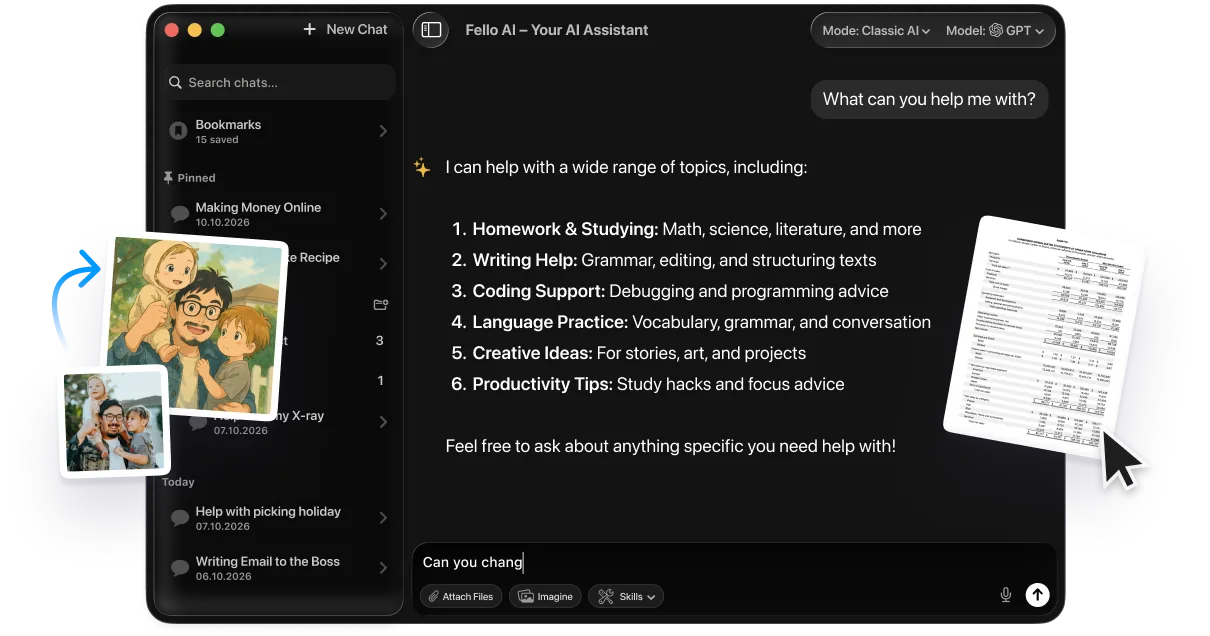
Want to access Claude along with other top AI models like GPT, Gemini, and more from a single app? Does computer use feel like an overkill to you? Fello AI gives you all frontier AI models on Mac, iPhone, and iPad for $9.99/month.
Current Limitations
Claude computer use is still in research preview, which means it’s powerful but not perfect. Here’s what to expect.
The vision-based approach adds latency. Each screenshot-analyze-act cycle takes a few seconds, so long task chains are noticeably slower than doing them manually. Complex workflows with many branching decisions may require retries or manual intervention. The feature is macOS only for now, with no Windows or Linux support yet, and your desktop must stay awake for Claude to work. If your Mac sleeps or the Claude Desktop app closes, the task stops.
Only personal Pro and Max accounts have access. Team and Enterprise plans are excluded for now. Anthropic describes computer use as “still early compared to Claude’s ability to code,” so expect steady improvements over time. Despite these limitations, for straightforward, repetitive tasks, it already saves significant time.
How to Get the Most Out of Claude Computer Use
A few tips to help you get better results:
- Be specific with your instructions. Instead of “organize my files,” say “move all PDF files from my Downloads folder to a new folder called ‘Reports 2026’ on my Desktop”
- Start simple. Try basic tasks first (opening an app, navigating to a webpage) before attempting complex multi-step workflows
- Use Dispatch for background tasks. Assign research or data collection tasks from your phone and let Claude work while you’re busy
- Combine with connectors. For tasks involving Gmail, Slack, or Google Drive, Claude’s built-in connectors are faster than screen navigation
- Keep your desktop clean. Fewer open windows and less clutter makes it easier for Claude to navigate
- Review before sending. Always review emails, social posts, or any content Claude creates before it goes out to the world
Conclusion
Claude computer use turns your Mac into something closer to having a personal assistant who can actually operate your computer. For students drowning in research tasks, marketers juggling multiple platforms, and anyone tired of repetitive digital work, this feature is worth trying.
It’s still early, and you’ll hit limitations on complex tasks. But for the straightforward, time-consuming work that fills most people’s days, telling Claude “just do it on my computer” is already a genuine time-saver. All you need is a $20/month Pro plan and a Mac. And with models like Claude Opus 4.6 powering the experience, the results keep getting better.
If you want to learn more about Claude’s workspace features, check out our complete Claude Cowork guide. And for a broader look at what AI agents can do in 2026, we’ve tested and compared the top 25 tools.
FAQ
What is Claude computer use?
Claude computer use is a feature that lets Claude AI control your Mac by clicking, typing, scrolling, and navigating applications on your screen. It works through a vision-action loop where Claude takes screenshots, analyzes what it sees, and performs actions, just like a human assistant at your computer.
Do I need a paid plan to use Claude computer use?
Yes. Claude computer use requires a Claude Pro ($20/month) or Claude Max ($100 or $200/month) subscription. It’s not available on the free plan or on Team/Enterprise accounts as of March 2026.
Does Claude computer use work on Windows?
Not yet. As of March 2026, Claude computer use is macOS only. Anthropic has confirmed that Windows support is coming soon, but no specific date has been announced.
Is it safe to let Claude control my computer?
Claude asks for your permission before accessing each new application, and certain sensitive app categories (financial platforms, crypto services) are blocked by default. You can stop Claude at any point, and Anthropic runs automatic prompt injection detection. That said, close any sensitive information before starting a session, since Claude can see everything on your screen.
What’s the difference between Claude computer use and ChatGPT agent mode?
Claude computer use can control desktop applications on your Mac, while ChatGPT agent mode only works inside a web browser. Claude also offers Dispatch, which lets you trigger tasks from your phone. ChatGPT agent mode has a slight edge on benchmarks (75% vs 72.7% on OSWorld), but Claude’s ability to work across installed apps gives it more versatility for desktop-heavy workflows.