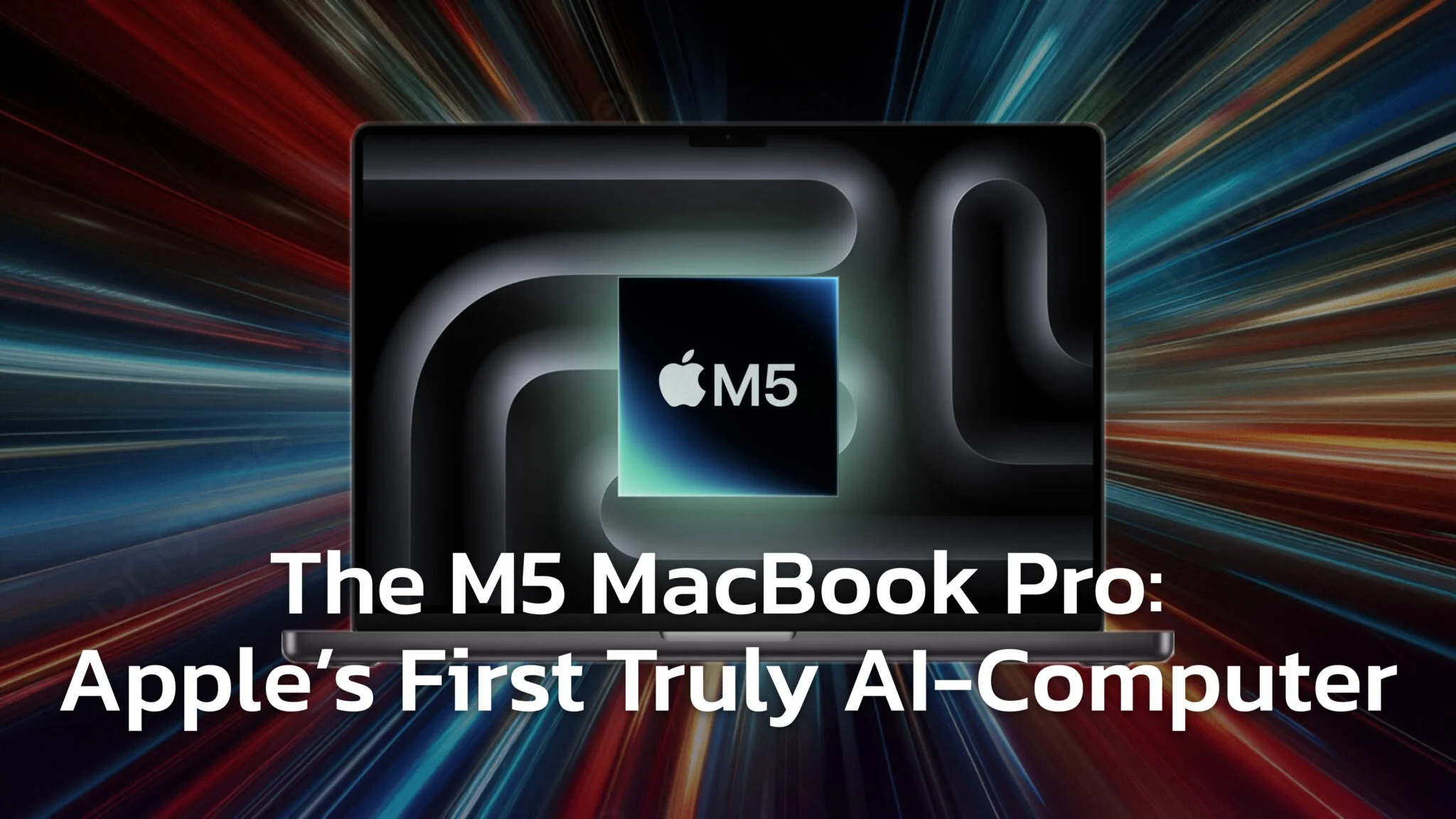
The M5 MacBook Pro is no longer one machine. It is a three-chip family running from $1,999 to $4,999, and the honest upgrade answer now depends entirely on which end you want. Apple shipped the M5 Pro and M5 Max on 11 March 2026, so the advice to “wait for the Pro and Max” that shaped every M5 buying guide written in late 2025 has already expired.
This guide covers what the M5 MacBook Pro actually does for on-device AI, what it costs today after Apple’s June price rise, and the one thing that flips the recommendation depending on your budget. Apple is not building an M6 Pro or M6 Max at all, which means the cheap end of the lineup should wait and the expensive end should buy now. That is the opposite of the usual advice, and the roadmap is the reason.
The Key Takeaways
- The entry 14-inch M5 MacBook Pro costs $1,999, up from $1,599 at launch. Part of that is a storage doubling to 1TB and part is Apple’s 25 June 2026 Mac price rise.
- The M5 Pro and M5 Max have shipped since 11 March 2026, with Apple claiming up to 4x faster LLM prompt processing than M4 Pro and M4 Max.
- There will be no M6 Pro and no M6 Max. An M6 entry model is due late 2026, but the next high-end silicon is M7 Pro and M7 Max at the end of 2027.
- Siri AI runs on every Apple silicon Mac, M1 included. Two features, expressive voice and advanced dictation, need M3 or later with at least 12GB, which every M5 MacBook Pro clears.
- 512GB is gone. Every MacBook Pro now starts at 1TB, and the 2TB upgrade dropped from $600 to $400.
- Faster hardware keeps more work local, so tasks like chatting with sensitive PDFs stay private on your Mac.
What Changed Since the M5 MacBook Pro Launched
The M5 arrived in October 2025 as a single 14-inch model at $1,599 with 512GB of storage. Three things have happened since, and all three change the buying decision.
First, the M5 Pro and M5 Max arrived on 11 March 2026, filling out the rest of the lineup. Second, in March 2026 Apple quietly deleted the 512GB option from the MacBook Pro entirely, so the base machine became a 1TB machine at $1,699. Third, Apple raised the price of every Mac on 25 June 2026 over the memory-chip shortage, which pushed the entry 14-inch to its current $1,999.
That is a $400 increase over the launch price, but roughly a quarter of it bought you double the storage. It is worth separating the two, because the storage change also made the upgrade tiers cheaper rather than more expensive.
| 14-inch M5 MacBook Pro | Price | Base storage |
|---|---|---|
| October 2025 launch | $1,599 | 512GB |
| March 2026 (512GB deleted) | $1,699 | 1TB |
| Today (after 25 June rise) | $1,999 | 1TB |
What Is New in the M5 MacBook Pro for AI
When Apple talks about M5 local AI performance, the news is not the Neural Engine, it is the GPU. For the first time Apple put a Neural Accelerator in each GPU core. Apple says this delivers “over 4x peak GPU compute for AI vs M4” and “up to 3.5x faster AI performance” against the previous generation, plus “up to 6x faster AI performance” against the M1.
The 16-core Neural Engine got a modest uplift of roughly 30% in Geekbench AI over the M4. The GPU-side accelerators are where the real gains sit, because they are built for the heavy matrix math behind generative models.
Apple also widened the surrounding architecture. The base M5 carries 153GB/s of memory bandwidth, a nearly 30% increase over the M4. The M5 Mac SSD speed is “up to 2x” faster per Apple, and independent tests measured ~2.5x reads on some configs. Large models load into memory much faster as a result.
What the M5 Pro and M5 Max Add
The higher tiers scale the same idea much further. For the March 2026 models Apple claims up to 4x AI performance against the previous generation and up to 8x against M1 chips. The two numbers that matter for local work are “up to 4x faster LLM prompt processing than M4 Pro and M4 Max” and “up to 8x AI image generation than M1 Pro and M1 Max”.
Memory bandwidth is the number that matters most for local models, and it roughly quadruples across the range. SSD performance doubled again at this tier, reaching up to 14.5GB/s.
| Chip | Memory bandwidth | Unified memory options |
|---|---|---|
| M5 | 153GB/s | 16GB, 24GB, 32GB |
| M5 Pro | 307GB/s | 24GB, 36GB, 48GB, 64GB |
| M5 Max (32-core GPU) | 460GB/s | 36GB, 48GB, 64GB, 128GB |
| M5 Max (40-core GPU) | 614GB/s | 36GB, 48GB, 64GB, 128GB |
The M5 MacBook Pro Makes AI Feel Instant (Sometimes)
These specs add up to one metric that decides how fast a model feels. “Time to First Token” (TTFT) is the delay before a model starts answering, and it is the single biggest factor in perceived speed.
This is where the M5 wins. Apple highlighted TTFT improvements on long prompts, and early developer tests via MacStories show prefill throughput jumping roughly 3-4x once apps adopt Metal 4’s ML command encoder. Exact gains still vary by model and by app.
Why Your AI App Might Not Feel Faster Yet
The biggest wins arrive only as apps adopt Metal 4’s ML command encoder or MLX with Neural Accelerator support. Apps already built on Apple’s frameworks see some uplift today, but the full speedups need an update. Look for release notes mentioning “Metal 4”, “ML encoder” or “M5 optimization”.
On-Device AI Performance by Your Workload
For everyday work the M5 feels much like an M4. The gap opens up the moment you load an AI-specific workload, and it opens widest on the tasks that were previously just slow enough to push you back to a browser tab.
For Students and Researchers
The improved TTFT is immediately obvious when you summarise a long PDF locally. That dead pause before the first word shrinks enough that the exchange feels conversational rather than batch. The 153GB/s of bandwidth also handles long-context chat far more smoothly, which is what you want when you are building briefs from a stack of source documents and keeping them private.
Recording and transcribing lectures on-device is comfortable on the base chip, and the follow-up steps stay local too. Summarising notes or generating flashcards from a PDF becomes a private study tool rather than an upload.
For Creators and Marketers
This is where the GPU Neural Accelerators earn their keep. MacStories measured ~50% faster image tasks in Draw Things on the M5 iPad Pro with an updated app, and Mac gains land in the same direction as updates arrive. Local image generation becomes fast enough for real iteration, which is the point at which people actually stop paying per image.
For Code Assistants
That same TTFT improvement is a large quality-of-life gain for local code assistants. Completions start appearing almost immediately instead of after a visible beat. The thing to watch is whether your tooling has shipped the update, since LM Studio and Ollama only benefit once they target Metal 4.
Apple Intelligence, Privacy and the Gemini Reset
There are two different kinds of AI on your Mac, and the M5 changes them in different ways. It is worth being precise about which is which, because the hardware requirements are not the same.
The first is Apple Intelligence, the system-level AI built into macOS. It runs on-device first and escalates to Private Cloud Compute for complex requests, where Apple says your data is never stored and never seen. Faster silicon simply means more of that work stays on the machine.
One thing has changed underneath that promise. Per the joint statement from Google and Apple of 12 January 2026, “the next generation of Apple Foundation Models will be based on Google’s Gemini models and cloud technology”. The privacy architecture survives the switch, since the same statement says “Apple Intelligence will continue to run on Apple devices and Private Cloud Compute”, but the models themselves are now Google’s. We cover what that means for users in our verdict on whether Apple Intelligence is worth it.
The M3 and 12GB Bar, and What It Actually Gates
This requirement gets misreported constantly, so it is worth stating precisely. Siri AI itself runs on every Mac with Apple silicon, M1 included, and on the MacBook Neo. Personal context, onscreen awareness, web answers, the standalone Siri app and Writing Tools are not gated by memory at all.
What Apple’s own requirements page restricts to “Mac models with M3 and later and at least 12GB of unified memory” is a much narrower pair of features. Those are the ability to customise the expressiveness and pace of Siri’s voice, and higher-accuracy on-device dictation that handles punctuation and formatting as you speak.
So the honest version is modest. Every M5 MacBook Pro clears the bar; an M1 gets the assistant and misses two refinements. Our macOS 27 Golden Gate guide has the table by machine.
The second kind of AI is third-party software running open models entirely on your machine. Nothing gates that except memory and patience. No chip badge, no minimum, no regional rollout, just how much unified memory you bought and how long you are willing to wait for tokens. That is why the RAM decision further down matters more to a local AI setup than anything on Apple’s compatibility list.
Should You Upgrade to the M5 MacBook Pro for AI
Here is the direct advice by the machine you own today. Local model performance does most of the work in this table, because the Siri feature gap is narrower than it is usually described.
| Your current Mac | Verdict | Why |
|---|---|---|
| Intel | Yes, without qualification. | An Intel Mac gets no Apple Intelligence and no Siri AI at all, and cannot run modern local models at usable speed. This is the one unambiguous upgrade in the table. |
| M1 | Yes if you run local models. | Apple claims up to 6x faster AI performance against M1. You keep Siri AI either way, but you gain expressive voice and advanced dictation, and a large jump in bandwidth. |
| M2 | Only if you run local models daily. | Local performance is a generation and a half behind, which is the real argument. The Siri difference is two features, not the assistant. |
| M3 | Probably not. | An M3 with 12GB or more already gets every Siri AI feature, so the only gain is raw speed. An M3 with 8GB misses those same two refinements. |
| M4 | No. | The gains are too specific and several need app updates. If you want more, the honest move is to skip to the Pro or Max tier rather than sidestep to a base M5. |
If you are cross-shopping platforms rather than chips, our MacBook vs Googlebook vs Chromebook comparison covers how this lineup stacks up against the alternatives.
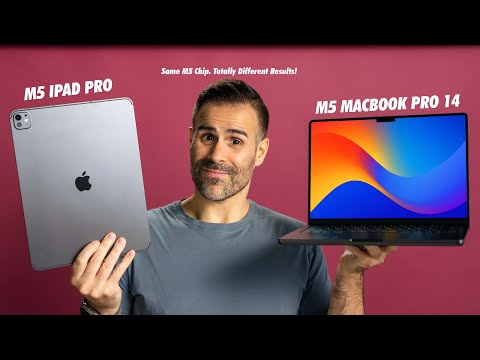
Buy Now or Wait? The Roadmap Splits the Answer
This is the part that inverts the usual advice. Normally the entry model is the safe buy and the expensive one is worth delaying. Right now it is the other way round, and Apple’s published Mac roadmap is the reason.
An M6 entry-level 14-inch MacBook Pro is expected before the end of 2026, built on Apple’s first 2-nanometer process. Reports say the machine was finished months ago. If you want the base model, waiting costs you a few months and buys a full process-node jump.
The high end is the opposite story. Apple is not making an M6 Pro or an M6 Max at all, which is why even the redesigned OLED MacBook Pro is expected to ship on M5 Pro and M5 Max silicon. The next high-end chips are M7 Pro and M7 Max at the end of 2027. Waiting at that tier means waiting well over a year for something that does not exist yet.
| If you want | Do this | Because |
|---|---|---|
| Base 14-inch M5 | Wait | An M6 on a 2nm process is due late 2026. |
| M5 Pro or M5 Max | Buy now | No M6 Pro or M6 Max is planned. The next step up is M7 Pro/Max, end of 2027. |
| The OLED redesign | Buy now if you need the power | It is expected to use M5 Pro and M5 Max anyway, so you are not waiting for a faster chip. |
Apple is compressing the M6 cycle deliberately, because the M7 generation carries optimisations aimed at AI workloads. That is worth knowing if your purchase is specifically about running models locally, and it argues for either buying now or waiting properly rather than splitting the difference.
Your M5 MacBook Pro Buying Guide
If you have decided to buy, the configuration matters more than the badge, because unified memory and storage cannot be changed later. The best value in the range remains the 14-inch MacBook Pro M5, now at $1,999.
| Model | Chip | Price |
|---|---|---|
| 14-inch | M5 (10-core CPU / 10-core GPU) | $1,999 |
| 14-inch | M5 Pro (15-core / 16-core) | $2,499 |
| 14-inch | M5 Pro (18-core / 20-core) | $2,699 |
| 14-inch | M5 Max (18-core / 32-core) | $4,099 |
| 14-inch | M5 Max (18-core / 40-core) | $4,699 |
| 16-inch | M5 Pro (18-core / 20-core) | $2,999 |
| 16-inch | M5 Max (18-core / 32-core) | $4,399 |
| 16-inch | M5 Max (18-core / 40-core) | $4,999 |
The Most Important Choice Is RAM
Local models load entirely into memory to run, so this is the decision that sets your ceiling. The base M5 offers 16GB, 24GB or 32GB, and the honest guidance has moved up a tier in the last year because the models themselves got bigger.
| Memory | Verdict | What it actually runs |
|---|---|---|
| 16GB | Base | Fine for cloud AI, Apple Intelligence and small local models in the 7B to 9B range. Tight if you want a model resident while you work. |
| 24GB | Practical minimum | The real floor for serious local work. A current 27B-class model at 4-bit needs roughly 16GB on its own, which fits here with room to spare. |
| 32GB | Recommended | Absorbs a 27B-class model plus long contexts and everything else you have open. The most future-proof option on the base chip. |
Above 32GB you have to move tiers. The M5 Pro reaches 64GB and the M5 Max reaches 128GB, which is the only route to running the larger open models without heavy quantisation. Our guide to the best MacBook for AI work breaks down which model sizes actually fit at each memory level.
Storage Is No Longer the Trap It Was
This advice changed completely in March 2026. The old warning was to avoid the 512GB base because AI models fill it fast. 512GB no longer exists on any MacBook Pro, so the base configuration is now 1TB and the trap is gone.
The upgrades also got cheaper rather than more expensive. Going to 2TB now costs $400 instead of $600, and 4TB costs $1,000 instead of $1,200.
| Storage | Upgrade cost | Who it is for |
|---|---|---|
| 1TB | Included | Enough for macOS, your apps and a healthy library of local models. Fine for most people now. |
| 2TB | $400 | A single model runs 4GB to 20GB, so a working set of ten adds up fast. This jump costs a third less than it did a year ago. |
| 4TB | $1,000 | For developers and creators who want to stop thinking about it. |
| 8TB | M5 Max only | Available on the top tier if you are archiving large media alongside models. |
Base M5 vs M5 Pro vs M5 Max
The base M5 is a strong AI machine, which was the surprise of this generation. Thanks to the GPU Neural Accelerators it beats older M4 Pro chips in specific AI tasks, so you no longer need the Pro tier just to get good on-device performance.
The reason to step up is memory, not speed. Four-bit quantisation costs roughly half a byte per parameter, so a 70B model needs about 35GB for the weights alone before you add any context. Only the M5 Pro at 64GB and the M5 Max at 128GB get you there. Running a mid-size model at full precision rather than quantised pushes you into the same territory, and so does keeping a large model resident while you work on something else. For sustained non-AI workloads, the higher tiers are the obvious choice anyway.

Building a Smarter AI Workflow on Your M5 MacBook Pro
The hardware is only half the problem. The other half is the workflow, and most people running AI daily still have a browser window full of separate chat tabs plus a different app for documents. Context gets copy-pasted between them and history gets lost.
The bigger productivity win is using one client for documents, images and chat. A native Mac app can act as the hub where you switch between local models and frontier cloud models without changing tools, which is exactly the routing decision the M5 makes worth thinking about.
| Task | Where it should run | Why |
|---|---|---|
| PDFs and notes | Local model | Instant, private, and summarisation is the task local models handle best. |
| Sensitive documents | Local model | Client material and contracts never leave the machine. |
| Long-form writing and nuance | Frontier cloud model | Still meaningfully better at tone and structure than anything that fits in 32GB. |
| Hard reasoning and research | Frontier cloud model | The quality gap is largest exactly where the problem is hardest. |
| Image drafts and iteration | Local model | Fast, free and private, which is what iteration needs. |
| Final hero images | Cloud model | Better at following long, specific prompts. |
Organise Prompts and Search Your History
A good workflow is an organised one. The better Mac clients let you treat prompts and chats like notes, so you can pin a reusable prompt such as “summarise this PDF in five bullets” into a personal library. Storing chats on-device also means you can search across every conversation to find the idea you had three weeks ago.
Launch AI From Anywhere on Your Mac
You can tie all of this into native macOS habits with Spotlight and Shortcuts, which costs about ten minutes to set up.
A Practical Spotlight and Shortcuts Workflow
- Finder Quick Action. In the Shortcuts app, create a shortcut and add the action that opens your AI app with a file. In the shortcut’s Details pane, tick “Use as Quick Action” for Finder. You can now right-click any PDF and send it straight to your AI.
- Menu bar quick prompt. Create a second shortcut and add “Summarize Clipboard”. In Details, tick “Add to Menu Bar”. Highlight text anywhere, press Command-C, then click the menu bar icon to summarise it.
- Launch with Spotlight. Give each shortcut a short name such as “Summarize Doc”. Press Command-Space, type the name, hit Enter and the workflow runs.
Connecting Your Apple Ecosystem
The AI on your M5 MacBook Pro does not live in isolation. Because Apple Intelligence is integrated across iOS, iPadOS and macOS, work started on the Mac carries over to the iPhone in your pocket without a re-upload.
That sync is most useful for custom workflows. Using a unified app or Apple Shortcuts, a prompt you save on the Mac is immediately available on the iPad to run against a new document. The same integration extends to the Home Screen, where a widget can open a specific prompt directly.
Conclusion
The M5 generation is the first where on-device AI on a Mac feels responsive rather than merely possible. For Intel and M1 owners it is an easy recommendation, driven mostly by local model speed rather than by Apple Intelligence, since Siri AI reaches every Apple silicon Mac regardless of which one you buy.
The buying advice splits by budget. If you want the base 14-inch at $1,999, waiting for the 2nm M6 later this year is the rational call. If you want an M5 Pro or M5 Max, buy it now, because there is no M6 Pro or M6 Max coming and the next high-end chip is more than a year away. Either way, pair the machine with a single client that can route between local and cloud models, because that is where the hardware actually pays off. If the upfront number is the blocker rather than the timing, our breakdown of the Apple Upgrade Program covers Apple’s lease route and what each machine costs to own at the end of it.
Frequently Asked Questions (FAQ)
Should I buy the M5 MacBook Pro now or wait for the M6?
It depends on the tier. If you want the base 14-inch, wait, because an M6 model built on Apple’s first 2nm process is expected before the end of 2026. If you want an M5 Pro or M5 Max, buy now, because Apple is not making an M6 Pro or M6 Max and the next high-end chips are M7 Pro and M7 Max at the end of 2027.
How much does the M5 MacBook Pro cost now?
The 14-inch base model is $1,999, up from $1,599 at launch. That reflects both a storage doubling to 1TB in March 2026 and Apple’s 25 June 2026 price rise across the Mac line. M5 Pro configurations start at $2,499 and M5 Max at $4,099, rising to $4,999 for a 16-inch M5 Max.
Do I need more than 16GB of RAM for local AI on the M5 MacBook Pro?
For anything beyond small models, yes. 16GB handles 7B to 9B models and all cloud AI comfortably. 24GB is the practical minimum for serious local work, since a current 27B-class model at 4-bit needs roughly 16GB by itself, and 32GB is the comfortable choice. Past that you need an M5 Pro (64GB) or M5 Max (128GB).
Which Macs can run the new Siri in macOS 27?
Every Mac with Apple silicon, meaning M1 and later plus the MacBook Neo. The requirement that gets quoted, “Mac models with M3 and later and at least 12GB of unified memory”, does not gate Siri AI as a whole. It applies to two features, customising the expressiveness and pace of Siri’s voice and higher-accuracy on-device dictation. Every M5 MacBook Pro clears it, since the family starts at 16GB.
What happened to the 512GB MacBook Pro?
Apple removed it in March 2026. Every MacBook Pro now starts at 1TB, and the upgrade prices fell at the same time. 2TB dropped from $600 to $400 and 4TB from $1,200 to $1,000, so storage is no longer the configuration trap it used to be on this machine.
Is the M5 Pro or M5 Max worth it for AI work?
Only if you need the memory. Apple claims up to 4x faster LLM prompt processing than M4 Pro and M4 Max, and bandwidth climbs from 153GB/s on the base M5 to 307GB/s and 614GB/s. The decisive difference is capacity, because only these tiers reach 64GB and 128GB for larger open models.
Is Apple Intelligence still private now that it runs on Google’s models?
The architecture has not changed. The January 2026 joint statement confirms the next generation of Apple Foundation Models is based on Google’s Gemini models and cloud technology, but also that “Apple Intelligence will continue to run on Apple devices and Private Cloud Compute”. Requests still run on-device first and escalate to Apple’s own servers, not Google’s.
Can I run AI completely offline on an M5 MacBook Pro?
Yes, and this is where the M5 is strongest. Using apps such as LM Studio, Ollama or a native Mac client, you can download open models and run them with no internet connection at all. You can chat with PDFs, generate images and transcribe audio entirely offline, which keeps sensitive material on the machine.