Ask ChatGPT what it knows about you and it will tell you something. What most people do not realise is that the screen where you manage that knowledge changed completely on 4 June 2026. OpenAI replaced the familiar scrolling list of saved memories with a single memory summary, written and rewritten automatically by a background process the company calls dreaming. The old list still exists, but it is now the legacy option.
That matters because almost every guide to ChatGPT memory still walks you through the old path, and following it on a current account leads nowhere. This guide covers how memory actually works now, the exact steps to delete it, what deleting does and does not remove, how memory behaves inside projects and Temporary Chats, and the one behaviour that catches people out: switching memory back on can bring the memories back.
The Key Takeaways
- New system since 4 June 2026: a continuously updated memory summary replaced the saved memories list, built by OpenAI's dreaming process.
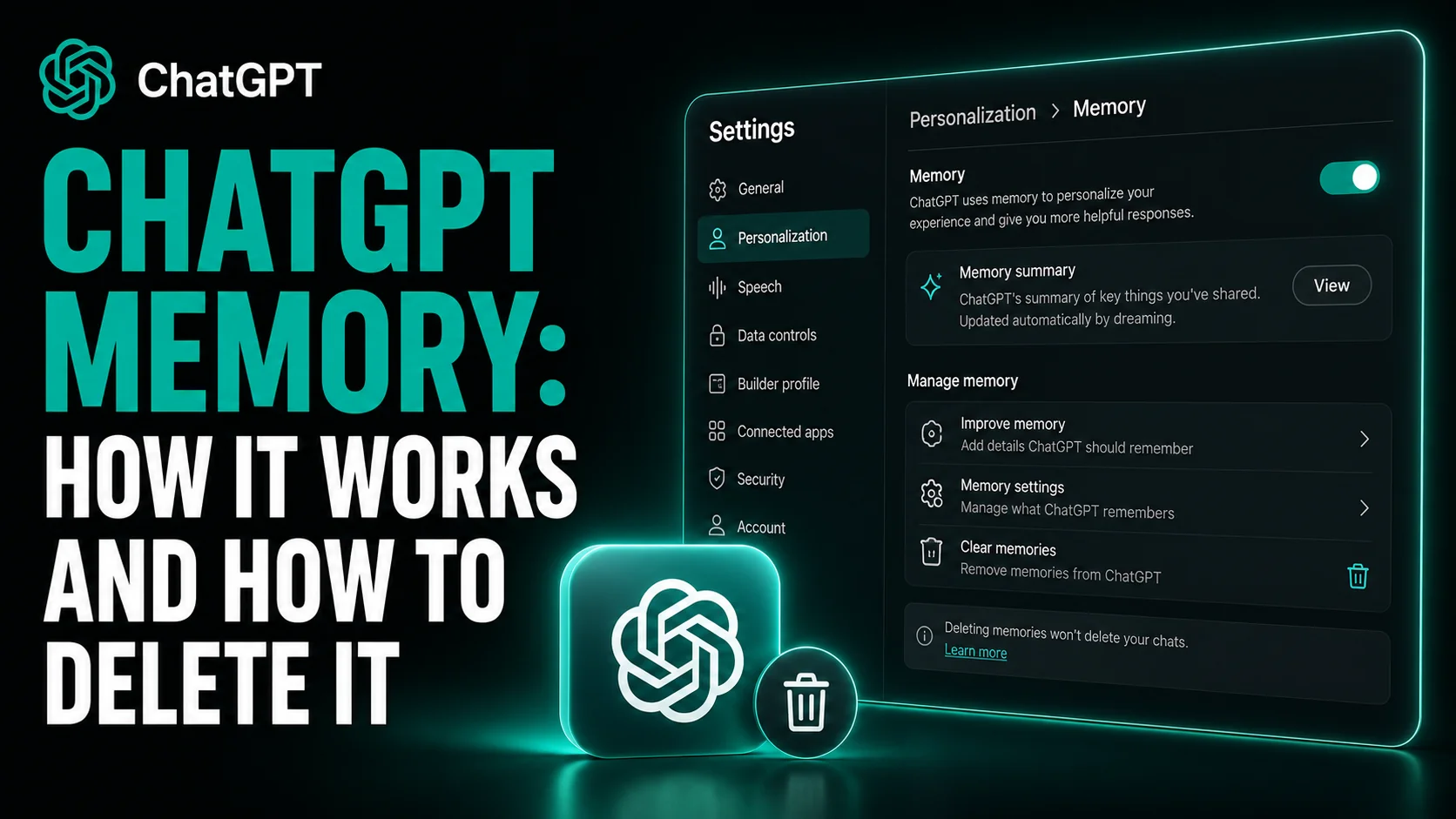
- Where to look: Settings, then Personalization, then Memory. Not Data controls, which is where every stale guide sends you.
- Deleting is not erasing: clearing your memories does not delete your chats, and turning memory back on lets ChatGPT rebuild memories from the chats still in your history, including older ones.
- Full removal takes several deletions: past chats, archived chats, files, the memory summary, and any connected apps holding the same detail.
- Still rolling out: OpenAI began with Plus and Pro in the US and expanded to Free and Go over the following weeks, so two accounts can legitimately show two different screens.
How ChatGPT Memory Works Now
Memory is the context ChatGPT carries from one conversation into the next. When it is on, ChatGPT pulls useful details from your chats, your files and your connected apps, so you do not have to reintroduce yourself every time you open a new window.
The important shift is in how those details are produced. Under the old system, ChatGPT wrote a note whenever something looked worth keeping, and those notes piled up in a list you maintained by hand. Under the new one, a background process reads across your conversation history and keeps a synthesis of it up to date. That synthesis is one of the hidden inputs behind why two people get different answers to the same question. You read that synthesis on the memory summary page.
The memory summary
The memory summary is a written portrait of what ChatGPT has concluded about you, stamped with when it last updated. You edit it in two ways: type what you want changed into the text box at the bottom, or highlight any line in it and correct that specific piece.
OpenAI is direct about its limits. The summary captures the most important details, but it does not include everything ChatGPT remembers from your chats. If you want to know whether something specific is in there, the company's own advice is to ask ChatGPT in a chat. If your summary is empty, that usually means the account is new, memory was switched on recently, or there is not enough history yet. You can force a rebuild under Settings, Personalization, Memory Summary, Manage, then Refresh in the three-dot menu.
Where the context actually comes from
Tap the book icon underneath any response and ChatGPT shows you the sources behind it: custom instructions, past chats, files and memories. Tapping an individual memory explains why it was used, and the three-dot menu next to it lets you correct it on the spot. Two caveats are worth carrying: the sources view does not necessarily show every factor that shaped a response, and it is never visible in a chat you have shared with someone else.
What Changed in June 2026, and Why
OpenAI published the reasoning in a post titled Dreaming: Better memory for a more helpful ChatGPT on 4 June 2026. Memory first launched in April 2024 as saved memories, a system the company now describes as talking to someone who took a few notes and forgot everything else. In April 2025 it added the ability to reference chat history, powered by the first version of dreaming. The June 2026 release rebuilt the whole thing on that foundation.
The problem being solved was staleness. Saved memories aged badly and contradicted each other, and OpenAI uses its own example: an account holding both "I'm training for a marathon" and "I sprained my ankle". A synthesis that updates itself handles the passage of time, so a note about a trip to Singapore in July becomes a note that you went to Singapore in July once the trip ends.
Two numbers are worth knowing. In that announcement OpenAI says it cut the compute needed to serve dreaming to Free users by approximately five times, which is what made the wider rollout practical. The release notes for the same day supply the figure the blog leaves vague: Plus and Pro accounts got twice as much memory capacity. The generations have names, and you will see them quoted elsewhere: saved memories in 2024, saved memories plus Dreaming V0 in 2025, and Dreaming V3 in 2026.
The rollout started with Plus and Pro users in the US and expanded to additional countries and to Free and Go plans over the following weeks. OpenAI's release notes still describe memory updates as rolling out across plans and countries, with an in-product notice when your account is switched over. If your screen does not match this guide, that is the most likely reason.
How to Delete ChatGPT Memory
The current path takes four steps on the web:
- Open Settings, then Personalization, then Memory.
- Open the memory summary page.
- Open the three-dot menu on that page.
- Select Delete and turn off memory.
That single action clears the memories shown on the summary and switches memory off. OpenAI shipped it on 12 June 2026 for all ChatGPT users on the web, according to the ChatGPT release notes, with mobile following, so if you are on an iPhone or Android handset and cannot find it, use a browser.
To remove something without the nuclear option, edit the summary instead. Highlight the line that is wrong and correct it, or type the correction into the box at the bottom. For a detail surfaced under a response, use the three-dot menu in the sources view.
If your settings look different
If you still see a scrolling list of individual memories with delete buttons, your account is on the legacy saved memories system. That is a supported state, not a bug, and you can move between the two deliberately. To go back to the old list, open Settings, Memory and select the saved memories link underneath Memory summary. To return to the new system, select Try improved memory from the saved memories screen.
The legacy system behaves differently in one way that still trips people up. Saved memories live in a store separate from your chat history, so deleting a conversation does not remove a memory created from it, and that memory keeps influencing future answers until you delete it directly. It is also the system that could reach a "memory full" state, which is why so many articles are written around freeing up space.
What deleting does not remove
This is the part that matters most and the part no competing guide states plainly. Clearing your memories does not delete your past chats. If you later switch memory back on, ChatGPT can create new memories from the conversations still sitting in your history, including old ones. People clear memory, feel finished, re-enable it weeks later, and watch the same details reappear.
To remove a detail completely, OpenAI's guidance is to delete every source it appears in: past chats, archived chats, files in your ChatGPT library, the memory summary itself, and any connected app that holds the same information. Deleting a memory also does not rewrite history. If ChatGPT mentioned your city in an old answer, that sentence stays in that conversation until you delete the conversation.
Retention has its own clock. A deleted chat leaves your account immediately and is scheduled for permanent deletion within 30 days, and archived chats follow the same rules as ordinary ones. OpenAI keeps a log of deleted saved memories for up to 30 days for safety and debugging. Files are separate again: deleting a chat does not delete files saved to your Library, and files uploaded into a project stay until the project itself is deleted. Our guide to what OpenAI collects and who can see it goes through the retention picture in full.
Every ChatGPT Memory Setting Compared
Five different features get called "memory" in conversation, and they behave differently. This is the layout that actually applies:
| Feature | What it holds | Who writes it | Where to manage it | Removed by deleting a chat |
|---|---|---|---|---|
| Memory summary | A synthesis of your chats, files and connected apps | ChatGPT, automatically | Settings, Personalization, Memory | No |
| Saved memories (legacy) | Individual noted facts | ChatGPT, or you on request | Settings, Memory, Saved memories | No |
| Custom instructions | Rules you write yourself | You, verbatim | Settings, Personalization | No |
| Project-only memory | Context sealed inside one project | ChatGPT, inside that project | Project settings, three-dot menu | Yes, per conversation |
| Temporary Chat | Nothing | Nobody | The chat window, at the moment you open it | Not applicable |
The distinction people get wrong most often is memory against custom instructions. Custom instructions are direct guidance you write and ChatGPT applies as written, which makes them the right home for anything you always want followed. Memory is inferred from conversation and maintained for you. If a preference is non-negotiable, write it as an instruction rather than hoping the summary keeps it.
Memory Inside Projects and Temporary Chats
Projects have their own memory scope. With project-only memory, ChatGPT draws on conversations from inside that project and will not reference anything outside it, and nothing inside updates your account-wide memory. Since 14 August 2026 you can switch an eligible unshared project between default and project-only memory from the three-dot menu under Project settings, and the change can take a few hours to land. Shared projects stay on project-only memory and cannot be switched back. Our full guide to ChatGPT Projects covers the setup, the file limits and the sharing rules.
Temporary Chat is the blunter tool, and since 27 August 2026 you choose how blunt when you open it. By default a Temporary Chat is not personalised, which means it reads none of your memories, custom instructions or plugins. If you switch personalisation on as you start the chat, it can draw on all three to tailor its answers. Either way it creates no new memories, and either way it stays out of your history unless you save it, which converts it into a regular chat that follows your normal account settings from then on. The one thing you cannot do is change your mind: personalisation is set as the conversation begins and is fixed for its lifetime. OpenAI keeps a copy for up to 30 days for safety purposes, so "temporary" describes your account, not OpenAI's systems.
ChatGPT Memory and Your Privacy
Sensitive information reaches memory if you share it in a chat, and OpenAI says so directly. There is no filter that recognises a medical detail or a salary figure and holds it back. The controls you have are the ones above: switch memory off, open a Temporary Chat and leave personalisation off, or delete the sources.
Memory also feeds advertising. OpenAI’s ads documentation is explicit about the link: if ads personalisation is turned on and memory is on, ChatGPT can use your memories and reference recent chats when selecting an ad. Advertisers never receive your chats, history, memories or personal details, only aggregated figures such as views and clicks. Ads appear on the Free and Go plans only, starting with a US test on 9 February 2026, and on 18 August 2026 OpenAI announced that ChatGPT Ads would expand to 31 European countries the following week. The detail that matters most for memory is the carve-out: personalised ads are not initially available in the EEA or Switzerland, so readers there see ads matched to the conversation in front of them rather than to what ChatGPT remembers about them. We cover every opt-out in how to use ChatGPT without ads. This is the practical reason memory deserves a look even if privacy in the abstract does not interest you: it is the input to personalisation you never explicitly chose.
If you want to see what has accumulated before you decide, prompting is faster than reading settings. Our set of prompts that reveal what ChatGPT knows about you pulls the picture out in a few messages. And if the wider question is how much any assistant retains, stopping AI from training on your data covers the settings across providers.
What Most Guides Get Wrong About ChatGPT Memory
Three claims dominate the search results and all three are out of date.
The first is the deletion path. Nearly every ranking article sends you to Settings, Data controls, Personalization, Manage memories, then a trashcan icon or a "Clear ChatGPT's memory" button. That is the legacy screen. On a migrated account the route is Settings, Personalization, Memory, and the control is inside a three-dot menu.
The second is the framing of memory as two toggles, Reference saved memories and Reference chat history. Those were the controls of the previous system, and they still appear in OpenAI's documentation of project memory prerequisites, which is why the confusion persists. The current memory FAQ documents a single Memory control instead.
The third is "memory full". Advice about freeing up space assumes a capacity meter that the synthesis-based system does not present to users. If you are hitting that state, you are on the legacy system, and the fix is to migrate rather than to prune.
One claim that looks fake but is not: dreaming is OpenAI's own term, not a nickname invented by bloggers. It never appears in the ChatGPT release notes, which is exactly why it reads as invented, but it is the title of OpenAI's own announcement. Treat anything sourced from community forum threads about Dreaming V3 with more caution, since those are user opinions rather than company statements.
Should You Leave It On
For most people, yes. The whole point of the June 2026 rebuild was to stop memory rotting, and a synthesis that revises itself is more useful and less wrong than a list that accumulates. The cost is that you have less granular control than the old system offered, and the summary deliberately does not show you everything.
The sensible middle ground is to leave memory on, read your summary once a quarter, correct anything wrong by highlighting it, and reach for Temporary Chat whenever a conversation is one you would not want shaping later answers. If the context belongs to one piece of work rather than to you, put it in a project with project-only memory instead.
One last thing that no setting fixes: memory does not travel. What ChatGPT knows about you stays inside ChatGPT, and moving to another assistant means starting from nothing. Claude’s memory takes the opposite approach, storing individually editable entries you can read, correct or delete, which is worth knowing if you are weighing a move. That is worth planning for before you switch, and it is the strongest argument for keeping your important context in custom instructions, where you can copy it, rather than trusting a summary you cannot export. Read OpenAI's own Memory FAQ for the reference version of the controls above.
Frequently Asked Questions
How do I delete ChatGPT memory?
Open Settings, then Personalization, then Memory. On the memory summary page, open the three-dot menu and select Delete and turn off memory. That clears the memories shown and switches memory off. It does not delete your past chats, and turning memory back on lets ChatGPT build new memories from the conversations still in your history.
Why does my ChatGPT show a list of memories instead of a summary?
Your account is on the legacy saved memories system, either because the update has not reached it or because it was switched back deliberately. Open Settings, Memory and select Try improved memory to move to the new system, or the saved memories link to return to the old one.
Does deleting a chat delete what ChatGPT remembers from it?
No. Memory is stored separately from your chat history, so a deleted conversation leaves its memories behind. To remove a detail completely, delete every source it appears in: past chats, archived chats, files, the memory summary, and any connected app holding the same information.
Is ChatGPT memory the same as custom instructions?
No. Custom instructions are guidance you write yourself and ChatGPT applies them as written. Memory is inferred from your conversations and updated automatically. Put anything you always want followed into custom instructions rather than relying on memory to hold it.
Does Temporary Chat use memory?
Not unless you ask it to. Since 27 August 2026 you decide as you open a Temporary Chat whether it is personalised. The default is off, and a non-personalised Temporary Chat ignores your memories, custom instructions and plugins alike. Turn personalisation on and it can use all three, though no Temporary Chat creates new memories in either mode. It stays out of your chat history unless you save it, and OpenAI keeps a copy for up to 30 days for safety purposes.