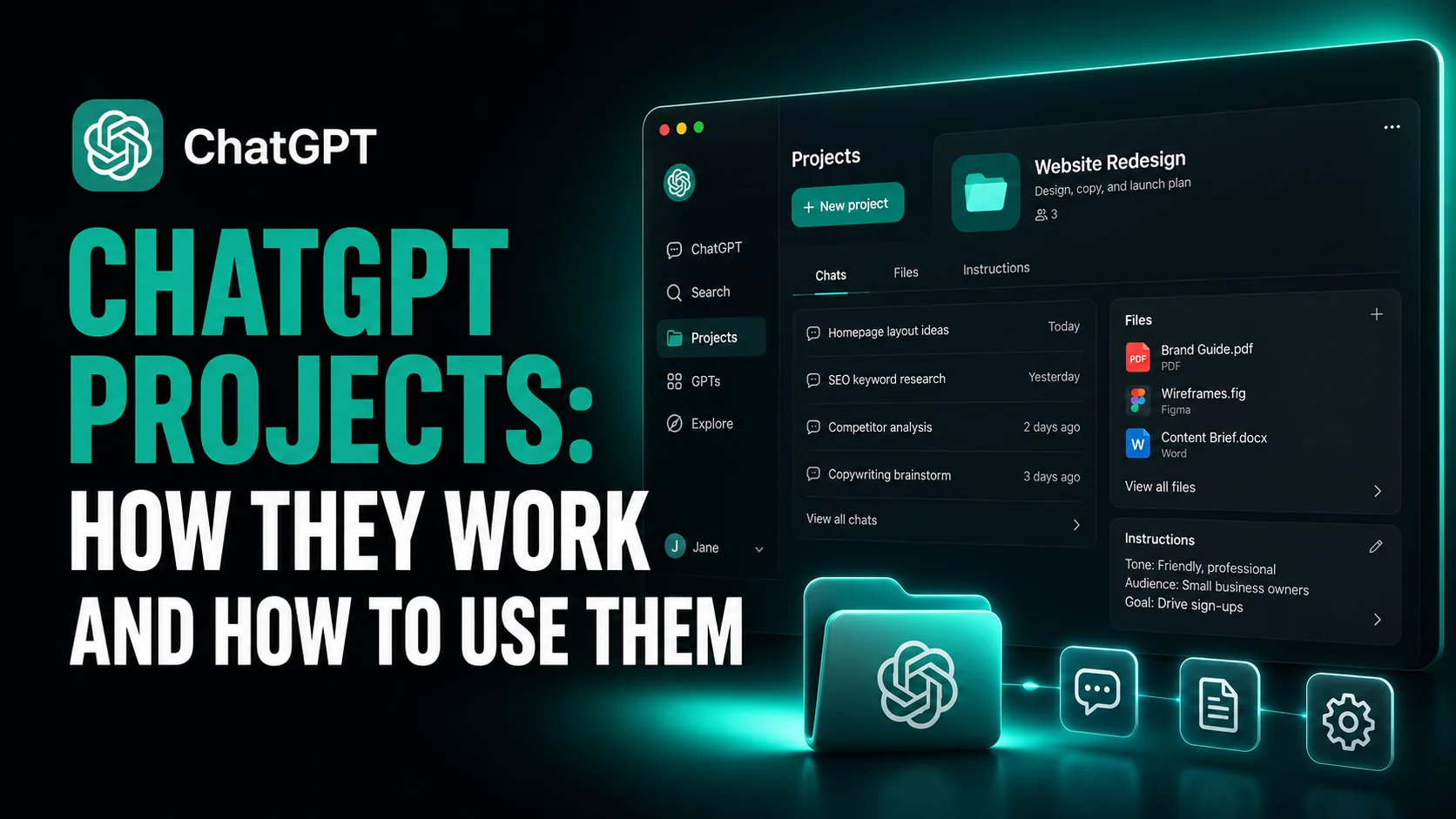
If your ChatGPT sidebar has turned into a few hundred rows of half-remembered conversations, ChatGPT Projects are the feature built for that problem. A project is a workspace that holds one long-running job together: its chats, its uploaded files, and its own set of instructions. Projects are available on every plan including Free, they cost nothing extra, and you can create an unlimited number of them.
The catch is that most guides describing the Projects feature are out of date, and two of the facts they repeat are simply wrong. Sharing is not restricted to business plans, and you no longer need to create a brand new project to use project-only memory. This guide covers what projects do, the real limits on each plan, how to set one up, what changed in August 2026, and where projects stop being useful.
The Key Takeaways
- What it is: a workspace holding one effort's chats, files and instructions. On every plan including Free, at no extra cost, with unlimited projects per account.
- File limits: 5 files per project on Free, 25 on Go and Plus, 40 on Edu, Pro, Business and Enterprise. Only 10 can be uploaded at once.
- The sharing myth: guides still say sharing needs a business plan. It has been available to Free, Go, Plus and Pro users globally since October 2025.
- What changed in August 2026: since 14 August you can switch an existing unshared project between default and project-only memory without starting over.
- The trade-off: project instructions override your global custom instructions, and chats started with a custom GPT cannot be moved in at all.
What Are ChatGPT Projects?
A ChatGPT project is a workspace that keeps one long-running effort together: its chats, its uploaded files, and its own set of instructions. Anything you ask inside the project draws on that context, so ChatGPT stays on topic without you re-explaining the background at the start of every new conversation.
That is the whole idea, and it is worth being clear about what it is not. A project is not a smarter model, and it does not give you more usage. It is organisation. The value is that the context travels with the workspace instead of living in your head or in a chat you will never find again. Perplexity's equivalent, renamed from Spaces to Projects, works on the same principle with a stricter sharing model.
OpenAI's own documentation frames projects as suiting "repeated and evolving work such as writing, research, planning". In practice the test is simple. If you will come back to this subject more than three times, it belongs in a project. If you are asking one question and moving on, it does not.
What You Get on Each Plan
File limits are the one hard constraint, and they are the thing people hit first. The collaborator caps below were published when sharing opened up to everyone, and they cover the consumer plans only.
| Plan | Files per project | Collaborators | Can share |
|---|---|---|---|
| Free | 5 | 5 | Yes |
| Go | 25 | 10 | Yes |
| Plus | 25 | 10 | Yes |
| Pro | 40 | 100 | Yes |
| Business | 40 | Workspace controlled | Yes |
| Enterprise | 40 | Workspace controlled | Yes |
| Edu | 40 | Workspace controlled | Yes |
Two details that rarely make it into other guides. You can create an unlimited number of projects on any plan, so the file cap is per project rather than per account, and splitting work across two projects is a legitimate way around it. And however generous your limit, ChatGPT will only accept 10 files in a single upload, so a large batch needs more than one go.
If you hit the ceiling, OpenAI's advice is the obvious one: remove old uploads, combine files, or split the work into separate projects. There is no paid add-on that raises the cap on its own. Project files also follow their own retention rule, separate from the per-plan storage meter covered in our guide to the ChatGPT library. Note that these are counts rather than sizes; the separate question of how large each file may be is covered in our guide to AI file upload limits.
How to Create a ChatGPT Project
Setup takes about two minutes, and the part that matters is the third step.
- Click New project in the sidebar.
- Give it a name, then pick an icon and colour so you can spot it later.
- Open the three-dot menu, choose Project settings, and write your project instructions.
- Add your files and sources.
- Start a chat inside the project rather than in the main window.
Writing project instructions
Project instructions tell ChatGPT how to behave inside this workspace only. OpenAI's own example is "Act like my marketing mentor. Be concise. Use bullet points. Ask clarifying questions."
Here is the part worth knowing before you write them: project instructions override your global custom instructions. They do not stack. If you have spent time tuning your account-wide instructions and then leave a project's instructions half-written, you have quietly replaced a good setup with a worse one inside that project. Either write them properly or leave them empty.
No published character limit exists for project instructions. If you find a specific number quoted elsewhere, it did not come from OpenAI's documentation.
Adding files and sources
You can upload PDFs, spreadsheets, documents and images, or paste text directly. Since February 2026 you can also paste a link to a Slack channel or a Google Drive file or folder to add it as a source. That is the better route when the material already lives somewhere your team keeps updating.
One caveat that catches people out: the Google Drive app does not pre-sync inside a project. ChatGPT can search and open Drive files, but it will not have indexed them in advance the way it does with a direct upload. If a document is central to the work and stable, upload it. If it changes weekly, link it. This is a different mechanism from the cross-app connectors covered in our guide to the Model Context Protocol, which reaches outside services rather than storing files in the workspace.
You can also save a good ChatGPT response back into the project as a source, which turns a useful answer into reusable context instead of something buried in a thread.
How to Move an Existing Chat Into a Project
Most people discover projects after they already have the conversation they wish had been in one. To move it, drag the chat onto the project in the sidebar, or open the chat's menu and choose Move to project. Pinned chats can be moved too. After the move, the chat inherits the project's instructions and file context, so it starts behaving like the rest of the workspace.
Two chats cannot be moved, and this is where the "Move to project" option quietly disappears rather than explaining itself. Chats created with a custom GPT cannot be moved into a project. Neither can temporary chats. If the option is missing, one of those is almost always why, and the fix is to start a fresh chat inside the project instead.
Project Memory and What Changed in August 2026
Projects have their own memory. ChatGPT remembers the chats and files inside a project, so it picks up where you left off. What you can control is whether that memory is sealed off from the rest of your account.
With project-only memory, ChatGPT draws on conversations from inside that project and will not reference memories or chats from outside it. Just as importantly, what accumulates inside the project stays there and does not update your account-wide memory. That makes it the right setting for client work, sensitive research, or anything you would rather not have surfacing in an unrelated conversation later. If you want the wider picture of what ChatGPT retains, our guide to what OpenAI collects and who can see it covers the account-level settings.
Switching an existing project
Project-only memory is not new. It arrived on 22 August 2025, and for its first year it could only be chosen at the moment you created a project. If you had an existing project, the documented answer was that you could not change it and had to build a new one. It also depends on your memory settings, which is the usual reason the option is missing entirely. On every plan except Enterprise you need both Reference saved memories and Reference chat history switched on; on Business and Enterprise, memory has to be enabled for the workspace as well.
That changed on 14 August 2026, according to OpenAI's ChatGPT release notes. You can now open a project, select the three-dot menu, choose Project settings, and pick either Default memory or Project-only memory under Memory. The change is available on all ChatGPT plans, and OpenAI notes it may take a few hours to take effect, so do not panic if the behaviour looks unchanged straight away.
Three limits come with it. The switch works on unshared projects only. Shared projects stay on project-only memory permanently and cannot be moved back to default. And ChatGPT Work is not available in any project using project-only memory, which is a real trade-off if you rely on it.
Two smaller things are worth knowing. There is no global switch that makes every project memory-sealed, so each one must be set individually. And project memory does not show you a list the way saved memories do, so if you want ChatGPT to forget something specific, you have to delete that conversation or move it to another project.
How to Share a ChatGPT Project
Use the Share button at the top right, then invite people by email or with a workspace link. Invitees get one of two access levels. Edit lets them update instructions, add or remove files and invite others. Chat lets them see and use the project's chats, files and instructions without inviting anyone. As the owner you can change permissions or remove members at any time.
Shared projects work differently from a shared chat link. Sharing a single chat shows one conversation frozen at the moment you shared it. Sharing a project brings someone into the live workspace, where they can start new chats, branch existing ones and add material of their own. Members can branch a teammate's thread to explore a different direction, but nobody edits the same chat simultaneously.
Remember that sharing forces project-only memory on, permanently. If you plan to share a project eventually, that is worth knowing before you build it.
What Most Guides Get Wrong About ChatGPT Projects
Two claims are repeated across almost every current write-up of this feature, and both are out of date.
The first is that sharing requires a Business, Enterprise or Edu plan. It does not, and has not since October 2025, when OpenAI opened project sharing to all users including Free, Go, Plus and Pro, globally, on web, iOS and Android. This one matters because several "Projects versus Custom GPTs" comparisons are built on it, treating shareability as the thing that separates the two. That axis collapsed nearly a year ago.
The second is that you must create a new project to get project-only memory. That was correct until 14 August 2026 and is now simply wrong, as described above. It has a long tail because it was the documented answer for a full year, so it has been copied widely. OpenAI corrected its own help page within days of the change. The guides quoting that page have not caught up.
A newer variant of the same error is worth flagging, because it is spreading fast: several write-ups now describe project-only memory itself as an August 2026 launch. It is not. The feature shipped on 22 August 2025. What arrived in August 2026 was only the ability to change the setting on a project you had already made. The difference matters if you are trying to work out whether your own projects were created before or after the option existed.
If you are checking any guide on this topic, including this one, the useful habit is to look for a date attached to the claim rather than a date at the top of the page. This feature has changed at least six times since September 2025.
Projects vs Custom GPTs
These solve different problems, and the distinction is cleaner than most comparisons make it.
| Projects | Custom GPTs | |
|---|---|---|
| What it is | A workspace | A configured tool |
| Continuity | Remembers the work inside it | Starts fresh each time |
| Best for | One evolving effort | A repeatable task |
| Distribution | Invite people into it | Share a link or publish it |
| External tools | Connected apps | Actions via API |
The rule of thumb: a project is where work accumulates, a custom GPT is something you run. If you want the same output shape every time from a clean slate, build a GPT. If you want the context to deepen with each session, use a project.
Can you use a custom GPT inside a project?
Partly, and the detail is precise enough to be worth stating exactly. You can call a custom GPT for messages within an existing project chat. But if the first message of a conversation uses a custom GPT, the whole conversation becomes a chat with that GPT and appears outside the project.
That is also why those chats cannot be moved in afterwards. So start the chat inside the project first, then bring in the GPT.
Does Gemini or Claude have projects?
Both have something comparable, and neither maps exactly. Claude's version is also called Projects and is available to free accounts, capped at five, with paid plans adding retrieval over larger knowledge bases. The notable difference is sharing: Claude keeps it on Team and Enterprise plans, which is exactly the restriction ChatGPT dropped in 2025. We cover the setup and the plan rules in our guide to how to use Claude Projects.
On Google's side, Gems are the closer analogue to custom GPTs, while the nearer equivalent to a project is the notebook, covered in our guide to Gemini study notebooks. Availability there differs by account type in ways that catch students out in particular.
Where ChatGPT Projects Stop Helping
Projects are good at what they do. There are two honest limits.
The first is that a project organises your work inside one vendor. Your instructions, files and accumulated context sit in ChatGPT, and they do not come with you if you move. Anyone who has read our notes on switching from ChatGPT to Claude knows the shape of that problem. The better the workspace, the more expensive the switch, which is a reasonable trade to make deliberately and an unpleasant one to discover later. The same vendor can also retire a surface you had built a habit around, which is exactly what happened when OpenAI removed Canvas and replaced it with writing blocks.
The second is that projects organise chats, not your working day. They sit inside the ChatGPT window. If most of your work happens elsewhere on your Mac, a workspace you have to open a browser tab to reach solves less than it looks like it does. That is the gap a native multi-model client fills, and it is why we built projects into Fello AI as well, described in the 6.6.0 release notes. The wider comparison of desktop options lives on our ChatGPT desktop client page.
Should You Use ChatGPT Projects?
Yes, for anything you will return to. The setup cost is two minutes and the payoff is not re-explaining your context every session. Students should run one project per course, a pattern that fits alongside the tools in our guide to the best AI for students, and it pairs well with ChatGPT Study Mode inside the same workspace.
The one decision worth making up front rather than later is memory. If the work is sensitive, set project-only memory at the start, because sharing locks it on permanently and ChatGPT Work stops being available once it is. Everything else about a project can be changed as you go.
Frequently Asked Questions
Do ChatGPT Projects cost extra?
No. Projects are included with every qualifying ChatGPT plan, including Free. Any usage charges for models or tools apply inside a project exactly as they do in a normal chat, so a project does not consume your allowance faster or slower.
How many files can I upload to a ChatGPT project?
Five per project on Free, 25 on Go and Plus, and 40 on Edu, Pro, Business and Enterprise. Only 10 files can be uploaded at the same time regardless of plan. You can create unlimited projects, so splitting a large job across two is a valid way to work around the cap. Your plan sets those caps, and ChatGPT Plus vs Pro covers what the paid tiers change.
My ChatGPT projects disappeared. Where did they go?
Check that you are signed in to the right account first, since projects require a logged-in session and do not appear for signed-out users. If the account is correct, look at whether your sidebar is grouping chats by project or showing one combined Recents list, as that setting changes what is visible. Search across chats and projects from the sidebar to locate a specific one.
Can I use voice inside a ChatGPT project?
Yes. Since 7 August 2026, ChatGPT Voice works inside projects and can reference recent project chats, sources and project instructions. The same update added file uploads during a voice conversation.
Is my project data used to train OpenAI's models?
On Free, Plus and Pro, OpenAI may use information from projects for training if your "Improve the model for everyone" setting is on. On Business, Enterprise and Edu it is not used for training by default. Deleted projects, along with their chats, files and instructions, are removed within 30 days unless legally required to be retained.