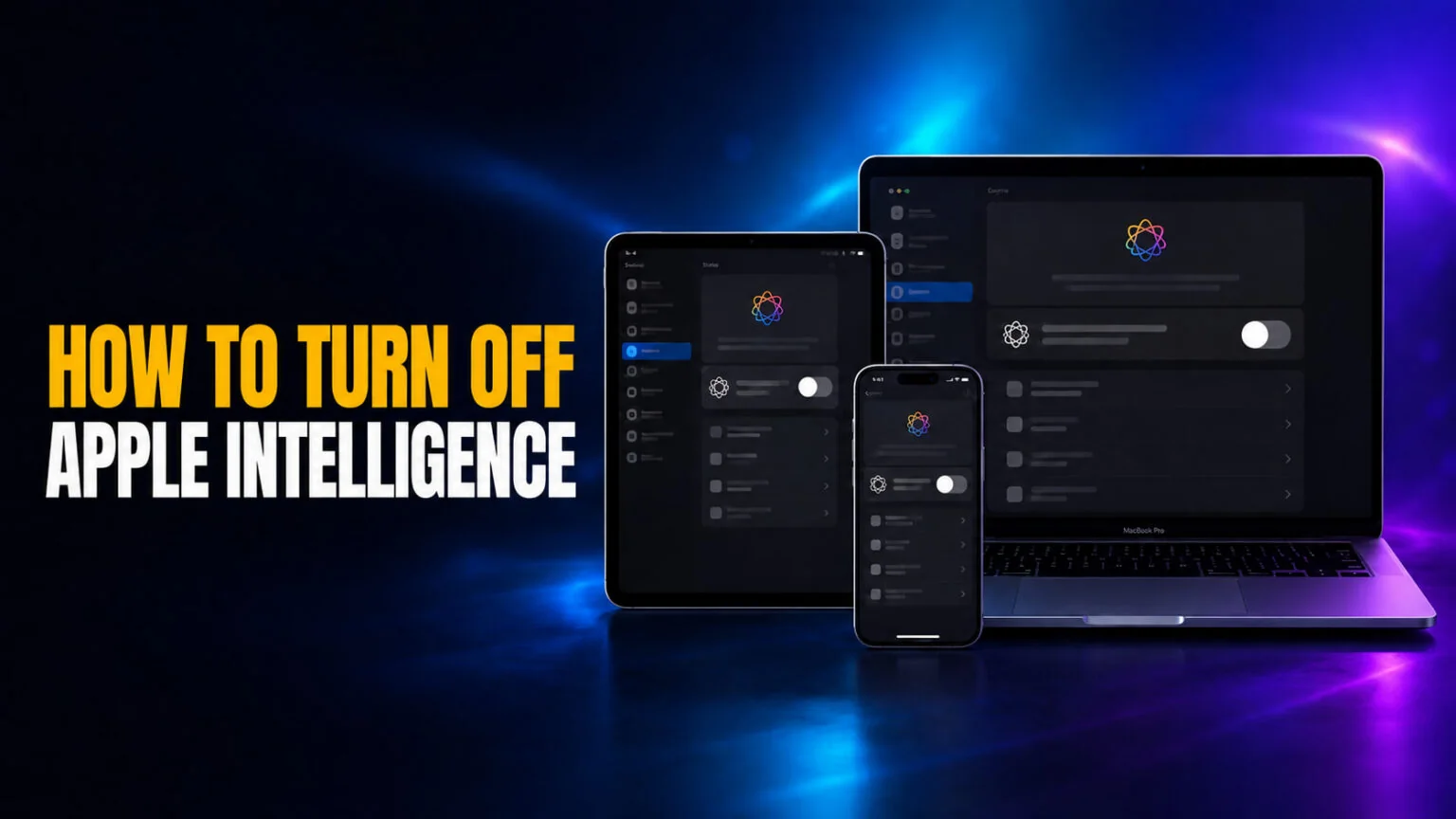
To turn off Apple Intelligence, open Settings on your iPhone or iPad (or System Settings on a Mac), tap Apple Intelligence & Siri, switch off Apple Intelligence, and tap Turn Off to confirm. That single toggle disables Writing Tools, Notification Summaries, Genmoji, Image Playground, Visual Intelligence, and the ChatGPT integration in Siri all at once, and it frees up to 7GB of storage because the on-device models are removed.
This guide covers every way to switch Apple Intelligence off in iOS 26, iPadOS 26, and macOS 26, from the master kill switch to disabling just the features that annoy you, like garbled notification summaries. You will also learn how to block Apple Intelligence with Screen Time for a child’s device, whether turning it off frees up storage, and why it sometimes reappears after a major software update. Apple Intelligence only runs on iPhone 15 Pro and newer, M1-or-later Macs and iPads, so if you do not see the setting, your device does not have it.
The Key Takeaways
- One master toggle turns everything off: Settings (or System Settings) > Apple Intelligence & Siri > switch off Apple Intelligence.
- Turning it off frees up to 7GB of storage by removing the on-device AI models.
- You can disable just notification summaries under Settings > Notifications without switching off the rest.
- Screen Time > Content & Privacy blocks Writing Tools, Image Creation, and ChatGPT extensions on a managed device.
- Some major iOS and macOS updates re-enable Apple Intelligence automatically, so re-check the setting after each big update.
How to Turn Off Apple Intelligence on iPhone and iPad
The fastest way to turn off Apple Intelligence is the master toggle in Settings. It kills every Apple Intelligence feature in one move, and you can switch it back on anytime. Here is the exact path on an iPhone or iPad running iOS 26 or iPadOS 26.
- Open the Settings app.
- Scroll down and tap Apple Intelligence & Siri.
- Switch off the Apple Intelligence toggle at the top.
- Tap Turn Off in the pop-up to confirm.
- Wait a moment while the on-device models are removed.
That is it. Writing Tools, Notification Summaries, Genmoji, Image Playground, Visual Intelligence, and ChatGPT in Siri all switch off together. Your core iPhone experience stays exactly the same, and classic Siri keeps working for timers, calls, and basic commands. If you ever want it back, return to the same screen and switch the toggle on. For the full picture of what the feature actually does, see our Apple Intelligence explainer.
How to Turn Off Apple Intelligence on Mac
The Mac path is nearly identical, with one naming difference. Macs use System Settings instead of Settings, and the rest of the flow matches the iPhone. This works on any M1-or-later Mac running macOS 26.
- Click the Apple menu and choose System Settings.
- Select Apple Intelligence & Siri in the sidebar.
- Switch off Apple Intelligence and confirm.
If you want to keep most of Apple Intelligence but stop Mail from summarizing your messages, open the Mail app, choose Mail from the menu bar, click Settings, open the Viewing tab, and untick Summarize Message Previews. This leaves the rest of the AI features intact while clearing the email summaries from your inbox.
How to Turn Off Notification Summaries Only
Notification summaries are the feature most people want gone. They condense your incoming alerts into a one-line recap, and that recap is often wrong or misleading. You can switch summaries off on their own and keep everything else running.
- Open Settings and tap Notifications.
- Tap Summarize Notifications.
- Switch off the Summarize Notifications toggle.
You can also keep summaries for some apps and drop them for others. On the same Summarize Notifications screen, scroll to the app list and turn the feature off for individual apps like Messages or your news app. That way you keep a useful summary for low-priority alerts and read important messages in full. The approach mirrors how you would turn off Google Gemini features selectively rather than all at once.
How to Turn Off Individual Apple Intelligence Features
If the master toggle feels like too much, you can disable Apple Intelligence feature by feature and keep the parts you like. The ChatGPT integration is the most common one to drop. Open Apple Intelligence & Siri, tap ChatGPT under Extensions, and switch off Use ChatGPT. Siri then stops handing off questions to OpenAI’s model and answers with Apple’s own system instead.
Writing Tools, Genmoji, and Image Playground are best controlled through Screen Time, which is covered in the next section. On a Mac you can also limit what Siri learns by opening Apple Intelligence & Siri, selecting Siri Suggestions & Privacy, and switching off Learn from this Application for any app you want to restrict. These granular controls let you shape the feature around your habits instead of switching it off completely, which is the same logic behind deciding whether Siri counts as real AI in the first place.
How to Block Apple Intelligence with Screen Time
Screen Time is the right tool when you want to block Apple Intelligence on a child’s device or a managed work phone, because it locks the choice behind a passcode. According to Apple Support, you can block three feature groups this way.
- Open Settings (or System Settings on a Mac) and tap Screen Time.
- Tap Content & Privacy and turn on the Content & Privacy restrictions.
- Tap Intelligence & Siri.
- Switch off Writing Tools, Image Creation (Image Playground, Genmoji, and Image Wand), and Intelligence Extensions (third-party providers like ChatGPT).
Because these toggles sit inside Screen Time, a child cannot flip them back on without the Screen Time passcode. The same path works on a Mac through System Settings > Screen Time, with identical feature names. It is the cleanest way to keep AI image and writing tools off a managed device permanently.
Does Turning Off Apple Intelligence Free Storage?
Yes. Switching Apple Intelligence off frees up to 7GB of storage because the on-device language and image models are deleted from your device, as MacRumors documents. That is a real reason to disable it on a 128GB iPhone where space is tight. The exact amount reclaimed varies by device, and the system deletes the models on its own schedule rather than instantly. If you turn the feature back on later, your device re-downloads those models, so keep a Wi-Fi connection handy.
One quirk to watch is that some major iOS and macOS updates have switched Apple Intelligence back on automatically. After every big update, it is worth re-checking Settings > Apple Intelligence & Siri to confirm it is still off. There is no evidence that disabling it meaningfully changes battery life, so storage and the cleaner interface are the main wins. For the wider context on Apple’s AI roadmap and the upcoming Gemini-powered Siri, our WWDC 2026 recap has the full timeline.
Want AI on Your Own Terms Instead?
Plenty of people switch Apple Intelligence off not because they dislike AI, but because they want more control and better models. If that is you, a dedicated AI app gives you the power without the system-level baggage. Fello AI brings Claude, ChatGPT, Gemini, Grok, and DeepSeek together in one native Mac app, so you pick the right model for each task instead of being locked into one assistant.
It runs as a normal app you open when you want it, with no notification summaries hijacking your lock screen and no features quietly turning themselves back on. One subscription covers every model, which beats juggling separate accounts. You can see how it works on the Fello AI getting started page.
Conclusion
Turning off Apple Intelligence takes about ten seconds. Open Settings > Apple Intelligence & Siri, switch off the toggle, and you reclaim up to 7GB of storage along with a quieter, AI-free interface. If you only want to silence notification summaries or drop ChatGPT, use the per-feature paths instead and keep the tools you actually like.
Re-check the setting after each major update, since it can switch back on, and use Screen Time if you need the choice to stick on a child’s device. If you still want strong AI on your Mac, just on your own terms, give Fello AI a look.
FAQ
How do I turn off Apple Intelligence completely?
Open Settings on iPhone or iPad, or System Settings on a Mac, tap Apple Intelligence & Siri, switch off the Apple Intelligence toggle, and tap Turn Off to confirm. This disables every Apple Intelligence feature at once.
Does turning off Apple Intelligence free up storage?
Yes, it frees up to 7GB because the on-device AI models are removed from your device. Turning the feature back on re-downloads those models, so connect to Wi-Fi when you do.
How do I turn off just the notification summaries?
Go to Settings > Notifications > Summarize Notifications and switch off the toggle. You can also turn summaries off for individual apps on the same screen while leaving the rest of Apple Intelligence on.
Will Apple Intelligence turn back on after an update?
It can. Some major iOS and macOS updates have re-enabled it automatically, so re-check Settings > Apple Intelligence & Siri after each big update to confirm it is still off.
Why don’t I see the Apple Intelligence setting?
Apple Intelligence only runs on iPhone 15 Pro and newer, plus M1-or-later iPads and Macs. If your device is older, the setting will not appear because the feature is not supported, and our guide to Apple Intelligence alternatives for Mac shows what to run instead.