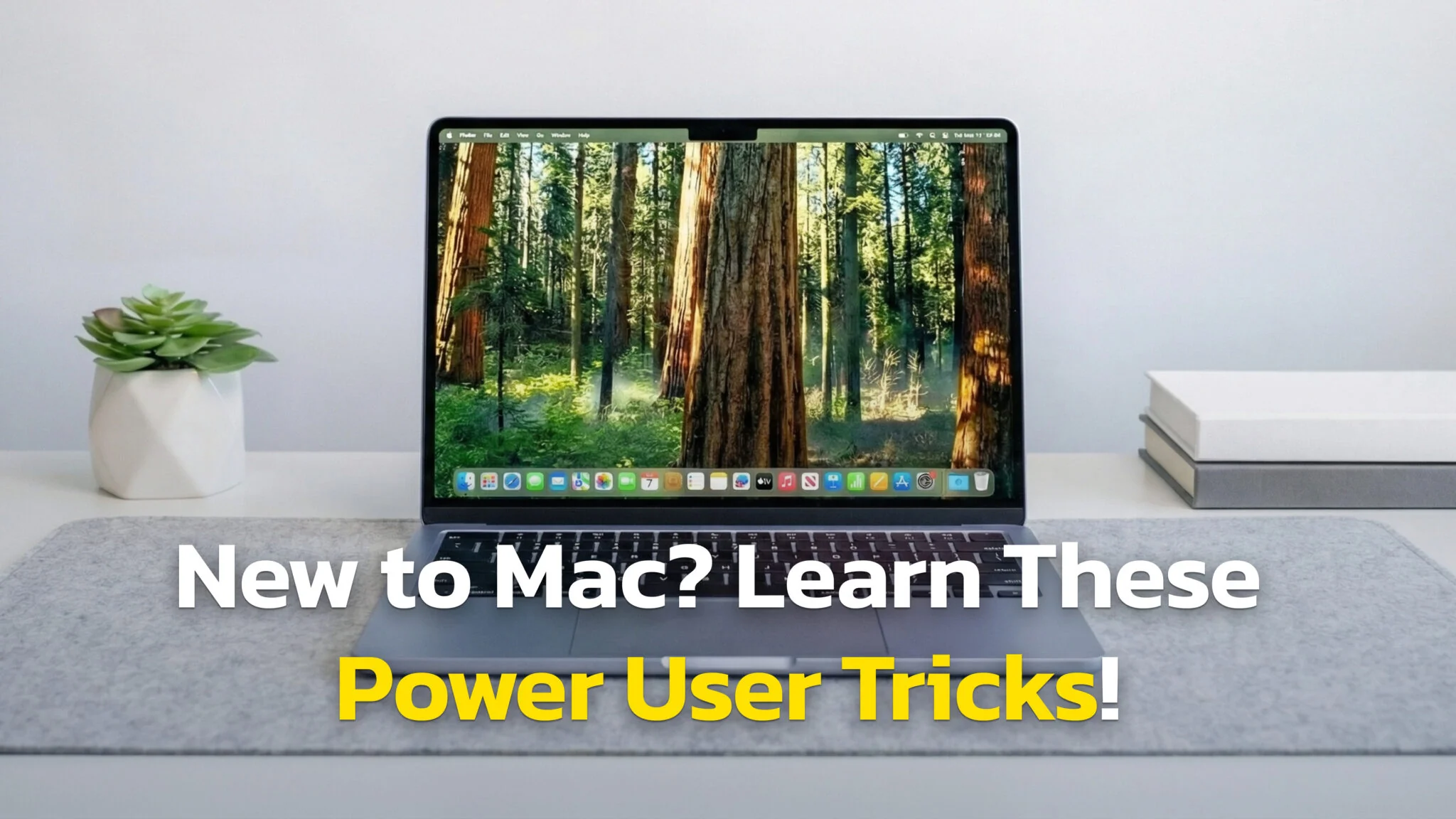
Most Mac productivity articles recycle the same ten shortcuts you already know. Command+C, Command+V, Spotlight exists — groundbreaking.
This guide is different. These are 20 tips that power users, Reddit communities, and people who spend 8+ hours daily on their MacBook actually rely on. Every tip includes the exact setup path and what it saves you in practice.
Whether you’re a student, remote worker, developer, or creator — pick three tips from this list, use them for a week, and you’ll wonder how you worked without them.
1. Learn the Keyboard Shortcuts That Actually Matter
You know Command+C and Command+Tab. Here are the ones that change your daily workflow:
Navigation
| Shortcut | What It Does |
|---|---|
| Cmd + ` (backtick) | Switch between windows of the same app. Two Safari windows open? This toggles between them. |
| Cmd + Option + Click on Desktop | Hides every window except the one you click. Instant focus. |
| Cmd + Shift + G (in Finder or Save dialog) | Jump to any folder by typing its path. Type ~/Downloads or /usr/local and you’re there. |
| Ctrl + Left/Right Arrow | Switch between desktop Spaces. Faster than swiping. |
| Cmd + Shift + . | Show/hide hidden files in Finder. Essential for config files, .git folders, .env files. |
Text Editing (Works in Almost Every App)
| Shortcut | What It Does |
|---|---|
| Option + Left/Right Arrow | Jump by word instead of character. |
| Cmd + Left/Right Arrow | Jump to start/end of line. |
| Option + Delete | Delete the previous word. One keystroke instead of hammering backspace. |
| Cmd + Delete | Delete everything from cursor to start of line. |
| Cmd + Shift + V | Paste as plain text. No more pasting formatted text from a website. |
System-Wide
| Shortcut | What It Does |
|---|---|
| Cmd + Option + Esc | Force Quit menu. Fastest way to kill a frozen app. |
| Ctrl + Cmd + Space | Emoji and symbol picker. Works in any text field. |
| Cmd + Shift + 5 | Screenshot and screen recording panel. |
| Cmd + , | Open preferences for whatever app you’re in. Works in almost every Mac app. |
| Fn + F | Toggle full screen for the current app. |
2. Use Spotlight as a Calculator, Converter, and Search Engine
Most people use Spotlight to launch apps. It does much more.
Open it: Cmd + Space
- Math: Type
(1499 * 0.85) + 200and get the answer instantly. Supports parentheses, exponents (2^10), and trig functions. - Unit conversions: Type
3 cupsand see pints, liters, milliliters. Works for distance (100 km to miles), temperature (72°F to celsius), weight, and more. - Currency: Type
500 eurosand get the live USD conversion. - File search with filters: Type
kind:pdf invoiceto find all PDFs with “invoice” in the name. Other filters:kind:image,created:today,modified:last week. - Quick actions: Search for a contact name and call, email, or message them directly from the result.
On macOS Tahoe, Spotlight also runs Shortcuts — search for any shortcut by name and execute it without opening the Shortcuts app.
3. Get an AI Assistant on Your Phone for On-the-Go Productivity
A lot of productive thinking happens away from your desk — on a commute, between meetings, walking to lunch. Having an AI assistant on your phone lets you capture ideas, get fast answers, or summarize articles before you sit down at your Mac.
Fello AI is a solid pick — quick factual answers, content summarization, brainstorming, and text drafting without the bloat of a full desktop app. Use it to do the thinking on the go, then execute on your MacBook.

4. Set Up Hot Corners
Hot Corners trigger actions when you move your cursor to a screen corner. Takes 30 seconds to configure, saves dozens of clicks per day.
Set it up: System Settings → Desktop & Dock → scroll to bottom → Hot Corners
Recommended setup:
| Corner | Action | Why |
|---|---|---|
| Top-left | Mission Control | See all open windows at a glance |
| Top-right | Desktop | Instantly hide everything to access files |
| Bottom-left | Lock Screen | Walk away from your Mac securely |
| Bottom-right | Quick Note | Jot something down without opening Notes |
Pro tip: Hold a modifier key (like Cmd) while setting a Hot Corner to prevent accidental activation. The corner only triggers when you hold that key and move to the corner.
5. Create Text Replacements for Phrases You Type Daily
If you type your email address, phone number, or common phrases multiple times a day, this cuts each one to two keystrokes.
Set it up: System Settings → Keyboard → Text Replacements → click “+”
| Type This | Get This |
|---|---|
@@ | [email protected] |
## | +1 (555) 123-4567 |
/addr | 123 Main Street, Apt 4B, New York, NY 10001 |
/ty | Thank you for your email. I’ll get back to you within 24 hours. |
/zoom | https://zoom.us/j/yourmeetinglink |
/sig | Your full email signature block |
These sync across all your Apple devices via iCloud — set them up once on your Mac and they work on your iPhone and iPad too.
For more complex snippets with variables, dates, or clipboard content, look into Raycast (free) or TextExpander (paid).
6. Use Native Window Tiling (No Third-Party App Needed)
macOS Sequoia and later have built-in window tiling that eliminates the need for Rectangle or Magnet for most people.
- Drag method: Drag any window to a screen edge. Left edge = left half, right edge = right half, corners = quarters.
- Green button method: Hover over the green traffic light button. A layout menu appears with tiling options.
- Keyboard method: Globe key + arrow keys to snap windows to positions.
Available layouts: left/right halves, four quarters. For thirds or custom grids, Rectangle (free, open-source) fills the gap.

7. Set Up Spaces (Virtual Desktops) for Context Switching
Spaces let you create separate desktops for different contexts. This is the real window management power move.
Set it up: Swipe up with four fingers (or press F3) to open Mission Control → click “+” at the top.
Recommended layout:
| Space | Purpose | Apps |
|---|---|---|
| 1 — Focus | Deep work, writing | Text editor, research browser |
| 2 — Comms | Communication | Slack, Mail, Messages |
| 3 — Build | Creative/dev work | Design tools, IDE, terminal |
| 4 — Admin | Everything else | Calendar, files, settings |
Switch between Spaces with Ctrl + Left/Right Arrow or four-finger swipe.
Pro tip: Right-click any app in the Dock → Options → Assign To → choose a specific Space. That app always opens in its designated desktop.
8. Customize Finder for How You Actually Work
Default Finder is set up for casual use. A few changes make it dramatically better:
- Enable Path Bar: View → Show Path Bar. Shows the full file path at the bottom of every Finder window. Click any folder in the path to jump there.
- Enable Status Bar: View → Show Status Bar. Shows item count and available disk space.
- Use Tags: Right-click any file → assign a color tag. Filter by tag in the sidebar. Use tags like “urgent,” “in progress,” or “review” to track file status across folders.
- Smart Folders: File → New Smart Folder. Set rules like “All PDFs modified in the last 7 days.” The folder auto-updates as matching files change.
- Desktop Stacks: Right-click desktop → Use Stacks. Files auto-group by type — screenshots together, documents together, images together.
- Cut and paste files: Cmd + X, navigate to destination, Cmd + V. Moves files instead of copying. Many Mac users don’t know Cmd+X works in Finder now.

9. Use Quick Look to Preview Files Instantly
Select any file in Finder and press Spacebar. You get an instant preview — PDFs, images, videos, text files, code, spreadsheets, presentations — without launching any app.
What most people don’t know:
- Select multiple files, press Spacebar, then use arrow keys to cycle through them.
- You can trim videos directly in Quick Look without opening iMovie or QuickTime.
- Force Click (press firmly on trackpad) on a file anywhere to get a Quick Look preview.
- Force Click a word in Safari or most text apps to get its dictionary definition instantly.
10. Use Preview as a Free PDF Editor

Before paying for Adobe Acrobat ($180/year), check what Preview does for free:
- Sign documents: Tools → Annotate → Signature → create a signature from your camera or trackpad. Apply it to any PDF.
- Merge PDFs: Open a PDF, show the sidebar (View → Thumbnails), drag another PDF’s pages into the sidebar.
- Annotate: Highlight, underline, add shapes, text boxes, arrows.
- Redact text: Tools → Redact. Permanently removes sensitive information.
- Fill forms: Click any form field and type directly.
11. Learn Five Terminal Commands (Even If You’re Not Technical)
You don’t need to be a developer. These solve specific problems faster than clicking through settings.
Open Terminal: Cmd + Space → type “Terminal” → Enter.
Keep your Mac awake:
caffeinate
Prevents sleep without changing settings. Press Ctrl+C to stop. Add a timer: caffeinate -t 3600 for one hour.
Change screenshot format to JPG:
defaults write com.apple.screencapture type jpg
killall SystemUIServer
Add spacers to your Dock:
defaults write com.apple.dock persistent-apps -array-add '{"tile-type"="spacer-tile";}'; killall Dock
Visually separate work apps from personal apps. Run multiple times for multiple spacers.
Copy file contents to clipboard:
pbcopy < ~/Desktop/notes.txt
Find a saved Wi-Fi password:
security find-generic-password -wa "YourNetworkName"
12. Organize Tabs With Safari Tab Groups
Create named tab groups like “Work Research,” “Side Project,” or “Shopping.” Click the sidebar icon → “+” to create a group.
Tab Groups sync across all Apple devices — tabs you group on your Mac appear on your iPhone too. When you switch projects, switch tab groups instead of hunting through 40 open tabs.
13. Separate Work and Personal Browsing With Safari Profiles
Safari Profiles give you independent browsing environments — separate bookmarks, history, cookies, and extensions per profile.
Set it up: Safari → Settings → Profiles → create “Work” and “Personal.”
No more logging out of your personal Gmail to check work email in the same browser. Each profile is completely isolated.
14. Strip Distractions From Websites With Reader Mode
Press Cmd + Shift + R on any article page. Strips ads, pop-ups, sidebars — leaves only text and images. Click “aA” to customize font, size, and background color.
On macOS Sequoia+, you can also use View → Hide Distracting Items to permanently hide specific page elements (newsletter pop-ups, cookie banners, autoplay videos) on any site. Safari remembers your choices.
15. Automate Repetitive Tasks With the Shortcuts App

The Shortcuts app chains multiple actions into a single click. Here are workflows worth building:
- Morning Routine: Opens Mail, Calendar, Slack. Enables Work Focus. Starts a focus playlist. One click replaces five app launches.
- Meeting Prep: Closes distracting apps, opens your video call app, mutes notifications for 60 minutes.
- End of Day: Closes work apps, switches to Personal Focus, opens personal browser profile.
- File Cleanup: Moves files in Downloads older than 30 days to Trash. Run weekly.
Set it up: Open Shortcuts app → click “+” → search for actions → drag them into sequence. Assign a keyboard shortcut or add to your menu bar.
16. Copy and Paste Across Devices With Universal Clipboard
Copy text or an image on your iPhone, paste it on your Mac with Cmd+V. Works automatically — no setup needed beyond being signed into the same Apple ID with Bluetooth and Wi-Fi on.
Works the other way too. Copy on Mac, paste on iPhone. Eliminates emailing links and files to yourself.
17. Control Your iPhone From Your Mac
iPhone Mirroring (macOS Sequoia+): Open the iPhone Mirroring app and your full iPhone appears on your Mac screen. Reply to texts, check iPhone-only apps, manage notifications — without picking up your phone.
Continuity Camera: Use your iPhone as a Mac webcam. In any video call app, select your iPhone as the camera source. Includes Portrait Mode, Center Stage (auto-framing), and Studio Light — significantly better quality than the built-in MacBook camera.
Handoff: Start writing an email or browsing a page on your iPhone, then click the Handoff icon in your Mac Dock to continue exactly where you left off. Works with Safari, Mail, Pages, Notes, and Maps.

18. Use Apple Intelligence to Summarize and Rewrite Text

Built into macOS Sequoia+ on Apple Silicon Macs:
- Mail: Summarize long email threads into a few sentences. See what matters without reading every reply.
- Notes: Rewrite text in different tones — professional, concise, friendly.
- Notifications: Get AI-generated summaries that tell you what’s important without reading every alert.
All processing happens on-device. Your data doesn’t leave your Mac.
19. Configure Focus Modes (Way Better Than Do Not Disturb)

Focus Modes let you control which apps and contacts can reach you, and auto-activate based on time, location, or which app you open.
Set it up: System Settings → Focus
Three modes worth creating:
Work Mode
– Allow: Slack, Mail, Calendar notifications
– Silence: Social media, news, games
– Auto-activate: Weekdays 9am-5pm, or when you arrive at the office
Study Mode
– Allow: Emergency contacts only
– Silence: Everything else
– Auto-activate: When you open your notes app
20. Use Built-in Dictation for First Drafts and Quick Notes
Double-press the Fn key in any text field to start voice typing. You speak at ~150 words per minute vs. ~40 typing — that’s nearly 4x faster for getting ideas down.
Accuracy sits around 90%. Not perfect for polished writing, but ideal for first drafts, brain dumps, meeting notes, and quick messages. Supports voice commands like “new line,” “period,” and “comma.” If you want to dictate instead of typing for work you will send, the dedicated AI dictation apps we tested add a cleanup layer that punctuates and de-ums the transcript for you.
Works offline on Apple Silicon Macs. Available in any app, any text field, system-wide.
FAQ
What are the most useful MacBook keyboard shortcuts?
The five that save the most time daily: Cmd+Space (Spotlight — launch apps, calculate, convert), Cmd+` (switch windows within same app), Cmd+Shift+V (paste without formatting), Cmd+Option+Esc (force quit), and Ctrl+Left/Right Arrow (switch Spaces). See tip #1 for the full table.
How do I make my Mac faster without upgrading hardware?
Close apps you’re not using (they consume RAM in background). Enable Desktop Stacks (tip #8). Use Spaces to organize windows instead of stacking everything on one desktop (tip #6). Disable login items you don’t need (System Settings → General → Login Items). Clear your Downloads folder regularly.
What’s the best free window manager for Mac?
macOS Sequoia and later have built-in window tiling (tip #5). If you need more layouts (thirds, custom grids, multi-monitor), Rectangle is free and open-source.
How do I use Spaces (virtual desktops) on Mac?
Swipe up with four fingers or press F3 to open Mission Control. Click “+” at the top to create a new Space. Switch with Ctrl+Left/Right Arrow or four-finger swipe. See tip #6 for a recommended layout.
Is the built-in Mac dictation good enough?
For quick notes and casual text, yes (tip #20). Accuracy is ~90%, works offline on Apple Silicon. For professional writing, third-party tools like Wispr Flow or Superwhisper offer 95-97% accuracy.
What’s the difference between Focus Mode and Do Not Disturb?
Do Not Disturb silences everything. Focus Modes (tip #7) let you choose which apps and contacts can reach you, and auto-activate based on time, location, or app usage.
Can I use my iPhone as a webcam on Mac?
Yes — see tip #17. On macOS Sequoia+, select your iPhone as the camera source in any video call app. Includes Portrait Mode, Center Stage, and Studio Light.
How do I sign a PDF on Mac without printing it?
Open in Preview → Tools → Annotate → Signature. Create a signature from your trackpad or camera. See tip #10 for more Preview tricks.