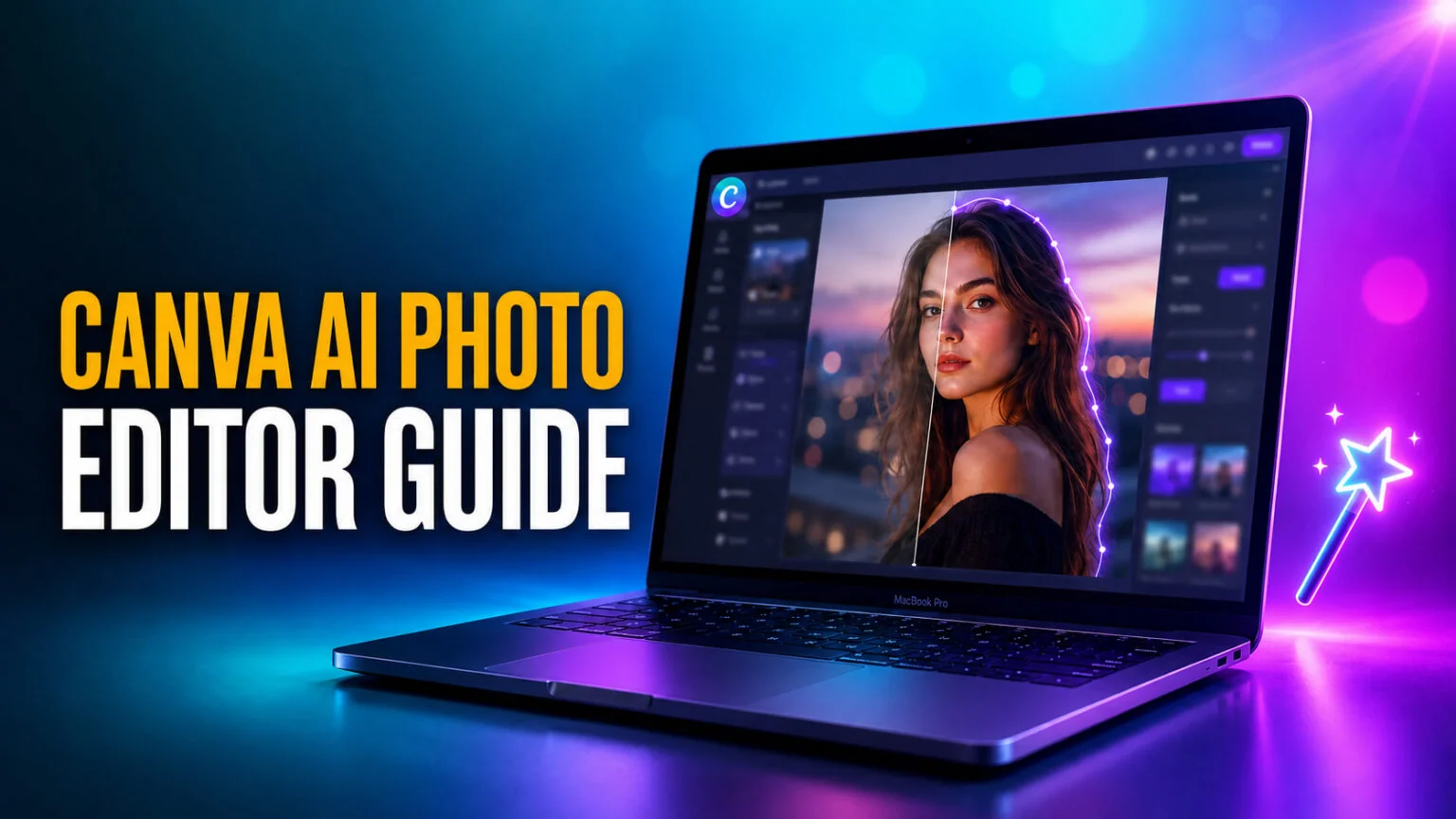
The Canva AI photo editor is not one button, it is a stack of seven AI tools built into Canva’s editor that change photos you already have. You can add or swap objects with a prompt, erase distractions with a brush, stretch a photo past its original frame, lift the subject off its background, and as of March 2026 break a flat image into editable layers. Most of it runs on Premium AI credits, and you get a small free allowance before Canva asks you to upgrade.
This guide walks through every AI editing tool by name, shows the exact menu path to trigger each one, and lays out what is actually free versus what needs Canva Pro in 2026. We also draw a clear line between editing a photo you already have and generating a brand new image from text, since those are two different parts of Canva and people constantly mix them up. If the platform itself is new to you, our complete guide to Canva covers the basics first.
The Key Takeaways
- The Canva AI photo editor bundles 7 core tools: Magic Edit, Magic Eraser, Magic Expand, Magic Grab, Background Remover, Auto Enhance, and Magic Layers.
- Magic Layers, launched in public beta on March 10, 2026, turns a flat image into editable layers using Canva’s own Design Model.
- Free accounts get roughly 20 Premium AI credits a month; Canva Pro ($18/month) gets 200, and Business ($25/user/month) gets 400.
- Editing tools work on the web and inside the Canva mobile app for iOS and Android, with near parity.
- This is for editing photos you already have; to make an image from a text prompt, use Canva’s Dream Lab generator instead.
What Is the Canva AI Photo Editor?
The Canva AI photo editor is a suite of AI tools inside Canva’s standard editor that modify existing photos rather than create new ones. You open an image, click Edit photo, and a panel of AI tools appears under the Tools section. Each tool targets a different job, from removing a stranger in the background of a holiday snap to extending a portrait into a wide banner.
What makes it stick for most people is not raw quality, it is that the editing lives in the same canvas as the rest of your design. You fix the photo and drop it straight into a social post, a slide, or a flyer without bouncing between apps. That convenience is the whole pitch, and it is why Canva’s tools beat dedicated editors for everyday work even when a specialist app edges them on a single feature.
These tools sit under Canva’s broader Magic Studio banner, part of Canva’s wider AI toolset, which also includes text and video AI. For this guide we stay strictly on the photo-editing tools, the ones that act on an image already on your canvas. We cover those separately in our guide to Canva’s AI video generator.
The 7 Canva AI Photo Editing Tools
Here is the full roster at a glance, then a breakdown of each tool with how to trigger it.
| Tool | What it does | Best for | Free tier |
|---|---|---|---|
| Magic Edit | Add or replace objects with a text prompt | Swapping or inserting elements | Limited credits |
| Magic Eraser | Brush over and remove distractions | Cleaning up photos | Limited credits |
| Magic Expand | Extend a photo beyond its frame | Reframing, new aspect ratios | Limited credits |
| Magic Grab | Isolate and move the subject | Repositioning people or objects | Limited credits |
| Background Remover | One-click background removal | Transparent cutouts | Pro and above |
| Auto Enhance | Auto-fix brightness, contrast, clarity | Quick polish | Generous on free |
| Magic Layers | Split a flat image into editable layers | Reworking finished images | Beta, credit-based |
Magic Edit
Magic Edit lets you add, replace, or modify part of a photo with a short written prompt. You can drop a palm tree into a beach shot, swap the picture hanging on a wall, or add birds to an empty sky, and Canva blends the new element so it looks like it belongs.
To use it, open your photo, click Edit photo, choose Magic Edit under Tools, brush over the area you want to change, type what to add or replace, then select Generate. Canva returns several options and you pick the best one.
Magic Eraser
Magic Eraser removes unwanted people, objects, or clutter from a photo. You brush over the distraction and Canva fills the gap with matching background, so your subject stands out.
It is the tool most people reach for first because the result is usually clean on simple backgrounds. Busy or detailed backgrounds can leave faint smudges, so zoom in and check edges before you export.
Magic Expand
Magic Expand extends the borders of an image beyond its original frame, generating new content to fill the added space. It is the fix when you need a vertical photo to work as a wide banner, or you want breathing room around a tight crop without reshooting.
Outpainting on common subjects has become noticeably more reliable through 2026, though unusual scenes still produce the odd warped edge. Generate a couple of versions and keep the cleanest.
Magic Grab
Magic Grab isolates elements in a photo, the subject, foreground objects, and background, so you can click, move, resize, and reposition them independently. Select the person in a photo and slide them left while the background stays put, then fill the gap with Magic Expand if needed.
A related option, Grab Text, lifts text out of an image and makes it editable, handy for tweaking words on a sign or poster you photographed.
Background Remover
Background Remover strips a photo’s background in a single click and leaves your subject on a transparent canvas. It is a Pro feature: Canva lists background removal among the AI tools Pro unlocks, and the Free plan does not include it.
Use it for product shots, profile pictures, and any cutout you want to drop onto a new color or scene. Export as a transparent PNG to keep the cutout clean. For profile pictures specifically, see our guide to the Canva headshot generator. For lifestyle scenes built from a photo of your own product, see our AI product photography prompts.
Auto Enhance
Auto Enhance automatically adjusts brightness, contrast, and clarity to make a photo look more polished in one tap. It is the low-effort starting point before you reach for the heavier AI tools.
Magic Layers
Magic Layers is the headline 2026 addition. Launched in public beta on March 10, 2026 and powered by Canva’s proprietary Design Model, it converts a flat, static image, including AI-generated ones, into a fully editable, multi-layered design inside the Canva editor. Instead of being stuck with a baked-in picture, you get separate, movable elements you can recolor, resize, or delete.
That makes it the bridge between generating an image and properly editing it. Drop in a finished graphic, run Magic Layers, and rework individual pieces as if you had built the file from scratch.
How to Use the Canva AI Photo Editor Step by Step
The flow is the same for every tool once you know the path.
- Open a design or start a new one, then upload or drop in your photo.
- Click the photo to select it, then click Edit photo on the toolbar.
- Under Tools, pick the AI tool you need (Magic Edit, Magic Eraser, Magic Expand, and so on).
- Brush over an area or type a prompt, depending on the tool.
- Select Generate or Apply, review the options, and choose the best result.
- Click Share, then Download to export, or just keep designing around the edited photo.
If you do not like a result, undo restores the original instantly, so the edits are non-destructive and safe to experiment with.
Is the Canva AI Photo Editor Free?
Yes, partly. Free Canva accounts get roughly 20 Premium AI credits a month, enough to try Magic Edit, Magic Eraser, Magic Expand, and Magic Grab a handful of times before you hit the wall. Background Remover is not on the free plan at all, because Canva lists it among the tools Pro unlocks. For the full allowance and who gets Pro at no cost, see whether Canva is free.
Heavy editing needs a paid plan. Canva Pro gives you 200 Premium AI credits a month, and Canva Business gives you 400, both shared across all the premium AI features. Canva also added a real-time credit tracker in March 2026, so you can watch your balance as you work instead of guessing.
| Plan | Price | Premium AI credits / month | Best for |
|---|---|---|---|
| Free | $0 | ~20 | Trying the tools, occasional edits |
| Pro | $18/month ($144/year) | 200 | Solo creators, regular editing |
| Business | $25/user/month ($250/year) | 400 | Teams and brand work |
For the full plan-by-plan breakdown including storage and stock content, see our Canva pricing guide. Note that many older reviews still quote $15 a month and 500 credits, which is out of date after Canva’s 2026 price change.
Editing a Photo vs Generating One
This trips people up constantly, so it is worth being blunt. The AI photo editor changes a picture you already have. Generating a brand new image from a text prompt is a different tool called Dream Lab, Canva’s image generator built on the Leonardo Phoenix model.
If your goal is to type “a red sports car at sunset” and get a fresh image, that is generation, and our Canva AI image generator guide covers it in full. Use Magic Layers when you want to take one of those generated images and actually rework its parts.
Where the Canva AI Photo Editor Falls Short
It is fast and convenient, but it is not a professional retoucher. On busy backgrounds, Magic Eraser and Magic Expand can leave soft smudges or repeated textures that a pixel-level editor would avoid. Magic Edit results vary, so you often generate several passes to get one keeper.
Credits also run out faster than people expect once they lean on the generative tools. The free 20 a month evaporate quickly if you are doing real work, which nudges you toward Pro. For one-off heavy retouching, a dedicated editor still wins; for everyday social and marketing content, Canva’s speed usually wins instead. If the credit meter is the sticking point, several of the best Canva alternatives run no credit system at all.
Does It Work on Mobile?
Yes. The same AI editing tools live inside the Canva app for iOS and Android, with near parity to the web version. You tap a photo, tap Edit, and the AI tools appear in the bottom panel.
Brushing precision is fiddlier on a small screen, so detailed Magic Eraser or Magic Edit work is easier on desktop. For quick background removals and Auto Enhance on the go, the mobile app handles it fine.
Where Fello AI Fits
Canva is strong at the editing craft, the brushing, layering, and pixel-level fixes on the canvas. That is not where Fello AI competes. Fello is a multi-model assistant that generates the source image and drafts the concept first, running GPT, Claude, and Gemini in one chat, then you bring that image into Canva to do the precise edits.
So the clean workflow is to concept and generate in Fello AI, then refine and lay out in Canva. One tool for the idea and the raw image, the other for the finishing touches.
Conclusion
The Canva AI photo editor earns its place not by beating specialists on any single tool but by putting seven solid AI editors in the same place you build your designs. Magic Eraser and Background Remover handle the everyday cleanup, Magic Edit and Magic Expand handle the creative changes, and Magic Layers finally lets you rework finished images.
Start on the free tier to learn the tools, watch the credit tracker, and move to Canva Pro only once 20 credits a month stops being enough. If you want to generate the image first and edit it second, pair Canva with a multi-model assistant like Fello AI for the fastest path from idea to finished graphic.
FAQ
Is the Canva AI photo editor free?
Partly. Free accounts get about 20 Premium AI credits a month, and Background Remover needs Pro. Heavy use of Magic Edit, Eraser, Expand, and Grab needs Canva Pro (200 credits) or Business (400 credits).
What AI tools does the Canva photo editor include?
Seven core tools: Magic Edit, Magic Eraser, Magic Expand, Magic Grab, Background Remover, Auto Enhance, and Magic Layers. They sit under Canva’s Magic Studio and act on photos you already have.
What is the difference between Magic Edit and Magic Eraser?
Magic Edit adds or replaces objects from a text prompt, so you create new content in the photo. Magic Eraser only removes things, brushing over distractions and filling the gap with matching background.
Does Canva AI photo editing work on AI-generated images?
Yes. Magic Layers is built for exactly that, splitting a flat or AI-generated image into editable layers using Canva’s Design Model so you can rework individual parts.
Can I use Canva AI-edited photos commercially?
Generally yes on a paid plan, subject to Canva’s content license and any rights on stock elements you used. Always check the current Canva terms for the specific assets in your design.