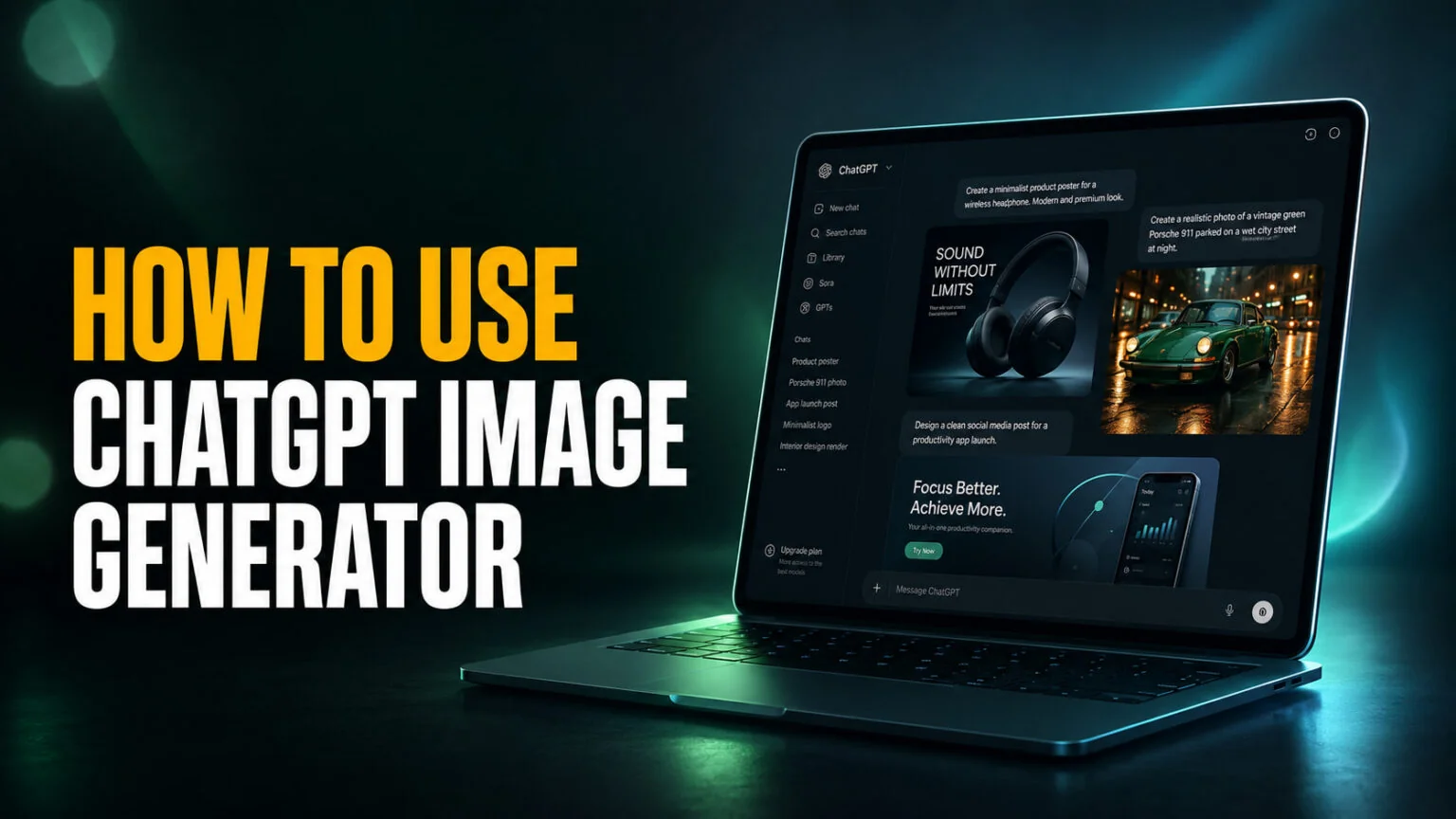
ChatGPT’s image generator runs on ChatGPT Images 2.5, which OpenAI made the default on 8 September 2026. It succeeded ChatGPT Images 2.0 and the gpt-image-2 model that had powered the tool since April 2026, which in turn replaced the GPT-4o image pipeline. The practical difference from the DALL·E era is that ChatGPT draws pictures natively inside the chat window rather than handing your prompt off to a separate tool, and our launch coverage explains what 2.5 changed.
Those shifts changed what the tool is good for. Text inside images is now readable rather than garbled, output goes up to 2K resolution, and on paid plans the model can reason about a layout before it draws anything. Images 2.5 added up to 50% lower latency and an edit toolbar that lets you pin a comment to one spot on the picture instead of retyping the prompt. Below we cover what the generator actually is, how to use it, and what OpenAI does and does not publish about free limits. We also cover prompts that reliably work and what to do when the thing refuses to generate at all.
The Key Takeaways
- The ChatGPT image generator is powered by ChatGPT Images 2.5, the default since 8 September 2026, not DALL·E 3 and not the old GPT-4o pipeline.
- Image generation is available on every ChatGPT plan including Free. Thinking Mode is the paid-only part.
- OpenAI publishes no numeric image cap for consumer plans, so every “2 to 3 images per day” figure circulating online is an estimate rather than an official limit.
- Output reaches 2048 pixels with aspect ratios from 3:1 to 1:3, and a single prompt can return up to 8 consistent images. Those are the Images 2.0 figures, and OpenAI published no new resolution spec with 2.5.
- Through the API the model is billed by token rather than per image. Image output runs $30 per 1M tokens, the same rate OpenAI charged for GPT Image 2.
What the ChatGPT Image Generator Actually Is
The ChatGPT image generator is not a separate product with its own tab. It is a capability built into the ordinary chat box, which is why so many people search for what it is called without finding a clean answer. You type a description, ChatGPT returns a picture in the conversation, and you refine it by talking rather than by rewriting the prompt from scratch.
OpenAI’s own branding for the current version is ChatGPT Images 2.5. In the API it arrives as two models, GPT-Image-2.5 Flare for speed and GPT-Image-2.5 Sunburst for precision, where the previous generation was the single gpt-image-2. If you see a tutorial talking about DALL·E 3 or about GPT-4o generating your images, that tutorial predates April 2026 and describes a pipeline that is no longer the default.
There is no separate image app to download and nothing to switch on.
Which Model Powers It
Every image you generate in ChatGPT today comes from ChatGPT Images 2.5. OpenAI has not published a knowledge cutoff for it. The model it replaced, gpt-image-2, was cut off in December 2025, which is why the generator renders current brand marks, product designs, and recent cultural references correctly where the GPT-4o pipeline would produce a 2024-era version or invent something plausible-looking.
DALL·E itself is gone. OpenAI retired the official DALL·E GPT inside ChatGPT on 30 August 2026, so there is no longer a secondary image option to switch back to. Image generation did not go away with it: it moved wholesale to ChatGPT Images, which is available on every tier including Free. We covered the previous generation in our ChatGPT Images 2.0 launch breakdown and the current one in our ChatGPT Images 2.5 coverage.
Why Native Generation Beats the Old Handoff
In the DALL·E era, ChatGPT read your request, rewrote it into a prompt, and passed that prompt to a completely separate image model. Anything the chat understood about your conversation was lost in translation. That is why follow-up edits so often produced a brand new picture instead of a tweaked version of the one you liked.
Native generation keeps everything in one model. The same system that read your brief also draws the picture, so it remembers the character you established three messages ago and edits rather than regenerates.
That is the single biggest reason the tool feels different from the version most people last tried.
How to Use the ChatGPT Image Generator
There is no command to memorise and no button to hunt for. Asking in plain language is the interface, and the most common beginner mistake is over-formatting the request as if it were a Midjourney string. Five steps cover the whole workflow.
- Open a new chat on the web, the desktop app, or mobile. No special mode is required.
- Describe the image you want in a full sentence. Say what the subject is, where it is, what the lighting looks like, and what shape you need the final file to be.
- Send it and wait. Simple requests come back in seconds, and complex layouts take longer because the model works through them before drawing.
- Refine conversationally. Reply with “make the jacket red” or “move the logo to the bottom left” instead of rewriting the whole prompt.
- Download using the save icon on the image. Ask for a transparent background first if you plan to drop the result into a design file.
Editing an Image You Already Made
Conversational editing is where the current model earns its keep. You can add elements, remove them, or blend two references while the rest of the composition stays put, and faces in particular survive edits far better than they used to. The trick is to change one thing per message.
Batching five changes into a single instruction is what causes the model to redraw everything and lose the version you liked. Change the background, check it, then change the lighting. Images 2.5 added a faster route for exactly this: pin a comment to the spot you want changed and ChatGPT acts on that note rather than the whole prompt, and the Sketch tool lets you draw a rough shape instead of describing it. You can also upload your own photo and edit that, which is the basis of most transformation-style prompts including the ones in our AI travel photo prompts guide.
Getting Readable Text Inside an Image
Text rendering is the headline improvement, and the reason it was hard is worth understanding. Older image models treated letters as texture. They learned that words look a certain way without learning what specific glyphs mean, which is how you ended up with posters reading “WELCOOMM” and menus that dissolved into nonsense at small sizes.
The current model handles typography as a first-class element, so headlines stay sharp, captions stay legible, and prices and dates follow your prompt instead of being auto-corrected into something that merely looks right. To get the best results, put the exact wording in quotation marks in your prompt and say where it should sit. OpenAI called out Japanese, Korean, Chinese, Hindi, and Bengali as languages with the largest gains, and mixed-script layouts now hold together in a way no previous commercial model managed.
Thinking Mode vs Instant Mode
ChatGPT’s image generator ships in two modes, introduced with Images 2.0 and left unchanged by the 2.5 announcement, and almost no guide explains the difference properly. Which one you get depends on your plan and on how complex your request is, and it explains most of the variation people notice in speed and quality.
Instant Mode
Instant Mode prioritises speed and is what every user gets by default, including on the Free plan. It still includes the full text rendering and multilingual improvements, so it is not a stripped-down version of the model. For a single subject, a product shot, or a social graphic with a short headline, it is usually all you need.
Thinking Mode
Thinking Mode adds a reasoning pass before generation and is limited to paid plans. In that pass the model can search the web, read materials you upload such as PDFs or brand guidelines, plan the layout before drawing, and check its own output before returning it. A complex prompt can take up to two minutes where Instant Mode returns in seconds.
This is what makes multi-panel work possible. Ask for a four-slide explainer deck and you get four slides with a consistent design language rather than four unrelated pictures on the same topic. It is also what allows the model to produce QR codes that actually scan, because the reasoning pass computes the encoding instead of drawing something QR-shaped.
It is a reasoning model with a paintbrush.
Is the ChatGPT Image Generator Free?
Yes. Image generation is available on every ChatGPT plan, and that includes the Free tier. What changes as you move up is how much you can generate before hitting a wall and whether Thinking Mode is available to you at all.
| Plan | Image generation | Thinking Mode | Published numeric limit |
|---|---|---|---|
| Free | Yes | No | None |
| Plus | Yes | Yes | None |
| Pro | Yes | Yes, highest limits | None, described as unlimited subject to abuse guardrails |
| Business | Yes | Yes | None |
| Enterprise | Yes | Yes | None |
| API (Flare, Sunburst) | Yes | Yes | Billed per token |
What OpenAI Actually Publishes About Limits
This is the part worth reading carefully, because most pages ranking for this question get it wrong. OpenAI documents which plans have access and describes limits in relative terms, saying that free accounts have stricter caps on advanced features such as image creation. It does not publish a durable number of images per day or per hour for consumer plans.
Search for the limit and you will find confident figures like two to three images per day on Free and fifty per three hours on Plus. Trace them and they lead back to other blogs, API resellers, and what one source openly labels community testing.
The clearest evidence that none of it is official is that the numbers disagree with each other. One widely cited page puts the free allowance at two to three images per rolling 24 hours. Another states five images per day. A third gives Plus fifty images per three hours, where a fourth gives fifty per day. They are estimates, they shift with demand, and no two agree.
Nobody outside OpenAI can give you the real figure, because OpenAI has not published one.
The practical version is simpler. On Free you will generate a handful of images before being asked to wait, and the window resets on a rolling basis rather than at midnight. Paid plans move that wall far enough out that most people stop noticing it.
If you hit the ceiling regularly, that is the real signal to upgrade.
What It Costs Through the API
Developers get transparent pricing where consumers get vague language. Images 2.5 is billed by tokens rather than a flat per-image fee, and OpenAI publishes identical rates for both new models: text input at $5 per 1M tokens and $1.25 cached, image input at $8 per 1M tokens and $2 cached, and image output at $30 per 1M tokens. Those match GPT Image 2 exactly, so the upgrade costs developers nothing. OpenAI has published no per-image figure for 2.5. The approximate costs below are the ones it gave for gpt-image-2, and they are the closest honest guide to what a standard square image works out to.
| gpt-image-2 quality tier (1024 x 1024) | Approximate cost per image |
|---|---|
| Low | ~$0.006 |
| Medium | ~$0.053 |
| High | ~$0.211 |
Outputs at 2K cost proportionally more because they consume more tokens, and edits are more expensive than they look because reference images are always processed at high fidelity. One trap comes with the new models: OpenAI warns that the GPT Image 2 token calculator does not estimate 2.5 token consumption, so do not budget from it. Some accounts also need OpenAI Organization Verification before the endpoints will respond.
What Changed With Images 2.0 and 2.5
If you last used ChatGPT for images in 2025, the specifications below are the reason your old workflow no longer applies. The jump in resolution and aspect ratio range arrived with Images 2.0 and removed the standard cycle of generating a square, cropping it in another tool, and losing half the composition. Images 2.5 did not restate any of it. OpenAI published no new resolution or aspect-ratio spec with that release, so the 2.0 figures remain the only ones on record.
| Spec | Previous GPT-4o pipeline | ChatGPT Images 2.0 |
|---|---|---|
| Max resolution | 1024 x 1024 | 2048 x 2048 (2K) |
| Aspect ratios | 1:1, 2:3, 3:2 | 3:1 through to 1:3 |
| Images per prompt | 1 | Up to 8, consistent |
| Web access while generating | No | Yes, in Thinking Mode |
| Self-verification | No | Yes, in Thinking Mode |
| Knowledge cutoff | October 2024 | December 2025 |
| Transparent backgrounds | Limited | Yes |
The widened aspect ratio range is the quietly useful one. Wide banners, presentation slides, posters, Stories, thumbnails, and vertical video covers all come out of the same model at the right shape, with no upscaling and no cropping. Full details of that launch are in OpenAI’s ChatGPT Images 2.0 announcement, with Neurohive’s launch write-up covering the specifications independently, and the follow-up is in OpenAI’s ChatGPT Images 2.5 announcement.
Prompts That Reliably Work
The prompt formula that works with this model is different from the keyword-stuffing style that suits Midjourney. Write a brief, not a tag list. Name the subject, the setting, the lighting, the mood, and the output shape in ordinary sentences, and put any text you want rendered inside quotation marks.
Design a wide banner for a coffee subscription brand. Warm morning light, a ceramic cup on a linen surface, shallow depth of field. Headline reads “Roasted Last Thursday” in a clean serif, bottom left. Leave the right third empty for a product shot. 3:1 aspect ratio.
That structure works because it tells the model what the image is for, not only what is in it. Notice that the empty space is requested explicitly, which is something the older pipeline consistently ignored.
Ask for the negative space and you will get it. The same instruction is what makes a ChatGPT tattoo design usable, because open space is what keeps linework readable once ink spreads in skin.
Turn the photo I uploaded into a 1970s film still. Keep my face and clothing exactly as they are. Add grain, warm colour cast, slight lens vignette, and a soft light source from the left. Do not change the background composition.
Transformation prompts like this one are where the editing improvements show up most clearly. The instruction to preserve specific elements is doing real work, and leaving it out is why so many people complain that the model changed their face. More patterns like these live in our AI prompts hub.
When the ChatGPT Image Generator Is Not Working
Image generation fails often enough that “not working” and “down” are among the most searched phrases attached to this tool. The causes fall into a small number of buckets, and the order in which you check them saves a lot of wasted troubleshooting.
Check Whether It Is Actually Down First
Image generation goes down independently of the rest of ChatGPT, which is why text replies can work perfectly while every picture request fails. Before changing a single setting, open the OpenAI status page and look for an incident naming image generation. Partial outages affecting images specifically have occurred repeatedly through 2026, including one in July.
If an incident is open, nothing on your end will help. Wait it out rather than clearing caches and reinstalling apps.
A Downdetector spike is a useful second signal.
The Other Common Causes
If the status page is clean, the next most likely explanation is that you have exhausted your quota, in which case the model will stall or refuse rather than tell you plainly. Waiting an hour and trying again is the fastest diagnostic.
The third cause is a content policy block. It usually surfaces as a generation that starts and then stops, and it is most often triggered by a named public figure, a recognisable brand, or anything the filter reads as a real person.
Slowness is a separate problem from failure. Complex prompts routed through Thinking Mode take up to two minutes, so a long wait is often the model working rather than the service breaking. If ChatGPT feels sluggish across the board and not only on images, the causes are broader and we covered them in our guide to why ChatGPT runs slow.
How It Compares to Other Image Generators
ChatGPT’s generator leads on text accuracy, multilingual rendering, and reasoning-driven layouts. It is not the automatic winner everywhere, and the honest picture is that different tools still win different jobs.
| Capability | ChatGPT Images 2.5 | Midjourney V8 | Nano Banana Pro |
|---|---|---|---|
| Text rendering | Best in class | Good | Very good |
| Multilingual text | Best in class | Limited | Good |
| Reasoning before generating | Yes | No | No |
| Max resolution | 2K | 2K upscaled | ~1.5K |
Midjourney still has the edge on painterly and illustrative styles where its preference-tuned dataset shows. Nano Banana Pro is closer on photorealism than most people expect and remains faster. Adobe Firefly now hosts OpenAI’s image model as a partner option, so you can reach similar output from inside a Creative Cloud workflow if that is where you already work.
If cost is the constraint rather than capability, there are solid options that never ask for a card, and we tested ten of them in our roundup of the best free AI image generators. For a wider view of which ChatGPT tier makes sense for your usage overall, our ChatGPT model comparison breaks the plans down feature by feature. For Meta’s equivalent tool, see our Meta AI image generator guide.
People who bounce between image models for different jobs sometimes prefer one subscription over several. Fello AI takes that approach, putting multiple models behind a single app from $9.99 per month with 27,000+ reviews on the App Store. It works as a complement to ChatGPT rather than a replacement for it.
Conclusion
The ChatGPT image generator crossed a threshold in April 2026 and got faster in September. Readable text, 2K output, real editing, reasoning before drawing, and now comment-based edits at up to half the previous latency turned it from a tool for mood boards into one that produces assets you can actually ship. If your mental model is still DALL·E handing back a square picture with garbled lettering, it is worth another look.
Start on the Free plan and write a full-sentence brief rather than a tag list. If you find yourself hitting the wall regularly, or if you need multi-panel layouts and document-aware generation, that is when Thinking Mode on a paid plan starts paying for itself.
FAQ
What image generator does ChatGPT use?
ChatGPT uses ChatGPT Images 2.5, the default since 8 September 2026. In the API it is two models, gpt-image-2.5-flare and gpt-image-2.5-sunburst, replacing gpt-image-2. It generates images natively inside the chat rather than handing your prompt to a separate tool, and DALL·E is no longer selectable at all: OpenAI retired the DALL·E GPT on 30 August 2026.
How many images can I generate for free?
OpenAI does not publish a numeric limit for consumer plans. It confirms that image generation is available on every plan and that free accounts face stricter caps on advanced features, without stating a figure. Specific numbers you find elsewhere are community estimates, and the real allowance shifts with demand.
Is there a command to generate an image?
No command or slash prefix is needed. Describing the picture you want in an ordinary sentence is enough, and ChatGPT decides to generate rather than reply in text. Starting your message with “create an image of” removes any ambiguity if the model misreads your intent.
Can I use ChatGPT images commercially?
OpenAI’s Terms of Use assign you all right, title, and interest in the output you generate, so commercial use is permitted. Two caveats matter. Trademarks, recognisable people, and copyrighted characters do not become safe simply because a model drew them, and purely AI-generated work is often refused copyright protection without meaningful human authorship.
Why is the ChatGPT image generator so slow?
Complex prompts route through Thinking Mode, which reasons about the layout before drawing and can take up to two minutes. Peak demand adds to that, and OpenAI describes generation on the Pro plan as faster than on lower tiers. A long wait usually means the model is working rather than failing.