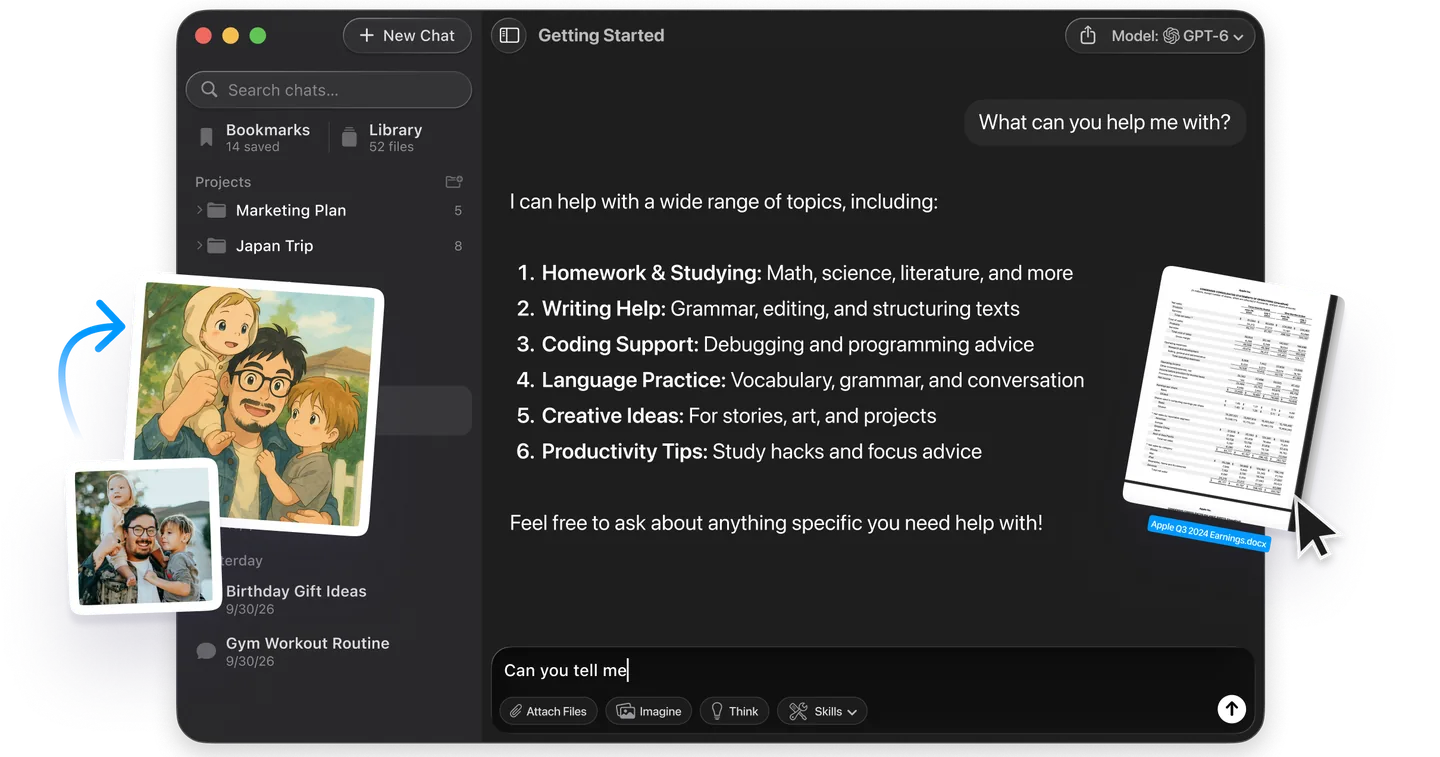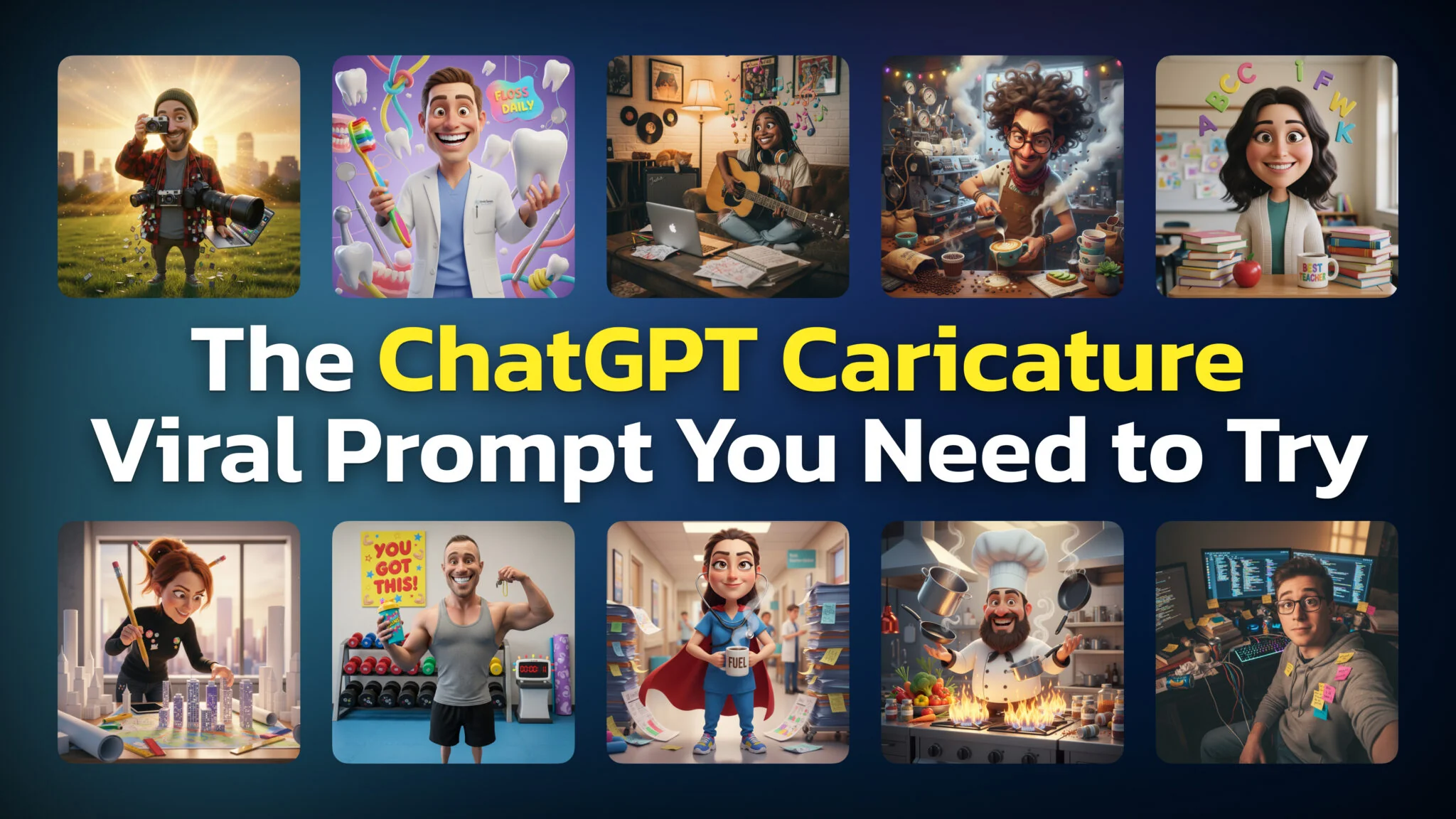
When we first published this guide in February 2026, social feeds were full of them. Cartoon versions of real people with exaggerated features, surrounded by objects from their daily lives, looking like characters pulled straight from a Pixar movie.
They’re AI caricatures, and they spread across Facebook, Instagram, TikTok and LinkedIn. They all start with one simple ChatGPT prompt.
Here’s the prompt, how to run it on ChatGPT Images 2.6, the image model ChatGPT has used since 4 November 2026, and how to make your caricature actually look like you.
Key Takeaways
- The prompt: upload a clear photo and type “Create a caricature of me and my job based on everything you know about me.”
- Every plan, Free included: since 4 November 2026 ChatGPT makes images with ChatGPT Images 2.6. Free gets limited image creation, and OpenAI publishes no fixed number.
- Memory does the personal part: with Memory on, ChatGPT can draw on your past chats and saved memories. New users get the same effect by describing themselves in the prompt.
- New in Images 2.6: save your photo once as a reference image and call it with @ and its name, then turn the finished caricature into a GIF where that feature has rolled out.
- Privacy: an Unpersonalized Temporary chat ignores your memory, and Settings > Data controls lets you stop your chats from training OpenAI models.


The ChatGPT Caricature Prompt Everyone Is Using
The prompt that started it all is surprisingly simple:
“Create a caricature of me and my job based on everything you know about me.”
That’s it. One sentence. You paste it into ChatGPT, upload a photo of yourself, and the AI generates a stylized cartoon version of you, complete with exaggerated facial features and visual references to your profession, hobbies, and personality.
A software developer might get a caricature surrounded by monitors, coffee cups, and tangled cables. A teacher might see themselves buried in books with an apple on their desk. A fitness trainer could be holding dumbbells twice their size.
The results feel weirdly personal because the prompt doesn’t stop at your photo. With Memory turned on, ChatGPT can draw on your past chats, saved memories and custom instructions, and, depending on your plan and region, on saved files and connected apps such as Gmail. OpenAI says Memory doesn’t keep every detail of every conversation, but it keeps enough for this prompt to put that knowledge on display. Our guide to ChatGPT Memory covers what it stores and how to delete it.
That combination of self-recognition and surprise is exactly why the trend went viral. People share their caricatures not just because they look fun, but because they’re startled by how accurate they are.


What You Need Before You Start
Before you type the prompt, here’s what you need:
A ChatGPT Account with Image Generation
The caricature uses ChatGPT Images, the image generator built into ChatGPT. Since 4 November 2026 it runs on ChatGPT Images 2.6, which OpenAI released on every subscription tier, Free included. The old DALL·E GPT is retired. You’ll need:
- ChatGPT Free: image creation works on the free plan, but it is limited. OpenAI publishes no fixed number. Its Free tier FAQ says image generation has its own usage limit and that ChatGPT tells you when you reach it, so expect fewer retries than on a paid plan.
- ChatGPT Go, Plus, Pro or Business: the same image generator with more room to iterate. As of November 2026, OpenAI’s pricing page lists “more image creation” on Go and “unlimited and faster image creation” on Pro, and Images with thinking is on Plus, Pro and Business only. For the full picture of what the generator can do, see our guide to the ChatGPT image generator.
A Clear Photo of Yourself
The quality of your photo directly affects the quality of your caricature.
- Use a well-lit headshot or upper body shot. Natural light works best.
- Face the camera. Straight-on or slight angles produce better results than profile shots.
- Keep the background simple. A busy background can confuse the AI.
- Avoid group photos. Stick to solo shots so ChatGPT knows who to caricature.
A selfie taken in good lighting is more than enough. You don’t need a professional headshot.
ChatGPT Conversation History (Optional but Helpful)
The viral prompt works best if you’ve been using ChatGPT regularly. The more conversations you’ve had, the more context the AI has about your job, interests, and habits.
If you’re a new user or don’t have much history, don’t worry: there’s a workaround. More on that below.


How to Use the ChatGPT Caricature Prompt (Step by Step)
Here’s exactly how to create your caricature:
Step 1: Open ChatGPT at chatgpt.com or in the ChatGPT app.
Step 2: Start a new conversation.
Step 3: Click the attachment icon (the paperclip or “+” button) and upload a clear photo of yourself. If you’ve saved your photo as a reference image, skip the upload and type @ followed by its name instead (see below).
Step 4: Type the prompt:
Create a caricature of me and my job based on everything you know about me.
Step 5: Hit enter and wait. OpenAI’s help page says a complex image can take a few minutes, and you can keep chatting while it renders. OpenAI says Images 2.6 generates images 50% faster than the model before it.
Step 6: Review the result. If you want adjustments, tell ChatGPT what to change: “make the colors more vibrant,” “add a laptop,” “make it more exaggerated.” You can also select the image and use the selection tool to mark the exact area you want changed.
That’s the entire process. No special settings, no plugins, no third-party tools.
Save Your Photo Once as a Reference Image
ChatGPT Images 2.6 added saved reference images on 4 November 2026. You save a photo once under a name, then use it in later chats by typing @ and that name, with no new upload. OpenAI’s own example is saving a photo of your dog as Pepper and then asking for a watercolor portrait of @Pepper. For the caricature trend, that means every variation below can start from the same saved selfie.
The same release brought GIF creation, which is rolling out in ChatGPT. Once you like your caricature, ask ChatGPT for a short looping animation of it, for example the character waving at the camera, then adjust the playback speed before you share it.


What If You’re New to ChatGPT?
The viral prompt relies on ChatGPT knowing things about you. If you just signed up or rarely use the tool, the AI won’t have enough context to create a personalized caricature. You’ll get something generic: a vague cartoon that could be anyone.
The fix is simple: tell ChatGPT who you are directly in the prompt.
Instead of the standard prompt, try something like this:
Create a caricature of me based on this photo. I’m a graphic designer who works from home. I’m obsessed with coffee, I have two cats, and I spend most of my day in Figma and Photoshop. I also run a lot and listen to true crime podcasts. Make it fun and exaggerated.
The more specific details you include, the better. Think about:
- Your job and what a typical workday looks like
- Tools and equipment you use daily
- Hobbies and interests outside of work
- Personality quirks (night owl, always late, obsessive organizer)
- Objects you’re always seen with (specific coffee mug, headphones, notebook)
Concrete details beat vague descriptions. “I drink three espressos before 9 AM” gives ChatGPT more to work with than “I like coffee.”


How to Get Better Results
Not all caricatures come out equal. Here’s what separates a generic result from one that makes people say “that looks exactly like you.”
Be Specific About Your Profession
“I’m a marketer” is too broad. “I’m a content marketer who writes SEO blog posts and spends half the day arguing about headlines in Slack” gives ChatGPT a vivid picture to work with.
Add Physical Details
ChatGPT will work from your photo, but you can guide it. Mention your glasses, beard, curly hair, tattoos, or anything else you want emphasized. Caricatures exaggerate, so tell the AI what to exaggerate. If the tattoos are the whole point rather than a detail, we cover ChatGPT tattoo design separately.
Request a Specific Style
When the trend peaked in February 2026, the default output tended toward a 3D, Pixar-like style, which is what most of the viral caricatures looked like. You can push it in other directions:
- “Make it look like a hand-drawn editorial cartoon“
- “Use a comic book style with bold outlines”
- “Create it in a watercolor illustration style“
- “Make it look like a South Park character“
Iterate
Your first result won’t always be your best. Tell ChatGPT what you like and what to change:
- “Keep the face but change the background to a kitchen”
- “Make the eyes bigger and add more humor”
- “The proportions are good but add a dog next to me”
Each round of feedback gets you closer to something worth sharing.
Use a Better Photo
If the result looks off, the photo is usually the problem. Try a different image with better lighting, a different angle or a higher resolution. A clear, well-lit photo solves most quality issues.


Best Variations of the Prompt
The original prompt is a great starting point, but these variations let you customize the output for different purposes.
The Classic (What Everyone Uses)
Create a caricature of me and my job based on everything you know about me.
Best for: People with extensive ChatGPT history who want a personalized result.
The Detailed Self-Description
Create a caricature of me based on this photo. I work as a [your job]. My daily life involves [2-3 specific activities]. I’m known for [personality trait]. Include [specific objects or details] in the scene.
Best for: New ChatGPT users or anyone who wants more control over the result.
The LinkedIn Professional
Create a polished, professional caricature of me suitable for a LinkedIn profile. Show me in my role as a [job title] with subtle references to my industry. Keep it clean and business-appropriate.
Best for: A fun but work-appropriate profile image.
The Couple or Group Caricature
Create a caricature of us based on these photos. [Person 1] is a [job] and [Person 2] is a [job]. Show us together with elements from both our professions.
Best for: Couples, business partners, or friend groups who want a shared caricature.
The Hobby-Focused Version
Create a caricature of me, but instead of my job, focus on my hobbies: [list hobbies]. Show me in my element doing what I love.
Best for: People who’d rather showcase their interests than their career.
The Exaggerated Personality
Create a wildly exaggerated caricature of me. I’m a [job title] who [funny or extreme habit]. Push the humor as far as you can. Think boardwalk caricature artist energy.
Best for: Maximum entertainment value.
The Pixar Movie Poster
Create a caricature of me in the style of a Pixar movie poster. I’m the main character, a [job title] on an adventure through a typical workday. Include a movie title based on my profession.
Best for: A creative, shareable image that stands out from the standard trend.


What Your Caricature Reveals About You
Here’s the part that catches most people off guard.
The viral prompt doesn’t just generate a funny image. It shows you, in cartoon form, what ChatGPT has picked up about you from your past conversations.
Some people discover the AI knows their profession, hobbies, and daily routines in surprising detail. The caricature might include your morning coffee habit you never explicitly mentioned, or reference a project you discussed months ago. It pieces together a profile from scattered conversations.
This is the “wow” factor that drives the trend. But it’s also a reality check.
With Memory on, every time you ask ChatGPT for advice, brainstorm with it, or share context about your life, it can add to what it knows about you. The caricature is a visual summary of that context. For many people, seeing it laid out in a single image, with all the little details the AI remembered, is the first time they realize how much they’ve shared. To see the written version, open Settings > Personalization > Memory, or simply ask ChatGPT what it remembers about you.
That realization is part of why the trend resonates. It’s fun, but there’s an undercurrent of “wait, it knows all that about me?”


Privacy: What You Should Know
The caricature trend is harmless fun for most people. But it’s worth understanding what you’re doing when you participate.
Your Photo Goes to OpenAI
When you upload a photo to ChatGPT, OpenAI processes it on their servers. Their privacy policy covers how this data is handled, but the key point: your photo doesn’t stay only on your device.
Your Caricature Can Reveal Personal Information
When you share your caricature on social media, you’re not just sharing an image. You’re sharing a visual summary of your profession, habits, and personality: details that might be useful to someone trying to impersonate you or build a profile for social engineering.
This doesn’t mean you shouldn’t participate. It means you should think about what’s in the image before you post it.
Chat History Is the Real Data
The caricature itself is a byproduct. The bigger privacy consideration is the context ChatGPT draws from. If you’ve shared sensitive information in past chats, such as financial details, health information or work projects, ChatGPT may already be using it to personalize answers.
You can manage this in ChatGPT settings:
- Use a Temporary chat set to Unpersonalized if you want a caricature without your history. It doesn’t use memory, custom instructions or plugins, stays out of your chat history, and isn’t used to train OpenAI models while it stays temporary.
- Review or delete what ChatGPT remembers in Settings > Personalization > Memory, and delete specific conversations you’d rather it not reference. Deleting a chat doesn’t by itself delete a saved memory created from it.
- Turn off model training in Settings > Data controls by switching off Improve the model for everyone. Your chat history stays.
Practical Advice
- Don’t upload photos of other people without their consent.
- Review your caricature before sharing, and make sure it doesn’t reveal anything you’d rather keep private.
- If you’re concerned about data, use the manual prompt (describe yourself instead of relying on chat history).


When the Free Image Limit Runs Out Mid-Caricature
A good caricature takes several rounds, and rounds are what the free plan rations. When ChatGPT Free tells you that you’ve reached the image limit, the choice is to wait or to pay for a plan you may only want for one weekend of cartoons.
Fello AI gives the caricature somewhere else to go. It makes images with GPT Image, OpenAI’s image model family, and runs GPT, Claude, Gemini, Grok, Kimi, DeepSeek, GLM and Qwen in one app for Mac, iPhone and iPad. Describe yourself in words with the detailed self-description prompt from this guide and keep iterating there, or ask Claude or Gemini to sharpen the description before you generate. It has a free tier and a 4.7-star rating across more than 27,000 reviews. The memory-based version of the prompt stays a ChatGPT trick, because it needs your ChatGPT history.
Final Words
The ChatGPT caricature trend is a perfect example of what happens when AI capabilities meet social media virality. It’s fun, it’s shareable, and it gives people a reason to engage with AI in a way that feels personal. Whether you see it as a creative tool or a privacy wake-up call probably depends on how comfortable you are with what the AI already knows about you.
Either way, now you know how to make one.
Frequently Asked Questions
Does the ChatGPT caricature prompt work on the free plan?
Yes. ChatGPT Images, on Images 2.6 since 4 November 2026, is available on every ChatGPT plan, Free included. Free accounts get limited image creation: OpenAI publishes no fixed number, and ChatGPT tells you when you reach the limit. Paid plans give you more room, and Plus at $20/month adds Images with thinking. Our guide to ChatGPT limits explains how the resets work.
Why does my caricature look generic?
Most likely because ChatGPT doesn’t have enough context about you. Either you’re a new user with limited chat history, or your prompt is too vague. Try the detailed self-description prompt and include specific details about your job, hobbies, and personality.
Can I create a caricature of someone else?
Yes, but with caveats. You can upload someone else’s photo and describe them in the prompt. However, ChatGPT won’t have conversation history for that person, so you’ll need to provide all the details manually. Also, respect people’s privacy: don’t create or share caricatures of someone without their permission.
What art style does ChatGPT use for caricatures?
When the trend peaked in February 2026, the default tended toward a 3D, Pixar-like style: colorful, rounded, and cartoonish. You can request different styles in your prompt: comic book, watercolor, anime, pop art, hand-drawn sketch, or any other art style.
Can I use my caricature as a profile picture?
Yes, on your personal social media profiles. OpenAI’s Terms of Use (effective 1 January 2026) say you own the output, but you must not present it as human-made, and OpenAI’s usage policies still apply. The same terms note that output may not be unique, so someone else can get a similar image. For commercial use (like a business logo or paid advertisement), read the terms first.
Is this trend only on ChatGPT?
No. ChatGPT started the trend, but other AI tools can make similar caricatures from a photo. Google Gemini creates and edits images with Nano Banana 2 (Nano Banana 2.1 on paid Google AI plans), and Grok Imagine generates and edits images too. The prompts and results vary. The “based on everything you know about me” angle needs memory: ChatGPT has it, and Gemini can also personalize answers from your past Gemini chats, although Google says that feature isn’t available to everyone yet.
How much does it cost?
Nothing on the free plan, within its image limit, which OpenAI doesn’t publish as a number. ChatGPT Plus costs $20/month on the web as of November 2026 ($19.99 through the US App Store) and gives you more image creation plus Images with thinking.
Why did my caricature include something I never mentioned?
With Memory on, ChatGPT infers details from your past chats and saved memories. If you’ve discussed topics related to a hobby or interest, even indirectly, the AI might include visual references to it. This inference ability is what makes the results feel surprisingly accurate (and occasionally unsettling).
The featured image for this article was created with the help of AI.