
Fello AI's October update does not have one big headline feature. Instead, it is a long list of small improvements that add up to an app that is nicer to use every day and feels much more at home on your iPhone, iPad, and Mac. Your files are easier to find, Fello AI is one tap away from any other app, the whole app now works from the keyboard on Mac and iPad, and answers look and read better than ever.
Library: Every File From Every Chat in One Place
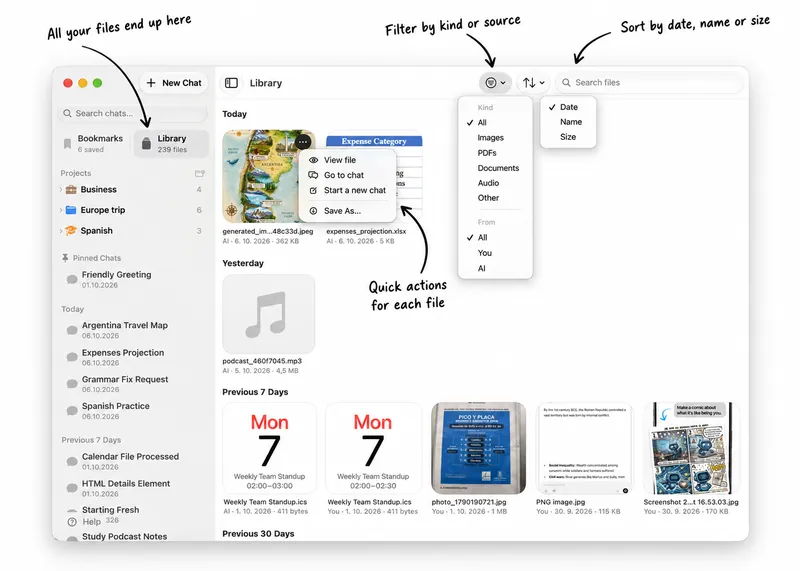
Ever tried to find that PDF you shared three weeks ago, or an image Fello AI made for you last month? Until now, that meant scrolling through old conversations. Library is a new page in the sidebar that collects every file and image from all your chats in one place.
- See everything at a glance. Files and images show up as thumbnails, and documents open in a preview without leaving Library.
- Find it fast. Search by name, filter by kind (images, PDFs, documents, audio) or by who it came from, you or the AI, and sort by date, name, or size.
- Put it back to work. Every file has quick actions: view it, jump to the chat it came from, start a new chat with it, save it with Save As, or send it anywhere with Share.
Bookmarks, Redesigned
Bookmarks are how you keep the answers worth coming back to, so we rebuilt them from the ground up. They now sit in a single column of expandable cards with nicely formatted previews and any attached files.
- Group bookmarks by date or by chat.
- Search, filter, and sort them, now also by chat name.
- Copy a bookmark and a checkmark confirms it is on your clipboard.
- Start a new chat straight from a bookmark to pick up where that answer left off.
Better Apple Integration
A great Apple app does not live only in its own window. It shows up wherever you need it. This update brings Fello AI into the places you already use every day.
Ask Fello AI From Any App
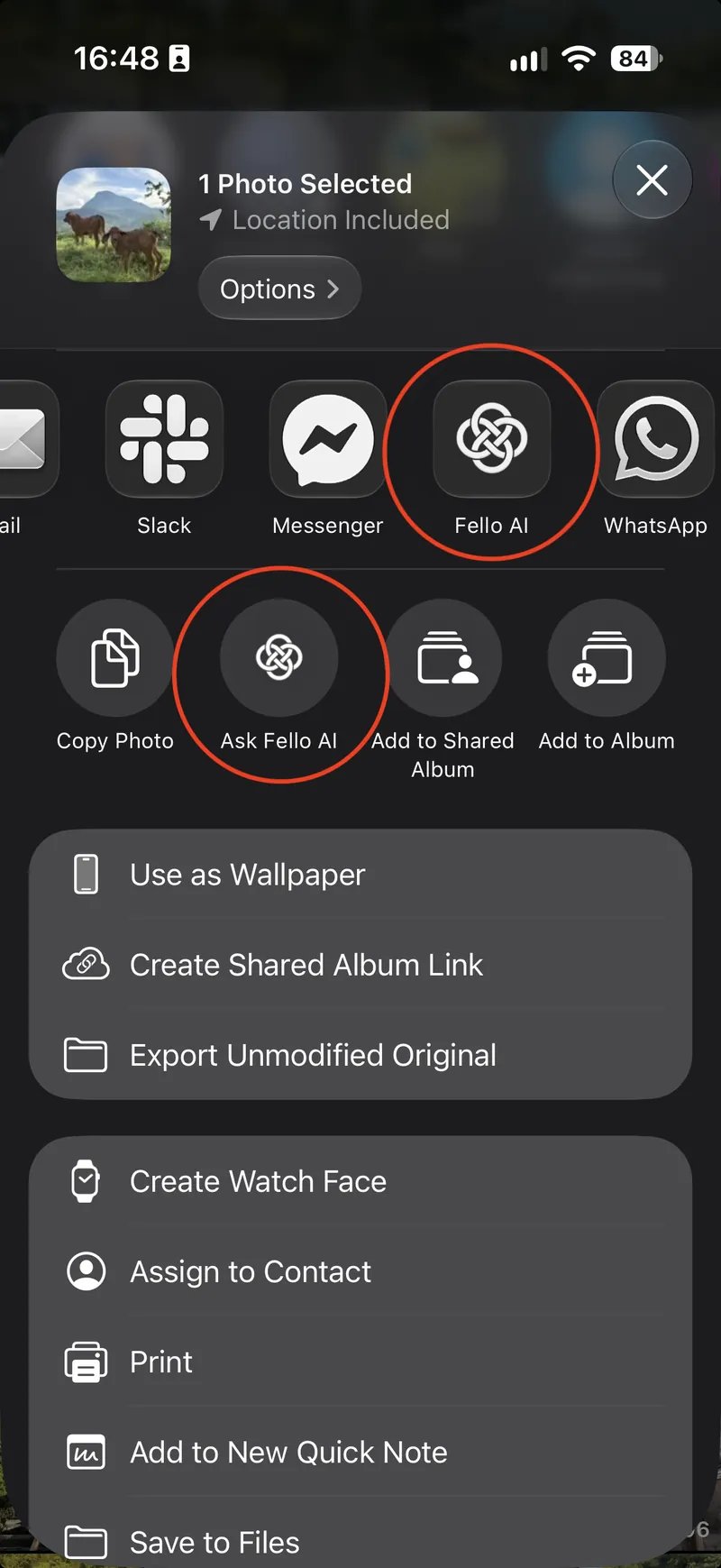
Reading an article in Safari, looking at a photo, or holding a document in Files? Send it to Fello AI without copying and pasting.
- On iPhone and iPad, tap Share and pick Fello AI, or use the new Ask Fello AI action in the share sheet.
- On Mac, use the Share menu, or select text in any app and choose Ask Fello AI from the Services menu.

Quick Actions on the Home Screen and in the Dock
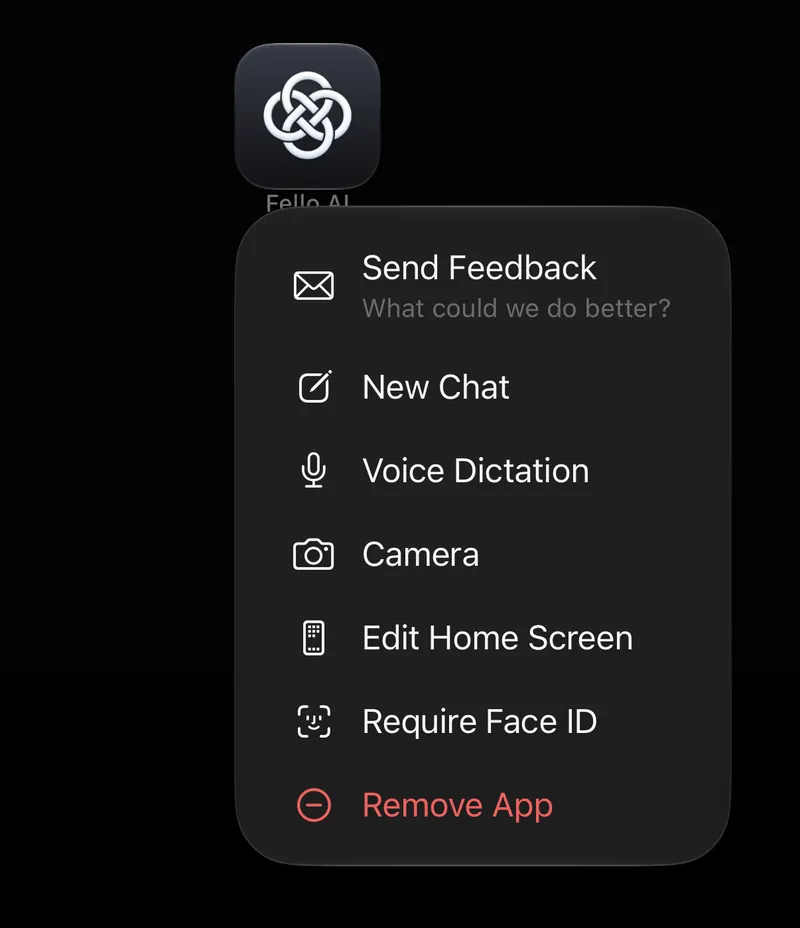
On iPhone and iPad, touch and hold the Fello AI icon on your Home Screen to jump straight into a New Chat, start Voice Dictation, or open the Camera.
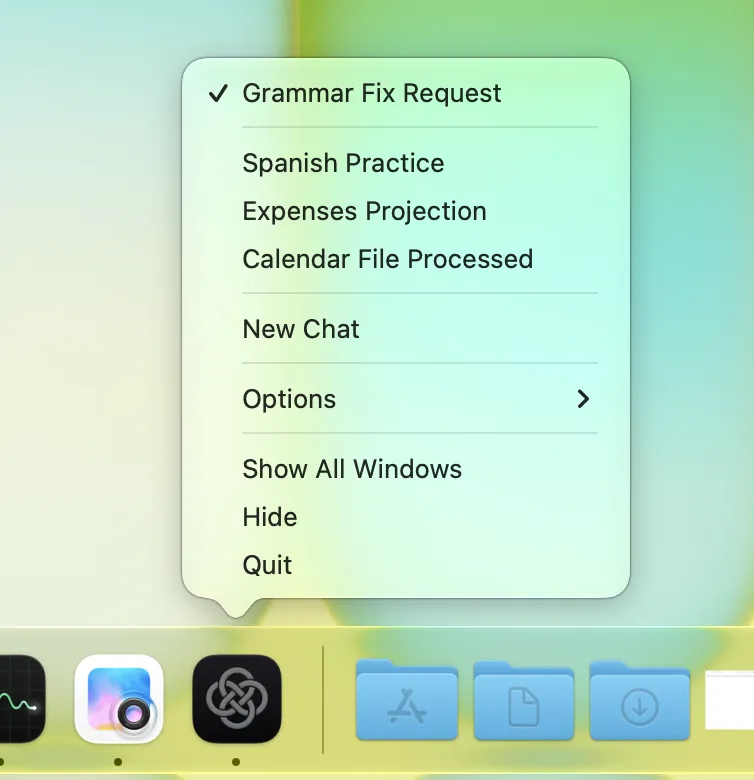
On Mac, right-click Fello AI in the Dock to reopen one of your recent chats or start a new one.
Menu Bar Commands and Keyboard Shortcuts
On Mac, Fello AI now has full File, Edit, Chat, and View menus, each command with its own keyboard shortcut. Start a new chat or project, attach files, export a chat, copy the last response, switch models, stop or regenerate an answer, rename or delete a chat, show or hide the sidebar, and change the text size, all without touching the mouse.
- On iPad, the same commands are in the menu bar and work from a hardware keyboard.
- Dictate with a shortcut. Press ⌘⇧D to start and stop dictation, both in the main window and in the Chat Bar.
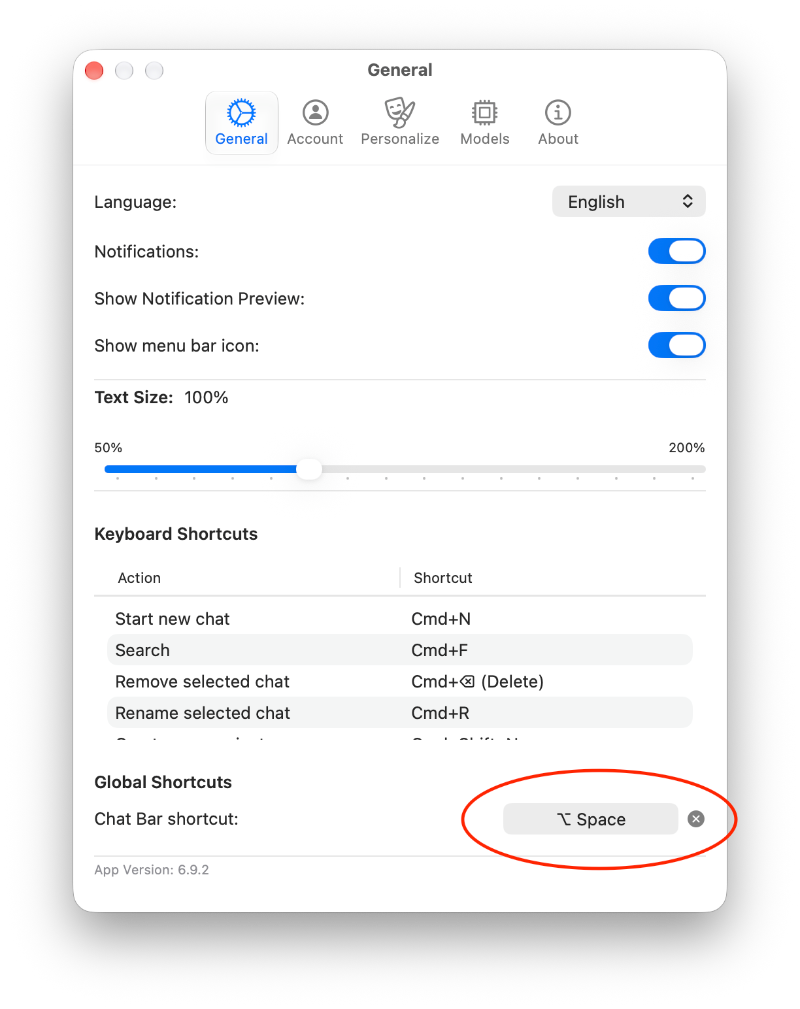
- Pick your own Chat Bar shortcut. On Mac, the shortcut that opens the Chat Bar (⌥Space by default) can now be changed in Settings.
Small Touches That Feel Native
- On Mac, drag the floating panel around by any empty area. On macOS 15 and later, the sidebar search uses the system search field, and menus now show icons. You can also paste a screenshot or an image copied from Preview or Photos straight into the message box.
- Listen in the background. On iPhone and iPad, read-aloud audio keeps playing when you leave the app, with Lock Screen controls and speeds from 0.5× to 2×.
- On iPhone and iPad, Think mode and image mode can no longer be on at the same time, and the mode pills animate more smoothly.
- Better accessibility. On iPhone and iPad, more of the app now has VoiceOver labels and respects Reduce Motion.
Smoother Chats
You spend most of your time in Fello AI reading answers, so we made them nicer to read.
- Smoother streaming. Text now appears at a steady pace with words gently fading in, instead of arriving in uneven bursts.
- Much richer formatting. Answers can now include GitHub-style alert boxes for notes and warnings, math inside sentences and tables, images, description lists, and links written as plain web addresses.
- Your code looks right too. Code in your own messages is now formatted just like code in the answers.
- Export a whole chat. On iPhone and iPad, a new Export menu shares an entire conversation through the share sheet either as a PDF or simple text file.
Mistral Large 4 Joins Fello AI
Mistral Large 4, Mistral's newest and biggest model, is now in Fello AI and replaces Mistral Medium in the model picker. It rates far higher on Power and still answers quickly. It is also a win for Europe: a frontier-scale model built and trained entirely in Mistral's own European data centers.
Available Now on the App Store
The October update (versions 6.9.1 and 6.9.2) is rolling out now on iPhone, iPad, and Mac. Update from the App Store to open your Library, try the new Bookmarks, and send something to Fello AI from your favorite app.
Got feedback or need help? I would love to hear from you. Email me at [email protected]. Your input helps shape every update.