Talk to Any AI in Fello AI
Fello AI 6.8.0 adds fast voice dictation, so you can speak your prompts instead of typing them. Tap the microphone, review the transcription, choose any AI model…

AI Deals 2026: Every Way to Save on AI Tools That Works
Paying for ChatGPT Plus at $20/month, Claude Pro at $20/month, Google AI Pro at $19.99/month, and Perplexity Pro at $20/month stacks up to nearly $80 every month…

Claude Student Discount in 2026: What Anthropic Really Offers (No Fake Codes)
Anthropic does not offer a public, individually-redeemable student discount on Claude Pro in 2026. There is no .edu signup form, no promo code at checkout, and no…

AI Free Trials 2026: Every Pro Tier You Can Actually Test for Free
Only two flagship AI Pro tiers currently offer a public free trial in August 2026: Google AI Pro (30 days, card required, renews at $19.99/month) and Microsoft 365…
Grok Pricing 2026: Complete Guide to Plans, API Costs, SuperGrok Heavy and Imagine
xAI now sells Grok across seven consumer tiers plus a separate developer API, and the price spread between them is huge. The free tier costs $0, X Premium is $8 per…

Canva Headshot Generator: How to Make an AI Headshot That Doesn’t Look Fake
The Canva headshot generator turns a single selfie into a professional-looking headshot in under a minute, and it gives you 2 free credits before asking you to wait…

Best Free AI Headshot Generator in 2026: 8 Tools Tested
An individual studio headshot session runs $150 to $300 in 2026, yet a free AI headshot generator can turn a selfie from your phone into a LinkedIn-ready portrait…

Free AI Voice Generator: 10 Best Free Tools Tested in 2026
Most tools that call themselves a free AI voice generator are really free trials in disguise. Out of the ten tools we tested for 2026, only a handful let you…
Lumo AI Review: Is Proton’s Privacy-First AI Any Good?
Lumo AI is the only mainstream AI assistant built so that even the company running it cannot read your chats. It comes from Proton, the Swiss maker of Proton Mail…
Claude Opus 5 Review: Pricing, Benchmarks, and the New Effort Setting
Claude Opus 5 is here. Anthropic released its newest flagship model on July 24, 2026, and the headline is hard to ignore: it delivers close to Claude Fable 5…

Where to Sell Digital Products in 2026: Best Platforms and Free Options
The digital goods market is worth $157.39 billion in 2026 and is on track to hit $511.43 billion by 2031, growing at a 26.60% CAGR. That is the demand side. The…

AI Travel Photo Prompts: 9 Copy-Paste Scenes Tested on One Selfie
Only 5% of American travelers can tell a real destination photo from an AI-generated one. That figure comes from a Talker Research survey of 2,000 US adults…
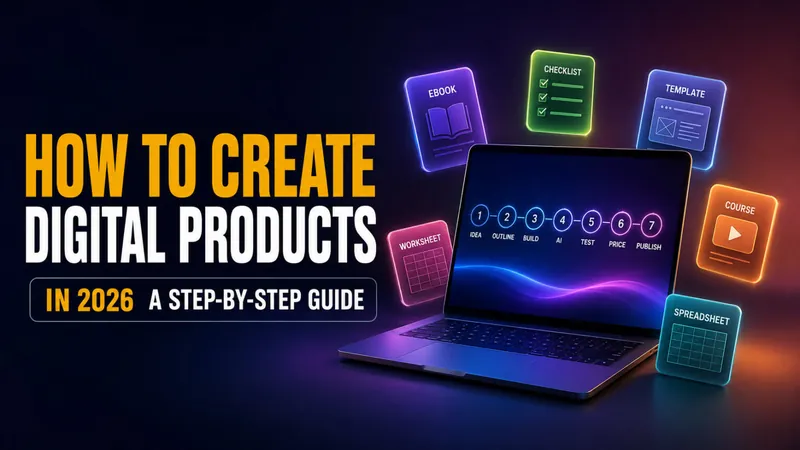
How to Create Digital Products in 2026: A Step-by-Step Guide
How to create digital products in 2026, from first file to first sale. The real AI workflow, honest build times, what you keep after fees, and what you legally own.

Digital Product Ideas: 40 Things to Make and Sell Online in 2026
The digital goods market is worth $157.39 billion in 2026 and is growing at a 26.60% CAGR toward $511.43 billion by 2031, according to Mordor Intelligence. A file…
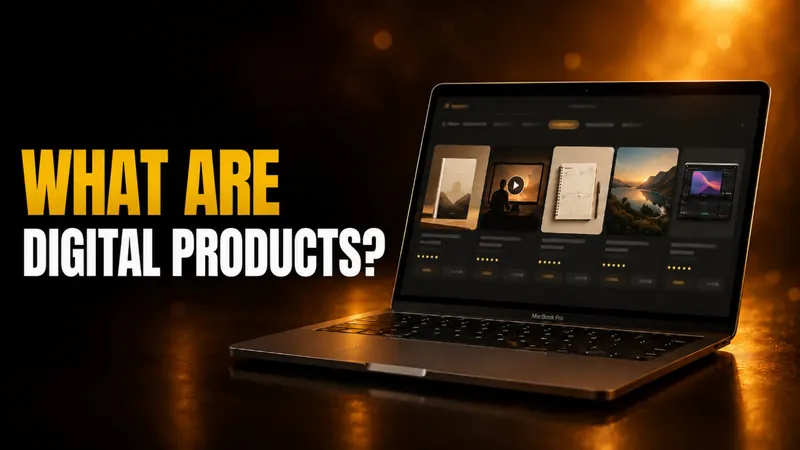
What Are Digital Products? Examples & How to Sell in 2026
A digital product sells an unlimited number of times without ever running out of stock, and after fees, sellers often keep 80% to 90% of every sale. There is no…

How to Sell Digital Products in 2026: A Beginner’s Guide
Digital products carry profit margins close to 100%, and you can start selling them for $0 using platforms that only take a cut once you make a sale. That…

Apple Intelligence Is Coming to China, Powered by Alibaba’s Qwen
On July 15, 2026, China’s Cyberspace Administration approved Apple Intelligence for the country, and the model doing the heavy lifting is not ChatGPT. It is…

When to Use Which AI: A 2026 Guide to Picking the Right Model for Every Task
There is no single best AI in 2026, and every serious guide now agrees on the same answer to when to use which AI: match the task to the model that leads it. Claude…

AI Prompts: The Complete 2026 Guide (With Examples)
The difference between a useless AI answer and a brilliant one usually comes down to one thing, and it is not the model. It is your AI prompts. A 2026 analysis of…

Claude Design: Anthropic’s AI Design Tool Explained (Access, Pricing, Use Cases)
Claude Design is Anthropic’s prompt-based design workspace, and more than one million people used it in its first week. It turns plain English into editable slides…

How to Make Money with AI in 2026: 12 Proven Ways That Work
Most people who make money with AI are not building robots or writing code. They are applying AI to a skill someone already pays for, then delivering it faster or…
ChatGPT Atlas Shut Down: The Best Alternatives for Mac
OpenAI shut down ChatGPT Atlas, its standalone AI browser, on August 9, 2026, less than a year after it launched. The company confirmed the sunset on July 9, and if…
DeepSeek vs ChatGPT: The Definitive 2026 Comparison
OpenAI’s GPT-5.6 reached general availability on July 9, 2026, and DeepSeek’s answer landed on July 31 as V4-Flash-0731. The two sit close enough on coding and…

Seedream 5.0 Pro: ByteDance’s GPT-Image 2 Rival
ByteDance released Seedream 5.0 Pro on July 8, 2026, and it is the company’s most direct challenger yet to GPT-Image 2. The new model from ByteDance’s Seed research…
GLM vs Claude, GPT, Gemini, Grok and DeepSeek: How Zhipu’s Open Model Compares
GLM-5.2 is the top open-weight model on the Artificial Analysis Intelligence Index, scoring 51 while costing a fraction of the closed flagships, and that gap is why…

Canva AI Video Generator: How It Works, Free Limits, and If It’s Worth It
The Canva AI video generator turns a text prompt into an 8-second, 16:9 video clip with synchronized sound, powered by Google’s Veo 3 model. That headline feature…

Canva AI Photo Editor: Every Tool and How It Works in 2026
The Canva AI photo editor is not one button, it is a stack of seven AI tools built into Canva’s editor that change photos you already have. You can add or swap…

GLM Pricing in 2026: API Costs, Coding Plan, and Free Tier Explained
GLM pricing is the headline reason developers keep switching to Zhipu AI’s models. The top-end GLM-5.2 costs just $1.40 per million input tokens and $4.40 per…
LongCat-2.0: Meituan’s 1.6 Trillion-Parameter Open-Source Coding Model
Meituan has open-sourced LongCat-2.0, a 1.6 trillion-parameter Mixture-of-Experts model with a native 1-million-token context window, released on June 30, 2026…
Why Is ChatGPT So Slow? Causes and 8 Fixes That Actually Work
ChatGPT is usually slow for one of four reasons: high server load at peak times, a high reasoning effort setting that makes the model think before it answers, a…