Start here
Your first conversation with AI
Type a question, send it, and keep the conversation going. Six habits get you useful answers from day one.
On this page
Ask your first questionSix habits for better answersKeep the conversation goingTry theseGood to keep in mindYou don't need special commands to use AI. Type the way you'd talk to a smart colleague, send it, and read the answer. If it's not quite right, say so and ask again.
Ask your first question
- Click New Chat in the sidebar (or choose File → New Chat, ⌘N). An empty chat opens.
- Click the box that says Ask AI anything and type your question.
- Press Return to send. Press Shift+Return when you want a new line instead.
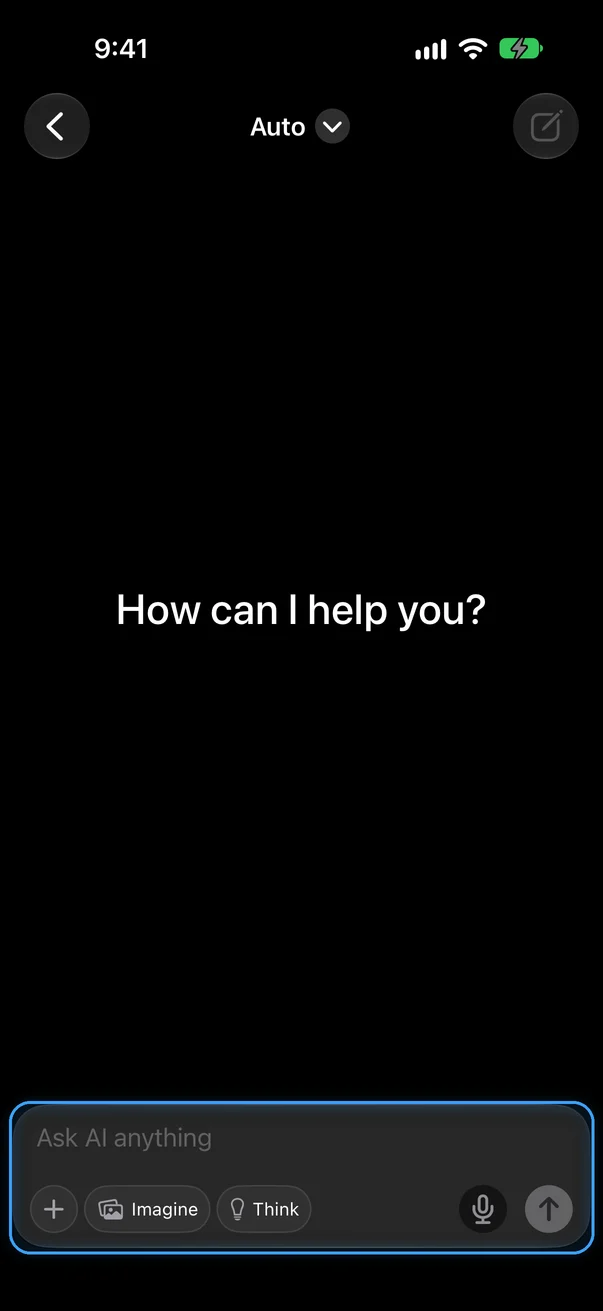
- Tap the New Chat button (the pencil icon) at the top right. An empty chat opens.
- Tap the box that says Ask AI anything and type your question.
- Tap the send button.
Not sure what to ask? The empty chat says How can I help you? and shows suggestion cards. Tap one and it fills the box for you.
Six habits for better answers
- Just talk normally. Use any language you like. Perfect grammar doesn't matter.
- Give it details. Say who it's for, what you need and what tone you want. "Write an email" gets a generic result. "Write a friendly email to my landlord about the broken heater, keep it short" gets one you can send.
- Treat the first answer as a draft. Reply with "shorter", "more formal" or "add an example" and the AI reworks it.
- Start from an example. If you're stuck, browse ideas to try and change them to fit.
- Check what matters. AI can sound sure and still be wrong. For facts you'll rely on, ask for sources and look them up.
- Keep private things private. Don't type passwords, card details or ID numbers.
Keep the conversation going
Reply in the same chat. The AI remembers what you've already said, so you can build on it without repeating yourself. A few more tools sit under each reply:
- Copy puts the answer on your clipboard.
- Regenerate asks for a fresh answer. Hold it to pick another model.
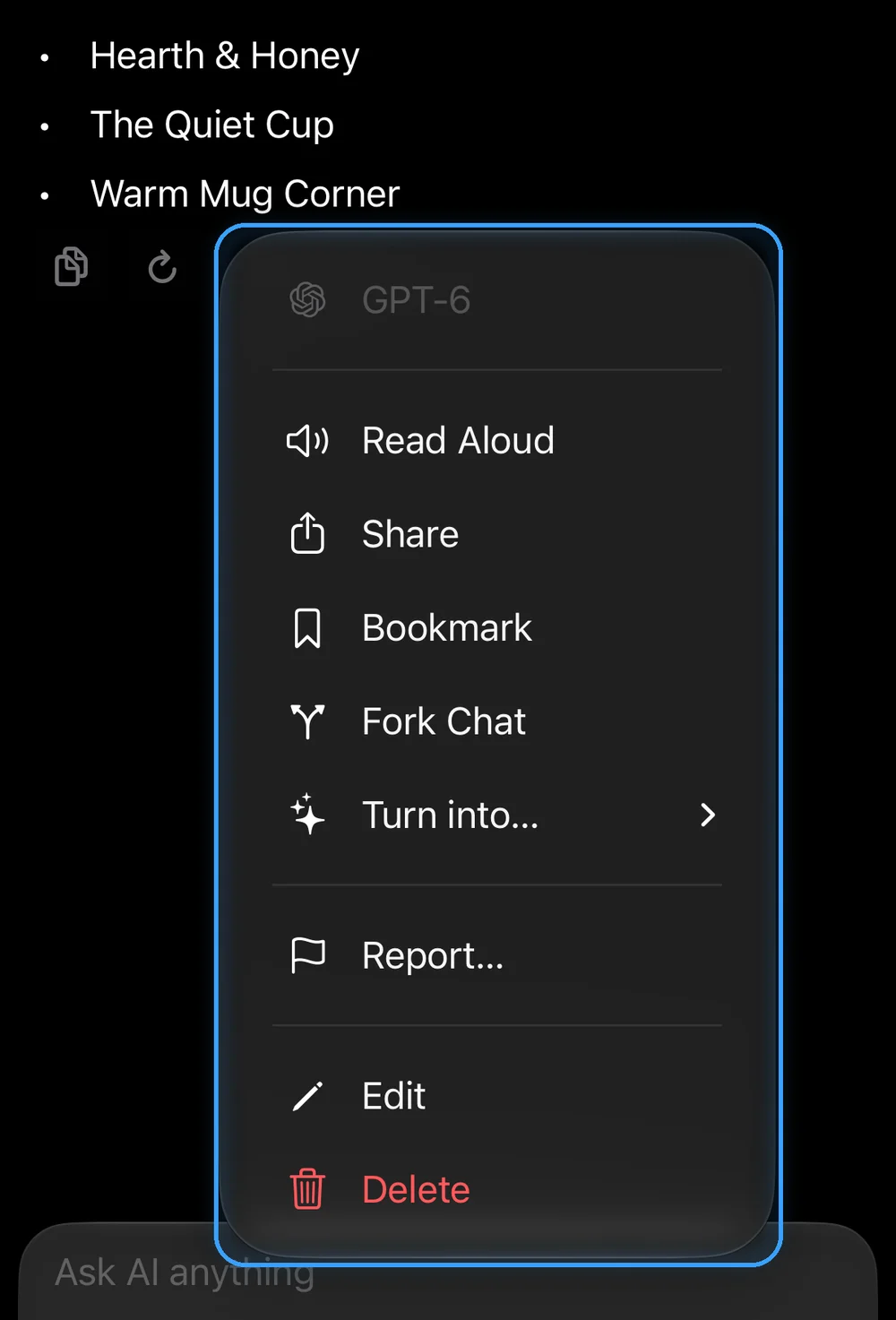
- The menu has Edit to change a message you already sent, plus Bookmark, Read Aloud, Share and Delete. On Mac it's the "…" button. On iPhone it's More actions, and a long-press on a message opens it too.
If an answer is going the wrong way, stop it. While a reply is streaming, the send button turns into a stop button. On Mac you can also choose Chat → Stop Generating (⌘.).
Try these
- Explain how compound interest works like I'm 12
- Plan a 3-day trip to Lisbon for two, on a budget
- Rewrite this message so it sounds friendlier: …
Good to keep in mind
- Free plan: you get 5 free questions. The count shows as Free Questions: N at the top, and it refreshes after a while. When it runs out, you can wait, subscribe, or use the Free Model.
- New topic, new chat. Starting fresh keeps answers focused on what you're asking now.
- It can be wrong. Double-check anything important.
Curious which AI model answers you? Read Choose your AI model, or let Auto pick.