Organize & customize
Organize your chats
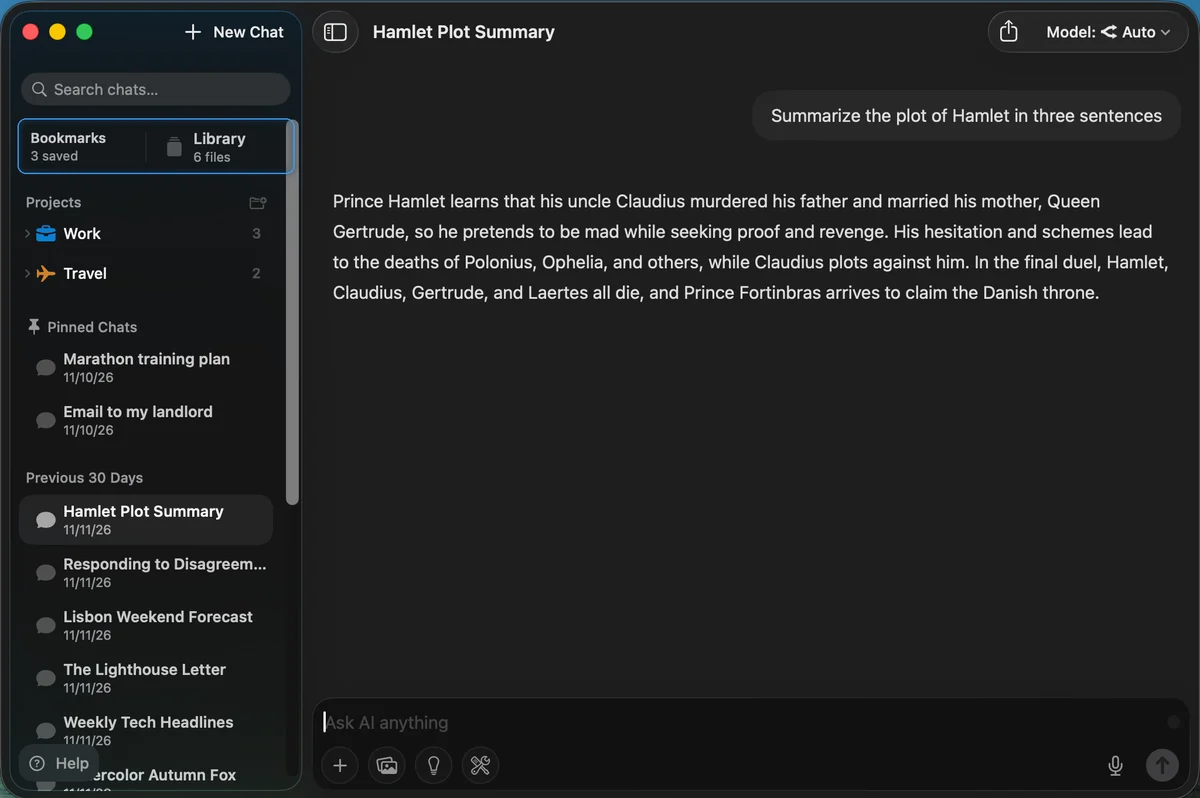
Pin the chats you use most, bookmark the best replies, group chats into projects and find every file in Library.
On this page
Pin the chats you use mostBookmark the best repliesGroup chats into projectsFind every file in LibrarySearch, rename and deleteGood to keep in mindThe more you use Fello AI, the more chats you have. Four tools help you find things again: Pins for chats you return to, Bookmarks for single replies, Projects for related chats, and Library for files.

Pin the chats you use most
A pinned chat stays at the top of your list under Pinned Chats, so you don't have to scroll or search for it.
- In the sidebar, hover over a chat and click ….
- Choose Pin. The chat moves to Pinned Chats.
- In the chat list, swipe a chat to the right, or press and hold it.
- Tap Pin. The chat moves to Pinned Chats.
Bookmark the best replies
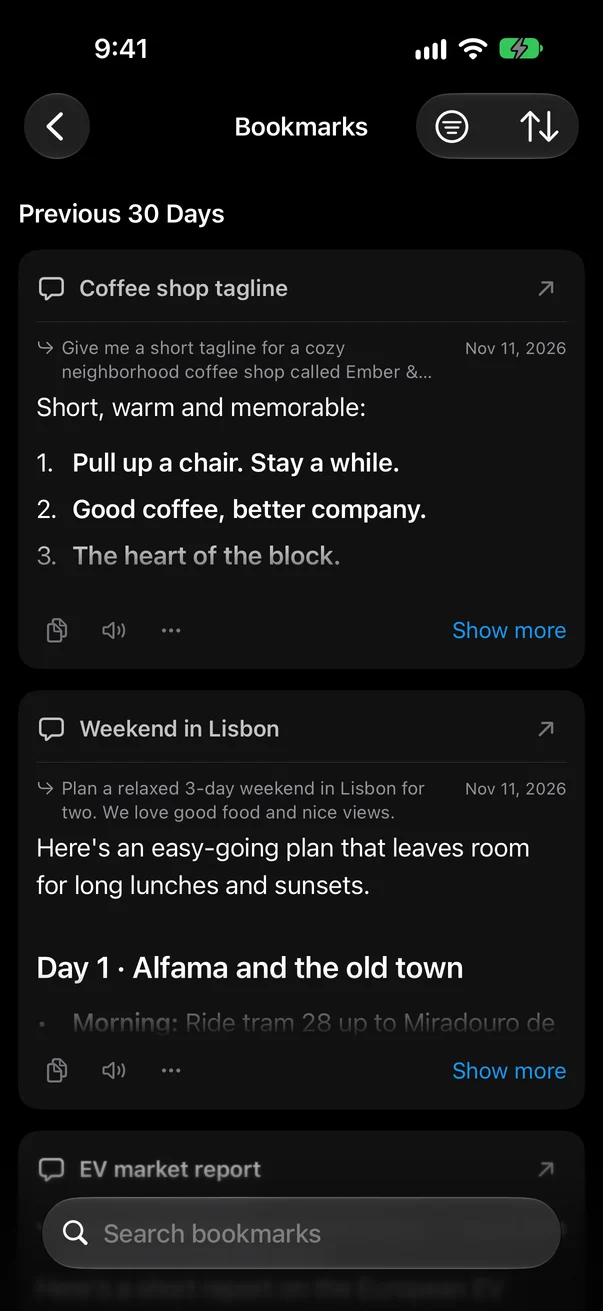
A bookmark saves one reply, not the whole chat. Use it for an answer you know you'll want again.
- Under a reply, open the message menu ….
- Choose Bookmark.
- Under a reply, tap More actions.
- Tap Bookmark.
Your saved replies are in Bookmarks at the top of the sidebar, which shows how many you've saved. You can search them and sort by Date saved or Chat name. For each one you can choose Go to chat, Share, Copy, Start a new chat or Remove bookmark.
Group chats into projects
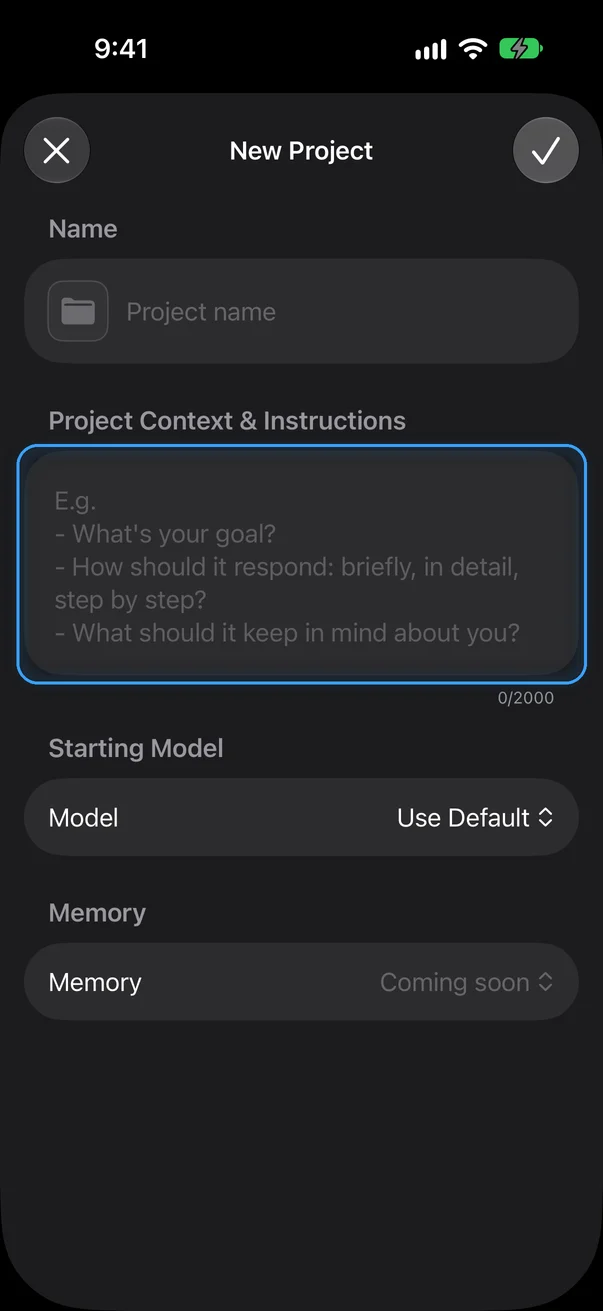
A project holds related chats and gives them shared instructions. Write the context once, and every chat in the project uses it.
- In the sidebar, click the folder-plus icon next to Projects. The New Project window opens.
- In the Projects section, tap New Project.
- Pick an icon and a color, and enter a name.
- In Project Context & Instructions, describe what the project is about and how you want the AI to answer. You can use up to 2000 characters.
- Choose a Starting Model, or use the default.
- To start a chat in the project, use the project's +.
To move a chat you already have into a project, open the chat's menu and choose Move to….
Find every file in Library
The Library tile shows how many files you have. It lists every file you attached to a chat and every file the AI made, all in one place.
Use Search files, or filter by Kind (Images, PDFs, Documents, Audio, Other) and by From (All, You, AI). For each file you can choose View file, Go to chat or Save As….
Search, rename and delete
On Mac, use the Search chats… field in the sidebar (⌘F). On iPhone, pull down the chat list to reveal search.
To rename or delete a chat on Mac, open its menu and choose Rename or Delete. On iPhone, swipe the chat to the left and tap Rename or Delete.
Good to keep in mind
- Deleting a project deletes its chats. Fello AI shows a warning first.
- Chats inside a project can't be pinned.
- Project instructions apply to every chat in the project.