Mac
Keyboard shortcuts
The keyboard shortcuts that make Fello AI on Mac faster, from a new chat to regenerating a reply.
Most things you do in Fello AI on Mac have a shortcut. Learn a few and you can start chats, find old ones and fix a reply without reaching for the mouse.
Chats
| Action | Shortcut |
|---|---|
| New Chat | ⌘ N |
| New Project… | ⇧ ⌘ N |
| Search Chats | ⌘ F |
| Rename Chat… | ⌘ R |
| Delete Chat… | ⌘ ⌫ |
| Toggle Sidebar | ⌃ ⌘ S |
Writing and replies
| Action | Shortcut |
|---|---|
| Attach Files… | ⌘ O |
| Dictate a message | ⇧ ⌘ D |
| Stop Generating | ⌘ . |
| Regenerate Response | ⇧ ⌘ R |
| Copy Last Response | ⇧ ⌘ C |
| Export Chat as PDF | ⌘ E |
| Send your message | Return |
| Start a new line | ⇧ Return |
Text size
| Action | Shortcut |
|---|---|
| Make Text Bigger | ⌘ + |
| Make Text Smaller | ⌘ - |
| Actual Size | ⌘ 0 |
App
| Action | Shortcut |
|---|---|
| Settings… | ⌘ , |
| Fello AI Help | ⌘ ? |
| Quit | ⌘ Q |
| Open the Chat Bar from anywhere | ⌥ Space |
The Chat Bar is a small window you can open over any app. Here's how it works.
See them in the app
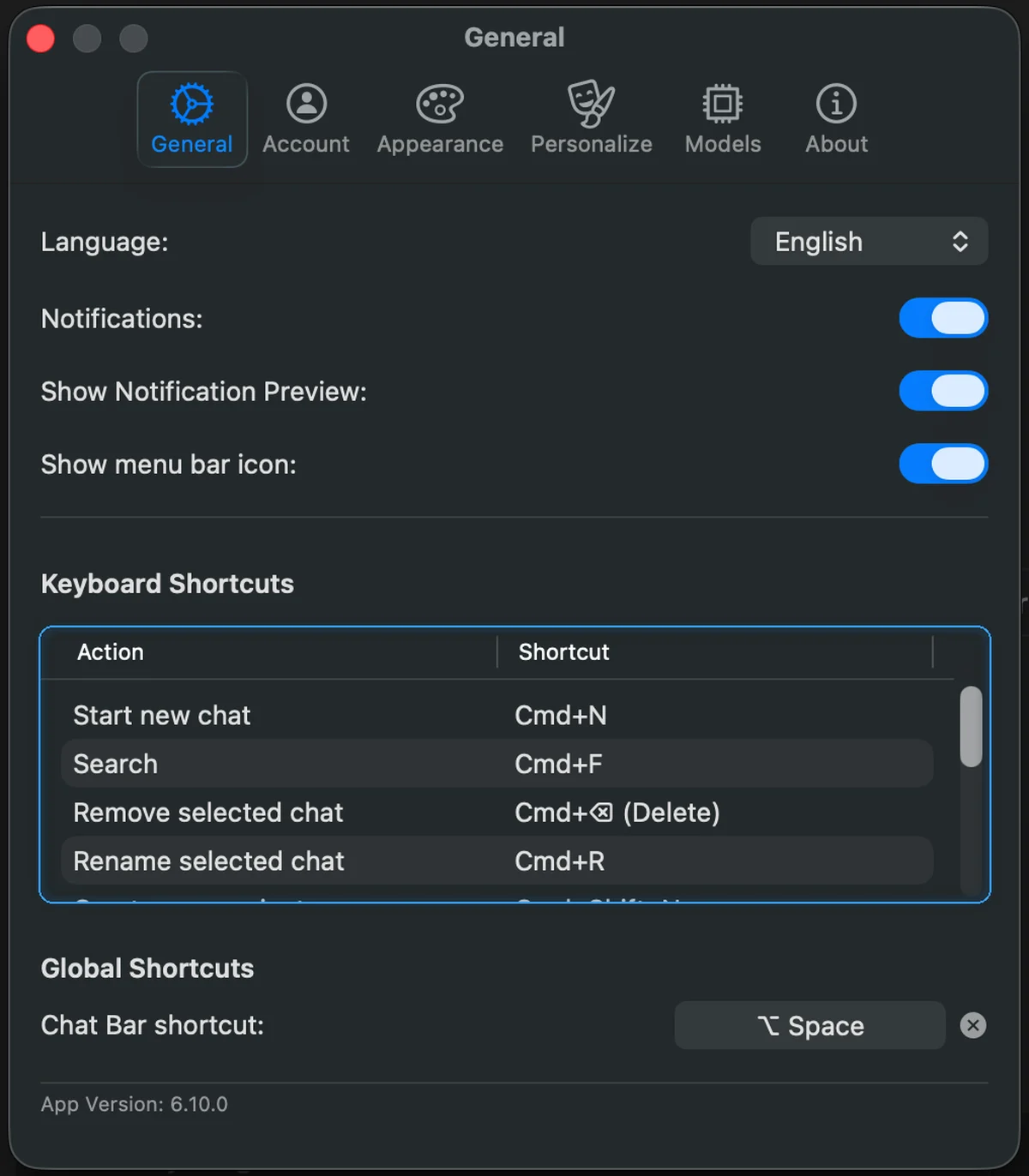
You don't have to remember this page. Choose Help → Keyboard Shortcuts and Fello AI opens Settings → General with the full table.
Good to keep in mind
- Shortcuts work when the main window is active, not inside the Chat Bar or Settings.
- ⌥ Space is the exception. It works from any app.
- Return sends your message, so use ⇧ Return when you want a new line.
Was this guide helpful?
Thanks for letting us know.
Back to Getting Started